
The best computer monitor for students should make assignments easier to read, provide space for the applications you actually use, and connect to your computer without unnecessary adapters. The Dell S2725DC is our default feature-based choice for a versatile study workstation. The ASUS VA24EHF serves simpler setups, while the ASUS ProArt PA278CV, Dell S2725QS, Gigabyte M27Q rev. 2.0, and Dell S3425DW address creative work, finer detail, gaming, and wide multitasking layouts respectively.
- Quick answer: The best computer monitor for students depends on the desk
- Quick comparison: Six monitors and their practical trade-offs
- How this shortlist was selected
- Dell S2725DC: A versatile starting point for a student workstation
- ASUS VA24EHF: A compact choice for basic assignments
- ASUS ProArt PA278CV: A focused option for creative students
- Dell S2725QS: A high-resolution choice for detailed reading
- Gigabyte M27Q rev. 2.0: A candidate for studying and PC gaming
- Dell S3425DW: An ultrawide option for a larger study desk
- Match the monitor to the work, not just the major
- Buying guide: Choose the screen your computer can support
- A realistic student budget includes more than the monitor
- Frequently asked questions
- Final verdict: Buy for your daily assignments
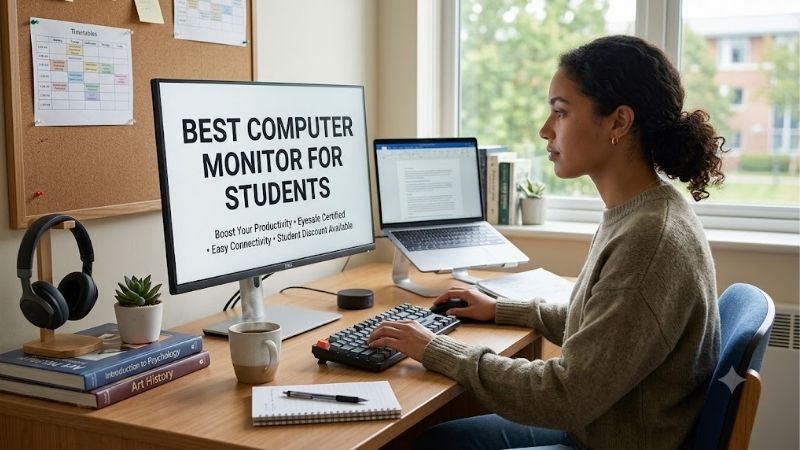
Quick answer: The best computer monitor for students depends on the desk
For a permanent study desk, start by comparing a 27-inch QHD display with a smaller 24-inch-class Full HD model. QHD means 2560 × 1440 pixels; Full HD means 1920 × 1080. The additional pixels can help when you keep research beside a document or an editor beside reference material.
The larger option is worthwhile only if it fits your space and spending limit. A monitor that crowds your keyboard or forces an awkward viewing position is a poor upgrade, regardless of its specifications.
The S2725DC receives the default recommendation because it combines a useful general-purpose workspace with stand adjustment and laptop-friendly connectivity. It can also connect to a desktop, although desktop owners may place less value on its charging capability.
Choose another model when you have a clear reason: less desk space, creative-course requirements, a preference for high pixel density, regular gaming, or the need to arrange several windows horizontally. No model here is ranked as the cheapest.
Quick comparison: Six monitors and their practical trade-offs
| Exact model | Recommended role | Panel and resolution | Refresh specification | Important limitation |
|---|---|---|---|---|
| Dell S2725DC | Versatile PC and laptop study desk | 27-inch IPS, 2560 × 1440 | 144Hz | USB-C charging tops out at 65W |
| ASUS VA24EHF | Straightforward homework setup | 23.8-inch IPS, 1920 × 1080 | Maximum 100Hz | HDMI-only video input; tilt-only stand |
| ASUS ProArt PA278CV | Color-oriented creative coursework | 27-inch IPS, 2560 × 1440 | Maximum 75Hz | Not the high-refresh gaming choice |
| Dell S2725QS | Detailed reading and high-resolution interfaces | 27-inch IPS, 3840 × 2160 | 120Hz | No USB-C video-and-charging connection |
| Gigabyte M27Q rev. 2.0 | Coursework plus PC gaming | 27-inch IPS, 2560 × 1440 | 165Hz; 170Hz overclocked | Only 10W USB-C power delivery |
| Dell S3425DW | Wide spreadsheets and multiple windows | 34-inch curved VA, 3440 × 1440 | 120Hz | No full-size DisplayPort input |
These specifications establish supported display modes, not independently measured gaming performance. Check the computer output, cable, and monitor input together before assuming a particular resolution and refresh rate will work.
How this shortlist was selected
We checked manufacturer specifications for the exact models and revision listed. Selection focuses on academic use: readable workspace, practical connections, positioning, and features that support a defined student workflow.
This is a research-based roundup, not a report of laboratory testing. We do not claim measured input lag, motion response, color accuracy, or long-term durability. Manufacturer claims are identified where relevant.
The list deliberately includes different formats rather than six interchangeable screens. The compact model addresses limited space, while the ultrawide requires a larger desk and a workload that benefits from horizontal room.
Comparable US prices were not verified across the entire shortlist. Recommendations therefore describe functional fit rather than price-based winners. Treat any budget you set as a total allowance, including tax, delivery, and required accessories. Confirm the exact seller offer before ordering.
Dell S2725DC: A versatile starting point for a student workstation
The S2725DC offers QHD resolution, 144Hz refresh, HDMI, DisplayPort, and USB-C video with up to 65W charging. Its stand supports height adjustment, tilt, swivel, and pivot, and it includes speakers.
That feature mix works for a student who uses a desktop at home, a compatible laptop, or both at different times. You can select the connection that fits the computer instead of building the purchase around one connector.
Its main limitation concerns laptop power. A higher-demand machine may need its original charger even while receiving video through USB-C.
Buy if: You want a flexible everyday screen and will use its connection or stand features.
Skip if: You only need a basic HDMI display and the extra capabilities would go unused. The VA24EHF is the simpler alternative; the S2725QS emphasizes resolution instead.
ASUS VA24EHF: A compact choice for basic assignments
The VA24EHF provides a 23.8-inch 1080p IPS screen with up to 100Hz refresh. Its single HDMI input keeps the connection straightforward when your computer has a compatible output.
It suits a student whose main tasks are writing, browsing course materials, and watching lessons. With a laptop, the built-in screen can remain available for supporting material rather than requiring everything to fit on one display.
The stock stand adjusts only for tilt, and there are no speakers. ASUS specifies 100 × 100mm VESA mounting, but adding a mount changes the complete cost.
Buy if: Your coursework is uncomplicated, HDMI works directly, and the screen fits your desk.
Skip if: You need portrait rotation, integrated charging, or more pixel workspace. Compare the S2725DC for a more flexible workstation and the PA278CV for creative-course features.
ASUS ProArt PA278CV: A focused option for creative students
ASUS lists 100% sRGB coverage and a Delta E below two accuracy claim for the PA278CV. These are manufacturer specifications, not independent measurements from this guide.
The 27-inch QHD IPS panel, color-adjustment controls, and adjustable stand make it relevant to photography, illustration, and web-design assignments. USB-C supports video and up to 65W charging; HDMI and DisplayPort provide other connection options.
Its maximum 75Hz refresh is the main distinction from the faster models. Also, an sRGB-focused specification does not automatically qualify it for every wide-gamut or HDR production requirement.
Buy if: Your assignments call for color-oriented controls and a flexible editing workspace.
Skip if: Your priority is fast-paced gaming or ordinary text work. Consider the M27Q for a gaming-focused setup or the S2725DC for general-purpose features.
Dell S2725QS: A high-resolution choice for detailed reading
The S2725QS combines a 27-inch IPS panel with 3840 × 2160 resolution and 120Hz operation. Its higher pixel density is the defining reason to consider it for fine text, diagrams, and detailed application interfaces.
The adjustable stand includes pivot, and integrated speakers cover basic audio needs. Two HDMI inputs and DisplayPort support conventional computer connections, but there is no USB-C laptop-docking connection.
Check the source computer’s capabilities carefully. A display supporting 4K at 120Hz does not make every laptop port or adapter capable of sending that mode.
Buy if: You prioritize a detailed image and can provide a suitable video connection.
Skip if: Convenient laptop charging matters more than pixel density. The S2725DC is the more relevant alternative. Expect to adjust interface scaling to keep text comfortable at your normal viewing distance.
Gigabyte M27Q rev. 2.0: A candidate for studying and PC gaming
The M27Q rev. 2.0 provides QHD resolution with 165Hz operation and an optional 170Hz overclocked mode. Its KVM can share connected keyboard and mouse peripherals between appropriately configured computers.
This is relevant when a student combines a study laptop with a gaming desktop. The stand adjusts in height and tilt but does not provide stock-stand swivel or portrait pivot.
USB-C carries video, yet its power delivery is limited to 10W. It should not be treated as a laptop-charging replacement. There are no integrated speakers.
Buy if: You want a QHD gaming-capable specification alongside a useful academic workspace and computer-switching feature.
Skip if: Charging convenience or stand rotation takes priority. The S2725DC better addresses those requirements. Check that the seller identifies rev. 2.0; specifications should not be transferred between revisions.
Dell S3425DW: An ultrawide option for a larger study desk
The S3425DW uses a curved 34-inch VA panel with 3440 × 1440 resolution and 120Hz refresh. Compared with standard QHD, its extra pixels extend horizontally while the vertical pixel count remains 1440.
Dell lists two HDMI inputs, USB-C video with up to 65W charging, integrated speakers, and height adjustment. Its approximately 31.78-inch width makes desk fit a major consideration.
There is no full-size DisplayPort input. A desktop equipped primarily with DisplayPort therefore needs a verified compatible connection solution rather than an assumed direct cable.
Buy if: You regularly arrange wide spreadsheets or several reference windows and have adequate space.
Skip if: You prefer a compact screen, portrait orientation, or a flat panel. The S2725DC is the conventional-size alternative. The curved ultrawide format is a workflow choice, not a universal academic upgrade.
Match the monitor to the work, not just the major
Academic programs contain different tasks, and students within the same major may use their computers differently. Shop around the applications and documents that dominate your week.
Writing, research, and online classes
For essays and reading, prioritize a comfortable text size and the ability to keep supporting material visible. A compact screen can be sufficient when you mostly use one main window.
If you repeatedly compare a PDF with your draft, additional pixel workspace becomes more useful. Before buying, try arranging those windows on your current display to identify whether the limitation is physical size, resolution, or poor window management.
Do not buy an ultrawide solely because it sounds productive. A larger layout helps when your task needs it; otherwise it can consume space you would rather use for notes.
Programming, statistics, and engineering assignments
An editor, documentation page, terminal, and preview window can quickly crowd a screen. QHD is a practical starting point for comparing larger application layouts, while ultrawide space can help with horizontal arrangements.
However, a monitor does not accelerate compilation, simulation, or data processing. If the computer itself struggles with your course software, spending more on the display will not resolve that problem.
Separate visibility requirements from computing requirements. Choose the screen for seeing and organizing the work, and evaluate processor, memory, or graphics needs independently when the application demands them.
Photography, design, and video coursework
Check the assignment’s expected color space and delivery format. Web graphics, print preparation, and HDR video are different requirements, so one broad claim of good color cannot settle the purchase.
Gamut coverage describes the range of colors a monitor can reproduce. It does not, by itself, establish accuracy, uniformity, or suitability for every production workflow.
Choose the PA278CV for its documented creative-oriented feature set when those features match the course. If color-critical work drives the decision, seek relevant independent testing and plan an appropriate calibration workflow rather than relying solely on a specification sheet.
Buying guide: Choose the screen your computer can support
Compatibility starts with the exact computer. Check its outputs and documentation before comparing monitor features, especially when using adapters, docks, or multiple displays.
Desktop connections and spare outputs
For a desktop with a dedicated graphics card, inspect that card’s available outputs. Connecting the display there is generally the straightforward approach when supported.
Do not assume a motherboard HDMI connector is active simply because it exists. Its operation depends on the system’s graphics capabilities and configuration.
Prefer a direct connection when possible. If an adapter is required, confirm its direction and supported display modes. A cable marketed with familiar connectors does not necessarily provide the conversion your setup needs.
Laptop ports and power delivery
USB-C can simplify a laptop desk, but video support and charging support must be checked separately. The laptop port needs the appropriate video functionality, and the machine must accept the monitor’s charging method.
Compare available power with the laptop’s documented requirements. Even a compatible 65W connection may not replace the original charger for demanding workloads.
If you already own a working dock, assess whether a charging-capable monitor duplicates capabilities you have. Convenience is useful, but unnecessary overlap can raise the cost without improving your workflow.
Resolution, scaling, and readable text
More pixels can provide finer detail or more room for applications, depending on scaling. A 4K screen at increased scaling does not necessarily show four times the usable workspace of a 1080p display.
Use native resolution and set scaling for comfortable reading. Evaluate your normal document and application interfaces rather than judging only a colorful demonstration image.
If possible, view a similar size-and-resolution combination before buying. Text preferences differ, and a theoretically spacious layout is unhelpful if the interface is too small for you.
Desk depth, stand adjustment, and accessories
Measure the available workspace after accounting for your keyboard, mouse, books, and laptop. Screen diagonal alone does not reveal product width or stand depth.
Height adjustment and tilt can help position the screen without buying additional hardware. Portrait pivot is useful only when your reading or coding habits benefit from it.
Consider an arm after identifying a specific placement problem. Check the mounting pattern, supported weight, and desk-clamp compatibility. A mount cannot create more usable desk width if the screen itself is too wide for the space.
A realistic student budget includes more than the monitor
Set a complete spending limit in USD, including tax and any shipping charges. Reserve money for required cables, adapters, or a missing stand before comparing the display price.
A hypothetical $250 allowance does not mean every $250 monitor fits the budget. If another component is required to make it usable, that cost belongs in the same calculation.
Used and refurbished options can be worth considering, particularly when the original adjustable stand is included. Verify the actual unit’s condition, working inputs, model label, and return terms. Do not infer condition from the original manufacturer’s specifications.
For a local purchase, inspect small text and solid-color backgrounds, test the input you intend to use, and check for damaged connectors. For a shipped purchase, evaluate how practical a return would be.
Keep a functioning monitor when it already meets your needs. Upgrade after identifying a recurring limitation, such as insufficient workspace, an unusable connection, or poor physical fit.
Frequently asked questions
What size is the best computer monitor for students?
A 24-inch-class display is a sensible compact starting point, while 27 inches often suits a permanent workstation with more room. A 34-inch ultrawide should follow a specific multitasking need. Match physical size to desk depth and resolution to the applications you use.
Is a gaming monitor suitable for schoolwork?
Yes, provided its resolution, text presentation, stand, and connections suit your study setup. High refresh does not prevent productivity use, but it does not replace workspace or positioning. Choose gaming features because you will use them, not because they automatically make coursework easier.
Should I buy one ultrawide or two regular monitors?
An ultrawide offers a continuous horizontal canvas. Two displays can separate tasks more clearly and allow different orientations, but they need additional space and appropriate computer outputs. Compare total cost and your preferred window arrangement rather than assuming either format is always better.
Do built-in speakers also provide a microphone?
No. Speakers handle audio output; a microphone is a separate capability. Check it explicitly if you need an integrated conferencing solution. Students who already use a headset may have no reason to pay extra for additional audio hardware in the monitor.
Will buying 4K make my computer faster?
No. Higher resolution changes the display output, not the computer’s processing capability. It can improve visible detail, but rendering games at more pixels can increase graphics demands. Choose resolution for the work you need to see and confirm the computer can drive the desired mode.
Final verdict: Buy for your daily assignments
The S2725DC is the most versatile starting point on this feature-based shortlist. The VA24EHF covers simpler homework needs, and the PA278CV addresses creative-oriented coursework.
Choose the S2725QS when fine detail takes priority, the M27Q rev. 2.0 when PC gaming is a substantial second role, or the S3425DW when horizontal workspace justifies an ultrawide.
Check the exact connection, desk dimensions, and complete purchase cost before deciding. A well-matched monitor should make the work easier to see and organize without exhausting the rest of your equipment budget.
Editorial Source Log
Research access date: October 14, 2026.
Evidence basis: Manufacturer documentation. Recommendations are editorial judgments based on features and workflow fit. No hands-on experience, measured gaming performance, or independently verified color-accuracy results claimed.
| Model | Verified evidence | Exact source |
|---|---|---|
| Dell S2725DC | QHD IPS, 144Hz, HDMI/DisplayPort, USB-C video with 65W power delivery, stand adjustments, speakers | Dell US specifications |
| ASUS VA24EHF | 23.8-inch 1080p IPS, maximum 100Hz, HDMI input, tilt-only stand, VESA mounting, no speakers | ASUS US specifications |
| ASUS ProArt PA278CV | QHD IPS, maximum 75Hz, sRGB coverage, manufacturer accuracy claim, USB-C 65W, adjustable stand | ASUS US specifications |
| Dell S2725QS | 27-inch 4K IPS, 120Hz, adjustable stand, speakers, HDMI and DisplayPort inputs | Dell US specifications |
| Gigabyte M27Q rev. 2.0 | QHD IPS, 165Hz/170Hz overclocked, KVM, USB-C 10W, stand limitations, no speakers | Gigabyte revision-specific specifications |
| Dell S3425DW | Curved 34-inch VA, 3440 × 1440/120Hz, HDMI and USB-C video, 65W charging, height adjustment, dimensions | Dell US specifications |
Duplication note: This keyword substantially overlaps the earlier “best monitors for students” brief. For the same website, merge these into one student-monitor roundup rather than publishing both as competing pages. The fixed-desk angle here does not establish a clearly separate search intent.
Pricing and Amazon verification: No comparable six-model price survey completed. Amazon offers, sellers, condition, and availability were not verified for the featured shortlist. No price-based winners or confirmed Amazon availability claims included.
Ready to decide? Our #1 pick for 2026 is the Dell S2725DC.
Live price & availability on Amazon.









