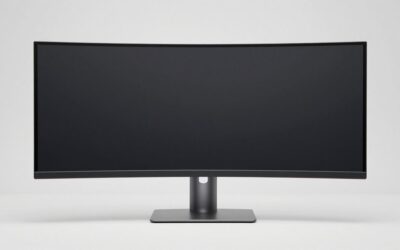
The ultrawide curved monitor for programming that makes the most sense for your desk should provide readable code, enough horizontal space for an editor and terminal, and convenient connectivity for your computer. For most developers, a 34-inch 3440 × 1440 display is a sensible starting point. A 40-inch 5120 × 2160 monitor is a better premium choice when sharper text and additional workspace justify the cost. The following seven monitors cover different needs, from professional productivity and laptop docking to high-refresh gaming after work.
Quick answer: For most people in 2026, the best ultrawide curved monitor for programming is the Monitor — our #1 rated choice. See the full ranked comparison, alternatives and buying advice below.
Best ultrawide curved monitor for programming: quick verdict
Research basis: Official manufacturer specifications and available independent monitor reviews. No personal detailed research is claimed.
| Monitor | Best for | Key specifications | Main trade-off |
|---|---|---|---|
| Dell UltraSharp U3425WE | Best overall for work-first programming | 34.1-inch, 3440 × 1440, 120Hz, IPS Black, Thunderbolt 4 | Premium productivity pricing; no HDR support |
| Dell UltraSharp U4025QW | Best premium coding display | 39.7-inch, 5120 × 2160, 120Hz, IPS Black | Expensive and requires substantial desk space |
| Samsung ViewFinity S6 S65UC | Best curved office monitor for mixed tasks | 34-inch, 3440 × 1440, 100Hz, USB-C, KVM | VA panel and conventional QHD ultrawide pixel density |
| LG 34WQ73A-B | Best for laptop-based development | 34-inch, 3440 × 1440, IPS, USB-C with 90W power delivery | Limited to conventional office refresh performance |
| LG UltraWide 38WR85QC-W | Best for coding and gaming on a larger screen | 37.5-inch, 3840 × 1600, 144Hz, Nano IPS | Requires more desk space and a capable graphics output |
| MSI MAG 342CQR E2 | Best gaming-focused coding monitor | 34-inch, 3440 × 1440, 180Hz, VA | No USB-C docking; HDMI has a lower refresh-rate limit |
| Alienware AW3425DWM | Best for gaming-first developers | 34-inch, 3440 × 1440, 180Hz, VA | Motion smearing can occur; limited productivity connectivity |
The Dell U3425WE is the most balanced work-first choice because it combines useful resolution, IPS Black contrast, 120Hz refresh, and an extensive Thunderbolt hub. The U4025QW is the premium alternative for developers who want noticeably finer text and additional vertical resolution. For a laptop setup with integrated switching features, the Samsung S65UC and LG 34WQ73A-B are worth considering.
The gaming-oriented MSI and Alienware models make more sense when high-refresh gaming is an important part of the purchase rather than an occasional bonus.
How we selected these curved ultrawide monitors
Programming involves more than the number of pixels a monitor can display. A developer may keep an IDE open alongside a terminal, documentation, browser-based previews, a database client, and a debugging interface. The screen needs to make these elements comfortable to read without forcing constant window switching.
The selection prioritizes native resolution, text clarity, workspace, curvature, panel characteristics, ergonomics, and connections. USB-C power delivery and integrated KVM functionality receive extra consideration because they can simplify a desk shared by a laptop and desktop. Refresh rate matters most for people who also game or simply prefer smoother desktop motion.
Manufacturer specifications establish the core features. Independent testing provides additional context where available, particularly for text clarity, responsiveness, and gaming limitations. None of these monitors is presented as personally tested against the others under a controlled programming workload.
Price categories can change quickly, so the recommendations are based on features and intended use rather than unverified promotional prices. Exact model variants and the current US seller listing should be confirmed before purchasing.
The seven best ultrawide monitors for programming
Dell UltraSharp U3425WE: best overall for work-first programming
The Dell UltraSharp U3425WE is a strong choice for developers who want a productive workspace without moving to a particularly large 40-inch display. Its 34.1-inch IPS Black panel has a native resolution of 3440 × 1440, a 21:9 aspect ratio, a 1900R curve, and a maximum 120Hz refresh rate.
At approximately 110 pixels per inch, it provides enough detail for typical code editors, terminals, browser windows, and development tools. The resolution leaves useful room for a primary editor and secondary panels, although it does not match the fine text rendering of a 5K2K screen.
The IPS Black panel has a manufacturer-rated 2000:1 native contrast ratio, while the stated color coverage includes 100% sRGB and 98% DCI-P3. This is useful for developers who also work with web design, interface mockups, or visual assets, although color-critical work still benefits from appropriate calibration and workflow checks.
Its biggest practical advantage is connectivity. The Thunderbolt 4 upstream connection supports video, data, and up to 90W of power delivery. The display also includes a USB hub, a built-in KVM switch, picture-by-picture functionality, and 2.5GbE Ethernet. A compatible laptop can therefore connect through one cable while sharing the monitor and selected peripherals with another computer.
There are compromises. Dell does not provide HDR support on this model, and RTINGS’ independent review notes that fast-moving objects can look blurry despite the 120Hz refresh rate. That matters more for fast gaming than ordinary coding, where the text and multitasking features are more relevant.
Buy it if you want a premium productivity monitor with integrated laptop docking. Skip it if your main priority is extremely sharp text or you need a more gaming-focused display.
Dell UltraSharp U4025QW: best premium coding display
The Dell UltraSharp U4025QW is the more ambitious option for people who regularly work with several large code windows, long documentation pages, and complex development environments. Its 39.7-inch IPS Black panel uses a native 5120 × 2160 resolution and a 2500R curve, with a maximum refresh rate of 120Hz.
The most important difference is pixel density. Dell specifies approximately 140 pixels per inch, compared with about 110 PPI for a conventional 34-inch 3440 × 1440 monitor. That gives text and interface elements a visibly finer pixel structure at a comparable viewing distance, although individual perception also depends on eyesight, scaling, and display calibration.
The extra resolution also provides more vertical workspace. This is useful when reading long source files, examining logs, keeping multiple editor panes visible, or comparing code with technical documentation. It does not eliminate the need for sensible window sizing, but it can reduce the pressure to hide tools behind the active editor.
The connectivity is designed for demanding productivity desks. Dell specifies Thunderbolt 4, an integrated USB hub, a KVM switch, picture-by-picture functionality, 2.5GbE Ethernet, and up to 140W of power delivery through its upstream Thunderbolt connection. Its listed color specifications include 100% sRGB, 99% DCI-P3, and VESA DisplayHDR 600 certification.
The main drawback is the investment required. Dell’s US listing displayed a price of $2,249.99 during research, before applicable taxes and any delivery charges; promotional pricing can change. The large screen also requires a desk with adequate width and viewing distance.
Buy it if you spend long hours working with dense code and multiple windows, and you value sharpness enough to pay for it. Skip it if 3440 × 1440 already accommodates your workflow comfortably.
Samsung ViewFinity S6 S65UC: best curved office monitor for mixed tasks
The Samsung ViewFinity S6 S65UC, model LS34C654UANXGO, combines a 34-inch curved display with 3440 × 1440 resolution and a maximum refresh rate of 100Hz. It is aimed at productivity, multitasking, and general entertainment rather than competitive gaming.
Its 21:9 layout offers enough horizontal room for an editor, terminal, and browser. The 100Hz refresh rate provides a smoother desktop experience than a traditional 60Hz display, while remaining adequate for ordinary development work. The VA panel is a reasonable choice for text and productivity, especially if you prefer stronger native contrast over the characteristics of a conventional IPS panel.
Samsung includes USB-C connectivity, up to 90W charging, a built-in KVM switch, and integrated speakers. These are particularly useful for developers who connect both a work laptop and a desktop computer. The ability to share peripherals between computers can reduce cable clutter and eliminate the need for a separate switching accessory.
The trade-off is that its 3440 × 1440 resolution provides roughly the same pixel density as other 34-inch QHD ultrawides. It offers plenty of workspace, but it will not produce the same fine text as a 5K2K model. HDR10 support should also be treated as a feature label rather than proof of premium HDR picture quality.
Buy it if you want a curved productivity display with laptop connectivity and integrated switching features. Skip it if sharper text, higher refresh rates, or a highly color-critical workflow takes priority.
LG 34WQ73A-B: best for laptop-based development
The LG 34WQ73A-B is a 34-inch curved IPS ultrawide with a native resolution of 3440 × 1440. LG specifies 99% sRGB coverage, HDR10 support, USB-C connectivity with up to 90W power delivery, a built-in KVM switch, and a height-adjustable, tilt-adjustable stand.
For programming, the combination of IPS and USB-C is the key attraction. The screen provides useful space for a development environment and reference material, while its connectivity can simplify a desk built around a compatible laptop. The KVM is helpful when you alternate between a work machine and another computer, provided both systems and peripherals are connected appropriately.
The stated sRGB coverage is also useful for web developers who occasionally need to assess interface colors, illustrations, or front-end layouts. However, gamut coverage alone is not a complete measure of color accuracy, so do not interpret the specification as a substitute for calibration when color reproduction is a professional requirement.
Its main limitation is refresh rate. It is a productivity-oriented display rather than a high-refresh gaming monitor. If you frequently play fast-paced games, a model with 120Hz, 144Hz, or higher may provide a more satisfying mixed-use experience.
Buy it if your day revolves around a laptop, code editor, browser, and shared peripherals. Skip it if gaming performance or very high pixel density is more important than one-cable connectivity.
LG UltraWide 38WR85QC-W: best for coding and gaming on a larger screen
The LG UltraWide 38WR85QC-W provides more physical screen space than a typical 34-inch ultrawide while retaining a productivity-friendly resolution. Its 37.5-inch Nano IPS panel has a native resolution of 3840 × 1600 and a maximum 144Hz refresh rate.
The extra vertical resolution is the important difference. Instead of remaining at 1440 vertical pixels, this model provides 1600, which can help when reading long source files, inspecting larger browser previews, or working with timelines and development panels. Its approximate pixel density is still around 110 PPI, so it gives you more workspace rather than the sharpness jump associated with 5K2K.
LG lists 98% DCI-P3 coverage, VESA DisplayHDR 600 support, NVIDIA G-SYNC Compatible support, and AMD FreeSync Premium Pro. It also includes HDMI 2.1, USB-C with up to 90W power delivery, a built-in KVM switch, and integrated speakers.
This makes it a useful choice for a developer who also plays games or works with visual content. The higher refresh rate benefits compatible games and contributes to smoother desktop movement, while USB-C and the KVM support workstation flexibility.
The screen is physically large, so confirm that your desk can accommodate its width and stand depth. You also need a compatible computer output and cable to reach the maximum refresh rate. The curved format will not suit every user, especially those who strongly prefer a flat display.
Buy it if you want more vertical room than a standard 34-inch ultrawide provides without sacrificing gaming features. Skip it if desk space is limited or text sharpness matters more than screen size.
MSI MAG 342CQR E2: best gaming-focused coding monitor
The MSI MAG 342CQR E2 is a gaming-oriented option for developers who want a curved ultrawide that can also handle fast-paced games. It uses a 34-inch VA panel with a 3440 × 1440 resolution, a 1500R curve, and a maximum refresh rate of 180Hz.
The native resolution provides the familiar 21:9 coding workspace, while the high refresh rate is more relevant when gaming after work than when editing source files. AMD FreeSync Premium support can help reduce tearing in compatible setups, and the VA panel is designed to provide relatively strong native contrast.
Connectivity is less focused on laptop docking than on straightforward gaming use. MSI lists DisplayPort 1.4a and two HDMI 2.0b inputs. Its specification sheet states that DisplayPort supports 3440 × 1440 at up to 180Hz, whereas HDMI is limited to 100Hz at that resolution. Use DisplayPort if you want the full refresh rate from a compatible graphics card.
The monitor includes height adjustment, tilt, swivel, and a VESA mounting pattern, making it easier to adapt the screen to the desk. However, it lacks the USB-C power delivery and extensive hub functionality offered by the productivity-focused Dell and LG options.
Buy it if you want one curved 34-inch monitor for coding and gaming, and you do not need laptop charging through the display. Skip it if integrated docking and a large USB hub would simplify your desk more than a 180Hz refresh rate.
Alienware AW3425DWM: best for gaming-first developers
The Alienware AW3425DWM is another 34-inch, 3440 × 1440 curved ultrawide, with a VA panel, 1500R curvature, and a maximum 180Hz refresh rate. Its high refresh rate and adaptive-sync support are primarily gaming features, but the same widescreen layout can accommodate a code editor and supporting applications.
Dell specifies support for AMD FreeSync Premium and VESA Adaptive-Sync, alongside HDMI 2.1 and DisplayPort 1.4. The monitor’s color specification includes 95% DCI-P3 coverage, and its native VA contrast can make dark interfaces look more satisfying than on some conventional IPS panels.
It is not as versatile as a productivity hub. The USB connections provide a basic hub rather than an integrated USB-C docking solution, and there is no listed USB-C laptop power-delivery connection. You may still need a separate dock if the monitor is part of a laptop-based desk.
Independent testing from RTINGS finds that the AW3425DWM has good gaming responsiveness overall, but fast-moving objects can show smearing, and variable-refresh-rate flicker can be distracting in some scenes. Those issues do not prevent ordinary coding, but they are relevant if gaming is the main reason you are considering it.
Buy it if gaming is a major priority and programming is the second use case. Skip it if you primarily want a quiet, productivity-oriented workstation with integrated laptop docking.
How to choose an ultrawide curved monitor for programming
Resolution and text clarity
A 34-inch 3440 × 1440 monitor is the conventional starting point for a curved ultrawide coding setup. It gives you 4,953,600 pixels across a wide 21:9 screen and provides useful space for multiple windows without the connection demands of higher-resolution displays.
Its limitation is pixel density: approximately 110 PPI. That is adequate for many developers, but smaller fonts and thin strokes can look less refined than on a higher-density panel. A 39.7-inch 5120 × 2160 display such as the Dell U4025QW raises pixel density to roughly 140 PPI and also provides substantially more vertical pixels.
Resolution is not the only factor in comfortable reading. Operating-system scaling, editor font choice, viewing distance, and eyesight influence how much code you can comfortably display. Increasing the resolution while using appropriately scaled text can be more useful than forcing tiny fonts onto a lower-resolution screen.
Curvature and desk layout
Curvature is expressed as a radius in millimeters. A smaller number indicates a more pronounced curve, while a larger number indicates a gentler curve. For example, a 1500R monitor curves more sharply than a 2500R model.
A stronger curve can make the edges of a wide panel feel closer to your natural viewing position. That can be useful when you keep an editor in the center and reference windows toward the edges. However, preference is personal, and the curve does not increase resolution or reduce the number of pixels needed to render code.
Measure the full stand footprint and available desk depth before buying. The display should sit far enough away that you can see its full width without constant head movement. If you work with a laptop as well as the ultrawide, leave space for the laptop display or a separate stand.
Panel type and contrast
IPS panels tend to offer wide viewing angles and are common in productivity-oriented displays. IPS Black aims to improve native contrast while retaining the general characteristics of IPS. VA panels often deliver stronger native contrast, which can be appealing for dark editor themes and evening use.
Neither panel type automatically guarantees good text clarity. Pixel structure, sharpness processing, subpixel layout, and the monitor’s overall tuning also influence the appearance of small fonts. When possible, consult independent testing of the exact model rather than relying only on panel labels.
OLED can be attractive for users who also play games or create visual content. For a developer who leaves a code editor, taskbar, and other static interface elements on screen for long periods, however, burn-in risk and text rendering deserve careful consideration. An LCD ultrawide is often the simpler choice for a display that spends most of its life showing code.
Refresh rate and connectivity
A 60Hz monitor is generally sufficient for writing code, debugging, and reading documentation. Moving to 100Hz or 120Hz can make scrolling and cursor movement appear smoother. The benefit from 144Hz or 180Hz is more meaningful if you regularly play games that can render at higher frame rates.
Refresh rate does not make code compile faster. Build times and application responsiveness depend on your CPU, memory, storage, software, and workload.
USB-C can simplify a laptop setup when it supports video output, data, and sufficient power delivery. Before choosing a display, check the actual power rating and your laptop’s charging requirements. Also verify which input supports the resolution and refresh rate you want. A monitor may support 120Hz or higher through DisplayPort or USB-C while offering a lower limit through another input.
Common buying mistakes to avoid
The most common mistake is choosing screen size without checking resolution. A very wide 3440 × 1440 display may provide ample room, but it does not offer the same text density as a 5120 × 2160 panel.
Another mistake is paying for a high refresh rate when you do not game. A 180Hz monitor may be a good purchase for a mixed-use desktop, but a sharper panel or better connectivity can provide more practical value for a developer who spends nearly all day in an IDE.
Do not assume USB-C automatically means laptop charging, or that all USB-C ports support the same display bandwidth. Check the manufacturer documentation for the exact model and port. Likewise, do not assume every monitor includes a KVM switch just because it has multiple video inputs.
Finally, remember that an ultrawide is not automatically a replacement for every multi-monitor setup. If you need physically separate screens for different viewing angles, or if your applications work better across two independent displays, a dual-monitor arrangement can remain the better fit.
Frequently asked questions
Is a 34-inch ultrawide good for programming?
Yes. A 34-inch 3440 × 1440 display offers substantial horizontal workspace for an editor, terminal, browser, and documentation. It is a practical choice for many developers, although users who prioritize very sharp text may prefer a higher-resolution 40-inch 5K2K panel.
Is a curved monitor better than a flat monitor for coding?
A curved monitor can make the edges of a wide display feel easier to view, especially when windows extend across the screen. It is not automatically better for every developer. A flat screen may suit users who prefer a conventional geometry or who work with content that benefits from a more uniform visual presentation.
Is 1440p enough for programming?
Yes. The 3440 × 1440 resolution found on many 34-inch ultrawides is sufficient for common programming workflows. The main trade-off is pixel density rather than raw workspace. A higher-resolution monitor is worth considering if you work with small text, detailed interfaces, and many windows at once.
Should programmers buy a 120Hz or 180Hz monitor?
Choose based on how you use the display. A 120Hz monitor is already a useful upgrade for smooth desktop movement and can suit both work and gaming. A 180Hz model makes more sense when gaming is a significant part of the setup. Neither refresh rate improves compilation speed or code execution performance.
Final verdict
For a work-first setup, the Dell UltraSharp U3425WE offers a balanced combination of 3440 × 1440 resolution, 120Hz refresh, IPS Black contrast, Thunderbolt 4, and integrated productivity features. The Dell UltraSharp U4025QW is the premium choice if you want much finer text and additional vertical workspace. The Samsung S65UC and LG 34WQ73A-B make sense for laptop-centered desks, while the LG 38WR85QC-W provides a larger canvas with strong gaming features. Choose the MSI MAG 342CQR E2 or Alienware AW3425DWM when high-refresh gaming is an important part of the same setup.
The best monitor is the one that makes your daily workflow more comfortable without spending money on features you will rarely use.rch did not establish a specific existing Build-PC-Guide.com page targeting this exact programming-focused curved-ultrawide query. This was not a complete sitewide duplication audit.
Ready to decide? Our #1 pick for 2026 is the Monitor.
Live price & availability on Amazon.