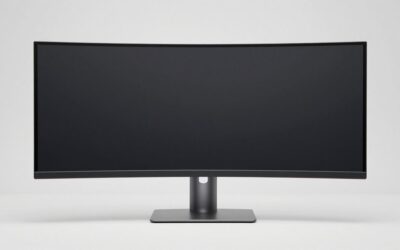
The best curved monitor for AutoCAD should give your drawing, command line, and tool palettes enough room without making dimensions or interface text difficult to read. The Dell UltraSharp U4025QW is the strongest specification-based choice here for a large, detailed workspace, while smaller alternatives make sense for tighter desks. Choose around resolution, comfortable scaling, and your computer’s display outputs before paying extra for refresh rate or docking features.
- Quick verdict: Which curved monitor should you choose?
- Quick comparison table
- How we selected these curved monitors
- The best curved monitor for AutoCAD by workflow
- How to choose the best curved monitor for AutoCAD
- Check AutoCAD and computer compatibility before purchasing
- Desk fit, hidden costs, and purchasing mistakes
- Frequently asked questions
- Final verdict
Quick answer: For most people in 2026, the best curved monitor for autocad is the Dell UltraSharp U4025QW — our #1 rated choice. See the full ranked comparison, alternatives and buying advice below.
Quick verdict: Which curved monitor should you choose?
Start with the Dell UltraSharp U4025QW if you want a large drawing workspace, detailed text, and extensive workstation connectivity. Its combination of 5120 × 2160 resolution and 120Hz refresh gives it the most balanced high-resolution feature set in this shortlist.
Choose the Dell UltraSharp U3425WE when a 34-inch screen better suits your desk. Consider the LG 38WR85QC-W when you want more vertical pixels than a typical 34-inch ultrawide while retaining high-refresh gaming capability.
The LG 40WP95C-W and Lenovo ThinkVision P40w-20 are alternative 5K2K configurations worth comparing when their particular connections or purchasing terms suit your setup. The Philips 346B1C/27 offers another 34-inch docking configuration, with an important USB-C bandwidth trade-off.
These recommendations concern display specifications and workflow fit. They do not establish Autodesk certification, faster rendering, or universal compatibility with every AutoCAD version.
Quick comparison table
Refresh figures below describe manufacturer-listed maximum or supported modes. Your actual mode depends on the input, computer, cable, and configuration.
| Monitor | Suitable workflow | Resolution and panel | Refresh specification | Meaningful drawback |
|---|---|---|---|---|
| Dell UltraSharp U4025QW | Large, detailed single-screen workstation | 5120 × 2160, IPS Black | 120Hz | Demanding connection requirements |
| Dell UltraSharp U3425WE | Smaller workstation with integrated docking | 3440 × 1440, IPS Black | 120Hz; HDMI limited to 100Hz at native resolution | Less vertical workspace |
| LG 38WR85QC-W | CAD work plus high-refresh recreation | 3840 × 1600, Nano IPS | 144Hz | Less pixel detail than 5K2K |
| LG 40WP95C-W | Detailed drafting and general productivity | 5120 × 2160, Nano IPS | Up to 72Hz | Lower refresh ceiling |
| Lenovo ThinkVision P40w-20 | High-resolution multi-computer workstation | 5120 × 2160, IPS | 75Hz through Thunderbolt or DisplayPort | Large, heavy installation |
| Philips 346B1C/27 | 34-inch USB-C and KVM workstation | 3440 × 1440, VA | Up to 100Hz | USB-C configuration affects refresh and USB speed |
How we selected these curved monitors
Selection prioritizes useful drawing space, readable interface detail, verified curvature, and practical workstation connectivity.
Every model is a curved desktop display. The shortlist spans three relevant resolution classes rather than treating all ultrawides as equivalent.
Manufacturer documentation supports the specifications. No hands-on AutoCAD testing, measured productivity improvements, or rendering benchmarks were supplied, so the recommendations do not claim those results.
Pricing is excluded from the ranking because a complete set of comparable current US offers was not established. Consequently, none is labeled the cheapest or best value.
The main selection questions were practical: Can the screen accommodate a drawing and supporting panels? Does its resolution suit the buyer’s scaling preferences? Can the computer drive it? Does the installation fit the desk?
The best curved monitor for AutoCAD by workflow
Dell UltraSharp U4025QW: Best feature combination for a large workstation
Dell specifies a 39.7-inch IPS Black panel, 5120 × 2160 resolution, 120Hz refresh, and 2500R curvature. Thunderbolt 4 supports up to 140W power delivery, and the display includes KVM functionality.
Its appeal is the combination of substantial pixel space and workstation connections. You can organize a drawing beside supporting material without choosing the shallower 1440-pixel format common among smaller ultrawides.
The limitations are installation size and signal requirements. Dell documents DisplayPort operation involving DSC at the highest specified mode; verify the entire connection path.
Pros: High-resolution workspace, 120Hz capability, extensive docking features.
Cons: Large footprint; maximum operation requires compatible hardware.
Buy if your priority is a detailed, integrated single-screen workstation.
Skip if your desk is shallow or your computer cannot support the intended mode.
Alternative: Consider the U3425WE for a smaller installation.
Dell UltraSharp U3425WE: Best fit for a smaller docking workstation
The U3425WE combines a 34.1-inch 3440 × 1440 IPS Black panel with 1900R curvature, Thunderbolt 4, and up to 90W power delivery. Dell lists 120Hz capability, but its native-resolution HDMI specification stops at 100Hz.
This configuration suits a drawing-centered desk that also needs room for reference documents and communication windows.
The compromise is vertical resolution. Toolbars and the command line share 1,440 pixels of height with the drawing area, so it does not provide the same workspace as the larger 5K2K models.
Pros: Smaller format, integrated docking, high-refresh desktop operation.
Cons: Less vertical room; input-specific refresh limits.
Buy if a 34-inch workstation fits your space and applications.
Skip if dense drawings and multiple panels already feel cramped at 1440-pixel height.
Alternative: The LG 38WR85QC-W offers an intermediate resolution class.
LG 38WR85QC-W: Best configuration for CAD and gaming on one screen
LG specifies a curved 38-inch Nano IPS display with 3840 × 1600 resolution and 144Hz refresh. It also lists USB-C with 90W power delivery, a built-in KVM, and height, tilt, and swivel adjustment.
The resolution provides an intermediate option between 34-inch 3440 × 1440 and 40-inch 5K2K configurations. Its high-refresh specification also makes sense for buyers who use the same desk for work and recreation.
That does not prove superior AutoCAD performance or measured gaming response. Those require separate testing.
Pros: Useful intermediate workspace, high-refresh specification, USB-C and KVM features.
Cons: Fewer pixels than 5K2K; still requires substantial desk space.
Buy if you want one display for drafting and high-refresh entertainment.
Skip if maximum text detail is more important than refresh capability.
Alternative: Choose a 5K2K model when additional resolution is the priority.
LG 40WP95C-W: A 5K2K alternative for detail-focused work
The LG 40WP95C-W combines a curved Nano IPS screen, 5120 × 2160 resolution, and Thunderbolt 4 connectivity. LG documentation lists operation up to 72Hz and power delivery up to 96W.
Its reason for consideration is detailed desktop presentation rather than the highest refresh rate. The adjustable stand provides height, tilt, and swivel movement.
Compare it against newer alternatives using actual purchase terms. A lower refresh ceiling is a clear difference from the U4025QW, but it may matter less for predominantly static drafting.
Pros: High-resolution format, Thunderbolt connectivity, adjustable stand.
Cons: Lower refresh ceiling; current offers require individual checking.
Buy if you want the 5K2K format and its particular connectivity suits your computer.
Skip if 120Hz operation is an important requirement.
Alternative: Compare the U4025QW when higher refresh and broader docking features justify the purchase.
Lenovo ThinkVision P40w-20: An alternative for multi-computer workflows
Lenovo documents a 39.7-inch 5120 × 2160 IPS panel with 2500R curvature, KVM support, and Thunderbolt 4 connectivity. Its current PSREF lists 75Hz through Thunderbolt and DisplayPort.
This model merits consideration when switching between computers is central to the workstation.
Installation needs attention: Lenovo lists approximately 21.83 pounds for the display without its stand. Any separate mounting hardware must support the exact load and mounting requirements.
Pros: High-resolution workspace, KVM functionality, workstation-oriented connections.
Cons: Heavy panel; refresh support depends on input.
Buy if your workflow needs this combination of resolution and multi-computer features.
Skip if you need a lightweight installation or higher refresh capability.
Alternative: Compare the U4025QW for its different refresh and docking specification.
Confirm the regional SKU and included accessories before ordering.
Philips 346B1C/27: An alternative for a USB-C and KVM setup
The Philips 346B1C/27 is a curved 34-inch 3440 × 1440 VA monitor with USB-C docking and a built-in KVM. Philips documentation supports refresh operation up to 100Hz.
Its important limitation concerns USB-C configuration. Philips states that the USB 3.2 setting supports native resolution at 60Hz, while selecting USB 2.0 permits 100Hz.
That trade-off matters if you expect high-refresh video and faster USB transfers through the same connection.
Pros: Integrated docking, KVM functionality, practical ultrawide workspace.
Cons: USB-C bandwidth compromise; less vertical resolution than larger alternatives.
Buy if those docking functions fit your equipment and the bandwidth arrangement is acceptable.
Skip if you require both faster USB operation and 100Hz through that USB-C configuration.
Alternative: Compare the U3425WE for a different docking implementation.
How to choose the best curved monitor for AutoCAD
Prioritize vertical resolution as well as width
An ultrawide screen can accommodate a drawing beside properties, layers, or reference material. However, width alone does not guarantee a spacious drawing viewport.
Compare 3440 × 1440, 3840 × 1600, and 5120 × 2160 as distinct workspaces. The vertical difference becomes particularly relevant when the ribbon, command line, and other interface elements remain visible.
Think about your normal layout rather than an empty full-screen drawing. Open a representative project and note which panels you keep active.
If your current difficulty is tiny text, additional pixels alone may not solve it. You may need a larger physical display, different scaling, or a combination of both.
Understand pixel density and scaling
A higher-resolution display can represent text and linework with more detail, but interface size depends on physical dimensions and scaling.
Do not assume that running every display at 100% scaling is the correct target. Choose a setting that makes labels, dimensions, and controls readable from your normal position.
Scaling also means that additional physical pixels do not translate directly into an equally large increase in usable interface space.
When evaluating a monitor, test dimension text, selection grips, crosshairs, dialog boxes, and command-line readability. A visually impressive desktop wallpaper tells you little about those tasks.
Treat curvature as a viewing preference
Curvature does not change the coordinates, lengths, or geometry stored in a drawing. It changes the physical surface through which you view the image.
Some buyers prefer the presentation of a wide curved panel. Others find it distracting when judging long straight features or comparing work with a flat reference.
The radius describes the curve: a smaller radius indicates a tighter curve. It is not a CAD accuracy rating.
If this is your first curved screen, prioritize a return policy that allows realistic evaluation. Use orthographic drawings, grids, and familiar projects rather than deciding from a showroom animation.
Separate drafting requirements from presentation work
For predominantly 2D drafting, readable linework, adequate workspace, and comfortable brightness deserve priority.
If you also prepare rendered presentations or edit project photography, color handling becomes more relevant. Wide gamut, calibration claims, and HDR specifications should then be evaluated for those additional tasks.
A wide color gamut does not automatically guarantee accurate color in every application. Likewise, accepting HDR content does not establish useful HDR performance.
Avoid buying presentation-oriented features simply because they appear beside a professional-sounding product name. Identify the actual work they will support.
Check AutoCAD and computer compatibility before purchasing
A monitor recommendation is not a substitute for checking the installed AutoCAD release and workstation.
Autodesk’s AutoCAD 2026 requirements list conventional and high-resolution display guidance, including a stated resolution up to 3840 × 2160 for the high-resolution category. That page does not establish explicit blanket support for every 5120 × 2160 configuration.
Accordingly, treat the 5K2K models as conditional workstation recommendations. Verify your AutoCAD release, graphics driver, operating system, and scaling behavior, preferably through a test or returnable purchase.
Confirm the complete video connection
Check the graphics output, monitor input, cable, and any dock or adapter together.
A connector being present does not prove that it supports the desired resolution and refresh combination. Input-specific limits in this shortlist demonstrate why the supported timing matters more than the connector label alone.
If a dock is involved, check the simultaneous display configuration. A maximum advertised for one screen may not apply when other displays are connected.
For troubleshooting, establish a direct connection first where practical.
Check charging separately from display support
USB-C or Thunderbolt charging can simplify a laptop desk, but it must meet the laptop’s requirements.
A mobile workstation may still need its original power adapter under demanding workloads. Do not assume that successful video output proves sufficient charging power.
Check the laptop’s accepted charging method and power requirement, along with the supplied cable.
Desktop buyers may gain little from high charging wattage. In that case, prioritize the panel and useful peripheral connections.
Do not confuse display refresh with drawing performance
A higher refresh rate can provide more frequent screen updates when the application and computer deliver them.
It does not independently accelerate opening files, regenerating complex drawings, processing commands, or rendering scenes.
If your current workstation pauses during those operations, investigate the underlying system before expecting a monitor upgrade to resolve the problem.
For predominantly static drawings, additional readable workspace may contribute more than moving from a moderate refresh rate to a higher one.
Desk fit, hidden costs, and purchasing mistakes
Measure the complete enclosure and stand footprint, not just the diagonal. Include space for the keyboard, pointing device, documents, and a comfortable viewing position.
A large display can force the keyboard forward on a shallow desk. An arm may help, but only if the desk, mount, weight capacity, and mounting pattern are compatible.
Calculate the total purchase in USD, including tax, shipping, mounting hardware, and any connection changes. A monitor with integrated docking is useful only if it actually replaces equipment you need.
Avoid these common mistakes:
- Choosing width while ignoring vertical resolution.
- Assuming every input supports the maximum refresh rate.
- Treating manufacturer response-time claims as CAD benchmarks.
- Buying a KVM without checking the required USB connections.
- Expecting a curved screen to improve geometric accuracy.
- Assuming a high-resolution monitor fixes a slow workstation.
Also check return terms, regional model identity, and included accessories. Older models can remain useful, but age alone establishes neither value nor suitability.
Frequently asked questions
Is a curved monitor better than a flat monitor for AutoCAD?
It depends on your viewing preference and workspace. A curved ultrawide can suit a broad single-screen layout, while a flat monitor may feel more natural for some drafting tasks. Compare resolution, physical size, and your actual drawing workflow before choosing by curvature.
Is 3440 × 1440 enough for professional drafting?
It can be sufficient when your drawings, text size, and panels fit comfortably. It provides additional horizontal room over standard 2560 × 1440, but the same physical pixel height. Choose a taller-resolution format when vertical crowding is the problem.
Should I buy one ultrawide or two monitors?
One ultrawide provides a continuous workspace without a central bezel. Two displays can separate drawings from documents or communication tools more distinctly. Consider screen sharing, application placement, desk space, and how often you need independent full-screen windows.
Can I use the monitor’s KVM with two computers?
Potentially, but verify the exact connection arrangement. Video inputs and USB upstream connections must be configured appropriately. A KVM feature does not mean every attached computer automatically receives peripherals through any available video cable.
Final verdict
The Dell UltraSharp U4025QW is the strongest feature-based starting point for buyers seeking a large, detailed curved workstation, provided its 5K2K configuration is verified with their AutoCAD environment.
Choose the U3425WE for a smaller docking setup or the LG 38WR85QC-W for an intermediate workspace with high-refresh capability.
Compare the remaining models when their particular connections and purchasing terms fit your needs. The right choice gives your drawing enough readable space, works with your computer, and fits the desk comfortably.
Ready to decide? Our #1 pick for 2026 is the Dell UltraSharp U4025QW.
Live price & availability on Amazon.