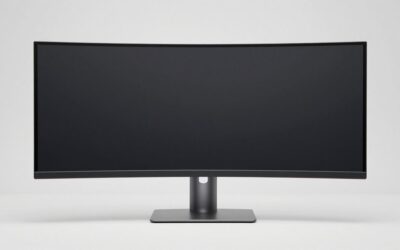
An ultrawide editing monitor should give your timeline, preview, and editing tools enough room without compromising readable text or a dependable color workflow. The Dell UltraSharp U4025QW offers the strongest combination of resolution, refresh rate, and workstation connectivity in this shortlist. Smaller alternatives suit different priorities, including a flat panel, Rec.709-focused work, and a shared editing-and-gaming setup. Choose around your delivery format and workspace before comparing headline color percentages.
- Quick verdict: Which ultrawide editing monitor should you choose?
- Quick comparison table
- How we selected these monitors
- Ultrawide editing monitor recommendations by workflow
- Choose resolution around the preview you need
- Understand color specifications before comparing percentages
- Separate an editing desktop from reference monitoring
- Evaluate HDR, curvature, and refresh realistically
- Check connections and total installation cost
- Frequently asked questions
- Final verdict
Quick answer: Our top pick in 2026 is the Dell UltraSharp U4025QW — our #1 rated choice. See the full ranked comparison, alternatives and buying advice below.
Quick verdict: Which ultrawide editing monitor should you choose?
Start with the Dell UltraSharp U4025QW for a large editing desktop with substantial pixel detail and extensive docking features. Its 5120 × 2160 format is particularly relevant when a 1440-pixel-high ultrawide feels cramped.
Choose the BenQ PD3420Q if you prefer a flat 34-inch screen with creator-oriented color modes. Consider the ASUS ProArt PA34VCNV when your priorities are an SDR workflow and USB-C docking.
The Dell UltraSharp U3425WE suits a smaller workstation that benefits from higher-refresh desktop operation. The LG 40WP95C-W provides another 5K2K configuration, while the LG 38WR85QC-W bridges work and recreation.
These are workflow recommendations based on verified specifications. None is presented as a replacement for a validated reference-monitoring system, and no comparative price winner is assigned.
Quick comparison table
Manufacturer-listed refresh specifications do not guarantee identical operation through every input or dock.
| Monitor | Best suited to | Resolution and panel | Refresh specification | Main compromise |
|---|---|---|---|---|
| Dell UltraSharp U4025QW | Large, detailed editing workstation | 5120 × 2160, IPS Black | 120Hz | Demanding connection and desk requirements |
| BenQ PD3420Q | Flat-screen SDR creative workspace | 3440 × 1440, IPS | 60Hz | Limited height for large previews and stacked panels |
| ASUS ProArt PA34VCNV | Rec.709-oriented laptop workstation | 3440 × 1440, IPS | 60Hz class | Less resolution than 5K2K alternatives |
| Dell UltraSharp U3425WE | Smaller workstation with docking | 3440 × 1440, IPS Black | 120Hz; native-resolution HDMI limited to 100Hz | Less vertical workspace |
| LG 40WP95C-W | Detail-focused editing desktop | 5120 × 2160, Nano IPS | Up to 72Hz | Lower refresh ceiling |
| LG 38WR85QC-W | Editing and high-refresh recreation | 3840 × 1600, Nano IPS | 144Hz | Cannot display a full UHD frame pixel-for-pixel |
How we selected these monitors
This roundup assumes a mixed video-and-photo workflow, with timeline editing as the main reason for choosing an ultrawide.
Selection emphasizes useful resolution, documented color-related features, practical connections, and meaningful differences between models. A flat panel is included because curvature is a preference rather than an editing requirement.
Manufacturer documentation supports the specifications. No detailed research, measured panel uniformity, editing benchmarks, or independently measured color errors are claimed.
Current comparable US prices were not established across all six models, so “budget” and “value” rankings would be misleading.
The models are also desktop editing displays. Their suitability for final color approval depends on the entire monitoring workflow, calibration, viewing conditions, and delivery requirements.
Ultrawide editing monitor recommendations by workflow
Dell UltraSharp U4025QW: Strongest feature combination for a large workstation
Dell specifies a 39.7-inch 5120 × 2160 IPS Black panel with 120Hz operation. Thunderbolt 4 supports up to 140W power delivery, and the display includes KVM functionality. Dell also lists 99% DCI-P3 coverage.
Why we picked it: This combines a detailed editing desktop with extensive workstation connectivity.
The resolution leaves more room for tools than a UHD-width desktop, but a complete 3840 × 2160 preview still consumes the panel’s full pixel height.
Pros: High-resolution workspace, docking features, higher-refresh capability.
Cons: Large installation; highest modes require compatible outputs and connections.
Buy if you want a substantial single-screen editing desktop.
Skip if your desk or computer cannot accommodate it.
Alternative: The U3425WE provides a smaller workstation format.
Its gamut specification is a capability claim, not proof of your unit’s calibrated accuracy.
BenQ PD3420Q: Best fit for a flat creative workspace
BenQ lists a 34-inch 3440 × 1440 IPS panel, 60Hz refresh, 100% sRGB and Rec.709 coverage, and 98% P3 coverage. It also specifies USB-C power delivery up to 65W and dedicated color modes.
Why we picked it: The flat format provides an alternative for editors who dislike curved image presentation.
Its resolution suits a broad timeline, but preview size and stacked panels compete for 1,440 pixels of height.
Pros: Flat presentation, documented color modes, USB-C connectivity.
Cons: Lower refresh; charging capacity may not meet a demanding laptop’s needs.
Buy if a flat SDR editing workspace matches your priorities.
Skip if you need a full UHD preview or high-refresh recreation.
Alternative: Compare the PA34VCNV when docking requirements matter more.
Choose the appropriate mode for your workflow rather than assuming the widest gamut is always correct.
ASUS ProArt PA34VCNV: A practical SDR docking configuration
The PA34VCNV combines a 34.1-inch 3440 × 1440 IPS panel with 3800R curvature. ASUS lists 100% sRGB and Rec.709 coverage, Calman verification, and USB-C docking with power delivery up to 96W.
Why we picked it: Its stated features align with an SDR-focused workstation rather than gaming-first priorities.
The principal limitation is workspace height. More horizontal room does not create a native UHD preview.
Pros: SDR-oriented specification, gentle curvature, laptop docking.
Cons: Lower-resolution format; not a reference HDR recommendation.
Buy if you primarily need an organized Rec.709-oriented editing desk.
Skip if maximum image detail or high-refresh gaming is central.
Alternative: Consider the PD3420Q if you prefer a flat panel.
Factory verification does not remove the need to check the display’s current settings and your application’s color management.
Dell UltraSharp U3425WE: A smaller workstation with higher-refresh operation
Dell specifies a 34.1-inch 3440 × 1440 IPS Black panel with 120Hz capability, Thunderbolt 4, and up to 90W power delivery. Native-resolution HDMI operation is specified up to 100Hz. dell.com
Why we picked it: It offers docking and higher-refresh desktop operation without moving to a 40-inch installation.
That refresh capability does not make exports faster or prove more accurate color.
Pros: Smaller workstation format, docking, higher-refresh desktop use.
Cons: Less vertical space; input-specific refresh limits.
Buy if general workstation use and editing share equal importance.
Skip if detailed full-resolution previews are your main requirement.
Alternative: Choose a 5K2K configuration when additional pixels justify the larger setup.
Check the input you intend to use before comparing its refresh specification with another monitor.
LG 40WP95C-W: An alternative for a detailed 5K2K desktop
The LG 40WP95C-W offers a curved 5120 × 2160 Nano IPS format and Thunderbolt 4 connectivity. LG documentation lists operation up to 72Hz and power delivery up to 96W.
Why we picked it: It provides another route to a detailed ultrawide workspace when maximum refresh is secondary.
Its adjustable stand supports height, tilt, and swivel positioning. Compare actual offers and compatibility rather than assuming an older model is automatically less expensive.
Pros: High-resolution desktop, Thunderbolt connectivity, adjustable positioning.
Cons: Lower refresh ceiling; substantial desk requirements.
Buy if its resolution and connections suit your editing computer.
Skip if 120Hz operation is a firm requirement.
Alternative: Compare the U4025QW for its different refresh and docking combination.
Confirm regional input timings before committing to a particular laptop connection.
LG 38WR85QC-W: Best configuration for editing and recreation
LG specifies a curved 38-inch Nano IPS panel with 3840 × 1600 resolution, 144Hz refresh, USB-C power delivery up to 90W, and a built-in KVM.
Why we picked it: Its format sits between common 34-inch ultrawides and larger 5K2K displays, with high-refresh capability for a shared desk.
It has UHD-width pixels but only 1,600 pixels vertically. A complete UHD frame therefore cannot fit pixel-for-pixel.
Pros: Intermediate workspace, high-refresh specification, multi-computer features.
Cons: Less pixel detail than 5K2K; large physical footprint.
Buy if editing and recreation need to coexist on one screen.
Skip if native UHD inspection is essential.
Alternative: Choose a 5K2K model for more vertical resolution.
The gaming-oriented specifications do not establish measured editing accuracy or panel uniformity.
Choose resolution around the preview you need
3440 × 1440 favors timeline organization
A 3440 × 1440 desktop provides room for a wide timeline, bins, and supporting panels. It can be a useful organizational upgrade from a narrower desktop.
However, it cannot display an entire 3840 × 2160 UHD image at one source pixel per display pixel. The preview must be reduced to show the whole frame, or enlarged so only part is visible.
That does not prevent editing UHD footage. It changes how you inspect it.
If detailed focus checks matter, plan to zoom the preview or use a separate display rather than assuming an ultrawide label means native 4K presentation.
3840 × 1600 offers more height without reaching UHD
This format adds vertical space over 1440-pixel displays and matches UHD’s horizontal pixel count.
The missing vertical pixels still matter. A 2160-pixel-high frame cannot fit completely into 1600 pixels without scaling.
Consider the format when your main goal is a larger editing layout rather than full-frame native-resolution inspection.
For photo work, compare how much room remains after tool panels appear. A physically larger preview is useful, but it should not be confused with additional source detail.
5120 × 2160 provides a different workspace
A 5120 × 2160 panel has enough pixels to contain a UHD frame at one-to-one mapping, with additional horizontal space.
The important qualification is height: the UHD frame occupies all 2,160 pixels vertically. Application chrome, transport controls, and a timeline cannot also fit above or below it without reducing the preview.
This makes 5K2K useful for detailed desktops, but not a guarantee of simultaneous full-resolution preview and a complete editing interface.
Evaluate your software’s full-screen viewer and panel arrangements before purchasing.
Understand color specifications before comparing percentages
Gamut coverage is different from accuracy
Gamut describes the range of colors a display can reproduce. Accuracy concerns how closely the displayed result matches the intended target.
A high P3 percentage does not prove correct white balance, gamma, grayscale tracking, or uniformity. It also does not establish behavior in every available picture mode.
Check which gamut the percentage refers to. Coverage and gamut area are different measurements, and similarly worded marketing claims may not be directly comparable.
For a purchasing decision, match the target color space first. Then look for credible evidence about the relevant mode rather than choosing the largest number.
Use a managed workflow for wide-gamut displays
Wide-gamut capability can be useful, but unmanaged presentation can make some content appear more saturated than intended.
Adobe documents display color management in Premiere and explains that managed monitoring uses the computer monitor’s ICC profile. Configure the application and profile deliberately rather than judging footage from an arbitrary desktop appearance.
Also distinguish source interpretation, sequence settings, monitoring, and export. They are related parts of the workflow, not interchangeable switches.
A monitor purchase cannot correct incorrectly interpreted footage or an inappropriate output configuration.
Calibration and profiling address different problems
Calibration adjusts display behavior toward a target. Profiling describes that behavior for color-managed applications.
A factory report is useful evidence about the manufacturer’s process, but it does not measure your current room, brightness setting, or aging display.
For paid work, budget for an appropriate measurement workflow when color consistency matters. Verify instrument compatibility with the panel technology and software you intend to use.
Avoid assuming that a named creative picture mode is equivalent to a recently measured, validated setup.
Separate an editing desktop from reference monitoring
An ultrawide can organize the application while a separate monitoring path handles final image assessment.
That distinction becomes especially relevant when deliverables require specific color, luminance, or HDR behavior.
Adobe’s guidance for an external display connected through a transmit-compatible video interface recommends matching that display to the sequence’s output color space. Desktop color management and external monitoring therefore require deliberate configuration. Premiere
For ordinary SDR assembly and review, a suitable calibrated desktop display may meet the task. For demanding client approval or HDR mastering, determine the monitoring requirement first.
Do not infer reference suitability from a wide gamut, HDR input support, or a certification badge alone. Those features describe particular capabilities, not the complete result.
Evaluate HDR, curvature, and refresh realistically
HDR support does not establish mastering capability
A display accepting HDR content can still have limitations in black level, brightness, local control, and sustained presentation.
The relevant question is whether it reproduces the range and behavior your delivery requires, under a validated setup.
This roundup does not establish any model as a reference HDR mastering display. If HDR approval is central to your work, investigate that requirement separately.
Buying more timeline space and buying a trustworthy HDR reference are distinct decisions, even when one product advertises both productivity and HDR features.
Curvature is a preference rather than a quality grade
Some editors prefer a curved wide screen; others want a flat surface for photography, graphic work, or shared viewing.
A curve does not change the image file. It changes the physical presentation and how the screen fits your viewing position.
If you are uncertain, evaluate familiar photographs, grids, and editing layouts during a return period. Do not judge suitability solely from an immersive promotional video.
A flat ultrawide remains a valid choice.
Refresh rate should serve the work
Higher refresh can make supported desktop movement more fluid. It does not accelerate rendering or add frames to source footage.
For video assessment, check the selectable refresh modes relevant to your source and output. A maximum figure alone does not describe playback cadence.
For a mixed editing-and-gaming desk, higher refresh may justify a compromise elsewhere. For predominantly static photo work, resolution, uniformity, and a controlled color workflow may deserve priority.
Check connections and total installation cost
Verify the computer output, cable, monitor input, and any dock as one chain. Confirm the intended resolution, refresh, and bit-depth configuration rather than relying on connector shape.
For a laptop, charging is a separate requirement. A monitor may display the desktop correctly while supplying less power than the computer needs under load.
External storage also deserves attention. Sharing a connection among video, USB devices, and storage can introduce configuration-dependent limits. Check the documented arrangement instead of assuming a single cable provides every maximum simultaneously.
Measure the monitor’s enclosure and stand footprint. Include room for speakers, input devices, storage, and a comfortable viewing position.
Set an all-in budget in USD covering tax, shipping, mounting hardware, cables, and any calibration equipment. Integrated docking is valuable when it replaces equipment you actually need.
Frequently asked questions
Is an ultrawide better than two monitors for editing?
It provides a continuous application workspace without a central bezel. Two monitors can separate the editing interface, communication tools, and preview more distinctly. Choose around panel placement, screen sharing, and whether you need an independent monitoring display.
Can I edit 4K video on a 3440 × 1440 monitor?
Yes. Editing resolution and monitor resolution are separate. You can assemble and export UHD footage while viewing a scaled preview. Use an enlarged viewer or separate suitable display when you need detailed pixel-level inspection.
Does an ultrawide make portrait photo editing difficult?
It can leave unused space beside a tall photograph, although that space can hold tools and reference material. Check usable vertical size and resolution. A wider desktop does not automatically provide a larger portrait image.
Should I choose P3 or Rec.709 for editing?
Match the monitoring target to the project and delivery workflow. A display supporting both can be flexible, but the correct mode, profile, and application settings matter more than selecting the widest available gamut.
Final verdict
Choose the Dell UltraSharp U4025QW when a detailed, large editing desktop and extensive connectivity justify the installation. The BenQ PD3420Q offers a flat creative workspace, while the ASUS ProArt PA34VCNV suits an SDR-oriented docking setup. Consider the smaller Dell for general workstation balance, the LG 40WP95C-W for another 5K2K configuration, or the LG 38WR85QC-W for work and recreation.
Ready to decide? Our #1 pick for 2026 is the Dell UltraSharp U4025QW.
Live price & availability on Amazon.