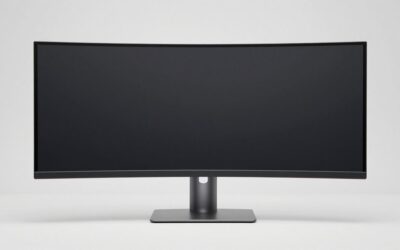
Choosing an ultrawide monitor editing setup starts with your workspace: how much room you need for a timeline, preview, scopes, and tools. A wider screen can reduce window switching, but resolution, color management, and computer compatibility matter more than diagonal size alone. These six monitors suit different editing priorities, from a flat 34-inch creative display to a large 5K2K workstation.
- Quick verdict: Start with your editing workload
- Quick comparison table
- How we selected these ultrawide monitors
- The six monitors in detail
- Ultrawide monitor editing: What resolution actually changes
- Choose color behavior for your deliverables
- Check compatibility before paying for a larger screen
- Plan the desk and total purchase cost
- Check the display during the return period
- Frequently asked questions
- Final verdict
Quick answer: Our top pick in 2026 is the ASUS ProArt PA348CGV — our #1 rated choice. See the full ranked comparison, alternatives and buying advice below.
Quick verdict: Start with your editing workload
For a balanced creator-oriented setup, start with the ASUS ProArt PA348CGV. It combines a 34-inch ultrawide workspace, documented color presets, USB-C charging, and refresh rates up to 120Hz through supported inputs.
Choose the Dell UltraSharp U4025QW when you need substantially more vertical resolution and your computer can drive its intended mode. Its 5120 × 2160 desktop is the defining advantage, with workstation connectivity adding practical value.
The BenQ PD3420Q suits editors who prefer a flat panel and prioritize creative controls over refresh rate. For more physical room and 1600 vertical pixels, compare the LG 38WR85QC-W with the Dell U3824DW.
The HP Z40c G3 is a conditional alternative for editors who also need integrated conferencing features. Its connection-specific resolution limits deserve particular attention before purchase.
These are workflow recommendations based on documented capabilities, rather than measured rankings of color accuracy or current retail value.
Quick comparison table
| Monitor | Editing role | Resolution and refresh | Important trade-off |
|---|---|---|---|
| ASUS ProArt PA348CGV | Flat creator-oriented mixed use | 3440 × 1440, up to 120Hz | HDMI has a lower refresh limit |
| Dell UltraSharp U4025QW | High-resolution editing workstation | 5120 × 2160, 120Hz | Demands compatible graphics output |
| BenQ PD3420Q | Flat photo and SDR editing workspace | 3440 × 1440, 60Hz | Less vertical detail than 5K2K |
| LG 38WR85QC-W | Editing plus high-refresh recreation | 3840 × 1600, 144Hz | Not a native-resolution UHD preview |
| Dell UltraSharp U3824DW | Curved work-first hub | 3840 × 1600, 60Hz | Lower refresh than the LG |
| HP Z40c G3 | High-resolution editing and collaboration | 5120 × 2160, 60Hz on supported connections | Verify input-specific timing limits |
The comparison separates resolution from physical size. A larger panel does not automatically provide more pixels, sharper text, or a more accurate picture.
How we selected these ultrawide monitors
This shortlist focuses on IPS-based displays with useful editing resolutions, documented workstation or creative features, and clearly identified configurations.
Selection criteria include application space, connection requirements, color controls, charging capability, and meaningful differences between models. Gaming features are secondary unless the display also serves recreational use.
No detailed research was performed for this article. Manufacturer gamut and calibration claims are not presented as independent measurements. Current comparable US prices and Amazon listings were not verified, so there are no unsupported budget or value awards.
The recommendations primarily address editing interfaces and SDR workflows. An HDR-compatible input or certification alone does not qualify a display as a reference monitor for final HDR mastering.
The six monitors in detail
ASUS ProArt PA348CGV: A flat creator-oriented starting point
Best for: Editors who want a wide creative workspace without committing to a curved panel or a demanding 5K2K desktop.
Key specifications: ASUS lists a 34-inch IPS panel, 3440 × 1440 resolution, 98% DCI-P3 coverage, a manufacturer Delta E claim below two, and USB-C power delivery up to 90W. Supported DisplayPort and USB-C operation reaches 120Hz; HDMI is limited to 100Hz.
Why we picked it: Its combination of creative presets, laptop connectivity, and higher refresh makes it relevant to editors who also animate, browse, or game.
For editing, the extra horizontal space can accommodate a longer timeline or additional panels. However, its 1440-pixel height still limits how much preview and timeline content can fit vertically.
Performance perspective: The refresh ceiling describes display capability, not faster exports or independently verified motion quality. Use the appropriate preset and validate important color decisions rather than judging by saturation.
Pros: Flat format; creator-oriented controls; useful USB-C charging; refresh flexibility.
Cons: No native-resolution UHD preview; input-dependent refresh limits; factory claims do not establish your unit’s calibrated performance.
Buy if: You want a versatile 34-inch editing display with documented creative features.
Skip if: You need 2160 vertical pixels or a large dock-centered workstation.
Alternative: Choose the U4025QW for more pixel workspace, provided your computer supports it.
Dell UltraSharp U4025QW: More detail for a large editing workstation
Best for: Editors who want a high-resolution ultrawide desktop with substantial connection options.
Key specifications: Dell documents a 39.7-inch curved IPS Black display, 5120 × 2160 resolution, 120Hz refresh, Thunderbolt 4, KVM functionality, and power delivery up to 140W with compatible equipment.
Why we picked it: The resolution changes the editing possibilities more than width alone. It supplies 2160 vertical pixels while adding horizontal space beyond a standard UHD desktop.
A 3840 × 2160 image can geometrically fit at one image pixel per display pixel, leaving horizontal pixels available. That does not guarantee your editing application’s complete interface will fit around it without resizing.
Performance perspective: Native resolution and refresh depend on the complete connection. Dell specifically documents DSC support for its DisplayPort 1.4 high-resolution mode.
Pros: High-resolution canvas; 120Hz desktop operation; substantial hub and charging features.
Cons: Large physical footprint; demanding output requirements; software scaling affects effective workspace.
Buy if: You regularly manage a preview, timeline, and multiple tools on one screen.
Skip if: Your current computer cannot supply the intended mode or your desk is shallow.
Alternative: The PA348CGV offers a smaller, lower-resolution configuration when the workstation features are unnecessary.
BenQ PD3420Q: A flat panel with editing-focused controls
Best for: Photo and SDR video editors who prioritize creative features over high-refresh gaming.
Key specifications: BenQ lists a 34-inch IPS display, 3440 × 1440 resolution, 60Hz refresh, 65W USB-C power delivery, KVM, and a Hotkey Puck G2. Its specifications include sRGB, Rec.709, and P3 modes, plus uniformity technology.
Why we picked it: The flat format and convenient mode controls distinguish it from curved productivity screens and gaming-first ultrawides. BenQ explicitly identifies the screen as flat.
The width is useful for image browsers, layer panels, and timelines. Its limitation is vertical resolution: selecting a larger interface scale leaves less space for the image and controls.
Performance perspective: BenQ lists a factory calibration report, but a report does not replace checking the current display configuration. Gamut coverage, accuracy, and screen uniformity remain separate properties.
Pros: Flat creative workspace; convenient controls; KVM and USB-C connectivity.
Cons: 60Hz ceiling; modest charging compared with some alternatives; no one-to-one full UHD image display.
Buy if: Your priority is a practical SDR editing interface.
Skip if: High-refresh recreation or 2160-pixel vertical resolution is essential.
Alternative: Compare the PA348CGV when higher refresh and more USB-C charging would be useful.
LG 38WR85QC-W: A taller workspace with high-refresh flexibility
Best for: Editors who want more vertical space than a 34-inch 1440p ultrawide and also use the monitor for gaming.
Key specifications: LG lists a curved 38-inch Nano IPS panel, 3840 × 1600 resolution, 144Hz refresh, USB-C power delivery up to 90W, and built-in KVM. Its US page also lists 98% DCI-P3 coverage and DisplayHDR 600 certification.
Why we picked it: The 1600-pixel height offers an intermediate configuration between 1440-pixel ultrawides and 2160-pixel 5K2K models.
For editing, those additional vertical pixels can help accommodate controls or a larger preview. They do not make the display equivalent to UHD: a full 3840 × 2160 frame still requires downscaling to fit.
Performance perspective: LG specifies compatible graphics outputs for achieving up to 144Hz. Neither that figure nor the HDR badge establishes final grading suitability.
Pros: Intermediate resolution; high-refresh operation; KVM and useful laptop charging.
Cons: Curvature may not suit every editor; substantial size; no native full-frame UHD preview.
Buy if: You want an editing workspace that also supports high-refresh recreation.
Skip if: You prefer a flat panel or need 2160 vertical pixels.
Alternative: The U3824DW offers the same pixel dimensions in a work-first 60Hz configuration.
Dell UltraSharp U3824DW: A work-first 38-inch hub
Best for: Editors who prioritize laptop connectivity and a substantial curved workspace over higher refresh.
Key specifications: Dell documents a 37.5-inch curved display, 3840 × 1600 resolution, 60Hz refresh, USB-C charging up to 90W, and 2.5GbE networking. Its published native contrast specification is 2000:1.
Why we picked it: It offers a different allocation of features from the LG. The attraction is a connected workstation rather than a high-refresh gaming crossover.
Its pixel dimensions provide the same fundamental desktop layout as other 3840 × 1600 screens at equivalent scaling. Choose it for connection needs and validated image behavior, not because its diagonal suggests extra resolution.
Performance perspective: The manufacturer contrast specification is not an independent result or proof of grading accuracy. Check color setup and uniformity with the work you deliver.
Pros: Wide work canvas; useful USB-C hub; wired networking.
Cons: 60Hz refresh; no full-height UHD preview; hub features add little to a simple desktop-only setup.
Buy if: The monitor will serve as the center of a laptop-based editing desk.
Skip if: You want higher refresh or would rarely use the connectivity.
Alternative: Compare the LG 38WR85QC-W when mixed editing and gaming is the priority.
HP Z40c G3: A conditional choice for editing and collaboration
Best for: Editors who want a high-resolution curved workspace with integrated conferencing equipment.
Key specifications: HP identifies a 39.7-inch IPS display with 5120 × 2160 resolution, integrated webcam, microphones, and speakers. Its QuickSpecs timing information lists 5120 × 2160 at 60Hz except over HDMI.
Why we picked it: Collaboration features can matter when an editing desk also handles remote reviews and client meetings. They provide a distinct reason to consider this model.
For the image workspace, its resolution offers the same fundamental pixel dimensions as the U4025QW, but not the same refresh specification or connection capabilities.
Performance perspective: Check the exact computer, cable, and input before ordering. HP’s surfaced support wording and QuickSpecs differ on the HDMI implication; treat the input-specific QuickSpecs restriction conservatively.
Pros: High-resolution workspace; integrated conferencing features; fewer separate meeting accessories.
Cons: 60Hz ceiling; large enclosure; HDMI timing needs careful verification.
Buy if: Collaboration equipment is useful and a supported non-HDMI connection satisfies your requirements.
Skip if: Your setup depends on full-resolution 60Hz HDMI without further confirmation.
Alternative: Choose the U4025QW when its documented input capabilities and higher refresh better match your system.
Ultrawide monitor editing: What resolution actually changes
A 3440 × 1440 display adds horizontal pixels compared with 2560 × 1440, but it does not add vertical pixels. That benefits long timelines more directly than tall previews.
Moving to 3840 × 1600 adds height and width. Moving to 5120 × 2160 adds substantially more detail, although interface scaling determines how much usable workspace you retain.
For photo editing, ask whether you want more room around the image or greater image detail. These are related benefits, but they are not identical.
For video, distinguish an editing interface from a clean output preview. A large desktop can hold many panels without providing a properly configured reference output.
Do not confuse timeline width with UHD preview capability
A 3440 × 1440 monitor can edit UHD footage. The software can show a scaled preview while retaining the project’s full resolution.
However, it cannot show an entire 3840 × 2160 frame at one image pixel per screen pixel simultaneously. Neither can a 3840 × 1600 panel.
A 5120 × 2160 desktop has the required pixel dimensions, but application borders, toolbars, and scaling may still prevent a full-height one-to-one preview in your normal layout.
Use zoom and a separate clean-output display where the task requires them.
Choose color behavior for your deliverables
For web photography and ordinary SDR video, begin with the intended output color space and viewing conditions.
Wide-gamut coverage describes the available color range. It does not establish accuracy, neutral grayscale, uniformity, or the behavior of a specific application.
Use appropriate presets, a suitable display profile, and color-managed software. For work where color consistency affects approval or delivery, budget for measurement and validation.
Be cautious with automatic brightness, dynamic contrast, and appearance-enhancing modes while making critical decisions. A changing display response can make comparisons less predictable.
For HDR, investigate actual backlight behavior, sustained output, tracking, and your monitoring pipeline. None of the ordinary workspace recommendations here should be assumed to replace a validated HDR reference solution.
Check compatibility before paying for a larger screen
Write down the resolution, refresh rate, color format, and connection you intend to use. Verify that combination against the monitor and computer documentation.
For laptops, inspect the exact model and port capability. A USB-C connector does not automatically establish video output, sufficient bandwidth, or adequate charging.
Docks introduce another dependency, especially when storage, networking, and multiple displays share the connection. Test the complete arrangement rather than relying on an isolated maximum-resolution claim.
Charging power also needs separate attention. A monitor that supplies useful power for light work may not satisfy a workstation laptop under sustained load.
If reliability matters more than refresh, selecting a lower supported mode can be a reasonable compromise.
Plan the desk and total purchase cost
Measure enclosure width, stand depth, viewing distance, and space for speakers or control surfaces. A monitor that technically fits can still place its edges uncomfortably far away.
If using an arm, verify weight without the stand, mounting pattern, supported dimensions, and desk attachment requirements.
Set your budget in USD for the complete installation: display, tax, shipping, cables, mounting equipment, and any calibration or clean-output hardware.
Current comparable prices were not verified for this shortlist. Compare exact models and seller conditions rather than assuming an older model or a smaller diagonal automatically delivers better value.
Keeping an existing accurate display for preview while adding an ultrawide for tools can also be a sensible arrangement.
Check the display during the return period
Open a representative project with your usual panels, timeline tracks, and preview size. Confirm that text remains comfortable at your preferred scaling and that the screen edges are easy to see.
Inspect familiar neutral images and gradients, and check for distracting brightness differences across the panel. These visual checks can reveal practical problems, although they do not replace instrument-based calibration.
Finally, test sleep recovery, peripheral switching, laptop charging, and sustained editing through the intended connection. A useful specification sheet is only the starting point for a dependable workstation.
Frequently asked questions
Is a curved ultrawide good for photo editing?
It can be useful, but curvature is a preference and workflow consideration. If you regularly assess straight edges, geometry, or print layouts, compare a curved screen with a flat alternative before committing.
Does 120Hz make video editing faster?
It can make desktop movement and scrolling appear smoother. It does not accelerate encoding, effects processing, or exports, and it does not automatically improve color accuracy.
Should I replace two monitors with one ultrawide?
Only if the single-screen layout suits your applications. Two displays can keep preview and tools separate, while an ultrawide offers uninterrupted horizontal space. Test a representative layout before changing the setup.
Is a 34-inch ultrawide enough for editing UHD video?
Yes, for the editing interface and a scaled preview. It is insufficient for displaying a complete UHD frame at one-to-one pixel mapping when the panel is only 3440 × 1440.
Final verdict
Start with the PA348CGV for a versatile flat editing workspace, or the PD3420Q when its creative controls suit an SDR-focused desk. Choose the U4025QW for a compatible high-resolution workstation.
Compare the LG 38WR85QC-W and Dell U3824DW when 1600 vertical pixels meet your needs.The HP Z40c G3 is worth considering for collaboration, subject to connection verification. Buy around resolution, validated color behavior, and your actual application layout.
Ready to decide? Our #1 pick for 2026 is the ASUS ProArt PA348CGV.
Live price & availability on Amazon.