
The best 1440p monitor for gaming and productivity needs to do more than deliver a high refresh rate. It should display text clearly, provide enough workspace for multitasking, reproduce colors consistently, and make games feel responsive without sacrificing everyday usability.
For most people, the MSI MAG 274QRF QD E2 is a strong starting point because it combines a 27-inch 2560 × 1440 Rapid IPS panel, a 180Hz refresh rate, USB-C connectivity, and up to 65W laptop charging. If you prefer a monitor with published independent testing and particularly good text clarity, the ASUS ROG Strix XG27ACS is another compelling choice. For a premium setup that combines competitive gaming with laptop docking, the ASUS ROG Strix OLED XG27ACDNG adds a 360Hz QD-OLED panel, a KVM switch, and 90W USB-C power delivery.
The right choice depends on how you divide your time between work and gaming. An IPS monitor generally makes more sense for long writing or coding sessions, while OLED is worth considering when contrast, HDR presentation, and motion clarity matter more than the potential drawbacks of static desktop content.
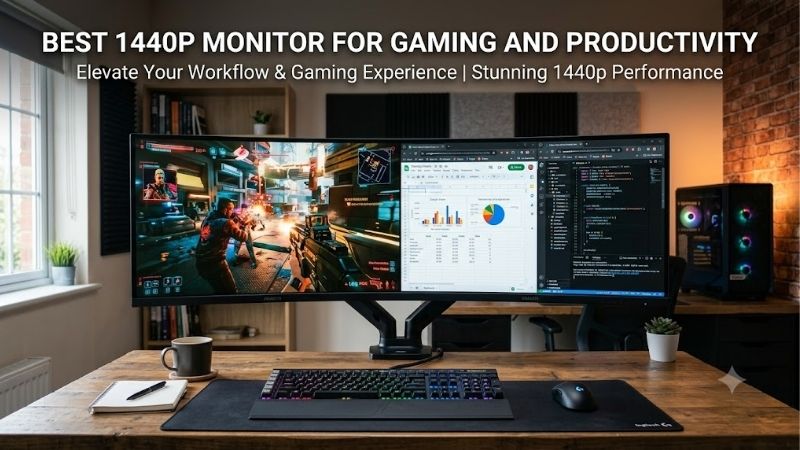
Quick answer: For most people in 2026, the best 1440p monitor for gaming and productivity is the Monitor — our #1 rated choice. See the full ranked comparison, alternatives and buying advice below.
Quick Comparison: The Best 1440p Monitors
| Monitor | Best For | Refresh Rate | Productivity Features | Main Trade-Off |
|---|---|---|---|---|
| MSI MAG 274QRF QD E2 | Best overall feature mix | 180Hz | USB-C, 65W charging, USB hub | Basic HDR contrast |
| ASUS ROG Strix XG27ACS | Balanced gaming and office work | 180Hz | Clear text, accurate sRGB mode, USB-C video | No useful laptop charging or USB hub |
| Dell S2725DC | Work-first setups | 144Hz | USB-C, 65W charging, USB hub, speakers | Less suited to very high-refresh competitive gaming |
| Gigabyte M27Q Rev. 2.0 | Switching between computers | 170Hz | USB-C and KVM switch | Motion blur and model-revision uncertainty |
| HyperX OMEN OLED 27q | OLED gaming at 240Hz | 240Hz | Adjustable stand, OLED care features | OLED text and static-content considerations |
| ASUS ROG Strix OLED XG27ACDNG | Premium gaming and laptop docking | 360Hz | USB-C, 90W charging, KVM, USB hub | Expensive positioning and OLED trade-offs |
The refresh rates above are manufacturer-rated maximums, not a claim that every connection or game will reach those rates. On the MSI, for example, DisplayPort and USB-C support up to 180Hz, whereas HDMI is limited to 144Hz at the native resolution.
How We Selected These Monitors
The shortlist prioritizes native 2560 × 1440 resolution, a refresh rate of at least 144Hz, and features that matter during both gaming and normal computer use. These include text clarity, stand adjustment, USB connectivity, laptop charging, color accuracy, variable refresh rate support, and meaningful picture-quality limitations.
Manufacturer specifications were checked against official product information, while independent findings from RTINGS were used where model-specific testing was available. No hands-on tests were performed for this article, so advertised response times are not treated as proof of measured motion performance. Current product prices are omitted because a reliable, comparable US price basis was not established for every selection.
The 6 Best 1440p Monitors for Gaming and Productivity
MSI MAG 274QRF QD E2 – Best Overall Feature Mix
The MSI MAG 274QRF QD E2 offers a useful combination of gaming speed and work-oriented connectivity. Its 27-inch Rapid IPS panel has a native resolution of 2560 × 1440 and a rated 180Hz refresh rate. That gives gamers smoother motion than a conventional 60Hz office display while preserving the screen space needed for documents, spreadsheets, browser tabs, and development tools.
Its most practical advantage is USB-C with DisplayPort Alternate Mode and up to 65W of power delivery. A compatible laptop can send video through one cable while receiving power, reducing desk clutter. The monitor also has two USB-A ports and supports picture-in-picture and picture-by-picture, which can be useful when working with more than one computer or source.
MSI lists typical brightness at 400 nits and VESA DisplayHDR 400 support. Those specifications are useful for understanding the display, but they do not establish high-end HDR performance. Its listed 1,000:1 native contrast ratio is typical of IPS technology, so dark scenes will not look as deep as they do on an OLED or a well-implemented Mini LED display.
Another consideration is color saturation. The monitor’s wide-gamut specifications make it appealing for colorful games and creative applications, but a wide gamut does not automatically guarantee accurate color in every mode. A properly configured sRGB mode matters if you prepare web graphics or other work intended for standard-gamut displays.
Buy this monitor if you want a fast 1440p display that can also simplify a laptop-based desk. Skip it if deep blacks and impactful HDR are your main priorities.
ASUS ROG Strix XG27ACS – Best for Gaming and Clear Everyday Text
The ASUS ROG Strix XG27ACS is a strong choice for someone who primarily uses one desktop for work and play. Its 27-inch Fast IPS panel runs at 2560 × 1440 and up to 180Hz, with variable refresh rate support to reduce tearing when game frame rates fluctuate.
RTINGS’ review, updated with testing-methodology changes in October 2026, describes the monitor as a capable choice for office use and editing. The published assessment highlights sharp text, useful ergonomics, good performance in well-lit rooms, and an accurate sRGB mode. Its motion handling is also rated favorably, although some inverse ghosting can appear at lower refresh rates.
The USB-C port supports DisplayPort Alternate Mode, so it can carry video from a compatible laptop. However, this should not be confused with a proper single-cable docking solution: independent testing notes that its USB-C power delivery is limited and that it lacks extra USB ports for peripherals. Keep your laptop charger or a separate dock if you plan to use it with a notebook.
Contrast and HDR are its main picture-quality limitations. Without local dimming, blacks can look gray in a dark room, and HDR highlights lack the impact of more advanced displays. It is better viewed as a versatile SDR monitor with gaming features than as an HDR showcase.
Buy it if you value text clarity, accurate SDR color, and responsive gaming. Skip it if you need one cable for laptop charging and accessories, or if HDR is a major priority.
Dell S2725DC – Best for Productivity-First Setups
The Dell S2725DC is worth considering when work takes up most of the day but gaming remains an important part of the setup. It pairs a 27-inch QHD display with a rated 144Hz refresh rate, providing a more fluid gaming experience than a typical office monitor without making competitive gaming its only purpose.
Connectivity is its main attraction. Dell lists USB-C with DisplayPort 1.4 Alternate Mode and up to 65W of power delivery, plus USB-A connectivity, a downstream USB-C port, HDMI, DisplayPort, and built-in speakers. The stand supports ergonomic adjustments, which helps when the monitor is used for long work sessions rather than occasional gaming alone.
The USB-C connection is especially useful for laptop owners. A compatible notebook can use the display and receive power through one cable, while a keyboard, mouse, or other accessories can connect through the monitor’s USB ports. Actual compatibility and charging behavior still depend on the connected device and cable.
The compromise is its more modest gaming ceiling. A 144Hz display is sufficiently fast for many single-player games, racing titles, strategy games, and general play, but it does not target users chasing the highest refresh rates. Its office-oriented feature set also should not be mistaken for premium HDR capability.
Buy this monitor if you spend long hours working, appreciate a cleaner laptop setup, and still want smooth gaming after work. Skip it if your priority is competitive play at 240Hz or higher.
Gigabyte M27Q Rev. 2.0 – Best for Switching Between Computers
The Gigabyte M27Q Rev. 2.0 takes a different approach to productivity. Its headline feature is the integrated KVM switch, which allows compatible computers to share a keyboard and mouse through the monitor. When paired with USB-C and a suitable arrangement of connected devices, this can make it easier to move between a work machine and a personal gaming desktop.
The panel offers 2560 × 1440 resolution and a maximum refresh rate of 170Hz. RTINGS’ published review describes it as good for office use, highlighting text clarity, wide viewing angles, brightness suitable for well-lit rooms, and an accurate sRGB mode. These qualities make it a practical option for people who alternate between work applications and games.
The main compromise is motion performance. RTINGS reports that moving objects can look blurry because of the panel’s response behavior. The monitor also has relatively low native contrast and no local dimming, so it is not the strongest choice for dark-room viewing or demanding HDR content.
Pay attention to the revision, too. RTINGS distinguishes the Rev. 2.0 from the original M27Q, including a difference in subpixel layout. Retail listings do not always make the exact revision clear, so check the packaging and product details rather than assuming every M27Q is identical.
Buy it if you frequently switch between two computers and want a built-in KVM. Skip it if precise motion handling is more important than workflow convenience.
HyperX OMEN OLED 27q – Best for an OLED Gaming Upgrade
The HyperX OMEN OLED 27q offers a route into 1440p OLED gaming without moving to a 360Hz flagship model. Its 27-inch QD-OLED panel runs at 2560 × 1440 and 240Hz, combining a high refresh rate with the deep blacks and strong contrast associated with OLED technology.
That contrast changes the appearance of games substantially, particularly in dark scenes. OLED pixels can turn off individually, rather than relying on a backlight that illuminates groups of pixels together. The result is cleaner separation between dark backgrounds and bright game elements, although real HDR performance still depends on the display’s brightness behavior and content.
HP lists HDMI 2.1 inputs, DisplayPort 1.4, an adjustable stand, factory color calibration, and software-based OLED protection features. The rated 0.03ms gray-to-gray response time is a manufacturer specification, not a directly measured result from this article.
For productivity, the compromises are important. QD-OLED displays can show colored fringing around fine text because of their subpixel layout, and static elements such as taskbars, spreadsheets, or application toolbars create a long-term burn-in consideration. RTINGS’ review also notes the absence of a USB hub, which makes the monitor less convenient for a desk with many connected peripherals.
Buy it if gaming image quality and fast motion are the priorities, with office work as a secondary use. Skip it if you spend most of the day reading small text or leave fixed interface elements on-screen for long periods.
ASUS ROG Strix OLED XG27ACDNG – Best Premium Gaming and Laptop Docking
The ASUS ROG Strix OLED XG27ACDNG combines premium gaming performance with more complete desk connectivity. Its 26.5-inch QD-OLED panel has a native resolution of 2560 × 1440 and a maximum refresh rate of 360Hz. It also supports HDMI 2.1, DisplayPort, variable refresh rate, and a built-in KVM switch.
Its productivity feature set is unusually useful for a gaming-focused OLED. USB-C supports DisplayPort Alternate Mode and up to 90W of power delivery, and the monitor includes a USB hub. That makes it suitable for a compatible laptop-centered setup where the same screen, keyboard, and mouse are shared between work and gaming systems.
RTINGS’ October 2026 review update describes its gaming motion handling and dark-room picture quality favorably. Its office assessment is more qualified: the KVM and USB hub help, but text is not as sharp as on a comparable IPS display and some fringing remains around letters. Static-content burn-in also remains a consideration, even with OLED care tools. ASUS lists a three-year warranty that includes panel burn-in, which is a meaningful advantage, but buyers should still read the applicable regional terms.
The glossy-style QD-OLED picture has another limitation in bright rooms: ambient light can raise the apparent black level and make blacks look purple. RTINGS also reports visible variable-refresh-rate flicker in some changing-frame-rate situations, particularly in dark scenes.
Buy this monitor if you want very high-refresh gaming, OLED contrast, and a capable laptop docking arrangement in one display. Skip it if your main work involves all-day text editing, fixed interface layouts, or a brightly lit room where IPS may be the less distracting choice.
Buying Guide: What Matters Most for a 1440p Gaming and Productivity Monitor?
Choose the Right Panel for Your Workload
IPS is the safest starting point for a monitor that spends hours displaying text, browser windows, spreadsheets, and code. It generally offers clear text, wide viewing angles, and consistent color across much of the screen. Its main weakness is contrast: black areas may look gray in a dark room.
OLED is more compelling for games, movies, and HDR content. Its near-instantaneous pixel response and ability to produce deep blacks create a noticeably different visual experience. However, OLED subpixel layouts can affect text clarity, and static interface elements introduce a burn-in consideration. For someone working eight hours a day in a fixed application, those limitations deserve as much attention as gaming performance.
Mini LED is another option for buyers who want stronger HDR without choosing OLED. Local dimming can improve contrast, but performance varies with the number of dimming zones, algorithm quality, and panel behavior.
Is 144Hz Enough, or Should You Get 180Hz or 240Hz?
For mixed use, 144Hz is a sensible baseline. Scrolling, cursor movement, and supported games feel smoother than they do at 60Hz. Moving to 180Hz provides a modest additional improvement, while 240Hz and above become more relevant for competitive games and systems that consistently produce very high frame rates.
Do not buy a high-refresh monitor solely because its maximum number is larger. Your graphics card still has to render frames at your chosen resolution. A monitor rated at 240Hz will not make a game run at 240 FPS by itself.
For a balanced desktop, a good 144Hz or 180Hz IPS model is often a more rational purchase than spending substantially more on a 360Hz OLED panel.
Check USB-C Power Delivery and KVM Features
These features can make a monitor more useful outside gaming, but they solve different problems.
USB-C with DisplayPort Alternate Mode carries a video signal over a compatible USB-C connection. Power delivery adds laptop charging, with 65W generally sufficient for many everyday laptops and 90W providing more headroom for compatible systems. Check your laptop’s power requirements before assuming that either level can replace its original charger.
A USB hub lets you connect peripherals through the monitor. A KVM switch goes further by allowing compatible computers to share a keyboard and mouse. If you use separate work and gaming computers, KVM support can be more valuable than an extra 60Hz of refresh rate.
Also check the limits of each video input. A display may support its maximum refresh rate through DisplayPort but a lower rate over HDMI. Use the exact port specifications rather than assuming every connection has identical bandwidth.
Understand Resolution, Screen Size, and HDR
A 27-inch 1440p monitor is a practical middle ground for most desks. Its 2560 × 1440 resolution provides more workspace than 1080p while keeping interface elements reasonably sized without extensive scaling. A 32-inch 1440p display gives you a physically larger image but has lower pixel density, so text and fine details may look less crisp at the same viewing distance.
HDR labels also need scrutiny. VESA DisplayHDR certification provides useful information about a display’s capabilities, but the label alone does not tell you how well the monitor controls blooming, maintains highlight brightness, or displays dark scenes. Look for independent testing of HDR brightness and local dimming rather than selecting a monitor by its certification number alone.
Frequently Asked Questions
Is a 1440p monitor good for both gaming and work?
Yes. A 27-inch 1440p monitor gives you enough desktop space for multiple windows while maintaining a useful level of text sharpness. A 144Hz or 180Hz IPS model is particularly practical because it combines responsive gaming with clear everyday text.
Is OLED or IPS better for productivity and gaming?
IPS is generally the safer all-day work option, particularly for text-heavy tasks and static interfaces. OLED has superior contrast and motion characteristics that make games look excellent, but it can exhibit text fringing and carries some burn-in risk. Your balance of gaming and work should determine which compromise matters more.
Do you need USB-C on a gaming monitor?
No. A desktop connected over DisplayPort or HDMI can work perfectly well without USB-C. USB-C becomes valuable when you also use a laptop and want video, charging, and potentially peripheral connectivity through one cable.
Should you choose a 240Hz monitor over a 180Hz monitor?
Only when your games, hardware, and budget justify it. The difference can matter to competitive players who prioritize high frame rates, but a good 180Hz IPS monitor may be a better mixed-use purchase if it offers clearer text, more useful connectivity, or better ergonomics.
Final Verdict
For most people building a single setup for work and play, the MSI MAG 274QRF QD E2 has a compelling feature mix: 180Hz, an IPS panel, USB-C video, and 65W laptop charging. Its main weakness is conventional IPS contrast, and its model-specific performance should not be assumed to match independently researched alternatives.
The ASUS ROG Strix XG27ACS is the more evidence-backed choice for buyers who prioritize clear text and responsive gaming over laptop charging. The Dell S2725DC makes more sense when productivity and cable management come first. If you want to upgrade gaming image quality substantially, consider an OLED model—but understand the text and static-content trade-offs before making it your everyday work display.
The best monitor is the one that fits how you actually use your computer. A dependable 1440p IPS display with the right ports can be a better long-term purchase than an expensive OLED or ultra-high-refresh model whose headline features you rarely use.
Editorial Source Log
Editor reference only. Research checked October 10, 2026. Keep this section out of the public article body. No direct testing was performed for this article, and prices were omitted because a comparable current US price basis was not established for every product.
MSI MAG 274QRF QD E2
-
Manufacturer specifications: MSI official product specifications
-
Verified model details: 27-inch Rapid IPS, 2560 × 1440, 180Hz through DisplayPort and USB-C, up to 65W USB-C power delivery, two USB-A ports, DisplayHDR 400, and 1,000:1 typical contrast ratio.
-
Amazon US listing: No matching exact-model listing verified in this research. Do not describe it as currently available on Amazon until the exact listing, variant, seller, condition, and availability are checked.
-
Unresolved issue: No independent model-specific test was located for the exact QD E2 variant. Keep the recommendation feature-based and do not make measured response-time or image-quality claims.
ASUS ROG Strix XG27ACS
-
Manufacturer specifications: ASUS ROG official specification page
-
Independent testing: RTINGS review, updated October 2026
-
Amazon US listing: Verified matching product page, ASIN B0CV24GQ9W.
-
Key findings and limitations: RTINGS identifies good office suitability, clear text, an accurate sRGB mode, strong motion handling, low contrast, limited USB-C power delivery, and no additional USB hub ports. Its tested model is the black XG27ACS; the white XG27ACS-W is a separate body-color variant.
Dell S2725DC
-
Manufacturer specifications: Dell US product page
-
Independent testing: RTINGS review
-
Verified model details: QHD resolution, up to 144Hz, USB-C DisplayPort Alternate Mode with up to 65W power delivery, USB-A connectivity, downstream USB-C, HDMI, DisplayPort, and built-in speakers.
-
Amazon US listing: An exact matching listing was not confirmed. Verify the exact US model and seller before adding an Amazon affiliate link.
-
Unresolved issue: The recommendation is primarily based on its office connectivity and stated display features, not on a claim that it outperforms higher-refresh gaming monitors.
Gigabyte M27Q Rev. 2.0
-
Independent testing: RTINGS model-specific review
-
Verified model details: 27-inch 1440p IPS, maximum 170Hz, USB-C, KVM switching, good text clarity, and an accurate sRGB mode.
-
Amazon US listing: Exact listing and revision not independently verified in this research.
-
Unresolved issue: RTINGS distinguishes Rev. 2.0 from Rev. 1.0 and notes differences in subpixel layout and performance. Retail listings may not make the revision clear. Do not substitute another M27Q revision silently; verify the carton label and exact product before affiliate placement.
HyperX OMEN OLED 27q
-
Manufacturer specifications: HP US product page
-
Independent testing: RTINGS 1440p monitor comparison and review summary
-
Amazon US listing: Matching model page. The listing title identifies the HyperX OMEN OLED 27q (2026).
-
Verified model details: QHD QD-OLED, 240Hz, manufacturer-rated 0.03ms gray-to-gray response time, HDMI 2.1, DisplayPort 1.4, adjustable stand, and OLED protection features.
-
Unresolved issue: Confirm current Amazon availability and the applicable US warranty terms before publication. Do not claim burn-in warranty coverage beyond what the applicable terms explicitly provide.
ASUS ROG Strix OLED XG27ACDNG
-
Manufacturer specifications and warranty: ASUS ROG official specifications
-
Independent testing: RTINGS review, updated October 2026
-
Amazon US listing: Verified matching product page, ASIN B0D7NSZRJW.
-
Verified model details: QD-OLED, 2560 × 1440, 360Hz, HDMI 2.1, DisplayPort 1.4 DSC, USB-C with up to 90W power delivery, USB hub, and KVM switch. ASUS lists a three-year warranty that includes panel burn-in.
-
Published-testing limitations: RTINGS notes text fringing, burn-in risk with persistent static content, raised black levels in bright ambient light, and potential VRR flicker. The article reflects these trade-offs instead of treating OLED as universally better for productivity.
Excluded candidate: AOC Q27G3XMN
The AOC is an interesting Mini LED alternative, and its manufacturer specifications and independent review indicate strong HDR potential for a conventional LCD. However, the Amazon listing surfaced during research contained contradictory resolution wording in its title compared with the official 2560 × 1440 model specification. It was excluded from the main shortlist until the exact listing variant can be reconciled.F
Ready to decide? Our #1 pick for 2026 is the Monitor.
Live price & availability on Amazon.









