
Finding good monitors for Minecraft starts with your computer, desk, and favorite way to play. A compact 1080p screen can suit a smaller setup, while a 27-inch 1440p monitor is our preferred starting point for mixed survival, building, and multiplayer. A larger 4K display makes sense when detail and workspace matter more, and OLED is worth considering when its contrast characteristics justify the extra ownership considerations. These six options address different needs rather than chasing one specification.
- Quick verdict: Good monitors for Minecraft by player type
- Quick comparison table
- How we selected the shortlist
- ASUS ROG Strix XG27ACS: A sensible main monitor
- AOC 24G4: A compact starting point
- LG UltraGear 27GR83Q-B: For players who can use 240Hz
- Gigabyte M27UP: For players switching between detail and speed
- Gigabyte M32U: For a larger building workspace
- Alienware AW2725DF: For buyers specifically seeking OLED
- Buying guide: Choosing good monitors for Minecraft
- Frequently asked questions
- Final verdict
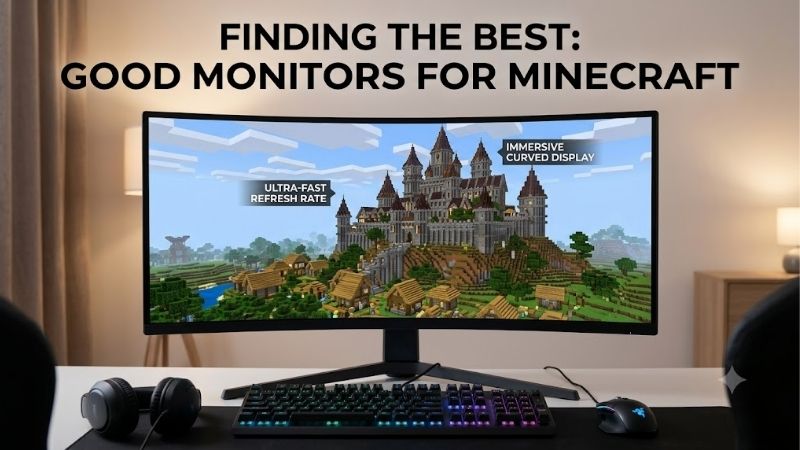
Quick answer: Our top pick in 2026 is the ASUS ROG Strix XG27ACS — our #1 rated choice. See the full ranked comparison, alternatives and buying advice below.
Quick verdict: Good monitors for Minecraft by player type
The ASUS ROG Strix XG27ACS is our first choice for someone buying a main monitor without a specialized requirement. Its 27-inch 1440p format balances desktop space with a moderate pixel count, while its 180Hz maximum provides refresh headroom for faster gameplay.
Choose the AOC 24G4 when a compact 1080p setup is the priority. Consider the LG UltraGear 27GR83Q-B when you want 1440p and a 240Hz ceiling on an IPS panel.
The Gigabyte M27UP suits players who want a 27-inch 4K screen with an additional high-refresh Full HD mode. The Gigabyte M32U is the larger 4K alternative for building and multitasking. The Alienware AW2725DF serves buyers specifically seeking QD-OLED and 360Hz capability through DisplayPort.
Keep your existing monitor if it already displays your sessions comfortably. An upgrade should resolve an identifiable limitation, such as restrictive workspace, insufficient refresh capability, or an unsuitable screen size.
Quick comparison table
These are display capabilities, not predicted Minecraft frame rates. Maximum refresh modes depend on the connection, graphics hardware, and monitor configuration.
| Monitor | Practical role | Panel and size | Native resolution | Refresh capability | Important limitation |
|---|---|---|---|---|---|
| ASUS ROG Strix XG27ACS | General-purpose Minecraft and desktop use | 27-inch Fast IPS | 2560 × 1440 | Up to 180Hz | HDMI tops out at 144Hz |
| AOC 24G4 | Compact, lower-resolution setup | 23.8-inch IPS | 1920 × 1080 | Up to 180Hz | Less desktop detail than 1440p or 4K |
| LG UltraGear 27GR83Q-B | Higher-refresh multiplayer on IPS | 27-inch IPS | 2560 × 1440 | Up to 240Hz | Extra headroom requires sufficient game performance |
| Gigabyte M27UP | Compact 4K with a second gaming mode | 27-inch SS IPS | 3840 × 2160 | 4K 160Hz or Full HD 320Hz modes | Full HD mode sacrifices native 4K detail |
| Gigabyte M32U | Larger building and work display | 31.5-inch SS IPS | 3840 × 2160 | Up to 144Hz | Larger desk footprint |
| Alienware AW2725DF | OLED contrast and high-refresh PC play | 26.7-inch viewable QD-OLED | 2560 × 1440 | Up to 360Hz over DisplayPort | HDMI is limited to 144Hz; OLED needs care |
How we selected the shortlist
Selection is based on manufacturer documentation and the practical fit between specifications and player requirements. This is a research-based buying guide, not a report of detailed research or a Minecraft performance benchmark.
We prioritized meaningful differences: screen size, native resolution, refresh modes, panel technology, and connection limitations. The shortlist includes alternatives for small desks, mixed-use PCs, competitive multiplayer, and detail-focused building.
The two 4K models are included for different tasks. The M27UP offers a smaller physical screen and dual-mode operation; the M32U emphasizes a larger workspace. Likewise, the LG and Alienware separate high-refresh IPS from QD-OLED rather than representing interchangeable upgrades.
Current US prices were not established on a comparable basis across the whole shortlist. Therefore, no product receives a cheapest, best-budget, or best-value award. Compare the exact models and total purchase costs before deciding.
ASUS ROG Strix XG27ACS: A sensible main monitor
The ASUS ROG Strix XG27ACS has a 27-inch Fast IPS panel, 2560 × 1440 resolution, and a maximum refresh rate of 180Hz. Its main attraction is balance: enough resolution for a useful desktop workspace, with refresh headroom for multiplayer.
It suits a player whose evening includes survival, browsing a build reference, and joining a server. You do not have to make high-refresh competition or native 4K rendering the defining purpose of the purchase.
Connections deserve attention. ASUS specifies up to 180Hz through DisplayPort and compatible USB-C video, while HDMI is limited to 144Hz. USB-C supports DisplayPort Alt Mode, but its 7.5W power delivery does not replace a typical gaming laptop charger.
Buy if you want one versatile monitor and have a suitable video output. Skip if your priority is a larger 4K canvas or the contrast characteristics of OLED. The LG 27GR83Q-B is the shortlisted alternative for higher-refresh IPS gaming.
For a practical purchase decision, compare the screen with the limitation of your current setup. If you already own a satisfactory 1440p high-refresh monitor, this is not automatically a meaningful upgrade. Replacing a similar display without a clear need can consume money better spent elsewhere.
AOC 24G4: A compact starting point
The AOC 24G4 combines a 23.8-inch IPS panel, 1920 × 1080 resolution, and a maximum 180Hz refresh rate. It serves players who want a small screen and a native resolution with fewer pixels to render.
A compact display can leave more room for peripherals and work well when the desk places you close to the screen. The lower pixel count can also reduce graphics workload when rendering resolution is the relevant constraint.
However, a resolution change will not necessarily address slow simulation, chunk-loading interruptions, or server delays. Those problems require separate diagnosis.
The trade-off is desktop space and fine detail. Someone who regularly reads dense mod interfaces or edits textures may prefer a higher-resolution option.
Buy if compact size and 1080p are deliberate choices. Skip if your current complaint is that 1080p feels cramped. The ASUS XG27ACS provides a route to 1440p.
Confirm the regional model before ordering. AOC uses similar names and suffixes, and the official regional page contains mixed model wording. This recommendation relies on the verified core display specifications, without assuming that speakers, accessories, or stand features match every listing.
LG UltraGear 27GR83Q-B: For players who can use 240Hz
The LG UltraGear 27GR83Q-B offers a 27-inch IPS panel, 2560 × 1440 resolution, and a 240Hz maximum refresh rate. It is the more specialized IPS choice for players whose regular sessions emphasize high-frame-rate multiplayer.
The justification is strongest when your computer delivers consistent high frame rates at the settings you actually use. A lighter competitive configuration and a demanding shader world should not be treated as the same workload.
LG lists HDMI 2.1 and DisplayPort, with compatible graphics hardware required for maximum refresh operation. NVIDIA G-SYNC Compatible and AMD FreeSync Premium support are also documented. Check the requirements for your GPU and selected connection.
The stand offers height, tilt, and pivot adjustment, which helps position the screen for a shared gaming and work setup.
Buy if you specifically want 240Hz while retaining IPS and 1440p. Skip if the extra refresh ceiling is unlikely to benefit your sessions. The ASUS is the more general-purpose alternative; the Alienware is the OLED alternative.
Do not interpret the advertised response time as a measurement of every transition or the complete input pipeline. Without comparable testing, it is more useful here to focus on verified capabilities and your own workload than to assign a numerical speed advantage.
Gigabyte M27UP: For players switching between detail and speed
The Gigabyte M27UP is a 27-inch SS IPS monitor with native 3840 × 2160 resolution. Gigabyte advertises two operating modes: UHD at 160Hz and Full HD at 320Hz. This is the M27UP, a different model from the similarly named M27U.
Its distinct role is flexibility. You can prioritize native 4K detail for building and desktop work, then select the lower-resolution mode when higher refresh capability is more important.
The compromise is explicit: Full HD mode does not retain native 4K detail. Nor does selecting 320Hz make the computer produce 320fps. Choose the mode according to the workload and visible result.
Gigabyte specifies DisplayPort 1.4 with DSC, HDMI 2.1, and USB-C video with power delivery up to 18W. Confirm the supported timing and GPU requirements for your intended mode.
Buy if you will use both resolution and refresh options. Skip if you would leave it permanently at a setting better served by a simpler display. Choose the ASUS for a straightforward 1440p setup or the M32U for a larger 4K screen.
Avoid paying for flexibility you do not need. The feature is useful when your habits alternate between distinct tasks; its presence alone does not make this monitor the right purchase.
Gigabyte M32U: For a larger building workspace
The Gigabyte M32U uses a 31.5-inch SS IPS panel, native 3840 × 2160 resolution, and a maximum 144Hz refresh rate. It is the larger-screen choice for players who also use their desk for planning, documentation, or other work.
A larger 4K screen spreads the same pixel count across more physical space than a 27-inch 4K display. Interface elements can therefore be larger at the same scaling setting, while the desktop retains the same resolution.
Gigabyte documents a KVM feature for sharing peripherals in a suitably connected two-computer setup. It also lists two integrated 3W speakers. These conveniences can matter when the monitor serves more than one role.
Measure your desk first. The monitor is approximately 28.2 inches wide, and its stand needs room without forcing the keyboard or mouse into an awkward position.
Buy if you want a larger 4K workspace and can sit comfortably in front of it. Skip if the desk is shallow or space is limited. The M27UP offers a smaller 4K alternative.
The monitor accepts documented high-refresh console modes, but that does not establish Minecraft performance on a console. Verify the game output separately from the screen’s input capability.
Alienware AW2725DF: For buyers specifically seeking OLED
The Alienware AW2725DF combines a 26.7-inch viewable QD-OLED panel, 2560 × 1440 resolution, and a maximum 360Hz refresh rate through DisplayPort. Its purpose here is to offer a different panel technology alongside high-refresh PC capability.
Self-emissive pixels can produce deep blacks without a conventional LCD backlight. That characteristic may appeal to players who also enjoy visually varied games, although the display cannot create lighting effects absent from the content.
Dell specifies a 144Hz maximum over HDMI. Its USB-C port is a downstream USB connection, rather than a video input. These details matter particularly for laptop owners.
OLED also involves care considerations with persistent interface elements. Follow Dell’s maintenance guidance. The US documentation lists three-year service coverage including OLED burn-in, subject to the applicable terms.
Buy if QD-OLED is a deliberate priority and your system supports the intended DisplayPort mode. Skip if you require HDMI-based 360Hz or prefer IPS ownership. The LG is the high-refresh IPS alternative.
Assess the whole computer setup before committing. A premium display cannot remove network delay or guarantee stable frame delivery in a demanding world. Its capabilities are useful only within the limits of the signal and content it receives.
Buying guide: Choosing good monitors for Minecraft
Start with the problem you want to solve
Write down what bothers you about the existing screen. Small text, limited workspace, tearing, a low refresh ceiling, and uncomfortable size point toward different solutions.
If the picture is satisfactory but gameplay pauses when entering new areas, a display upgrade may be premature. Check whether the interruption persists after reducing visual settings or whether it occurs only on a particular server.
A useful comparison keeps the world and settings consistent. Visit a quiet location, a busy base, and an area you frequently explore. The resulting behavior matters more than an unusually high frame rate while standing still in an empty scene.
Choose a monitor after identifying the display-related limitation. This avoids paying for a feature that has little connection to your actual experience.
Match resolution to the computer and interface
1080p contains about 2.1 million pixels, 1440p about 3.7 million, and 4K about 8.3 million. Higher resolution can improve fine detail, but it also changes the rendering workload.
Those counts do not predict an exact FPS difference. Performance depends on the game edition, settings, computer, and workload. A CPU-limited situation may react differently from one constrained by graphics rendering.
Our general recommendation is 27-inch 1440p for mixed use. Consider smaller 1080p when compactness and lower pixel count matter. Choose 4K when you value fine detail and understand the rendering implications.
Configure desktop scaling and Minecraft’s interface size after connecting. A sharper screen is not useful if text becomes so small that you lean forward throughout the session.
Compare good monitors for Minecraft by connection
Check the entire path from computer to display: the GPU output, any adapter or dock, the cable, and the monitor input. A limitation anywhere along that path can prevent the intended mode.
DisplayPort is important for the ASUS’s full refresh capability and the Alienware’s 360Hz mode. HDMI branding alone is insufficient to establish a monitor’s maximum refresh at a particular resolution.
USB-C needs equally careful reading. Video output requires appropriate support from the computer and display. Power delivery is separate, and low-wattage charging should not be assumed to power a gaming laptop.
If you use a dock, verify its supported resolution and refresh rate with your specific computer. Avoid ordering adapters on the assumption that connector shape guarantees capability.
Balance refresh rate with consistent performance
A refresh rate is a ceiling on display updates, not a promised game frame rate. The move from 60Hz to higher refresh can be useful when the computer supplies additional frames, but consistency remains important.
Variable refresh rate coordinates supported display updates with frame delivery within the applicable operating range. It can help with tearing, but it cannot correct a stalled game engine or network problem.
For competitive sessions, evaluate the settings you actually use in multiplayer. For visual exploration, evaluate the shader or graphics configuration you intend to keep.
Do not base the purchase on one peak FPS reading. A monitor selected around regular performance is more likely to feel appropriate across normal sessions.
Account for everyday ownership costs
Compare the complete cost, including tax, shipping, any required cable, and accessories. A monitor arm or external audio setup can change the purchasing decision even when the screen itself appears attractive.
Check return terms and applicable US warranty coverage for the exact seller and model. Regional model differences matter when importing or purchasing from a marketplace.
Desk fit also has a cost: a screen that forces an uncomfortable arrangement can be less useful than a smaller option with suitable positioning. Confirm width and stand depth rather than relying on diagonal size.
For OLED, include the willingness to follow maintenance guidance in your decision. For every panel type, consider room lighting and the placement of windows or lamps.
Frequently asked questions
Are office monitors good enough for Minecraft?
Yes, particularly for relaxed play when their resolution, size, and refresh rate meet your needs. A gaming model is useful when it offers a capability you can use, such as higher refresh or supported variable refresh rate. The product category alone does not determine suitability.
Does a bigger screen show more of the world?
Not automatically. The amount of visible game content depends on the game’s camera and display configuration. A larger physical screen mainly changes how large that content appears. Desktop workspace is governed by resolution and scaling rather than diagonal size alone.
Should shader players automatically choose 4K?
No. Native 4K can provide finer detail, but a demanding graphics configuration may require compromises to maintain comfortable performance. A 1440p display can be the more appropriate match when you prefer smoother delivery or want to retain more elaborate effects. Evaluate the specific configuration.
Will these monitors work with Java and Bedrock Edition?
They function as displays rather than edition-specific accessories. The important checks are computer compatibility, available video outputs, supported modes, and settings. Edition and world configuration affect performance; choosing a particular monitor does not guarantee the same results across both editions.
Final verdict
Start with the ASUS ROG Strix XG27ACS for a balanced 1440p setup. Choose the AOC 24G4 for compact 1080p use and the LG 27GR83Q-B when 240Hz IPS gaming is a clear priority.
The Gigabyte M27UP suits players who will use its distinct resolution modes, while the M32U serves larger-screen 4K workspaces. Choose the Alienware AW2725DF when QD-OLED and DisplayPort-based high refresh match your requirements.
Ready to decide? Our #1 pick for 2026 is the ASUS ROG Strix XG27ACS.
Live price & availability on Amazon.









