
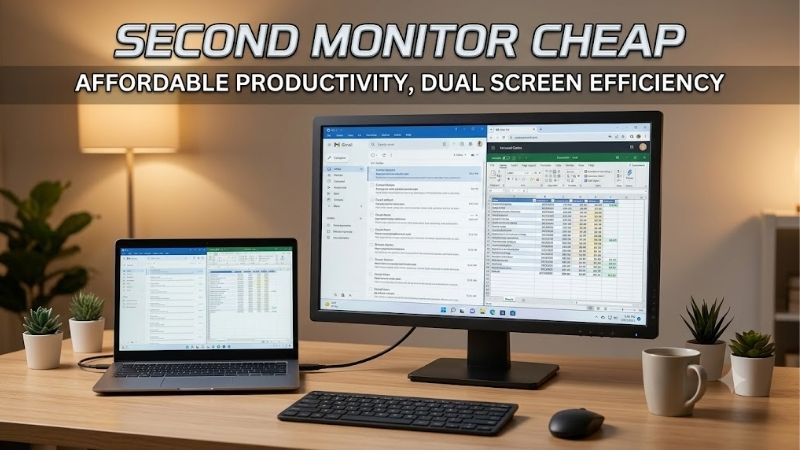
If you are searching for a second monitor cheap enough to expand your desktop without wasting money, start with a 23.8-inch or 24-inch 1080p IPS display that connects directly to your computer. That specification is a practical starting point for email, documents, reference pages, and chat. Before buying, check whether an existing screen can do the job, confirm your available video output, and include any cable or mounting costs in your budget.
- The practical answer: Buy enough screen for the secondary task
- A second monitor cheap enough for your actual workload
- Set a total budget before comparing monitors
- Choose screen size and resolution together
- Check connections before choosing a model
- Two verified monitor examples to compare
- Buying a second monitor cheap without overlooking condition
- Positioning matters more than matching the bezels
- Set up the monitor and check the result
- Frequently asked questions
- Final verdict: Spend on compatibility and daily usefulness
Quick answer: Our top pick in 2026 is the Email, messaging, and reference pages — our #1 rated choice. See the full ranked comparison, alternatives and buying advice below.
The practical answer: Buy enough screen for the secondary task
An affordable second monitor should solve a specific problem. Keeping a spreadsheet visible beside your writing window requires different features from editing photographs or playing games on both displays.
For ordinary supporting tasks, prioritize readable text, a usable viewing angle, a compatible connection, and comfortable positioning. A higher refresh rate is welcome, but it should not consume money you need for a suitable stand or the correct cable.
A 24-inch-class 1080p screen is a sensible default because it provides useful space without demanding a particularly wide desk. However, it is not automatically the right choice for someone who needs large text, extensive spreadsheet columns, or a portrait display.
Start with these decisions:
| Your secondary-screen task | Practical starting point | Feature worth prioritizing | Expense to question |
|---|---|---|---|
| Email, messaging, and reference pages | 24-inch-class 1080p screen | Direct digital connection | Premium gaming features |
| Documents and coding references | 24-inch-class screen | Height adjustment or portrait mounting | Decorative lighting |
| Detailed spreadsheets | Higher-resolution screen if budget permits | Readable text at your preferred scaling | A larger screen with unchanged resolution |
| Occasional gaming | Screen with suitable refresh and response behavior | Verified connection support | Unsupported performance claims |
| Extremely limited budget | Reuse or inspect a used display | Working inputs and acceptable condition | Accessories that erase the savings |
These are buying criteria, not claims that a particular model is currently the cheapest. Compare the complete setup cost before deciding.
A second monitor cheap enough for your actual workload
The easiest way to overspend is to shop for the second screen as though it must duplicate your primary monitor’s capabilities.
If your main display handles gaming, video editing, or design work, the secondary screen can concentrate on supporting applications. It may never need the same resolution, refresh rate, or color capabilities.
Write down the two applications you expect to leave on it most often. Then imagine using those applications for an hour. Would you need to read small text constantly, rotate the screen, or move frequently between windows?
That exercise helps distinguish useful features from specifications that simply look impressive.
For work, browsing, and messaging
A basic secondary display can keep email, a calendar, or research material visible while your main monitor carries the active document. The benefit comes from reducing window switching, not from buying the most advanced panel.
Choose a size that keeps text readable without placing the screen so far away that you lean toward it. If you frequently read the secondary display, stand adjustment becomes more valuable than it would be for occasional notifications.
Speakers are optional when your existing headphones or desktop speakers already handle audio. Paying extra for another audio system may add little to this setup.
For gaming support applications
When the second screen shows Discord, a walkthrough, or hardware-monitoring software, it does not need to match the primary gaming display.
Higher refresh rates can make cursor movement and scrolling look smoother, but they do not turn a support screen into a necessary gaming upgrade. Keep most of your display budget focused on the screen where the game actually runs.
If you intend to play on the secondary monitor too, evaluate it as a gaming monitor separately. Manufacturer response-time claims alone do not establish motion clarity, overshoot, or input lag.
Set a total budget before comparing monitors
Treat your budget as the amount required to finish the setup, rather than the price printed beside the monitor.
For example, an $80 spending limit must also cover any missing cable, adapter, tax, shipping, or required stand. This is a budgeting example, not a verified offer for a particular product.
A monitor that consumes the entire allowance may become unsuitable once you discover that your computer needs an adapter. Conversely, a slightly more expensive screen with the right input and an adequate stand may produce a lower total.
Check these costs before checkout:
- The monitor’s delivered price and condition.
- The video cable required for your available output.
- Any adapter needed between the computer and monitor.
- A missing stand or external power supply.
- A riser or arm if the supplied position is unsuitable.
- Return shipping or restocking charges where applicable.
Avoid buying an arm automatically. First check whether the stock stand places the screen comfortably. Accessories should solve an identified problem.
Choose screen size and resolution together
Screen size describes the diagonal measurement. Resolution describes how many pixels form the image. Increasing one does not necessarily increase the other.
A larger 1080p display can make interface elements physically bigger, but it does not provide additional pixels for spreadsheet columns or application windows. At the same scaling setting, a 24-inch and 27-inch 1080p screen have the same pixel workspace.
That distinction matters when shopping for an inexpensive productivity display.
When 24-inch-class 1080p makes sense
A 23.8-inch or 24-inch 1080p monitor is a useful starting point for one supporting application, such as a browser, document, or messaging window.
It also fits more easily beside many existing monitors than a larger screen. Measure the actual product width and stand footprint, however; diagonal size alone cannot tell you whether it fits.
If your main screen has a much higher pixel density, expect differences in text appearance and physical interface size. Adjust scaling individually instead of assuming both screens should use identical settings.
When paying for more resolution helps
Consider 2560 × 1440 if the second monitor will become a serious workspace for wide spreadsheets, several windows, or detailed reference material.
The additional pixels can provide more room, although increasing scaling to make text comfortable reduces some of that workspace advantage.
Do not select resolution in isolation. A sharper screen that makes text too small at your normal viewing distance may require settings adjustments before it becomes useful.
A higher-resolution secondary monitor is a justified upgrade when it addresses a daily limitation. It is less compelling for a screen that mainly displays a chat sidebar.
Check connections before choosing a model
The cheapest compatible monitor is more useful than a cheaper incompatible one.
Look at the available outputs on your computer, then compare them with the exact monitor’s inputs. Product families often contain similar names with different connections, so verify the full model designation.
For a straightforward setup, a direct HDMI-to-HDMI or DisplayPort-to-DisplayPort connection minimizes extra purchases. An adapter can also work, but its direction, supported resolution, and refresh capability must match your intended configuration.
Desktop PCs
On a desktop with a dedicated graphics card, inspect the card’s remaining outputs first. Connecting both displays there is generally the simplest arrangement when the card supports it.
Do not assume the motherboard’s HDMI connector will work alongside the graphics card. Its availability depends on the processor’s graphics capability and the system configuration.
Also check the graphics hardware’s supported display count. Having an unused connector does not replace checking the documented limits for your particular setup.
Laptops and USB-C
A laptop may support its built-in screen plus an external monitor through HDMI, making an inexpensive HDMI display convenient.
For USB-C adapters, confirm that the specific laptop port supports video output. The connector’s shape alone does not establish that capability. Check the laptop documentation for DisplayPort Alternate Mode or the relevant supported display functionality.
A dock adds another compatibility layer. Verify its supported displays, operating-system requirements, and output limits before counting on it to run your monitor.
Why a basic splitter is the wrong purchase
A conventional HDMI splitter duplicates one video signal. It does not create two independent desktops.
If your goal is to place a document on one monitor and a browser on another, you need a configuration that supplies independent display outputs.
This distinction is especially important when adding two external screens to a laptop. A device advertised as having two HDMI sockets may still mirror them under some configurations. Read its documentation rather than relying on the connector count.
Two verified monitor examples to compare
The following models illustrate two useful approaches: a simple HDMI display and an adjustable office monitor.
They are not ranked by current price, and neither is presented as a guaranteed under-budget purchase. Check the exact offer, condition, included accessories, and return policy.
| Model | Verified display specifications | Connections relevant to this guide | Positioning | Main limitation |
|---|---|---|---|---|
| ASUS VA24EHF | 23.8-inch IPS, 1920 × 1080, up to 100Hz | One HDMI 1.4 input | Tilt; 100 × 100mm VESA mounting | No height adjustment |
| Dell P2422H | 23.8-inch IPS, 1920 × 1080 at 60Hz | HDMI and DisplayPort | Height, swivel, tilt, and pivot | Lower refresh rate |
ASUS VA24EHF: A straightforward HDMI example
The VA24EHF illustrates the basic specification worth considering for everyday secondary-screen duties. Its HDMI connection makes it relevant when your computer has a suitable unused HDMI output.
ASUS lists no built-in speakers. That is usually manageable if your existing audio equipment already meets your needs.
Its tilt-only stand is the more significant purchasing consideration. Check the screen’s position on your desk before assuming its low purchase price will translate into a comfortable setup.
Buy it if its verified specifications fit your supporting applications and the complete cost compares favorably with alternatives. Skip it if you need built-in height adjustment or a direct DisplayPort input.
Dell P2422H: An adjustable office-monitor example
The P2422H illustrates why an older office display can be worth examining, particularly when an inspected used or refurbished offer includes the original adjustable stand.
Its pivot function is relevant for portrait documents or code references. HDMI and DisplayPort also provide more connection flexibility than an HDMI-only monitor.
The important limitation is its 60Hz refresh rate. That can serve supporting applications, but it should not be confused with a high-refresh gaming specification.
Consider it when positioning flexibility matters and the actual offer is competitive. Do not assume it is cheap simply because it is older, or that every used listing includes the complete stand.
Buying a second monitor cheap without overlooking condition
Used and refurbished displays deserve consideration when the budget is tight. However, the savings depend on the condition and completeness of the individual unit.
A model’s original specifications do not establish whether its backlight remains consistent, its inputs work reliably, or its stand is intact.
“Refurbished” also does not explain exactly what the seller inspected. Read the condition description and coverage terms.
What to inspect before paying
Ask to see the display powered on at its native resolution.
Use solid white, black, red, green, and blue backgrounds to look for visible pixel defects, discoloration, and uneven areas. Then open a document with small text to check whether normal reading looks acceptable.
Test the input you intend to use, not just whichever connection the seller already has attached. Inspect the connectors for damage and confirm that the buttons operate.
Allow the monitor to remain running long enough to notice obvious intermittent faults. A brief photograph of a desktop does not prove stable operation.
Missing accessories can change the deal
Confirm whether the sale includes the stand, power cable, and any model-specific external power supply.
An inexpensive display without a stand can require additional spending before it is usable. A missing power supply needs a correctly matched replacement, not merely a plug that fits.
If buying remotely, request photographs of the actual unit and model label. Stock images cannot show scratches, missing parts, or the exact variant being sold.
Choose a seller whose return terms make it practical to address a faulty or inaccurately described monitor.
Positioning matters more than matching the bezels
Identical monitors can look tidy, but matching appearance should come after readable text, comfortable placement, and compatibility.
Keep the display used for your main task directly in front of you. Angle the supporting screen so you can glance at it without repeatedly twisting your torso.
If both screens receive substantial use, experiment with their positions rather than leaving one permanently far to the side.
Landscape or portrait
Landscape orientation works well for video, messaging, and wide spreadsheets.
Portrait orientation can be useful for long documents and reference pages. However, the stand must support rotation, or you need a compatible mounting solution.
VESA mounting compatibility does not mean the included stand pivots. Also verify the arm’s supported weight, mounting pattern, and available clearance before purchasing it.
Rotating a screen changes its physical footprint. Measure the vertical space, especially beneath shelves.
Brightness and scaling
Start by adjusting each screen for comfortable reading in your room. Two displays at identical brightness settings may not produce the same visible brightness.
Use native resolution and adjust operating-system scaling when necessary. Reducing resolution to enlarge text can make the image softer.
A color difference between two monitors is not automatically a fault. If accurate color matching is important to your work, a basic secondary display may need more careful evaluation than an email screen.
Set up the monitor and check the result
After connecting the screen, choose Extend in Windows when you want separate applications across both displays.
Open Settings, then System, then Display. Use Identify to determine which on-screen rectangle represents each physical monitor, and arrange those rectangles to match your desk.
Select the appropriate native resolution for each screen. Check the available refresh-rate options separately rather than assuming a supported higher rate activates automatically.
Move the pointer between displays and drag a window across the boundary. If the transition feels misplaced, adjust their arrangement.
If the second screen does not appear, check its selected input, reconnect the cable, and try a known working connection. Testing the monitor directly without a dock or adapter can help isolate the problem.
Keep this initial setup simple before adding optional accessories.
Frequently asked questions
Does a second monitor need to match the first?
No. Different sizes and resolutions can work together. The practical issues are text size, physical placement, connection compatibility, and how the pointer crosses between displays. Matching specifications may be convenient, but it is not a requirement for a useful secondary workspace.
Is 60Hz enough for a secondary monitor?
For documents, messaging, and reference pages, it can be. A higher refresh rate can make scrolling and pointer movement smoother, but its value depends on how often you use the screen. If you play games on it, assess its gaming performance separately.
Can I reuse a television?
Possibly, provided it accepts a compatible signal and fits your workspace. Check small-text readability at your intended viewing distance, available picture settings, and whether the desktop edges display correctly. Reusing a television can avoid a purchase, but its size may make it awkward beside a desk monitor.
Will a second monitor reduce gaming performance?
There is no universal percentage. The result depends on the graphics hardware, display configuration, game, and applications running on the other screen. A static reference page and active video playback are different workloads. Compare your usual game with the secondary applications open and closed if you notice a change.
Should I buy an inexpensive portable monitor instead?
Consider one when portability or limited desk space is the main requirement. Confirm its video connection, power requirements, stand stability, and readable screen size. A portable display is not automatically a cheaper complete setup, especially if it requires additional cables or power equipment.
Final verdict: Spend on compatibility and daily usefulness
For a general-purpose secondary screen, start with a 24-inch-class 1080p display that connects directly to your computer and fits comfortably on your desk. Reuse an existing monitor when it already meets those needs. Consider inspected used office displays when their adjustable stands and working connections provide useful savings.
Pay more when additional resolution, portrait positioning, or gaming capability solves a recurring problem. Otherwise, keep the purchase focused on its supporting role. The right inexpensive second monitor is the one that completes your workspace at an acceptable total cost—not simply the screen with the lowest advertised price.
Ready to decide? Our #1 pick for 2026 is the Email, messaging, and reference pages.
Live price & availability on Amazon.









