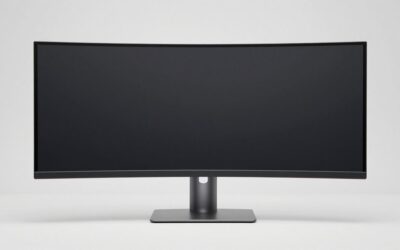
The best ultrawide monitor for CAD should give you enough workspace for detailed drawings, tool palettes, property panels, and reference documents without sacrificing text clarity or viewing comfort. For most professional users, a 34-inch 3440 × 1440 display is a practical starting point, while a 40-inch 5120 × 2160 screen provides substantially more room and sharper text. The right choice depends on your software, drawing complexity, color requirements, computer connections, and budget. A gaming-oriented model can work well for mixed workloads, but dedicated design features and pixel density matter more than an impressive refresh-rate number alone.
Quick answer: Our top pick in 2026 is the Monitor — our #1 rated choice. See the full ranked comparison, alternatives and buying advice below.
Best ultrawide monitor for CAD: quick verdict
Research basis: Manufacturer specifications and available independent testing, not personal detailed research. Prices are omitted because a comparable set of current US prices has not been established.
| Monitor | Best use | Key specifications | Main limitation |
|---|---|---|---|
| Dell UltraSharp U4025QW | Best overall for detailed CAD work | 39.7-inch, 5120 × 2160, 120Hz, IPS Black | High purchase cost and significant desk requirements |
| BenQ DesignVue PD3420Q | Best for CAD-specific display controls | 34-inch, 3440 × 1440, IPS, CAD/CAM mode | Limited to 60Hz |
| ASUS ProArt PA34VCNV | Best for color-managed design workflows | 34.1-inch, 3440 × 1440, IPS, factory-calibrated color | 60Hz refresh rate |
| Dell UltraSharp U3425WE | Best 34-inch productivity hub | 34.1-inch, 3440 × 1440, 120Hz, IPS Black | Less vertical workspace than 40-inch 5K2K displays |
| LG UltraWide 38WR85QC-W | Best for CAD and gaming in one setup | 37.5-inch, 3840 × 1600, 144Hz, Nano IPS | Curved screen and lower pixel density than 5K2K |
| LG UltraWide 40WP95C-W | Best alternative for Thunderbolt-based workstations | 39.7-inch, 5120 × 2160, 72Hz, Nano IPS | Lower refresh rate than the Dell 40-inch alternative |
The Dell U4025QW is the strongest all-around starting point when both workspace and text sharpness matter. The BenQ PD3420Q is more focused on professional design workflows, with a dedicated CAD/CAM picture mode and useful color-management controls. The ASUS ProArt PA34VCNV is another sensible choice when documented color accuracy and laptop connectivity take priority over high refresh rates.
These recommendations are based on each model’s documented features and intended use. They are not a claim that every monitor has been tested against the others under identical CAD workloads.
How we selected the best ultrawide monitors for CAD
Professional CAD applications place different demands on a monitor than most games do. AutoCAD users may need to inspect dimensions and technical drawings while keeping layers, properties, and command panels visible. SolidWorks users may spend more time inspecting 3D models, assemblies, and part details. Architects may combine a building model with plans, elevations, reference images, and schedules.
We prioritized screen resolution and usable workspace, panel characteristics, ergonomic adjustments, connectivity, and features that make sense for technical design. We also distinguished monitors with professional color and CAD-specific controls from displays that emphasize gaming performance.
Official manufacturer specifications establish the stated resolutions, refresh rates, ports, color-gamut figures, and adjustment options. Independent testing is useful for assessing actual picture quality, contrast, uniformity, and responsiveness. However, specifications alone cannot establish how comfortably a particular user can work with a dense drawing or whether a display suits a color-critical workflow.
The six choices below serve distinct purposes rather than forming an absolute ranking based on price. Current US pricing, stock, and exact Amazon listings should be checked before purchase.
The six best ultrawide monitors for CAD
Dell UltraSharp U4025QW: best overall for detailed CAD work
The Dell UltraSharp U4025QW is the most compelling option when you want a large workspace with substantially sharper text than a typical 34-inch ultrawide. Its 39.7-inch IPS Black panel has a native resolution of 5120 × 2160, an aspect ratio of 21:9, and a maximum refresh rate of 120Hz.
The resolution gives you enough room to arrange several application panels alongside a drawing while preserving fine interface text. At approximately 140 pixels per inch, the display also offers a meaningful pixel-density advantage over conventional 34-inch 3440 × 1440 monitors, which typically provide around 110 PPI.
Dell specifies a typical 2000:1 contrast ratio and broad color coverage, including 100% sRGB and 99% DCI-P3. The monitor also includes Thunderbolt 4 connectivity, a built-in USB hub, 2.5GbE Ethernet, and power delivery of up to 140W through its upstream Thunderbolt connection. Features such as picture-by-picture and monitor-based peripheral switching can simplify a desk shared by multiple computers.
The principal drawback is the investment in both money and space. You need a sufficiently deep desk, a suitable viewing distance, and a computer output that can drive 5120 × 2160 at your intended refresh rate. The monitor’s high refresh rate is useful for general responsiveness, but it should not be confused with faster CAD calculations or better model regeneration.
Buy it if your projects benefit from detailed views, dense toolbars, and multiple windows on one screen. Skip it if you mainly draft simple two-dimensional drawings and would rather spend the extra money on a suitable graphics card, additional memory, or professional software.
BenQ DesignVue PD3420Q: best for CAD-specific controls
The BenQ DesignVue PD3420Q takes a more specialized approach. It combines a flat 34-inch IPS panel with 3440 × 1440 resolution, a 21:9 aspect ratio, and a 60Hz refresh rate. Its professional feature set includes a dedicated CAD/CAM mode, multiple color presets, a factory calibration report, and a Hotkey Puck G2 controller.
The CAD/CAM mode is the main reason to consider this display. It gives users a dedicated picture preset for technical design rather than making gaming performance the primary selling point. It also supports sRGB, Rec.709, Display P3, DCI-P3, animation, and darkroom modes. BenQ specifies 100% sRGB, 100% Rec.709, and 98% P3 coverage, with average Delta E of 3 or less.
For many technical workflows, the flat panel is an uncomplicated choice because it avoids the curvature that some users dislike when working with long horizontal references and dimensioned drawings. Its 34-inch size provides useful space for tool palettes while remaining more manageable than a 40-inch screen.
Connectivity includes DisplayPort, two HDMI ports, USB-C with DisplayPort Alt Mode, and up to 65W USB-C power delivery. The monitor also includes a KVM switch and picture-by-picture functionality for supported workflows.
The limitation is that 60Hz is less attractive for fast-paced gaming, and the 3440 × 1440 resolution does not offer the text sharpness of a 5K2K display. Its color features also do not automatically make it suitable for every calibrated engineering or visualization pipeline.
Buy it if you value design-specific controls and a flat ultrawide panel. Skip it if your top priorities are very sharp text on a 40-inch screen or high-refresh gaming.
ASUS ProArt PA34VCNV: best for color-managed design workflows
The ASUS ProArt PA34VCNV is aimed at professionals who want a wide workspace with documented color characteristics and straightforward workstation connectivity.
It uses a 34.1-inch curved IPS panel with a 3440 × 1440 native resolution, 60Hz refresh rate, and relatively gentle 3800R curvature. ASUS specifies 100% sRGB and 100% Rec.709 coverage, factory calibration to Delta E below 2, and Calman Verified certification. The monitor also provides preset color modes and adjustments through ASUS ProArt controls.
Those features can be useful when CAD work overlaps with rendered presentations, architectural visualization, product imagery, or technical illustrations. Color accuracy matters more in those workflows than it does when creating monochrome mechanical drawings, although display calibration alone cannot guarantee consistent output across an entire imaging pipeline.
The PA34VCNV also offers USB-C video and data connectivity with up to 96W power delivery, an RJ45 Ethernet port, HDMI inputs, and DisplayPort connections with daisy-chain support. Its stand adjusts for height, tilt, and swivel.
One important trade-off is its 60Hz maximum refresh rate. That is sufficient for ordinary drafting and most design interfaces, but it is not a gaming-focused specification. Also, factory calibration is a useful starting point rather than permanent proof of accuracy under every lighting condition or after years of use.
Buy it if your CAD work regularly extends into presentation graphics and color-sensitive design tasks. Skip it if you need the highest pixel density available or want one monitor optimized for high-frame-rate gaming.
Dell UltraSharp U3425WE: best 34-inch productivity hub
The Dell UltraSharp U3425WE is a strong choice if you want a 34-inch ultrawide that can anchor a laptop-based CAD workstation. Its 34.1-inch IPS Black panel offers 3440 × 1440 resolution and a maximum refresh rate of 120Hz.
Dell lists a typical contrast ratio of 2000:1, 100% sRGB coverage, 100% Adobe RGB coverage, and 98% DCI-P3 coverage. The specification also lists average Delta E below 2. Its generous connectivity includes Thunderbolt 4, USB ports, HDMI, DisplayPort, and 2.5GbE Ethernet. The upstream Thunderbolt connection supports up to 90W of power delivery.
This combination suits a work desk where one display needs to handle CAD applications, reference documents, email, and other productivity tools. The built-in hub can reduce cable clutter, while 120Hz makes desktop movement and compatible games feel smoother than on a conventional 60Hz office screen.
Its limitation is primarily resolution relative to screen size. A 34-inch 3440 × 1440 panel offers substantially more horizontal workspace than a standard 16:9 QHD monitor, but its roughly 110 PPI does not match the Dell U4025QW’s text sharpness. The supplied stand adjusts for height, tilt, and swivel rather than providing a full pivot range. This matters less for an ultrawide than it does for a secondary portrait monitor, but it remains a relevant ergonomic consideration.
Buy it if you want a capable docking hub with a high-refresh professional panel. Skip it if very fine text and maximum workspace density are more important than workstation connectivity.
LG UltraWide 38WR85QC-W: best for CAD and gaming in one setup
The LG UltraWide 38WR85QC-W targets users who want a substantial productivity display without giving up the features associated with gaming monitors. Its 37.5-inch Nano IPS panel uses a 3840 × 1600 resolution and supports a maximum 144Hz refresh rate.
Compared with a typical 34-inch 3440 × 1440 display, its additional vertical resolution provides more space for technical drawings, long timelines, and tool panels. The panel also offers a stated 98% DCI-P3 color gamut and VESA DisplayHDR 600 support. Variable refresh rate support includes NVIDIA G-SYNC Compatible and AMD FreeSync Premium Pro, according to LG’s product specifications.
The connectivity is useful for a mixed workstation. LG lists HDMI 2.1, DisplayPort, USB-C with up to 90W power delivery, Ethernet, and a built-in KVM switch. The monitor can also handle supported picture-in-picture and picture-by-picture layouts.
However, its 2300R curve will not suit every CAD user. Some people prefer the more uniform geometry of a flat display when evaluating dimensioned drawings or straight-line references. Its resolution also falls below 5120 × 2160 in total pixel count, even though the physical display is large.
Buy it if you alternate between CAD software, 3D visualization, and gaming, and want one large, fast screen for all three. Skip it if your work is heavily focused on very fine annotation or if you prefer a flat screen for technical drawings.
LG UltraWide 40WP95C-W: best alternative for Thunderbolt-based workstations
The LG UltraWide 40WP95C-W is another 40-inch-class monitor that prioritizes detailed workspace. Its 39.7-inch curved Nano IPS panel offers a 5120 × 2160 resolution, an aspect ratio of 21:9, and a maximum refresh rate of 72Hz.
Its pixel density is approximately 140 PPI, matching the general class of the Dell U4025QW. That makes it attractive for users who want a broad CAD workspace without making text and fine lines appear as coarse as they can on lower-density displays.
LG specifies up to 98% DCI-P3 coverage, HDR10 support, and factory color calibration. Connectivity includes Thunderbolt 4, a downstream Thunderbolt port for supported daisy-chaining arrangements, DisplayPort, HDMI, and USB ports. Upstream Thunderbolt supports up to 96W power delivery.
The difference between this monitor and the Dell U4025QW is not the overall resolution class but the feature balance. The Dell offers a 120Hz refresh rate and a more extensive productivity-focused hub feature set, including a built-in KVM. The LG’s 72Hz refresh rate is sufficient for typical CAD work, and it may still be appealing where Thunderbolt connectivity and a broad workspace are the main goals.
Buy it if you want a 5K2K display for detailed technical work and compatible Thunderbolt equipment. Skip it if you require a high refresh rate or specifically want the Dell’s advanced workstation-hub features.
What to look for when buying an ultrawide monitor for CAD
Resolution and pixel density
Resolution determines the number of pixels available for the drawing, menus, and other information on screen. Pixel density helps describe how tightly those pixels are packed across the physical display.
A 34-inch 3440 × 1440 monitor is a balanced starting point for many designers because it offers a panoramic workspace without imposing the cost or connection requirements of 5K2K. A 38-inch 3840 × 1600 screen adds vertical resolution, which is useful when drawings or property panels extend vertically. A 40-inch 5120 × 2160 display provides both more total pixels and a higher pixel density.
Do not choose resolution based only on the size of the CAD drawing. Interface scaling, font rendering, application support, and your viewing distance all affect how comfortably you can read dimensions and annotations.
Flat versus curved screens
A curved monitor can make the edges of a large screen easier to view without turning your head as much. It can also make a very wide desktop feel more immersive, especially when a large drawing or model occupies most of the display.
A flat monitor is a safer default for users who want a conventional geometry and viewing experience. While the software still defines the actual shape and dimensions of a CAD model, the physical curvature of a monitor can affect how certain lines and references appear from a particular viewing position.
Neither design is automatically more accurate. Look at the amount of curvature, your seating distance, and the type of drawings you inspect before choosing.
Panel type and color characteristics
IPS panels are common in professional displays because they offer broad viewing angles and can support consistent color reproduction across the screen. IPS Black can improve native contrast compared with conventional IPS designs. OLED may offer much deeper blacks and excellent response characteristics, but extended use with static interface elements warrants consideration of long-term image-retention and burn-in risks.
For mechanical CAD, readability, grayscale clarity, and stable viewing angles may matter more than an exceptionally wide color gamut. For architecture, industrial design, and product visualization, color accuracy and gamut can matter much more.
A stated color gamut measures coverage of a particular color space; it is not a complete measure of accuracy. Calibration, uniformity, brightness behavior, and the application’s color-management pipeline also influence what you see.
Refresh rate and response time
A 60Hz monitor is adequate for most drafting and engineering tasks. A 120Hz or 144Hz display can make scrolling, panning, and general desktop movement look smoother, and it is a useful advantage for a monitor that doubles as a gaming screen.
A high refresh rate does not make a CAD model calculate faster or improve the accuracy of a technical drawing. Rendering and interactive viewport performance depend heavily on the application, CPU, GPU, drivers, model complexity, and graphics settings.
Likewise, a manufacturer’s advertised response time should not be treated as proof of measured motion clarity. When gaming is part of the intended use, independent response-time testing is more informative than the headline number alone.
Connectivity and docking
Check the monitor’s supported input resolution and refresh rate for the connection you actually intend to use. A display may support a high refresh rate over DisplayPort or Thunderbolt while having different limits over HDMI. The computer’s output, cable, interface bandwidth, and support for Display Stream Compression can also affect available modes.
USB-C is particularly useful for laptop workstations because it may combine video, data, and power through one cable. However, USB-C alone does not guarantee that a laptop supports video output or receives enough power. Compare the display’s power delivery with your laptop’s requirements.
A built-in USB hub, KVM switch, or Ethernet connection can simplify a desk shared between a workstation and a laptop. These features are conveniences rather than substitutes for the graphics and processing hardware needed to handle demanding CAD projects.
Common purchasing mistakes to avoid
One mistake is prioritizing the largest screen without considering resolution. A large 3440 × 1440 panel provides useful workspace, but fine text will generally look sharper on a comparable 5120 × 2160 display.
Another is paying for extreme refresh rates while overlooking the monitor’s color, ergonomic, and connectivity features. For a design-first workstation, spending more on 5K2K resolution, a reliable adjustable stand, or a better docking arrangement may offer more day-to-day value than moving from 144Hz to an even faster panel.
Do not assume a monitor’s professional branding guarantees perfect calibration, excellent uniformity, or application-specific compatibility. Check the exact model’s specifications and independent measurements when those qualities matter.
Finally, remember that an ultrawide monitor is only one part of the workstation. A large assembly or complex 3D model may still demand more GPU memory, stronger graphics performance, additional system RAM, or a faster CPU. A sharper screen can improve the working experience, but it cannot remove those hardware limits.
Frequently asked questions
Is an ultrawide monitor good for AutoCAD?
Yes. The extra horizontal workspace can help keep drawing areas, properties, tool palettes, command controls, and reference documents visible at the same time. A 34-inch 3440 × 1440 screen is a practical starting point, while a higher-resolution 40-inch monitor can provide more room and sharper interface text for dense drawings.
Is 34 inches or 40 inches better for SolidWorks?
A 34-inch monitor is easier to accommodate on many desks and can offer a good balance of workspace and price. A 40-inch 5K2K monitor provides a larger, sharper working area for assemblies, detailed models, and multiple application panels. Your project complexity and preferred interface scaling matter as much as physical screen size.
Do I need a 4K monitor for CAD?
No. A 3440 × 1440 ultrawide can be perfectly suitable for ordinary drafting and modeling. A 5120 × 2160 monitor is worth considering when you want greater pixel density and more room for detailed interface elements, but it also requires a compatible output path and appropriate desk space.
Are gaming ultrawide monitors suitable for professional CAD?
They can be. A gaming monitor may offer a sharp panel, high refresh rate, and useful variable-refresh support, but you should evaluate it on its actual resolution, text clarity, contrast, color characteristics, and ergonomics. A dedicated design monitor can be the better choice when CAD/CAM modes, documented calibration, or professional color workflows are important.
Final verdict
For a workstation where detailed CAD drawings and multiple panels share the screen, the Dell UltraSharp U4025QW is the strongest overall option among these six models because of its 5120 × 2160 resolution, high pixel density, 120Hz refresh rate, and extensive connectivity. The BenQ PD3420Q is a more targeted option for users who value CAD/CAM picture controls and a flat panel, while the ASUS ProArt PA34VCNV makes sense for color-managed design work. Choose the Dell U3425WE for a capable 34-inch productivity hub, or the LG 38WR85QC-W when CAD and gaming share one setup.
Ready to decide? Our #1 pick for 2026 is the Monitor.
Live price & availability on Amazon.