
A second display should make your computer easier to use without taking money away from upgrades that matter more. The best budget 2nd monitor for most people is a 23.8-inch Full HD IPS screen with HDMI, comfortable viewing angles, and a refresh rate of 100Hz or higher. You do not need to buy another premium gaming display just to keep Discord, email, reference material, or a browser visible. A larger QHD monitor makes sense when workspace matters, while a faster gaming model or portable screen is worth considering only when its specific advantages match your setup.
- Quick verdict: the best budget 2nd monitor for your setup
- How we selected these budget second monitors
- Best everyday choice: BenQ GW2490
- Best straightforward alternative: ASUS VA24EHF2
- Best for contrast: Philips 241V8LB/27
- Best budget gaming alternative: LG UltraGear 24GS65F-B
- Best for competitive gaming: Dell SE2426HGS
- Best larger screen: Acer Nitro KG271U N3BMIIPX
- Best portable alternative: KYY K3
- How to choose the best budget 2nd monitor
- Frequently asked questions
- Final verdict
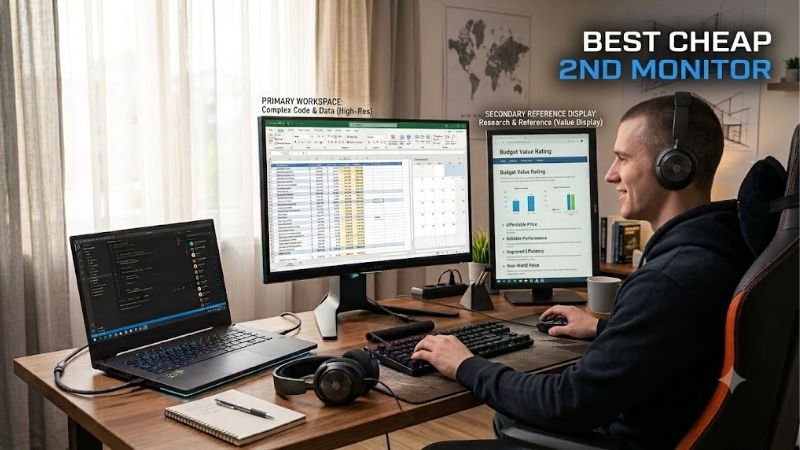
Quick answer: For most people in 2026, the best budget 2nd monitor is the Monitor — our #1 rated choice. See the full ranked comparison, alternatives and buying advice below.
Quick verdict: the best budget 2nd monitor for your setup
The BenQ GW2490 is a sensible everyday choice, offering a 23.8-inch IPS panel, Full HD resolution, and 100Hz refresh rate. The ASUS VA24EHF2 is a straightforward alternative with 120Hz, while the LG UltraGear 24GS65F-B provides a genuine gaming-oriented upgrade with 180Hz and a more adjustable stand.
For buyers who want a larger secondary workspace, the Acer Nitro KG271U N3 offers 1440p resolution and a 180Hz DisplayPort mode. The Philips 241V8LB/27 is worth considering if you prefer the higher typical contrast ratio of a VA panel. Dell’s SE2426HGS is the specialist choice for fast gaming, and the KYY K3 is the portable alternative for laptop users.
| Monitor | Best use | Resolution and refresh rate | Main compromise |
|---|---|---|---|
| BenQ GW2490 | Everyday multitasking | 1920 × 1080, 100Hz | Basic stand adjustment |
| ASUS VA24EHF2 | Simple work and browsing | 1920 × 1080, 120Hz | No DisplayPort input |
| Philips 241V8LB/27 | Documents and dark-themed content | 1920 × 1080, 100Hz | VA viewing behavior varies off-axis |
| LG UltraGear 24GS65F-B | Budget gaming and multitasking | 1920 × 1080, 180Hz | Limited extras for office use |
| Dell SE2426HGS | High-refresh gaming | 1920 × 1080, 240Hz | Extra refresh rate may go unused |
| Acer Nitro KG271U N3BMIIPX | Larger secondary workspace | 2560 × 1440, 180Hz over DisplayPort | Larger footprint and higher cost |
| KYY K3 | Portable laptop workspace | 1920 × 1080, 60Hz | Basic stand and limited color coverage |
These products serve different purposes rather than forming a strict ranking from cheapest to most expensive. Exact prices vary by seller and date, so the most appropriate purchase depends on the current offer, your available ports, and whether the additional features will actually be useful.
How we selected these budget second monitors
The selection prioritizes secondary-display usefulness instead of flagship specifications. For a dual-monitor workstation, viewing-angle consistency, resolution, physical placement, and straightforward connectivity usually matter more than achieving the highest possible frame rate.
Manufacturer documentation establishes the stated resolutions, refresh rates, panel types, and input options. Independent testing from RTINGS and TechRadar helps identify practical limitations where dedicated reviews are available. The LG 24GS65F-B and Dell SE2426HGS have gaming-oriented review coverage, while the KYY K3 has an independent portable-monitor review. Some other candidates are included primarily on verified manufacturer specifications rather than equivalent independent performance testing.
No new detailed research was conducted for this article. The recommendations do not depend on invented benchmarks, unverified user ratings, or claims that every model is the cheapest available. The article also does not treat temporary promotions as guaranteed everyday prices.
A related editorial consideration is that “best budget second monitor” and “best budget 2nd monitor” express almost identical search intent. These phrases generally belong on the same well-maintained page rather than two competing articles. The recommendations below focus on the practical decisions involved in building an affordable two-screen setup.
Best everyday choice: BenQ GW2490
The BenQ GW2490 is a strong starting point for users who want to add a second screen for ordinary computing. Its 23.8-inch IPS panel has a native resolution of 1920 × 1080, a maximum refresh rate of 100Hz, and stated brightness of 250 nits. BenQ lists 99% sRGB coverage, making the display suitable for everyday documents, browser pages, communication apps, and general media consumption.
The main advantage is balance. Full HD resolution is adequate for a monitor that primarily displays reference documents, messaging applications, spreadsheets, or system information. The IPS panel is also useful when the second monitor sits at an angle next to your main display because it generally provides more consistent color and contrast from different viewing positions than many budget VA alternatives.
Its 100Hz refresh rate provides a smoother desktop experience than conventional 60Hz displays. That can be noticeable while scrolling through webpages or moving windows, although the improvement is less important than ergonomic placement for a monitor used primarily for static content.
Connectivity is another consideration. BenQ lists two HDMI 1.4 inputs for the GW2490, allowing compatible devices to remain connected simultaneously. Confirm the precise port arrangement on the regional specification page before ordering, especially if your computer requires DisplayPort rather than HDMI. The monitor’s Full HD resolution is not particularly demanding, but your graphics output must still support the selected refresh rate.
The main compromise is its conventional stand. Tilt adjustment is less flexible than a full ergonomic stand with height, swivel, and pivot controls. A compatible VESA arm can provide more freedom, but it increases the overall cost.
Buy it for an affordable, permanent desk setup that needs dependable general-purpose functionality. Skip it if you need USB-C laptop docking, extensive stand adjustments, or a display primarily intended for competitive gaming. Those requirements justify considering more specialized alternatives.
Best straightforward alternative: ASUS VA24EHF2
The ASUS VA24EHF2 is a practical alternative for people who want a standard secondary display with slightly more refresh-rate headroom. ASUS specifies a 23.8-inch IPS panel, 1920 × 1080 resolution, 120Hz refresh rate, Adaptive-Sync, and 99% sRGB coverage.
Its size makes it easy to fit next to a primary 24-inch or 27-inch display without consuming an excessive amount of desk space. For productivity, it provides enough room for a messaging window, a browser, or an open reference document. The IPS panel is also well suited to a side-by-side setup where the secondary monitor is viewed from an angle.
The 120Hz refresh rate is a useful extra rather than a necessary requirement. It can improve scrolling and casual gaming, but it will not meaningfully transform a screen used only to display email or static documents. The monitor’s moving-picture response-time specification should also not be interpreted as a universal measurement of actual pixel transitions.
Connectivity is more limited than on some competing models. ASUS lists HDMI and VGA inputs, but no DisplayPort input. This is acceptable for many modern computers, although it can be inconvenient when all available HDMI outputs are already occupied. VGA is an older analog connection, so HDMI is the sensible default for a new digital setup.
The stand is designed for basic use, and wall mounting is supported through a VESA-compatible arrangement. Check the exact mounting specification and stand adjustment range if you need to align the screen with another display.
Buy it for office work, browsing, streaming, and light gaming. Skip it if you specifically need DisplayPort, USB-C video, or a fully adjustable stand. If the BenQ GW2490 and ASUS VA24EHF2 are similarly priced, choose based on current availability and the ports you actually need rather than a small difference in refresh rate.
Best for contrast: Philips 241V8LB/27
The Philips 241V8LB/27 uses a 23.8-inch VA panel with Full HD resolution and a maximum refresh rate of 100Hz. Philips lists 250 nits of brightness and a typical contrast ratio of 4000:1.
That contrast ratio gives this display a different appeal from the IPS options. VA panels can produce deeper-looking blacks than conventional IPS displays, which can be welcome when reading dark-themed interfaces or watching videos in a dim room. If your secondary screen frequently displays applications with dark backgrounds, this may be worth considering.
However, the choice of panel affects the way the monitor behaves beside your primary display. VA panels can show more noticeable changes in contrast when viewed off-axis, even when the manufacturer’s specification lists broad viewing angles. The degree of change depends on the actual panel and content. An IPS monitor is generally the safer choice when consistent appearance from a side position is a priority.
Connectivity is simple. Philips lists HDMI 1.4 and VGA inputs, alongside adaptive sync, flicker-free technology, and a headphone output. There is no DisplayPort input in the listed specifications, so check your computer’s remaining outputs before buying.
The monitor is suited to conventional productivity rather than fast competitive gaming. Its 100Hz refresh rate is sufficient for smooth everyday work, but it lacks the higher refresh ceilings of the LG and Dell gaming-oriented alternatives. Its stand and physical arrangement should also be considered alongside your primary display.
Buy it if contrast is more important to you than the advantages of IPS. Skip it if you frequently look at the screen from an extreme angle, need DisplayPort, or want a high-refresh gaming monitor. A lower price alone is not a reason to choose VA when consistent off-axis viewing matters more.
Best budget gaming alternative: LG UltraGear 24GS65F-B
The LG UltraGear 24GS65F-B combines a compact 24-inch-class format with gaming features that make it useful beyond basic secondary-screen duty. LG lists a 1920 × 1080 IPS panel, a maximum refresh rate of 180Hz, HDR10 support, and compatibility with NVIDIA G-SYNC and AMD FreeSync technologies under supported configurations.
Independent testing by RTINGS identifies the 24GS65F-B as an entry-level gaming monitor with low input lag and responsive motion handling. The review also identifies limitations: dark scenes can look gray because of the panel’s lower contrast, moving objects can still exhibit blur, and the display does not provide an impactful HDR experience.
For a dual-screen setup, the key benefit is flexibility. You can use the LG as a side display for most of the day and move a game onto it when needed, without being restricted to a traditional 60Hz office monitor. The compact 24-inch format also makes it easier to fit into a multi-monitor desk layout than many larger gaming displays.
LG lists DisplayPort 1.4 and HDMI 2.0 inputs, but no USB hub. That is sufficient for ordinary desktop connectivity, provided the relevant input supports the display mode you want. The computer, cable, and monitor must all support the selected resolution and refresh rate.
Unlike a basic office monitor, this model is more compelling when the second screen may occasionally become the primary gaming display. However, paying for 180Hz makes less sense when the monitor will mainly show static documents, chat, or a browser.
Buy it for a two-screen setup that includes regular gaming. Skip it if you only need another place to keep reference material visible. In that situation, a simpler display can leave more money available for a better stand or another practical upgrade.
Best for competitive gaming: Dell SE2426HGS
The Dell SE2426HGS is the specialist option for users who need an affordable second screen that can also handle fast-paced games. Dell specifies a 23.8-inch IPS panel, Full HD resolution, a maximum refresh rate of 240Hz, and AMD FreeSync Premium. It includes two HDMI inputs and DisplayPort 1.4.
Its unusually high refresh ceiling is useful when the computer can render games at sufficiently high frame rates. It does not make games run faster by itself, and you will not see 240 unique frames per second in every game. Demanding titles and systems with modest graphics hardware are unlikely to use the full refresh rate consistently.
The adjustable stand is an important benefit for two-screen ergonomics. Dell lists height, swivel, and tilt adjustment, making it easier to position the display at a comfortable height beside another monitor. This is especially helpful when the secondary screen will alternate between work and games.
RTINGS’ coverage of the model identifies responsive gaming performance and low input lag as advantages, with limited contrast and HDR capability among the trade-offs. These are reasonable compromises for an entry-level high-refresh LCD, but they make it less attractive if your priority is cinematic image quality.
The Dell has no USB-C input, USB hub, or laptop power delivery. It is a conventional video-input monitor and should be selected for the intended computer connections rather than a single-cable docking workflow.
Buy it if competitive gaming is part of your regular routine and you will actually use the extra refresh rate. Skip it if your secondary monitor will rarely display games. In that case, the LG 24GS65F-B or a conventional 100Hz monitor is likely to be a more balanced purchase.
Best larger screen: Acer Nitro KG271U N3BMIIPX
The Acer Nitro KG271U N3BMIIPX is the larger-screen choice for users who want a secondary monitor with more workspace. Its 27-inch IPS panel has a native resolution of 2560 × 1440 and supports up to 180Hz over DisplayPort. Acer lists a maximum HDMI refresh rate of 144Hz for this model.
The QHD resolution gives you more room for long spreadsheets, side-by-side application windows, timelines, and detailed documents. It also helps text and interface elements look sharper than they would on a 27-inch Full HD panel, although operating-system scaling and application support still affect the result.
There is an important practical distinction between this monitor and the 24-inch alternatives. A larger 1440p screen can be more useful for intensive multitasking, but it takes up more desk space. If your primary monitor is already 27 inches, matching the size may make the arrangement feel more consistent. If you have a small desk or only need an occasional chat window, the extra space may be unnecessary.
Acer lists HDMI and DisplayPort inputs, AMD FreeSync support, built-in speakers, a 250-nit brightness rating, and a 100 × 100 mm VESA mounting pattern. Its standard stand offers tilt adjustment rather than full ergonomic positioning, so a compatible monitor arm may be worth budgeting for.
Acer’s US store listed the exact UM.HX1AA.307 part at $159.99 on October 14, 2026, excluding applicable tax and shipping. This is a manufacturer-store observation, not a guaranteed ongoing price or proof of availability from other sellers. It is a useful reference for evaluating whether a larger QHD display justifies the extra spending.
Buy it when the second display will hold several windows or serve as a gaming screen of its own. Skip it if you want the cheapest possible way to add basic desktop space.
Best portable alternative: KYY K3
The KYY K3 addresses a different problem: adding a second display to a laptop when there is no permanent desk. It has a 15.6-inch IPS panel with Full HD resolution, a 60Hz refresh rate, USB-C connectivity, and a mini HDMI input.
The display and included cover together weigh approximately 770 grams, according to TechRadar’s independent review. The cover doubles as a stand and protects the panel during transport. The monitor also includes the cables and power adapter required for common setups.
This is a convenient arrangement for travel, temporary workspaces, dorm rooms, and people who move frequently between desks. A portable screen can sit beside a laptop without requiring the footprint of a conventional 24-inch monitor.
Its limitations are significant enough to consider before purchasing. TechRadar found that color coverage was weak, making the K3 unsuitable for work that depends on accurate color reproduction. The 60Hz panel is also less suited to gaming than the high-refresh desktop monitors in this roundup, and its folding cover provides less ergonomic flexibility than an adjustable stand.
USB-C connectivity requires particular attention. The laptop’s USB-C port must support video output for a single-cable display connection. If it does not, mini HDMI may be required, along with separate power. Connector shape alone does not guarantee display compatibility.
Buy it when portability is essential and your second-screen workload consists mainly of documents, web browsing, email, and messaging. Skip it for a permanent workstation, color-critical editing, or competitive gaming. A conventional desktop monitor generally provides more usable screen space and better adjustment for a fixed setup.
How to choose the best budget 2nd monitor
Match the screen size to your primary display
A 23.8-inch or 24-inch monitor is a practical choice when the goal is to add a second application window without rearranging the entire desk. It works well for messaging, email, system monitoring, and browser tabs. It also fits beside many existing primary displays without taking up excessive room.
A 27-inch model is more appropriate when you need to inspect wide spreadsheets, compare several documents, or work with timelines. If your main monitor is 1440p, choosing another QHD display can make text and interface scaling more consistent. However, you do not have to match the primary monitor’s size or resolution.
Before buying, measure your available desk width and depth. Account for the stand bases, cable routing, and space needed to position the displays at comfortable angles. A monitor that technically fits may still make the desk awkward to use.
Choose the right resolution and refresh rate
Full HD remains suitable for most everyday second-screen tasks, especially on a 24-inch display. QHD offers more workspace and finer detail, but it often costs more. If the second display will mainly show static applications, the additional pixels may matter less than good viewing angles and a practical stand.
Refresh rate should follow the workload. A 100Hz or 120Hz monitor is a sensible all-around option, while 180Hz or 240Hz makes more sense if you regularly game on the second screen. Higher refresh rates do not improve the performance of the computer itself, and the complete video signal path must support the chosen mode.
Check video outputs and mounting options
Confirm that your graphics card or laptop has a compatible free output. DisplayPort and HDMI are straightforward choices for most desktops, but adapters and docks can impose limitations. On laptops, verify that any USB-C port supports video output before relying on it.
VESA mounting can help when the supplied stand cannot align the second screen with your primary monitor. Check the exact mounting pattern, the arm’s supported weight, and the desk attachment before purchasing accessories.
Avoid paying for features you will not use
A high-refresh gaming panel is worthwhile if gaming is part of the intended workload. If the screen will be used primarily for documents and messaging, that money may be better spent on QHD resolution, an adjustable stand, or a larger viewing area.
Similarly, built-in speakers, USB hubs, and advanced HDR support should be treated as useful extras rather than automatic requirements. Pick the monitor that fits the workflow, not the longest list of features.
Frequently asked questions
Does a second monitor need to match my main monitor?
No. Different resolutions, sizes, and refresh rates can work together in an extended desktop setup. Matching displays can simplify physical alignment and make interface scaling more consistent, but it is not a requirement. Arrange the monitors in your operating system so the pointer moves naturally between them.
Is 1080p enough for a second monitor?
Yes. Full HD is generally adequate for documents, messaging, email, browser windows, and system utilities. QHD becomes more attractive if you need additional workspace or want sharper text on a 27-inch display. Spend more on resolution when it solves a practical problem rather than simply because it is a higher specification.
Can I use a 60Hz secondary monitor with a 240Hz gaming monitor?
Yes. Most modern computers can drive two displays at different refresh rates, provided their hardware and connections support the required modes. Specific driver, application, or hardware combinations can create compatibility issues, so investigate further if you experience stuttering or unusual behavior.
Should I buy a gaming monitor as my second screen?
Only when you regularly play games on it or expect to alternate between displays. If you mainly want additional room for chat, email, tutorials, and reference material, a simpler IPS monitor can deliver the same basic multitasking benefit at a lower cost.
Is a portable second monitor worth buying?
It is worthwhile when portability is essential. A model such as the KYY K3 is easier to carry than a conventional desktop monitor, but it sacrifices screen size, ergonomic flexibility, and some image-quality capabilities. For a permanent workstation, a regular 24-inch model is usually the more practical choice.
Final verdict
For a conventional desktop, start with the BenQ GW2490 or ASUS VA24EHF2. The Philips 241V8LB/27 offers a VA alternative, while the LG UltraGear 24GS65F-B is more appropriate if gaming is part of the plan. Choose the Dell SE2426HGS for a particularly high refresh rate, the Acer Nitro KG271U N3BMIIPX for a larger QHD workspace, or the KYY K3 when a portable display is necessary.
The right purchase is the one that adds useful screen space without introducing unnecessary cost or compatibility headaches. Check the exact model, ports, stand, and current US price before ordering.
Ready to decide? Our #1 pick for 2026 is the Monitor.
Live price & availability on Amazon.









