
Finding the cheapest adobe rgb monitor is harder than comparing ordinary office displays because a low price does not guarantee that a screen can reproduce the colors needed for photography, illustration, and print production. The ASUS ProArt Display PA279CRV is the most affordable new option in this shortlist with a currently documented US retailer listing, at $399. However, its manufacturer-rated 99% Adobe RGB coverage has not been reproduced in every independent measurement. For creators who need more confidence in color reproduction, the EIZO ColorEdge CS2400S and ViewSonic ColorPro VP2786-4K offer more specialized alternatives at substantially higher prices. The right choice depends on whether you prioritize initial cost, resolution, calibration, or reliable screen-to-print work.
- Quick verdict: Which affordable Adobe RGB monitor should you buy?
- How we selected the cheapest Adobe RGB monitor options
- ASUS ProArt Display PA279CRV: the budget-first choice
- EIZO ColorEdge CS2400S: a practical choice for color management
- Dell UltraSharp U3425WE: the wide-workspace alternative
- ViewSonic ColorPro VP2786-4K: a serious 4K alternative
- How to choose the cheapest Adobe RGB monitor without wasting money
- Common mistakes when buying an inexpensive Adobe RGB monitor
- Frequently asked questions
- Final verdict
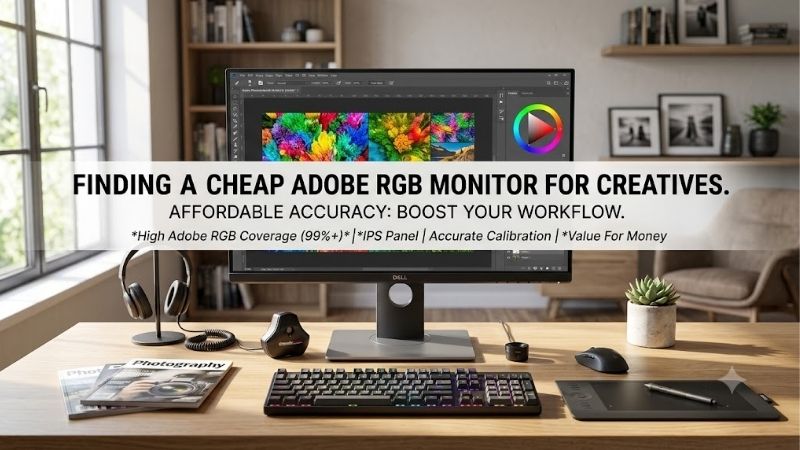
Quick answer: Our top pick in 2026 is the Monitor — our #1 rated choice. See the full ranked comparison, alternatives and buying advice below.
Quick verdict: Which affordable Adobe RGB monitor should you buy?
The ASUS ProArt PA279CRV is the first display to investigate if your budget is around $400 and you want a 27-inch 4K monitor with an Adobe RGB picture mode. It combines high resolution, USB-C charging, factory calibration, and wide-gamut specifications in a mainstream creator display. Its measured color coverage deserves particular attention, though, if your work depends on reproducing nearly the entire Adobe RGB gamut.
For photographers who value a dedicated color-management workflow more than pixel density, the EIZO ColorEdge CS2400S is a compelling alternative. Its 24.1-inch screen uses a practical 16:10 layout, and EIZO’s ColorNavigator software supports calibration with compatible sensors.
The ViewSonic ColorPro VP2786-4K is the more natural choice for someone who wants a 27-inch 4K workspace and manufacturer-rated 100% Adobe RGB coverage, backed by independent testing. The Dell UltraSharp U3425WE serves a different audience: it offers an expansive ultrawide workspace with manufacturer-rated full Adobe RGB coverage, making it attractive for photographers, designers, and multitasking professionals.
| Monitor | Verified US price | Adobe RGB specification | Best use | Main compromise |
|---|---|---|---|---|
| ASUS ProArt PA279CRV | $399 | 99% claimed | Affordable 27-inch 4K editing | Independent coverage measurement differs |
| EIZO ColorEdge CS2400S | $914 | 99% claimed | Photo editing and print workflows | 1920 × 1200 resolution |
| Dell UltraSharp U3425WE | $984.99 | 100% claimed | Ultrawide creative workstation | Requires a larger desk |
| ViewSonic ColorPro VP2786-4K | $999.99 | 100% claimed | 4K wide-gamut photo work | Costs considerably more than ASUS |
Prices above are observed US listings checked on October 13, 2026, before applicable taxes and shipping. Retail availability and promotions can change. These are not controlled, side-by-side test results, and manufacturer gamut figures should not be treated as independent measurements.
How we selected the cheapest Adobe RGB monitor options
Adobe RGB coverage was the first requirement. A display advertised as 100% sRGB is not automatically a good Adobe RGB monitor, because the two color spaces cover different ranges of colors. Similarly, a product advertising 99% DCI-P3 should not be assumed to achieve the same percentage of Adobe RGB coverage.
The shortlist prioritizes displays for which manufacturer specifications and a current US purchase listing could be identified. Four distinctions matter when judging them.
First, advertised coverage is not the same as independently measured coverage. A monitor can have a suitable wide-gamut panel yet perform differently from its specification under a particular reviewer’s measurement method or on an individual sample.
Second, resolution and screen size affect the editing experience. A 27-inch 4K display offers more detail for examining high-resolution images than a 24-inch 1920 × 1200 monitor, although both can be useful for color-critical work.
Third, calibration matters. A broad gamut gives a screen the potential to reproduce more colors, but it does not automatically guarantee correct white balance, grayscale tracking, gamma, or uniformity across the panel.
Finally, price and availability must be considered together. Several BenQ PhotoVue models, including the SW240, SW242Q, and SW272Q, have relevant Adobe RGB specifications, but the US retailer pages checked did not establish dependable current availability for all of them. They therefore are not presented here as guaranteed in-stock bargains.
The recommendations below are based on published specifications, available retailer listings, and identified independent testing. No detailed research has been performed for this article.
ASUS ProArt Display PA279CRV: the budget-first choice
The ASUS ProArt Display PA279CRV is the strongest starting point for buyers who want wide-gamut capability without spending close to $1,000. B&H Photo Video listed the 27-inch monitor for $399 and marked it in stock when its product page was checked. ASUS’s official specifications list 99% Adobe RGB coverage, 99% DCI-P3, 100% sRGB, and factory color accuracy of Delta E below 2.
Its 3840 × 2160 resolution is an important advantage for detailed photo editing. At 27 inches, the screen provides a relatively dense workspace for reviewing fine edges, retouching portraits, inspecting textures, and organizing several editing panels. Compared with a Full HD display, 4K also offers more room to inspect a photograph without constantly zooming in and out.
The IPS panel is designed for wide viewing angles, and the monitor includes dedicated color modes such as Adobe RGB and sRGB. Those presets are practical when moving between a wide-gamut editing workflow and content intended for ordinary web viewing.
Connectivity is another strength. The PA279CRV includes USB-C with up to 96 watts of power delivery, HDMI, DisplayPort, and a USB hub. A compatible laptop can use a single USB-C cable for its display signal, data connection, and charging. The adjustable stand supports height changes, tilt, swivel, and portrait rotation.
There is, however, an important limitation. Although ASUS advertises 99% Adobe RGB coverage, Parka Blogs reported measuring approximately 92% Adobe RGB on its tested sample. That is a meaningful difference for a buyer seeking nearly complete coverage of the gamut. RTINGS’ separate evaluation also notes limitations including low contrast and disappointing HDR performance.
These results do not establish that every PA279CRV unit will measure identically. Measurement equipment, settings, sample variation, and testing methods can affect the result. Nevertheless, the discrepancy should not be ignored simply because the box carries an attractive specification.
Buy it if your budget is tight, you want 4K resolution, and a versatile creator monitor matters more than guaranteed near-100% Adobe RGB reproduction.
Skip it if your paid work requires documented gamut performance across a defined standard and you cannot test or verify the individual unit. In that situation, a display with a more specialized calibration workflow may justify its higher purchase price.
EIZO ColorEdge CS2400S: a practical choice for color management
The EIZO ColorEdge CS2400S illustrates why the cheapest monitor is not always the least expensive option over a working lifespan. B&H listed the monitor-only configuration for $914 and marked it in stock in the US listing checked for this article. EIZO specifies 99% Adobe RGB coverage and positions the model for photography, illustration, and other color-sensitive creative work.
Its 24.1-inch IPS panel has a 1920 × 1200 resolution and a 16:10 aspect ratio. That resolution is less detailed than the ASUS’s 4K screen, but the extra vertical space compared with a 1920 × 1080 panel is useful when reviewing image metadata, toolbars, or editing timelines. Photographers who spend more time judging tonal transitions and preparing prints than inspecting tiny image details may find this format perfectly workable.
The CS2400S stands out for its color-management features. EIZO provides ColorNavigator software for managing supported calibration sensors and matching display settings to the demands of a workflow. Calibration can help maintain a predictable white point, luminance, gamma, and color response instead of relying entirely on a factory preset.
USB-C allows compatible laptops to transmit video and data while receiving up to 70 watts of power. HDMI and DisplayPort connections are also available. The monitor’s 16-bit look-up-table processing helps support smooth tonal gradations, although this should not be confused with proof that every color displayed is natively represented at 16-bit panel depth.
The main disadvantage is value for someone who simply wants a larger, sharper monitor for casual editing. The CS2400S costs more than twice as much as the ASUS and has a substantially lower native resolution. A calibration sensor is also a separate consideration: the $914 configuration is listed as the monitor alone, while a bundled configuration with an EX4 sensor has been listed at a higher price.
This EIZO makes the most sense for photographers who regularly produce prints, work with established color-management procedures, or want dedicated software to help maintain consistency. Its value is not based on resolution per dollar. It is based on the importance of managing color as part of a repeatable process.
Buy it if calibration and predictable color management are central to your workflow.
Skip it if you mostly edit pictures for social media, use online printing services that request sRGB, or would benefit more from investing the money in a calibration device, lighting, or other equipment.
Dell UltraSharp U3425WE: the wide-workspace alternative
The Dell UltraSharp U3425WE is not the cheapest monitor in absolute terms, but it is worth considering when the goal is a wide Adobe RGB-capable workstation rather than a conventional 16:9 display. Dell’s US listing showed a price of $984.99 and identified the model as available when checked.
Its 34.1-inch curved IPS Black panel runs at 3440 × 1440 and up to 120 Hz. Dell specifies 100% Adobe RGB coverage, alongside 100% sRGB and 98% DCI-P3. This combination makes the monitor relevant to creators who alternate between wide-gamut image work, design applications, video editing, and large multitasking layouts.
The extra horizontal space is the defining benefit. A photographer can keep a large image canvas open while placing adjustment panels beside it. A designer can compare reference material with a working layout without constantly changing windows. Editors handling multiple applications can arrange timelines, scopes, folders, and previews across the screen.
Its 120 Hz refresh rate also makes everyday desktop movement and scrolling look smoother than on the 60 Hz ASUS, EIZO, and ViewSonic displays listed here. That benefit improves general usability, but it should not be confused with better color accuracy.
The Dell is designed as a productivity hub, with Thunderbolt connectivity and charging for compatible computers. It is particularly useful when a laptop needs to connect to a monitor, storage devices, and other peripherals through a streamlined desk setup.
There are trade-offs. The ultrawide shape requires more desk space, and 3440 × 1440 does not provide the same total pixel count as a 3840 × 2160 4K screen. Its physical size may be excessive for a compact workspace. In addition, a wide gamut alone does not establish that the screen is calibrated correctly for a particular print workflow.
Buy it if you need an ultrawide monitor for design, multitasking, and wide-gamut creative work.
Skip it if your main priority is maximum pixel density for detailed photography, or if a smaller screen with dedicated color-management features would serve you better.
ViewSonic ColorPro VP2786-4K: a serious 4K alternative
The ViewSonic ColorPro VP2786-4K is the most straightforward alternative in this roundup for someone who wants a 27-inch 4K display with strong stated Adobe RGB coverage and creator-focused controls. ViewSonic’s US product page listed it at $999.99 and marked it in stock when checked.
The specification sheet lists 100% Adobe RGB, 98% DCI-P3, a 3840 × 2160 resolution, and Delta E below 2. It also includes USB-C with up to 90 watts of power delivery, a detachable shading hood, and a ColorPro Wheel intended to simplify adjustments. The hood can help control reflections from room lighting, while the wheel provides a dedicated way to navigate color and display settings.
Independent testing by Digital Camera World provides useful context beyond the manufacturer claims. The review found that measured color gamut was broadly consistent with ViewSonic’s advertised coverage. It also reported strong color accuracy in its tested setup. However, the review identified disappointing color uniformity across the screen, so a strong average accuracy figure should not be mistaken for perfect consistency from corner to corner.
That qualification matters for professional work. A panel may reproduce individual colors accurately at its center while displaying slightly different results in other regions. When judging a photograph with a uniform background, gradients, or subtle tonal transitions, unevenness can complicate decisions.
The VP2786-4K is nevertheless attractive because its resolution, gamut claims, hood, and dedicated controls are all oriented toward detailed creative tasks. It is a more specialized proposition than a standard office monitor.
Its price is the principal limitation. At $999.99, it is far more expensive than the ASUS. A user who mainly needs an Adobe RGB mode for occasional photo editing may not benefit enough to justify the difference. For regular photography, retouching, and print preparation, the additional creator-focused features may be more relevant.
Buy it if you want 4K resolution and broad Adobe RGB coverage in a display specifically designed for color-focused work.
Skip it if your budget is fixed around $400 and you can tolerate the ASUS’s documented measurement uncertainty, or if you need verified uniformity measurements for a demanding production environment.
How to choose the cheapest Adobe RGB monitor without wasting money
Understand coverage, accuracy, and gamut volume
Adobe RGB coverage describes how much of the defined Adobe RGB color space a display can reproduce. A monitor with 99% coverage can reproduce more of that space than a monitor with 90% coverage, but the percentage does not describe every aspect of color quality.
Coverage and volume are different measurements. Coverage examines how much of the target gamut is contained within the display’s reproducible range, while gamut volume describes the overall size of the reproducible range. A display can extend beyond a reference space in some regions yet fail to reproduce certain colors within it.
Accuracy is another separate issue. A monitor can cover a wide range of colors but render a particular color incorrectly. Factory calibration, calibration options, white-point consistency, gamma tracking, and panel uniformity therefore matter alongside the headline Adobe RGB percentage.
For a first-time buyer, a reputable wide-gamut monitor with a useful Adobe RGB preset is a practical starting point. For color-critical production, independent measurement and a repeatable calibration process are more important than a specification printed on a retail page.
Choose the right resolution and size
A 27-inch 4K monitor is an attractive combination for detailed photo editing. The resolution supports careful inspection of fine image details, while the screen remains manageable on many standard desks.
A 24-inch 1920 × 1200 monitor has fewer pixels, but it can still work well for photography and print preparation. Its 16:10 aspect ratio offers a little more vertical workspace than Full HD. The EIZO is a useful example of a monitor that prioritizes color management over high pixel density.
An ultrawide monitor can be more useful when the working interface is crowded with panels and multiple applications. It is less convenient when the primary requirement is comparing a photograph with a physical print at a predictable scale or fitting the display into a small space.
Do not spend extra on 4K merely because it sounds more professional. Choose resolution based on the image sizes you edit, viewing distance, software scaling, and available desk space.
Check ports before buying
USB-C is convenient when you use a compatible laptop, but charging wattage varies by model. The ASUS supports up to 96 watts, the ViewSonic up to 90 watts, the EIZO up to 70 watts, and the Dell is intended for a Thunderbolt-based desktop setup.
Check the laptop’s charging requirements and supported display output before assuming one cable can handle everything. A monitor’s USB-C port does not automatically mean every connected computer supports the same resolution, refresh rate, or charging behavior.
For a desktop PC, HDMI and DisplayPort may be all you need. Check that your graphics card can drive the selected resolution and refresh rate over the chosen connection, especially if you intend to add a second monitor.
Budget for calibration and a controlled workspace
A calibration device is worth considering if you prepare photographs for print regularly. Software presets can help, but an external colorimeter or spectrophotometer can measure the actual display and create a profile tailored to that unit.
Calibration does not expand a panel’s physical gamut. It cannot turn a display with limited Adobe RGB coverage into a full-coverage model. Instead, it helps the monitor reproduce supported colors and tones more predictably.
Room lighting also influences what you see. Strong reflections, changing ambient light, and an overly bright display can lead you to make editing decisions that look wrong on another screen or on paper. A shading hood, sensible brightness settings, and consistent viewing conditions can make color judgments more repeatable.
Before spending hundreds of dollars more on a monitor, consider whether a calibration device, better desk lighting, or a more controlled editing environment would solve the actual problem.
Match the monitor to the final output
Adobe’s Photoshop documentation distinguishes Adobe RGB from sRGB and explains why Adobe RGB can be useful for print workflows that reproduce saturated greens, cyans, and other colors outside the smaller sRGB range. However, a wider color space is not automatically better for every task.
If you primarily post images on websites and social platforms, sRGB remains a sensible target because it is widely supported. A wide-gamut screen can still be useful, but color-managed software and suitable display profiles are necessary to prevent oversaturated or misleading colors.
If you print photographs on a quality inkjet printer, Adobe RGB can be beneficial when the source image, editing workflow, printer, and paper profile support the relevant colors. Soft-proofing with the correct ICC profile helps you preview colors that the intended output can or cannot reproduce.
The practical objective is not to maximize a specification. It is to make sure the monitor, software, files, and final output work together.
Common mistakes when buying an inexpensive Adobe RGB monitor
The first mistake is treating DCI-P3 and Adobe RGB coverage as interchangeable. They overlap, but they are not identical. Always check the exact gamut listed for the model rather than choosing whichever display advertises the largest percentage.
The second is assuming that a factory-calibrated label guarantees perfect accuracy. Factory calibration is useful, but it does not eliminate sample differences, uniformity problems, or changes over time. Look for independent test results when the work requires dependable color.
The third is buying an expensive wide-gamut screen without checking the output workflow. If your printer or online lab expects sRGB files, the added Adobe RGB coverage may provide limited practical benefit unless you use appropriate color management.
The fourth is trusting an old sale price. The BenQ SW240 and SW242Q are examples of otherwise relevant models whose current purchase availability could not be established through the retailer pages checked. A historic price is not a reliable basis for calling a product the cheapest today.
Finally, do not spend the entire budget on the panel while ignoring calibration, software, lighting, and connectivity. A reasonably priced screen that fits the actual workflow can be more useful than a premium model whose extra capabilities go unused.
Frequently asked questions
Is a $400 Adobe RGB monitor good enough for photo editing?
It can be. A monitor such as the ASUS ProArt PA279CRV offers 4K resolution and a manufacturer-rated 99% Adobe RGB gamut at a price that is low for this category. However, independent testing has reported lower Adobe RGB coverage on one sample. For professional work that requires a verified coverage threshold, confirm the measured performance of your unit before relying on the specification.
Is 99% Adobe RGB better than 100% sRGB?
They describe different color spaces, so the percentages cannot be compared directly. Adobe RGB covers a broader range in important green and cyan regions, which can help with suitable print workflows. A display with 100% sRGB coverage may still lack much of the additional range offered by Adobe RGB.
Do I need a 4K monitor for Adobe RGB editing?
No. Adobe RGB is a color-space characteristic, not a resolution requirement. The EIZO ColorEdge CS2400S demonstrates that a 1920 × 1200 monitor can still be designed for color-managed work. Higher resolution is useful for fine detail and workspace, but it does not guarantee wider gamut or better accuracy.
Should I buy a used professional monitor to save money?
A used or refurbished model can be worth considering if its actual condition, return policy, and tested performance are documented. Check for uneven backlighting, stuck pixels, panel discoloration, and age-related changes. Ask for a recent calibration or measurement report when color accuracy is essential. A low used price is not a bargain if the screen cannot reproduce the colors needed for the job.
Final verdict
The ASUS ProArt PA279CRV is the starting point for buyers seeking an affordable new Adobe RGB-capable monitor. Its $399 US listing, 27-inch 4K panel, USB-C charging, and factory-calibration claim make it compelling, but the difference between ASUS’s advertised 99% Adobe RGB coverage and one independent measurement is important for demanding work.
The EIZO ColorEdge CS2400S is the more specialized choice for photographers who value color-management features, while the ViewSonic ColorPro VP2786-4K combines 4K resolution with a broad claimed gamut and creator-focused controls. The Dell UltraSharp U3425WE makes sense when workspace and multitasking are just as important as color coverage.
Buy according to the work you actually produce. A cheaper monitor with suitable color-management support may be entirely adequate for web photography, while print-critical production justifies more careful testing and calibration. The best purchase is the least expensive display that meets your verified workflow requirements, not simply the model with the lowest price or highest advertised gamut percentage.
Ready to decide? Our #1 pick for 2026 is the Monitor.
Live price & availability on Amazon.









