
A smart monitor gaming setup combines an external display with built-in apps for streaming and other online services. The important distinction is whether you want fast local PC or console gaming, or occasional play on a screen used mainly for work and entertainment. The Samsung Odyssey OLED G8 G80SD and Smart Monitor M9 M90SF suit the first group; the Samsung M7 M70F and LG MyView 32SR85U-W address more relaxed, productivity-led setups.
- Quick verdict: Choose gaming hardware before smart apps
- Quick comparison table
- How we selected these smart monitors
- Samsung Odyssey OLED G8 G80SD: Gaming comes first
- Samsung Smart Monitor M9 M90SF: A gaming and laptop hybrid
- Samsung Smart Monitor M7 M70F: Occasional gaming on a work-first screen
- LG MyView 32SR85U-W: A webOS productivity alternative
- Smart monitor gaming: Local hardware versus cloud services
- How to choose a smart monitor gaming setup
- Setup checks before your first gaming session
- Frequently asked questions
- Final verdict: Smart features should complement the panel
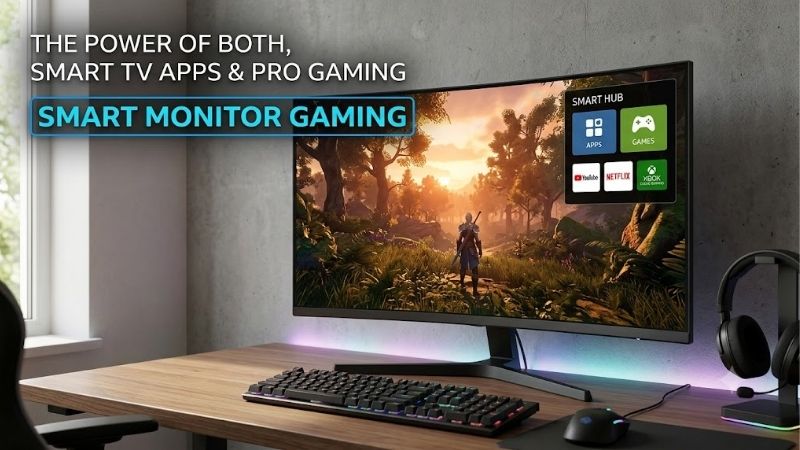
Quick answer: For most people in 2026, the best smart monitor gaming is the Samsung Odyssey OLED G8 G80SD — our #1 rated choice. See the full ranked comparison, alternatives and buying advice below.
Quick verdict: Choose gaming hardware before smart apps
Start with the Samsung Odyssey OLED G8 G80SD when a 32-inch 4K OLED gaming display is the main requirement. Its 240Hz refresh ceiling gives a capable PC substantial headroom, while built-in smart features provide entertainment without always using that PC.
The Samsung M9 M90SF takes a different approach. It combines 4K OLED at 165Hz with smart apps and USB-C charging, making it relevant when one screen needs to serve a laptop, a gaming source, and streaming entertainment.
The Samsung M7 M70F is a 60Hz choice for everyday work, streaming, and occasional gaming. It should not be treated as an alternative to a high-refresh gaming panel simply because it includes smart features.
The LG MyView 32SR85U-W provides a webOS alternative with 4K IPS, USB-C power delivery, and a detachable webcam. Its 60Hz limit makes it another work-first option.
This shortlist uses four distinct candidates rather than padding the roundup with near-identical generations or conventional monitors that lack integrated smart functionality.
Quick comparison table
| Monitor | Recommended role | Panel and native resolution | Refresh ceiling | Deciding feature | Meaningful limitation |
|---|---|---|---|---|---|
| Samsung Odyssey OLED G8 G80SD | Gaming-first desktop with smart entertainment | 32-inch QD-OLED, 3840 × 2160 | 240Hz | High-refresh gaming plus built-in smart apps | OLED wear risk; no USB-C laptop docking |
| Samsung Smart Monitor M9 M90SF | Premium gaming and laptop workstation | 32-inch QD-OLED, 3840 × 2160 | 165Hz | USB-C charging and smart functions | Lower refresh ceiling than G80SD |
| Samsung Smart Monitor M7 M70F | Work, streaming, and occasional play | 32-inch 4K LCD, 3840 × 2160 | 60Hz | Smart apps and USB-C 65W | Cannot display 120Hz or 144Hz gaming |
| LG MyView 32SR85U-W | webOS productivity desk with casual gaming | 32-inch-class IPS, 3840 × 2160 | 60Hz | USB-C 90W and detachable webcam | No high-refresh gaming capability |
These refresh rates describe display operation, not guaranteed frame rates from games or cloud services. Confirm supported timings for the exact input and source you plan to use.
How we selected these smart monitors
The defining requirement is built-in smart functionality, not merely a USB hub, charging port, or software-controlled display menu. Every featured model has an integrated platform for online entertainment or applications.
The shortlist separates gaming-led OLED models from 60Hz productivity displays. That distinction is necessary because the same “smart” label can describe substantially different hardware.
Manufacturer sources establish model identity, resolution, refresh capability, and features. RTINGS testing informs the G80SD recommendation; Tom’s Hardware provides firsthand review evidence for the M9. This guide does not claim personal testing or invent performance measurements for the M7 and LG.
Recommendations are based on use case rather than a current-price ranking. Comparable delivered US prices and stock were not established across all four models, so no unconditional best-value award is given.
Smart services also change over time. A model’s app platform is verified here, but your chosen game service, region, subscription, and supported controller still need to match the exact display.
Samsung Odyssey OLED G8 G80SD: Gaming comes first
The Samsung Odyssey OLED G8 G80SD, US model LS32DG800SNXZA, combines a flat 32-inch 4K QD-OLED panel with a 240Hz refresh rate. It includes smart TV functionality, Gaming Hub, speakers, DisplayPort 1.4, and two HDMI 2.1 inputs.
RTINGS reports exceptionally sharp motion and strong dark-room contrast. However, ambient light raises the apparent black level. Its testing also finds that enabling VRR Control reduces flicker at the cost of increased input lag.
That trade-off deserves attention if you play games with unstable frame rates. A feature intended to improve image stability is not automatically the setting with the quickest response.
This model does not provide USB-C laptop video and charging. A laptop setup therefore needs a suitable video connection and its own charging arrangement.
Buy if: Local PC gaming is the priority and smart entertainment is a useful extra.
Skip if: One-cable laptop docking is essential or prolonged static applications dominate your usage.
Compare the M9 for USB-C convenience. Keep OLED care features enabled and verify the current regional warranty rather than assuming universal burn-in coverage.
Samsung Smart Monitor M9 M90SF: A gaming and laptop hybrid
The Samsung M9 M90SF, US model LS32FM902SNXZA, pairs a 32-inch 4K QD-OLED panel with a 165Hz refresh ceiling and built-in smart TV apps.
Its appeal is combining gaming capability with desk features. Samsung’s M90SF documentation and Tom’s Hardware’s inspected review unit identify USB-C charging up to 90W, alongside DisplayPort and HDMI connectivity.
That charging capacity can simplify use with a compatible laptop, although demanding machines may still need their original adapters. Tom’s Hardware also documents an adjustable stand, integrated camera, and speakers; none of those features establishes that it can replace a computer for your applications.
The 165Hz ceiling is lower than the G80SD’s 240Hz. Choose based on the complete desk arrangement rather than treating one number as a universal winner.
Buy if: You want OLED gaming, smart apps, and useful laptop connectivity together.
Skip if: Maximum refresh is the main purchasing criterion or you prefer LCD for static work.
Consider the G80SD for a gaming-first setup, or the LG when productivity conveniences matter more than OLED and high refresh.
Samsung Smart Monitor M7 M70F: Occasional gaming on a work-first screen
The 32-inch Samsung M7 M70F, US model LS32FM702UNXZA, provides 3840 × 2160 resolution, a 60Hz refresh ceiling, smart TV apps, and USB-C charging up to 65W.
It is a candidate when you want one display for documents, streaming, and relaxed play from a connected source. Its smart platform adds convenience, but it does not turn the panel into a high-refresh gaming monitor.
The 60Hz limit matters regardless of whether the picture comes from a console, PC, or cloud service. A subscription advertising a faster stream cannot make this screen physically refresh at 120Hz.
Its recommendation is specification-based. No tested input-lag or motion-performance result is claimed here, so buyers with demanding gaming requirements should seek exact-model testing before purchasing.
Buy if: Work and entertainment lead your priorities and 60Hz is acceptable.
Skip if: High-refresh competitive gaming or verified low-latency performance is essential.
Compare the M9 for higher refresh, or the LG for webOS and different productivity features. Confirm M70F rather than substituting an older M70D listing.
LG MyView 32SR85U-W: A webOS productivity alternative
The LG MyView 32SR85U-W combines a 32-inch-class 4K IPS panel, 60Hz operation, webOS 23, USB-C power delivery up to 90W, and a detachable Full HD webcam.
Its role is a work-first desk that also handles streaming and occasional gaming from an external source. The webcam and charging features distinguish it from buying a basic gaming panel solely for entertainment.
LG specifies that a USB-C cable is not included with the US product. Include a suitable cable in your budget if USB-C video and charging are central to the setup.
Do not assume that a gaming service available on another LG device is supported here. Verify the exact model, software, region, and app before purchasing for built-in cloud gaming.
Buy if: You prefer webOS and need productivity conveniences alongside casual play.
Skip if: Your gaming target requires more than 60Hz or an independently verified fast-motion display.
Choose a Samsung OLED candidate when high-refresh gaming matters more than the LG’s work-oriented features.
Smart monitor gaming: Local hardware versus cloud services
Local gaming and cloud gaming use different rendering arrangements. With a connected PC or console, that device runs the game and sends a picture to the monitor. The smart platform is not required for the game to run.
With cloud gaming, a remote system renders the game. Your device receives the video stream and sends controller input back through the network.
The monitor’s panel still determines its physical resolution and refresh ceiling. However, the app, subscription tier, network, and service determine the stream you actually receive.
That means a 240Hz panel does not guarantee 240Hz operation inside its built-in gaming app. Equally, choosing a smart screen does not mean it contains desktop-class hardware capable of running your installed PC games.
Decide which arrangement you will use most often. Buy gaming hardware for local play, and verify service support when avoiding a separate gaming system is the central goal.
How to choose a smart monitor gaming setup
Choose the panel for your main workload
OLED is attractive when contrast and fast pixel response lead the decision. It can show black regions without the backlight blooming associated with LCD local dimming.
However, repeated static elements create a wear consideration. Taskbars, application toolbars, and fixed game interfaces should influence how you use the panel and which maintenance features you retain.
The LCD options here offer a different ownership choice, but their 60Hz refresh ceilings remain important. They are not direct replacements for the gaming capability of the OLED candidates.
For a desk mostly used for documents, buy around text, positioning, and connectivity. For a desk mostly used for action games, prioritize independently verified motion behavior and input latency before smart extras.
Check the complete PC or console signal path
Match the source output, cable, monitor input, resolution, and refresh mode. A connector label alone is not proof that the complete arrangement supports your target.
For consoles, check native resolution, supported refresh modes, and variable refresh separately. Do not assume every feature follows from an HDMI 2.1 label.
For a laptop, identify whether it supplies DisplayPort video over USB-C or uses another external-output arrangement. Then verify the monitor input and charging requirement independently.
A cable or adapter can introduce a limit even when both devices are capable. If the desired mode is missing, test a direct connection before adding a dock or other intermediate hardware.
Verify cloud support for the exact device
Check the service’s current supported-device information and the monitor manufacturer’s app availability. A service being available on smart TVs does not establish support for every smart monitor.
Also confirm your region and account requirements. Similar monitor names sold in different countries may expose different apps or services.
A visible game catalog does not establish that every title is included in your subscription or playable through that service. Some arrangements require game ownership in addition to membership.
Before buying primarily for cloud gaming, confirm the specific games you want. Choosing hardware first and investigating the service afterward can leave you with a useful streaming monitor that does not solve your gaming requirement.
Evaluate network consistency, not just download speed
Cloud gaming needs enough bandwidth, but response also depends on network latency and consistency. A high speed-test result does not prove that the route to the gaming service performs well.
Test from the room and network where you will actually play. Shared connections, wireless interference, and changing congestion can affect the experience.
Follow the provider’s current connection recommendations. Where available, a suitable wired connection can remove one source of wireless variability, but it does not guarantee a trouble-free internet route.
Try a familiar game and watch for delayed input, image breakup, or changes in clarity. Test at your usual play time rather than judging only from a brief session on an otherwise quiet network.
Check controllers, audio, and communication
Confirm that your controller is supported by the service and its app, not merely that it can pair with the monitor. Buttons and features may differ across connection methods.
A Bluetooth or USB controller is a common starting point for Samsung Gaming Hub, but provider requirements still apply. Keyboard and mouse support also depends on the specific app and game.
Audio output and voice chat are separate concerns. A working picture and controller do not establish that your preferred headset microphone works in a built-in cloud application.
If multiplayer communication is essential, test the complete arrangement before the return window closes. External PC or console operation may provide a more predictable route for your existing audio equipment.
Decide whether smart software adds enough value
Built-in apps are useful when they let you stream entertainment with the computer off, switch to a cloud session quickly, or use a remote away from the desk.
They also add accounts, updates, menus, and service dependencies. Evaluate those against how you already use your devices.
If a connected computer or console supplies all your entertainment, a conventional gaming monitor can be the more sensible purchase. You do not need integrated smart software merely to play games on an external screen.
Likewise, a streaming device can add some entertainment functions to an ordinary monitor, but compatibility, audio, control, and gaming performance need separate evaluation. Compare the total arrangement rather than treating either route as universally cheaper.
Setup checks before your first gaming session
Update the monitor using its supported procedure, then confirm the source’s output resolution and refresh. Select the input and gaming mode intended for local play.
Test variable refresh separately. If an anti-flicker feature is available, compare its benefit with any documented latency trade-off rather than enabling every image option automatically.
For cloud play, sign into the required platform, pair the controller, and check the app’s available stream settings. Treat the panel’s maximum refresh and the app’s output as separate settings.
Test audio, voice chat, sleep, wake, and source switching. With USB-C, confirm whether the laptop charges normally during your actual workload.
Keep the packaging until the setup works as intended. A smart interface that streams video successfully is only one part of verifying a complete gaming arrangement.
Frequently asked questions
Can a smart monitor play games without a PC?
Yes, through a supported cloud-gaming service or another compatible built-in gaming application. You may need internet access, accounts, subscriptions, and a supported controller.
That does not mean it runs ordinary installed desktop games locally. Verify the exact game and service before buying for standalone play.
Does Gaming Hub increase refresh rate?
No. It organizes access to supported gaming sources and services. The panel retains its physical refresh ceiling.
A 60Hz monitor remains a 60Hz display. A faster panel can also be limited by the app, stream settings, or connected source.
Is a 60Hz smart monitor suitable for gaming?
It can suit relaxed play when that refresh ceiling meets your expectations. It is less appropriate when high-refresh action gaming is a central requirement.
Check measured motion and latency for the exact model if those characteristics matter. Smart features alone do not establish gaming performance.
Does USB-C charging replace my laptop adapter?
Only when the laptop accepts the monitor’s power delivery and that power is sufficient for the workload.
A gaming laptop may need its original adapter during demanding play. Check manufacturer requirements and charging behavior rather than relying on the USB-C connector alone.
Are smart monitors better than smart TVs for gaming?
Neither category wins automatically. Screen size, resolution, refresh, response, inputs, and the viewing arrangement determine suitability.
Compare exact models. A gaming-focused smart monitor can outperform a basic TV in some uses, while an advanced gaming TV can offer capabilities absent from a work-first smart monitor.
Final verdict: Smart features should complement the panel
Choose the Samsung G80SD when gaming hardware leads the purchase, or the M9 M90SF when OLED gaming and laptop connectivity need to coexist. Consider the M7 M70F or LG 32SR85U-W for productivity, streaming, and occasional 60Hz play.
Verify the exact connection and cloud service before ordering. The right smart monitor combines useful entertainment functions with gaming performance that actually matches your source and expectations.
Ready to decide? Our #1 pick for 2026 is the Samsung Odyssey OLED G8 G80SD.
Live price & availability on Amazon.









