
A good gaming monitor for Minecraft should match the worlds you play, the graphics settings you use, and the performance your PC actually delivers. A 27-inch 1440p IPS display is the sensible starting point for many players, with the ASUS ROG Strix XG27ACS leading this shortlist for balanced use. Smaller 1080p screens, 240Hz alternatives, Mini LED displays, and 4K monitors each serve a different requirement.
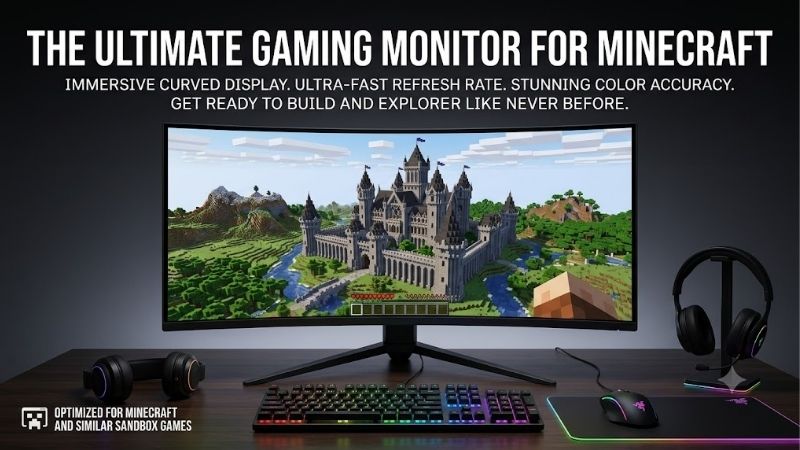
Quick answer: Our top pick in 2026 is the ASUS ROG Strix XG27ACS — our #1 rated choice. See the full ranked comparison, alternatives and buying advice below.
Which gaming monitor for Minecraft should you choose?
Start with the ASUS ROG Strix XG27ACS if you divide your time between survival, creative building, multiplayer, and everyday computer use. Its 1440p resolution and 180Hz maximum refresh rate provide a practical combination without making extreme refresh headroom the main reason to upgrade.
Choose the BenQ MOBIUZ EX240 for a compact 1080p setup. Consider the LG UltraGear 27GR83Q-B when 240Hz and compatible HDMI connectivity matter, or the MSI G274QPX when your gaming desk also serves a USB-C laptop.
The AOC Q27G3XMN offers a different approach: a VA panel with Mini LED local dimming for buyers interested in contrast and supported HDR content. The Gigabyte M28U suits players who prioritize 4K desktop detail alongside Minecraft.
These recommendations assume a PC-focused purchase. No monitor here guarantees a particular Minecraft frame rate, enables shader compatibility, or fixes server lag. Your edition, graphics configuration, connection, and actual workload should guide the final choice.
Quick comparison table
Refresh figures describe display capabilities, not the frame rates your computer will achieve. Use a supported connection to obtain the intended resolution and refresh combination.
| Monitor | Size and panel | Resolution | Refresh specification | Primary use case | Main limitation |
|---|---|---|---|---|---|
| ASUS ROG Strix XG27ACS | 27-inch Fast IPS | 2560 × 1440 | Up to 180Hz | Balanced survival, building, and desktop use | HDMI is limited to 144Hz |
| BenQ MOBIUZ EX240 | 23.8-inch IPS | 1920 × 1080 | Up to 165Hz | Compact desks and 1080p gaming | Less fine detail and workspace |
| LG UltraGear 27GR83Q-B | 27-inch IPS | 2560 × 1440 | Up to 240Hz | PvP and other high-frame-rate games | Extra refresh headroom needs a suitable PC |
| MSI G274QPX | 27-inch Rapid IPS | 2560 × 1440 | Up to 240Hz through DisplayPort | Gaming plus compatible USB-C laptop use | HDMI is limited to 144Hz |
| AOC Q27G3XMN | 27-inch VA with Mini LED | 2560 × 1440 | Up to 180Hz; overclocked mode | Contrast-focused gaming and supported HDR content | Local dimming is not per-pixel lighting |
| Gigabyte M28U | 28-inch IPS | 3840 × 2160 | Up to 144Hz | Detailed desktop work and 4K gaming | Native 4K increases rendering demands |
How these monitors were selected
The shortlist uses manufacturer product pages, specifications, and documentation to verify defining features. Selection emphasizes meaningful differences rather than six versions of essentially the same purchase.
Minecraft-specific priorities include comfortable camera movement, readable inventory and chat, adequate screen detail for building, and a resolution your computer can handle with your preferred graphics configuration.
This is a research-based guide. No direct testing or matched Minecraft benchmarks were supplied, so the article does not claim measured motion superiority, exact input latency, or a particular FPS result for any display.
Comparable current US checkout prices were not established across the entire shortlist. Consequently, the categories describe features and use cases rather than unsupported “best budget” or “best value” awards. Check current offers, return policies, and exact model names before purchasing.
The six monitor picks explained
ASUS ROG Strix XG27ACS: the balanced 1440p starting point
The XG27ACS combines a 27-inch Fast IPS panel, 2560 × 1440 resolution, and a maximum 180Hz refresh rate. ASUS lists G-SYNC compatibility and USB-C with DisplayPort Alt Mode.
For a Minecraft desk, its appeal is the combination of resolution and refresh capability. It gives you a middle ground between compact 1080p gaming and the much larger pixel count of 4K.
Connection choice matters. ASUS’s manual lists DisplayPort operation up to 180Hz and HDMI up to 144Hz. USB-C power delivery is only 7.5W, so it should not be treated as a substantial laptop charger.
Start here when you want a versatile screen and have not identified a specific reason to prioritize 240Hz, local dimming, or 4K. Compare current offers against those alternatives before deciding.
Buy if: You want balanced 1440p gaming and can connect through DisplayPort.
Skip if: You require 180Hz through HDMI or want meaningful USB-C laptop charging.
Alternative: Choose the LG for compatible HDMI at 240Hz, or the MSI for its charging capability.
BenQ MOBIUZ EX240: the compact 1080p choice
The EX240 has a 23.8-inch IPS panel, 1920 × 1080 resolution, and a 165Hz maximum refresh rate. BenQ specifies FreeSync Premium, built-in stereo speakers, and height adjustment.
Its role is straightforward: it suits a smaller desk or a player who wants to remain at 1080p. Lower pixel count can reduce rendering demands, although the effect on Minecraft performance depends on the workload.
Confirm the exact EX240 model. The similarly named EX240N is a different product and should not be substituted without checking its specifications.
BenQ distinguishes a 2ms gray-to-gray specification from a 1ms MPRT claim. Those figures describe different concepts and do not justify treating the display as universally faster than another monitor.
Buy if: You want a compact gaming screen with integrated audio and are comfortable with 1080p.
Skip if: Sharper desktop text or additional workspace is a priority.
Alternative: Move to the ASUS if your desk accommodates 27 inches and 1440p better fits your needs.
LG UltraGear 27GR83Q-B: the 240Hz option for PvP
The LG 27GR83Q-B combines a 27-inch 1440p IPS panel with a maximum 240Hz refresh rate. LG lists G-SYNC compatibility, FreeSync Premium, and height, tilt, and pivot adjustments.
Its useful distinction is connectivity. LG specifies a graphics card supporting DisplayPort 1.4 or HDMI 2.1 for operation up to 240Hz. NVIDIA adaptive-sync requirements also differ between connections, so check your GPU and output.
Consider this model when you favor quick camera movement, PvP, and other games that make high refresh capability relevant. That recommendation depends on your computer delivering useful frame rates in the situations you actually play.
A heavy shader configuration may change the buying calculation. If graphics settings keep frame rates well below your existing monitor’s ceiling, paying for additional refresh headroom deserves less priority.
Buy if: You want 1440p at 240Hz with a compatible output, particularly HDMI.
Skip if: Your connection or chosen graphics settings prevent you from using its distinguishing feature.
Alternative: Consider the ASUS for balanced use or the MSI when USB-C charging matters.
MSI G274QPX: the gaming-and-laptop desk choice
The G274QPX offers a 27-inch 1440p Rapid IPS panel and a 240Hz maximum refresh rate. MSI specifies G-SYNC compatibility and USB-C DisplayPort Alt Mode with up to 65W power delivery.
DisplayPort supports 1440p at up to 240Hz, while HDMI stops at 1440p at 144Hz. Desktop players should choose their cable accordingly rather than assuming every input supports the headline rate.
The charging feature gives this monitor a distinct reason to consider it. A compatible laptop can receive video connectivity and power through USB-C, provided its requirements fit the available charging capability.
That does not guarantee replacement of a gaming laptop’s original power supply. Check the laptop’s charging requirements and supported video modes before planning a simplified setup.
Buy if: You want high-refresh desktop gaming and useful charging for a compatible laptop.
Skip if: You need 240Hz through HDMI or have no use for USB-C.
Alternative: The LG better addresses compatible high-refresh HDMI connections; the ASUS suits a simpler desktop requirement.
AOC Q27G3XMN: the contrast-focused Mini LED option
The Q27G3XMN uses a 27-inch 1440p VA panel with a Mini LED backlight. AOC specifies 336 local dimming zones, adaptive sync, and DisplayHDR 1000 certification.
Its maximum 180Hz mode is described as overclocked in the US product listing. Treat that as a supported advertised mode to verify during setup, rather than assuming it is the default.
Local dimming lets the backlight control groups of pixels separately. Because 336 zones are not millions of independently lit pixels, bright and dark objects can still share a zone. Perfectly isolated lighting should not be expected.
The buying case is broader image contrast and supported HDR content. An HDR-capable monitor alone does not establish that your Minecraft edition, shader, or graphics path outputs HDR.
Buy if: You want Mini LED local dimming and understand its zone-based behavior.
Skip if: You expect HDR certification to enable Minecraft lighting effects automatically.
Alternative: The ASUS offers a simpler IPS approach when local dimming is not a purchase priority.
Gigabyte M28U: the 4K choice for builders and desktop work
The Gigabyte M28U combines a 28-inch IPS panel, 3840 × 2160 resolution, and a 144Hz refresh specification. Its reason to appear here is detail rather than the highest refresh ceiling.
A 4K image contains 2.25 times as many pixels as 1440p and four times as many as 1080p. Those ratios explain the increased rendering workload but do not predict an exact FPS reduction.
Consider it when Minecraft shares your desk with documents, coding, spreadsheets, or other work where fine text matters. Adjust desktop scaling and Minecraft’s interface size to keep the extra detail usable.
Before buying, test whether native 4K is compatible with your preferred graphics settings. If you expect to play mainly at a lower resolution, reassess whether 4K is solving your main requirement.
Buy if: Desktop detail and native 4K gaming are clear priorities.
Skip if: Heavy graphics settings or competitive play make lower resolution more practical.
Alternative: Choose a 1440p model when balancing screen detail against rendering demands.
How to choose a gaming monitor for Minecraft
Start with your edition and graphics configuration
“Minecraft performance” is not one fixed workload. Identify whether you play Java Edition or Bedrock Edition, then record the version, graphics settings, and any modifications involved.
Test the environments that matter to you. A quiet indoor build may not represent exploring unfamiliar terrain, visiting a busy base, or playing with your preferred visual enhancements.
For shader users, keep the exact shader preset and resource pack consistent while comparing settings. Changing several variables together makes it difficult to identify what the computer can realistically support.
Official graphics features also require care. Minecraft’s current documentation describes Vibrant Visuals for compatible Bedrock devices, while Microsoft provides separate documentation for Bedrock ray tracing. Do not assume instructions or compatibility transfer between those features and a Java shader setup.
The monitor purchase comes after this assessment. Choose a screen that presents your preferred workload well rather than selecting a refresh number first and trying to reshape the game around it.
Choose resolution around your actual priorities
For a compact setup, 1080p remains a reasonable choice. You can prioritize comfortable motion and manageable rendering demands without treating a higher resolution as mandatory.
At 27 inches, 1440p is a practical starting point for mixed gaming and computer use. It supplies more pixels than 1080p while avoiding the substantially larger image of 4K.
Higher resolution does not automatically increase Minecraft’s render distance or reveal terrain the game has not rendered. It changes how finely the existing image is displayed.
Choose 4K when you specifically value that detail and can support the intended graphics settings. For builders, compare how your textures, distant structures, and interface look at the resolutions you are considering.
Keep field of view consistent during comparisons. Otherwise, changes in the apparent size of objects can distract from the actual difference in screen detail.
Match refresh rate to the way you play
Refresh rate is the number of times per second a display can update its image. Its importance depends on frame delivery and the movement you want to present.
A player focused on fast camera turns and multiplayer combat may reasonably prioritize more refresh headroom. Someone building slowly with demanding visual effects may benefit more from resolution or other picture characteristics.
The interval between refresh opportunities is approximately 6.94 milliseconds at 144Hz, 5.56 milliseconds at 180Hz, and 4.17 milliseconds at 240Hz.
Those are calculated intervals, not measured total input latency. They exclude game processing, rendering, pixel transitions, and other parts of the system.
A higher ceiling also does not promise better server responsiveness. Decide whether the limitation you notice is visible motion, inconsistent rendering, or delayed game-state updates before spending money.
Understand adaptive sync and frame consistency
Adaptive sync allows a compatible display to vary its refresh timing with the frames delivered by the GPU within its supported operating range.
It can help address tearing when frame rates fluctuate, but it cannot make the computer render additional frames or eliminate every source of stutter.
Check compatibility for the actual monitor, GPU, and connection. A feature listed on a product page should not be assumed active merely because the screen displays an image.
When evaluating Minecraft, pay attention to interruptions as well as average FPS. A strong average can conceal noticeable pauses.
Try settings changes on your existing setup before replacing hardware. If the problem remains an irregular stream of rendered frames, a higher-refresh monitor may leave the main issue unresolved.
Keep shaders, ray tracing, and HDR separate
Shaders change the image generated by the game. Ray tracing is a rendering approach with its own software and hardware requirements. HDR concerns the image signal and the display’s ability to present a wider range of brightness.
These features can interact, but they are not interchangeable labels.
A shader showing bright sunlight does not automatically mean it is delivering an HDR signal. Likewise, a monitor with HDR certification does not install a shader, satisfy ray-tracing requirements, or enable Vibrant Visuals on an incompatible platform.
Check the official requirements for your game feature and the documentation for any third-party graphics setup you use. Then verify whether HDR output is actually supported before making it a central monitor requirement.
The AOC’s local dimming is a documented display feature. Its usefulness for your exact Minecraft configuration should be assessed separately from its HDR badge.
Check motion without relying on response-time slogans
Refresh rate and pixel response are different. A monitor can advertise a high refresh ceiling while individual pixel transitions behave differently across colors and settings.
Manufacturer gray-to-gray minimums are not a substitute for matched measurements. MPRT and gray-to-gray specifications also should not be compared as though they describe the same thing.
During your return window, look at moving block edges, foliage, and camera pans. If overdrive controls are available, compare several settings at both higher and lower frame rates.
Watch for visible trails or bright outlines instead of automatically selecting the strongest setting.
This guide does not supply measured rankings for those behaviors. Use a return policy and relevant independent testing to investigate motion quality when it is a deciding requirement.
Verify the complete connection path
Your maximum usable mode depends on the GPU output, cable, any adapter or dock, and the monitor input.
The ASUS illustrates the issue clearly: its DisplayPort ceiling is higher than its HDMI ceiling. The MSI similarly requires DisplayPort for its documented 1440p 240Hz mode.
For laptops, check whether USB-C supports video output. Charging capability and video capability are separate requirements, even when they share the same connector.
If troubleshooting, connect directly before adding a dock. Confirm the operating system’s selected resolution and refresh rate, then check the monitor’s information screen.
For consoles, verify the exact device’s output and the game’s behavior separately. A PC monitor capable of 240Hz does not mean a console version of Minecraft will run at that rate.
Account for desk space and daily use
Measure the space available for the stand and the distance between your normal seating position and the screen. Screen diagonal alone does not tell you whether a display fits comfortably.
A smaller monitor can be the better purchase when a larger screen crowds the mouse area or forces an awkward viewing position.
Check adjustment options before allocating money to a separate monitor arm. If you need an arm, verify its mounting pattern and weight capacity against the exact display.
Also consider homework, work, browsing, and communication. Readable text and comfortable positioning may matter for more hours each day than peak gaming refresh.
Compare total ownership cost, including required cables, audio equipment, or mounting accessories, rather than evaluating the monitor’s checkout price alone.
Frequently asked questions
Do I need 240Hz for Minecraft?
No. It is an optional capability for players whose computers and playstyles can use it. A 144Hz, 165Hz, or 180Hz display can be a sensible choice. Prioritize the limitations you actually notice before paying for a higher ceiling.
Will a new monitor improve Minecraft FPS?
The monitor does not increase rendering performance. Changing the game’s resolution can change the workload, but buying a higher-refresh screen alone cannot make your computer produce additional frames.
Is 4K worthwhile despite Minecraft’s blocky graphics?
It can be, especially for desktop text, detailed resource packs, and mixed-use work. The block-based art style does not make resolution irrelevant. Whether the added detail deserves priority depends on viewing distance and PC performance.
Can a monitor fix multiplayer lag?
It cannot repair network or server problems. Diagnose delayed actions and game-state updates separately from screen tearing, motion blur, or uneven frame delivery. Those symptoms can require different solutions.
Final verdict
For a balanced Minecraft desk, begin with the ASUS ROG Strix XG27ACS. Choose the BenQ EX240 for compact 1080p use, the LG 27GR83Q-B for compatible 240Hz HDMI gaming, or the MSI G274QPX for useful laptop charging.
The AOC Q27G3XMN and Gigabyte M28U address more specific priorities: Mini LED local dimming or 4K detail. Confirm your graphics workload and connection first, then choose the display whose defining feature solves a real requirement.
Ready to decide? Our #1 pick for 2026 is the ASUS ROG Strix XG27ACS.
Live price & availability on Amazon.









