
A good monitor for gaming laptop should improve the experience without asking your laptop to do something it cannot handle. For most people, a 27-inch 1440p display with adaptive sync and a refresh rate between 180Hz and 280Hz is the sensible starting point. Competitive players may benefit from faster screens, while cinematic games can make better use of OLED contrast or 4K detail. The right choice also depends on the laptop’s video outputs, GPU performance, desk space, and whether you need a screen you can pack away.
- Quick verdict: monitor for gaming laptop setups by use case
- How we selected these monitors
- Best everyday 1440p pick: ASUS ROG Strix XG27ACS
- Best high-refresh LCD: Acer Nitro XV272U F3BMIIPRX
- Best entry point to OLED: LG UltraGear 27GX704A-B
- Best OLED for laptop docking: MSI MPG 271QRX QD-OLED
- Best premium 4K screen: Samsung Odyssey OLED G8 G80SH
- Best for elite esports: ASUS ROG Swift OLED PG27AQWP-W
- Best portable option: Arzopa Z3FC
- How to choose a monitor for gaming laptop setups
- Frequently asked questions
- Final verdict
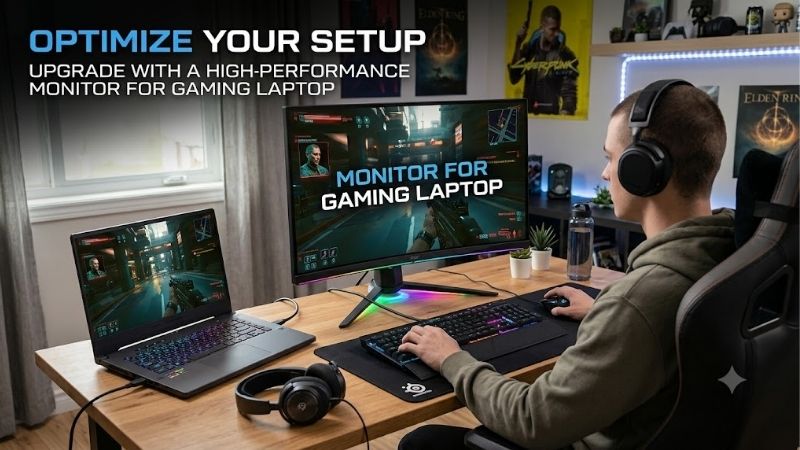
Quick answer: For most people in 2026, the best monitor for gaming laptop is the Monitor — our #1 rated choice. See the full ranked comparison, alternatives and buying advice below.
Quick verdict: monitor for gaming laptop setups by use case
For a conventional desk, the ASUS ROG Strix XG27ACS is a sensible 1440p, 180Hz starting point. Competitive players can consider Acer’s 300Hz IPS option; OLED fans have the LG 27GX704A-B at 240Hz or MSI’s 360Hz QD-OLED with 90W USB-C power delivery. Samsung’s 32-inch 4K OLED is for powerful laptops and cinematic games, while ASUS’s 540Hz OLED is a specialist esports purchase. The Arzopa Z3FC is the portable choice.
| Monitor | Best fit | Key specifications | Main trade-off |
|---|---|---|---|
| ASUS ROG Strix XG27ACS | Everyday 1440p gaming | 27-inch class, 2560 × 1440, 180Hz, Fast IPS | Modest HDR; USB-C delivers only 7.5W |
| Acer Nitro XV272U F3BMIIPRX | High-refresh LCD gaming | 27-inch, 2560 × 1440, 300Hz, IPS | Maximum refresh depends on the laptop output and cable |
| LG UltraGear 27GX704A-B | OLED contrast at 1440p | 27-inch class, 2560 × 1440, 240Hz, WOLED | Glossy reflections and OLED care |
| MSI MPG 271QRX QD-OLED | OLED gaming and laptop docking | 26.5-inch, 2560 × 1440, 360Hz, USB-C 90W PD | Premium cost and burn-in precautions |
| Samsung Odyssey OLED G8 G80SH | Premium 4K gaming | 32-inch, 3840 × 2160, 240Hz, QD-OLED, USB-C 98W | Demanding GPU workload at 4K |
| ASUS ROG Swift OLED PG27AQWP-W | Elite esports | 26.5-inch, 1440p at 540Hz or 720p at 720Hz | Expensive and specialized |
| Arzopa Z3FC | Portable gaming | 16.1-inch, 2560 × 1440, up to 180Hz over USB-C | No built-in battery; lower refresh over HDMI |
These monitors are not interchangeable: portable screens prioritize weight, esports displays prioritize speed, and 4K OLED models prioritize detail and contrast. Choose the feature you will notice in your games rather than the largest number on a box.
How we selected these monitors
This shortlist balances common laptop scenarios instead of simply sorting displays by refresh rate. Manufacturer product pages establish model-specific resolution, refresh rate, ports, and stated power delivery. Independent reviews from RTINGS and TechRadar help identify real-world trade-offs such as reflections, OLED text fringing, variable-refresh-rate flicker, input lag, and portable-display limitations. No new detailed research was performed for this article, and no unverified benchmark scores or current street prices are used. Prices and availability can change, so check the exact variant and current retailer listing before ordering.
Laptop compatibility matters more than a monitor’s box claims. An HDMI 2.1 socket on the screen cannot upgrade an older laptop’s HDMI output, and a USB-C port only carries video when that specific laptop port supports DisplayPort Alt Mode or another compatible video mode. A dock, adapter, cable, or hybrid-graphics routing can also limit resolution and refresh rate. Confirm the laptop manual’s supported external-display modes before choosing a high-refresh or 4K model.
Best everyday 1440p pick: ASUS ROG Strix XG27ACS
The ASUS ROG Strix XG27ACS is a balanced desk upgrade for laptop owners who want better sharpness and smooth motion without paying for OLED or 4K. Its 27-inch-class Fast IPS panel runs at 2560 × 1440 and up to 180Hz, with adaptive sync. RTINGS reports responsive motion and low input lag, but notes limited contrast and weak HDR impact compared with advanced panels.
USB-C supports DisplayPort Alt Mode, so a compatible laptop can send video over one cable. However, ASUS lists only 7.5W USB-C Power Delivery; that is not enough to replace a typical gaming laptop’s AC adapter. The monitor also lacks HDMI 2.1 bandwidth, so verify the mode you need and use DisplayPort where possible if the laptop supports it.
Buy it for mixed gaming and everyday use at QHD. Skip it if strong HDR, OLED-level blacks, or useful laptop charging are priorities. For a higher refresh rate, consider the Acer; for stronger contrast, look at the LG or MSI OLED models.
Best high-refresh LCD: Acer Nitro XV272U F3BMIIPRX
Acer’s Nitro XV272U F3BMIIPRX combines a 27-inch 1440p IPS panel with a maximum 300Hz refresh rate and AMD FreeSync Premium. Acer’s US specification page lists DisplayPort and HDMI inputs and 400-nit brightness. It suits competitive players who want high refresh without OLED burn-in precautions. IPS provides broad viewing angles, although its dark-room contrast is not comparable to OLED.
The key question is whether the laptop can feed it enough frames. A 300Hz panel does not create 300 frames per second; the GPU and game must render them. Competitive games at tuned settings may approach that rate more readily than demanding open-world titles. Also confirm the laptop’s maximum resolution and refresh rate for the chosen port—do not assume every USB-C or HDMI output supports 1440p at 300Hz.
Buy it for fast multiplayer gaming and a high-refresh LCD. Skip it if your laptop usually runs below 180 fps or you mainly play cinematic games, where better contrast or resolution may matter more than extra refresh headroom.
Best entry point to OLED: LG UltraGear 27GX704A-B
The LG UltraGear 27GX704A-B has a 27-inch-class 1440p WOLED panel, 240Hz refresh rate, HDMI 2.1, DisplayPort 1.4, and adaptive sync. Because OLED pixels light individually, dark scenes have deep blacks without the halos common on some LCD backlights. RTINGS reports sharp motion and low input lag, while flagging distracting reflections, variable-refresh-rate flicker, and burn-in risk from long exposure to static content.
It suits players who want cinematic image quality without moving to 4K, while keeping enough refresh headroom for action games. QHD also asks less of a laptop GPU than 4K. The glossy surface can make images look crisp, but lamps and windows may reflect directly back at you, so room lighting matters.
Keep OLED care features enabled and follow the panel’s maintenance instructions. OLED can work for desktop tasks, but static windows at high brightness for long periods make burn-in precautions more relevant. Buy it for contrast and responsive 1440p gaming; skip it for a sunlit room or a display used all day for static work if you prefer low maintenance.
Best OLED for laptop docking: MSI MPG 271QRX QD-OLED
MSI’s MPG 271QRX QD-OLED uses a 26.5-inch panel sold in the 27-inch class, with 2560 × 1440 resolution, 360Hz refresh, HDMI 2.1, DisplayPort 1.4a, and USB-C with up to 90W Power Delivery. MSI lists a three-year warranty that includes panel burn-in. One compatible USB-C connection can carry video and power many everyday laptops, while additional inputs let a console or second computer remain attached.
Do not assume 90W can replace a gaming laptop’s power brick. Discrete-GPU laptops often need much more power during demanding play, so treat USB-C charging as a convenience for work or lighter loads. The laptop’s USB-C port must also support video; connector shape alone is not proof.
QD-OLED brings vivid colors and deep blacks, while 360Hz provides refresh headroom for competitive games. The trade-offs are cost and the need to manage OLED care. Buy it if high-refresh OLED and laptop docking are both important. Skip it if you want an inexpensive display, do not want OLED maintenance, or cannot use USB-C video.
Best premium 4K screen: Samsung Odyssey OLED G8 G80SH
The Samsung Odyssey OLED G8 G80SH (S32HG802S) is a 32-inch 4K QD-OLED monitor with a 240Hz refresh rate. Samsung lists DisplayPort 2.1, USB-C with up to 98W power delivery, and an anti-glare finish. It is aimed at detailed games and HDR scenes where deep shadows and bright highlights benefit from OLED contrast. RTINGS’ 2026 assessment notes fast response and vivid image quality, but also that QD-OLED blacks can look raised or purple in bright rooms.
This screen makes sense with a powerful laptop GPU. Rendering 3840 × 2160 requires more work than 2560 × 1440, so a laptop that performs well at QHD may need upscaling or lower settings at 4K. A 240Hz ceiling is useful when the game and laptop can take advantage of it, but should not be the sole reason to buy it. Samsung lists USB-C power delivery up to 98W, while RTINGS describes it as 90W in parts of its review; treat the figure as high-power USB-C support, not a guarantee of identical delivered wattage in every condition. Many gaming systems still need their own charger under load.
Buy it for 4K detail, OLED contrast, and a generous 32-inch workspace. Skip it if your desk is small or you prioritize high frame rates in demanding games over image detail.
Best for elite esports: ASUS ROG Swift OLED PG27AQWP-W
The ASUS ROG Swift OLED PG27AQWP-W is a specialist display, not a default recommendation for every gaming laptop. ASUS lists a 26.5-inch Tandem WOLED panel that runs at 2560 × 1440 up to 540Hz, or switches to 1280 × 720 at up to 720Hz. Ports include DisplayPort 2.1 and two HDMI 2.1 connections. ASUS lists a three-year warranty that includes OLED burn-in.
These modes are for competitive players who prioritize frame rate and motion clarity over fine detail. The practical improvement depends on the title, frame rate, settings, and how sensitive the player is to motion. A laptop producing 120–200 fps cannot deliver 540 unique frames every second. The 720p mode trades sharpness for speed and is not ideal for cinematic games or text-heavy work.
Check the entire signal path—laptop output, adapter, cable, resolution, and refresh mode. The monitor’s DisplayPort 2.1 input does not prove the laptop has equivalent bandwidth. Buy it if you compete seriously in fast esports games and have hardware to match. Skip it if play is casual or the budget would be better spent on a GPU upgrade.
Best portable option: Arzopa Z3FC
The Arzopa Z3FC is for gamers who need a screen away from a permanent desk. It has a 16.1-inch IPS panel at 2560 × 1440 and weighs about 1.72 pounds at roughly 0.37 inches thick. TechRadar’s review lists refresh rates up to 180Hz over USB-C/DisplayPort mode and 144Hz over HDMI, alongside claimed 400-nit brightness, 107% sRGB coverage, two USB-C ports, mini HDMI, a built-in kickstand, and a protective sleeve.
The QHD panel is sharp for its size, and 180Hz is unusually fast for a portable display. It fits dorm rooms, travel, LAN events, and temporary work surfaces. However, the stand is less adjustable than a desktop monitor’s, and the model has no built-in battery. It needs power from a connected device or another supply; an HDR label does not mean it can match a full-size OLED monitor’s HDR performance.
A compatible USB-C cable is convenient, but may still require separate power depending on the laptop and brightness. HDMI is widely useful but caps refresh lower on this model. Buy it when portability is essential. Skip it for a permanent primary display if you want a large viewing area, height adjustment, or stronger HDR.
How to choose a monitor for gaming laptop setups
Match resolution to the laptop GPU
For many laptops, 2560 × 1440 is the middle ground: sharper than 1080p at 27 inches without 4K’s GPU burden. Choose 1080p for a modest laptop or maximum esports frame rates. Choose 4K when detail matters most and you can lower settings or use supported upscaling. The laptop’s GPU and cooling, not the monitor’s advertised maximum, determine real performance.
Choose refresh rate by the games you play
120Hz or 144Hz already looks much smoother than 60Hz. Moving to 180Hz or 240Hz helps when the laptop produces high frame rates; 300Hz and 540Hz are specialist choices for competitive games. Adaptive sync, sold as FreeSync or G-SYNC Compatible, can reduce tearing as frame rates fluctuate when the monitor, laptop, and connection support the mode.
Check the actual port path, not just the connector name
Consult the exact laptop manual for the maximum mode supported by HDMI, USB-C DisplayPort Alt Mode, Thunderbolt, or other video outputs. Some USB-C ports handle data and charging but not video. A dock, adapter, cable, and hybrid-graphics routing can affect performance too. Verify bandwidth and modes for the entire path before buying a high-refresh display.
Understand USB-C power delivery
USB-C video and USB-C charging are different features. 7.5W or 18W delivery cannot replace a gaming laptop’s adapter. Displays offering 90W or 98W can simplify many everyday setups, but discrete-GPU laptops often need their original charger during gaming. Compare the monitor’s wattage with the laptop’s requirements.
Pick IPS, VA, or OLED for your room and habits
IPS is a versatile, low-maintenance choice with broad viewing angles, but modest contrast. VA often improves contrast at lower cost, although dark transitions and viewing angles vary. OLED delivers deep blacks and fast response but can bring reflections, VRR flicker, text fringing, and burn-in risk. For bright rooms or static desktop use, an LCD can be less demanding; for dark-room story games, OLED can be compelling.
Don’t forget the physical setup
A 27-inch display suits many desks; a 32-inch model needs more space and viewing distance. Check stand height, tilt, VESA support, cable direction, and laptop placement. Keep vents clear if you use the laptop open beside the monitor. Many monitors have no speakers or only basic audio, so headphones may be necessary. Include cables, a dock, or an arm in the setup budget.
Frequently asked questions
Is 1440p better than 4K for a gaming laptop?
Often, yes, if your priority is smooth gaming across a broad range of titles. At 1440p, a laptop GPU has fewer pixels to render than at 4K, leaving more performance headroom. Choose 4K when visual detail is your priority and the laptop can handle the workload, or when you are willing to use upscaling and lower settings.
Will any USB-C cable run a 240Hz monitor?
No. The laptop’s USB-C port must support video output, and the cable, adapter, dock, resolution, and color format all affect the maximum refresh rate. Check the laptop and monitor manuals for supported combinations rather than assuming any USB-C cable is sufficient.
Can a monitor charge my gaming laptop while I play?
Sometimes, but do not assume it will replace the stock adapter. Gaming laptops can consume considerably more power under load than USB-C Power Delivery monitors provide. A high-wattage USB-C monitor is useful for light work and fewer cables, while the original charger is normally the safer choice for full-performance gaming.
Is OLED worth it for an external laptop monitor?
OLED is worth considering if deep blacks, strong contrast, HDR effects, and fast response matter to you. It is less attractive if the display will show static desktop windows for long periods, sit opposite a bright window, or be used in a way that makes pixel-care routines inconvenient. A quality IPS or VA panel remains a good alternative.
Do I need a 300Hz or 540Hz monitor?
Only if your games and hardware can use the extra refresh rate and you value the smallest possible motion interval. For most mixed-use laptop setups, 144Hz to 240Hz is a more balanced range. Spending the difference on a monitor with better contrast, a sharper image, or better ergonomics may improve everyday use more noticeably.
Final verdict
Most desk-based gaming laptop owners should start with a 27-inch 1440p screen. Choose the ASUS ROG Strix XG27ACS for balanced everyday play or Acer’s Nitro XV272U F3 for higher-refresh IPS gaming. The LG 27GX704A-B suits players who want OLED contrast; MSI’s MPG 271QRX adds 360Hz and 90W USB-C charging. Samsung’s Odyssey OLED G8 G80SH fits powerful laptops and 4K gaming, while ASUS’s ROG Swift OLED is a niche esports investment. For travel, the Arzopa Z3FC is the better match. Before ordering, verify the exact model, laptop output mode, cable, desk fit, and current US listing.
Ready to decide? Our #1 pick for 2026 is the Monitor.
Live price & availability on Amazon.









