
The best cheap 2nd monitor is usually a straightforward 24-inch 1080p screen, not a premium display packed with features you will barely use. A second monitor mostly needs to make email, reference pages, spreadsheets, messaging, or background video easier to keep visible. For a fixed desk, the MSI PRO MP225 E12L and ASUS VA24EHF cover the basics; the Lenovo L24i-40 adds built-in speakers, the MSI PRO MP243W E14 raises the refresh rate, and the KYY K3 makes sense when portability matters more than screen size. The cheapest useful option depends on the task, available ports, and whether you can live with a simple tilt-only stand.
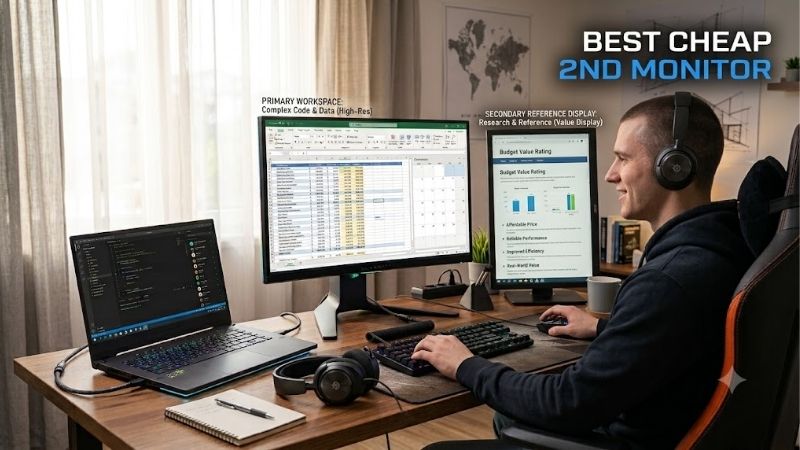
Best cheap 2nd monitor picks at a glance
For a typical desk, start with a 23.8- or 24-inch IPS monitor at 1920 × 1080. It can hold a browser, document, calendar, or chat window beside your primary display. A 100Hz refresh rate makes scrolling smoother, but is not essential for static office applications.
For a compact setup, consider the 21.5-inch MSI PRO MP225 E12L. The ASUS VA24EHF is a straightforward 24-inch choice, while Lenovo’s L24i-40 adds speakers. The MSI PRO MP243W E14 offers 144Hz and slim bezels; the KYY K3 is for travel rather than a permanent desk.
| Model | Best use | Main specifications | Main compromise |
|---|---|---|---|
| MSI PRO MP225 E12L | Compact, low-cost desk setup | 21.5-inch IPS, 1080p, 120Hz | Smaller screen, tilt-only stand |
| ASUS VA24EHF | Straightforward everyday use | 23.8-inch IPS, 1080p, 100Hz | One HDMI input, no speakers |
| Acer SB242Y H1bi | Basic screen with higher stated contrast | 23.8-inch, 1080p, up to 100Hz over HDMI | Limited adjustment and connectivity |
| Lenovo L24i-40 | Work and casual media | 23.8-inch IPS, 1080p, 100Hz, speakers | Tilt-only stand and limited inputs |
| MSI PRO MP243W E14 | Slim-bezel multitasking and casual gaming | 23.8-inch IPS, 1080p, 144Hz | Stand only tilts; no USB hub |
| KYY K3 | Portable laptop companion | 15.6-inch IPS, 1080p, 60Hz | Modest measured color coverage and brightness |
Prices and retailer inventory change frequently, so a temporary discount does not determine these rankings. Recommendations use verified specifications and available independent reviews, not personal detailed research. For a second monitor, also consider whether a used display from a reputable local seller could meet the need, provided you can inspect the panel for dead pixels, uneven backlighting, and damaged ports before paying.
How we selected these budget monitors
We prioritized practical 1080p resolution, manageable size, useful inputs, and stand limitations. High refresh rates matter mainly if you plan to game on the second screen.
Manufacturer pages confirm the listed sizes, resolutions, refresh rates, ports, stand features, and extras. WIRED tested the MSI PRO MP243W E14; TechRadar measured the KYY K3’s brightness and color gamut. The other recommendations rely primarily on manufacturer specifications because independent testing of each exact variant was not confirmed.
Most picks are conventional desktop displays; the 15.6-inch KYY is a separate travel option. Model suffixes matter: MSI’s PRO MP225 E12L is not assumed to match every listing called MP225, and the Acer recommendation applies specifically to SB242Y H1bi. We also avoided price-dependent labels such as “best value” where comparable live offers for every exact model could not be verified.
The best cheap second monitors by use case
MSI PRO MP225 E12L — best compact desk monitor
The MSI PRO MP225 E12L is a useful starting point if you want an affordable second screen but can work comfortably with a slightly smaller display. MSI specifies a 21.5-inch IPS panel with a 1920 × 1080 resolution and a maximum 120Hz refresh rate. Those specifications are enough for email, messages, reference websites, and documents.
The E12L variant includes HDMI 1.4b and VGA inputs, supports Adaptive-Sync, has a typical rated brightness of 300 nits, and supports 100 × 100mm VESA mounting. The included stand tilts but does not provide height adjustment. That is an understandable cost-saving compromise, but it means a riser or monitor arm may be needed to align the top of the screen with your main display.
The smaller panel saves space but makes text feel more crowded than on a 23.8-inch screen at the same resolution. VGA helps with older computers, although HDMI is preferable on modern systems. MSI lists 1ms MPRT and 4ms gray-to-gray figures; these are different measurements, not proof of elite gaming response.
Buy if: Desk space is tight, you want 120Hz for smoother desktop movement, or you need a simple additional screen for a modest workstation.
Skip if: You regularly view several large windows at once or need height adjustment without buying an accessory.
Before ordering, verify the complete model suffix. A deal page that refers to “MP225” without the E12L designation is not sufficient evidence that the offer is for this exact IPS variant.
ASUS VA24EHF — best straightforward 24-inch option
The ASUS VA24EHF is the easy-to-understand option for a typical home or office setup. It has a 23.8-inch IPS panel with a native 1920 × 1080 resolution and a maximum refresh rate of 100Hz. ASUS lists 250 nits of typical brightness, an anti-glare surface, Adaptive-Sync, and a single HDMI 1.4 input.
For a secondary display, the appeal is its uncomplicated design. It can keep a document, music app, browser, or meeting window visible without taking over the desk. The IPS panel’s stated 178-degree viewing angles are useful if the monitor sits off to one side rather than directly in front of you. The monitor is VESA-compatible at 100 × 100mm, but its included stand supports tilt only.
There are no built-in speakers, USB hub, DisplayPort input, or USB-C video. Make sure the computer has a free compatible output; many HDMI splitters duplicate a picture rather than creating an independent extended desktop.
ASUS lists a 1ms MPRT figure, but that is a motion-picture response specification, not the same as a measured pixel transition result. Because a robust independent test of this exact model was not established for this article, it is recommended for its verified basic feature set rather than for any unverified claim about measured response time or color accuracy.
Buy if: You want an ordinary 24-inch second screen with an IPS panel and a refresh rate above 60Hz.
Skip if: You need built-in sound, several inputs, or a stand with height adjustment.
Acer SB242Y H1bi — best basic option with higher stated contrast
The Acer SB242Y H1bi is another sensible option when the job is mostly office work and occasional video. Acer’s US specification page lists a 23.8-inch Full HD display with an anti-glare surface, 250-nit brightness, and a stated native contrast ratio of 3,000:1. It accepts HDMI and VGA, and Acer specifies support for up to 1920 × 1080 at 100Hz over HDMI. Its published “standard refresh rate” field says 60Hz, so shoppers should check the supported mode and computer settings rather than assuming every connection will operate at 100Hz.
Its limited ergonomics are an important downside. Acer lists no height-adjustable display and no adjustable stand, so plan on a riser if the screen sits too low. Confirm mounting support directly for the exact part number before buying a VESA arm. The model considered here is part number UM.QS2AA.101. That exact part number matters because closely named Acer monitors can have different refresh rates, inputs, or stands.
The higher published contrast can help darker content, but it does not establish black uniformity or motion quality. No independent review of this exact H1bi variant was confirmed, so treat it as a work-and-media screen rather than a proven gaming display.
Buy if: You mainly need a screen for documents, web research, messaging, or streaming, and your computer can connect over HDMI or VGA.
Skip if: You need height adjustment, a USB hub, USB-C video, or independently measured gaming performance.
Lenovo L24i-40 — best for work with occasional audio
The Lenovo L24i-40 offers a familiar 23.8-inch IPS format and Full HD resolution, with a maximum 100Hz refresh rate over HDMI. Lenovo’s product specification reference lists 250 nits of brightness, 99% sRGB color-gamut coverage, and integrated 3W × 2 speakers. The built-in speakers are convenient for notification sounds, basic video playback, or a call when you do not want to use a headset. They should not be expected to replace dedicated speakers for music or immersive gaming.
Its slim three-sided bezels look tidy beside another display. VESA mounting offers an alternative if the included tilt-only stand does not set the right height. The specification sheet lists HDMI and VGA, not USB-C video or a USB hub.
The 100Hz ceiling smooths desktop motion, but this remains a productivity-first model. Its main differentiator is the integrated audio rather than competitive gaming performance.
Buy if: You want an uncluttered work display with built-in speakers and enough resolution for ordinary office tasks.
Skip if: Height adjustment is essential, you need several modern inputs, or the second screen will be used for fast competitive games.
MSI PRO MP243W E14 — best slim-bezel option for two screens
The MSI PRO MP243W E14 is more feature-rich than a basic office panel while remaining a 23.8-inch, 1920 × 1080 display. MSI specifies an IPS panel, up to 144Hz refresh, Adaptive-Sync, HDMI 1.4b, DisplayPort 1.2a, and two built-in 2W speakers. Its four-sided slim-bezel design is especially relevant for a secondary monitor because narrow borders can make two adjacent panels feel less visually broken up.
WIRED tested the MP243W E14 as a budget display and reported strong color performance for its class, including measured coverage of 99% sRGB and 77% Adobe RGB with a Delta-E result of 1.35. Those are WIRED’s results for its tested sample and methodology, not a guarantee that every unit will produce identical measurements. WIRED also highlighted the main compromise: the stand offers only basic tilt adjustment, so the display may need a riser or arm for comfortable alignment. MSI’s specifications list VESA mounting, which gives buyers an alternative if their desk supports it.
The 144Hz ceiling helps for occasional gaming, but the 1080p resolution remains best for side applications and smaller desks. HDMI and DisplayPort provide more flexibility than a single-HDMI model; USB-C video and a USB hub are absent.
Buy if: You want slim bezels for a tidy multi-monitor setup, extra refresh-rate headroom, speakers, and both HDMI and DisplayPort.
Skip if: You need 1440p text sharpness, a height-adjustable stand, or a USB-C docking solution.
KYY K3 — best portable second screen
The KYY K3 is intended for users who need a second display away from a permanent desk. TechRadar’s review lists a 15.6-inch IPS panel with a 1920 × 1080 resolution and a 60Hz refresh rate. It can connect by USB-C or mini HDMI, includes two USB-C ports, and uses a protective cover that doubles as a stand. TechRadar measured the screen-and-cover combination at about 770 grams, making it far easier to pack than a regular desktop monitor.
The K3 extends a laptop workspace in a hotel room, classroom, or shared office. Check whether the laptop supports USB-C video before relying on one cable. HDMI is an alternative, but the display may need separate power.
TechRadar measured about 262 nits maximum brightness and 64% sRGB coverage on its unit. That suits casual productivity but not color-critical editing. The 60Hz panel is also a poor fit for competitive gaming, and the folding cover is not a replacement for a permanent ergonomic stand.
Buy if: You regularly travel with a laptop and need a lightweight screen for email, documents, dashboards, or reference material.
Skip if: This will stay on your desk all year, you need accurate color, or gaming responsiveness matters more than portability.
How to choose the best cheap 2nd monitor
Pick the right size and resolution
A 23.8- or 24-inch 1080p display is a useful baseline: enough room for one supporting window without overwhelming the desk. A 21.5-inch panel saves space but can make text feel more crowded at the same resolution.
At 27 inches, 1080p can look less sharp at close range. If you need a larger screen for spreadsheets, code, or multiple documents, consider 1440p. For a display used mostly for chat or a browser, extra resolution may not be worth the cost.
Check your ports before buying
Check both devices’ ports rather than assuming an existing cable will work. HDMI is common, DisplayPort is useful on many desktop PCs, and VGA supports older systems. USB-C carries video only when the computer supports it and the monitor accepts it; none of the desktop models here should be assumed to have USB-C video.
Confirm the graphics hardware supports the number of independent screens you plan to use. Older integrated graphics, laptops, docks, and adapters can impose limits. A splitter that duplicates a signal is not a replacement for a separate output that extends the desktop. Once both screens are connected, use your operating system’s display settings to choose Extend rather than Duplicate, set the arrangement to match their physical positions, and adjust scaling if text appears noticeably different in size.
Decide whether refresh rate matters
A 60Hz screen is fine for documents and chat. At 100Hz or 120Hz, scrolling and cursor movement look smoother; 144Hz or 180Hz matters more when gaming. The computer must support the signal, and the monitor’s maximum is not a promise of in-game frame rates.
Compare response-time numbers carefully: MPRT and gray-to-gray are different measurements. Neither a high refresh rate nor a marketing label guarantees clean motion.
Treat the stand as part of the budget
Many affordable monitors only tilt. A riser may be enough, but otherwise budget for a stand or VESA arm. Check the mounting pattern, monitor weight, and desk-clamp clearance before buying an arm.
Place the primary screen directly in front of you and the second where you can glance at it without repeatedly twisting your neck.
Avoid paying for extras you do not need
Speakers are convenient for alerts but rarely justify a monitor on their own. USB hubs help when ports are scarce; high refresh rates matter for games, and slim bezels help adjacent displays look continuous. Pay extra only for a feature you will use.
Frequently asked questions
Is 1080p good enough for a second monitor?
Yes. Full HD is generally enough for web pages, documents, chat, and calendars, and it is less demanding to drive than 1440p or 4K. Detailed spreadsheets or dense windows may benefit from higher resolution, but many secondary-screen tasks do not require it.
Should my second monitor match my main monitor?
No. Matching screens can look more consistent, but it is not essential. Choose by task, available space, and ports. Different pixel densities can change text size between screens, so adjust operating-system scaling if needed.
Can I use a cheap monitor vertically?
Only if the stand supports pivot or you use a compatible VESA arm. A tilt-only stand will not rotate upright. Verify the mount pattern and weight limit; portrait mode is useful for documents and chat but not essential.
Is a portable monitor better than a regular second monitor?
It is better for travel than for a permanent desk. Portable screens are smaller, often need external power, and may offer weaker color performance or fewer adjustments. For fixed use, a regular 24-inch monitor is usually more comfortable.
Final verdict
For most people, the most sensible low-cost second display is a standard 23.8- or 24-inch 1080p monitor. The ASUS VA24EHF is simple and familiar, while the MSI PRO MP225 E12L suits a tighter desk. Choose the Lenovo L24i-40 if integrated speakers are useful, or the MSI PRO MP243W E14 if slim bezels, DisplayPort, and a 144Hz ceiling make sense for your setup. The Acer SB242Y H1bi is a basic alternative with a higher stated contrast ratio, and the KYY K3 is the travel choice. Before you buy, verify the exact model suffix, available video output, stand limitations, and current price. A second monitor should improve daily workflow, not become an expensive project of adapters and accessories.









