
The best budget second monitor gives you useful extra screen space without wasting money on specifications you will rarely use. For most desktop users, a 23.8-inch Full HD IPS monitor with HDMI, DisplayPort where needed, and a refresh rate of 100Hz or higher is a practical starting point. A larger 1440p screen makes sense for multitasking, while competitive players may prefer a faster panel. Laptop owners who regularly work away from home have a different priority: a lightweight portable display with simple connectivity.
- Quick verdict: which second monitor should you choose?
- How we selected these budget monitors
- Best overall: BenQ GW2490
- Best simple IPS option: ASUS VA24EHF2
- Best for a basic setup with stronger contrast: Philips 241V8LB/27
- Best larger workspace: Acer Nitro KG271U N3BMIIPX
- Best if you also game on it: Dell SE2426HGS
- Best portable option: KYY K3
- How to choose the right second monitor
- Frequently asked questions
- Final verdict
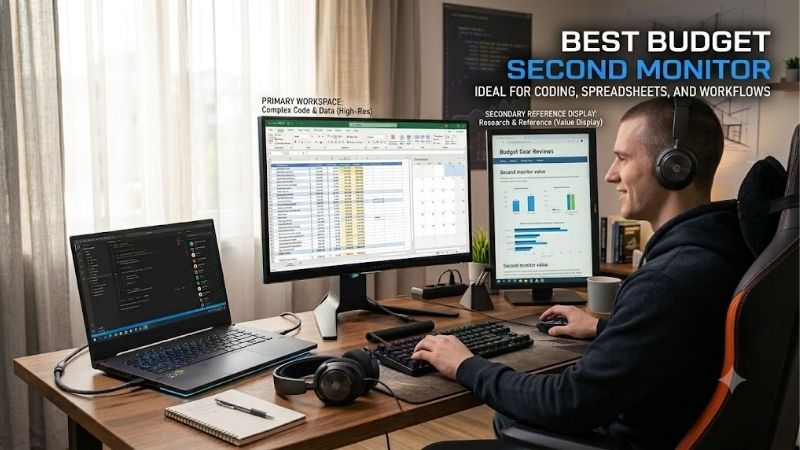
Quick answer: For most people in 2026, the best budget second monitor is the Monitor — our #1 rated choice. See the full ranked comparison, alternatives and buying advice below.
Quick verdict: which second monitor should you choose?
The BenQ GW2490 is the strongest all-around starting point for a conventional desk because it combines a 23.8-inch IPS panel, 100Hz refresh rate, built-in speakers, and useful everyday features. The ASUS VA24EHF2 is another sensible option for a basic dual-screen setup, while the Philips 241V8LB/27 prioritizes contrast over IPS viewing-angle consistency. For more workspace, consider Acer’s 27-inch QHD display. Dell’s SE2426HGS is worth considering when the secondary screen will occasionally serve as a primary gaming monitor, and the KYY K3 is designed for travel.
| Monitor | Best use | Main specifications | Main drawback |
|---|---|---|---|
| BenQ GW2490 | Everyday dual-monitor setup | 23.8-inch, 1080p, IPS, 100Hz | Basic stand adjustments |
| ASUS VA24EHF2 | Work and occasional casual gaming | 23.8-inch, 1080p, IPS, 120Hz | No DisplayPort |
| Philips 241V8LB/27 | Basic browsing and documents | 23.8-inch, 1080p, VA, 100Hz | Less consistent off-angle viewing |
| Acer Nitro KG271U N3BMIIPX | Larger workspace | 27-inch, 1440p, IPS, 180Hz via DisplayPort | Needs more desk space |
| Dell SE2426HGS | Secondary screen that can handle serious gaming | 23.8-inch, 1080p, IPS, 240Hz | Extra refresh rate may go unused |
| KYY K3 | Portable secondary display | 15.6-inch, 1080p, IPS, 60Hz | Limited color coverage |
These are recommendations for different jobs, not a claim that the lowest-priced model is automatically the best purchase. Retail prices and availability change, and a complete, comparable set of current retailer prices could not be established for all six models. Check current US pricing before deciding between otherwise similar displays.
How we selected these budget monitors
The selection prioritizes the practical requirements of a secondary display: readable text, useful viewing angles, compatible connections, sensible dimensions, and enough refresh-rate capability for the intended task. Manufacturer documentation establishes the stated resolution, panel type, refresh rate, inputs, and physical features. Independent testing is used where available to identify limitations that specification sheets cannot establish.
The list deliberately includes mostly conventional 24-inch-class monitors. They occupy less desk space than large gaming displays and offer enough room for chat, browser tabs, messaging applications, reference documents, or monitoring software. The Acer is included for people who need more workspace, and the KYY fills a separate portable-use category.
The article is based on manufacturer specifications and published independent reviews rather than new detailed research. No unverified benchmark results, owner ratings, universal price rankings, or Amazon availability claims are used. Some products have stronger independent testing coverage than others, so conclusions about products without a dedicated review are limited to verifiable specifications and their suitability for particular tasks.
Best overall: BenQ GW2490
The BenQ GW2490 is a practical starting point if you want a second screen for everyday computing rather than a dedicated high-performance gaming display. Its 23.8-inch Full HD IPS panel runs at up to 100Hz, with a stated brightness of 250 nits and 99% sRGB color coverage. The IPS panel is useful when the screen sits to the side of your primary monitor because its image generally remains more consistent at an angle than an inexpensive VA alternative.
The 100Hz refresh rate makes scrolling through documents, browser pages, and long spreadsheets feel smoother than on a traditional 60Hz monitor. It can also handle video playback, messaging, and casual gaming. However, 100Hz should not be confused with the higher refresh rates chosen for competitive gaming.
BenQ includes two 2W speakers and an audio output. The speakers are convenient for notification sounds or basic communication, although they should not replace dedicated speakers or a good headset if sound quality matters. The monitor also includes eye-comfort features such as flicker-free technology and low-blue-light settings. These are useful options, but they do not eliminate the need for sensible brightness, breaks, and comfortable positioning.
There are trade-offs. The standard stand offers tilt adjustment rather than the full height, swivel, and pivot range found on more ergonomic monitors. You can use its 100 × 100 mm VESA mounting pattern to install a compatible arm, but that adds cost. Its Full HD resolution is also less suited to detailed creative work than a 1440p display.
Buy it for a straightforward desk setup with documents, web pages, video, and communication applications. Skip it if you need USB-C laptop docking, a highly adjustable stand, or a monitor primarily intended for competitive gaming. Its value depends on the current price relative to other 24-inch IPS models.
Best simple IPS option: ASUS VA24EHF2
The ASUS VA24EHF2 offers a useful combination of Full HD resolution, an IPS panel, and a 120Hz refresh rate. Its 23.8-inch display is well suited to users who want to add screen space for email, browser tabs, work documents, or a game guide without dedicating much more desk space to the setup.
ASUS lists a 1920 × 1080 native resolution, a 120Hz refresh rate, Adaptive-Sync, and a 1ms moving-picture response-time specification. The last figure is not a guarantee of one-millisecond pixel transitions under every condition. It is a manufacturer-rated motion specification, so it should not be used alone to predict real-world image clarity.
Its IPS panel is particularly useful for a secondary monitor positioned at an angle. That matters when you glance between the main display and a side screen throughout the day. The 120Hz refresh rate is a welcome extra for smooth scrolling and occasional casual gaming, although the improvement over 100Hz is less important for normal office work than the difference between 60Hz and a higher refresh rate.
Connectivity is the main limitation. The VA24EHF2 offers HDMI and VGA rather than DisplayPort. HDMI works for many modern desktops and laptops, but check the outputs that remain free on your graphics card before buying. VGA is an older analog connection and is generally not the preferred option for a new digital setup.
The stand is basic compared with models offering comprehensive ergonomic adjustment, so check the mounting and height requirements of your desk. ASUS also lists flicker-free and low-blue-light features, which provide display-setting options for long work sessions rather than a guaranteed health benefit.
Buy it when you want a straightforward IPS secondary screen with more than 60Hz capability. Skip it if DisplayPort is essential, you need USB-C video, or you want a stand that can easily align the screen with a taller primary monitor.
Best for a basic setup with stronger contrast: Philips 241V8LB/27
The Philips 241V8LB/27 takes a different approach by using a VA panel rather than IPS. It measures 23.8 inches, has a 1920 × 1080 native resolution, and supports refresh rates up to 100Hz. Philips specifies 250 nits of brightness and a typical contrast ratio of 4000:1.
The higher stated contrast ratio is the main reason to consider this screen. VA panels can display deeper-looking blacks than many conventional IPS panels, which can make dark backgrounds and evening video viewing more satisfying. This can help when the secondary monitor spends much of its time displaying dark-themed applications or video content.
The downside is viewing-angle behavior. VA panels can show more noticeable contrast and color changes when viewed from the side, depending on the specific panel. Because a second monitor is frequently placed at an angle, that issue deserves more attention here than it would for a screen viewed straight on. IPS remains the more dependable general-purpose choice if visual consistency is important.
Philips lists HDMI 1.4 and VGA inputs, adaptive sync, flicker-free technology, and an audio output. The inputs cover basic computer use, but there is no DisplayPort input in the listed specification. Its 100Hz maximum refresh rate is enough for smooth everyday operation but does not make this a specialist gaming display.
The conventional 16:9 shape works well for chat, documents, browser tabs, and reference material. As with the ASUS, it is worth checking the stand’s positioning limits before ordering. A VESA-compatible arm may be preferable if the screen must sit higher or align precisely with another monitor.
Buy it for ordinary multitasking when contrast is more appealing than the advantages of IPS. Skip it when the screen will sit far to one side, when color consistency matters, or when your graphics card needs a DisplayPort connection.
Best larger workspace: Acer Nitro KG271U N3BMIIPX
The Acer Nitro KG271U N3BMIIPX is a larger and more capable alternative for users who want a second screen that can also serve as a main display. Its 27-inch IPS panel has a native resolution of 2560 × 1440, or QHD, and supports up to 180Hz through DisplayPort. Acer specifies a lower maximum refresh rate of 144Hz over HDMI for this model.
The higher resolution gives you more room for long documents, wide spreadsheets, timelines, and multiple application windows. Text and interface elements can appear more detailed than on a 27-inch Full HD display, assuming the operating system and applications are configured appropriately. That extra workspace can be more useful than a higher refresh rate if multitasking is the primary reason for adding another monitor.
The 180Hz capability is a bonus for gaming. It is more relevant if you sometimes use the Acer as your primary gaming screen, or if it shares space with a high-refresh main monitor. When the display is used mostly for messages or reference windows, the difference between 100Hz and 180Hz is less important than screen size, resolution, and comfortable positioning.
Acer lists an IPS panel, 250-nit brightness, AMD FreeSync, two HDMI ports, one DisplayPort, built-in speakers, and a 100 × 100 mm VESA mounting pattern. Its basic stand offers tilt adjustment but not height adjustment, so a monitor arm may be helpful in a dual-screen layout.
This is a stretch choice rather than an ultra-cheap secondary display. Acer’s US store listed the exact UM.HX1AA.307 model at $159.99 on October 14, 2026. That is a manufacturer-store price observed on the research date, not a guaranteed future price or proof of an Amazon offer.
Buy it if you genuinely need a larger QHD workspace and the additional cost fits your budget. Skip it if the second screen will show only Discord, email, or a small number of static applications. A smaller Full HD IPS display usually makes more financial sense for those jobs.
Best if you also game on it: Dell SE2426HGS
The Dell SE2426HGS makes sense when the second screen may occasionally take over the main gaming role. It has a 23.8-inch Full HD IPS panel, a maximum refresh rate of 240Hz, AMD FreeSync Premium, two HDMI inputs, and DisplayPort 1.4. Dell also includes a stand with height, swivel, and tilt adjustments.
The refresh rate is substantially higher than the basic office displays in this roundup. That matters in fast-paced games when the computer can produce sufficiently high frame rates and the display receives a compatible signal. It does not mean games will automatically run at 240 frames per second, and it offers little practical benefit to a screen displaying only a chat application or static browser window.
Dell specifies 300-nit brightness and 99% sRGB color coverage. Its current US listing showed $139.99 on October 14, 2026. That is a useful price reference for this exact model, but it is not a broad market comparison and could change. The monitor remains a specialized choice relative to cheaper 100Hz displays.
Independent testing from RTINGS characterizes this model as an entry-level 1080p, 240Hz gaming display. The review identifies responsive motion handling and low input lag as strengths, while noting limited contrast and HDR impact. Those limitations are acceptable for a budget-oriented high-refresh LCD, but they make the monitor less attractive if image quality is the main reason for replacing an existing screen.
The adjustable stand is a practical advantage in a two-monitor setup. You can match the height of your main display and angle the screen for easier reading. However, Dell does not include USB-C, a USB hub, or laptop power delivery. It is a conventional video-input monitor.
Buy it if you want one display that can handle secondary tasks and competitive gaming. Skip it if you will never use the extra refresh rate. In that case, a simpler screen can free up money for a monitor arm, a better main display, or another component that will improve your daily setup.
Best portable option: KYY K3
The KYY K3 is designed for a different kind of second-monitor setup. Its 15.6-inch IPS panel has a native resolution of 1920 × 1080 and a maximum refresh rate of 60Hz. It connects through USB-C or mini HDMI and includes a protective cover that doubles as a stand.
Its main benefit is portability. The display and cover together weigh approximately 770 grams, according to TechRadar’s review, making it practical for temporary workspaces, travel, or moving between a home desk and an office. The compact size also helps when there is not enough space for two full-size monitors.
The connections deserve attention. USB-C can carry video when the connected computer supports a compatible display mode, but not every USB-C port supports video output. When using HDMI, the monitor needs a separate power source. TechRadar notes that the package includes the required cables and a power adapter, helping simplify initial setup.
Image quality is where the K3 makes its compromises. TechRadar’s independent testing measured approximately 64% sRGB color coverage, limiting its suitability for color-sensitive work. The monitor is adequate for reference documents, messaging, browser pages, and ordinary productivity, but it is not a good replacement for a well-calibrated creative display. Its 60Hz refresh rate also makes it a poor match for someone who wants high-refresh gaming on both screens.
The cover provides convenient basic support, but it does not offer the ergonomic range of a full-size monitor stand. It also is not designed for portrait orientation. If you plan to use it every day at one desk, a conventional 24-inch monitor will generally provide a more comfortable workspace.
Buy it if you need an extra display that can travel with a laptop. Skip it for a permanent workstation, professional color work, or a primary gaming display. The sensible purchase is the one that solves the portability problem rather than paying for features you do not need.
How to choose the right second monitor
Match the screen size to its job
A 23.8-inch or 24-inch monitor is usually a practical size for a second display. It can hold a messaging app, a browser window, a document, or system-monitoring software without taking up the space needed by your main screen. For typical desk distances, Full HD remains usable at this size.
A 27-inch monitor is more appropriate when you regularly work across wider spreadsheets, long timelines, or several visible windows. Pairing a 27-inch Full HD monitor with a main 1440p display can make text and interface elements look noticeably different. A 27-inch QHD secondary monitor is a more consistent choice if you need additional workspace and can accept the extra cost.
Screen size alone does not determine productivity. A poorly positioned 27-inch display can be more annoying than a well-aligned 24-inch model. Measure the width of your desk, account for the stand bases, and leave enough room to turn toward the secondary screen without constantly twisting your posture.
Prioritize IPS for off-angle viewing
IPS is a reliable default for dual-monitor setups because it generally holds color and contrast better when you view the panel from the side. This is useful when one screen sits directly in front of you and the other is angled beside it.
VA can be worth considering when deeper-looking blacks and higher contrast are more important, especially in dark rooms. However, some VA panels exhibit more noticeable changes in appearance off-axis. If the second monitor will display mostly black text on a white background, this may not be a deal-breaker. If you expect to watch video or judge colors from a side angle, it deserves more consideration.
Choose OLED only when the benefits genuinely justify the extra cost and maintenance. For a budget screen primarily used for browser tabs and chat, OLED is rarely necessary.
Do not overspend on refresh rate
A secondary screen that shows documents or messaging applications does not need a 240Hz or 300Hz refresh rate. Moving from 60Hz to 100Hz can make scrolling feel smoother, while moving beyond that has diminishing importance for many non-gaming tasks.
Higher refresh rates make more sense when you regularly play games on the second screen or expect to alternate between the displays as your main gaming monitor. Even then, the computer, graphics output, cable, and monitor must all support the selected resolution and refresh rate.
If the same budget could buy a more useful size, resolution, stand, or panel type, those upgrades may improve daily use more than chasing a larger refresh-rate number.
Check the video inputs before purchasing
Inspect the available outputs on your desktop graphics card or laptop. If the primary monitor uses DisplayPort and the graphics card has another free DisplayPort connection, selecting a second screen with DisplayPort may keep the setup simple. If HDMI is the only free output, avoid a model that relies on DisplayPort unless you have confirmed a suitable adapter will support your required mode.
For laptop users, USB-C needs special attention. The port must support video output, usually through DisplayPort Alt Mode or a compatible Thunderbolt implementation. A USB-C connector that supports only charging and data cannot automatically drive a monitor. Similarly, an HDMI adapter or inexpensive dock may impose a refresh-rate limit.
Check the maximum display count, resolution, and refresh rate supported by the exact laptop or graphics card. This prevents the common mistake of buying a monitor whose specifications exceed what the computer can output through the chosen connection.
Make ergonomics part of the budget
Two monitors with different stand heights can produce an awkward-looking workspace. If the secondary display will sit beside your main one for hours each day, height adjustment, tilt, and pivot can be more useful than extra refresh rate. A VESA-compatible arm gives you greater placement flexibility, but its cost should be included in the total.
Think about cable routing and power outlets, too. A second desktop monitor adds another power cable and video cable, and the stand may take up more room than expected. A smaller portable monitor saves space but usually sacrifices ergonomic adjustments and viewing area.
Built-in speakers are convenient for simple system sounds, but they are not a substitute for good audio equipment. Likewise, eye-care modes are useful settings but should not be mistaken for a guarantee against eye strain. Comfortable brightness, reasonable viewing distance, and breaks still matter.
Frequently asked questions
Does a second monitor need to match my main monitor?
No. Different sizes, resolutions, panel types, and refresh rates work well together for ordinary extended-desktop use. Matching monitors can make alignment and visual consistency easier, but it is not a technical requirement. Pay attention to the display arrangement in your operating system and position the screens so the pointer moves naturally between them.
Is 1080p enough for a second monitor?
Yes. Full HD is sufficient for chat, email, documents, web browsing, tutorials, and system-monitoring software. QHD is more useful when you need additional workspace or sharper text at 27 inches. It is worth spending more on resolution only when that difference will improve the work you actually do.
Can I mix a 60Hz monitor with a 144Hz gaming monitor?
Yes. A computer can normally drive displays at different refresh rates through a supported extended desktop. Particular hardware, drivers, applications, or video-output configurations can introduce complications, so check your system if you experience stuttering or unusual behavior. For general productivity, the secondary monitor does not have to match the primary display’s refresh rate.
Should I buy a portable monitor instead of a regular one?
Choose a portable monitor when moving the screen is a genuine requirement. A laptop-friendly portable display can be useful during travel or temporary work, but its smaller viewing area, stand, brightness, and color performance may be less suitable for permanent use. For a fixed desk, a conventional 24-inch monitor is usually the more practical format.
Is it worth buying a second monitor just for gaming?
It depends on your habits. A secondary display can help when you regularly use voice chat, guides, streaming controls, or other applications while playing. It will not directly improve game graphics or frame rates, and it is less useful during a game that occupies your attention for an entire session. Consider whether you genuinely need simultaneous screen space before spending the money.
Final verdict
For most everyday desk setups, start with the BenQ GW2490 or ASUS VA24EHF2. Both offer practical Full HD IPS panels, while the Philips 241V8LB/27 is an alternative for buyers who prefer VA contrast. Choose Acer’s larger QHD display when additional workspace matters, Dell’s SE2426HGS when you will also game on the second screen, or the KYY K3 when portability is essential.
The most sensible purchase is not necessarily the monitor with the highest refresh rate or the lowest advertised price. Match the panel, size, connections, and stand to the job, confirm compatibility with your computer, and compare current US prices for the exact model before ordering.
Ready to decide? Our #1 pick for 2026 is the Monitor.
Live price & availability on Amazon.









