
A good photo-editing monitor should reveal subtle color shifts, preserve shadow detail, and make it easier to judge fine textures without consuming your entire equipment budget. The best 4k monitor for photo editing under 500 is not necessarily the one with the brightest HDR badge or the most impressive gaming specifications. It is the display that matches your delivery requirements, whether you publish photographs online, prepare prints, or edit RAW files for clients. Based on verified manufacturer specifications, retailer listings, and available independent testing, the ASUS ProArt PA279CRV is the strongest color-focused option, while the LG UltraFine 27UP850K-W and Dell S2725QC make sense for different laptop and everyday-work setups.
- Quick verdict: the best 4K monitors for photo editing under $500
- How we selected these monitors
- ASUS ProArt PA279CRV: best overall for color-critical editing
- ASUS ProArt PA279CV: best for web-first photographers
- LG UltraFine 27UP850K-W: best for laptop-based editing
- Dell 27 Plus S2725QC: best for mixed work and photo editing
- How to choose a 4K photo-editing monitor under $500
- How to set up your new monitor for photo editing
- FAQs
- Final verdict: choosing the best 4K monitor for photo editing under $500
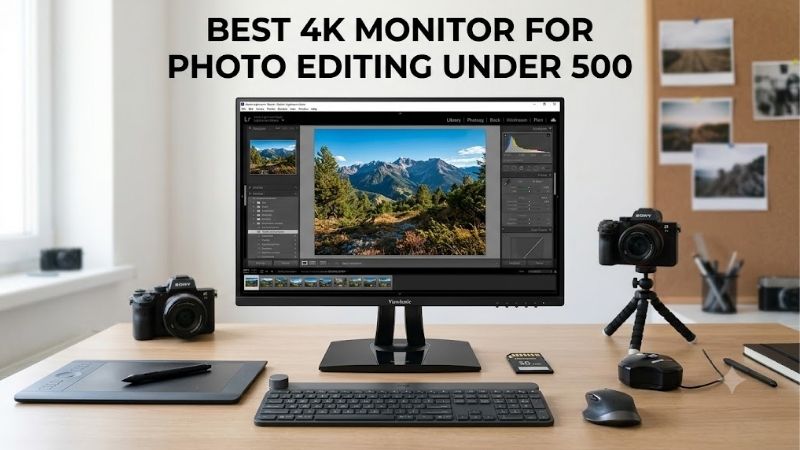
Quick answer: For most people in 2026, the best 4k monitor for photo editing under 500 is the Monitor — our #1 rated choice. See the full ranked comparison, alternatives and buying advice below.
Quick verdict: the best 4K monitors for photo editing under $500
The ASUS ProArt PA279CRV is the first monitor to consider if you edit photographs for print or work across several color spaces. Its advertised 99% Adobe RGB coverage, 99% DCI-P3 coverage, and factory calibration make it better suited to color-managed workflows than a conventional office monitor. At the observed $399 price from B&H Photo, it leaves room in a $500 budget for calibration equipment or other useful accessories.
For photographers who deliver primarily to websites and social media, the ASUS ProArt PA279CV offers factory-calibrated sRGB performance at a lower observed price. The LG UltraFine 27UP850K-W is attractive for laptop owners who want a wide-gamut 4K screen with 90W USB-C power delivery. The Dell S2725QC is a versatile alternative when photo editing shares desk space with spreadsheets, browsing, and general productivity.
| Monitor | Best fit | Resolution | Standout feature | Main limitation |
|---|---|---|---|---|
| ASUS ProArt PA279CRV | Color-critical editing and print preparation | 4K, 60Hz | 99% Adobe RGB and DCI-P3; factory calibrated | Modest native contrast |
| ASUS ProArt PA279CV | Web photography and sRGB delivery | 4K, 60Hz | Factory-calibrated 100% sRGB | Limited Adobe RGB coverage |
| LG UltraFine 27UP850K-W | Laptop-based editing | 4K, 60Hz | 95% DCI-P3 and 90W USB-C charging | No verified wide Adobe RGB coverage |
| Dell 27 Plus S2725QC | Mixed office work and photo editing | 4K, 120Hz | 99% sRGB, USB-C and ergonomic stand | Not designed for wide-gamut print workflows |
Prices were checked against US retailer information on October 13, 2026, before tax. They can change, and the shortlist does not assume a particular Amazon discount or sale price will remain available.
How we selected these monitors
The main criteria were genuine 3840 × 2160 resolution, useful color-space coverage, credible calibration information, a usable stand, and a verifiable US price below $500. We also considered whether the display makes sense for the photographer’s actual workflow instead of treating every monitor with an IPS panel as a professional editing display.
Manufacturer specifications establish advertised gamut coverage, supported connections, and calibration features. Independent testing helps distinguish those claims from measured color accuracy, contrast, brightness uniformity, and other real-world behavior. RTINGS’ review of the ASUS ProArt PA279CRV and its review of the Dell S2725QC provide useful model-specific findings. For the exact LG 27UP850K-W and ASUS PA279CV variants, the recommendations rely more heavily on published specifications and retailer documentation because equivalent current independent laboratory measurements were not established during this research.
No monitor here is presented as personally tested. Likewise, a factory calibration claim is not a guarantee that every individual unit will remain perfectly accurate over years of use. Photographers doing commercial print work should consider a colorimeter and a controlled viewing environment, even with a good display.
ASUS ProArt PA279CRV: best overall for color-critical editing
The ASUS ProArt PA279CRV is the best starting point for photographers who need more than accurate web colors. Its 27-inch IPS panel has a native resolution of 3840 × 2160, with manufacturer-rated coverage of 100% sRGB, 99% Adobe RGB, and 99% DCI-P3. ASUS also specifies Calman verification and factory calibration to Delta E below 2, a useful combination for people who want dependable color without immediately investing in a professional calibration setup.
Adobe RGB is particularly relevant when preparing photographs for print. Some printable colors fall outside sRGB, so a monitor capable of reproducing a wider gamut can reveal colors that a narrower display cannot show accurately. The PA279CRV also has dedicated picture modes for different color spaces, letting photographers switch between workflows without relying entirely on manual adjustments.
Its USB-C connection supports video, data, and up to 96W of laptop power delivery. The display also provides DisplayPort, HDMI, a USB hub, and DisplayPort output for daisy-chaining compatible monitors. Its height-adjustable, pivoting stand makes portrait-oriented editing practical for vertical photographs and long image compositions.
There are limits. The IPS panel has a typical contrast ratio of 1,000:1, so it cannot produce the deep blacks of a good OLED display or a capable Mini-LED monitor with local dimming. Its HDR certification should not be confused with reference-quality HDR performance. Independent testing by RTINGS found excellent color accuracy, particularly in sRGB mode, but also identified limitations in contrast and HDR picture quality.
B&H listed the PA279CRV at $399 when checked. ASUS’s US store showed a separate $429 price, illustrating why checking the actual retailer matters.
Buy it if you edit client photographs, prepare prints, or regularly move between sRGB, Adobe RGB, and DCI-P3. Skip it if you only resize vacation photographs for social media and would rather spend less on a narrower-gamut display.
ASUS ProArt PA279CV: best for web-first photographers
The ASUS ProArt PA279CV is a more focused choice for photographers whose final images are primarily viewed on websites, phones, and ordinary computer screens. It combines a 27-inch 4K IPS panel with factory calibration, Calman verification, and specified 100% sRGB and 100% Rec. 709 coverage. B&H listed the monitor at $329 when checked, making it a less expensive entry into a color-oriented display rather than a generic office screen.
For web delivery, a reliable sRGB mode is often more useful than paying extra for a wider gamut that your workflow rarely uses. A properly managed sRGB workflow helps reduce the chance of making colors look unusually saturated simply because the display can reproduce colors beyond the intended output space.
The PA279CV includes HDMI, DisplayPort, USB-A, and USB-C connectivity, with up to 65W power delivery for a compatible laptop. It also has height, tilt, swivel, and pivot adjustments. Those features make it suitable for a compact editing station in which the monitor doubles as the primary screen for a laptop.
The distinction between this model and the PA279CRV matters. The PA279CV is rated for 100% sRGB and is not the stronger choice for workflows that depend on broad Adobe RGB coverage. Its USB-C power delivery is also lower. The PA279CRV’s wider gamut and 96W delivery can justify its additional cost, particularly for print-focused work.
At the observed prices, the gap was about $70. That saving is worthwhile if you do not need the additional color-space coverage, but the two products are not interchangeable for all photography workflows.
Buy it if you primarily publish online and want a 4K screen with dedicated color modes. Skip it if you routinely prepare commercial prints, need to judge saturated colors outside sRGB, or expect a wider gamut to be a significant part of your next upgrade.
LG UltraFine 27UP850K-W: best for laptop-based editing
The LG UltraFine 27UP850K-W is a useful alternative for photographers who prioritize laptop connectivity and a general creative-work setup. It uses a 27-inch IPS panel with a native 3840 × 2160 resolution, a manufacturer-rated 95% DCI-P3 color gamut, and a listed 400-nit maximum brightness. The B&H specification page also lists a 1,200:1 contrast ratio, HDR10 support, and a 60Hz refresh rate.
Its most practical feature is USB-C with DisplayPort Alt Mode and up to 90W power delivery. With a compatible laptop, one cable can carry the display signal and charge the computer. Two additional USB-A ports help with a mouse, keyboard, or other peripherals, while the stand supports height, tilt, and pivot adjustments.
The 95% DCI-P3 specification indicates a useful wide-gamut capability for digital creative work, but it is not a substitute for an explicit Adobe RGB coverage figure. Photographers delivering exclusively to the web may find it appealing, while anyone producing color-critical prints should compare its actual Adobe RGB performance against the PA279CRV before deciding.
LG advertises DisplayHDR 400 support, but the designation does not make this a reference HDR monitor. The IPS panel lacks the deep blacks and precise local dimming expected from higher-end HDR equipment. For standard photo editing, color management and a stable viewing environment generally matter more than the HDR label.
The exact 27UP850K-W variant was listed by B&H at $349.99 in the retailer comparison page checked for this guide. Its feature mix is more compelling for a laptop-centered workspace than for somebody who needs a strictly print-focused display. Current independent lab measurements for this exact model were not confirmed, so no measured color accuracy or uniformity score is claimed here.
Buy it if you want a 4K editing screen that can also serve as a convenient laptop dock. Skip it if your central requirement is verified near-complete Adobe RGB coverage, or if you will not use its USB-C and power-delivery features.
Dell 27 Plus S2725QC: best for mixed work and photo editing
The Dell S2725QC is the most versatile option for someone whose editing work sits alongside everyday computing. Dell lists a 27-inch 4K IPS panel, 120Hz refresh rate, 99% sRGB coverage, 350-nit brightness, and a contrast ratio of 1,500:1. At the time checked, Dell’s US store listed it at $264.99, well below the $500 budget.
The dedicated sRGB mode is important for web photography. RTINGS independently found the mode accurate before calibration, although its review notes that further calibration is needed to correct gamma and white-balance issues for the best accuracy. The display produces sharp images and has wide viewing angles, so it is comfortable for editing alongside document work and other desktop tasks.
Its 120Hz refresh rate is not essential for photo editing, but it can make general navigation and supported applications feel smoother. USB-C supports DisplayPort Alt Mode and up to 65W power delivery, and the integrated hub provides connections for accessories. The stand adjusts for height, tilt, swivel, and pivot, which is helpful for maintaining a consistent position during long sessions.
The compromise is color range. Dell specifies 99% sRGB rather than the 99% Adobe RGB coverage offered by the PA279CRV. RTINGS also reports limited contrast, muted HDR highlights, and distracting reflections in very bright environments. The S2725QC is therefore best viewed as an all-purpose monitor with good sRGB editing capability, not a dedicated wide-gamut display for color-critical printing.
Buy it if you want one affordable screen for browsing, office tasks, occasional gaming, and online photo editing. Skip it if Adobe RGB coverage, print matching, or detailed HDR evaluation is central to your work.
How to choose a 4K photo-editing monitor under $500
Understand sRGB, Adobe RGB, and DCI-P3
Color gamut describes the range of colors a display can reproduce. The right target depends on where your photographs will be viewed or printed.
sRGB is the safest default for much web content, general-purpose displays, and social media exports. A display with reliable sRGB coverage and a good sRGB mode can be entirely adequate for a photographer who delivers online images.
Adobe RGB covers a wider range of colors in parts of the green and cyan region. It can be useful when preparing photographs for print, particularly when the printer, ink, paper, and output workflow support those colors. A wide-gamut display does not automatically guarantee accurate prints, but it gives you a better chance of seeing relevant colors before export.
DCI-P3 is a wide-gamut color space commonly associated with digital cinema and modern displays. It is useful for some digital imaging and multimedia workflows, but DCI-P3 coverage is not the same as Adobe RGB coverage. A monitor advertising 95% DCI-P3 may still be a poor choice for a workflow that depends on a broad Adobe RGB gamut.
For that reason, compare coverage percentages for the same color space instead of picking whichever manufacturer advertises the largest number. On this shortlist, the PA279CRV is the most suitable candidate for mixed wide-gamut and print work, while the PA279CV and Dell S2725QC target sRGB-oriented editing more directly.
Check factory calibration and calibration options
Factory calibration means the manufacturer has adjusted the display or established its performance against a defined target before sale. A reported Delta E below 2 is a useful specification, but check which color space and conditions the claim covers. It does not necessarily mean every mode, brightness setting, or screen area is equally accurate.
Hardware calibration is different. It generally allows supported calibration software and a compatible colorimeter to write corrections into the monitor’s internal lookup table. Software calibration instead uses a profile and graphics-card corrections handled by the operating system and compatible applications. The PA279CRV’s factory-calibrated presets are valuable, but do not assume that factory calibration automatically means it supports hardware calibration.
If your output is important to clients or print buyers, budget for a compatible colorimeter. It can help check white point, gamma, brightness, and color accuracy periodically. You should also create or install the correct ICC profile and ensure your editing application uses color management properly.
Choose a useful resolution and size
A 27-inch 4K monitor has a pixel density of approximately 163 pixels per inch. That is enough to display fine image details and crisp text, and it gives photographers room to inspect high-resolution images while keeping palettes and timelines visible.
The trade-off is interface size. At native scaling, menus and text may be too small for comfortable use at a typical desk distance. Windows and macOS scaling can enlarge interface elements while preserving much of the benefit of a high-resolution workspace. A 32-inch 4K display provides larger physical elements at the same resolution, but models with strong color performance may exceed this budget.
Resolution does not guarantee accurate color, uniform brightness, or sharp results from an incorrectly managed workflow. A carefully chosen 4K IPS monitor with proper calibration can be more useful than a higher-priced gaming display selected solely for refresh rate.
Evaluate brightness, contrast, and HDR honestly
A monitor that is too bright for its surroundings can encourage you to edit photographs darker than they should be. Conversely, working on a dim display can lead to exports that look unexpectedly bright on other screens. For ordinary photo editing, a stable and repeatable brightness level is more important than the maximum brightness number on the specification sheet.
IPS panels are popular for editing because they provide wide viewing angles, but their contrast is often limited. That matters when assessing dark clothing, nighttime scenes, and subtle shadow transitions. The PA279CRV and Dell S2725QC are examples of displays where independent reviews identify contrast limitations despite their useful editing features.
HDR support is relevant if you actually edit and deliver HDR photographs, but it should not be the deciding factor for an SDR workflow. A monitor with basic HDR compatibility does not necessarily have the local dimming, peak brightness, or black-level performance needed to display challenging HDR images accurately.
Consider the stand, USB-C, and your total budget
Ergonomics affect how comfortably you can work, but they also affect color consistency. A height-adjustable stand makes it easier to center the display at eye level, while tilt and pivot adjustments help you maintain a consistent viewing angle. Avoid judging colors from an extreme angle when working with a conventional IPS monitor.
USB-C can simplify a laptop setup by combining video, data, and charging into one connection. However, check the laptop’s required power input before assuming 65W or 90W charging is sufficient. A high-performance laptop may still need its dedicated power adapter during demanding tasks.
Do not spend the full $500 merely because it is available. A $399 display plus a suitable calibration device can be a more useful photography purchase than a $499 screen with no calibration budget. You may also need a better desk light, a stable monitor stand, or a printer profile depending on your workflow.
Finally, verify the exact model suffix. Similar names can describe monitors with different USB-C capabilities, refresh rates, and color coverage. The PA279CV and PA279CRV illustrate why those differences are worth checking before ordering.
How to set up your new monitor for photo editing
A suitable monitor is only one part of a color-managed workstation. Once it is connected, use a consistent setup process.
First, position the display away from direct sunlight and strong reflections. Use moderate, stable room lighting instead of alternating between a brightly lit room and a dark workspace. Reflections and changing ambient conditions make visual judgments less repeatable.
Second, select the monitor’s appropriate color preset. For photographs intended for the web, start with the sRGB mode. For print workflows, use an Adobe RGB mode when supported by your monitor, software, and output requirements. Do not automatically select a wide-gamut mode for every task, since it may display untagged or unmanaged content incorrectly.
Third, allow the display to warm up according to the manufacturer’s recommended procedure before making critical adjustments. Choose a consistent brightness appropriate for your room and work, and avoid changing it repeatedly during a session.
Fourth, install the correct driver or color profile where needed. If you use a colorimeter, follow its calibration software instructions to establish the appropriate white point, gamma, brightness, and ICC profile. Keep that profile associated with the correct display, especially if you use two monitors.
Finally, inspect real photographs rather than relying on saturated sample images. Check neutral grays, skin tones, shadow detail, highlight gradients, and colors near the edge of the frame. Compare exported photographs on another calibrated screen or through a controlled print workflow when possible. A visually pleasing display setting is not necessarily an accurate one.
FAQs
Is a 4K monitor necessary for photo editing?
No. A good 1440p display can still be excellent for photography, especially when it has strong color accuracy and useful gamut coverage. A 4K monitor provides more workspace and finer detail, which is helpful when reviewing high-resolution photographs or working with complex editing panels. If your budget forces a choice between 4K resolution and demonstrably better color performance, prioritize the feature that matters most to your output.
Is 100% sRGB enough for professional photography?
It can be enough for work delivered primarily online. A properly calibrated sRGB monitor is useful for social media, web galleries, and many commercial digital images. Photographers who frequently prepare prints should consider Adobe RGB coverage and the requirements of their printer and paper instead of assuming full sRGB coverage is sufficient for every assignment.
Do I need a colorimeter with a factory-calibrated monitor?
Not necessarily on day one. A factory-calibrated display with a reliable sRGB mode can be a good starting point. A colorimeter becomes more valuable when color consistency is commercially important, when the monitor ages, or when you need to match multiple displays or printed output. Factory calibration does not remove the need for good color management.
Can a gaming monitor work for photo editing?
Yes, provided it has suitable color coverage, a usable color mode, and acceptable measured accuracy. A 120Hz or 144Hz refresh rate is convenient for general use but is not a substitute for color accuracy. Some gaming displays provide wide gamuts and good calibration; others prioritize motion performance over editing needs. Judge the exact model rather than the category label.
Final verdict: choosing the best 4K monitor for photo editing under $500
The ASUS ProArt PA279CRV is the strongest choice in this roundup for photographers who need broad color-space coverage, particularly Adobe RGB for print-oriented work. At its observed $399 retailer price, it combines factory-calibrated color presets, high pixel density, and useful USB-C connectivity without exhausting the budget.
The ASUS ProArt PA279CV is more appropriate for web-first photographers who want accurate sRGB output for less money. The LG UltraFine 27UP850K-W is a practical laptop-centered alternative, while the Dell S2725QC offers the most everyday flexibility at a substantially lower observed price.
The right purchase depends on what you deliver, not how impressive the specification list looks. For print work, prioritize verified Adobe RGB coverage. For online images, a reliable sRGB mode may be all you need. In either case, leave room in the budget for calibration and a consistent working environment.
Amazon verification
The article does not claim confirmed Amazon prices, specific Amazon seller offers, or ASINs for the four models. The ASUS retailer-information page lists Amazon among its purchase options, but an exact Amazon listing and price were not independently confirmed for this source log. Price evidence for the article comes from Dell’s US store and B&H Photo Video.
Build-PC-Guide.com duplication precheck
A search for closely related indexed site content did not establish a directly matching photo-editing monitor roundup. Related topics include general 4K gaming monitors, monitors with HDR, and gaming-monitor budget guides. This article is differentiated by its focus on color-space coverage, factory calibration, print versus web workflows, and color-managed setup. This was not a complete sitewide duplication audit.
Ready to decide? Our #1 pick for 2026 is the Monitor.
Live price & availability on Amazon.









