
The best budget adobe rgb monitor for most buyers in this shortlist is the ASUS ProArt PA279CRV: it combines manufacturer-rated 99% Adobe RGB coverage, a 27-inch 4K IPS panel, and a verified $399 US listing. The ASUS PA27JCV and BenQ SW272QN are more expensive alternatives for different priorities, rather than equally inexpensive substitutes. Choose the former for a sharper 5K desktop and the latter for a photography workflow with hardware calibration. Before buying, distinguish actual gamut coverage from an Adobe RGB preset, and decide whether your output requires this color space at all.
- Best budget Adobe RGB monitor: The quick verdict
- Quick comparison table
- How the shortlist was selected
- ASUS ProArt PA279CRV: The starting budget recommendation
- ASUS ProArt PA27JCV: A stretch option for 5K detail
- BenQ SW272QN: A stretch option for hardware calibration
- Choosing the best budget Adobe RGB monitor for your output
- Calibration and soft proofing without unnecessary spending
- Practical checks before purchasing
- What to inspect during the return period
- Frequently asked questions
- Final verdict
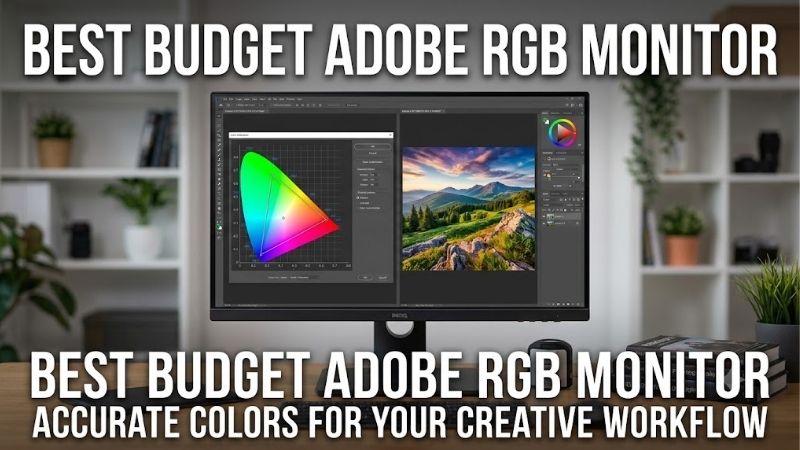
Quick answer: For most people in 2026, the best budget adobe rgb monitor is the ASUS ProArt PA279CRV — our #1 rated choice. See the full ranked comparison, alternatives and buying advice below.
Best budget Adobe RGB monitor: The quick verdict
Start with the PA279CRV if you edit photographs, prepare print files, and want a reasonably priced wide-gamut desktop display. It is the lowest-priced available recommendation among the three verified offers here. bhphotovideo.com
Consider the PA27JCV when fine text, high-resolution previews, and desktop sharpness justify spending more. Its Adobe RGB coverage is lower than the PA279CRV’s published figure, despite its higher resolution. Tech Specs|Monitors|ASUS USA
Consider the SW272QN when maintaining and checking display color is a central part of your work. Its hardware-calibration support is more relevant to that decision than pixel count. BenQ US
There is no supplied dollar ceiling, so this article separates the $399 starting pick from stretch options. The observed listings extend to $799.99 before tax and accessories. If your allowance is around $400, concentrate on the starting pick rather than interpreting every featured model as affordable.
For primarily web graphics and ordinary online delivery, a dependable sRGB monitor may be enough. Running Photoshop does not itself create a requirement for an Adobe RGB display.
Quick comparison table
| Exact model | Verified US offer | Panel and resolution | Manufacturer-rated Adobe RGB coverage | Main reason to consider it | Important drawback |
|---|---|---|---|---|---|
| ASUS ProArt PA279CRV | $399, in stock at B&H | 27-inch IPS, 3840 × 2160 | 99% | Starting option for wide-gamut photo work and general productivity | Factory calibration does not replace ongoing verification |
| ASUS ProArt PA27JCV | $649 displayed with a cart-coupon condition | 27-inch IPS, 5120 × 2880 | 95% | Higher pixel density for a mixed creative desktop | Costs more while covering less Adobe RGB |
| BenQ SW272QN | $799.99, in stock at B&H | 27-inch IPS, 2560 × 1440 | 99% | Hardware calibration and photography-oriented controls | More expensive and lower resolution |
The coverage figures are manufacturer specifications, not measurements from a shared test setup. They should not be treated as a precise ranking of every unit’s accuracy. Tech Specs|Monitors|ASUS USA
The PA27JCV page displayed a coupon applied in cart. Confirm the eligible configuration and final price before relying on that offer. All prices exclude sales tax and additional purchases. bhphotovideo.com
How the shortlist was selected
The screening criteria were documented Adobe RGB coverage, a clearly identified model, verified US purchase context, and a distinct reason to choose the product.
This is a focused three-model shortlist rather than a padded six-product list. Several inexpensive creative monitors advertise sRGB or DCI-P3 without establishing equivalent Adobe RGB coverage. Others had unresolved prices or unavailable listings.
The article uses manufacturer specifications for technical eligibility and retailer pages for purchase context. It does not claim detailed research, laboratory accuracy results, or measured uniformity for these individual samples.
The starting recommendation prioritizes a balance of coverage, resolution, connectivity, and observed cost. The stretch recommendations solve different problems: additional pixel density or a more specialized calibration workflow.
A larger gamut is useful only when you can manage it properly. The selection therefore also considers profiles, calibration support, and practical output decisions instead of judging screens by a percentage alone.
ASUS ProArt PA279CRV: The starting budget recommendation
The PA279CRV has a 27-inch IPS panel with native 3840 × 2160 resolution. ASUS lists 99% Adobe RGB, 99% DCI-P3, and 100% sRGB coverage. B&H displayed $399 for a new single-monitor listing marked in stock. Tech Specs|Monitors|ASUS USA
For a photographer moving from an ordinary office display, that combination makes it a sensible starting point. It provides high pixel density without requiring the price of the more specialized BenQ.
ASUS documents factory calibration with a Delta E below 2 claim and Calman verification. These describe its supplied calibration basis, not a guarantee that every color remains equally accurate after changing settings.
USB-C supports DisplayPort Alternate Mode and up to 96W power delivery. The stand offers height, tilt, swivel, and pivot adjustment. Tech Specs|Monitors|ASUS USA
Buy if: You need documented wide-gamut coverage, a 4K workspace, and laptop-friendly connectivity at the lowest observed price in this shortlist.
Skip if: Your purchasing requirement specifically includes a verified internal hardware-calibration workflow, or you need independently established performance beyond the published specifications.
Why it is the first option to compare
At a common 27-inch diagonal, 4K places more pixels into the image than 1440p. That helps separate the benefits of sharpness from the benefits of gamut.
You might use the additional detail for inspecting photographs while keeping tool panels visible. Display scaling still determines how large menus and text appear.
Do not equate the calibration report with a permanent maintenance plan. After setup, verify the active display profile and working mode. If dependable print decisions matter, allow money for measurement rather than spending the entire budget on the panel.
ASUS ProArt PA27JCV: A stretch option for 5K detail
The PA27JCV pairs a 27-inch IPS panel with 5120 × 2880 resolution at up to 60Hz. ASUS specifies 95% Adobe RGB, 99% DCI-P3, and 100% sRGB.
Its appeal is pixel density. The manufacturer lists 218 PPI, compared with 163 PPI for the 27-inch 4K PA279CRV. Tech Specs|Monitors|ASUS USA
B&H displayed $649 with a cart-coupon note during verification. This is a conditional offer, and the checkout amount was not independently confirmed. bhphotovideo.com
Documented conveniences include USB-C power delivery up to 96W, a KVM switch, and an anti-glare, low-reflection surface. Verify 5K output support across your computer, cable, and any dock. Tech Specs|Monitors|ASUS USA
Buy if: You need sharper desktop rendering and 5K output for a mixed photography, design, and productivity setup.
Skip if: Near-complete Adobe RGB coverage is your main requirement or the price increase crowds out calibration equipment.
Higher resolution does not mean a wider gamut
Resolution and gamut answer different questions. One describes spatial detail; the other describes the range of colors the display can reproduce.
A 5K screen can therefore be sharper while reproducing less of Adobe RGB than a cheaper 4K screen.
For print-focused work, examine which colors are important in your images and how the screen behaves in your chosen mode. A single headline percentage cannot identify every potentially missing color.
For general creative use, the trade may be worthwhile. Make that choice because you value its desktop detail, not because 5K supposedly guarantees better color reproduction.
BenQ SW272QN: A stretch option for hardware calibration
The SW272QN is a 27-inch IPS photography monitor with 2560 × 1440 resolution at 60Hz. BenQ lists 99% Adobe RGB coverage, hardware-calibration support, a 16-bit 3D LUT, and uniformity technology. BenQ US
B&H showed the exact SW272QN at $799.99 and marked it in stock. The suffix matters: the older SW272Q listing redirected to this replacement. bhphotovideo.com
Other documented features include 90W USB-C power delivery, an SD card reader, and a Hotkey Puck G3. BenQ’s US specification lists a landscape shading hood in the supplied accessories. BenQ US
The reason to spend more is the supported workflow, rather than sharpness. Its QHD image contains fewer pixels than either ASUS option.
Buy if: Photography and print preparation justify a dedicated calibration process, and you will use compatible measurement equipment and software.
Skip if: You primarily want more desktop resolution, rarely print, or need the least expensive wide-gamut option.
Budget for the calibration system
Hardware calibration still requires compatible measurement equipment and software. A monitor supporting it should not be described as automatically self-calibrating unless it includes that capability.
Check the current support list for your colorimeter and operating system before ordering. BenQ’s current product guidance identifies AQCOLOR Pilot as its hardware-calibration software and notes that it was formerly called Palette Master Ultimate. BenQ US
The value depends on use. A photographer who regularly validates a workstation may benefit from the workflow; someone who never measures the display may gain little from paying for it.
Also inspect actual uniformity after setup. A manufacturer’s uniformity feature is evidence of an intended capability, not a measured result for the individual panel delivered to you.
Choosing the best budget Adobe RGB monitor for your output
Adobe RGB is a color space, not an application feature
Adobe RGB defines how numerical RGB values correspond to colors. It is separate from Adobe’s software subscription and from a monitor’s brand.
An image can use Adobe RGB even when viewed on a screen that cannot reproduce the entire space. Color management translates the image toward the capabilities of the display.
That translation does not create colors the panel cannot show. This is why an sRGB-only screen and a wide-gamut screen can behave differently when inspecting saturated image content.
Adobe’s documentation distinguishes the document’s profile from the monitor profile used to display it. Keep those roles separate rather than assigning Adobe RGB as the display profile simply because the monitor supports it. Photoshop
Coverage, volume, and accuracy are separate measurements
Coverage describes how much of a target color space falls within the monitor’s reproducible gamut.
Volume or area can exceed the reference space because the display extends beyond it in certain directions. A figure above 100% does not mean it covers every target color.
Accuracy describes how closely displayed colors match the intended values under specified conditions.
A monitor can have broad coverage and still produce inaccurate white balance or grayscale. Conversely, an accurate sRGB display can remain unable to show some Adobe RGB colors.
Ask what a percentage means, which measurement system it uses, and which picture mode was tested. Compare like-for-like evidence instead of placing unlike marketing figures in a single ranking.
An Adobe RGB preset is not proof of full coverage
A preset can configure the screen toward a target color space. It cannot expand the panel’s physical gamut beyond its capabilities.
For example, ASUS documents an Adobe RGB preset on the PA248CRV, while its published coverage specifications emphasize 100% sRGB and 97% DCI-P3. Those facts do not establish 99% Adobe RGB coverage. asus.com
The same caution applies to other wide-gamut displays. Check the explicit Adobe RGB specification or a credible measurement rather than buying based on a menu label.
When coverage is undocumented, omit the assumption. A screen may still be useful, but it should not enter a near-full-Adobe-RGB shortlist on guesswork.
Choose the output workflow before the screen
For print preparation, a broader display gamut can help you inspect colors that an ordinary sRGB display may not show. However, the printer and paper combination has its own reproducible gamut.
Adobe RGB is not a printer profile. A print workflow needs the correct output profile and suitable conversion settings. Photoshop
For online delivery, follow the receiving platform or client’s requirements. Adobe documents converting images to sRGB for web output while preserving a broader-gamut master. blog.adobe.com
For video, evaluate the actual delivery standard. DCI-P3, Display P3, Rec.709, and Adobe RGB are not interchangeable simply because their percentages appear together.
The best purchase is the one aligned with the destination of your work.
Calibration and soft proofing without unnecessary spending
Understand factory calibration and hardware calibration
Factory calibration describes adjustments and checks performed before sale. It can provide a useful starting point, especially when accompanied by a report.
It does not establish a supported method for writing new calibration settings into the monitor later.
Hardware calibration uses a compatible workflow to adjust processing inside a supported display. Software-based calibration and profiling may instead rely on computer-side adjustments and a display profile.
Both require appropriate measurement and setup. Neither repairs every limitation, such as insufficient gamut or severe panel nonuniformity.
Choose the workflow you can maintain. Paying for a specialist feature without budgeting time and compatible tools is unlikely to produce its intended benefit.
Keep the display profile matched to the mode
The monitor’s behavior can change when you switch between native, Adobe RGB, sRGB, or custom calibration modes.
The active profile should describe that behavior. A profile created for one mode may not accurately describe another.
Adobe notes that connecting a calibrated monitor does not, by itself, guarantee correct color in an application. The software also needs appropriate color-management information. blog.adobe.com
Avoid changing color temperature, brightness, and enhancement settings casually after profiling. If your work requires a different configuration, establish a corresponding profile or validated preset workflow.
Document your settings so you can return to the intended state after experimenting.
Use soft proofing as a preview, not a promise
Soft proofing simulates an output condition within the limitations of the screen and profile.
For printed photographs, use the relevant printer-and-paper ICC profile. Check rendering intent and paper or black simulation options according to the workflow.
Adobe explains that useful proofing depends on display quality, profiles, and viewing conditions. An accurate screen still emits light, while a print reflects the light falling on it. Photoshop
Order a small test print when an important job depends on the match. Evaluate it under consistent lighting before committing to a large run.
A wide-gamut screen improves the tools available for judgment; it does not eliminate the need to validate output.
Practical checks before purchasing
Start with the exact model suffix. PA279CRV and PA279CV are different products; SW272QN and SW272Q should also be verified separately.
Confirm the panel resolution and supported input mode with your computer. For 5K, verify the output path explicitly rather than assuming a familiar connector guarantees compatibility.
Check USB-C charging against your laptop’s actual requirements. Video support, data transfer, and adequate charging are separate capabilities.
Measure the stand footprint and screen position. A hood or calibration sensor also needs space, and a monitor arm adds cost and compatibility requirements.
Compare the total purchase, including tax, measurement tools, mounts, and any software licenses. A cheaper panel with a maintained profiling workflow can be more useful than an expensive screen used incorrectly.
Keep return terms in mind. Color-sensitive work warrants time to check your own panel rather than relying entirely on a product-family claim.
What to inspect during the return period
Use a stable room setup and allow the display to settle according to its documentation before measuring.
Start with neutral gray and white images. Examine the center and edges from a normal seated position for distracting brightness or color variation.
Open photographs containing skin tones, gradients, shadow detail, and saturated colors. Use files with known embedded profiles in a color-managed application.
Check scaling and text readability at native resolution. Confirm that sleep, wake, input changes, and laptop reconnection preserve the intended setup.
If you have a compatible instrument, validate the selected mode and active profile. Record the settings and test conditions rather than relying on visual memory.
Avoid treating a colorful demonstration image as a calibration test. Strong saturation can conceal problems that become obvious in neutral tones.
Frequently asked questions
Do you need 100% Adobe RGB coverage?
Not automatically. Near-complete coverage can be valuable for demanding print work, but accuracy, uniformity, profiling, and output validation also matter. A published 99% figure is not a guarantee of perfect results, and a 95% display may suit a mixed workflow.
Can calibration turn an sRGB monitor into an Adobe RGB monitor?
No. Calibration can adjust behavior within the display’s capabilities, and profiling describes that behavior. It cannot create a wider physical gamut. Buy the required gamut capability first, then maintain it through an appropriate workflow.
Is 10-bit color the same as Adobe RGB?
No. Bit depth relates to available tonal levels, while gamut describes the range of colors. A display can offer many gradations without covering Adobe RGB. Also verify whether the stated color depth uses a native panel or frame rate control.
Should you choose 5K instead of hardware calibration?
Choose according to the problem you need to solve. Higher resolution improves spatial detail. A supported calibration workflow helps maintain color behavior. Neither replaces the other, so prioritize the requirement that currently limits your work.
Are gaming monitors suitable for photo editing?
Some have broad gamuts and can be useful after appropriate verification. However, refresh rate and vivid color are not evidence of accurate Adobe RGB reproduction. Check the exact coverage, mode behavior, uniformity, and profiling options.
Why is the specialized BenQ included in a budget article?
It is a clearly labeled stretch alternative, not the inexpensive winner. It shows what additional spending buys for photography workflows. If the $399 starting option meets your needs, there is no reason to move up simply because the BenQ costs more.
Final verdict
The ASUS PA279CRV is the first monitor to compare for a cost-conscious Adobe RGB workstation. Its verified price and documented coverage make it the practical starting choice here.
Move to the PA27JCV for a sharper mixed-use desktop, accepting its lower stated Adobe RGB coverage. Consider the SW272QN when its calibration workflow and photography tools justify the additional expense.
Match the screen to your output, reserve money for verification, and keep profiles consistent with your settings. Those decisions matter more than buying the largest gamut percentage in isolation.
Editorial Source Log
Access date: October 13, 2026. Prices refer to new US single-monitor listings before tax and accessories. No checkout transaction was performed.
| Model or topic | Evidence and qualification | Source |
|---|---|---|
| ASUS PA279CRV | IPS, 3840 × 2160, 99% Adobe RGB, connectivity and manufacturer calibration specifications | ASUS US specifications |
| ASUS PA279CRV | B&H displayed $399 and In Stock for the exact model | B&H listing |
| ASUS PA27JCV | IPS, 5120 × 2880, 60Hz, 95% Adobe RGB, 218 PPI, KVM and 96W USB-C | ASUS US specifications |
| ASUS PA27JCV | B&H displayed $649, In Stock, and a $50 cart-coupon note; checkout eligibility and final amount unconfirmed | B&H listing |
| BenQ SW272QN | IPS, 2560 × 1440, 60Hz, 99% Adobe RGB, hardware calibration, uniformity technology and supplied accessories | BenQ US specifications |
| BenQ SW272QN | B&H displayed $799.99 and In Stock; exact replacement suffix checked | B&H listing |
| BenQ calibration software | Current product page identifies AQCOLOR Pilot and its former Palette Master Ultimate name | BenQ product documentation |
| Adobe RGB presets | PA248CRV documentation lists an Adobe RGB mode without establishing near-complete Adobe RGB coverage | ASUS US product page |
| Profiles and output | Document profiles, monitor profiles, print conversion and web delivery | Adobe profiles documentation, Adobe print guidance |
| Calibration and proofing | Application color management, master/export workflow, proof profiles and viewing conditions | Adobe calibration guidance, Adobe soft-proofing documentation |
Editorial qualifications:
- Coverage, calibration accuracy, and uniformity features are attributed manufacturer claims. No matched independent measurements or hands-on experience are claimed.
- BenQ SW240 and SW242Q were unavailable at the inspected B&H listings; SW242Q was also unavailable at Adorama. MSI MAG 274QRF QD E2 displayed $279.99 but Out of stock at MSI’s US store.
- ViewSonic VP2785-2K had documented Adobe RGB eligibility, but a sufficiently clear current budget purchase offer was not established.
- Amazon US offers were not verified. No Amazon price, availability, ASIN, or affiliate-link claim is made.
- The three-product format follows the supplied instruction to avoid padding with unqualified or inadequately verified entries.
- No complete sitewide duplication audit was performed.
Ready to decide? Our #1 pick for 2026 is the ASUS ProArt PA279CRV.
Live price & availability on Amazon.









