
The best monitors for students make everyday coursework easier without adding features you will rarely use. For most laptop-based study setups, the Dell S2725DC is the strongest starting point here because it combines a 27-inch QHD workspace with USB-C charging and an adjustable stand. Choose the ASUS VA24EHF for a simpler HDMI setup, the ProArt PA278CV for creative coursework, or the ZenScreen MB16AHV when portability matters more than screen size.
- Quick verdict: The best monitors for students by use case
- Quick comparison of six student monitors
- How we selected these monitors
- Dell S2725DC: Our default choice for a laptop study desk
- ASUS VA24EHF: A simple option for everyday coursework
- ASUS ProArt PA278CV: A focused choice for creative coursework
- Dell S2725QS: A sharper-screen option for detailed work
- Gigabyte M27Q rev. 2.0: A study-and-gaming option
- ASUS ZenScreen MB16AHV: A portable option for commuters
- How to choose the best monitors for students
- Budget for the complete student workstation
- Frequently asked questions
- Final verdict: Choose for the semester you actually have
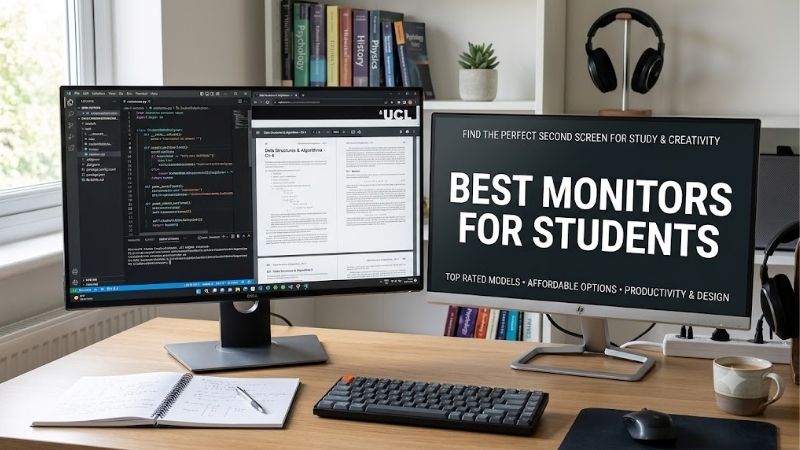
Quick answer: For most people in 2026, the best monitors for students is the Dell S2725DC — our #1 rated choice. See the full ranked comparison, alternatives and buying advice below.
Quick verdict: The best monitors for students by use case
There is no single winning monitor for every student. A dorm desk, a commuter’s backpack, and a design workstation place different demands on the display.
Our default recommendation is a 27-inch 2560 × 1440 monitor when your desk and budget permit. It provides a useful balance of physical size and pixel workspace for reading, writing, and comparing documents. A 24-inch-class 1080p display remains a sensible choice when space is limited or your workload is straightforward.
The Dell S2725DC earns the general laptop-workstation recommendation on features rather than a claim that it is the cheapest. Its combination addresses three common needs: room for coursework, convenient laptop connection, and flexible positioning.
Use the alternatives below when your requirements differ. These are task-based recommendations, not a price-ranked list, and current delivered prices should determine whether each option fits your budget.
Quick comparison of six student monitors
| Monitor | Student use case | Screen and refresh | Deciding feature | Main drawback |
|---|---|---|---|---|
| Dell S2725DC | General laptop workstation | 27-inch IPS, 2560 × 1440, 144Hz | USB-C video with up to 65W charging | Charging may be insufficient for demanding laptops |
| ASUS VA24EHF | Basic homework and limited desk space | 23.8-inch IPS, 1920 × 1080, up to 100Hz | Simple HDMI connection | Tilt-only stand; no USB-C input |
| ASUS ProArt PA278CV | Design and photography coursework | 27-inch IPS, 2560 × 1440, up to 75Hz | sRGB-focused features and 65W USB-C | Limited refresh compared with gaming options |
| Dell S2725QS | Detailed text and high-resolution work | 27-inch IPS, 3840 × 2160, 120Hz | High pixel density and adjustable stand | No USB-C laptop docking connection |
| Gigabyte M27Q rev. 2.0 | Study plus PC gaming | 27-inch IPS, 2560 × 1440, 165Hz; 170Hz overclocked | KVM for two computers | USB-C power limited to 10W |
| ASUS ZenScreen MB16AHV | Commuting and temporary workspaces | 15.6-inch IPS, 1920 × 1080, up to 60Hz | Portable format with USB-C and mini HDMI | Smaller workspace and no height adjustment |
Refresh specifications describe supported modes, not measured motion clarity. Your computer, cable, and chosen input must also support the resolution and refresh rate you want.
How we selected these monitors
This shortlist is based on manufacturer specifications and connection documentation, rather than detailed research. We prioritized features that change the usefulness of a student setup: resolution, usable size, stand adjustment, laptop connectivity, and practical limitations.
Each recommendation has a separate purpose. The portable model is included for students who move between locations, while the gaming model serves buyers who want one screen for assignments and recreation. Neither is a universal substitute for a conventional study monitor.
We did not use manufacturer response-time advertising to invent gaming-performance rankings. We also did not treat color-gamut coverage as proof of independently measured accuracy.
Prices were not verified across all six models on a comparable basis. Consequently, this guide does not assign a cheapest, best-budget, or best-value winner. Compare the exact variant and total purchase cost before ordering, especially when considering older models or marketplace sellers.
Dell S2725DC: Our default choice for a laptop study desk
The S2725DC combines QHD resolution with USB-C video and up to 65W power delivery. Its height, swivel, tilt, and pivot adjustments make it easier to adapt the screen to a desk or portrait workflow. Built-in speakers provide another option for lecture audio.
This combination is useful when you return from class and want to connect your laptop to a larger workspace. However, the laptop must support video through the selected USB-C port and accept compatible USB-C charging.
The power limit is the important caveat. A workstation or gaming laptop may still need its original charger, particularly during demanding workloads.
Buy if: You want a versatile study display and your laptop’s connection and charging requirements fit.
Skip if: You need substantially higher charging power or have insufficient desk space. The VA24EHF is the simpler compact alternative; the S2725QS prioritizes resolution instead.
ASUS VA24EHF: A simple option for everyday coursework
The VA24EHF covers the essentials without a docking-focused feature set. Its 23.8-inch Full HD panel, single HDMI input, and maximum 100Hz refresh suit a straightforward laptop or desktop connection.
It is relevant for essays, learning platforms, and reference material, particularly when your existing laptop screen can hold a second application. You do not need to replace a working display simply to gain more elaborate connectivity.
The stand supports tilt but not height adjustment. ASUS lists 100 × 100mm VESA mounting, so another mounting solution is possible, but that adds cost. There are no integrated speakers.
Buy if: HDMI covers your connection needs and the complete offer fits your spending limit.
Skip if: You need one-cable laptop charging or an adjustable stock stand. Choose the S2725DC for those capabilities, provided its larger size fits.
ASUS ProArt PA278CV: A focused choice for creative coursework
The PA278CV is the shortlist’s creative-work option. ASUS specifies 100% sRGB coverage, color-adjustment controls, and a manufacturer accuracy claim of Delta E below two. These are documented features and claims, not measurements from our own testing.
Its QHD resolution supports editing interfaces and reference windows, while USB-C provides video and up to 65W charging. The stand supports height adjustment, swivel, tilt, and pivot.
Choose it for assignments involving photographs, illustrations, or web-oriented design rather than assuming every student needs a creative monitor. It is not a verified wide-gamut or professional HDR grading recommendation.
Buy if: Your coursework benefits from its color-oriented controls and adjustable workstation features.
Skip if: Fast-paced gaming is the main priority or you only write papers. The M27Q targets study plus gaming; the VA24EHF covers simpler academic use.
Dell S2725QS: A sharper-screen option for detailed work
The S2725QS puts 3840 × 2160 resolution into a 27-inch screen. That provides greater pixel density than the QHD options, making it relevant for students who prioritize finely rendered text and detailed interfaces.
Dell specifies 120Hz operation, an adjustable stand with pivot, integrated speakers, two HDMI inputs, and DisplayPort. It does not offer the S2725DC’s USB-C video-and-charging arrangement.
The practical trade-off is compatibility. Confirm what your computer can output through the connection you plan to use; buying this monitor does not guarantee 4K at 120Hz from every laptop.
Buy if: You want a high-resolution study display and can connect it appropriately.
Skip if: Single-cable laptop docking matters more than extra pixels. The S2725DC is the more convenient alternative for that workflow. Adjust scaling for readable interface sizes rather than forcing tiny text.
Gigabyte M27Q rev. 2.0: A study-and-gaming option
The M27Q rev. 2.0 pairs QHD resolution with a specified 165Hz refresh rate and an optional 170Hz overclocked mode. Its KVM feature is relevant when you want to share a keyboard and mouse between compatible connected computers.
That makes it worth comparing for a student with both a laptop and gaming desktop. The height-adjustable stand helps with positioning, although it does not provide stock-stand pivot or swivel.
USB-C supports video, but power delivery reaches only 10W. Keep the laptop charger available; this is not a substitute for the charging-focused Dell or ProArt options. There are no integrated speakers.
Buy if: You want one QHD display for coursework and gaming, with computer-switching functionality.
Skip if: Laptop charging or portrait rotation is essential. Verify the revision explicitly; this recommendation does not transfer specifications from rev. 2.0 to another M27Q variant.
ASUS ZenScreen MB16AHV: A portable option for commuters
The MB16AHV trades desktop screen area for a portable 15.6-inch format. ASUS specifies Full HD resolution, up to 60Hz refresh, USB-C DisplayPort Alternate Mode connections, and a mini HDMI input.
Its listed weight is approximately 1.98 pounds. Remember that the complete carrying load also includes whatever cables and power equipment your setup requires.
The compact size suits reference notes or a second application at temporary workspaces. It is less suitable as a direct replacement for a large permanent desk display. Its stand has no height adjustment, and there are no built-in speakers.
Buy if: You regularly move between study locations and genuinely need a second screen there.
Skip if: Nearly all your work happens at one desk. A conventional monitor gives a larger physical canvas. Confirm the required power arrangement, particularly when using mini HDMI for video.
How to choose the best monitors for students
Start with the work you do most often, then check what your desk and computer can support. Your major provides useful context, but the applications you actually run are a better buying guide.
A writing-heavy student may benefit more from comfortable text and a stable stand than high refresh. Someone studying programming may want room for an editor beside documentation. A design student needs to evaluate color requirements as well as workspace.
Match resolution to your everyday applications
For reading and basic assignments, 1080p can provide an adequate workspace. QHD adds pixels for side-by-side documents and larger application layouts. A 4K screen offers higher detail, but it usually requires deliberate scaling choices on a 27-inch display.
Resolution is not the same as comfortable text size. Choose readable scaling first, then judge whether enough workspace remains. There is no benefit in fitting more windows if you have to lean forward to read them.
For a useful comparison, open a typical assignment, reference PDF, and browser on your current computer. Identify whether the real limitation is small text, insufficient window space, or frequent application switching.
Check USB-C video and charging separately
A USB-C connector can serve different functions. Verify the laptop port’s video capability, the monitor’s upstream video connection, and the charging power available through that connection.
Also compare the monitor’s power delivery with your laptop’s documented requirements. A compatible connection can still provide insufficient power during demanding work. The original charger may remain necessary.
Downstream accessory ports should not be mistaken for laptop video inputs. Read the port descriptions for the exact model rather than assuming every USB-C socket provides the same functionality.
Measure the desk before selecting screen size
Measure available width, depth, and height. Leave space for the keyboard, notebook, laptop, and cables, not just the monitor itself.
A large screen placed too close can become awkward for reading or scanning across windows. Moving it farther back may help, but only if the stand and desk allow that position.
Check the actual product dimensions and stand footprint. If an arm seems necessary, confirm mounting compatibility, supported weight, and whether the desk can accept its clamp. Do not assume a dorm desk permits permanent mounting.
Prioritize useful stand adjustment
Height adjustment lets you position a display without automatically adding a riser. Swivel helps when changing your seated position or showing a project to someone nearby. Pivot is useful for long documents and some coding workflows.
These features have different value depending on your habits. A monitor used for occasional reference material may not need the same positioning flexibility as your primary writing screen.
Test the supplied stand before purchasing an arm. Spending on an accessory makes sense when it solves a specific fit problem, rather than simply making the desk resemble a product photograph.
Decide how much gaming matters
High refresh is useful when gaming is a real part of the monitor’s role. It is less important when the screen primarily shows lecture notes or a calendar.
The graphics hardware must also deliver the gaming experience you want. A higher-resolution monitor can be excellent for coursework even if you choose lower game settings or another rendering resolution for performance.
Do not equate a refresh-rate specification with independently measured response behavior. If competitive gaming drives the purchase, investigate model-specific testing before making the final choice.
Budget for the complete student workstation
The delivered monitor price is only part of the decision. Include tax, shipping, a missing video cable, necessary adapters, and any mounting equipment you actually need.
For example, a $200 total allowance cannot be treated as $200 available for the display if your computer also requires an adapter. This is a budgeting example, not a verified product price.
Compare what you already own with what the purchase replaces. A charging-capable monitor may simplify a desk, but that convenience has limited value if your laptop cannot use it. Built-in speakers may save space, while students who already use headphones may gain little from them.
For used or refurbished units, verify the exact model, included stand, power equipment, working inputs, and return terms. An incomplete monitor can lose its apparent savings once replacements are added.
Finally, consider whether your current monitor already meets your coursework needs. Replacing it makes sense when you can identify the problem the new screen will solve.
Frequently asked questions
Are the best monitors for students always 27 inches?
No. A 27-inch screen can suit a permanent workstation, but a 24-inch-class display may fit a small desk better. A portable model serves a different need entirely. Choose the physical size after checking workspace and viewing distance, then select the resolution that supports your applications.
Do students need a 4K monitor?
Most do not need one simply to attend classes or write assignments. Consider 4K when higher pixel density or detailed work matters to you. Check scaling and connection support first. A well-positioned QHD screen can be a more practical purchase for general coursework.
Can a monitor replace my laptop charger?
Only when the laptop accepts the monitor’s charging method and the available power meets your needs. USB-C video support alone is insufficient. Check both devices’ specifications, and keep the original charger for laptops or workloads that require more power than the monitor supplies.
Do these monitors include a webcam?
Do not assume that a monitor with USB-C or speakers includes a webcam. These recommendations are based on display and connection needs, not integrated video conferencing. Budget separately for a webcam if required, or check whether your laptop’s camera position works with the planned desk arrangement.
Is a portable monitor better than a desktop monitor?
It is better when you need to carry a second screen regularly. For permanent desk use, the smaller image and limited stand adjustment may be compromises. Consider how often you will actually transport it, along with the extra equipment needed to power and connect it.
Final verdict: Choose for the semester you actually have
Start with the S2725DC for a general laptop study desk, provided its size and charging capability fit your setup. Choose the VA24EHF when a simple compact HDMI display covers the work.
The PA278CV targets creative coursework, the S2725QS prioritizes fine detail, and the M27Q rev. 2.0 suits a combined study-and-gaming workstation. The MB16AHV earns its place when carrying a second screen is a recurring requirement.
Before ordering, verify your connection, measure the desk, and compare complete delivered costs. The right monitor should address a daily limitation without consuming money needed elsewhere in your student setup.
Ready to decide? Our #1 pick for 2026 is the Dell S2725DC.
Live price & availability on Amazon.









