
A search for oled monitor or tv usually comes down to one question: Is an OLED gaming monitor worth buying, or can a television deliver a better experience for the same money? For competitive PC gaming and everyday desktop use, a monitor is usually the more practical choice. For immersive single-player games, controller gaming and entertainment from the couch, an OLED TV can offer a more compelling big-screen experience. Both can deliver excellent contrast, rich colors and fast pixel response, but size, viewing distance, refresh rate and how you use your PC should determine your purchase.
- Quick verdict: should you buy an OLED monitor or TV?
- Understand what OLED does before comparing displays
- OLED monitor vs. OLED TV: the practical differences
- Screen size, resolution and viewing distance
- Refresh rate and input lag: is a monitor always faster?
- HDR and brightness: where an OLED TV can win
- Text clarity and desktop productivity
- Burn-in, static interfaces and long-term ownership
- Connectivity, audio and practical setup
- How much should you spend?
- Which one should you buy for your specific setup?
- FAQs
- Final verdict
Quick answer: Our top pick in 2026 is the Buying priority — our #1 rated choice. See the full ranked comparison, alternatives and buying advice below.
Quick verdict: should you buy an OLED monitor or TV?
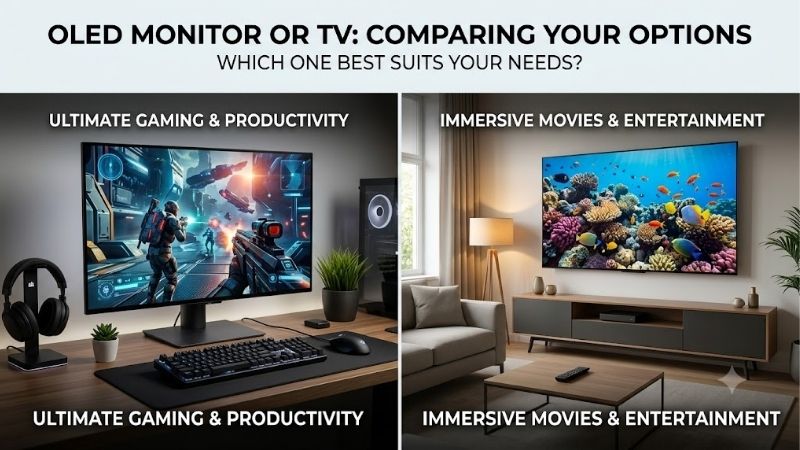
Choose an OLED monitor if you sit at a desk, play competitive games with a mouse and keyboard, use your PC for work, or want a high refresh rate without occupying most of your desk. Choose an OLED TV if you sit several feet away, prefer a large cinematic image, frequently play with a controller, and also watch movies or television.
Neither category is automatically better at displaying games. OLED is a panel technology, not a guarantee of resolution, brightness, refresh rate or input lag. The individual model matters more than the label on the box.
| Buying priority | Better starting point | Why it fits |
|---|---|---|
| Competitive PC gaming | OLED monitor | More compact, desk-friendly sizes and many high-refresh options |
| Single-player games | Either | Both can provide deep blacks, strong colors and fast response |
| Immersive couch gaming | OLED TV | Large screens create a more cinematic experience |
| Gaming and desktop productivity | OLED monitor | Easier close-up viewing and practical desk ergonomics |
| Movies, shows and PC gaming | OLED TV | Larger screen and integrated streaming features |
| Small desk or close viewing distance | OLED monitor | Higher pixel density at common desk sizes |
| Shared family entertainment | OLED TV | Better suited to multiple viewers and living-room seating |
| Long daily work sessions with static interfaces | Consider a non-OLED monitor | Avoids the permanent burn-in risk associated with OLED |
The most useful distinction is not simply refresh rate versus picture quality. A good OLED TV can be responsive enough for serious gaming, while a good OLED monitor can deliver outstanding HDR and cinematic image quality. The decision should reflect your gaming habits, room and PC setup.
Understand what OLED does before comparing displays
OLED stands for organic light-emitting diode. Unlike a conventional LED-backlit LCD, an OLED display produces light at the individual pixel level. A pixel can turn off completely to display black, rather than relying on a backlight that must dim a larger area.
That pixel-level control creates exceptionally high contrast, clean dark scenes and no LCD-style blooming around bright objects against a black background. It also supports very fast pixel transitions, which can make moving objects appear clearer during gameplay.
Both OLED monitors and OLED TVs benefit from these characteristics. Neither category has an inherent monopoly on image quality.
However, OLED does not automatically mean high full-screen brightness, perfect text rendering, excellent reflection handling or superior HDR. Those qualities depend on the panel generation, display design, screen coating and image-processing system.
Two other terms matter when comparing products. WOLED uses an OLED structure with a white-emitting component and color filters, while QD-OLED uses blue OLED light with quantum dots to produce color. Their brightness characteristics, color behavior and subpixel arrangements differ. Those differences can affect text clarity and performance in bright rooms, but neither technology wins every comparison.
OLED monitor vs. OLED TV: the practical differences
| Feature | OLED gaming monitor | OLED TV |
|---|---|---|
| Typical use | Desk gaming and computer work | Couch gaming and entertainment |
| Common screen sizes | Approximately 27–34 inches, with larger options available | Approximately 42–83 inches or larger, depending on the range |
| Resolution options | 1440p and 4K are common in gaming models | 4K is common in modern OLED TVs |
| Refresh rate | Options range from high-refresh models to more modest displays | Many gaming-focused models support 120Hz or higher |
| Input lag | Generally low, with some models optimized for competitive play | Can also be very low in the correct gaming mode |
| Text and desktop use | Typically more practical at close range | Depends heavily on size, distance and PC signal configuration |
| HDR | Depends on panel brightness and implementation | Premium TVs can deliver excellent HDR processing and presentation |
| Sound and streaming | Often limited audio and no built-in smart TV platform | Usually includes speakers and a streaming interface |
| Desk or room requirements | Usually easier to position near the user | Requires more viewing distance and space as screen size increases |
| Static desktop use | Burn-in remains a consideration | Burn-in also remains a consideration |
These are broad tendencies rather than guarantees. A premium OLED TV can outperform an entry-level OLED monitor in HDR, and a fast gaming monitor can provide a higher refresh rate than many televisions. Compare exact models before making a decision.
Screen size, resolution and viewing distance
Screen size is often the first difference buyers notice, but the important combination is screen size, resolution and viewing distance.
A 27-inch 1440p monitor can look sharp at typical desk distance. A 32-inch 4K monitor provides more detail and workspace while preserving a relatively compact footprint. A 42-inch 4K OLED TV can also work as a desktop display, but it needs a deeper desk or a more distant seating position to avoid feeling overwhelming.
The pixel density difference is measurable. A 27-inch 4K display has approximately 163 pixels per inch, while a 42-inch 4K screen has approximately 105 pixels per inch. Both have the same number of horizontal and vertical pixels, but those pixels are physically smaller on the 27-inch panel.
At a desk, this affects text sharpness and the appearance of fine interface elements. At a greater viewing distance, the difference becomes less noticeable.
When a 4K TV makes sense as a computer display
A large OLED TV can be a good replacement for a monitor if you have sufficient space, sit farther away and primarily play games or watch media. A 42-inch model can be appealing for a desk setup that doubles as a small entertainment area.
For example, the 2026 LG C6 is available in a 42-inch 4K OLED version and supports a refresh rate of up to 165Hz. That illustrates how modern televisions can approach gaming-monitor specifications while offering a much larger image. Actual supported modes depend on the exact model and connection.
The downside is ergonomics. A 42-inch screen close to your face may require substantial eye and head movement, particularly when working with several windows. Increasing Windows scaling can help with interface readability, but it does not change the physical dimensions of the display.
For most conventional desks, a 27- or 32-inch monitor is the safer starting point. Choose the larger TV when immersion matters more than compactness.
Refresh rate and input lag: is a monitor always faster?
No. Gaming monitors have traditionally had an advantage in high-refresh-rate PC gaming, but modern OLED televisions have narrowed the gap considerably.
Refresh rate describes how frequently a screen can update its image. A 120Hz display can refresh up to 120 times per second; a 240Hz display can refresh up to 240 times per second. Higher refresh rates can improve motion presentation and responsiveness when the computer supplies enough frames.
Input lag describes the delay between a signal reaching the display and the resulting image appearing on screen. Pixel response time describes how quickly pixels transition between colors or brightness levels. These are related aspects of gaming performance, but they are not interchangeable measurements.
An OLED TV with a responsive gaming mode can provide very low input lag, smooth movement and fast pixel transitions. The trade-off is that some TVs process images differently outside game mode, which can add unwanted delay. Features such as Auto Low Latency Mode can automatically switch a compatible setup into a lower-latency mode.
A high-refresh OLED monitor remains attractive for players who regularly achieve high frame rates in competitive games. A 360Hz monitor can make sense for a suitable system and workload, but it does not automatically improve performance when the PC struggles to maintain high FPS.
Before paying for extra refresh rate, look at your actual frame rates in the games you play. For a demanding single-player game running around 90 FPS, a responsive 120Hz or 144Hz display may already provide a satisfying experience. For a competitive game running consistently at much higher frame rates, a 240Hz or faster monitor may offer a more noticeable benefit.
Variable refresh rate (VRR) also deserves attention. Compatible NVIDIA G-SYNC and AMD FreeSync implementations, along with HDMI Forum VRR on supported devices, can reduce tearing and help the display track fluctuating frame rates. Verify compatibility with your GPU, cable and chosen connection rather than relying on a feature name alone.
HDR and brightness: where an OLED TV can win
OLED’s excellent contrast makes it attractive for HDR gaming. Small bright highlights can stand out against nearly black backgrounds without the broad halos that may appear around bright objects on an LCD with less precise local dimming.
A premium OLED TV may also deliver stronger HDR performance than an OLED monitor, particularly in models designed for movies and high-impact living-room viewing. Televisions often combine high-end panel technology with image processing and tone mapping designed to present HDR content attractively.
However, not all OLED TVs are brighter than all OLED monitors. Panel generation, screen size, cooling, power limits and product tuning affect the result. A high-end gaming monitor can deliver excellent HDR, while a less expensive television may not offer the same peak highlights or sustained brightness.
Room lighting changes the equation. Some OLED panels, especially certain QD-OLED models, can show raised or tinted blacks when strong ambient light strikes the panel. Glossy surfaces can also reflect windows and lamps. A matte OLED monitor may handle reflections differently, although the coating can affect perceived contrast and image appearance.
If you game in a bright living room, examine measured reflection handling, sustained brightness and daytime picture quality. If you play in a dim room, black levels and highlight control may matter more than maximum full-screen brightness.
Do not choose a television simply because its specifications include HDR10, Dolby Vision or another format. Supported formats matter, but the quality of the actual HDR implementation is more important than the logo.
Text clarity and desktop productivity
This is one of the strongest arguments for choosing an OLED monitor rather than using a television at a desk.
A monitor’s smaller screen can provide higher pixel density, and many models are designed specifically for close-up computer use. A 27-inch or 32-inch display also makes it easier to arrange windows without repeatedly turning your head to inspect the edges.
OLED panel structure matters here. Some WOLED and QD-OLED screens use subpixel layouts that differ from the conventional red, green and blue arrangement expected by common computer text-rendering systems. Depending on the monitor’s resolution and pixel density, this can create slight colored fringes around letters or interface elements.
The effect varies by individual display and viewer. Some people hardly notice it, while others find it distracting during long reading or coding sessions. Higher pixel density can reduce how visible the issue appears.
A TV also needs to handle the PC’s output correctly. Look for support for 4:4:4 chroma at the desired resolution and refresh rate, and configure the input for PC use where the manufacturer’s instructions recommend it. Chroma subsampling reduces color information to save bandwidth; that can be acceptable for video but may soften fine colored text.
If your PC is used mainly for gaming, the text-rendering difference may be a minor compromise. If you spend eight hours a day writing, coding or working with spreadsheets, compare text clarity carefully before committing to OLED. A conventional IPS monitor may remain the more comfortable long-term choice for some users.
Burn-in, static interfaces and long-term ownership
Both OLED monitors and OLED TVs use self-emissive pixels, so both can develop permanent image retention under certain usage conditions. This is commonly called burn-in.
The risk is associated with uneven pixel wear over time. Repeated exposure to bright, static elements can make those areas age differently from the rest of the screen. Examples include desktop taskbars, persistent application toolbars, fixed game HUDs and continuously displayed channel logos.
This does not mean an OLED display will inevitably develop visible burn-in during normal use. Mixed content, sensible brightness settings and panel-protection features can reduce the risk. However, it would also be incorrect to promise that modern OLEDs are immune.
An important difference is the usage pattern, not whether the screen is marketed as a monitor or television. A TV used for varied movies and games may display a wide range of content. A monitor left on a static desktop for many hours every day can repeatedly expose the same interface elements.
RTINGS’ long-duration testing has found permanent image retention under intensive static-content conditions, including on newer OLED televisions. These accelerated tests do not predict an exact lifespan for an individual buyer, but they demonstrate why burn-in remains a real consideration.
Practical precautions include:
-
Use an appropriate brightness level instead of running the panel at maximum brightness continuously.
-
Enable the manufacturer’s pixel-shift, screen-protection and compensation features.
-
Allow automatic maintenance cycles to complete as recommended by the manufacturer.
-
Hide the taskbar or use a screen saver when appropriate.
-
Avoid leaving a static image displayed unnecessarily for long periods.
-
Review the warranty language for burn-in coverage rather than assuming all OLED products receive the same protection.
If your usage involves a fixed application interface for most of every workday, a non-OLED IPS or VA display may be a better fit. Avoiding OLED can be a rational decision, even if OLED offers superior contrast for games.
Connectivity, audio and practical setup
The best screen for your PC also needs to work with the rest of your equipment.
A gaming monitor typically offers DisplayPort and HDMI, with USB hubs, KVM switching or USB-C on selected models. Those extra features can simplify a desk shared by a gaming PC, work laptop and peripherals.
A TV often provides several HDMI inputs, integrated speakers, a smart TV operating system and easy access to streaming services. That makes it particularly convenient if you want one screen for PC gaming, consoles, movies and family entertainment.
However, HDMI 2.1 branding alone is not a guarantee of every desired feature. Check the supported resolution and refresh rate for the exact input, whether the required bandwidth is available, and whether VRR works in the mode you plan to use. Some display modes or combinations of features may be limited by the source, cable or port.
For a TV used as a PC monitor, confirm that the graphics card supports the desired 4K refresh rate and HDR output. Use an appropriate HDMI cable and configure Windows or your graphics driver to use the intended resolution, refresh rate, color depth and VRR settings.
Also consider physical installation. A large television may require a monitor arm rated for its weight and mounting pattern, or a stand that fits the desk. Check the manufacturer’s VESA specification, screen dimensions, stand footprint and viewing distance before buying. Do not assume an existing monitor arm can safely support a TV.
For a competitive setup, the practical ergonomics of the display, keyboard and mouse often matter more than built-in speakers or smart features. For a living room, those same features may reduce clutter and make the TV a better all-purpose purchase.
How much should you spend?
There is no universal price winner between OLED monitors and TVs. Screen size, panel generation, refresh rate and product tier have more influence on price than the category label alone.
OLED monitor pricing can rise substantially when you move from 1440p to 4K, increase refresh rate, or select a newer panel generation. Large OLED televisions can command a premium for high brightness, advanced processing and premium gaming capabilities, but their sale prices and value vary by size and model.
Compare products with similar capabilities. A 27-inch 1440p monitor and a 65-inch 4K TV are not direct substitutes simply because both use OLED. They differ in physical size, pixel density, resolution and intended viewing distance.
Remember to include the supporting hardware in your budget. A 4K display running at a high refresh rate can demand much more GPU performance than a 1440p setup. You may need to lower graphics settings or use supported upscaling to reach your desired frame rate.
Account for a suitable desk or TV stand, mounting hardware, cable length and speakers if these are not already available. With a television, the extra features can be worthwhile when they replace other entertainment equipment. With a monitor, a more compact screen can be the cheaper overall solution for a dedicated gaming desk.
Use current US retailer listings to compare the exact models, rather than relying on launch prices or a percentage discount without checking the product’s normal selling price.
Which one should you buy for your specific setup?
Choose an OLED monitor when your priority is competitive PC gaming, close viewing, high-refresh performance or everyday computer use. A 27-inch 1440p model suits many gaming desks, while a 32-inch 4K model offers a useful balance of workspace, detail and immersion.
Choose an OLED TV when you have enough room to sit farther back and prefer a large image for cinematic games. A 42-inch 4K model is a plausible desk-and-entertainment hybrid, while larger sizes make more sense for couch gaming and shared viewing.
For mixed use, think about which activity occupies most of your time. A programmer who games for an hour after work may value readable text and static-interface convenience more than maximum HDR impact. A player who spends evenings in single-player games and watches movies on the same screen may prefer the TV’s scale and entertainment features.
If you’re uncertain, measure your available space and viewing distance before shopping. Then shortlist displays with the resolution, refresh rate and connectivity your GPU can actually use. Finally, compare independent measurements for the exact model and check the warranty and return policy.
FAQs
Can I use an OLED TV as a PC gaming monitor?
Yes. Many modern OLED TVs support high resolutions, gaming modes and variable refresh rates. Confirm the exact model’s PC compatibility, chroma handling, supported refresh rate and physical suitability for your setup.
Is an OLED monitor better than an OLED TV for FPS games?
A monitor is often more practical for competitive FPS games because it fits a desk and commonly offers high refresh rates. However, a fast gaming TV can also offer low input lag and excellent motion. Compare actual measurements rather than assuming every monitor is faster.
Is a 42-inch OLED TV too big for a desk?
Not necessarily, but it depends on desk depth, seating position and personal preference. At typical close viewing distances, the screen can feel overwhelming. Measure your space and consider whether a 27- or 32-inch monitor would be more comfortable.
Will OLED burn-in happen if I use the display every day?
Daily use does not automatically cause visible burn-in. Risk depends on factors including brightness, exposure to static elements, operating time and panel behavior. Follow the manufacturer’s care recommendations and consider a non-OLED display for heavily static workloads.
Does an OLED TV need HDMI 2.1 for PC gaming?
Not for every gaming configuration. HDMI 2.1 can be important for higher-bandwidth modes such as 4K at high refresh rates with compatible feature combinations. The exact requirements depend on resolution, refresh rate, color format, graphics hardware and available inputs.
Should I buy a 4K OLED monitor instead of a 1440p model?
Choose 4K when you value fine detail and have enough GPU performance to support your target settings and frame rate. A 1440p monitor can be a better gaming purchase when high frame rates are more important or your hardware cannot comfortably drive 4K.
Final verdict
An OLED monitor is the better default for a dedicated PC gaming desk, particularly when competitive performance, text clarity and ergonomic placement matter. An OLED TV is the stronger starting point for immersive couch gaming, movies and a large shared screen.
Neither is automatically the better display. Modern TVs can deliver impressive refresh rates and responsive gaming, while modern OLED monitors can provide excellent HDR and deep blacks. The right choice depends on the exact product, not the category alone.
Prioritize viewing distance, resolution, refresh rate, measured brightness and input lag, PC compatibility, warranty terms and your daily usage. Buy the display that fits your setup rather than paying for specifications you cannot use.
Editorial Source Log
Research date: October 12, 2026.
Article type: Comparison / Guide.
Research and evidence basis: Manufacturer specifications and independent testing. No original detailed research, custom latency measurements or PC benchmark results were performed for this article. No unverified prices or retailer stock claims are included.
Ready to decide? Our #1 pick for 2026 is the Buying priority.
Live price & availability on Amazon.









