
The best gaming monitor for Rocket League is the one that presents your PC’s frames clearly, fits your viewing position, and supports the connection you actually use. For a balanced 1440p setup, the ASUS ROG Strix XG27ACS is the starting point here. Choose the LG 27GR83Q-B for 240Hz at 1440p, or the Alienware AW2525HM when compact 1080p gaming and additional refresh headroom matter more than desktop detail.
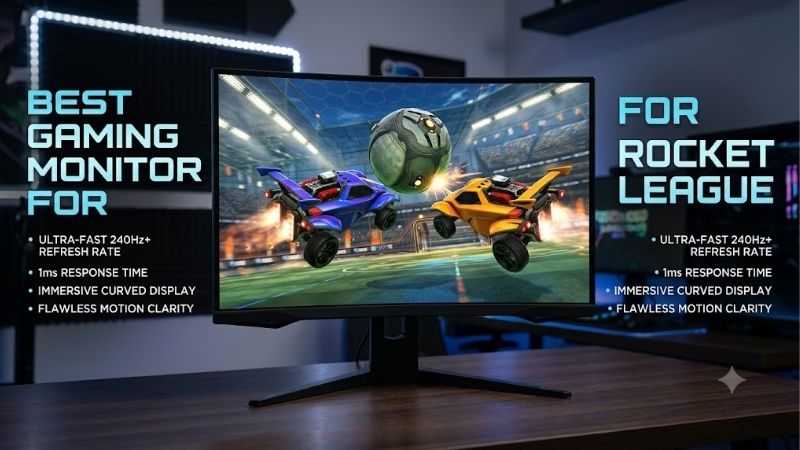
Quick answer: For most people in 2026, the best gaming monitor for rocket league is the ASUS ROG Strix XG27ACS — our #1 rated choice. See the full ranked comparison, alternatives and buying advice below.
Best gaming monitor for Rocket League: the quick verdict
Choose the ASUS ROG Strix XG27ACS if you want one display for ranked matches, other games, and daily computer use. Its 27-inch 1440p panel and 180Hz maximum refresh rate address a broad set of requirements.
The LG UltraGear 27GR83Q-B is the more appropriate shortlist option when you specifically want 1440p at 240Hz through a compatible HDMI or DisplayPort connection. The Alienware AW2525HM takes another direction: a smaller 1080p screen with a 320Hz DisplayPort ceiling.
Consider the ZOWIE XL2546X+ only if its DyAc 2 blur-reduction feature is a deliberate purchase priority. The BenQ MOBIUZ EX240 suits a compact 165Hz setup with integrated speakers. The Gigabyte M28U belongs on the list for buyers who need 4K desktop detail alongside gaming.
For console-only use, do not pay for 280Hz or 320Hz expecting Rocket League to run at those rates. Check the console’s supported game mode and the monitor’s documented HDMI timing first.
Quick comparison table
Maximum refresh rates describe monitor capabilities, not guaranteed Rocket League frame rates. A supported cable and output are required.
| Monitor | Size and panel | Resolution | Maximum refresh | Main reason to consider it | Meaningful limitation |
|---|---|---|---|---|---|
| ASUS ROG Strix XG27ACS | 27-inch Fast IPS | 2560 × 1440 | 180Hz | Balanced mixed-use setup | HDMI limited to 144Hz |
| LG UltraGear 27GR83Q-B | 27-inch IPS | 2560 × 1440 | 240Hz | 1440p high-refresh gaming | Compatible GPU/output required |
| Alienware AW2525HM | 24.5-inch Fast IPS | 1920 × 1080 | 320Hz through DisplayPort | Compact competitive PC setup | HDMI limited to 255Hz |
| ZOWIE XL2546X+ | 24.1-inch Fast TN | 1920 × 1080 | 280Hz through DisplayPort | DyAc 2 blur-reduction option | DyAc 2 and VRR operate separately |
| BenQ MOBIUZ EX240 | 23.8-inch IPS | 1920 × 1080 | 165Hz | Smaller desk with integrated audio | Lower resolution than 1440p alternatives |
| Gigabyte M28U | 28-inch IPS | 3840 × 2160 | 144Hz | 4K gaming and desktop detail | Greater native-resolution rendering demands |
How we selected these monitors
The shortlist is based on manufacturer specifications and documentation. Each model serves a distinct buying requirement, including resolution, refresh ceiling, physical size, connectivity, or a specialized display feature.
Rocket League involves frequent camera changes, fast-moving cars, and tracking the ball through the arena. Those demands make consistent frame delivery and useful motion presentation relevant, but they do not establish a universal refresh-rate requirement.
No detailed research or matched Rocket League benchmarks were supplied for this guide. Recommendations therefore do not claim measured input-lag winners, guaranteed FPS, or a demonstrated improvement in player rank.
Comparable current US checkout prices were not verified for every model. Price-based awards are omitted, and current offers should influence your final decision. Treat “balanced” and “competitive” as editorial use-case judgments rather than laboratory rankings.
The monitor picks explained
ASUS ROG Strix XG27ACS: the balanced 1440p choice
The XG27ACS combines a 27-inch Fast IPS panel, 2560 × 1440 resolution, and a maximum 180Hz refresh rate. ASUS lists G-SYNC compatibility and ELMB Sync.
Its role in this roundup is balance. Choose it when Rocket League shares your desk with browsing, documents, and other games, and when you have not identified a specific need for a higher refresh ceiling.
The connection limit is important: ASUS’s manual lists DisplayPort operation up to 180Hz and HDMI up to 144Hz. A computer connected through HDMI cannot use its full advertised ceiling.
USB-C supports DisplayPort Alt Mode, but power delivery is only 7.5W. Do not plan on replacing a gaming laptop’s charger with this port.
Buy if: You want a practical 1440p display and can connect through DisplayPort.
Skip if: You require 180Hz through HDMI or substantial USB-C charging.
Alternative: The LG provides a higher refresh ceiling with compatible HDMI; the Alienware favors compact 1080p gaming.
LG UltraGear 27GR83Q-B: the 1440p 240Hz option
The 27GR83Q-B offers a 27-inch 1440p IPS panel, 240Hz maximum refresh, G-SYNC compatibility, and FreeSync Premium. Its stand supports height, tilt, and pivot adjustments.
LG specifies a graphics card supporting DisplayPort 1.4 or HDMI 2.1 for operation up to 240Hz. Check your GPU’s actual output, especially when a laptop or adapter forms part of the connection.
The reason to consider this model is additional refresh headroom while retaining 1440p resolution. It suits a buyer who has already established that the PC and preferred settings make that headroom useful.
That does not establish a measured competitive advantage over the ASUS. If your system produces inconsistent frames, investigate that issue before choosing a display solely by its maximum refresh rate.
Buy if: You want 1440p at 240Hz and have a compatible output.
Skip if: Your computer or connection cannot support the capability that distinguishes it here.
Alternative: The ASUS suits a less refresh-focused purchase; the Alienware prioritizes a smaller screen and 1080p.
Alienware AW2525HM: the compact high-refresh IPS option
The AW2525HM uses a 24.5-inch Fast IPS panel with 1920 × 1080 resolution. Dell documents 320Hz through DisplayPort and 255Hz through HDMI.
The lower HDMI ceiling is not a defect, but it changes what you are buying for an HDMI-only setup. Verify the intended mode before comparing it with another high-refresh display.
Dell lists G-SYNC compatibility, FreeSync Premium, and an adjustable stand. Those features do not guarantee that adaptive sync is enabled automatically on your computer.
Choose this model when a smaller screen and high refresh ceiling are priorities. Staying at 1080p reduces pixel count compared with 1440p, although the resulting frame-rate change depends on the system and settings.
Buy if: You want compact 1080p PC gaming and can use DisplayPort for 320Hz.
Skip if: You need sharper 1440p desktop text or expect 320Hz through HDMI.
Alternative: The LG retains high-refresh capability at 1440p; the ZOWIE offers a different blur-reduction approach.
ZOWIE XL2546X+: the DyAc 2 specialist
The XL2546X+ combines a 24.1-inch Fast TN panel, 1920 × 1080 resolution, and a 280Hz DisplayPort specification. The plus sign matters: this is not the older 240Hz XL2546X.
Its distinguishing feature is DyAc 2, ZOWIE’s backlight-based blur-reduction system. ZOWIE specifies variable refresh operation with DyAc 2 turned off, so the two features should be evaluated as separate modes.
The manufacturer also documents 1080p at 120Hz for PS5 and Xbox Series X/S. That verifies a display input capability rather than guaranteeing the behavior of every game.
Consider it when you specifically want to compare blur reduction against conventional adaptive-sync use. Check comfort and visual preference during the return window instead of assuming the feature is desirable for everyone.
Buy if: DyAc 2 is a deliberate priority and 1080p fits your setup.
Skip if: You want DyAc 2 and VRR simultaneously or prioritize 1440p detail.
Alternative: The Alienware provides a compact IPS option with a higher DisplayPort refresh ceiling.
BenQ MOBIUZ EX240: the straightforward compact setup
The EX240 uses a 23.8-inch IPS panel with 1920 × 1080 resolution and a 165Hz maximum refresh specification. BenQ lists FreeSync Premium, integrated stereo speakers, and height adjustment.
It fits buyers who want a small screen without making extreme refresh rates their main requirement. Integrated audio is useful when avoiding separate speakers simplifies the desk.
Confirm the exact EX240 designation. The EX240N is a different model and should not be substituted on the assumption that its specifications match.
BenQ specifies 2ms gray-to-gray and 1ms MPRT separately. Those numbers describe different concepts and are not grounds for a universal response-time ranking.
Buy if: You want compact 1080p gaming with integrated speakers.
Skip if: Your main requirement is a refresh ceiling above 165Hz or additional desktop detail.
Alternative: The Alienware suits higher-refresh 1080p priorities; the ASUS moves to 1440p.
Gigabyte M28U: the 4K mixed-use option
The M28U offers a 28-inch IPS panel, 3840 × 2160 resolution, and a 144Hz refresh specification. Its role here is fine detail rather than maximum refresh headroom.
A 4K image contains four times as many pixels as 1080p and 2.25 times as many as 1440p. These calculated ratios describe pixel workload, not an exact frame-rate reduction.
Consider it when your desk also handles text-heavy work and you specifically want native 4K. Adjust desktop scaling to keep text comfortable.
For a Rocket League-first purchase, determine whether you will actually play at 4K. If you expect to lower resolution routinely, reassess whether another monitor better addresses your main goal.
Buy if: 4K desktop detail and gaming are clear priorities.
Skip if: Competitive play dominates and you prefer more refresh headroom.
Alternative: The LG offers a 1440p 240Hz direction; the ASUS balances 1440p with 180Hz.
How to choose the best gaming monitor for Rocket League
Evaluate your current display before upgrading
Identify the problem you want the purchase to solve. Common requirements include moving from 60Hz, obtaining clearer desktop text, improving screen positioning, or supporting a connection that your current monitor lacks.
Check your existing refresh setting first. A capable display configured below its intended rate can make an unnecessary replacement seem attractive.
Then assess performance during real matches. Keep your usual resolution and settings, and look for repeatable behavior across normal gameplay rather than relying only on a quiet training scene.
If the computer pauses or delivers uneven frames, a faster monitor may leave that problem intact. A useful purchase solves a display limitation; it should not be expected to repair every part of the gaming system.
Choose 1080p, 1440p, or 4K deliberately
Resolution determines the number of pixels in the displayed image. Higher resolution can provide finer detail, but it also changes the rendering workload when the game runs natively.
A compact 1080p monitor is reasonable when competitive gaming dominates your desk. It is not automatically the right answer merely because high-refresh models use that resolution.
A 27-inch 1440p screen is a practical middle ground for gaming and daily work. It adds desktop detail while avoiding 4K’s much larger pixel count.
Choose 4K when the extra detail has a clear purpose beyond a specification sheet. If you value documents, coding, or other text-heavy work alongside Rocket League, that purpose may be substantial.
Keep camera settings and viewing distance consistent when comparing displays. Otherwise, apparent changes in object size can obscure the resolution comparison.
Understand refresh intervals and diminishing returns
Refresh rate describes how often the screen can update. Dividing 1,000 milliseconds by that rate gives the interval between refresh opportunities.
| Refresh rate | Approximate interval |
|---|---|
| 60Hz | 16.67ms |
| 144Hz | 6.94ms |
| 165Hz | 6.06ms |
| 180Hz | 5.56ms |
| 240Hz | 4.17ms |
| 280Hz | 3.57ms |
| 320Hz | 3.13ms |
These calculated intervals are not measurements of total input latency. Game processing, rendering, synchronization, and pixel transitions also affect what you see.
The interval reduction from 60Hz to 144Hz is much larger than the reduction from 240Hz to 320Hz. That helps explain why later upgrades deserve a more specific justification.
Higher rates can still be useful, but compare their cost against the rest of your setup. Do not assume the largest number is the most important improvement available to you.
Separate refresh rate from pixel response
A monitor’s refresh ceiling and the time its pixels take to change are different characteristics. Neither specification alone establishes complete motion quality.
Manufacturer gray-to-gray minimums may depend on particular settings. A response-time slogan does not reveal every transition or whether aggressive overdrive creates bright outlines around moving objects.
During a return window, compare motion at your typical frame rates. Watch the ball, car edges, arena markings, and fast camera turns rather than judging a stationary menu.
If overdrive settings are available, compare several options. The strongest setting should not be assumed best at every refresh rate.
This guide does not provide matched motion measurements. Seek relevant independent testing when that behavior is the deciding factor between otherwise suitable models.
Choose between adaptive sync and blur reduction
Adaptive sync adjusts display refresh timing to compatible GPU frame delivery within the supported range. It can address tearing, but it cannot create additional rendered frames.
Blur-reduction systems approach motion differently by controlling light presentation. Their usefulness depends on implementation, settings, frame delivery, and personal preference.
The ZOWIE illustrates a concrete trade-off: DyAc 2 and variable refresh operate separately. Decide which mode you prefer instead of treating both as simultaneously available benefits.
Test these settings under ordinary gameplay conditions. Compare visual stability and comfort over a full session, not just a brief demonstration.
There is no need to adopt someone else’s complete settings profile. A feature that suits another system or player may not address your own requirement.
Check the entire connection path
Maximum mode support depends on the GPU output, cable, any adapter or dock, and the monitor input. One unsupported link can impose a lower limit.
For the Alienware, DisplayPort is required for its documented 320Hz mode. For the ASUS, HDMI stops below the monitor’s maximum refresh ceiling.
A laptop connector’s shape alone does not establish supported video modes. Check the computer’s documentation and avoid assuming that every USB-C port carries display output.
Connect directly when troubleshooting. Confirm resolution and refresh in the operating system, then inspect the monitor’s information display.
If an intended mode is missing, resolve the connection issue before interpreting it as a panel-performance problem or ordering a replacement.
Treat console requirements separately
A high-refresh PC display does not make a console game run at the monitor’s maximum rate. The console, game mode, and HDMI timing must all support the intended output.
Epic’s Xbox guidance requires enabling 120Hz on the console before using Rocket League’s 120 FPS configuration. Check the current game and console settings rather than relying on an old setup guide.
ZOWIE explicitly lists 1080p 120Hz console support for the XL2546X+. Other purchases should be checked against their documented supported timings and your exact device.
Do not assume an HDMI version number guarantees every resolution and refresh combination. Likewise, avoid paying for 320Hz solely for a console that will not use it.
Position the screen around your normal seating
Measure available desk depth and stand space before choosing a screen. A larger diagonal does not guarantee a more comfortable view.
Place the monitor where you can follow action and read information without repeatedly changing posture. For controller players sitting farther back, evaluate readability from that actual position.
Check adjustment range and stand footprint. If a monitor arm is needed, include it in the purchase cost and verify the exact mounting requirements.
Finally, test the desk as a complete setup. Leave room for your keyboard, controller, mouse, and other equipment instead of selecting a display in isolation.
Frequently asked questions
Is 144Hz enough for Rocket League?
Yes. It can be a sensible choice, especially when upgrading from 60Hz or using a PC that cannot consistently exploit a substantially higher ceiling. Whether another upgrade is worthwhile depends on your current limitation and preferences.
Will a monitor improve my rank?
No monitor guarantees a rank improvement. It can change image presentation and comfort, but decision-making, mechanics, practice, and connection quality remain separate factors.
Should I replace a working 240Hz monitor with 320Hz?
Only with a clear reason. Verify that the PC supports the intended mode and consider whether the reduced refresh interval matters enough to justify the cost. Keeping a satisfactory display is a valid decision.
Can a faster screen fix rubber-banding?
It cannot repair network or server synchronization problems. Investigate those separately from frame delivery, tearing, or visible motion artifacts.
Final verdict
Start with the ASUS ROG Strix XG27ACS for balanced 1440p use, or choose the LG 27GR83Q-B when 240Hz is a verified requirement. The Alienware AW2525HM suits compact high-refresh PC gaming.
Select the ZOWIE XL2546X+ specifically for its DyAc 2 option, the BenQ EX240 for a smaller straightforward setup, or the Gigabyte M28U for 4K mixed use. Confirm the connection and intended workload before comparing current offers.
Ready to decide? Our #1 pick for 2026 is the ASUS ROG Strix XG27ACS.
Live price & availability on Amazon.









