
The best eye care gaming monitor combines comfortable viewing features with the refresh rate, image quality, and responsiveness you need for gaming. The ASUS TUF Gaming VG249Q3A is a strong all-around option, with a 180Hz IPS panel and TÜV-certified flicker-free and low-blue-light features. For a lower-cost alternative, the ViewSonic VX2428A offers 180Hz gaming with a blue-light filter and flicker-free technology. Buyers who want sharper 1440p visuals can consider the MSI G274QPF E2 or ASUS TUF Gaming VG27AQ3A. These features cannot guarantee freedom from eye strain, but sensible brightness settings, reduced glare, appropriate screen positioning, and regular breaks can make a long gaming session more comfortable.
- Quick verdict: best eye care gaming monitor
- How we selected these monitors
- ASUS TUF Gaming VG249Q3A: best overall balance
- ViewSonic VX2428A: best budget-oriented eye-care option
- Gigabyte GS27QCA: best curved QHD option
- MSI G274QPF E2: best for ergonomic QHD gaming
- ASUS TUF Gaming VG27AQ3A: best flat QHD alternative
- Gigabyte GS27Q X: best for high-refresh QHD gaming
- How to choose the best eye care gaming monitor
- Ways to make long gaming sessions more comfortable
- Common mistakes to avoid
- Frequently asked questions
- Final verdict
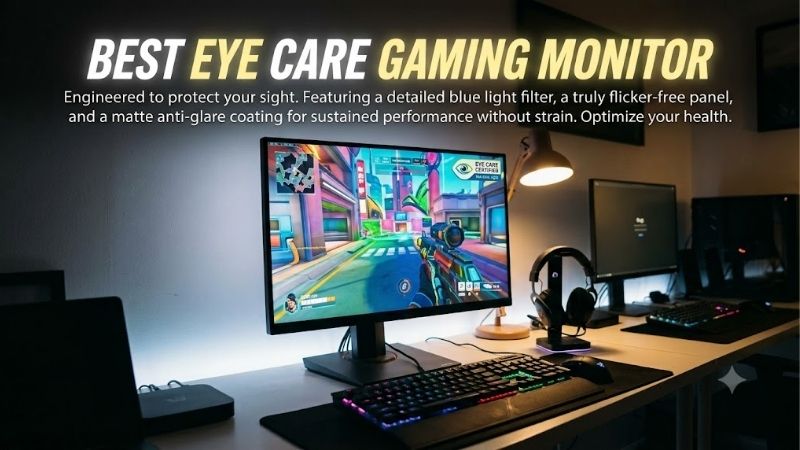
Quick answer: For most people in 2026, the best eye care gaming monitor is the Monitor — our #1 rated choice. See the full ranked comparison, alternatives and buying advice below.
Quick verdict: best eye care gaming monitor
For most gamers, a 23.8- to 24-inch 1080p IPS monitor is a sensible starting point. You get a compact viewing area, good pixel density, and refresh rates suitable for competitive gaming without needing a particularly powerful graphics card. If you spend most of your free time gaming at a desk, the ASUS VG249Q3A offers a strong combination of documented eye-care features and high refresh.
A 27-inch 1440p monitor makes more sense if you also work at your computer, read small text, or want a sharper image. The MSI G274QPF E2 adds substantial stand adjustment, while the ASUS VG27AQ3A provides TÜV-certified low-blue-light and flicker-free features. The Gigabyte GS27QCA is another interesting choice because its Eyesafe 2.0 certification, curved VA panel, and QHD resolution address different priorities.
| Monitor | Best for | Resolution and refresh rate | Eye-care features | Main drawback |
|---|---|---|---|---|
| ASUS TUF Gaming VG249Q3A | Best overall balance | 23.8-inch, 1080p, 180Hz | TÜV low blue light and flicker-free certification | Tilt-only stand |
| ViewSonic VX2428A | Best budget-oriented option | 24-inch, 1080p, 180Hz | Flicker-free technology and blue-light filter | Limited stand adjustment |
| Gigabyte GS27QCA | Curved QHD gaming | 27-inch, 1440p, 180Hz | Eyesafe 2.0, low blue light, flicker-free | VA motion performance and tilt-only stand |
| MSI G274QPF E2 | Best ergonomic QHD option | 27-inch, 1440p, 180Hz | Anti-Flicker and blue-light reduction | USB-C provides only 15W of power |
| ASUS TUF Gaming VG27AQ3A | Flat QHD gaming | 27-inch, 1440p, 180Hz | TÜV low blue light and flicker-free certification | No height adjustment on the included stand |
| Gigabyte GS27Q X | High-refresh QHD gaming | 27-inch, 1440p, 240Hz native | Flicker-free and low-blue-light features | Tilt-only stand and demanding resolution |
Prices vary by retailer, and the recommendations are not arranged by a universal eye-comfort score. Instead, each model is included for a specific combination of gaming performance, viewing features, ergonomics, and screen format.
How we selected these monitors
This roundup focuses on gaming monitors with documented flicker-free or low-blue-light features, rather than ordinary office displays that happen to offer a warm color preset. We also considered screen size, native resolution, maximum refresh rate, variable refresh rate support, display finish, and stand adjustment.
Manufacturer specifications establish which features each monitor offers. They do not establish that one screen will reduce eye strain more than another for every user. No detailed research or controlled eye-comfort measurements were performed for this article. Where a manufacturer has a formal certification, that is distinguished from a general marketing claim.
Current US pricing was also considered where a manufacturer or retailer listing provided a usable reference. For models without a consistently verified direct price, the recommendation is based on their documented features, and the current price should be checked before purchase. Amazon availability and affiliate suitability were not used as substitutes for technical evidence.
ASUS TUF Gaming VG249Q3A: best overall balance
The ASUS TUF Gaming VG249Q3A combines a 23.8-inch Full HD Fast IPS panel with a maximum refresh rate of 180Hz. ASUS lists Adaptive-Sync, AMD FreeSync Premium, ELMB, and a 99% sRGB color gamut. For someone who plays competitive shooters, racing games, action games, and single-player titles, the combination offers a good balance between smooth motion and manageable graphics requirements.
Its eye-care feature set is particularly well documented. ASUS specifies flicker-free technology and a low-blue-light mode, and the model is listed with TÜV Rheinland low-blue-light and flicker-free certifications. The low-blue-light setting lets you reduce the blue component of the picture when you prefer a warmer image, such as during an evening session. Flicker-free technology addresses a different issue and is not the same as changing color temperature.
The refresh rate can also improve the viewing experience when the computer produces enough frames. At 1080p, a budget or midrange gaming PC has a more realistic chance of taking advantage of 180Hz than it would at 1440p or 4K. Adaptive-Sync can help reduce tearing when frame rates fluctuate within the supported range.
The trade-off is ergonomics. The supplied stand offers tilt adjustment, but ASUS does not list height adjustment for this model. You can use a compatible 100 × 100 mm VESA arm, though that adds cost. ASUS’s US store listed the VG249Q3A at $149 during research on October 14, 2026.
Buy it if you want documented eye-care features and high-refresh gaming at Full HD. Skip it if you need height adjustment without buying an arm or want a higher-resolution workspace. The MSI G274QPF E2 is a better fit when both 1440p resolution and flexible positioning matter.
ViewSonic VX2428A: best budget-oriented eye-care option
The ViewSonic VX2428A is a 24-inch Full HD IPS gaming monitor with a maximum refresh rate of 180Hz. ViewSonic’s US product page listed it at $109.99 and in stock during research. Its relatively low listed price, standard 1080p resolution, and gaming-focused specifications make it an attractive option for buyers who want comfort features without moving into a premium price bracket.
ViewSonic identifies Flicker-Free technology and a Blue Light Filter under its Eye ProTech positioning. The display also supports FreeSync and accepts HDMI 1.4 and DisplayPort inputs. Its thin-bezel design can work well on a small desk or in a dual-monitor arrangement. The 180Hz refresh rate provides room for fast-paced gaming without requiring you to step up to a more demanding QHD monitor.
The key difference from the ASUS VG249Q3A is not the headline refresh rate but the overall feature balance and price. ASUS has an explicitly documented TÜV certification for both low blue light and flicker-free operation. ViewSonic emphasizes its Eye ProTech technologies, but the two products should not be described as medically equivalent based on marketing labels alone.
The stand is also fairly basic, so buyers who need precise height, swivel, or pivot adjustment should verify the physical design before ordering. A monitor arm may be useful if the screen is too low on the supplied stand.
Buy it if your priorities are a reasonable price, 180Hz gaming, and built-in viewing-comfort features. Skip it if you need a highly adjustable stand or want QHD resolution at 27 inches. The ASUS VG249Q3A is worth considering if its formal certifications justify the difference in price for your setup.
Gigabyte GS27QCA: best curved QHD option
The Gigabyte GS27QCA uses a 27-inch QHD VA panel with a 1500R curve, native 2560 × 1440 resolution, and a maximum refresh rate of 180Hz. Gigabyte lists a typical 5000:1 contrast ratio, 250-nit brightness, Adaptive-Sync support, and a non-glare display surface. The curved panel offers an alternative to the flat IPS displays in this roundup, particularly for players who prefer immersive single-player games and racing titles.
Its eye-care specifications are more substantial than a basic software color preset. Gigabyte identifies Eyesafe 2.0, flicker-free operation, and TÜV Rheinland-certified low-blue-light functionality. Eyesafe 2.0 is designed to reduce high-energy blue-light output while preserving more of the display’s color performance than a simple warm-color adjustment may preserve. That can be appealing if you dislike the yellow appearance produced by a strong low-blue-light setting.
The VA panel also provides higher specified native contrast than the IPS models listed here. Dark scenes can look deeper, although the response behavior of VA panels varies by model and can involve more visible dark-transition smearing than a good IPS gaming display. Independent motion testing for this exact variant was not established during this research, so a universal performance advantage should not be assumed.
The basic stand supports tilt from approximately -5 to +20 degrees. It does not provide height adjustment or swivel, but the monitor supports 100 × 100 mm VESA mounting. Best Buy displayed a $140.49 listing supplied and shipped by Newegg Official during research; that offer is retailer-dependent and should be reconfirmed.
Buy it if you want curved QHD gaming and documented low-blue-light features. Skip it if you need a highly adjustable stand or prioritize proven fast dark transitions. The MSI G274QPF E2 offers a flat IPS alternative with more ergonomic movement.
MSI G274QPF E2: best for ergonomic QHD gaming
The MSI G274QPF E2 is a 27-inch Rapid IPS gaming monitor with a native resolution of 2560 × 1440 and a refresh rate of 180Hz. Its feature set includes Adaptive-Sync, VESA DisplayHDR 400 support, Anti-Flicker technology, and blue-light reduction. The larger QHD panel offers more desktop space than Full HD, making it suitable for gaming alongside browser windows, game guides, chat applications, and everyday work.
Ergonomics are a major reason to choose this model. MSI specifies height adjustment across a 130 mm range, swivel adjustment from -30 to +30 degrees, tilt, and pivot rotation. The monitor can therefore be raised to a more suitable eye level or rotated into portrait orientation if you use it for documents and secondary applications. Good physical positioning is important because a display that sits too low or forces you to lean forward can make extended sessions uncomfortable regardless of its blue-light settings.
MSI’s Anti-Flicker feature is designed to reduce display flicker, while blue-light reduction gives you control over the spectrum and appearance of the image. Its Rapid IPS panel, 180Hz refresh rate, and Adaptive-Sync support provide a strong gaming foundation without forcing you to choose between QHD detail and fast motion.
Connectivity includes one DisplayPort 1.4a port, two HDMI 2.0b inputs, and a USB-C port that supports DisplayPort Alt Mode with up to 15W power delivery. The USB-C port is useful for video from compatible laptops but is not a high-power laptop charging solution. The exact current US price was not consistently verified during research, so check authorized retailers for the current offer.
Buy it if you want QHD resolution, useful stand adjustment, flicker reduction, and a 180Hz panel in one monitor. Skip it if your gaming PC struggles at 1440p or if you need USB-C to charge a laptop at full power.
ASUS TUF Gaming VG27AQ3A: best flat QHD alternative
The ASUS TUF Gaming VG27AQ3A offers a 27-inch 2560 × 1440 Fast IPS panel with a refresh rate up to 180Hz. ASUS lists Adaptive-Sync, AMD FreeSync Premium, G-SYNC compatibility, ELMB Sync, HDR10 support, and a 130% sRGB color-space specification. The additional resolution is useful for text, desktop multitasking, and game detail compared with a 24-inch Full HD display.
This model also has clearly documented eye-care features. ASUS lists TÜV Rheinland-certified low-blue-light and flicker-free operation, alongside configurable low-blue-light settings. That matters for gamers who want to reduce blue-light output without sacrificing the rest of the monitor’s gaming functionality. The low-blue-light feature remains a viewing preference rather than proof of a health benefit, however, and the product does not eliminate the need to adjust brightness or take breaks.
The monitor supports DisplayPort 1.4 and two HDMI 2.0 ports. ASUS lists a maximum refresh rate of 180Hz through DisplayPort, while HDMI is listed for up to 144Hz in the specification table. For a PC gaming setup, that means DisplayPort is the appropriate connection if you intend to use the full refresh rate. Check the cable and operating-system display settings after connecting it.
The supplied stand offers tilt and swivel but does not provide height adjustment. A compatible VESA arm can address that limitation. ASUS’s US store displayed a price of $209 during research.
Buy it if you want a flat 27-inch QHD display with 180Hz refresh and documented eye-care certifications. Skip it if you mainly play games that are easy to run at 1080p or need a fully adjustable included stand. The MSI G274QPF E2 is the alternative to consider when stand flexibility takes priority.
Gigabyte GS27Q X: best for high-refresh QHD gaming
The Gigabyte GS27Q X is a 27-inch Super Speed IPS gaming monitor with a native resolution of 2560 × 1440 and a maximum refresh rate of 240Hz, with an overclocked mode up to 250Hz. Gigabyte lists a 300-nit typical brightness, 1000:1 contrast ratio, a non-glare surface, and support for Adaptive-Sync. Its high refresh rate makes it the specialist choice here for players who spend long sessions in fast competitive games and want QHD rather than Full HD.
Gigabyte specifies flicker-free operation and low-blue-light features for this model. Those features address display characteristics that some users may find relevant to comfort, while the 240Hz refresh rate addresses motion presentation. They solve different problems: a high refresh rate does not automatically make a display more comfortable, and a low-blue-light mode does not make fast motion clearer.
The port selection consists of two HDMI 2.0 inputs, one DisplayPort 1.4 input, and a headphone jack. Gigabyte lists a 240Hz native maximum with an overclocked 250Hz mode, so treat the latter as an optional setting rather than the default specification. DisplayPort is the logical connection for PC gaming at the monitor’s highest supported refresh rate.
The included stand provides tilt adjustment from -5 to +20 degrees but no height adjustment. VESA mounting is supported at 100 × 100 mm. A current US retail price for this exact model was not independently confirmed during research, so its suitability depends on the current offer and comparison with other QHD displays.
Buy it if fast competitive gaming is a priority and your PC can produce high frame rates at QHD. Skip it if you mainly play slower-paced games or your system cannot use the additional refresh-rate headroom. The standard ASUS or MSI 180Hz options may be more balanced for mixed gaming and work.
How to choose the best eye care gaming monitor
Understand flicker-free technology and low blue light
These features are related to viewing comfort, but they address different aspects of a display. Flicker-free technology is intended to reduce visible or potentially perceptible flicker associated with the display’s backlight operation. Low-blue-light modes reduce the amount of blue light emitted or adjust the spectrum of the picture, usually making the image warmer.
A formal certification can help distinguish a documented feature from an unsupported marketing phrase. However, the absence of a particular certification does not automatically prove that a monitor will cause discomfort. Individuals vary in their sensitivity to display characteristics, lighting, and extended near work.
Blue light should not be treated as the single explanation for digital eye strain. The American Academy of Ophthalmology states that evidence does not establish that blue light from computer screens damages the retina or causes age-related macular degeneration. It also notes that digital eye discomfort is often associated with prolonged use and how people interact with their screens. Therefore, do not pay a substantial premium for a claim that a monitor will prevent eye disease.
Match resolution and refresh rate to your gaming PC
A 24-inch Full HD monitor is a practical option for a budget system and competitive gaming. It has a lower graphics workload than QHD, which leaves more room for higher frame rates. At 27 inches, QHD offers sharper text and more workspace than Full HD, but the graphics card has more pixels to render.
Refresh rate is another separate consideration. A 180Hz panel can display more refreshes per second than a 60Hz display, provided the system delivers enough frames. That can make moving objects and camera pans look smoother, but a monitor cannot increase the computer’s actual FPS.
Adaptive-Sync helps align the display’s refresh behavior with the GPU’s frame output in the supported range. It can reduce tearing when frame rates fluctuate, but it does not fix every stutter caused by shader compilation, background processes, or CPU limits.
Prioritize ergonomics and room lighting
Height adjustment and tilt are not decorative extras. They help you position the monitor so your head, eyes, and neck remain in a comfortable position. The American Academy of Ophthalmology recommends sitting about 25 inches from the screen, or roughly an arm’s length, and positioning the monitor so you look slightly downward.
A matte display surface can help manage reflections, but no coating compensates fully for a bright window or a lamp reflected in the screen. Adjust the room lighting and monitor brightness so the display does not appear dramatically brighter than its surroundings. If you often game at night, a warmer color mode or reduced brightness may be more comfortable than running maximum brightness throughout the session.
Ways to make long gaming sessions more comfortable
Even a well-chosen monitor cannot make uninterrupted hours of gaming comfortable for everyone. The American Academy of Ophthalmology explains that people tend to blink less while looking at screens, which can contribute to dry eyes and discomfort. It recommends taking breaks, blinking regularly, adjusting brightness and contrast, and reducing glare.
A practical approach is to step away from the screen periodically and look at a distant object. The commonly used 20-20-20 rule suggests looking at something at least 20 feet away for 20 seconds every 20 minutes. Treat it as a useful reminder rather than a substitute for professional advice if symptoms continue.
Keep the screen at a comfortable distance and avoid leaning toward it to read small text. Increase interface scaling or text size where necessary. Set a low-blue-light mode based on preference, but remember that a warmer image can change the appearance of game colors. You may prefer a normal color mode during the day and a warmer setting in the evening.
If you experience persistent eye pain, blurred vision, recurring headaches, or significant dryness, do not assume the monitor is the only cause. Consult an eye-care professional, particularly if changing your environment and habits does not relieve the symptoms.
Common mistakes to avoid
Do not choose a monitor solely because its marketing page emphasizes eye care. Look for specific documentation of flicker-free operation, low-blue-light controls, certifications where applicable, and useful ergonomic features.
Do not assume that a low-blue-light mode prevents eye disease or that a high refresh rate prevents eye strain. The features are designed for different purposes. Likewise, do not confuse HDR input support with high-quality HDR image performance; typical brightness and contrast can limit the visual effect.
Finally, avoid buying a QHD or high-refresh monitor without considering your GPU and connection. Some models require DisplayPort to reach their highest refresh rate, while HDMI may support a lower maximum. Check the exact model specifications and use a suitable cable before assuming the monitor is defective or underperforming.
Frequently asked questions
Does a gaming monitor with low blue light prevent eye strain?
No monitor can guarantee that. Low-blue-light modes reduce blue-light output or change the color temperature, but digital eye strain has several possible contributors, including prolonged near work, reduced blinking, glare, and unsuitable brightness. Choose the feature if it improves your comfort, but do not treat it as a medical protection feature.
Is flicker-free technology more important than refresh rate?
They serve different purposes. Flicker-free technology addresses backlight flicker, while refresh rate determines how frequently the screen can update its image. A gaming monitor can benefit from both features, but individual sensitivity and the monitor’s implementation matter.
Is IPS better for eye comfort than VA?
Neither panel type is automatically better for eye comfort. IPS often provides consistent color and broad viewing angles, while VA commonly provides stronger native contrast. Other factors, including glare, brightness, response behavior, viewing distance, and stand adjustment, may matter more for long sessions.
Should I use low-blue-light mode all day?
You can, but it is a matter of preference rather than a proven requirement for eye health. A stronger setting makes the screen warmer and may affect color appearance. If accurate color matters for editing photos or creating content, consider using a normal or calibrated mode when color accuracy is important.
What refresh rate should I choose for long gaming sessions?
A 144Hz to 180Hz monitor is a sensible target for many gamers. A 240Hz display can make sense for competitive gaming when the PC produces enough frames. Neither refresh rate guarantees freedom from eye strain, so also consider brightness adjustment, anti-glare performance, ergonomics, and breaks.
Final verdict
The ASUS TUF Gaming VG249Q3A is the best overall fit in this roundup for gamers who want a compact 180Hz IPS display with TÜV-certified low-blue-light and flicker-free features. The ViewSonic VX2428A is a more affordable option with 180Hz gaming and built-in viewing-comfort controls. For higher resolution, the Gigabyte GS27QCA, MSI G274QPF E2, and ASUS TUF Gaming VG27AQ3A provide different combinations of contrast, ergonomic adjustment, certification, and connectivity. The Gigabyte GS27Q X is worth considering when competitive gaming and very high refresh rate are priorities.
Choose a monitor based on its complete feature set, not a promise that one technology will eliminate eye strain. The most useful combination is a screen that suits your PC, a comfortable position, controlled glare, sensible brightness, and regular breaks.
Ready to decide? Our #1 pick for 2026 is the Monitor.
Live price & availability on Amazon.









