
The best Dota 2 monitor for most players is a 27-inch 1440p IPS display with a high refresh rate, adaptive sync, and a stand that fits their desk. The ASUS ROG Strix XG27ACS is the practical starting point in this shortlist. Choose a 240Hz alternative when your PC and connection support it, a compact 1080p screen when space matters, or OLED when its picture characteristics justify the additional ownership considerations.
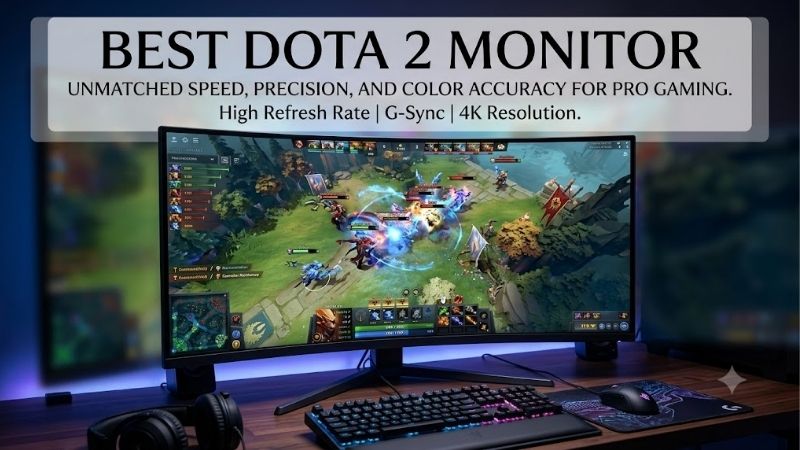
Quick answer: For most people in 2026, the best dota 2 monitor is the ASUS ROG Strix XG27ACS — our #1 rated choice. See the full ranked comparison, alternatives and buying advice below.
Best Dota 2 monitor: the quick verdict
Start with the ASUS ROG Strix XG27ACS if you want a balanced display for ranked matches, everyday desktop use, and other games. Its 1440p resolution and 180Hz maximum refresh rate offer a sensible combination without making extreme refresh rates the centerpiece of the purchase.
Choose the LG UltraGear 27GR83Q-B if you specifically want 1440p at 240Hz through a compatible HDMI connection. The MSI G274QPX is another 240Hz IPS option, with USB-C charging that makes it more interesting for a desk shared with a laptop.
The BenQ MOBIUZ EX240 suits players who prefer a smaller screen and the lower rendering demands of 1080p. The Alienware AW2725DF targets buyers interested in QD-OLED and 360Hz, while the Gigabyte M28U prioritizes 4K detail for a mixed gaming and productivity setup.
These are recommendations for different requirements, rather than a claim that one display wins every comparison. Current checkout prices should influence your final choice, particularly between the two 240Hz IPS models.
Quick comparison table
Maximum refresh rates below are monitor capabilities, not promised Dota 2 frame rates. The connection you use can impose a lower limit.
| Monitor | Screen and panel | Resolution | Maximum refresh | Main reason to consider it | Meaningful drawback |
|---|---|---|---|---|---|
| ASUS ROG Strix XG27ACS | 27-inch Fast IPS | 2560 × 1440 | 180Hz | Balanced desktop gaming setup | HDMI stops at 144Hz |
| LG UltraGear 27GR83Q-B | 27-inch IPS | 2560 × 1440 | 240Hz | High refresh through compatible HDMI or DisplayPort | Extra refresh headroom may go unused |
| MSI G274QPX | 27-inch Rapid IPS | 2560 × 1440 | 240Hz | Desktop gaming plus USB-C laptop use | HDMI stops at 144Hz |
| BenQ MOBIUZ EX240 | 23.8-inch IPS | 1920 × 1080 | 165Hz | Compact setup with built-in speakers | Less desktop detail than 1440p |
| Alienware AW2725DF | 26.7-inch QD-OLED | 2560 × 1440 | 360Hz through DisplayPort | OLED picture characteristics and high refresh ceiling | HDMI stops at 144Hz; burn-in considerations |
| Gigabyte M28U | 28-inch IPS | 3840 × 2160 | 144Hz | Detailed desktop work alongside gaming | Greater rendering demands at native resolution |
How we selected these monitors
This shortlist uses manufacturer specifications and documentation to establish resolution, panel type, refresh capability, and relevant connectivity. It is a research-based buying guide, rather than a report of detailed research.
Selection focuses on decisions that matter at a Dota desk: whether the screen fits comfortably, whether interface elements remain readable, whether your computer can produce useful frame rates, and whether your chosen cable can carry the advertised mode.
No matched Dota 2 benchmark data was supplied for these monitors. Consequently, the recommendations do not assign measured input-lag rankings, promise particular frame rates, or treat advertised response times as directly comparable laboratory results.
Price-dependent awards are also omitted because comparable current US offers were not established for every model. A feature-based recommendation can remain useful, but the cheapest or strongest-value purchase requires checking actual offers.
The six monitor picks explained
ASUS ROG Strix XG27ACS: the balanced starting point
The XG27ACS combines a 27-inch Fast IPS panel, 2560 × 1440 resolution, and a maximum 180Hz refresh rate. ASUS lists G-SYNC compatibility, ELMB Sync, and USB-C with DisplayPort Alt Mode.
Its most important buying detail is the connection limit. The manual lists DisplayPort operation up to 180Hz and HDMI up to 144Hz. A player connecting through HDMI should therefore evaluate it as a 144Hz option for that setup.
USB-C power delivery is only 7.5W. The port can be useful for video from a compatible device, but it should not be treated as a replacement for a gaming laptop’s charger.
The editorial reason to start here is balance. Before paying for additional refresh headroom, establish whether your existing screen’s main weakness is motion, resolution, or physical positioning.
Buy if: You want a straightforward 1440p gaming display and can use DisplayPort.
Skip if: Your computer only offers HDMI and 180Hz is a requirement, or substantial laptop charging is essential.
Consider instead: The LG for compatible HDMI at 240Hz, or the MSI for stronger USB-C charging.
LG UltraGear 27GR83Q-B: the HDMI-focused 240Hz choice
The LG 27GR83Q-B offers a 27-inch 1440p IPS panel, a 240Hz maximum refresh rate, G-SYNC compatibility, and FreeSync Premium. Its stand provides height, tilt, and pivot adjustments.
LG specifies that a graphics card supporting DisplayPort 1.4 or HDMI 2.1 is required for operation up to 240Hz. It also distinguishes NVIDIA compatibility by connection: its stated HDMI G-SYNC compatibility requirements differ from those for DisplayPort.
That makes this model worth examining when HDMI is central to your setup. Check your computer’s actual output capabilities, especially if a laptop, adapter, or dock sits between the GPU and monitor.
The buying question is whether the additional ceiling serves your workload. If your existing monitor already feels comfortable and your game rarely approaches its refresh limit, changing displays may have little practical priority.
Buy if: You want 1440p at 240Hz and have a compatible output, particularly over HDMI.
Skip if: Your PC’s performance or connection cannot use the feature that distinguishes it here.
Consider instead: The ASUS for a less refresh-focused setup, or the MSI when laptop charging matters more.
MSI G274QPX: the desktop-and-laptop option
MSI’s G274QPX combines a 27-inch 1440p Rapid IPS panel with a 240Hz maximum refresh rate and G-SYNC compatibility. Its USB-C connection supports DisplayPort Alt Mode and up to 65W power delivery.
MSI specifies 1440p at up to 240Hz through DisplayPort, while HDMI is limited to 1440p at 144Hz. The USB-C charging feature therefore should not distract a desktop buyer from selecting the correct gaming connection.
For a compatible work laptop, 65W can simplify charging and video connectivity. Whether it replaces the original charger depends on that laptop’s power requirements; a demanding gaming laptop may still need its own supply.
This is a practical choice for someone who changes devices throughout the day. Decide whether that convenience is worth paying for before comparing it with a monitor used exclusively by one desktop.
Buy if: You want 240Hz desktop gaming through DisplayPort and useful USB-C charging for a compatible laptop.
Skip if: HDMI at 240Hz is mandatory or your laptop requires substantially more charging power.
Consider instead: The LG for its HDMI capabilities, or the ASUS if USB-C charging adds little value.
BenQ MOBIUZ EX240: the compact 1080p option
The EX240 uses a 23.8-inch IPS panel with 1920 × 1080 resolution and a 165Hz maximum refresh rate. BenQ lists FreeSync Premium, built-in stereo speakers, and a height-adjustable stand.
Confirm the exact model before ordering. The EX240 and EX240N are different products; this recommendation concerns the IPS EX240.
BenQ’s specifications also distinguish a 2ms gray-to-gray response-time claim from a 1ms MPRT claim. Those figures describe different concepts and should not be collapsed into a single “1ms response time” comparison.
The smaller format is useful when a larger display would leave you sitting too close or crowd the keyboard and mouse. Its lower resolution also reduces the number of pixels your computer must render, although that does not guarantee a particular frame-rate increase.
Buy if: You prefer a compact screen, want integrated speakers, and are comfortable with 1080p.
Skip if: You want the sharper desktop text and additional workspace of 1440p.
Consider instead: The ASUS when screen detail matters more than keeping the display compact.
Alienware AW2725DF: the QD-OLED option
The AW2725DF has a 26.7-inch QD-OLED panel with 2560 × 1440 resolution. Dell specifies native operation at 360Hz through DisplayPort, but only 144Hz at the same resolution through HDMI.
That limitation matters even though Dell labels its HDMI port HDMI 2.1. Buy according to the documented supported mode, rather than assuming the version number guarantees the monitor’s maximum refresh rate.
Dell’s US product page lists three-year Advanced Exchange Service and Premium Panel Exchange, including OLED burn-in coverage. Confirm the applicable terms for your seller and purchase.
The ownership decision deserves attention because Dota contains persistent interface elements. Consider your daily hours, other desktop use, and willingness to follow the manufacturer’s maintenance guidance.
Buy if: You specifically want QD-OLED, have a compatible DisplayPort connection, and accept its maintenance considerations.
Skip if: You need 360Hz through HDMI or prefer an LCD for prolonged static desktop use.
Consider instead: Either 240Hz IPS model when you want high refresh without choosing OLED.
Gigabyte M28U: the 4K option for a mixed-use desk
The M28U combines a 28-inch IPS panel with 3840 × 2160 resolution and a 144Hz refresh specification. Its purpose in this shortlist is greater desktop detail, rather than the highest refresh ceiling.
A 4K image contains four times as many pixels as 1080p and 2.25 times as many as 1440p. Those ratios explain the increased rendering workload, but they do not predict an exact Dota frame-rate reduction.
Consider it when your monitor also handles documents, spreadsheets, coding, or detailed visual work. Desktop scaling may be necessary to keep text comfortable at this screen size.
For a gaming-first purchase, ask whether you would actually keep Dota at native 4K. Buying for resolution and then routinely lowering it can weaken the reason for choosing this model.
Buy if: Desktop detail is a major priority and your computer supports your intended 4K gaming settings.
Skip if: Competitive gaming dominates your use and you would prefer additional refresh headroom.
Consider instead: A 1440p model when balancing gaming demands and desktop clarity.
How to choose the best Dota 2 monitor for your PC
Measure performance during demanding matches
Start with your current setup and examine demanding gameplay, rather than relying on an uncrowded scene or a single peak FPS reading. Busy fights are a more relevant test of whether the computer maintains the experience you want.
Look for consistency as well as averages. A monitor with a higher ceiling cannot make frames arrive regularly when the computer is producing them unevenly.
Change one major setting at a time when investigating performance. Compare resolution and visual settings while keeping the rest of the setup consistent. That gives you a more useful basis for deciding whether the next purchase should be a monitor or a PC upgrade.
Treat any frame-rate target as a requirement to verify on your own system. Processor, graphics card, settings, background activity, and the current game version all affect the result.
Choose size around your desk and interface visibility
A 27-inch display is a sensible starting point, but physical fit should decide whether it works for you. Screen diagonal alone says little about how comfortably you can scan the minimap, inventory, and central action.
Measure the available space behind your keyboard and account for the stand’s footprint. A screen that fits across the desk may still force you to sit closer than you prefer.
Try to preserve a relaxed viewing position before changing sensitivity or interface settings to compensate for an awkward placement. If possible, compare screen sizes from approximately the distance you use at home.
The EX240 becomes more attractive when a smaller display solves that physical problem. A larger or sharper monitor becomes more useful when it remains easy to scan without unnecessary head movement.
Understand what refresh rate changes
Refresh rate describes how often a monitor can update its image. Dividing 1,000 milliseconds by the refresh rate gives the interval between refresh opportunities:
| Refresh rate | Approximate refresh interval |
|---|---|
| 60Hz | 16.67ms |
| 144Hz | 6.94ms |
| 165Hz | 6.06ms |
| 180Hz | 5.56ms |
| 240Hz | 4.17ms |
| 360Hz | 2.78ms |
These are calculated intervals, not measured total input latency. They exclude game processing, rendering, and other parts of the system.
The table also shows diminishing reductions in interval as refresh rises. Moving from 60Hz to 144Hz changes the interval much more than moving from 180Hz to 240Hz.
That does not make higher rates pointless. It means their importance should be judged against your actual frame delivery, sensitivity to motion, other games, and purchase cost.
Separate pixel response from refresh rate
Refresh rate and pixel response are different specifications. A high-refresh display still needs pixels to transition appropriately, and a low advertised response-time figure does not independently establish clean motion.
Gray-to-gray figures describe pixel transitions, while MPRT refers to moving-picture persistence under specified conditions. Manufacturer minimums may depend on settings that do not represent the best everyday image.
Avoid choosing between these monitors by comparing “1ms” and “0.03ms” labels alone. This guide does not have matched measurements that justify converting those claims into a ranking.
During the return period, inspect movement with several overdrive settings if the monitor provides them. Look for trailing and bright outlines around moving objects, and compare behavior when frame rates fall as well as when they are high.
Balance resolution with readable detail
At the same screen size, higher resolution provides more pixels for displaying text and fine detail. Whether that helps depends on scaling, eyesight, viewing distance, and the application.
For many mixed-use desks, 1440p is a practical middle ground. It offers more desktop detail than 1080p without moving to 4K’s much larger pixel count.
A compact 1080p screen can still be a reasonable gaming choice. You do not need to buy more resolution simply because your graphics card supports it.
Likewise, 4K should solve a real requirement. If you spend hours working on the desktop and appreciate fine text, it may deserve priority. If Dota performance dominates your decision, test the rendering demands before committing.
Check the complete connection path
Monitor compatibility involves the GPU output, cable, adapters, docks, and display input. One unsupported link can prevent the advertised resolution and refresh combination.
The limits in this shortlist illustrate why port labels are insufficient. The ASUS reaches 180Hz through DisplayPort but stops at 144Hz through HDMI. The MSI and Alienware also have lower HDMI ceilings than their headline refresh specifications.
For a laptop, identify which port carries video and what modes it supports. USB-C does not automatically mean DisplayPort Alt Mode, and a dock can introduce another limit.
Prefer a direct connection when troubleshooting. Once the intended mode works, add the dock or adapter and verify again. Check refresh and adaptive-sync operation separately rather than assuming that obtaining an image confirms every feature.
Decide whether OLED fits your ownership habits
OLED should be a deliberate choice based on the display characteristics you want and the way you use the computer. A high refresh specification alone is not a sufficient reason to select it.
Persistent game interfaces and static desktop applications make maintenance guidance relevant. Consider how much of your day includes the same visible elements and whether you will follow the monitor’s recommended routines.
Warranty coverage is useful, but it does not guarantee that service would be convenient or eliminate the need to understand the terms.
An IPS model may be the simpler choice for a desk used extensively for work and gaming. The AW2725DF is more compelling when the buyer actively wants QD-OLED and understands the associated responsibilities.
Set up your new monitor before evaluating it
Connect the monitor directly to the graphics card using an input that supports your target mode. Then select the intended resolution and refresh rate in the operating system and verify the result in the monitor’s information display.
Configure adaptive sync where supported by the monitor, connection, and GPU. Check the relevant settings instead of assuming the feature is active immediately after installation.
Start with moderate brightness and a conventional picture preset. Change enhancement features individually so you can tell whether they improve readability or introduce distracting artifacts.
Evaluate the display during actual matches and your normal desktop work. Check text, screen reflections, stand positioning, and motion at both high and lower frame rates.
Keep packaging until you are satisfied. A return period is most useful when you test the purchase against the requirements that justified buying it.
Frequently asked questions
Is 144Hz enough for Dota 2?
Yes. A 144Hz monitor can be a reasonable choice, especially when your computer cannot consistently take advantage of substantially higher refresh rates. Check whether resolution, positioning, or uneven frame delivery is the more important limitation before replacing a satisfactory display.
Should I choose 240Hz or 360Hz?
Choose according to actual PC performance, connection support, and other gaming needs. The LG and MSI provide 240Hz IPS options, while the Alienware combines QD-OLED with 360Hz through DisplayPort. This shortlist does not establish a measured Dota advantage for one refresh tier over another.
Does a 1440p monitor show more of the Dota map?
Higher resolution provides more image detail, but it should not be assumed to expand the visible map. Game rendering, aspect ratio, and interface behavior determine the view. Choose 1440p for clarity and desktop usefulness rather than an unsupported visibility advantage.
Can a better monitor fix low FPS or network lag?
A monitor cannot increase the number of frames the PC renders or repair the network connection. Diagnose those problems separately. A display upgrade is appropriate when the existing screen limits presentation, connectivity, resolution, or comfort.
Final verdict
The ASUS ROG Strix XG27ACS is the balanced starting point for a 1440p Dota setup. Choose the LG 27GR83Q-B for compatible HDMI at 240Hz, the MSI G274QPX for useful USB-C laptop charging, or the BenQ EX240 for a compact 1080p desk.
The Alienware AW2725DF and Gigabyte M28U address more specific priorities: QD-OLED with high refresh headroom, or 4K desktop detail. Buy the model that solves your setup’s actual limitation, after checking the connection and current offer.
Ready to decide? Our #1 pick for 2026 is the ASUS ROG Strix XG27ACS.
Live price & availability on Amazon.









