
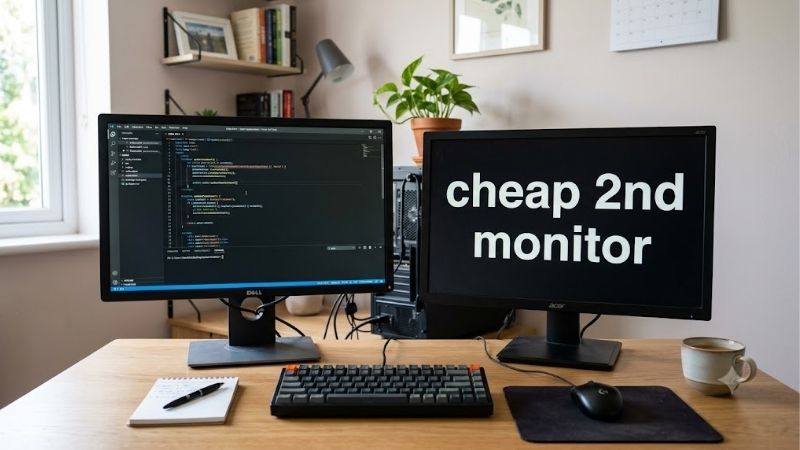
A cheap 2nd monitor should make everyday tasks easier without requiring expensive adapters, a replacement stand, or features you rarely use. For a permanent desk, start with an ordinary 1080p screen and a connection your computer already supports. Choose a portable display when you need something that packs away, or consider 1440p when the second screen will hold detailed documents. The four options below cover these different needs, with verified US manufacturer offers and clear explanations of their compromises.
- Quick verdict: Which cheap 2nd monitor should you buy?
- Quick comparison
- How we selected these monitors
- Acer KB272 G0BI: A larger basic desktop companion
- ViewSonic VA1655: A portable second screen for a laptop
- ViewSonic VA2715-2K-MHD: More workspace for document-heavy tasks
- ViewSonic VG2440: Pay for positioning rather than extra pixels
- How to choose a cheap 2nd monitor without wasting money
- When reuse or refurbished makes more sense
- Set up the second screen correctly
- Common buying mistakes
- Frequently asked questions
- Final verdict
Quick answer: Our top pick in 2026 is the Acer KB272 G0BI, UM.HK2AA.005 — our #1 rated choice. See the full ranked comparison, alternatives and buying advice below.
Quick verdict: Which cheap 2nd monitor should you buy?
The Acer KB272 G0BI is the first option to consider if you want a full-size desktop display at a low purchase price. Its 27-inch IPS panel provides a larger physical viewing area, although its 1080p resolution does not provide more desktop pixels than a smaller Full HD screen.
The ViewSonic VA1655 is the alternative for laptop users who need portability. It takes less space when packed away and supports USB-C video from compatible computers. Its smaller screen is better suited to a reference document or chat window than several applications side by side.
Two options justify spending more for a specific benefit. The ViewSonic VA2715-2K-MHD adds 1440p resolution for more usable workspace, while the ViewSonic VG2440 supplies an adjustable stand that can reduce the need for a separate mount.
This is a four-model shortlist because current price and availability evidence was clearer for these products than for several other inexpensive monitors checked. Adding unavailable models or unverified prices would make the comparison less useful.
Quick comparison
These recommendations serve different tasks rather than represent a universal ranking.
| Monitor | Best fit | Screen and resolution | Connection advantages | Meaningful drawback |
|---|---|---|---|---|
| Acer KB272 G0BI, UM.HK2AA.005 | A larger basic desktop screen | 27-inch IPS, 1920 × 1080 | HDMI and VGA | Larger image without additional desktop pixels |
| ViewSonic VA1655 | A laptop companion that travels | 15.6-inch IPS, 1920 × 1080 | USB-C video and mini-HDMI | Smaller physical workspace; 60Hz |
| ViewSonic VA2715-2K-MHD | Documents and more detailed desktop work | 27-inch MVA, 2560 × 1440 | HDMI and DisplayPort | Higher initial cost and a basic tilt stand |
| ViewSonic VG2440 | Adjustable positioning without a separate arm | 23.6-inch viewable MVA, 1920 × 1080 | HDMI, DisplayPort, VGA, and USB hub | Costs more than the basic Acer option |
The Acer and portable ViewSonic occupied the lower purchase-price tier among these verified offers. The other two are alternatives for buyers who would otherwise spend extra solving a positioning or workspace problem. They are not necessary upgrades for a screen that only holds occasional notifications.
How we selected these monitors
This shortlist focuses on secondary-screen tasks: email, browser references, chat, spreadsheets, video calls, and monitoring applications beside a primary display. Competitive gaming performance and premium HDR were not eligibility requirements.
Manufacturer documentation establishes panel specifications, connectors, physical features, and the offers recorded during research. This is a specification-based buying guide without original detailed research or a matched comparison of color accuracy, response times, or long-term reliability.
“Cheap” is treated as a total setup cost rather than a guarantee that every model falls below one fixed budget. The relevant calculation includes the monitor, connection hardware, mounting needs, shipping, and tax.
Exact observed prices and access dates appear in the editor-only source log. Check the current checkout total before purchasing, especially if an advertised offer requires additional accessories to work with your computer.
Acer KB272 G0BI: A larger basic desktop companion
The Acer KB272 G0BI, part number UM.HK2AA.005, combines a 27-inch 1920 × 1080 IPS panel with a listed 120Hz refresh rate. HDMI and VGA inputs accommodate modern digital connections and some older computers.
Its main attraction is physical size. A chat window, reference page, or dashboard appears larger than it would on a smaller screen at the same scaling setting. However, 1080p remains 1080p: the panel does not hold more information simply because it measures 27 inches.
Acer documents 100 × 100mm VESA mounting and an included HDMI cable. Those details can help avoid an immediate cable purchase or make an existing compatible arm useful.
Check the complete model suffix. KB272 EBI, E0BI, and G0BI are separate listings, and their specifications should not be treated as interchangeable.
Buy if: You want a large physical image and already have a suitable HDMI output.
Skip if: You need sharper small text or more workspace rather than larger content.
Alternative: The VA2715-2K-MHD adds resolution; the VA1655 is easier to pack away.
ViewSonic VA1655: A portable second screen for a laptop
The VA1655 is a 15.6-inch 1920 × 1080 IPS portable monitor with a 60Hz refresh rate. Its built-in stand supports landscape and portrait positioning, and ViewSonic includes a protective sleeve.
USB-C and mini-HDMI distinguish it from ordinary desktop screens. A compatible USB-C source can provide video and power, while mini-HDMI offers another video path. HDMI use still requires a power arrangement.
The power-delivery feature also needs context. Charging a connected laptop through the monitor requires an appropriate external power source. The display does not create charging power merely because a USB-C cable is connected.
Its small size is useful for travel or a desk that must be cleared after work. The compromise is readability: 1080p content appears physically smaller than on a desktop monitor, so scaling may reduce the effective workspace.
Buy if: You need a screen that moves with your laptop.
Skip if: The monitor will permanently sit beside a large desktop display.
Alternative: Choose the Acer for a larger image or the VG2440 for adjustable desktop positioning.
ViewSonic VA2715-2K-MHD: More workspace for document-heavy tasks
The VA2715-2K-MHD uses a 27-inch MVA panel with 2560 × 1440 resolution. That resolution provides approximately 78% more pixels than 1920 × 1080, although usable workspace still depends on scaling.
Its purpose is different from the Acer’s. Both have similar physical screen sizes, but the ViewSonic can display more document detail or more application content at comparable scaling.
ViewSonic documents HDMI, DisplayPort, integrated speakers, and 100 × 100mm VESA compatibility. The supplied stand offers tilt adjustment, so height alignment may still require a riser or compatible mount.
The important buying question is whether you will use the additional pixels. Paying more is easier to justify for spreadsheets, research, or editing windows than for an occasional messaging panel. MVA technology also does not establish suitability for color-critical work without model-specific testing.
Buy if: You regularly read detailed content on the second screen.
Skip if: You only need notifications or an infrequently checked dashboard.
Alternative: The Acer lowers the initial cost; the VG2440 prioritizes stand adjustment over resolution.
ViewSonic VG2440: Pay for positioning rather than extra pixels
The VG2440 has a 23.6-inch viewable MVA panel with 1920 × 1080 resolution. Its defining feature is the stand, which provides height, swivel, tilt, and rotation adjustment.
That flexibility matters when a second display must sit beside an existing monitor at a useful height. It can also make portrait use practical without immediately buying a separate arm.
HDMI, DisplayPort, and VGA provide several video connection options. The USB hub is separate: connecting an HDMI cable does not activate the monitor’s USB ports. A USB upstream connection to the computer is required.
The VG2440 is not the lowest-price route to extra pixels. Its case depends on avoiding an awkward position or an additional accessory purchase. If you already own a suitable monitor arm, much of that advantage disappears.
Buy if: Stand adjustment solves a real problem in your setup.
Skip if: You only want the lowest initial purchase price.
Alternative: The Acer offers a larger basic screen, while the VA2715-2K-MHD supplies more desktop pixels.
How to choose a cheap 2nd monitor without wasting money
Give the screen one main job
Decide what will stay on the second display most of the time. A messaging application has different needs from a spreadsheet or a page of small reference text.
For chat and notifications, inexpensive 1080p is usually a sensible starting point. For documents you actively read throughout the day, resolution and positioning deserve more attention.
A second screen can also become the main work surface unexpectedly. If you repeatedly move important windows onto it, reassess whether you are buying a passive reference display or another primary-quality workspace.
Separate screen size from workspace
A 27-inch 1080p display makes content physically larger than a roughly 24-inch 1080p model. It does not increase the number of pixels available to applications.
A 27-inch 1440p display changes both detail and potential workspace. You can fit more content at the same scaling percentage, but smaller interface elements may prompt you to increase scaling.
Choose around your viewing distance and eyesight. The most useful screen is the one you can read comfortably in its actual position, not the one with the largest diagonal measurement.
Check the computer before buying the monitor
Identify an available video output and confirm that the computer supports the intended number of simultaneous displays. Multiple visible connectors do not guarantee every combination works.
On a desktop with a dedicated graphics card, start with the card’s outputs. Motherboard video ports depend on the processor, motherboard, firmware settings, and graphics configuration.
For laptops, consult the exact model’s display support specifications. The answer can vary with the processor configuration, dock, and whether the internal screen remains active.
Do not buy an HDMI splitter for extra workspace
A basic HDMI splitter normally duplicates one video signal. It does not create two independent desktops where different windows can be placed.
For an extended desktop, the computer needs a suitable additional display connection or a supported docking solution. That distinction should be resolved before ordering accessories.
Similarly, a USB hub with several USB ports is not automatically a display dock. Look for documented video-output capabilities and supported operating systems rather than relying on connector count.
Treat USB-C as a capability check
USB-C describes the connector, not a universal video guarantee. The source port must support a suitable video mode, and the cable must support the required functions.
This matters most for the VA1655. A compatible setup can be convenient, but a data-only USB-C port cannot supply a native display signal simply because the cable fits.
Check power separately. Video capability, the power available to the portable monitor, and laptop charging are different requirements. Establish all three before expecting a single-cable arrangement.
Match refresh rate to the task
A reference screen does not need to match the primary monitor’s refresh rate. A high-refresh gaming display can sit beside a lower-refresh screen used for chat or email.
Higher refresh can make scrolling and pointer movement appear smoother. However, it should not outrank a usable connection, comfortable positioning, or adequate resolution when the budget is tight.
Also distinguish monitor capability from active configuration. After connecting the screen, confirm the selected refresh rate rather than assuming the operating system chose the highest supported option.
Budget for the stand and cable
The lowest monitor price can become less attractive after adding a riser, arm, adapter, or replacement cable.
Check whether the included stand reaches the position you need. VESA compatibility provides mounting options, but an arm also needs the correct mounting pattern, weight range, and desk attachment.
Adapters require equal care. Some work in only one direction, and their supported resolutions or refresh rates may be limited. Buy the adapter for the specific source-to-monitor path.
When reuse or refurbished makes more sense
An existing monitor may be the cheapest useful option. Check its native resolution, available inputs, stand condition, and power supply before replacing it.
For a screen used only for occasional reference, an older Full HD model may already satisfy the task. Spending nothing leaves room in the budget for a connection cable or a better desk arrangement.
Refurbished business monitors can also be worth investigating, particularly when they include adjustable stands. Their appeal depends on the actual seller, condition, accessories, and return terms rather than the original brand reputation alone.
Check for missing power supplies, unavailable stands, pressure marks, stuck pixels, and damaged input sockets. A head-only listing may require a mount, which changes the total cost.
Compare the complete refurbished purchase against a new monitor with equivalent required features. A small saving may be less attractive if return shipping is expensive or the condition description is vague.
Set up the second screen correctly
Connect the display and select the matching input in its menu. If the computer does not detect it, check the cable and source connection before changing several software settings at once.
In Windows, open Display settings and identify the screens. Choose an extended desktop if you want independent workspace, then arrange the display icons to reflect their physical positions.
Select the native resolution and adjust scaling for readable text. Different screens can use different scaling settings, so matching percentages is less important than comfortable results.
Keep the screen used most often directly in front of you. Place the reference display close enough that checking it does not require repeatedly twisting your body. If the second screen becomes your main task area, reposition the setup accordingly.
Finally, choose the intended audio output. Connecting a monitor can change the selected playback device, even when you prefer headphones or separate speakers.
Common buying mistakes
The easiest way to overspend is to solve a small workspace problem with a large collection of accessories. Confirm the full setup before purchasing any individual part.
Avoid these common errors:
- Buying a larger 1080p screen while expecting more desktop information.
- Choosing a portable display for a permanent desk without considering text size.
- Assuming USB-C always supports video.
- Confusing a splitter with independent display expansion.
- Ignoring mounting costs when comparing prices.
- Buying a similarly named monitor without checking the suffix.
- Paying for gaming features on a screen that only holds chat.
- Treating a manufacturer specification as proof of measured image quality.
A simple compatible monitor often accomplishes the task more effectively than a more ambitious screen connected through an unsuitable dock or adapter.
Frequently asked questions
Can a cheap 2nd monitor have a different resolution from the main screen?
Yes. Different resolutions can coexist in an extended desktop. Use each display’s native resolution and adjust scaling individually. Windows may change size as they move between screens, particularly when pixel density and scaling differ substantially.
Do both monitors need to be the same brand?
No. Matching brands is not a requirement for ordinary desktop use. Physical alignment, connections, readable text, and suitable scaling matter more. Identical models can simplify visual matching, but they do not automatically improve the usefulness of the second screen.
Is 60Hz enough for a secondary display?
Yes, for many reference tasks, including email, chat, documents, and monitoring windows. Higher refresh can improve scrolling smoothness, but it is optional when the main activity remains on another screen. Prioritize the features that affect your daily use most.
Will a second monitor reduce gaming performance?
There is no universal performance penalty. Displaying a static desktop and playing hardware-accelerated video are different workloads. If you notice stuttering or reduced performance, test with background playback and other applications closed before assuming the extra monitor itself is responsible.
Can I use a second monitor vertically?
Yes, if the physical support and operating-system settings allow it. A tilt-only stand does not necessarily rotate safely into portrait orientation. Use a documented rotating stand or compatible mount, then change display orientation in the operating system.
Should I buy 1080p or 1440p?
Choose 1080p when the screen mainly holds simple reference material and minimizing cost is the priority. Consider 1440p when you actively read detailed documents or need more application space. Account for scaling, since very small text can erase the practical benefit of additional pixels.
Final verdict
Choose the Acer KB272 G0BI for a larger basic desk screen, or the ViewSonic VA1655 when portability matters. Spend more on the VA2715-2K-MHD for document workspace or the VG2440 for its adjustable stand. Before ordering, check the available video output and total setup cost. A compatible reused monitor can also be the right answer when it already does the job.
Ready to decide? Our #1 pick for 2026 is the Acer KB272 G0BI, UM.HK2AA.005.
Live price & availability on Amazon.









