
Choosing between ASUS and HP can be confusing because both brands make monitors for gaming, productivity, and everyday computing. The biggest difference is their product emphasis: ASUS offers a particularly broad selection of high-refresh-rate gaming displays alongside its ProArt creative monitors, while HP has a strong range of business and office displays as well as its OMEN gaming lineup. When comparing an asus vs hp monitor, the right choice depends on your workload, budget, required features, and the specifications of the exact models you are considering.
- ASUS vs HP monitor: The quick verdict
- How the ASUS and HP monitor lineups differ
- Gaming performance: Which brand is better?
- Picture quality, resolution, and panel technology
- Office work and productivity
- Color accuracy and creative applications
- Price and overall value
- Warranty, reliability, and long-term ownership
- How to choose between ASUS and HP
- Final verdict: ASUS or HP?
- Frequently asked questions
Quick answer: Our top pick in 2026 is the Buying priority — our #1 rated choice. See the full ranked comparison, alternatives and buying advice below.
ASUS vs HP monitor: The quick verdict
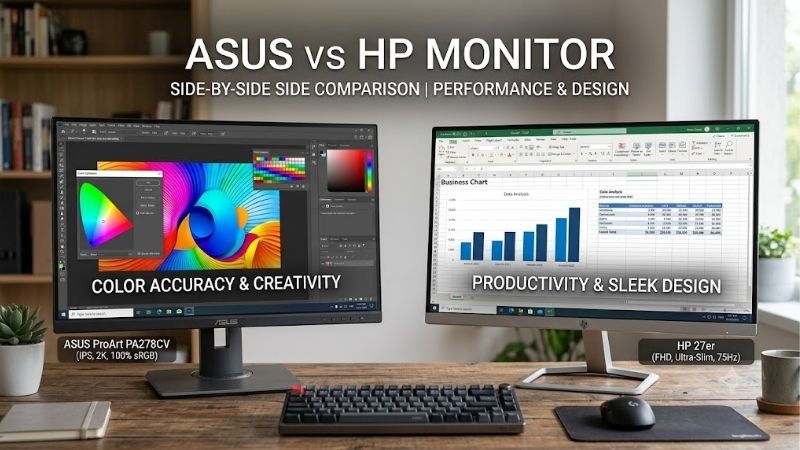
For most competitive PC gamers, ASUS is the stronger starting point because its ROG and TUF Gaming families cover a wide range of gaming specifications, including high refresh rates and premium OLED panels. For office users, laptop owners who want convenient docking, and businesses standardizing desktop equipment, HP deserves serious consideration because its Series 5 Pro and Series 7 Pro displays emphasize productivity, ergonomic adjustment, and connectivity.
However, neither recommendation applies to every buyer. HP also sells capable gaming monitors, including fast IPS and OLED models. ASUS also makes monitors designed for office work, professional color applications, and laptop portability.
Here is the practical comparison.
| Buying priority | Brand to investigate first | Why |
|---|---|---|
| Competitive PC gaming | ASUS | Extensive ROG and TUF Gaming choices |
| Budget-friendly gaming | Compare both | Refresh rate, resolution, and price matter more than the logo |
| Premium OLED gaming | ASUS, with HP as an alternative | ASUS offers an extensive gaming-focused OLED range, while HP also has premium OMEN OLED options |
| Office productivity | HP | A broad range of business-oriented monitors |
| Laptop docking | Compare specific models | Both brands offer USB-C and Thunderbolt-equipped displays |
| Professional creative work | Compare ASUS ProArt and HP Series 7 Pro | Color accuracy, resolution, connectivity, and calibration determine suitability |
| Basic home computing | Whichever model meets your needs at a better price | Expensive gaming features may provide little practical benefit |
| Long-term ownership | Check the exact warranty | Coverage varies by model and region |
Independent monitor testing supports an important qualification: brand reputation is useful for narrowing the field, but it does not establish which individual monitor performs better. RTINGS’ 2026 monitor-brand assessment identifies ASUS as particularly competitive in gaming while describing HP as more productivity-focused. Its broader guidance also emphasizes that real performance depends on the specific display.
For a typical gaming PC, start with ASUS. For a work-focused setup, start with HP. Then compare individual models before purchasing.
How the ASUS and HP monitor lineups differ
Understanding each brand’s product families will make the comparison considerably easier. Model names often reveal more about the intended use than the manufacturer itself.
ASUS: ROG, TUF Gaming, and ProArt
ASUS organizes much of its monitor selection around three recognizable families.
Republic of Gamers, or ROG, targets enthusiasts who want advanced gaming features. Depending on the model, these displays can offer high refresh rates, OLED panels, variable refresh rate support, and features designed for demanding gaming systems.
ROG Swift generally occupies the premium end of the gaming range, while ROG Strix includes additional enthusiast and performance-oriented options. You should still examine each model’s individual specifications rather than assuming every Swift or Strix monitor has the same features.
TUF Gaming provides a broader range of gaming displays for buyers who want responsive gameplay without necessarily paying for every premium feature. Depending on the model, this family can cover everyday 1080p gaming, higher-resolution 1440p setups, and faster refresh rates.
ProArt serves a different audience. These monitors target photographers, video editors, designers, and other people who benefit from accurate color reproduction, detailed images, and professional connectivity. Some models include USB-C or Thunderbolt, built-in USB hubs, and extensive color controls.
ASUS also produces business, portable, and eye-care-oriented monitors. Consequently, it would be inaccurate to treat every ASUS display as a gaming product.
HP: OMEN, Series 5 Pro, and Series 7 Pro
HP divides its monitor market between consumer displays, gaming products, and work-oriented equipment.
OMEN is HP’s principal gaming family. Its portfolio includes conventional high-refresh-rate gaming monitors as well as more advanced displays. For example, the OMEN 27q G2 is a 27-inch QHD monitor with a 180Hz refresh rate, while the OMEN Transcend 32 is a 31.5-inch 4K QD-OLED gaming monitor specified for 240Hz operation.
Those examples illustrate why HP should not be dismissed by gamers looking only at brand reputation.
HP Series 5 Pro focuses on work-friendly monitors with practical features such as USB-C connectivity on selected models. The Series 7 Pro family moves further toward premium productivity, with displays offering higher resolutions, more advanced connectivity, and professional-oriented image features.
HP also offers other business display families, including monitors intended for straightforward corporate deployment. Their strengths can include ergonomic stands, USB hubs, docking capabilities, and options suited to managed office environments.
The key distinction is one of emphasis rather than capability. ASUS offers a particularly extensive gaming-oriented selection, while HP provides plenty of alternatives for people who prioritize productivity and convenient workstation connections.
Gaming performance: Which brand is better?
For a gaming-first purchase, ASUS is usually the more logical place to begin your search. Its ROG and TUF Gaming ranges cover several performance tiers, making it easier to identify a display around a specific combination of resolution, refresh rate, panel technology, and budget.
That advantage does not mean every ASUS gaming monitor outperforms every HP gaming monitor.
Refresh rate and motion clarity
Refresh rate describes how many times a monitor can update its image each second. A 60Hz display refreshes 60 times per second, while a 180Hz display can refresh 180 times per second.
Higher refresh rates can make fast movement look smoother and provide opportunities to see new frames sooner. The improvement is particularly noticeable in competitive games where players rapidly change direction or track moving targets.
ASUS has a substantial range of monitors designed around high refresh rates, including premium gaming models and more affordable TUF options.
HP also offers fast displays. The OMEN 27q G2, for example, supports 180Hz at its native 2560 × 1440 resolution. Higher-tier OMEN models offer faster refresh rates or OLED technology.
If you are choosing between two monitors, compare their native resolution and refresh rate together. A 240Hz 1440p monitor and a 240Hz 4K monitor can have very different prices and hardware demands. A high-resolution display can also be harder for your graphics card to drive at consistently high frame rates.
Input lag and response time
Manufacturers frequently advertise response times measured in milliseconds. These figures are not interchangeable with input lag, and the fastest advertised number does not automatically identify the best gaming display.
Response time concerns how quickly pixels transition between colors. Slow transitions can produce visible trails or smearing. Input lag describes the delay between a signal reaching the display and the corresponding image appearing on screen.
Both ASUS and HP advertise gaming-oriented response times, but their marketing figures do not necessarily use identical measurement methods or operating conditions.
Look for independent testing of the exact model whenever possible. Useful measurements include pixel response behavior across different transitions, overshoot, input lag, and motion clarity at the refresh rates you plan to use.
Adaptive sync and variable refresh rate
Variable refresh rate technology helps the monitor coordinate its refresh cycle with the graphics card’s output. This can reduce screen tearing and make fluctuating frame rates look smoother.
Depending on the model, ASUS monitors support technologies such as Adaptive-Sync, G-SYNC compatibility, or other advertised synchronization features. HP OMEN displays also offer adaptive synchronization on selected products.
Do not assume that every monitor from either company supports every synchronization technology. Check the exact specifications and compatibility information for your graphics card and console.
For competitive gaming, ASUS gets the initial advantage because of its broad gaming selection. Nevertheless, a well-reviewed HP OMEN monitor with the right specifications can be the better purchase if it costs less or better fits your desk and gaming needs.
Picture quality, resolution, and panel technology
A monitor’s panel technology and native resolution influence the viewing experience more directly than its brand name.
Both ASUS and HP offer LCD displays, including IPS models, and more specialized options. Premium gaming and creative models may also use OLED technology or enhanced LCD backlighting.
1080p versus 1440p versus 4K
The best resolution depends on screen size, viewing distance, and the capabilities of your PC.
A 1080p monitor remains practical for budget builds and competitive gaming where high frame rates are more important than fine image detail. A 1440p monitor provides additional workspace and sharper images without demanding as much rendering power as 4K.
A 4K display offers substantially greater pixel density at the same screen size. It can improve the appearance of detailed games, photographs, video, and text, although application scaling may be necessary for comfortable reading.
Both brands offer options across multiple resolutions. ASUS provides high-resolution gaming displays and professional ProArt models, while HP has both gaming-oriented 4K displays and business-focused 4K monitors.
Do not choose a 4K gaming monitor merely because it has a higher resolution. Consider whether your GPU can run your preferred games at an acceptable frame rate at that resolution.
IPS, VA, and OLED
IPS panels are popular for their viewing angles and versatile image quality. They work well for productivity, everyday use, and gaming, although black levels and contrast vary by model.
VA panels can provide stronger native contrast than conventional IPS LCDs, but motion performance and viewing angles depend on the implementation.
OLED panels can produce exceptionally deep blacks because individual pixels generate their own light. They also offer extremely fast pixel transitions, making them attractive for gaming and high-quality video.
OLED is not automatically the best solution for every buyer. Static interface elements used for many hours each day can increase concern about image retention and long-term burn-in. Text appearance, screen brightness, reflections, and manufacturer protection features also deserve attention.
ASUS offers several gaming OLED options as well as professional OLED products. HP’s OMEN range includes OLED models, so the comparison should focus on the panel, warranty, and price of the specific monitors rather than the assumption that one brand owns the category.
Office work and productivity
For spreadsheet work, programming, document editing, remote meetings, and general office productivity, HP is a strong starting point.
Its productivity-oriented range includes monitors built around straightforward connectivity, ergonomic adjustment, and workstation convenience. Those features may be more useful during an eight-hour workday than an exceptionally high refresh rate.
Ergonomics and everyday comfort
A good office monitor should fit your posture and available desk space.
Look for a stand that supports the height adjustment you need, along with tilt and swivel controls. Pivot support can be useful for reading long documents or viewing code vertically. VESA mounting compatibility matters if you plan to use a separate monitor arm.
Do not assume every model in either range includes all these adjustments. Some entry-level displays offer tilt-only stands, which can make a monitor arm or replacement stand necessary.
Both brands have models with adjustable stands, but HP’s business-oriented lineups are particularly relevant to buyers who want conventional office ergonomics.
USB-C and single-cable laptop setups
USB-C can simplify a laptop workstation, but the connector alone does not guarantee full docking functionality.
A suitable monitor can receive video, transmit data, connect a USB hub, and charge a compatible laptop through one cable. The actual charging capacity depends on the monitor’s USB Power Delivery specification and the laptop’s power requirements.
For example, HP’s Series 7 Pro 727pk offers Thunderbolt 4 connectivity and up to 100W of laptop charging. ASUS’s ProArt PA32QCV offers dual Thunderbolt 4 connectivity and up to 96W of USB-C Power Delivery.
These capabilities can reduce cable clutter and make it easier to connect peripherals without a separate dock.
However, charging wattage is only one consideration. Check whether the monitor has the required upstream and downstream ports, Ethernet if needed, sufficient USB bandwidth, and support for your computer’s operating system and external-display requirements.
For laptop-first productivity, compare specific HP Series 7 Pro and ASUS ProArt models. The better choice is the one that fits your desk, laptop, workflow, and connectivity needs.
Color accuracy and creative applications
Photographers, video editors, illustrators, and graphic designers should evaluate color performance separately from gaming performance.
Color gamut describes the range of colors a display can reproduce. Accuracy describes how closely the displayed colors match their intended values. A monitor can support a wide gamut while still requiring calibration or appropriate color management for demanding work.
Other useful characteristics include factory calibration, uniformity, supported color spaces, bit depth, resolution, and the availability of relevant picture modes.
ASUS’s ProArt lineup directly targets creative users. The ProArt Display 6K PA32QCV, for instance, has a 6016 × 3384 resolution, an IPS panel, and manufacturer-specified Delta E below 2. It also offers multiple color-space presets and Thunderbolt connectivity.
HP’s Series 7 Pro monitors are another option. The 27-inch 4K 727pk uses an IPS Black panel and is designed for professional-oriented image quality, connectivity, and productivity. HP specifies 98% Display P3 coverage for this model.
These specifications are examples, not proof that one monitor is universally more color-accurate. The panels have different resolutions and are designed around different workflows.
For photographic printing, for instance, check Adobe RGB coverage and the availability of hardware calibration if your workflow requires it. For video work, consider the relevant Rec. 709 or DCI-P3 requirements. For general photo editing and web design, accurate sRGB reproduction may be more important than a very high refresh rate.
If your work depends on repeatable color, prioritize credible independent measurements and calibration support. A gaming monitor can be suitable for some creative tasks, but it should meet the color requirements of the job rather than relying on a gaming-focused marketing label.
Price and overall value
Neither ASUS nor HP should be considered the automatic budget winner.
Both companies offer products at different price levels, and retail pricing can change according to sales, stock, retailer, and model age. A brand-level comparison cannot establish which company currently offers the best value.
Instead, compare monitors that meet the same practical requirements.
For example, compare two 27-inch 1440p displays with similar refresh rates, panel types, ergonomic stands, and connectivity. A cheaper model may be the better deal if it offers comparable performance and the features you need. A more expensive display may justify its price through superior motion handling, USB-C charging, better contrast, or a more useful stand.
Be cautious when comparing OLED and IPS monitors solely by screen size and resolution. Their panel technologies, contrast characteristics, motion behavior, and long-term ownership considerations differ.
Also account for accessories. A monitor with a limited stand may require a monitor arm. A laptop user may need a separate docking station if the display lacks the right connectivity. Speakers, USB hubs, and suitable video cables can also affect the overall cost of a workstation.
Check the current US price of each exact model before making a final decision. Compare like-for-like configurations, and confirm whether the seller is offering a new unit, refurbished product, or used display.
Warranty, reliability, and long-term ownership
Warranty terms should be checked before buying rather than inferred from brand reputation.
Coverage can differ by model, product family, region, purchase channel, and the applicable warranty document. OLED monitors deserve particular scrutiny because burn-in coverage can be an important part of the purchase decision.
For example, ASUS specifies a three-year warranty that includes panel burn-in for its ROG Swift OLED PG32UCDM Gen3. That policy should not be applied automatically to every ASUS OLED monitor.
HP’s US store lists a one-year standard warranty for the OMEN 27q G2, while optional service plans may provide additional coverage. Different HP products can have different included warranty periods, so the exact product listing and warranty terms matter.
Read the warranty carefully and confirm what happens if the display develops a panel fault. Check whether the coverage applies to burn-in, dead pixels, accidental damage, or only specified hardware defects. Do not assume that an extended service plan covers every possible problem.
Long-term reliability is also difficult to infer from brand alone. Monitor lifespan depends on panel technology, operating conditions, usage patterns, and individual product design. Independent test results and repeated model-specific owner reports can help identify issues, but isolated anecdotes do not establish a brand-wide defect rate.
For business buyers, also consider warranty turnaround, replacement procedures, and the consequences of workstation downtime. A display that can be exchanged quickly may be more valuable to a business than a slightly cheaper alternative.
How to choose between ASUS and HP
Use the following checklist before purchasing a monitor for your PC or laptop.
Start with your main workload
Choose the category that reflects what you actually do most often.
For competitive gaming, prioritize refresh rate, response behavior, input lag, VRR compatibility, and the ability of your graphics card to deliver the required frame rates.
For productivity, prioritize resolution, text clarity, ergonomic adjustment, screen size, USB connectivity, and laptop charging where applicable.
For creative work, prioritize color accuracy, gamut coverage, calibration support, resolution, and uniformity. For mixed use, consider how well the monitor balances these factors instead of maximizing a single specification.
Match resolution and refresh rate to your hardware
A fast 4K gaming display can be excellent, but it may require a powerful graphics card to take full advantage of its refresh rate in demanding games.
A 1440p monitor may provide a more balanced experience for a midrange gaming build. A 1080p display can remain sensible for entry-level hardware or esports-focused setups.
For office work, higher refresh rates may improve the perceived smoothness of scrolling and pointer movement, but they are usually less important than suitable resolution, readability, and comfortable positioning.
Check the ports on your GPU or laptop to ensure the monitor can run at the intended resolution and refresh rate. Cable specifications, display-interface bandwidth, and the number of supported external displays can affect compatibility.
Compare the complete feature set
Before choosing a specific model, verify these details:
- Native resolution and refresh rate.
- Panel technology and screen coating.
- Variable refresh rate support if gaming.
- Required HDMI, DisplayPort, USB-C, or Thunderbolt connections.
- USB Power Delivery wattage if using a laptop.
- Stand adjustment and VESA mounting compatibility.
- Included warranty and any relevant OLED burn-in terms.
- Current price, seller, and return policy.
A lower advertised response time or a longer list of features does not automatically make a display better. The specifications must be relevant to your needs and supported by credible testing.
Read reviews of the exact model
Independent reviews are especially useful for identifying differences that manufacturers’ specification sheets do not fully explain.
For gaming, look for measured input lag, pixel response behavior, overshoot, brightness, HDR performance, and VRR behavior.
For office use, look for text clarity, viewing angles, reflections, ergonomics, and connectivity limitations. For creative applications, investigate color accuracy, gamut coverage, uniformity, and calibration options.
Compare tests conducted under similar conditions whenever possible. Do not directly equate response-time figures from different test methods or assume that peak HDR brightness describes sustained full-screen brightness.
This final step is more reliable than choosing solely according to brand reputation.
Final verdict: ASUS or HP?
ASUS is the better starting point for most buyers building a gaming-focused PC, particularly those who want a wide choice of high-refresh-rate displays, advanced gaming features, or OLED technology. Its TUF Gaming and ROG families cover a broad range of gaming requirements, while ProArt provides options for professional and creative workflows.
HP is an excellent alternative for work-oriented setups, laptop docking, and business productivity. Its Series 5 Pro and Series 7 Pro families emphasize useful workstation features, while OMEN offers legitimate choices for gamers who want high refresh rates or premium OLED image quality.
For budget buyers, there is no universal winner. Compare the exact specifications, independent measurements, current US price, and included warranty before deciding.
The most reliable buying rule is simple: choose ASUS if its gaming-focused selection best matches your requirements, choose HP if its productivity features suit your workflow, and judge both brands by the individual monitors that meet your needs.
Frequently asked questions
Is ASUS better than HP for gaming monitors?
ASUS is generally the stronger starting point because it offers an extensive selection of gaming displays across its ROG and TUF Gaming families. However, HP OMEN also includes fast IPS and premium OLED models. Compare the exact display’s refresh rate, response behavior, resolution, and price before deciding.
Are HP monitors good for gaming?
Yes. HP sells gaming monitors with high refresh rates, variable refresh rate support on selected models, and OLED options. The OMEN 27q G2 is a QHD 180Hz example, while the OMEN Transcend 32 offers a 4K 240Hz QD-OLED configuration. Suitability depends on the games you play, your PC hardware, and the price.
Which brand is better for office work?
HP is a strong starting point for business productivity because of its range of work-focused monitors and docking displays. ASUS is also competitive, particularly through its ProArt and business-oriented products. For laptop users, compare charging wattage, downstream ports, networking, and multi-display support.
Should I buy an ASUS or HP OLED monitor?
Compare the exact panel technology, resolution, refresh rate, brightness, coating, connectivity, and burn-in warranty. Both companies offer OLED options, but their products may target different budgets and uses. A gaming-focused OLED is not automatically the best choice for someone who spends most of the day editing documents.
Is a more expensive monitor always better?
No. Higher prices can reflect advanced panel technology, greater resolution, higher refresh rates, improved connectivity, or specialized features. If you do not need those advantages, a less expensive monitor with suitable image quality and ergonomics can provide better value. The best purchase is the one that satisfies your requirements without paying for features you will rarely use.
Ready to decide? Our #1 pick for 2026 is the Buying priority.
Live price & availability on Amazon.









