
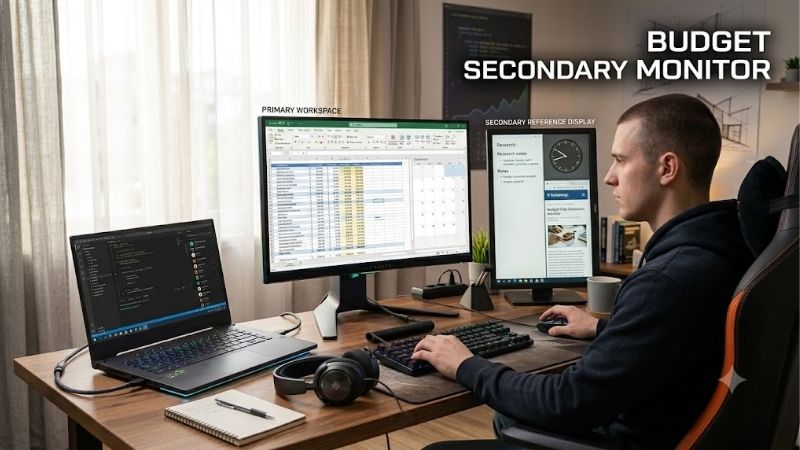
Adding a second screen is one of the simplest ways to make a computer setup more useful without replacing the main display. The best budget secondary monitor gives you enough room for documents, browser tabs, chat, or game guides without spending money on features you will rarely use. For most desks, a 24-inch 1080p IPS monitor is a practical starting point. Larger 4K displays suit text-heavy workflows, high-refresh models are better for gaming, and portable screens make sense when you need an extra display away from home.
Quick answer: Our top pick in 2026 is the Monitor — our #1 rated choice. See the full ranked comparison, alternatives and buying advice below.
Quick verdict: choosing a budget secondary monitor
For everyday multitasking, start with a 23.8- or 24-inch IPS monitor at 1920 × 1080. It is usually straightforward to connect, fits beside a primary display, and offers enough space for email, messaging, reference pages, and other supporting windows. The ASUS VA24EHF is a sensible basic option, with a 100Hz refresh rate and an anti-glare IPS panel.
Spend more on ergonomics if you use the second screen throughout the workday. The Dell P2425H has an adjustable stand and a USB hub, making it more convenient for a permanent office setup. Its USB-C port supports limited power delivery for accessories, however; it is not a substitute for a USB-C video connection or a laptop docking monitor.
The LG 24GS65F-B is the gaming-focused alternative, with a 180Hz refresh rate and adaptive sync. If the second screen will display detailed documents, spreadsheets, or creative timelines, the Dell S2725QS provides 4K resolution on a 27-inch panel. The AOC Q27G3XMN is worth considering when gaming and HDR matter more than office simplicity. For travel, the Arzopa Z3FC offers a compact 16.1-inch screen with higher resolution and a high refresh rate.
These picks target different jobs rather than pretending every second display needs to be a gaming monitor. Choose according to your daily workload, desk space, available ports, and how much you expect to use the extra screen.
| Monitor | Best use | Main specifications | Important drawback |
|---|---|---|---|
| ASUS VA24EHF | Everyday budget setup | 23.8-inch IPS, 1080p, 100Hz | Tilt-only stand; one HDMI input |
| Dell P2425H | Office multitasking | 23.8-inch IPS, 1080p, 100Hz, USB hub | No USB-C video input; limited gaming motion performance |
| LG 24GS65F-B | Budget gaming | 24-inch IPS, 1080p, 180Hz | Limited contrast and HDR performance |
| Dell S2725QS | Text-heavy productivity | 27-inch IPS, 4K, 120Hz | No USB hub; not ideal for fast-motion gaming |
| AOC Q27G3XMN | Gaming and HDR | 27-inch VA, 1440p, 180Hz, Mini LED | Some dark-scene smearing and local-dimming artifacts |
| Arzopa Z3FC | Portable second screen | 16.1-inch IPS, 1440p, up to 180Hz | No built-in battery; limited color-critical suitability |
How we selected the monitors
This roundup focuses on the purpose of a secondary screen: adding useful workspace without paying for unnecessary features. Selection criteria include readable text, practical screen size, panel type, refresh rate, stand adjustment, connectivity, and the shortcomings most likely to affect everyday use.
Manufacturer specifications establish the exact model, resolution, refresh rate, input options, and physical adjustments. Independent reviews from RTINGS and TechRadar provide additional evidence for models they evaluated, including response time, input lag, HDR behavior, text clarity, and portability. Those assessments matter because advertised response times and HDR labels alone do not tell the whole story.
The recommendations are based on documented specifications and published third-party testing, not personal detailed research. The word “budget” is relative here: a basic 1080p screen is intended to minimize spending, while the 4K and Mini LED alternatives are included for buyers whose second monitor needs to do substantially more. No universal current price is assigned to every model because prices and availability change, and a temporarily discounted listing should not determine a product’s long-term suitability.
The shortlist also distinguishes between a USB hub and a video input. A monitor can have USB ports for a keyboard or mouse without accepting display signals over USB-C. Buyers using laptops should verify the exact ports on both devices before ordering.
Best budget secondary monitor picks by use case
ASUS VA24EHF — best for a simple everyday setup
The ASUS VA24EHF covers the basics without adding features that many second-monitor buyers will never use. Its 23.8-inch IPS panel has a 1920 × 1080 native resolution, a maximum 100Hz refresh rate, and an anti-glare surface. ASUS specifies 250 nits of typical brightness and Adaptive-Sync support.
That combination works well for email, documents, messaging applications, reference material, and general browsing. The 100Hz refresh rate also makes scrolling and pointer movement feel smoother than on a traditional 60Hz display, although the difference matters less for static documents than for moving content.
Connectivity is simple. The monitor has one HDMI 1.4 input, so check that your computer has an available HDMI output or a compatible adapter. It has no built-in speakers, no USB hub, and no height-adjustable stand. The included stand supports tilt adjustment, while a 100 × 100mm VESA mounting pattern allows compatible monitor arms to be used.
Independent testing specific to this exact model was not established in the sources reviewed, so its recommendation rests primarily on the published specifications rather than measured response-time claims. Its advertised 1ms MPRT figure should not be confused with a measured gray-to-gray pixel response time.
Buy if: You need a straightforward additional screen for work, school, browsing, or occasional casual gaming.
Skip if: You need USB-C connectivity, extensive stand adjustment, integrated speakers, or high-refresh competitive gaming.
For an ordinary desk, this is the type of monitor worth considering before spending extra on advanced features. Put the savings toward a good mounting arm or a better primary display if those upgrades would be more useful.
Dell P2425H — best for office multitasking
The Dell P2425H is designed for productivity rather than gaming. Its 23.8-inch IPS display runs at 1920 × 1080 and 100Hz, but its most meaningful advantages are the adjustable stand and integrated USB hub.
The stand supports height adjustment, tilt, swivel, and portrait rotation. That makes it easier to line up the second screen with your main monitor or rotate it vertically for long documents, code, chat windows, and reference pages. The narrow bezels are also helpful when placing two displays side by side.
Dell lists HDMI 1.4, DisplayPort 1.2, VGA, USB-A connections, and a USB-C downstream port. The USB-C port provides up to 15W of power delivery for compatible accessories, but it is a data-only downstream connection rather than a USB-C video input. You cannot assume it will carry your laptop’s display signal or replace your laptop charger. RTINGS likewise identifies the monitor’s office ergonomics and USB hub as strengths.
The main compromise is gaming performance. RTINGS finds that fast-moving objects look blurry and notes the absence of variable refresh rate and HDR support. Those limitations are relatively unimportant when the screen is showing spreadsheets or web pages, but they matter for fast-paced games.
Buy if: You spend hours working across applications and want a second monitor that can be positioned properly without purchasing a separate stand.
Skip if: Fast gaming performance, HDR, or a one-cable USB-C laptop connection is a priority.
This is a good example of when spending beyond a basic 24-inch display can be worthwhile: the extra cost goes toward everyday convenience rather than decorative features.
LG 24GS65F-B — best for budget gaming
For buyers who plan to use their second display for gaming as well as multitasking, the LG 24GS65F-B offers a more specialized feature set. It has a 24-inch IPS panel, a native resolution of 1920 × 1080, and a maximum refresh rate of 180Hz.
LG lists support for NVIDIA G-SYNC Compatible operation and AMD FreeSync, along with DisplayPort 1.4 and HDMI 2.0. Its stand supports height adjustment, tilt, and pivot, making portrait orientation possible when the display is used mainly for chat, game guides, or communication applications.
RTINGS independently researched this exact model and describes its input lag as low, with consistent response times across the refresh-rate range. The review also identifies some blur behind fast-moving objects, weak native contrast, and limited HDR impact. These are important distinctions: 180Hz is useful for smoother motion, but it does not turn an inexpensive IPS monitor into an HDR-focused display.
A compatible computer and connection are necessary to reach the full refresh rate. DisplayPort is the sensible starting point for a PC gaming setup, particularly if the computer has limited HDMI output capabilities. The monitor has no USB hub, so accessories will still need to connect to the computer itself.
Buy if: You want a fast secondary display for shooters, racing games, or gaming alongside a primary screen.
Skip if: Your second monitor will show static documents almost exclusively, or you want rich HDR and deep blacks.
The LG is a particularly sensible alternative to a premium gaming display when you want speed in a compact format without paying for a larger 1440p or 4K panel.
Dell S2725QS — best for detailed work and larger documents
The Dell S2725QS makes sense when a secondary screen needs to show more than messaging windows. Its 27-inch IPS panel has a native resolution of 3840 × 2160 and supports up to 120Hz. That gives it considerably more desktop detail than a 24-inch 1080p model.
At 4K resolution, text and fine interface elements can look sharper, and the additional pixels provide more room for spreadsheets, coding environments, timelines, or several reference windows. Dell lists 350 nits of typical brightness, 99% sRGB coverage, two HDMI 2.1 inputs, and one DisplayPort 1.4 input.
The included stand supports height adjustment, swivel, tilt, and pivot, which is useful for a display used in different working positions. Dell also includes speakers, although a dedicated headset or separate speakers are preferable if audio quality matters.
RTINGS’ testing describes the S2725QS as particularly strong for office use and text clarity. Its weaknesses include a stand that can wobble, a lack of a USB hub, relatively low contrast, and blurry motion in fast-moving content. Its 120Hz refresh rate is useful for smoother desktop navigation, but it should not be taken as evidence of excellent gaming response times.
Check your computer’s output capabilities before choosing 4K. If an older system only supports 4K at 60Hz through its available connection, the panel’s 120Hz ceiling will not be accessible through that setup. The computer must also render 4K games at a playable frame rate if gaming is part of the plan.
Buy if: You frequently read detailed text, compare documents, edit spreadsheets, or need more workspace.
Skip if: You want the least expensive possible second screen or primarily play fast competitive games.
This display is a more substantial investment than a basic 1080p monitor, but its higher pixel density provides a distinct benefit for work that involves reading and arranging many windows.
AOC Q27G3XMN — best for gaming and HDR
The AOC Q27G3XMN is a stronger option for buyers who want their secondary monitor to double as a gaming or entertainment display. It combines a 27-inch VA panel with a native resolution of 2560 × 1440, a maximum 180Hz refresh rate, and Mini LED backlighting with 336 local-dimming zones.
Unlike a basic IPS display, the AOC’s VA panel has a high native contrast ratio. Its Mini LED backlight can also dim selected areas of the screen, improving the contrast between bright highlights and dark scenes. AOC lists VESA DisplayHDR 1000 certification, and RTINGS’ independent review finds that the monitor delivers impressive HDR brightness and strong dark-room picture quality.
The connection options are DisplayPort 1.4 and HDMI 2.0, without USB-C video or a USB hub. RTINGS confirms that the monitor can achieve 180Hz and provides low input lag, but its testing also identifies some black smearing in dark scenes and distracting variable-refresh-rate flicker when frame rates change. These limitations are worth understanding before choosing it for games with many dark environments or highly unstable frame rates.
This model is more specialized than an ordinary office second screen. Its size and resolution are useful for gaming and multitasking, but the price of Mini LED hardware may not be justified if the display spends most of its time showing chat messages and spreadsheets.
Buy if: You want stronger HDR and contrast for games and video, while retaining a useful 1440p desktop workspace.
Skip if: A basic work screen would meet your needs, you require a USB hub, or you are sensitive to dark-scene smearing and VRR flicker.
For the right buyer, its Mini LED implementation provides a tangible picture-quality advantage over a conventional entry-level IPS monitor.
Arzopa Z3FC — best portable second screen
A portable monitor is worth considering when your second display needs to move between home, school, the office, and temporary workspaces. The Arzopa Z3FC uses a 16.1-inch IPS panel with a 2560 × 1440 native resolution and supports up to 180Hz over compatible USB-C connections. TechRadar’s independent review identifies its compact design, sharp image, and versatility for productivity and gaming as strengths.
The smaller size makes the Z3FC convenient beside a laptop on a narrow desk. Its 1440p resolution also produces a relatively detailed picture for reading documents and browsing. The manufacturer lists dual USB-C ports, a mini HDMI input, and an integrated stand. TechRadar reports a weight of approximately 1.72 pounds, making it easier to carry than a conventional desktop monitor.
There are important compromises. The Z3FC has no built-in battery, so the display still needs an appropriate power source. Depending on your laptop, connection method, and power availability, a USB-C cable may handle video and power or a separate power cable may be necessary. HDMI video connections also have different refresh-rate limits from USB-C, so check the supported mode for the exact connection you plan to use.
TechRadar also notes that the monitor is not a particularly strong choice for professional color-critical work. Its advertised color coverage does not guarantee the accuracy required for demanding photo or video production.
Buy if: You work away from your main desk frequently and value portability more than the large viewing area of a desktop monitor.
Skip if: You want a permanent office display, need highly accurate color for professional work, or want to avoid carrying extra cables.
For frequent travelers, the flexibility of a portable monitor can matter more than buying the largest screen available.
How to choose the right second display
Match the size and resolution to your desk
For most ordinary workstations, 24 inches is a useful size for a secondary display because it can sit beside a primary monitor without dominating the desk. A 1080p panel is generally adequate for email, messages, video calls, and reference pages. It also avoids forcing older computers to render a larger desktop at high resolution.
A 27-inch 1440p monitor provides more usable detail while maintaining a manageable physical size. A 27-inch 4K model makes the most sense when small text, spreadsheets, multiple windows, or detailed timelines are a major part of your workflow.
Remember that the second screen does not have to match your main monitor exactly. Different resolutions are fine, although mismatched scaling and text sizes may make it less convenient to move windows between screens. Matching sizes and resolutions can produce a more consistent experience, but it should not take priority over getting the features you actually need.
Check connections before ordering
Identify the ports available on your computer and the maximum supported resolution and refresh rate for each connection. HDMI, DisplayPort, and USB-C are not interchangeable guarantees of identical performance. A compatible adapter can help when ports differ, but adapters and docks may limit supported modes.
Laptop users should pay particular attention to USB-C. A USB-C monitor with DisplayPort Alternate Mode can accept video from a compatible laptop, whereas a USB-C data port on a monitor may only connect peripherals. Power delivery is another separate feature: a USB-C monitor’s charging output must be sufficient for the device it is expected to power.
For a straightforward stationary setup, direct HDMI or DisplayPort is usually easier to troubleshoot than a dock with several adapters. If you plan to use a portable monitor, verify whether your laptop can supply enough power through the chosen connection.
Prioritize stand adjustment and desk arrangement
A monitor that cannot align with your eye level may need a riser, a separate arm, or a different stand. Height adjustment is especially useful if you already have a large primary monitor and want the second screen to line up naturally beside it.
VESA mounting can be a cost-effective way to reclaim desk space, but check the monitor’s mounting pattern and the arm’s supported weight. A portrait orientation can also be valuable for a secondary screen displaying long documents, code, or chat conversations.
Before purchasing an arm, account for the combined width of both monitors, the depth of your desk, and the space needed for the stands or mounting clamps. An inexpensive screen that fits properly can be more useful than a larger one that forces an awkward layout.
Understand refresh rate and panel trade-offs
Refresh rate describes how often the monitor updates the picture, while response time describes how quickly pixels change between colors. These are related but different characteristics. A 180Hz monitor can still produce visible blur, and an advertised 1ms response time does not establish the complete motion performance of a panel.
IPS is a good general-purpose choice because it usually offers wide viewing angles and useful everyday image quality. VA can provide stronger native contrast, while Mini LED adds local dimming for improved HDR. Neither advantage comes without trade-offs, and performance varies significantly between exact models.
If the second screen will mostly display static content, spend more attention on resolution, stand adjustment, text clarity, and connectivity than on the highest refresh-rate number. If you want to play games on it, independent response-time and input-lag testing becomes much more important.
Avoid paying for features you will not use
An inexpensive 1080p display may be the best purchase when the main job is keeping communication applications and reference material visible. A built-in USB hub helps when desk space and available ports are limited, but it is not essential if your computer already has sufficient connections.
Likewise, 4K is useful when extra detail helps your work, but it is not automatically better for every secondary screen. Mini LED and high refresh rates make sense when gaming or media viewing are important enough to justify the extra cost. The right budget is the one that buys a real improvement in your setup rather than unused specifications.
Frequently asked questions
Is a 24-inch monitor good for a second screen?
Yes. A 24-inch 1080p monitor works well for email, documents, messaging, video calls, and web research. It is large enough for most supporting applications without taking as much desk space as a 27-inch model.
Should my second monitor match my main monitor?
No. Matching monitors can make window movement and visual alignment more consistent, but a secondary screen can have a different size, resolution, and refresh rate. Prioritize the task it will perform and consider whether differing text sizes or scaling will bother you.
Is 100Hz enough for a secondary monitor?
For office work, browsing, and general multitasking, 100Hz is generally sufficient. Higher refresh rates are more relevant when you use the display for competitive gaming or other content with rapid motion. They do not improve the resolution or color accuracy of static content.
Can I use a TV instead of a second monitor?
You can, provided the computer supports the TV’s input and resolution. However, a television may take up more desk space and can have different text clarity, input lag, and refresh-rate behavior. A desktop monitor is generally easier to position for close-range work.
Does a second monitor reduce computer performance?
The effect depends on the computer, graphics hardware, resolution, refresh rates, and what you display. Basic documents and web pages usually place little additional demand on a modern system. Running games or high-resolution video across several displays can use more graphics resources, so older systems may need lower settings or refresh rates.
Final verdict
For most buyers, a simple 24-inch IPS monitor is the sensible starting point, and the ASUS VA24EHF provides the core features for a basic secondary screen. Choose the Dell P2425H for a more adjustable office setup, the LG 24GS65F-B for faster gaming, or the Dell S2725QS for detailed 4K productivity. The AOC Q27G3XMN suits buyers who value gaming and HDR, while the Arzopa Z3FC serves people who need an extra display on the move. Compare your actual workload and computer connections before spending more; the best second monitor is the one that makes everyday tasks easier without paying for capabilities you will rarely use.
Ready to decide? Our #1 pick for 2026 is the Monitor.
Live price & availability on Amazon.









