
Choosing between a monitor vs oled tv is not simply a question of screen size or picture quality. A gaming monitor generally offers a more practical desktop experience, higher available refresh rates, sharper text at typical desk distances, and convenient PC connectivity. An OLED TV offers a larger, more immersive picture, outstanding contrast, and strong HDR performance for gaming and entertainment. Modern OLED TVs can also deliver surprisingly responsive PC gameplay. The better choice depends on whether you prioritize competitive gaming, productivity, cinematic visuals, viewing distance, or using one screen for everything.
- Quick verdict: Is a gaming monitor or OLED TV better?
- Monitor vs OLED TV: Quick comparison
- Display technology: Why OLED looks different
- Gaming performance: Refresh rate, response time, and input lag
- Picture quality and HDR performance
- Text clarity: Why monitors are usually better for work
- Screen size and viewing distance
- Connectivity and everyday PC usability
- OLED burn-in and long-term ownership
- Which display is better for different use cases?
- Practical buying checklist
- Frequently asked questions
- Final verdict: Monitor or OLED TV?
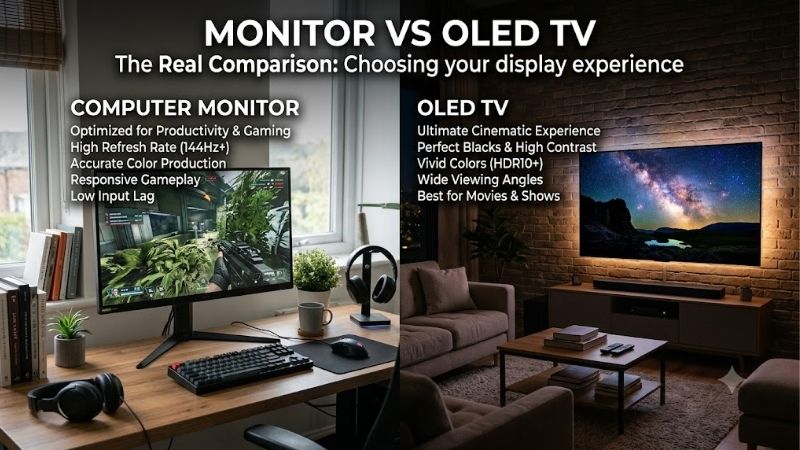
Quick verdict: Is a gaming monitor or OLED TV better?
For most people using a desktop PC at a conventional desk, a dedicated gaming monitor is the better choice. A 27-inch or 32-inch display is easier to position, usually offers greater pixel density than a large TV, and can support refresh rates of 240Hz or higher.
An OLED TV becomes more attractive when immersive gaming, movies, and couch-based entertainment are the main priorities. A 42-inch OLED TV, for example, can provide an enormous 4K picture with deep blacks, excellent viewing angles, and fast pixel response.
Importantly, a modern OLED TV is not automatically slow. Models such as the LG C5 support up to 4K at 144Hz with variable refresh rate and low input lag in their gaming modes.
The decision becomes less straightforward when comparing an OLED TV with an OLED gaming monitor. Both can deliver exceptional contrast and motion response. Their most meaningful differences are usually size, ergonomics, processing, connectivity, and available refresh rates.
Choose a monitor for close-range desktop gaming and work. Choose an OLED TV for a large-screen experience that combines PC gaming with home entertainment.
Monitor vs OLED TV: Quick comparison
| Feature | Gaming monitor | OLED TV | General advantage |
|---|---|---|---|
| Typical screen size | 24–32 inches, with larger options | Often 42–83 inches | Depends on viewing distance |
| Resolution | 1080p, 1440p, 4K and higher | Usually 4K in current premium models | Depends on size |
| Refresh rate | Many 144–500Hz+ options | Commonly 120–165Hz, model-dependent | Monitor |
| Pixel response | Depends on IPS, VA, or OLED | Extremely fast with OLED | OLED versus LCD |
| Input lag | Usually low on gaming models | Low in appropriate Game Mode | Model-dependent |
| Black levels | Vary by panel technology | Excellent native blacks | OLED TV versus LCD |
| HDR experience | Varies considerably | Often excellent | Premium OLED TV versus typical LCD |
| Text clarity | Usually better at desk distance | Can be less sharp up close | Monitor |
| Built-in entertainment | Usually limited | Streaming apps and TV features | OLED TV |
| Ergonomics | Adjustable stands are common | Larger, less adjustable | Monitor |
| Image-retention risk | Depends on panel technology | Present with OLED | LCD monitor |
| Viewing distance | Designed for close use | Often better farther away | Depends on setup |
This comparison assumes a typical gaming monitor, which may use LCD or OLED technology. An OLED gaming monitor can match many of the visual strengths of an OLED TV.
Display technology: Why OLED looks different
How gaming monitors produce images
Gaming monitors use several different display technologies.
IPS LCD panels typically offer consistent colors and wide viewing angles. VA LCD panels often deliver stronger native contrast, while their dark-pixel transitions can be slower depending on the model.
Mini-LED monitors use an LCD panel combined with a backlight containing many independently controlled dimming zones. High-quality implementations can produce impressive HDR brightness and contrast, although halos may appear around bright objects on dark backgrounds.
OLED gaming monitors instead use self-emissive pixels, giving them many of the same characteristics as OLED televisions.
Therefore, describing all monitors as inferior to OLED TVs would be misleading. The panel technology matters more than the product category when comparing black levels and pixel transitions.
Why OLED TVs offer exceptional contrast
OLED stands for organic light-emitting diode. Each pixel produces its own light rather than relying on a shared LCD backlight.
When a pixel needs to display black, it can switch off. This creates extremely deep blacks without the blooming that can occur around bright objects on locally dimmed LCD screens.
The result is especially noticeable in dark games, science-fiction movies, and HDR content with isolated highlights.
Modern OLED televisions also support wide color gamuts and advanced HDR presentation. However, peak brightness, color volume, near-black handling, and reflection performance vary significantly between models.
A high-end Mini-LED gaming monitor may outperform an entry-level OLED TV in some bright-room scenarios, even though the OLED retains an advantage in native black levels.
OLED gaming monitors narrow the gap
Dedicated OLED gaming monitors increasingly combine the picture characteristics of OLED televisions with desktop-oriented features.
For example, the ASUS ROG Swift OLED PG32UCDM is a 31.5-inch 4K QD-OLED monitor supporting up to 240Hz, DisplayPort 1.4 with DSC, HDMI 2.1, and USB-C video connectivity.
That configuration provides OLED contrast in a screen size better suited to a traditional desk.
The main distinction is therefore no longer simply OLED picture quality versus monitor responsiveness. Buyers can now choose between OLED displays optimized for different physical setups and workloads.
Gaming performance: Refresh rate, response time, and input lag
Refresh rate and competitive gaming
Refresh rate determines how frequently a display can present a new image.
A 120Hz screen can refresh approximately every 8.33 milliseconds. At 144Hz, that interval decreases to 6.94 milliseconds, while 240Hz reduces it to 4.17 milliseconds.
Higher refresh rates can improve the presentation of movement and reduce the time a completed frame waits for the next display update.
Dedicated gaming monitors provide a wider selection of extremely high refresh rates. This matters to players of competitive shooters such as Counter-Strike 2 or Valorant, where high frame rates are often achievable.
OLED televisions generally prioritize large-screen 4K gaming at refresh rates around 120Hz or 144Hz, although exact capabilities differ by model and generation.
A 144Hz OLED TV is still highly responsive for many gaming scenarios. The potential advantage of a 240Hz or faster monitor becomes more relevant when the PC consistently produces enough frames.
Pixel response time is not the same as input lag
Pixel response time describes how quickly individual pixels transition between states.
Input lag measures the delay between a display receiving a signal and showing its result.
OLED pixels generally transition extremely quickly, which helps prevent the dark smearing and visible trailing found on some LCD panels.
However, nearly instantaneous pixel transitions do not eliminate every source of motion blur. Sample-and-hold persistence remains relevant, especially at lower refresh rates.
A monitor with higher refresh capability may therefore provide clearer perceived motion even when both devices use OLED panels.
Input lag must be assessed separately. Independent RTINGS testing shows that modern gaming monitors generally have a slight average advantage, but properly configured televisions can also deliver very low input lag.
Why Game Mode matters on an OLED TV
Televisions often contain sophisticated image-processing systems for movies and broadcast content.
These features can improve upscaling, smooth gradients, or create interpolated frames, but some also increase processing delay.
Game Mode reduces unnecessary processing to prioritize responsiveness.
For PC gaming on an OLED TV, confirm that the appropriate low-latency mode is activated and verify the refresh rate reported by both the television and the operating system.
Avoid enabling motion interpolation while playing latency-sensitive games unless you specifically understand its trade-offs.
Picture quality and HDR performance
OLED televisions are particularly appealing for visually ambitious single-player games.
Their large panels, deep blacks, wide viewing angles, and cinematic picture presentation create an immersive experience that smaller displays may struggle to replicate.
Premium OLED televisions can also offer strong HDR tone mapping and substantial highlight brightness.
However, HDR quality is not determined by the OLED label alone.
A display needs effective brightness management, appropriate color performance, and accurate handling of HDR signals. Poor tone mapping can obscure shadow details or make highlights appear unnatural.
Dedicated OLED gaming monitors can deliver equally compelling HDR characteristics, particularly in dark rooms.
An additional distinction is brightness behavior. Some OLED displays limit brightness as large areas of the screen become white, which can be noticeable with bright documents or desktop applications.
For a user who spends the day in spreadsheets and switches to HDR games at night, this behavior deserves attention.
Text clarity: Why monitors are usually better for work
Text clarity is one of the strongest reasons to choose a dedicated monitor for desktop use.
A 32-inch 4K display has approximately 138 pixels per inch. A 42-inch 4K television has approximately 105 pixels per inch.
Both display the same number of pixels, but the smaller screen packs them more densely.
At a normal desk distance, the monitor can therefore present finer text and interface elements.
OLED subpixel layouts introduce another consideration. Many OLED televisions and monitors use arrangements that differ from the traditional RGB stripe layout expected by some desktop text-rendering systems.
This can cause subtle colored fringes around small letters, especially when viewed closely. RTINGS documents these differences across IPS, WOLED, and QD-OLED displays.
Higher pixel density can make these artifacts less noticeable.
For coding, reading long documents, accounting, and spreadsheet work, a high-resolution IPS monitor may remain preferable to either type of OLED.
Why chroma 4:4:4 matters for PC use
Chroma subsampling reduces the amount of color information transmitted in a video signal.
Formats such as 4:2:2 or 4:2:0 can be sufficient for video content but may produce colored edges or blurred small text on a desktop.
For PC use, choose an input configuration supporting full RGB or 4:4:4 chroma at the intended resolution and refresh rate.
Many modern televisions support this through their PC-oriented input modes, but the available combinations depend on the specific model.
The connection, graphics-card output settings, and television input configuration all need to agree.
Screen size and viewing distance
A larger screen is not always more useful.
At a conventional desk, a 27-inch or 32-inch monitor generally fits within a comfortable field of view. You can inspect menus, read text, and follow moving objects without repeatedly turning your head.
A 42-inch OLED television occupies substantially more physical space. It may feel immersive during games, but the corners can become uncomfortable to inspect when sitting close.
The usable distance also depends on screen resolution, eyesight, mounting height, and personal preference.
A deep desk or wall-mounted arrangement can make a 42-inch television more practical. Conversely, a shallow desk may make even a 32-inch monitor feel oversized.
Before purchasing, measure the available desk depth and the distance between your eyes and the intended screen position.
Consider the stand footprint, too. Some televisions use wide feet or large central stands, while gaming monitors often provide more flexible height, tilt, and swivel adjustments.
An appropriately rated VESA mount can improve either arrangement, but buyers should verify the mounting pattern, display weight, and wall or desk support.
Connectivity and everyday PC usability
DisplayPort versus HDMI 2.1
Gaming monitors commonly offer DisplayPort alongside HDMI. Many also include USB-C, USB hubs, or KVM switches for sharing peripherals.
OLED televisions generally focus on HDMI connectivity because they are designed for consoles, streaming boxes, and home-theater equipment.
HDMI 2.1 can support high-bandwidth gaming modes, but a connector labeled HDMI 2.1 does not establish every optional feature or bandwidth capability.
Check the exact manufacturer’s supported resolution-refresh combinations, chroma settings, and variable-refresh compatibility.
For example, LG’s 42-inch C5 supports 4K gaming at up to 144Hz, NVIDIA G-SYNC, and AMD FreeSync Premium. The ASUS PG32UCDM offers 4K at up to 240Hz with multiple PC-oriented input types.
These devices suit different configurations even though both provide 4K OLED gaming.
Smart TV features and sound
An OLED TV offers an integrated entertainment experience, usually including streaming applications, a remote control, speakers, and smart-TV software.
That reduces the need for a separate streaming device when watching movies or television from the couch.
Gaming monitors generally provide fewer entertainment features. Some include speakers, but audio equipment may need to be purchased separately.
Users planning to connect consoles, a PC, and streaming devices to the same screen may prefer the convenience of a television.
Users who primarily work at a computer may instead appreciate a monitor that wakes with the PC, changes inputs predictably, and avoids unnecessary smart-TV menus.
These behaviors are model-specific, so checking the user manual is useful before buying.
OLED burn-in and long-term ownership
Both OLED televisions and OLED gaming monitors are susceptible to permanent image retention, often called burn-in.
Burn-in results from uneven cumulative pixel wear, particularly when the same bright interface elements remain visible for prolonged periods.
Desktop taskbars, application toolbars, game HUDs, and fixed browser elements can contribute to this risk.
Independent long-duration testing from RTINGS demonstrates that static-heavy use remains a relevant consideration, although mixed-content users are generally less exposed to the most demanding conditions.
Modern OLED devices include protective features such as pixel shifting, panel refresh routines, static-image dimming, and screen savers.
These features reduce risk but do not guarantee immunity.
Users should maintain appropriate brightness, allow automated maintenance to operate, and avoid leaving static bright content displayed unnecessarily.
Warranty coverage also deserves careful examination. Policies differ between brands, regions, exact models, and commercial versus consumer usage.
An LCD gaming monitor remains the lower-risk option for people who display largely unchanged interfaces throughout an eight-hour workday.
Which display is better for different use cases?
Competitive PC gaming
A high-refresh gaming monitor is generally preferable.
A 24-inch to 32-inch screen makes it easier to keep the entire image within a compact viewing area, while 240Hz or higher options offer additional motion responsiveness when supported by the computer.
An OLED TV can still deliver excellent gaming performance, but its larger size and lower typical maximum refresh rate may be less convenient.
Single-player and cinematic gaming
An OLED television is especially compelling for story-driven games, racing simulations, and visually rich adventures.
A 42-inch or larger 4K screen can create a dramatic presentation, particularly when viewed from a comfortable distance.
A 32-inch 4K OLED monitor is a sensible compromise for players who want similar contrast in a smaller desktop arrangement.
Office work and programming
A dedicated monitor is usually the stronger choice.
Higher pixel density, practical ergonomics, PC-oriented inputs, and potentially clearer text all help during extended productivity sessions.
For static-heavy work, an IPS LCD monitor also avoids OLED’s characteristic burn-in risk.
Console gaming and home entertainment
An OLED TV often makes more sense when the screen serves multiple people.
It offers large-screen viewing, built-in applications, remote operation, and features aimed at television and console usage.
A gaming monitor is still suitable for a console placed on a desk, particularly when space is limited.
Practical buying checklist
Before deciding, consider the following:
-
Measure viewing distance, desk depth, and available mounting space.
-
Decide whether gaming, productivity, or entertainment occupies most of your screen time.
-
Compare native resolution and pixel density rather than resolution alone.
-
Verify the refresh rate supported through your actual graphics-card connection.
-
Look for independent input-lag and response-time measurements at relevant refresh rates.
-
Check full RGB or 4:4:4 chroma support for PC text.
-
Evaluate HDR brightness, room reflections, and display coating.
-
Compare OLED maintenance features and exact warranty terms.
-
Account for stands, mounts, external speakers, and cables when comparing total cost.
Current US pricing should be checked for the exact products under consideration. A large OLED television is not automatically more expensive than a premium OLED gaming monitor, and neither category consistently offers better value without a model-specific price comparison.
Frequently asked questions
Can you use an OLED TV as a computer monitor?
Yes. A compatible OLED television can function as a PC display through HDMI.
For the best desktop experience, use the television’s native resolution, enable the appropriate PC input mode, and configure full RGB or 4:4:4 chroma when supported.
You should also consider viewing distance, text rendering, and OLED pixel-care features before using it for extended productivity work.
Is an OLED TV better than a 240Hz gaming monitor?
It depends on the purpose.
A 240Hz monitor offers a higher refresh-rate ceiling than a 120Hz or 144Hz OLED TV, potentially benefiting fast competitive games.
The television may provide a larger picture and a more immersive entertainment experience. If the 240Hz monitor also uses OLED, both can offer excellent contrast and rapid pixel transitions.
Does an OLED TV have noticeable input lag?
Modern gaming-oriented OLED TVs can have very low input lag when properly configured.
For example, independent RTINGS testing finds that the LG C5 delivers responsive gaming performance at 120Hz and 144Hz in its gaming mode.
However, enabling additional television image processing can increase delay. Compare independently measured results for the exact models rather than relying on panel type alone.
Is a 42-inch OLED TV too big for a desk?
Not necessarily, but desk depth is important.
A 42-inch television can work well on a deep desk or wall-mounted setup that provides sufficient viewing distance.
For a smaller desk, a 27-inch or 32-inch monitor is generally easier to position and more comfortable for frequent desktop navigation.
Should you buy an OLED monitor instead of an OLED TV?
An OLED monitor is often the better compromise when you want OLED picture quality in a computer-focused setup.
You can obtain 4K resolution, high refresh rates, PC-oriented connectivity, and more practical ergonomics without committing to a television-sized screen.
An OLED TV remains more appealing when large-screen entertainment is equally important.
Final verdict: Monitor or OLED TV?
For conventional desktop gaming, competitive shooters, programming, and everyday productivity, a gaming monitor remains the more practical choice. Its manageable screen size, available high refresh rates, sharper text presentation, and PC-focused features make it easier to integrate into a workstation.
For cinematic gaming, console entertainment, movies, and large-screen immersion, an OLED TV offers clear advantages. Modern gaming-oriented models can also deliver sufficiently low input lag and fast pixel response for responsive PC gameplay.
A 32-inch 4K OLED gaming monitor provides a particularly attractive middle ground, combining OLED contrast with desktop ergonomics and refresh rates beyond those offered by many televisions.
Ultimately, choose based on viewing distance and daily usage rather than assuming one display category is universally superior. A well-selected monitor or OLED TV can provide an outstanding gaming experience when matched to the right setup.
Editorial Source Log — Editor only
Research date: October 12, 2026.
| Evidence | Verified source |
|---|---|
| General differences between PC monitors and televisions, including input lag, pixel density, and features | RTINGS: PC monitor vs TV |
| Input-lag testing methodology and 4:4:4 chroma considerations | RTINGS: TV input lag testing |
| LG OLED42C5PUA, 42-inch 4K OLED, up to 144Hz and gaming compatibility | LG USA official specifications |
| LG C5 gaming responsiveness, reflections, HDR, and text characteristics | RTINGS: LG C5 OLED review |
| ASUS ROG Swift OLED PG32UCDM, 31.5-inch 4K QD-OLED, 240Hz, connectivity | ASUS official specifications |
| OLED versus IPS text clarity and pixel structure | RTINGS: IPS vs OLED |
| OLED burn-in risk and prolonged static-content testing | RTINGS: OLED burn-in research |
Evidence limitations: No original detailed research was performed. The article does not assert measured input lag or HDR brightness for untested device pairings. Specific US prices, Amazon availability, and model-dependent OLED burn-in warranties were not verified, so no price-based winner is assigned.
Editorial scope: The comparison addresses mainstream gaming monitors, OLED gaming monitors, and OLED televisions. A complete Build-PC-Guide.com sitewide content-duplication audit was not established.









