
The best student monitor should make your coursework easier to read, give you room for reference material, and connect reliably to the computer you already own. A 24-inch 1080p display is a sensible starting point for a small desk, while 27-inch 1440p is more useful for frequent multitasking. USB-C charging, adjustable stands, and portability become worthwhile when they solve a specific problem in your daily routine.
- Quick verdict: Choose around your coursework
- Quick comparison table
- How we selected these monitors
- Dell S2725DC: A balanced 27-inch study screen
- Dell SE2426H: A simple HDMI option
- BenQ GW2486TC: A compact USB-C study station
- ASUS ProArt PA278CV: A creative-coursework candidate
- Dell S2725QC: A sharper 4K workspace
- ViewSonic VA1655: A portable companion for a laptop
- How to choose the best student monitor
- Build a realistic student setup budget
- Setup tips for reading and multitasking
- Frequently asked questions
- Final verdict: Choose a monitor that fits your study routine
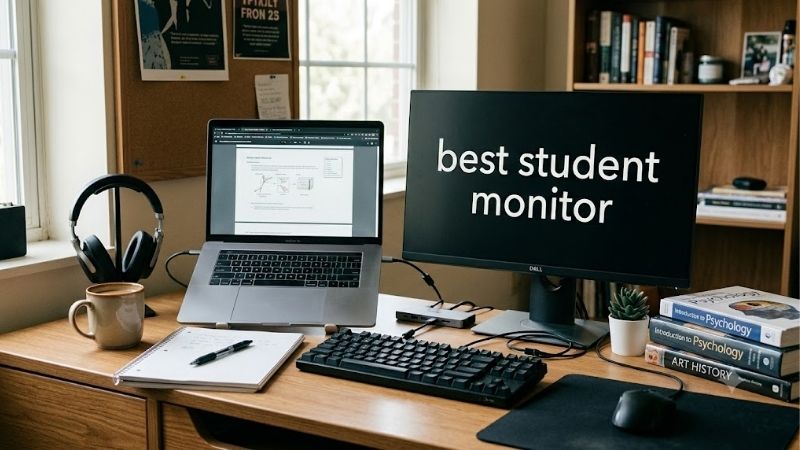
Quick answer: For most people in 2026, the best student monitor is the Dell S2725DC — our #1 rated choice. See the full ranked comparison, alternatives and buying advice below.
Quick verdict: Choose around your coursework
Start with the Dell S2725DC if you want a permanent 27-inch study screen with 1440p resolution, USB-C video, and laptop charging. It is a balanced feature combination for writing, research, coding, and everyday entertainment, provided your desk and budget accommodate it.
The Dell SE2426H is the simpler alternative for an HDMI setup. Choose the BenQ GW2486TC when you want a compact screen with USB-C charging and more flexible positioning.
For design coursework centered on standard web and video color spaces, consider the ASUS ProArt PA278CV. For sharper fine text and higher-resolution images, the Dell S2725QC provides a 27-inch 4K option.
The ViewSonic VA1655 serves students who move between locations. It adds a portable screen to a laptop rather than replacing the workspace of a full-size desktop monitor.
These are recommendations by task, not a claim that every student needs a premium screen. Reusing a working monitor can be the right decision when it already meets your reading and connection needs.
Quick comparison table
| Monitor | Suitable student use | Panel and resolution | Refresh ceiling | Useful feature | Main limitation |
|---|---|---|---|---|---|
| Dell S2725DC | Research, essays, coding, and general multitasking | 27-inch IPS, 2560 × 1440 | 144Hz | USB-C video with up to 65W charging | Reflections can distract; no HDR |
| Dell SE2426H | Straightforward setup on a small desk | 23.8-inch IPS, 1920 × 1080 | 144Hz | Two HDMI inputs | Tilt-only stand; no USB-C video |
| BenQ GW2486TC | Compact laptop study station | 23.8-inch IPS, 1920 × 1080 | 100Hz | USB-C 65W and adjustable stand | Less workspace than 1440p |
| ASUS ProArt PA278CV | Introductory design and SDR creative coursework | 27-inch IPS, 2560 × 1440 | 75Hz | Color-focused modes and USB-C 65W | No HDR; modest gaming refresh |
| Dell S2725QC | Fine text, detailed diagrams, and 4K viewing | 27-inch IPS, 3840 × 2160 | 120Hz | USB-C 65W and adjustable stand | Higher cost and gaming workload |
| ViewSonic VA1655 | Studying between home and temporary desks | 15.6-inch IPS, 1920 × 1080 | 60Hz | USB-C video and mini HDMI | Small physical viewing area |
Supported refresh rates depend on the computer and connection. USB-C charging figures describe maximum power delivery, not a promise that every laptop can replace its original charger.
How we selected these monitors
The shortlist focuses on tasks students regularly perform: reading PDFs, writing assignments, comparing sources, attending online classes, working with code, and reviewing visual projects.
Manufacturer documentation establishes screen specifications, connections, charging, and stand features. Published RTINGS testing adds evidence about the Dell S2725DC and ASUS PA278CV, including practical limitations that do not appear in headline specifications.
This is a research-based roundup rather than a hands-on test report. It does not claim measured performance for models without applicable testing or treat eye-care marketing as proof of a medical benefit.
The six products cover distinct needs rather than six versions of the same screen. A portable monitor belongs here because some students cannot leave a large display at their study location.
No dollar ceiling was supplied. Recommendations therefore span basic desktop use, USB-C convenience, creative coursework, and higher-resolution reading. Compare the complete setup cost before deciding which features deserve your money.
Dell S2725DC: A balanced 27-inch study screen
The Dell S2725DC combines a 27-inch IPS panel, 2560 × 1440 resolution, and a 144Hz refresh rate. Its USB-C input supports video and up to 65W of laptop charging, and the stand provides height, swivel, tilt, and pivot adjustment.
For coursework, its appeal is fitting a document beside notes without moving to a larger display. Built-in speakers and a USB hub can also simplify the desk.
RTINGS finds good text clarity and useful ergonomics, but notes distracting reflections in sunny spaces. It also reports motion blur in fast content and no HDR support, so the refresh figure does not make it a specialist gaming screen.
Buy if: You want a flexible study monitor for a compatible laptop.
Skip if: Your desk is very small or competitive gaming is the main priority.
Consider the BenQ for a compact USB-C setup, or the S2725QC when additional image detail justifies the expense.
Dell SE2426H: A simple HDMI option
The Dell SE2426H offers a 23.8-inch 1920 × 1080 IPS panel and a 144Hz refresh ceiling. Its two HDMI inputs allow switching between compatible sources.
This is a straightforward candidate for essays, online classes, and reference material when you already have an available HDMI output. Dell also lists an included HDMI cable.
The stand adjusts for tilt rather than height. A 100 × 100mm VESA mount provides another positioning route, but an arm adds cost unless you already own one. There is no USB-C video connection to combine laptop display output with charging.
Buy if: You want a compact conventional screen and can connect directly through HDMI.
Skip if: USB-C docking or stand height adjustment is essential.
Choose the BenQ when those conveniences matter. Confirm the exact SE2426H name: the older SE2425H is a different monitor, despite the similar spelling.
BenQ GW2486TC: A compact USB-C study station
The BenQ GW2486TC pairs a 23.8-inch 1080p IPS panel with a 100Hz refresh rate. It includes USB-C video and data with up to 65W power delivery, plus HDMI and DisplayPort inputs.
Its stand supports height, swivel, tilt, and pivot adjustment. That flexibility gives it a clear role on smaller desks where a basic fixed-height screen would be awkward to position.
BenQ also lists speakers and a noise-canceling microphone. These are useful documented features, but this guide does not claim independently measured call quality. A microphone should not be mistaken for an integrated webcam.
The limitation is workspace: Full HD provides fewer pixels than the 27-inch QHD choices, even when the stand rotates into portrait orientation.
Buy if: You want compact dimensions and USB-C convenience.
Skip if: Wide spreadsheets or several visible application windows dominate your work.
Consider the S2725DC when greater workspace matters more than keeping the screen small.
ASUS ProArt PA278CV: A creative-coursework candidate
The ASUS ProArt PA278CV uses a 27-inch 2560 × 1440 IPS panel with a maximum 75Hz refresh rate. ASUS positions it around standard SDR creative work, specifying 100% sRGB and Rec. 709 coverage and factory calibration.
It provides USB-C with up to 65W power delivery, a USB hub, and an adjustable stand. Those features also suit ordinary coursework.
RTINGS reports strong pre-calibration accuracy and sharp text, while identifying limited Adobe RGB coverage and weak dark-room contrast. It lacks HDR support.
That makes it a candidate for introductory web graphics, photography, and SDR video projects, rather than an automatic solution for every professional color workflow.
Buy if: Your assignments emphasize standard SDR color spaces and practical laptop connectivity.
Skip if: HDR grading or high-refresh gaming is required.
Compare the Dell S2725DC for general study use, and choose the exact PA278CV rather than assuming PA278QV or PA279CV specifications are interchangeable.
Dell S2725QC: A sharper 4K workspace
The Dell S2725QC combines a 27-inch IPS panel, 3840 × 2160 resolution, and up to 120Hz refresh. USB-C provides video and up to 65W charging, while the stand supports height, swivel, tilt, and pivot.
Its main study advantage is additional pixel detail. Fine text, diagrams, and images can look sharper at a useful scaled interface size than on lower-resolution screens of similar dimensions.
However, scaling determines usable workspace. A 4K panel does not mean you should read tiny text at native interface size. It also increases the rendering workload when playing games at native resolution.
Buy if: You spend substantial time reading or inspecting detailed images and can justify the higher cost.
Skip if: A basic Full HD screen already handles your work adequately.
Choose the S2725DC when QHD meets your needs. Confirm the QC suffix, because the S2725QS has a different connection feature set.
ViewSonic VA1655: A portable companion for a laptop
The ViewSonic VA1655 is a 15.6-inch 1080p IPS portable monitor with a 60Hz refresh rate. It includes USB-C and mini HDMI inputs, a built-in stand, and a protective sleeve.
It suits students who need notes on one screen and a lecture or document on the other while moving between locations. It requires enough table space and access to a compatible video source.
A suitable USB-C connection can provide video and power. HDMI operation needs a separate power arrangement, while laptop charging pass-through depends on an appropriate external source.
Buy if: Mobility matters more than a large permanent workspace.
Skip if: The monitor will stay on your desk and you mainly want larger text or windows.
A desktop Dell or BenQ generally fits that stationary task better. Also account for carrying cables and protecting the screen, not just the monitor’s advertised weight.
How to choose the best student monitor
Match the screen to your actual assignments
Start with the work you do most often. Essay writing benefits from readable text and room for references; coding benefits from visible documentation and an editor; design work adds color requirements.
Engineering diagrams and editing timelines may justify more resolution, but course software can also determine the computer resources you need. A better screen does not replace sufficient memory, graphics capability, or software compatibility.
For lecture viewing and ordinary homework, a conventional Full HD monitor can be adequate. Avoid paying for creative or gaming features simply because they appear in a product title.
Write down one recurring inconvenience your new screen should solve. If you cannot identify it, experiment with your existing laptop, application layout, and available displays before buying.
Choose resolution and size together
A 24-inch-class Full HD screen is a sensible compact option. A 27-inch QHD display provides a larger pixel grid for side-by-side work, while 27-inch 4K increases fine detail further.
QHD contains about 78% more pixels than Full HD. That does not guarantee the same percentage increase in usable workspace, because text scaling and application layout affect what you can comfortably fit.
At 4K, select a readable interface scale rather than forcing the maximum number of tiny windows onto the screen. More pixels can improve clarity even when the interface occupies a similar physical area.
Measure the desk before choosing. Include the laptop, keyboard, notebook, and stand depth rather than treating the screen diagonal as the only space requirement.
Check laptop compatibility before buying USB-C
USB-C is a connector shape, not a complete compatibility guarantee. Confirm that the laptop port supports display output and that the cable supports the intended video connection.
Then check charging separately. A monitor offering 65W may suit a compatible ultrabook, but a larger workstation or gaming laptop may need its original power adapter under demanding loads.
Use the laptop manufacturer’s documentation for the exact model. Similar names or chassis designs can conceal different port implementations and supported external-display limits.
If your laptop already provides HDMI and you do not need charging through the display, a direct HDMI setup may be sufficient. USB-C convenience is worth paying for when it actually replaces steps or accessories in your routine.
Choose the best student monitor for your desk layout
Stand adjustment deserves attention because the monitor must share a desk with the rest of your study equipment. Height adjustment can help accommodate different seating arrangements without buying a separate riser.
Pivot is useful when you deliberately want portrait documents or long code listings. It does not increase pixel count; it changes how the available pixels are arranged.
A compatible arm can recover desk space, but verify the monitor weight, mounting pattern, and desk attachment. Thin or unusual desks may not accommodate the clamp you planned to use.
Keep the most frequently used display in a convenient forward position. Arrange references nearby, and make sure a larger screen does not leave you without room to write or place the keyboard comfortably.
Separate color coverage from color accuracy
A manufacturer claim of full sRGB coverage describes the range of colors a screen can represent. It does not independently prove that those colors are displayed accurately.
For introductory creative coursework, standard SDR color support and useful preset modes may be sufficient. More demanding assignments can require calibration, consistent viewing conditions, or a particular target color space.
Check the requirements set by the course or project before shopping. A screen suitable for web graphics is not automatically suitable for print proofing or HDR video grading.
The ProArt recommendation reflects its documented focus and independent review findings. It does not imply that purchasing a professional-branded monitor replaces learning color management or checking the final output.
Treat gaming as a separate requirement
The refresh rate describes how often a display can update, while your computer determines how many game frames it renders. Pixel response and input lag are separate characteristics.
A student monitor with 144Hz can offer smoother everyday motion and casual gaming, but that figure alone does not prove clean fast-action performance. Independent testing is necessary for stronger gaming claims.
If coursework leads your priorities, connectivity, text clarity, and positioning may matter more than the highest refresh number. If competitive gaming is equally important, compare dedicated gaming models before committing.
Likewise, 4K study clarity does not require gaming at native 4K. You can choose different game settings, although lower-resolution presentation may involve image-quality compromises.
Build a realistic student setup budget
Compare complete setups rather than monitor prices alone. Include tax, shipping, any required adapter, a suitable cable, and a stand or arm if the supplied one does not work.
As a hypothetical example, a $120 display needing a $35 hub and $30 riser costs $185 before tax. A $180 monitor that supplies the needed connections and adjustment could be the simpler purchase. These figures illustrate budgeting, not verified accessory offers.
Check which cables actually come with the US package. An included USB-C cable does not establish that the laptop supports video or accepts the monitor’s charging power.
Prioritize required coursework spending first. A monitor upgrade should not consume money needed for software, storage, or a computer repair. Used business displays can be sensible when their condition, connections, included parts, and return terms are acceptable.
Setup tips for reading and multitasking
After connecting the screen, choose extended mode if you want different content on the laptop and external display. Duplicate mode shows the same content and is more useful for presentations.
Set the monitor to its native resolution, then adjust interface scaling until text is comfortable from your normal position. Choose the supported refresh rate separately.
Use an accurate standard or sRGB preset for ordinary documents and creative SDR work when appropriate. Adjust brightness to the room instead of leaving the display at its maximum setting.
Try a few real assignments: a PDF beside notes, a spreadsheet, a coding window, and a video call. Test sleep and wake, reconnection, and charging before the return period ends.
Frequently asked questions
Is 24 or 27 inches better for students?
Choose a 24-inch-class screen when desk space and basic tasks lead the decision. A 27-inch QHD monitor is more useful when you frequently compare documents or keep several applications visible.
Consider resolution, viewing distance, and stand footprint together. A larger diagonal by itself does not establish more usable workspace.
Do students need a 4K monitor?
Most ordinary assignments do not require one. Full HD or QHD can handle documents, lectures, and general study work.
Consider 4K when sharper fine text or detailed imagery provides enough everyday benefit to justify the price. Use scaling that keeps the interface readable rather than treating tiny text as a productivity goal.
Does USB-C let me use just one cable?
It can, when the laptop supports video and charging through the relevant port and the monitor supplies sufficient power. The monitor still needs its own power connection.
Some laptops require their original charger under load. Verify the complete combination before paying specifically for a one-cable arrangement.
Should I buy two monitors instead of one?
Begin with the laptop plus one external display if that already provides the separation you need. A second purchased monitor adds cost and requires compatible output support and desk space.
Add another screen when you regularly need more simultaneous content, rather than assuming a larger display count improves every study task.
Are built-in speakers and microphones enough for classes?
They can be convenient, but their presence does not establish clear audio in your room. Test the actual call arrangement.
A headset may be more useful in shared accommodation. Also confirm whether the monitor includes a webcam; speakers or a microphone do not imply that it does.
Final verdict: Choose a monitor that fits your study routine
Start with the Dell S2725DC for a flexible QHD laptop desk, the SE2426H for simple HDMI use, or the BenQ GW2486TC for compact USB-C convenience. Consider the ASUS PA278CV for standard SDR creative coursework and the S2725QC when 4K detail matters.
Choose the ViewSonic VA1655 when you need to carry the extra screen. Verify the laptop connection, charging requirements, and complete cost before ordering. The right monitor solves a practical study problem and fits the space you already have.
Ready to decide? Our #1 pick for 2026 is the Dell S2725DC.
Live price & availability on Amazon.









