
The best 4k gaming monitor under 300 should deliver more than a sharp desktop image. For gaming, refresh rate, variable refresh support, connection compatibility, and practical limitations matter alongside resolution. The MSI MAG 275UPD E14 is the starting recommendation for buyers balancing cost and dual-mode flexibility. The MSI MAG 272URDF E16 offers higher refresh ceilings, while the Dell S2725QS suits a shared work-and-gaming desk. This shortlist uses US manufacturer-store prices checked on October 13, 2026, with the $300 limit applying to the monitor before sales tax, shipping, and accessories.
- Best 4K gaming monitor under 300: Quick verdict
- Quick comparison table
- How these monitors were selected
- MSI MAG 275UPD E14: The starting pick for budget gaming
- MSI MAG 272URDF E16: For higher dual-mode ceilings
- Dell S2725QS: For a desk shared between work and gaming
- How to choose the best 4K gaming monitor under 300
- Setup and checks during the return period
- Frequently asked questions
- Final verdict
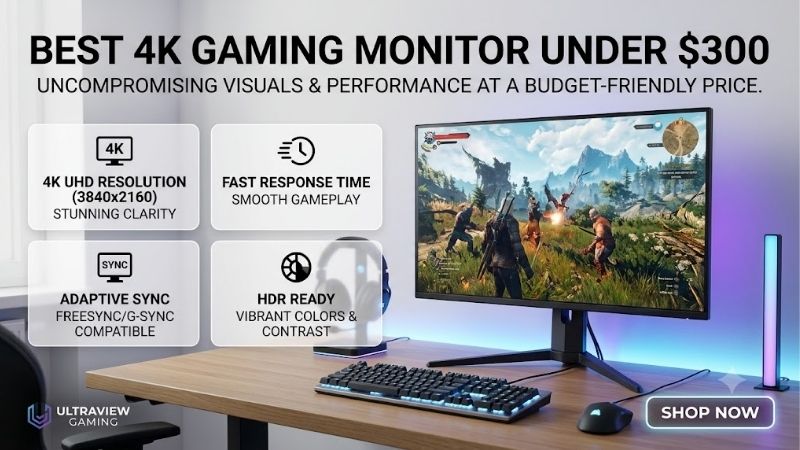
Quick answer: For most people in 2026, the best 4k gaming monitor under 300 is the MSI MAG 275UPD E14 — our #1 rated choice. See the full ranked comparison, alternatives and buying advice below.
Best 4K gaming monitor under 300: Quick verdict
Start with the MAG 275UPD E14 if you want high-refresh 4K without spending the entire allowance. Its verified monitor-only price was $249.99. That leaves room within the pretax budget for an accessory you actually need, although checkout costs still matter. MSI-US Official Store
Consider the MAG 272URDF E16 if you specifically want its 160Hz 4K mode or 320Hz Full HD mode. Its $299.99 offer barely qualifies, making it unsuitable for a strict $300 total that includes sales tax. MSI-US Official Store
Choose the S2725QS if your screen also handles documents, browsing, and everyday entertainment. At $279.99, it combines 4K at 120Hz with an adjustable stand and integrated audio. Dell USA
These recommendations reflect documented features and verified purchase prices. They are not a claim that one panel has beaten the others in matched response-time testing.
Only three products made this verified shortlist. Additional candidates lacked sufficiently clear current budget eligibility or introduced unresolved variant and pricing questions. A shorter list is more useful than six entries that depend on expired discounts.
Quick comparison table
| Monitor | Verified US price | Panel and resolution | Maximum listed refresh | Who should consider it | Main limitation |
|---|---|---|---|---|---|
| MSI MAG 275UPD E14 | $249.99 | 27-inch IPS, 3840 × 2160 | 144Hz UHD; 288Hz Full HD | Mixed single-player and competitive gaming | Modest documented SDR brightness |
| MSI MAG 272URDF E16 | $299.99 offer | 27-inch Rapid IPS, 3840 × 2160 | 160Hz UHD; 320Hz Full HD | Buyers who will use both display modes | Almost no budget margin before tax |
| Dell S2725QS | $279.99 | 27-inch IPS, 3840 × 2160 | 120Hz UHD | Work, entertainment, and gaming on one screen | Lower refresh ceiling; no USB-C docking |
Specifications come from MSI’s manuals and Dell’s technical documentation. download-2.msi.com
Prices describe the exact models and monitor-only configurations checked, rather than a promised future selling price. Confirm the final seller, condition, and total before ordering.
How these monitors were selected
Eligibility required native 3840 × 2160 resolution, a verified US price below $300, and documented gaming-relevant capabilities. The final choices all support refresh rates above 60Hz, avoiding the need to present basic office displays as equivalent gaming alternatives.
Manufacturer documentation supplied the defining specifications. Store pages established the observed prices. Where retailer titles conflicted with manuals, the article followed the manufacturer documentation or omitted the disputed feature.
No detailed research was performed for this roundup. There are no invented latency measurements, frame-rate results, or rankings based on user-review averages.
Selection also considered meaningful differences. The least expensive pick provides dual-mode flexibility; the higher-priced gaming option raises both refresh ceilings; the Dell emphasizes an everyday desktop feature set.
A monitor can qualify on specifications without being the right purchase for every reader. Your graphics hardware, preferred games, console requirements, and workspace determine which trade-offs matter.
MSI MAG 275UPD E14: The starting pick for budget gaming
The MAG 275UPD E14 combines a 27-inch IPS panel with 3840 × 2160 at 144Hz and a separate 1920 × 1080 mode at 288Hz. MSI’s official store showed $249.99 for the monitor alone. download-2.msi.com
Its appeal is flexibility. Use the UHD mode when image detail matters, then consider the Full HD mode for games where you prioritize a higher refresh ceiling.
The manual lists typical SDR brightness of 250 nits and describes HDR support as HDR Ready. Treat it as a budget gaming screen with HDR signal support, rather than assuming premium HDR performance. download-2.msi.com
Height, tilt, swivel, and pivot adjustment help position it without immediately buying a monitor arm. Those adjustments are practical benefits for a desk shared between gaming and work.
Buy if: You want a documented high-refresh 4K option with dual-mode operation while keeping some pretax budget available.
Skip if: You need a particularly bright display for a challenging room, USB-C laptop docking, or convincing evidence of high-end HDR quality.
The MAG 272URDF E16 is the relevant alternative when its additional refresh headroom justifies spending more.
Check the connection mode before ordering
MSI’s manual includes preset timings and notes Display Stream Compression support when obtaining preferred modes. Match the computer output and connection to those tables. download-2.msi.com
Display Stream Compression, or DSC, is a transport feature used to fit demanding signals through supported connections. It does not make a graphics card render games faster.
A cable with the correct connectors is only part of compatibility. The GPU, laptop output, dock, and monitor must collectively support the desired signal.
MSI MAG 272URDF E16: For higher dual-mode ceilings
The MAG 272URDF E16 provides a 27-inch Rapid IPS panel, 4K at 160Hz, and Full HD at 320Hz. Its official US store showed an in-stock $299.99 offer during verification. MSI Global
Manufacturer specifications list FreeSync Premium, two HDMI 2.1 inputs, DisplayPort 1.4a, and a USB hub using Type-B upstream and Type-A downstream connections. This is not USB-C charging.
MSI also documents 2160p at 120Hz and VRR support for PS5 and Xbox. That makes it a relevant console candidate alongside its PC-oriented display modes. MSI Global
The model carries DisplayHDR 400, but that certification alone does not establish premium local dimming or OLED-like contrast.
Buy if: You will use its higher refresh ceilings, need the documented console modes, and can accommodate tax beyond the advertised price.
Skip if: Your complete checkout budget is $300, your games rarely benefit from its additional headroom, or you want single-cable laptop power and video.
Choose the less expensive MAG 275UPD E14 when its supported modes already meet your needs.
Understand what the extra refresh buys
Moving from 144Hz to 160Hz increases the maximum number of refreshes per second by about 11%. The same percentage separates 288Hz and 320Hz.
Those are arithmetic comparisons of refresh ceilings, not measured improvements in motion quality or player performance.
At 144Hz, one refresh interval is approximately 6.94 milliseconds; at 160Hz, it is 6.25 milliseconds. Actual pixel transitions and input processing add other variables.
Spend for the feature set you need rather than assuming the larger number creates a dramatic improvement in every game.
Dell S2725QS: For a desk shared between work and gaming
The S2725QS is a 27-inch IPS monitor with 3840 × 2160 at 120Hz. Dell’s US product page showed $279.99 during the check.
Its documented features include FreeSync Premium, two HDMI inputs, DisplayPort, height adjustment, tilt, swivel, pivot, and dual 5W speakers. The HDMI specifications include UHD 120Hz and VRR support. Dell USA
The practical appeal is a straightforward desktop setup that also supports high-refresh gaming. Speakers can handle basic system audio, although their presence does not establish measured sound quality.
The limitation is the 120Hz ceiling. Buyers targeting higher PC refresh rates should compare the MSI options first.
Do not confuse S2725QS with S2725QC. The QC model’s USB-C functionality cannot be transferred to this model.
Buy if: You want one display for everyday productivity and gaming, and its documented connection modes suit your devices.
Skip if: Your priority is a dual-mode competitive refresh option or laptop charging through the monitor.
Choose according to your actual hours
Consider a week of normal use. If you work on the display throughout the day and play briefly at night, stand adjustment and convenient audio may matter frequently.
If most screen time involves competitive shooters, refresh options and measured motion behavior deserve more attention.
Neither use pattern requires buying an extra feature simply because it appears on another product. The right comparison starts with what your current setup makes difficult.
How to choose the best 4K gaming monitor under 300
Decide whether resolution or frame rate matters more
4K contains about 8.29 million pixels. A 2560 × 1440 image contains about 3.69 million, making the 4K pixel count 2.25 times larger.
That is a pixel-count comparison, not a universal GPU-performance ratio. Game engines, effects, CPU limits, and rendering settings influence the actual workload.
A 4K monitor can therefore be a strong purchase for detailed single-player games and desktop use, while a 1440p display may better match a system built around consistently high frame rates.
Before buying, look up benchmarks for your exact GPU in your actual games. Check the resolution, quality preset, ray tracing, and whether the results use upscaling or frame generation.
Do not assume that buying a 160Hz monitor means your computer will produce 160 frames per second. The display’s capability and the game’s output are separate limits.
Separate refresh rate from response time
Refresh rate describes how often a display updates. Pixel response time describes how quickly a pixel changes between specified states.
Input lag concerns delay before the display presents an input-related change. These measurements interact, but they are not interchangeable.
Manufacturer response-time claims may describe minimum transitions or special operating conditions. A 1ms MPRT label also uses a different basis from a gray-to-gray response figure.
For meaningful comparisons, seek testing across multiple transitions and refresh rates, including overshoot. Overshoot can produce visible bright or dark trails when aggressive overdrive pushes pixels beyond their intended level.
This roundup does not establish which shortlisted monitor has the best measured motion clarity. Use the documented features to narrow the choice, then inspect independent testing if motion quality is decisive.
Check variable refresh on your actual device
Variable refresh rate allows a compatible display to coordinate its refresh timing with the source’s changing frame output. Its usefulness depends on the supported operating range and connection.
A gaming logo does not prove every desired combination of resolution, refresh, HDR, and VRR works together.
For a PC, check the GPU driver and monitor documentation. For a console, check the exact supported video modes and the console’s reported output capabilities after connection.
A screen accepting 4K at 120Hz does not establish that every game runs internally at native 4K and 120 frames per second. Games can use dynamic resolution or other rendering techniques.
Treat the monitor as the receiving end of the system. It cannot remove performance limitations or frame-time problems created elsewhere.
Keep HDR expectations realistic
HDR compatibility means the display can accept or handle an HDR signal. It does not automatically establish bright highlights, effective local dimming, or strong contrast in complex scenes.
A certification provides defined criteria, but the badge should still be read alongside panel and backlight behavior.
At this budget, prioritize the features you can verify and use: resolution, supported refresh modes, VRR, and positioning. Consider HDR a separate performance question.
When a game looks less convincing in HDR, compare its SDR presentation before assuming your connection is defective. Picture settings, Windows configuration, and game implementation can affect the result.
Avoid paying for an impressive label without evidence that it improves the content you play.
Match the screen to your desk
All three shortlisted displays are 27-inch models. That size concentrates 4K pixels into a relatively compact surface, useful when you also read documents or edit text.
However, small interface elements may require display scaling. Start with the operating system’s recommended setting and adjust based on comfortable reading.
Measure the stand footprint as well as the screen width. Leave sufficient room for your keyboard, mouse movement, and normal seating position.
If using an arm, verify mounting compatibility, display weight, and the arm’s supported range. Include the accessory cost in your budget.
A good included stand can be worth more than a feature you rarely use. Comfortable placement also makes a monitor easier to assess fairly during the return period.
Account for the complete purchase
The phrase under $300 often describes a listed product price. It does not automatically include sales tax, expedited shipping, or accessories.
For illustration, $299.99 plus an assumed 8% sales tax becomes approximately $323.99 before any shipping. The example is arithmetic, not a statement about your local tax rate.
Check whether the price requires a coupon, membership, financing condition, or bundled purchase. Confirm that the selected item is new if that is your expectation.
Also check seller identity, return terms, and any shipping charge for returning a large display. An attractive offer can become less useful when correcting a compatibility mistake is expensive.
Budget eligibility should be checked again at checkout, especially for the model priced only one cent below the limit.
Setup and checks during the return period
Begin with a direct connection from the computer or console to the monitor. Add docks, switches, and adapters after the basic connection works correctly.
Select the display’s native resolution and confirm the refresh rate. A high-refresh monitor may initially run at a lower setting.
Enable the appropriate adaptive-sync settings, then test a game you know well. Watch for tearing, flicker, and motion artifacts while changing only one setting at a time.
Try more than one overdrive level. The most aggressive option is not automatically the clearest, particularly when frame rates vary.
Inspect text, flat colors, and ordinary game scenes for defects or distracting uniformity issues. Judge from your usual seating position and realistic room lighting.
Test sleep, wake, input switching, and any dual-mode transition you intend to use. Confirm that returning to 4K restores the desired desktop configuration.
For console use, examine the console’s video-information screen and launch a game with a supported performance mode. A successful desktop signal alone does not verify every console feature.
Keep the packaging until you have completed these checks and reviewed the seller’s return requirements.
Frequently asked questions
Is a 60Hz 4K monitor still suitable for gaming?
It can suit slower games or systems targeting around 60 frames per second. However, it has less refresh headroom for faster play. This shortlist prioritizes models above 60Hz because verified high-refresh options fit the stated pretax budget.
Does dual mode mean 4K at 288Hz or 320Hz?
No. The listed dual-mode screens trade resolution for a higher refresh ceiling. Their faster modes use 1920 × 1080. Read the paired resolution and refresh specification together rather than combining the highest numbers from separate modes.
Should you use 1080p mode for every game?
Use it when the higher refresh option serves the game and your system can deliver useful additional frames. For desktop text or visually detailed games, the native 4K mode may be preferable. Compare the actual presentation instead of choosing one mode permanently.
Can upscaling help a midrange GPU use a 4K monitor?
Supported games may render at a lower internal resolution and reconstruct an image for 4K output. Results depend on the game and quality setting. Distinguish those results from native 4K benchmarks, and evaluate image artifacts alongside performance.
Is the Dell automatically better for consoles because it stops at 120Hz?
No. A matching refresh ceiling does not establish better compatibility, latency, or motion quality. Compare documented console modes and the full signal path. Higher-refresh PC monitors can also support console-appropriate modes without using their maximum PC refresh rate.
Why are there only three products?
The list requires both verified technical eligibility and a current US price below $300. More names would not improve the answer if their prices, exact variants, or defining specifications remained uncertain. Recheck excluded candidates if their purchase conditions change.
Final verdict
Begin with the MSI MAG 275UPD E14 for a balanced budget gaming purchase. Consider the MAG 272URDF E16 when its higher dual-mode ceilings are useful enough to justify spending almost the full allowance. Choose the Dell S2725QS when your desk also serves everyday work and entertainment.
Before paying, match the supported modes to your source device and verify the checkout total. A monitor that fits your games, computer, and workspace is a better purchase than one selected solely for its largest advertised number.
Editorial Source Log
Access date: October 13, 2026. Prices are listed US monitor-only prices before tax, shipping, and accessories. No checkout transaction was performed.
| Exact model | Evidence checked | Source |
|---|---|---|
| MSI MAG 275UPD E14 | Official US store displayed $249.99 and In Stock; monitor-only configuration | MSI US store |
| MSI MAG 275UPD E14 | Manual V1.0: IPS, UHD 144Hz/FHD 288Hz, typical 250-nit SDR brightness, HDR Ready, stand adjustment, preset timings and DSC notes | MSI English manual |
| MSI MAG 272URDF E16 | Official US store displayed $299.99 offer and In Stock | MSI US store |
| MSI MAG 272URDF E16 | Rapid IPS, UHD 160Hz/FHD 320Hz, FreeSync Premium, DisplayHDR 400, ports, console modes and VRR support | MSI specifications |
| MSI MAG 272URDF E16 | Manual V1.0: supported timings, DSC-dependent operating modes, connections and adjustments | MSI English manual |
| Dell S2725QS | Official US page displayed $279.99; IPS UHD 120Hz, FreeSync Premium, HDMI UHD 120Hz/VRR, DisplayPort, adjustable stand and dual 5W speakers | Dell USA |
Editorial qualifications:
- Recommendations are feature-based judgments. No matched independent motion, latency, HDR, audio, or color testing was used.
- MAG 275UPD E14 retailer material contained inconsistent HDR and speaker claims. The article follows MSI’s manual for HDR classification and omits speaker claims for that model.
- KTC H27P6 and Dell S2725QC manufacturer pages displayed $329.99, so those offers did not qualify. MSI MAG 274UPF E2 pricing evidence was inconsistent and was excluded.
- Amazon US offers were not verified. No Amazon availability, ASIN, or Amazon price claim is made.
- Warranty details are omitted because retrieved pages contained conflicting summaries.
- Calculations: Pixel counts use resolution multiplication; refresh intervals use 1,000 ÷ Hz; the tax example assumes 8% for illustration.
- A limited website search surfaced a broader Build-PC-Guide article about gaming monitors under $300. This article narrows eligibility to native 4K high-refresh displays. A complete sitewide duplication audit was not performed.
Ready to decide? Our #1 pick for 2026 is the MSI MAG 275UPD E14.
Live price & availability on Amazon.









