
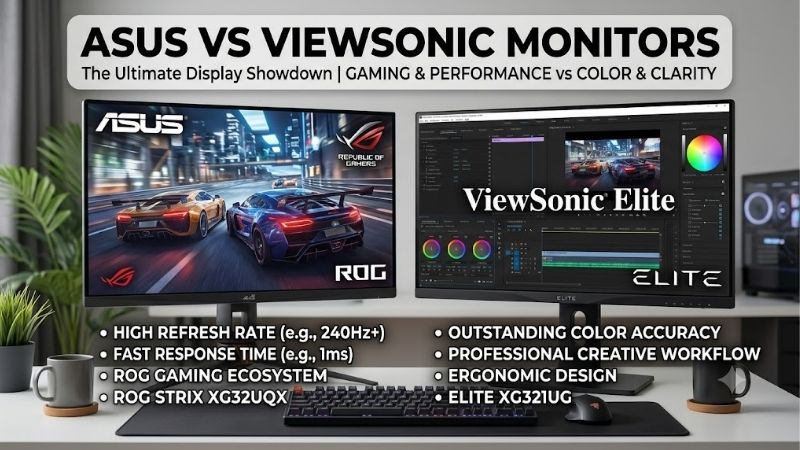
Choosing an asus vs viewsonic monitor comes down to the exact models, your workload, and the features you will actually use. Neither manufacturer wins every category. For a gaming desk, compare motion performance, supported refresh rates, and stand adjustment. For a creative workstation, compare color controls, connectivity, and calibration options. The examples below show where each brand makes sense without treating a single monitor’s strengths as a promise about its entire lineup.
- ASUS vs ViewSonic monitor: The quick verdict
- Compare equivalent monitors before comparing brands
- ASUS vs ViewSonic monitor for PC gaming
- Color accuracy and creative work
- ASUS vs ViewSonic monitor for a laptop workstation
- Ergonomics, image quality, and desk compatibility
- Price, warranty, and long-term value
- Frequently asked questions
- Final verdict
Quick answer: For most people in 2026, the best asus vs viewsonic monitor is the Everyday PC gaming — our #1 rated choice. See the full ranked comparison, alternatives and buying advice below.
ASUS vs ViewSonic monitor: The quick verdict
Choose ASUS when a particular model offers a useful feature that its ViewSonic alternative lacks, such as the laptop charging capability of the ProArt PA279CRV. Choose ViewSonic when its competing model better addresses your setup, such as the adjustable stand on the VX2728J-2K.
For the gaming pair examined here, ViewSonic is the more practical starting point if you need height adjustment without buying a monitor arm. ASUS is worth considering if the VG27AQ3A’s ELMB Sync feature matters to you and its fixed stand height suits your desk. These are feature-based recommendations, not measured rankings of motion clarity. Tech Specs|Monitors|ASUS USA
For creative work, the ASUS PA279CRV suits a laptop-centered desk where USB-C power delivery is important. The ViewSonic VP2785-4K deserves consideration when its documented hardware calibration support and KVM functionality fit your workflow. Tech Specs|Monitors|ASUS USA
This comparison uses manufacturer specifications and documentation. It does not include detailed research or matched independent measurements. Consequently, there is no defensible brandwide winner for input lag, reliability, uniformity, or overall image quality.
Compare equivalent monitors before comparing brands
A useful comparison starts with the same job, rather than the same logo. A high-refresh gaming display and a color-focused office monitor can both be excellent while serving very different buyers.
The following examples form two separate comparisons. The gaming models share a 27-inch, 1440p IPS format. The creative models share a 27-inch, 4K IPS format, but emphasize different workflow features.
| Comparison category | ASUS example | ViewSonic example | Main decision |
|---|---|---|---|
| Everyday PC gaming | TUF Gaming VG27AQ3A | VX2728J-2K | Gaming features versus included stand flexibility |
| Photo and design work | ProArt PA279CRV | VP2785-4K | Laptop charging versus calibration and switching workflow |
| Laptop workstation | PA279CRV | VP2785-4K | Verify power delivery and peripheral requirements |
| Mixed gaming and office use | VG27AQ3A | VX2728J-2K | Balance motion needs with desk comfort |
These examples establish useful buying criteria; they are not a complete survey of either manufacturer’s catalog. Other models may reverse the conclusions.
Avoid comparing a discounted premium display with an entry-level alternative and calling the result a brand advantage. Match screen size, resolution, panel technology, connectivity, and intended workload before deciding whether an extra feature justifies its cost.
The full model name matters. Similar names, additional letters, and regional variants can identify different resolutions, stands, or port limits. Confirm the SKU on the seller’s listing against the manufacturer’s documentation before purchasing.
ASUS vs ViewSonic monitor for PC gaming
The ASUS TUF Gaming VG27AQ3A and ViewSonic VX2728J-2K illustrate why a gaming comparison needs more detail than a headline refresh rate.
Both are 27-inch, 2560 × 1440 IPS monitors advertised with a maximum 180Hz refresh rate. ASUS lists 1ms gray-to-gray response time and ELMB Sync. ViewSonic advertises 0.5ms MPRT and an adjustable stand with height, swivel, tilt, and rotation.
Their connection limits deserve attention: ASUS lists up to 180Hz over DisplayPort and 144Hz over HDMI. ViewSonic’s documentation likewise reserves 165Hz and 180Hz timings for DisplayPort, while listing 144Hz over HDMI. Tech Specs|Monitors|ASUS USA
| Gaming specification | ASUS VG27AQ3A | ViewSonic VX2728J-2K |
|---|---|---|
| Screen and resolution | 27-inch, 2560 × 1440 | 27-inch, 2560 × 1440 |
| Panel | Fast IPS | IPS |
| Advertised maximum refresh | 180Hz | 180Hz |
| Connection for maximum refresh | DisplayPort | DisplayPort |
| HDMI refresh ceiling in documentation | 144Hz | 144Hz |
| Advertised response metric | 1ms GTG | 0.5ms MPRT |
| Stand adjustment | Tilt and swivel; no height adjustment | Tilt, swivel, rotation, and height adjustment |
| Distinguishing feature | ELMB Sync | More adjustable included stand |
Why response-time numbers do not establish a winner
Gray-to-gray response time describes a pixel transition between shades. Moving Picture Response Time describes perceived motion persistence using a different measurement approach. The two numbers should not be compared as though they came from the same test.
A 0.5ms MPRT claim does not prove that every pixel transition is twice as fast as a competitor’s 1ms GTG claim. Neither figure establishes input lag, which includes the delay between a signal arriving and its visible result.
For a stronger comparison, look for measurements covering multiple transitions, overshoot, and several refresh rates. Overshoot can create bright or dark trails when an aggressive overdrive setting pushes pixels beyond their intended values.
A monitor may behave well near its maximum refresh but show distracting artifacts when a demanding game runs much slower. Your usual frame-rate range therefore matters as much as the maximum number printed on the box.
Match refresh rate to your PC’s actual output
A 180Hz screen can refresh every approximately 5.56 milliseconds, calculated by dividing one second by 180. That describes refresh opportunity, not the monitor’s measured response time or your game’s total latency.
If your PC usually produces around 80 frames per second in the games you play, a high-refresh monitor still offers room for lighter titles and future upgrades. It does not make the computer render 180 frames per second.
Keep resolution and graphics settings in the decision. A higher-resolution display may require lower settings or a faster GPU to sustain your preferred performance. Competitive players may accept reduced visual detail, while players focused on cinematic games may prefer sharper imagery.
Between these two examples, the documented refresh ceiling does not separate the brands. Stand flexibility, feature preferences, verified motion testing, and the complete purchase cost should decide the outcome.
Check variable refresh and motion-reduction settings separately
Variable refresh rate lets the display’s refresh timing follow the GPU’s frame delivery within a supported operating range. This can reduce tearing and uneven presentation when frame rates fluctuate.
Motion-reduction features address a different problem. Some use backlight strobing to reduce perceived blur, which can involve brightness changes or visible artifacts. A feature’s presence does not guarantee that you will prefer its image.
ASUS documents ELMB Sync for the VG27AQ3A. Treat that as a reason to investigate its operating conditions, rather than proof of superior motion performance. Check the manual for supported modes and assess the result in your own games. Tech Specs|Monitors|ASUS USA
Enable variable refresh in the monitor and GPU settings when appropriate, then test motion-reduction options independently. Choose the combination that remains clear and comfortable at your typical frame rates.
Color accuracy and creative work
Creative users should separate resolution, color gamut, accuracy, and calibration. These describe different qualities and cannot substitute for one another.
Resolution determines how much image detail the screen can display. Gamut describes the range of reproducible colors. Accuracy concerns how closely displayed colors match their targets under specified conditions. Calibration adjusts the display or its color pipeline toward chosen targets.
The ProArt PA279CRV and VP2785-4K are both 27-inch, 3840 × 2160 IPS models with 60Hz refresh rates. They are better treated as workstation examples than as substitutes for the high-refresh gaming pair.
ASUS lists 99% Adobe RGB and 99% DCI-P3 coverage, a factory accuracy claim below Delta E 2, and USB-C power delivery up to 96W. ViewSonic’s US page lists 99% Adobe RGB and 96% DCI-P3 coverage, factory calibration below Delta E 2, an optional hardware calibration workflow, and a KVM switch. Tech Specs|Monitors|ASUS USA
| Creative-work criterion | ASUS PA279CRV | ViewSonic VP2785-4K |
|---|---|---|
| Screen format | 27-inch 4K IPS | 27-inch 4K IPS |
| Maximum refresh | 60Hz | 60Hz |
| Published Adobe RGB coverage | 99% | 99% |
| Published DCI-P3 coverage | 99% | 96% |
| Factory accuracy claim | Delta E below 2 | Delta E below 2 |
| Relevant workflow feature | USB-C charging up to 96W | Optional hardware calibration and KVM |
| Key purchase check | Laptop power requirements | Calibration accessory and software compatibility |
Wide gamut is useful only in the right workflow
A wide-gamut display can represent colors outside the range of a conventional sRGB workflow. That is useful when your files, applications, and output targets require those colors.
It can also make ordinary content look oversaturated when color handling is incorrect. More vivid reds do not automatically mean more accurate reds.
For web graphics, use a suitable sRGB workflow and inspect exported files in color-managed applications. For photography intended for print, align your editing setup with the printer, paper, and relevant profiles. For video, use the color space and transfer characteristics required by the project.
The advertised gamut percentages are manufacturer claims, not matched measurements of the particular units you receive. A small difference in published coverage should not outweigh poor workflow compatibility or an uncomfortable workstation.
Factory calibration and hardware calibration serve different roles
Factory calibration describes adjustments made before the monitor reaches the buyer. Its usefulness depends on the tested mode, targets, and conditions.
Hardware calibration typically adjusts the display’s internal color processing using supported software and measurement equipment. ViewSonic explicitly documents an optional hardware calibration path for the VP2785-4K. viewsonic.com
Before choosing it for that feature, verify compatible calibration devices, software support, operating-system requirements, and accessory availability. Do not assume every colorimeter works simply because the monitor supports calibration.
For paid color work, establish consistent lighting, brightness targets, and periodic checks. A factory report is helpful evidence, but it cannot account for every future working condition. Neither brand name eliminates the need to manage the complete workflow.
ASUS vs ViewSonic monitor for a laptop workstation
Laptop users should begin with the connection between the computer and display. A monitor can have an excellent panel yet create a frustrating workstation if it needs extra adapters or cannot provide adequate power.
The PA279CRV’s published USB-C charging capability is a concrete reason to shortlist it. The VP2785-4K’s documented peripheral switching capability addresses a different task: sharing input devices between computers.
Which feature matters more depends on what you connect each day. A single-laptop desk and a desktop-plus-laptop desk should not automatically receive the same recommendation.
USB-C does not guarantee a complete docking solution
USB-C identifies a connector shape. A particular port still needs the appropriate capabilities for video output, data, and charging.
Confirm that the laptop supports the monitor’s required video mode through that port. Also verify the cable’s video and power capabilities; a charging cable is not necessarily suitable for the entire workstation connection.
Compare the monitor’s power delivery with the laptop manufacturer’s requirements. A laptop can need more power under sustained workloads than during light browsing. Even a relatively capable monitor charger may not replace the original adapter for every machine.
Check whether you also need Ethernet, additional USB ports, or a separate dock. Count the adapters and cables required for your actual setup before calling a monitor a complete docking replacement.
A KVM is valuable when two computers share peripherals
A KVM switch allows supported keyboard, video, and mouse connections to be shared or switched between systems. It can simplify a desk with a personal desktop and a work laptop.
The benefit depends on how the monitor routes its video inputs and USB upstream connections. Some setups require separate cables and menu choices.
Before purchasing, map each computer’s video and USB connection, then verify the switching procedure in the manual. Consider whether frequently used peripherals need special software or uninterrupted connections.
If you use only one computer, a KVM may add little value. Spend on the panel, stand, or connectivity that solves a real daily problem instead.
Ergonomics, image quality, and desk compatibility
Stand adjustment deserves more weight than its position near the bottom of a specification sheet suggests. A monitor that sits too low or cannot align with a second display may require additional hardware immediately.
With the gaming examples, the included stand is a clear practical distinction. The ViewSonic offers height adjustment; the ASUS does not. That favors ViewSonic for buyers who want flexible placement straight out of the box, assuming other requirements are met.
If you already own a compatible monitor arm, the difference becomes less important. Verify the mounting pattern, the monitor’s weight without its stand, the arm’s supported range, and your desk’s clamp clearance.
Consider depth as well as screen size. A large stand can reduce keyboard space, while a shallow desk may place the screen uncomfortably close. Measure the usable surface rather than relying on a photograph.
Picture quality also depends on lighting and content. Panel type provides context, but it does not guarantee uniformity, glare handling, or contrast performance for an individual model.
HDR deserves particular care. HDR10 support means a monitor can accept relevant HDR content; it does not establish the quality of bright highlights, dark scenes, or local dimming. Assess those characteristics separately before paying extra for HDR.
For text-heavy work, inspect scaling and readability at your preferred resolution. A 4K screen can display finer detail, but comfortable text size may require scaling. More pixels do not automatically create more usable workspace for every reader.
Price, warranty, and long-term value
There is no verified current US price comparison here, so neither brand receives a cheapest or best-value award. Evaluate offers for the same condition, seller category, and complete model number.
Calculate the delivered total in USD, including applicable tax, shipping, and necessary accessories. An inexpensive display can become the costlier purchase after adding an arm, adapter, or dock.
Use this buying rule: pay extra only when you can identify the task that the extra feature improves. Height adjustment, adequate charging, and a useful switching workflow are concrete benefits. A larger collection of unused menu features is harder to justify.
Warranty and return terms must be checked separately. Confirm applicable US coverage for the exact model, seller eligibility, dead-pixel policy, shipping responsibility, and treatment of refurbished units. A general brand reputation cannot answer those questions.
The retailer’s return window matters because some concerns become clear only after installation. Check screen uniformity, normal viewing comfort, required inputs, and your preferred settings while a return remains possible.
Do not infer long-term reliability from a few forum posts. Owner reports can identify problems worth investigating, but scattered anecdotes do not establish comparative failure rates.
Frequently asked questions
Is ASUS always better for gaming?
No. A gaming monitor must be evaluated against a comparable model. Refresh support, motion behavior, adaptive sync, connectivity, and stand adjustment matter more than the manufacturer’s name. The examples here do not establish a measured gaming-performance winner.
Is ViewSonic better for photography?
There is no universal winner. Photography requires suitable gamut coverage, accuracy, consistent viewing conditions, and a compatible calibration workflow. ViewSonic’s documented calibration features may be valuable, but they do not prove every ViewSonic display is better than every ASUS alternative.
Can either brand work with an NVIDIA or AMD GPU?
Yes, provided the specific monitor, connection, and graphics hardware support the required display mode. Check variable-refresh compatibility separately from basic image output. A working HDMI connection does not automatically guarantee every adaptive-sync feature.
Should I choose 1440p or 4K?
Choose according to workload and performance targets. A 1440p display reduces the pixel workload compared with 4K and can suit high-refresh gaming. A 4K display offers finer detail for work, but scaling and GPU capability still affect the experience.
Can a monitor improve frame rates?
A higher refresh ceiling does not make the GPU render faster. It allows more frequent display updates when the system delivers them. Changing resolution or settings can affect rendering performance, but that is separate from choosing a higher-refresh panel.
Final verdict
Choose the model that solves your most important limitation. For the gaming examples, prioritize ViewSonic when included stand flexibility matters, and investigate ASUS when its motion-related features fit your preferences. For creative work, weigh ASUS’s laptop charging against ViewSonic’s documented calibration and switching options.
Before ordering, verify the complete SKU, required connection modes, total delivered cost, and return terms. If your current display already meets your needs, keeping it is a valid decision. Neither logo provides a reason to upgrade by itself.
Editorial Source Log
Access date for all records: October 13, 2026.
| Source | Exact variant and evidence |
|---|---|
| ASUS US specifications | VG27AQ3A: resolution, panel, maximum refresh, GTG claim, ELMB Sync, connection limits, and stand adjustment. |
| ViewSonic US product page | VX2728J-2K: panel, MPRT claim, maximum refresh, and adjustable stand. |
| ViewSonic specifications documentation | VX2728J-2K: DisplayPort-only high-refresh timings and HDMI ceiling. Documentation recommends 165Hz over DisplayPort while also listing support for 180Hz; the article identifies 180Hz as the advertised maximum. |
| ASUS US specifications | PA279CRV: 4K IPS, 60Hz, published gamut and accuracy claims, USB-C video input, and 96W power delivery. |
| ViewSonic US product page | VP2785-4K: 4K IPS, 60Hz, published gamut and accuracy claims, optional hardware calibration, and KVM functionality. |
Editorial limitations: Recommendations are inferences from documented features. No matched performance benchmarks, Amazon US listings, current transaction prices, or comparative reliability data were verified. Regional VP2785-4K gamut claims differ; the article uses the US page. The targeted website search did not establish a complete duplication audit. Calibration accessory compatibility and applicable warranty terms require purchase-specific verification.
Ready to decide? Our #1 pick for 2026 is the Everyday PC gaming.
Live price & availability on Amazon.









