Choosing a gaming monitor involves more than looking for the highest refresh rate or the lowest advertised response time. Resolution, panel technology, adaptive sync, brightness, contrast, connectivity, and ergonomics all influence the actual experience. Understanding what specs make a good gaming monitor helps you avoid paying for features your PC cannot use while identifying the upgrades that genuinely improve gameplay. These seven monitors demonstrate what different combinations of specifications can achieve, from affordable 1080p gaming to premium 4K OLED and ultrawide setups.
- What specs make a good gaming monitor? Quick verdict
- Quick comparison: seven monitors with worthwhile gaming specifications
- How we selected the gaming monitors
- Best gaming monitors by specification category
- Which specs make a good gaming monitor? The essential buying guide
- How to match gaming monitor specifications to your PC
- Frequently asked questions
- Final verdict: choose balanced specifications over impressive numbers
What specs make a good gaming monitor? Quick verdict
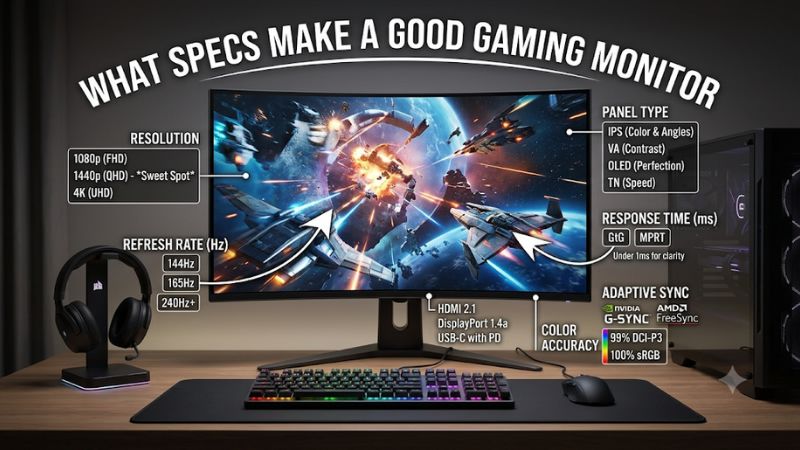
A good gaming monitor should have a resolution appropriate for its screen size, a refresh rate that matches your gaming hardware, consistently fast pixel transitions, and variable refresh rate (VRR) support. For most PC gamers, a 27-inch 1440p display with a 144Hz–180Hz refresh rate is an excellent starting point.
You do not necessarily need a 500Hz monitor, 4K resolution, or OLED technology to enjoy smooth gameplay. Those features become worthwhile when your graphics card, preferred games, budget, and viewing environment justify them.
Here are the specifications worth prioritizing:
| Specification | Recommended starting point | Why it matters |
|---|---|---|
| Resolution | 1080p or 1440p | Determines image detail |
| Refresh rate | 144Hz–180Hz | Makes motion smoother |
| Response time | Good 1ms-class GtG LCD performance | Reduces visible ghosting |
| VRR | FreeSync or G-SYNC Compatible | Reduces tearing and stuttering |
| Panel type | Fast IPS, VA, or OLED | Influences contrast and motion |
| Brightness | Around 300 nits for ordinary SDR use | Helps with room lighting |
| HDR | DisplayHDR 600 or better as a starting consideration | Provides more meaningful HDR potential |
| Connectivity | DisplayPort and appropriate HDMI bandwidth | Supports your desired resolution and refresh |
| Ergonomics | Height and tilt adjustment | Improves positioning |
These are practical buying targets rather than universal minimum requirements. A competitive 1080p monitor has different priorities from a 32-inch 4K display designed for cinematic games.
Intel’s gaming-monitor guidance identifies resolution, color, refresh rate, response time, and panel technology as fundamental considerations. Dell’s October 2026 buying guide additionally emphasizes adaptive sync and the differences between modern panel technologies.
Quick comparison: seven monitors with worthwhile gaming specifications
The following products represent different combinations of specifications rather than seven interchangeable displays. Each recommendation addresses a different type of gaming setup.
| Monitor | Resolution | Refresh rate | Panel | Best for |
|---|---|---|---|---|
| Dell SE2426HGS | 1080p | 240Hz | IPS | Budget competitive gaming |
| AOC Q27G3XMN | 1440p | Up to 180Hz | VA Mini LED | Value HDR gaming |
| Dell Alienware AW2726DM | 1440p | 240Hz | QD-OLED | Balanced OLED gaming |
| Acer Nitro XV275K P5biipruzx | 4K | 160Hz / 320Hz dual mode | IPS Mini LED | Versatile high-resolution gaming |
| LG UltraGear 27GX790B-B | 1440p | 540Hz / 720Hz dual mode | Tandem OLED | Competitive gaming |
| ASUS ROG Swift OLED PG32UCDM Gen3 | 4K | 240Hz | Tandem QD-OLED | Premium all-around gaming |
| ASUS ROG Swift OLED PG34WCDN | 3440 x 1440 | 360Hz | Tandem QD-OLED | Ultrawide gaming |
Refresh-rate figures distinguish native modes from dual-mode operation. Prices are not used as fixed ranking criteria because no spending limit was supplied and retailer prices change frequently.
How we selected the gaming monitors
The recommendations are based on exact manufacturer models, technical specifications, and independent testing.
We prioritized products with clearly documented native resolutions, refresh rates, panel technologies, and connectivity. We also considered whether their additional features provide meaningful benefits beyond the headline specifications.
For example, a monitor with a 1ms response-time label might still exhibit visible ghosting at particular refresh rates. Similarly, a display advertised as HDR-compatible might lack the contrast and brightness needed for convincing HDR gaming.
Independent testing from RTINGS provides useful evidence about response consistency, input lag, HDR picture quality, variable refresh rate behavior, and other real-world characteristics. Manufacturer documentation was used for exact product specifications.
This is a research-based buying guide, not a claim that all seven monitors were tested together by Build-PC-Guide. Where independent testing identifies a weakness, it is included rather than overlooked in favor of marketing specifications.
Best gaming monitors by specification category
Dell SE2426HGS: best budget competitive gaming specifications
The Dell SE2426HGS is a good example of why a gaming monitor does not need an expensive feature list to deliver useful performance.
It uses a 24-inch IPS panel with Full HD resolution and a 240Hz maximum refresh rate. This combination is particularly suitable for competitive games where high frame rates and a compact screen are more important than 4K image detail.
Dell specifies FreeSync Premium Pro support, while its adjustable stand provides height and tilt positioning. Independent testing by RTINGS found low input lag and consistently fast response behavior across its refresh-rate range.
The display also supports common VRR formats, helping reduce tearing when the GPU’s frame rate changes. However, RTINGS identified inverse ghosting at lower refresh rates, limited contrast, and weak HDR performance.
Its 1080p resolution is a deliberate compromise. At approximately 24 inches, Full HD remains a practical resolution for competitive gaming, but players who prioritize detailed environments or multitasking may prefer QHD.
The absence of a USB hub and swivel adjustment also makes it relatively basic outside gaming.
Buy if: You want a straightforward 240Hz monitor for esports and have a graphics card capable of producing high frame rates.
Skip if: You need QHD resolution, strong HDR, or a larger screen for immersive games.
AOC Q27G3XMN: best value-oriented HDR specifications
The AOC Q27G3XMN is a particularly interesting example of a budget-oriented monitor with specifications that go beyond basic gaming performance.
It combines a 27-inch VA panel, QHD resolution, and a maximum refresh rate of 180Hz. More importantly, it uses Mini LED backlighting with 336 local dimming zones.
That backlighting helps improve HDR contrast by controlling different areas of the display independently. AOC also specifies DisplayHDR 1000 certification and a typical 1ms GtG response time.
The VA panel offers a specified native contrast ratio of 4,000:1, which helps produce deeper blacks than conventional IPS monitors.
RTINGS independently researched the Q27G3XMN and found fast response performance across its VRR range, low input lag, and effective Mini LED local dimming. However, the review also identifies some black smearing and distracting VRR flicker when frame rates fluctuate.
There is an important connectivity limitation. The monitor has DisplayPort 1.4 and HDMI 2.0 inputs rather than HDMI 2.1 bandwidth. For PC gaming, DisplayPort is the better choice when targeting its highest refresh rate.
The original Q27G3XMN should also not be confused with the newer Q27G40XMN, which is a different North American retail model with different backlighting and stand characteristics.
Buy if: You want QHD gaming, high native contrast, and stronger HDR potential without purchasing an OLED display.
Skip if: You need HDMI 2.1 bandwidth or are especially sensitive to VA dark smearing and VRR flicker.
Dell Alienware AW2726DM: best balanced QHD OLED specifications
Viewable size: 26.5 inches | Resolution: 2560 x 1440 | Refresh rate: 240Hz
The Dell Alienware AW2726DM illustrates how OLED technology can improve several important gaming specifications simultaneously.
Its 26.5-inch QD-OLED panel offers QHD resolution, a 240Hz refresh rate, and a manufacturer-rated 0.03ms GtG response time.
OLED pixels produce their own light, allowing them to transition extremely quickly without the liquid-crystal movement required by conventional LCD panels. This helps maintain sharp motion during fast camera movements and competitive gameplay.
The display also provides deep blacks, strong contrast, and vivid colors. Dell specifies AMD FreeSync Premium and VESA AdaptiveSync support, with an adjustable stand offering height, swivel, pivot, and tilt.
There is an interface limitation worth checking. Dell specifies DisplayPort 1.4 for QHD at 240Hz, while its two HDMI 2.1 TMDS inputs support QHD at up to 120Hz. Buyers targeting 240Hz should use DisplayPort.
RTINGS found near-instantaneous response behavior and low input lag, but also noted limited brightness and raised-looking blacks in bright environments.
Like other OLED products, it requires some consideration of burn-in risk when displaying static desktop elements for extended periods.
Buy if: You want QHD resolution, 240Hz gaming, OLED contrast, and extremely fast pixel transitions.
Skip if: You need stronger daytime brightness or mainly use your monitor for static office applications.
Acer Nitro XV275K P5biipruzx: best versatile 4K Mini LED specifications
Screen size: 27 inches | Native resolution: 3840 x 2160 | Native refresh: 160Hz
The Acer Nitro XV275K P5biipruzx is a compelling example of a monitor that combines image detail, high refresh rates, and additional productivity features.
Its 27-inch IPS panel has native 4K resolution and a 160Hz refresh rate. Acer also includes a dual-mode feature that switches the display to 1080p at up to 320Hz.
This means you can prioritize detailed graphics in demanding single-player games or choose a faster refresh mode for competitive titles.
The Mini LED backlight contains 1,152 local dimming zones. Acer also includes two HDMI 2.1 inputs, DisplayPort 1.4, USB-C with DisplayPort Alt Mode, and an ergonomic stand.
RTINGS independently researched the exact P5biipruzx variant. Its review found low input lag and consistently fast response behavior, although there is some inverse ghosting in fast-moving content. It also identified HDR haloing, black crush, and limitations with local dimming in SDR mode.
RTINGS.com+1
The 4K resolution is excellent for detailed images and sharp text, but it places additional demands on your GPU. The 320Hz mode also reduces resolution from 4K to 1080p, so it should not be treated as native 4K at 320Hz.
Buy if: You want 4K detail, dual-mode refresh flexibility, HDMI 2.1, and Mini LED HDR gaming.
Skip if: You mainly want OLED-level contrast or your graphics card struggles with 4K gaming.
LG UltraGear 27GX790B-B: best extreme-refresh gaming specifications
Viewable size: 26.5 inches | Resolution: 2560 x 1440 | Refresh rate: 540Hz
The LG UltraGear 27GX790B-B is designed for players who prioritize motion clarity and exceptionally high refresh rates.
Its 26.5-inch Tandem WOLED panel supports native QHD resolution at 540Hz. LG also provides a dual-mode option that increases refresh rate to 720Hz when the resolution is reduced to 1280 x 720.
The manufacturer advertises a 0.02ms GtG response time, VESA ClearMR 21000 certification, DisplayHDR True Black 500, and compatibility with G-SYNC and AMD FreeSync Premium Pro.
DisplayPort 2.1 is another important feature because it offers substantially higher available bandwidth than older DisplayPort implementations, depending on the source and link configuration.
RTINGS independently evaluated the 27GX790B-B and found near-instantaneous response, sharp motion, and low input lag in appropriate gaming modes. Its disadvantages include VRR flicker with changing frame rates and some HDR accuracy limitations.
The monitor is difficult to justify for ordinary gaming. A graphics card must generate very high frame rates to take advantage of 540Hz, and 720Hz operation requires a lower image resolution.
Buy if: You play competitive games, have high-end PC hardware, and genuinely benefit from extreme refresh rates.
Skip if: You primarily play single-player games or prefer to spend more on resolution and picture quality.
ASUS ROG Swift OLED PG32UCDM Gen3: best premium all-around gaming specifications
Viewable size: 31.5 inches | Resolution: 3840 x 2160 | Refresh rate: 240Hz
The ASUS ROG Swift OLED PG32UCDM Gen3 brings together several high-end specifications in one display.
Its 31.5-inch Tandem QD-OLED panel has a native 3840 x 2160 resolution and a 240Hz refresh rate. ASUS specifies a peak HDR brightness of 1,000 cd/m², Dolby Vision support, adaptive sync, and Extreme Low Motion Blur functionality.
The combination is especially attractive for visually demanding PC games. The 4K resolution provides detailed environments, while OLED technology produces deep blacks and rapid pixel transitions.
Connectivity includes DisplayPort 2.1, two HDMI 2.1 inputs, USB-C with DisplayPort Alt Mode, and 90W USB-C Power Delivery. ASUS also includes a USB hub and Neo Proximity Sensor.
RTINGS independently researched the Gen3 version and found sharp motion at its maximum refresh rate, low input lag for most tested modes, and impressive HDR image quality. However, the review identifies higher input lag at 120Hz than at 60Hz and elevated-looking blacks in bright rooms.
240Hz BlackShield™ film+1
This monitor also requires serious graphics hardware if you intend to approach 240 FPS in demanding games at native 4K resolution.
ASUS lists a US store price of $1,299, making it a premium choice rather than a practical recommendation for every gaming budget.
240Hz BlackShield™ film
Buy if: You want premium 4K image quality, OLED contrast, and 240Hz performance in one monitor.
Skip if: Your PC is better suited to 1440p or you do not need premium OLED features.
ASUS ROG Swift OLED PG34WCDN: best ultrawide gaming specifications
Screen size: 34 inches | Resolution: 3440 x 1440 | Refresh rate: 360Hz
The ASUS ROG Swift OLED PG34WCDN is designed for players who want a wider gaming experience instead of a conventional 16:9 display.
Its 34-inch curved Tandem RGB QD-OLED panel uses a 21:9 aspect ratio, 3440 x 1440 resolution, and a 360Hz refresh rate.
The RGB Stripe subpixel layout is designed to improve text clarity compared with earlier QD-OLED subpixel arrangements. ASUS also specifies a 0.03ms GtG response time, a 1800R curve, DisplayHDR True Black 500, and a peak HDR brightness specification of 1,300 cd/m².
Connectivity includes DisplayPort 2.1, two HDMI inputs, USB-A, and USB-C with 90W Power Delivery.
RTINGS found sharp motion, low input lag, deep blacks in dark rooms, and minimal VRR flicker. Its main picture-quality limitation is that blacks can still appear gray in well-lit environments.
ROG USA+2
This is a premium monitor designed for immersive gaming, multitasking, and users who appreciate ultrawide screen space. However, many console games do not output native 21:9 images, so the additional horizontal space is primarily useful for compatible PC games.
ASUS also specifies a three-year warranty that includes panel burn-in for this model, subject to its warranty conditions.
world’s 1st 360Hz RGB OLED Monitor
Buy if: You want an immersive ultrawide experience with OLED contrast and high refresh rates.
Skip if: Your game library is primarily console-based or you prefer conventional 16:9 compatibility.
Which specs make a good gaming monitor? The essential buying guide
Understanding individual specifications is more useful than comparing product titles. Two monitors can have similar refresh rates and resolutions but deliver very different gaming experiences because of panel response, contrast, adaptive sync, and connectivity.
Resolution and screen size
Resolution determines how many pixels a monitor can display. Higher resolution generally produces sharper images, but it also increases the amount of work your graphics card must perform.
The three most practical combinations are:
| Screen size | Recommended resolution | Best application |
|---|---|---|
| 24–25 inches | 1920 x 1080 | Competitive gaming |
| 27 inches | 2560 x 1440 | General PC gaming |
| 32 inches | 3840 x 2160 | Detailed, immersive gaming |
A 27-inch QHD display is a particularly sensible middle ground. It provides noticeably more detail than 1080p without requiring the same graphics performance as 4K.
Pixel density is another important consideration. It describes how many pixels fit into each inch of the display. A 27-inch 1080p monitor has approximately 82 pixels per inch, while a 27-inch QHD monitor has approximately 109.
Higher pixel density generally produces sharper text and finer image details at the same viewing distance.
However, do not choose 4K simply because it is the highest resolution. A 4K monitor paired with a graphics card that cannot maintain acceptable frame rates may provide a worse overall gaming experience than a well-balanced QHD display.
Refresh rate: how many hertz should you choose?
Refresh rate measures how many times a monitor can update its image each second. It is expressed in hertz, abbreviated as Hz.
A 60Hz monitor refreshes 60 times per second, while a 144Hz monitor supports 144 refreshes per second.
Higher refresh rates can make fast camera movements and moving objects appear smoother. They are especially useful in competitive shooters, racing games, and other titles with frequent camera movement.
These are reasonable purchasing targets:
-
75Hz–100Hz: Basic gaming and inexpensive displays.
-
144Hz–180Hz: Excellent mainstream gaming.
-
240Hz: Competitive gaming with capable hardware.
-
360Hz: High-end competitive gaming.
-
480Hz–540Hz: Enthusiast esports systems.
-
720Hz and above: Specialized configurations with significant resolution or hardware compromises.
The refresh rate must also match your computer’s capabilities. A 240Hz display cannot show 240 unique frames every second if your GPU only produces 90 FPS.
Dell’s gaming-monitor guide identifies refresh rate as a core specification and discusses the growing range of 144Hz, 240Hz, 320Hz, and 500Hz-plus displays. Intel also explains why the CPU and graphics card must be capable of producing enough frames to benefit from a high-refresh monitor.
Response time and input lag are different specifications
Response time describes how quickly a pixel changes from one color to another. Slower transitions can create ghosting, smearing, and visible trails behind moving objects.
For conventional LCD displays, look for good independently measured 1ms-class GtG performance rather than relying exclusively on the manufacturer’s fastest advertised result.
OLED monitors commonly advertise figures around 0.02–0.03ms because their pixels transition extremely quickly.
Input lag measures a different process: the delay between the monitor receiving an image signal and displaying the corresponding change. A fast response time does not automatically guarantee low input lag.
For a competitive gaming monitor, both characteristics matter. A display with excellent pixel transitions but substantial processing delay is not necessarily responsive.
Also understand the difference between GtG and MPRT. GtG measures pixel transitions, while MPRT concerns how long an image remains visible during motion. Some monitors use backlight strobing to improve perceived motion clarity, but this can reduce brightness or introduce flicker.
Overdrive settings deserve attention as well. Overdrive accelerates LCD pixel transitions, but excessive settings can produce inverse ghosting, which appears as bright or dark trails.
Intel recommends considering independent response-time testing because manufacturers sometimes advertise their best-case transition rather than typical results across all pixel changes.
Variable refresh rate: FreeSync and G-SYNC
Variable refresh rate synchronizes the monitor’s refresh timing with the frame output of the graphics card.
Without VRR, a mismatch between the GPU’s frame rate and the monitor’s refresh cycle can produce screen tearing. This appears as a horizontal break in the image, particularly during fast camera movements.
VRR helps reduce tearing and uneven frame delivery by allowing the display to adjust its refresh rate dynamically.
The main technologies include AMD FreeSync, NVIDIA G-SYNC, and VESA AdaptiveSync.
They perform related functions, but their certification and implementation differ. A monitor advertised as FreeSync-compatible is not automatically guaranteed to deliver identical results on every NVIDIA or AMD graphics card.
Check the following before purchasing:
-
Whether your GPU supports the monitor’s advertised sync technology.
-
Whether VRR works through your preferred HDMI or DisplayPort connection.
-
The monitor’s supported variable-refresh range.
-
Whether low-frame-rate compensation is supported.
-
Whether independent reviews identify flickering or other VRR problems.
For most buyers, a properly implemented VRR monitor is more useful than paying extra for an extremely high refresh rate without adaptive-sync support.
Dell’s October 2026 guide explains that adaptive sync helps align display refresh with GPU output, reducing tearing and stuttering.
Panel technology: IPS, VA, OLED, and Mini LED
Panel technology determines many aspects of image quality.
IPS monitors are versatile because they generally provide consistent viewing angles and balanced colors. They are particularly suitable for mixed gaming, work, and general desktop use.
VA panels offer higher native contrast than conventional IPS displays. This makes them appealing for darker gaming environments, although certain VA models exhibit dark smearing during fast motion.
OLED panels provide self-emissive pixels, meaning individual pixels can switch on and off without a conventional backlight. They deliver excellent black levels, very high contrast, and extremely fast pixel transitions.
Their main considerations include higher purchase prices, potential burn-in, and differences in brightness depending on the screen area being illuminated.
Mini LED is different because it describes a backlighting system rather than a replacement for IPS or VA panel technology. It uses many small LEDs grouped into independently controlled dimming zones.
This improves HDR contrast and brightness compared with conventional edge-lit LCD monitors. However, local dimming may produce halos around bright objects against dark backgrounds.
| Technology | Main strength | Main weakness |
|---|---|---|
| IPS | Viewing angles and balanced colors | Limited native contrast |
| VA | Strong native contrast | Possible dark smearing |
| OLED | Deep blacks and fast response | Burn-in considerations |
| Mini LED | Strong HDR brightness and local dimming | Potential blooming and haloing |
There is no universally superior technology. A fast IPS display may be the better purchase for a competitive gamer, while an OLED monitor is more appealing to someone who values contrast and image quality.
Brightness, contrast, and HDR
Brightness is measured in nits, or cd/m². It determines how much light the display can produce.
For ordinary SDR gaming in a moderately lit room, approximately 250–350 nits is a reasonable range to investigate. A brighter screen can be useful when gaming near windows or in rooms with strong ambient lighting.
Contrast ratio describes the relationship between the brightest white and darkest black a display can reproduce.
This is important for games containing nighttime environments, shadows, and atmospheric lighting. VA and OLED displays generally have an advantage over conventional IPS displays in native black-level performance.
HDR adds another layer to this decision.
Do not automatically choose a monitor because its packaging says HDR10 or HDR Ready. Those labels alone do not prove that the display can produce convincing HDR images.
Look for meaningful characteristics such as:
-
Peak brightness and sustained brightness.
-
Local dimming or self-emissive OLED pixels.
-
Contrast performance.
-
Wide color gamut.
-
A relevant VESA DisplayHDR certification.
-
Independent HDR picture-quality measurements.
For example, a basic HDR-compatible IPS display without local dimming may provide a less convincing HDR experience than a properly implemented Mini LED or OLED monitor.
This is why the AOC Q27G3XMN and Acer XV275K P5 deserve consideration for their Mini LED backlighting rather than merely their HDR labels.
Connectivity, ergonomics, and additional features
A monitor’s ports determine which resolution and refresh-rate combinations are available from your computer or console.
DisplayPort 1.4 is sufficient for many QHD and 4K gaming configurations, particularly when Display Stream Compression is supported. HDMI 2.1 is useful for modern consoles and compatible graphics cards, while DisplayPort 2.1 provides higher available bandwidth in supported configurations.
USB-C is another useful feature when the monitor doubles as a laptop display. Some models support DisplayPort Alt Mode and Power Delivery, allowing one cable to carry video and provide power.
However, always check the exact bandwidth and power output. A USB-C connection rated for 90W is not equivalent to one that only provides 5W.
Ergonomics also matter more than many buyers expect. Look for height adjustment, tilt, swivel, and VESA mounting support. These features make it easier to position the monitor comfortably.
Other useful extras include a USB hub, KVM switch, headphone output, and integrated speakers. They are convenient but should not take priority over fundamental display quality.
How to match gaming monitor specifications to your PC
Buying the most expensive monitor available is not necessarily the smartest upgrade. Your GPU, CPU, game library, and preferred resolution should determine which specifications deserve the most attention.
| PC gaming setup | Recommended monitor | Main priority |
|---|---|---|
| Entry-level gaming PC | 1080p, 144Hz–180Hz | Affordable performance |
| Midrange gaming PC | 1440p, 144Hz–180Hz | Image quality and FPS balance |
| High-performance gaming PC | 1440p, 240Hz–360Hz | Competitive performance |
| High-end gaming PC | 4K, 144Hz–240Hz | Detailed graphics |
| Premium enthusiast PC | 4K OLED or ultrawide OLED | Image quality and immersion |
These are general buying recommendations, not guaranteed performance targets.
Avoid paying for refresh rates your GPU cannot use
A 360Hz monitor may look impressive, but its advantages become limited when your graphics card cannot produce sufficiently high frame rates.
For example, a PC generating 90 FPS in a demanding game cannot provide 360 unique frames per second to the monitor.
That does not make a 360Hz display unusable. It simply means you are paying for additional capabilities that your current hardware may not exploit.
Consider whether a 144Hz or 180Hz display would provide a better balance and leave more money available for a GPU upgrade.
Check the exact port specifications
Never assume that every connection supports the monitor’s maximum resolution and refresh rate.
Some displays offer their highest refresh rate exclusively through DisplayPort. Others use HDMI 2.1 for console compatibility but have different bandwidth limitations depending on the input.
You should also check whether Display Stream Compression is required for the highest advertised mode.
A suitable cable is important, but buying an expensive cable does not increase the bandwidth supported by your monitor or graphics card.
Frequently asked questions
What is the most important specification for a gaming monitor?
Resolution and refresh rate are two of the most important starting points. After choosing a suitable combination, consider response time, adaptive sync, panel technology, and picture quality. The best balance depends on your GPU and preferred games.
Is 144Hz enough for gaming?
Yes. A 144Hz monitor provides a substantial upgrade over 60Hz and is sufficient for many competitive and casual gamers. Moving to 240Hz can improve motion smoothness further, but the benefits depend on your ability to generate higher frame rates.
Is 1ms response time necessary?
No. A good 1ms-class GtG LCD monitor is a useful target, particularly for competitive gaming, but it is not an absolute requirement. Consistent response performance and controlled overshoot matter more than a single advertised minimum.
Is OLED worth it for gaming?
OLED is worth considering when you prioritize deep blacks, high contrast, vivid colors, and excellent pixel response. However, it generally costs more than comparable LCD displays and requires awareness of potential burn-in from prolonged static content.
Do I need HDMI 2.1 for PC gaming?
Not necessarily. DisplayPort 1.4 can support many high-refresh PC gaming configurations. HDMI 2.1 becomes particularly useful for compatible consoles, high-bandwidth 4K signals, and graphics cards supporting its additional capabilities.
What is a good gaming monitor for both work and gaming?
A 27-inch QHD IPS monitor with a 144Hz–180Hz refresh rate is a practical all-around option. It provides sufficient resolution for multitasking while offering smooth gameplay. A USB-C connection, adjustable stand, and accurate sRGB mode are useful additional features.
Final verdict: choose balanced specifications over impressive numbers
A good gaming monitor combines suitable resolution, fast and consistent pixel response, an appropriate refresh rate, and reliable VRR support. For most desktop gamers, 27-inch QHD at 144Hz–180Hz is an excellent starting point.
The Dell SE2426HGS is suitable for budget competitive gaming, while the AOC Q27G3XMN offers attractive Mini LED HDR capabilities. For premium experiences, the LG UltraGear 27GX790B-B, ASUS PG32UCDM Gen3, and PG34WCDN demonstrate what modern OLED technology can deliver.
Ultimately, the best monitor is the one that matches your graphics hardware, gaming preferences, desk setup, and budget. Prioritize the specifications that improve your actual experience instead of purchasing a display simply because its marketing numbers look impressive.