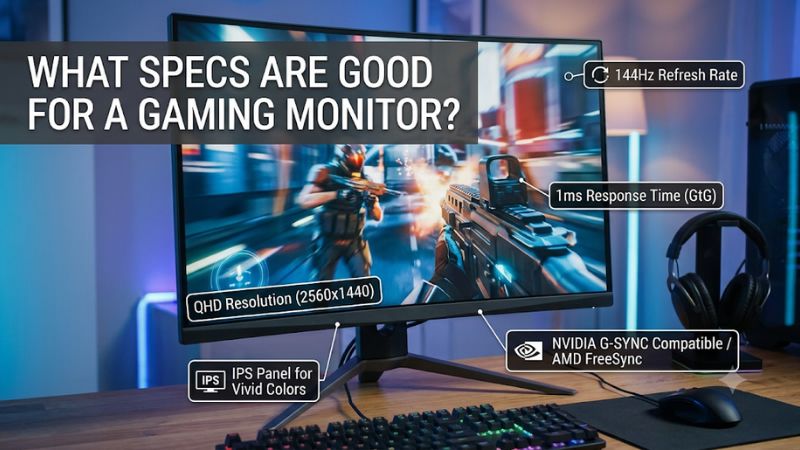
Choosing a gaming monitor involves more than comparing refresh rates and advertised response times. The what specs are good for a gaming monitor question depends on your graphics card, favorite games, viewing distance, and budget. For most PC gamers, a 27-inch 1440p IPS monitor with a 165Hz to 180Hz refresh rate, adaptive sync, and good measured response performance is an excellent starting point. Competitive players may prefer 240Hz or higher, while cinematic gamers can benefit more from OLED contrast, HDR performance, and 4K resolution.
- What specs are good for a gaming monitor?
- Start with your PC performance and gaming habits
- Resolution and screen size: Choose the right combination
- Refresh rate: How many hertz should a gaming monitor have?
- Response time and input lag: Two different specifications
- Panel technology: IPS, VA, and OLED
- Adaptive sync: FreeSync and G-SYNC support
- Brightness, color, and HDR specifications
- Connectivity: HDMI, DisplayPort, and USB-C
- Size, aspect ratio, and ergonomics
- What specs are good for a gaming monitor at each performance tier?
- Common mistakes when comparing gaming monitor specifications
- Frequently asked questions
- Conclusion
What specs are good for a gaming monitor?
A good gaming monitor should combine a resolution your graphics card can handle, a refresh rate that matches your expected frame rate, fast and consistent pixel transitions, low input lag, and variable refresh rate (VRR) support. Screen size, panel technology, brightness, connectivity, and ergonomics determine how comfortable and practical the display will be over time.
There is no single specification combination that suits everyone. An esports player targeting 300 FPS has different requirements from someone playing demanding single-player games at 4K. Similarly, a monitor used in a bright home office needs different brightness and reflection characteristics from one dedicated to a dark gaming room.
The following table provides useful starting targets rather than mandatory minimum specifications.
| Specification | Good starting point | Higher-performance target |
|---|---|---|
| Resolution | 1920 × 1080 | 2560 × 1440 or 3840 × 2160 |
| Screen size | 24–25 inches | 27–32 inches |
| Refresh rate | 144Hz–165Hz | 240Hz–360Hz |
| Response time | Fast, consistent transitions | Excellent measured transitions with low overshoot |
| Input lag | Low at native resolution and maximum Hz | Independently verified low latency |
| Panel type | Fast IPS | OLED or high-performance Fast IPS |
| Adaptive sync | FreeSync or G-SYNC Compatible | Broad, reliable VRR range with LFC |
| Brightness | Around 300 nits for typical SDR use | Higher measured brightness for bright rooms and HDR |
| Color coverage | Near-complete sRGB coverage | Broad DCI-P3 coverage with good accuracy |
| Connectivity | HDMI and DisplayPort | Appropriate HDMI 2.1 or DisplayPort bandwidth for the target mode |
These recommendations are starting points, not guarantees of quality. A monitor with impressive specifications can still perform poorly if it has slow pixel transitions, excessive overshoot, weak HDR implementation, or limited connectivity.
Start with your PC performance and gaming habits
Before comparing individual monitor specifications, establish what your computer can realistically deliver.
Your graphics card determines how many frames it can render under a particular resolution, graphics preset, and game workload. The monitor determines how those frames appear. Paying for a 360Hz display makes little sense when your favorite games rarely exceed 120 FPS.
Consider three questions before choosing a screen.
First, which games do you play most often? Competitive shooters benefit from high refresh rates and clear movement, while visually demanding RPGs and racing games can benefit more from resolution, contrast, and image quality.
Second, what frame rates does your PC consistently achieve? Average FPS is useful, but 1% low results also matter because they reveal how much performance drops during demanding gameplay. A monitor should accommodate realistic performance rather than only the best-case FPS shown in a benchmark.
Third, how far do you sit from the screen? A 32-inch display can be comfortable on a deep desk, while a 24-inch monitor may make more sense for a compact competitive setup.
RTINGS also recommends matching display size and resolution to viewing distance and computer performance instead of treating a larger screen or higher resolution as automatically better.
Resolution and screen size: Choose the right combination
Resolution determines how many pixels a monitor displays. A higher resolution generally produces a sharper image and more detailed textures, but it also increases the GPU workload.
The three most common gaming monitor resolutions are Full HD, QHD, and 4K.
| Resolution | Pixel count | Recommended screen size | Typical gaming use |
|---|---|---|---|
| 1080p | 1920 × 1080 | 24–25 inches | Budget and competitive gaming |
| 1440p | 2560 × 1440 | 27 inches | Mainstream and high-performance gaming |
| 4K | 3840 × 2160 | 27–32 inches | Premium gaming and detailed visuals |
| Ultrawide QHD | 3440 × 1440 | 34 inches | Racing, simulation, and immersive games |
1080p: Best for budget gaming PCs
Full HD remains a practical choice for entry-level gaming systems. Its relatively low pixel count makes it easier for graphics cards to achieve high frame rates, particularly in competitive games.
A 24-inch 1080p monitor is a sensible combination because it maintains reasonable pixel density for normal desktop viewing.
The main limitation is sharpness. Text, small interface elements, and detailed textures can look less defined than they do on a 1440p display.
Choose 1080p when your GPU prioritizes high FPS over visual detail, or when you want to spend more of your budget on graphics performance.
1440p: The best balance for many gaming PCs
QHD, or 2560 × 1440, is an excellent middle ground for modern gaming systems. It provides noticeably more detail than 1080p without requiring the same rendering workload as 4K.
A 27-inch 1440p display has approximately 109 pixels per inch (PPI), compared with approximately 92 PPI on a 24-inch 1080p monitor.
That combination offers sharp text, detailed game environments, and useful desktop space.
For many midrange gaming PCs, 1440p at 144Hz, 165Hz, or 180Hz provides an appealing balance between visual quality and responsiveness.
4K: Best for high-end gaming
A 3840 × 2160 monitor displays approximately 8.3 million pixels per frame. This is considerably more than the approximately 3.7 million pixels rendered at 1440p.
The additional detail is valuable for cinematic games and high-resolution content. A 27-inch or 32-inch 4K display can also provide excellent desktop clarity.
However, 4K places a significantly higher rendering workload on the GPU. Players may need a powerful graphics card, upscaling technology, or lower graphics settings to maintain higher frame rates.
RTINGS’ resolution comparison explains that selecting 4K instead of 1440p requires the GPU to process substantially more pixels for every frame.
Ultrawide resolution for immersive gaming
Ultrawide monitors typically use a 21:9 aspect ratio, with 3440 × 1440 being a common resolution.
The additional horizontal space is useful for simulation games, racing titles, and expansive environments. It can also improve multitasking by allowing multiple application windows to remain visible.
However, ultrawide compatibility varies by game. Some titles do not support the format properly, particularly competitive games where developers may restrict the field of view.
Check game compatibility and desk dimensions before choosing an ultrawide monitor.
Refresh rate: How many hertz should a gaming monitor have?
Refresh rate, measured in hertz (Hz), indicates how many times a monitor can refresh its image each second.
A 60Hz monitor refreshes 60 times per second, while a 144Hz monitor can refresh 144 times per second. Higher refresh rates allow the screen to display more frequent updates when the graphics card supplies additional frames.
For gaming, 144Hz is a good baseline for a new PC monitor. A 165Hz or 180Hz display provides additional headroom, while 240Hz and above is more relevant for competitive players with sufficiently powerful systems.
| Refresh rate | Time between refreshes | Recommended use |
|---|---|---|
| 60Hz | 16.67ms | Basic and casual gaming |
| 120Hz | 8.33ms | Console and mainstream gaming |
| 144Hz | 6.94ms | General PC gaming |
| 165Hz | 6.06ms | Mainstream competitive gaming |
| 180Hz | 5.56ms | Faster PC gaming |
| 240Hz | 4.17ms | Competitive shooters |
| 360Hz | 2.78ms | Serious esports |
| 480Hz or higher | 2.08ms or less | Specialist competitive setups |
These figures represent refresh intervals, not pixel response times or total system latency.
Is 144Hz enough for gaming?
Yes. A 144Hz monitor provides a substantial improvement over traditional 60Hz displays for games that can produce enough frames.
It is particularly appropriate for mainstream gaming PCs that balance graphics quality and performance.
You do not need to chase 240Hz simply because higher refresh rates are available. If your graphics card consistently delivers 100–140 FPS in your favorite games, a good 144Hz or 165Hz monitor is likely a more balanced purchase.
When is 240Hz or 360Hz worthwhile?
Higher refresh rates are most useful in competitive games where your graphics system can consistently generate high FPS.
Games such as Counter-Strike 2, Valorant, and other fast-paced shooters can benefit from additional motion updates, particularly for players who actively compete.
However, diminishing returns become increasingly important as refresh rates increase. Moving from 60Hz to 144Hz generally provides a more noticeable improvement than moving from 240Hz to 360Hz.
Do not buy a high-refresh monitor without considering the frame rates your CPU and GPU can actually sustain.
Response time and input lag: Two different specifications
Response time and input lag are frequently confused on gaming monitor product pages.
Response time describes how quickly an individual pixel changes from one color to another. Input lag describes the delay between the monitor receiving an image signal and beginning to display it.
Both affect gaming responsiveness, but they measure different parts of the display process.
What response time should you look for?
Manufacturers commonly advertise gray-to-gray (GtG) or moving picture response time (MPRT).
GtG measures pixel transitions between gray shades. MPRT describes motion-picture visibility and is often associated with blur-reduction techniques.
A manufacturer may advertise a 1ms response time without explaining whether it refers to GtG or MPRT. These figures cannot be compared directly.
Instead, look for independent reviews that measure multiple transitions and examine overshoot.
Overshoot happens when overdrive pushes a pixel beyond its intended color before it settles. This can produce bright or dark halos around moving objects, creating inverse ghosting.
A monitor with clean, consistent transitions is more useful than one that advertises an unusually low best-case response time.
RTINGS’ current testing methodology considers pixel transition behavior and overshoot when evaluating motion performance.
How much input lag is acceptable?
Low input lag is especially important in competitive games that require quick reactions.
RTINGS uses specialized equipment to measure how long a monitor takes to begin displaying an image after receiving a signal. Its methodology distinguishes input lag from the time required for pixels to complete their transitions.
There is no universally perfect cutoff because measurement methods and refresh rates differ. As a practical buying rule, prioritize monitors with independently verified low input lag at native resolution and maximum refresh rate.
RTINGS lists under 15ms as a good screening value for its maximum-refresh input-lag test, although many quality gaming displays achieve substantially lower results.
RTINGS.com+1
Do not confuse monitor input lag with total system latency. The CPU, GPU, game engine, mouse, keyboard, and network can all contribute to the delay between an action and what appears on screen.
Panel technology: IPS, VA, and OLED
Panel technology affects contrast, viewing angles, color reproduction, and pixel transitions. The best option depends on the kind of games you play and your room lighting.
| Panel type | Strength | Weakness | Suitable gamer |
|---|---|---|---|
| Fast IPS | Balanced speed and color | Lower native contrast | Most PC gamers |
| VA | Strong native contrast | Potential dark smearing | Dark-room gamers |
| TN | Specialist high-speed performance | Weaker viewing angles and colors | Competitive esports |
| WOLED | Deep blacks and fast transitions | Burn-in considerations | Premium gaming |
| QD-OLED | Contrast and strong color volume | Reflections and retention considerations | Premium HDR gaming |
IPS: The most versatile choice
Fast IPS is a strong default for most gaming PC setups. It combines broad viewing angles, good color performance, and increasingly fast pixel transitions.
It works well for competitive shooters, strategy games, racing titles, and everyday desktop use.
Its main weakness is contrast. Dark scenes can look gray in dim environments, especially on conventional IPS models.
VA: Better contrast for darker environments
VA monitors generally produce stronger native contrast than standard IPS displays.
This makes them attractive for horror games, cinematic adventures, and dark environments.
However, certain VA panels exhibit slow dark-level transitions that produce smearing in fast-moving scenes. Check independent motion testing before purchasing a VA gaming monitor.
OLED: Premium image quality
OLED uses self-emissive pixels, allowing individual pixels to turn off completely.
This produces exceptional black levels, high perceived contrast, and fast pixel transitions. WOLED and QD-OLED are particularly attractive for premium gaming systems.
The main consideration is burn-in. Prolonged exposure to static interface elements can contribute to permanent image retention.
OLED is an excellent choice for varied gaming and entertainment, but users who spend long periods working with static software interfaces should weigh the ownership trade-offs.
Adaptive sync: FreeSync and G-SYNC support
Variable refresh rate technology helps synchronize monitor refresh behavior with the graphics card’s frame output.
Without VRR, differences between the GPU’s frame delivery and the display’s refresh cycle can create screen tearing. Frame-rate fluctuations can also contribute to uneven presentation.
AMD FreeSync and NVIDIA G-SYNC Compatible are common technologies designed to address these problems.
NVIDIA explains that G-SYNC matches the monitor’s refresh rate with GPU frame output, helping reduce tearing and stuttering. AMD describes FreeSync as a dynamic refresh-rate technology that synchronizes supported displays with compatible graphics cards.
Which VRR features should a gaming monitor support?
For most buyers, a monitor with reliable Adaptive-Sync support is a good starting point.
FreeSync Premium adds requirements including a minimum 120Hz refresh rate at Full HD and low-frame-rate compensation. This is useful for systems that sometimes fall below the monitor’s normal VRR range.
G-SYNC Compatible certification is worth checking for NVIDIA graphics card owners. Do not assume every monitor advertised with Adaptive-Sync will behave identically with every GPU and connection.
Check the manufacturer’s compatibility documentation, supported VRR range, and port-specific limitations.
Brightness, color, and HDR specifications
Brightness and color reproduction affect how attractive games look, particularly in rooms with considerable ambient light.
For standard SDR gaming, approximately 250–350 nits is a practical range for many indoor desktop environments. Brighter rooms may benefit from higher measured brightness, especially when the monitor has to compete with windows or overhead lighting.
Color specifications deserve similar attention.
Color gamut and color accuracy
Color gamut describes how many colors a monitor can reproduce within a defined color space.
sRGB is widely used for standard desktop content, while DCI-P3 describes a broader color space frequently used in HDR and cinematic workflows.
A monitor offering near-complete sRGB coverage is a sensible starting point for general gaming. Buyers who prioritize HDR and more saturated colors may prefer a display with broad DCI-P3 coverage.
However, coverage does not guarantee accuracy. A monitor can reproduce a wide color range while displaying inaccurate shades.
Look for independent measurements, calibration information, and Delta E results if color precision is important.
Is HDR important for gaming?
HDR can improve brightness range, highlights, color, and the perceived separation between bright and dark areas.
However, not every monitor carrying an HDR label provides a meaningful HDR experience.
VESA DisplayHDR certification provides a more useful starting point because it evaluates brightness, black levels, color, and other performance requirements. Its certification tiers include DisplayHDR 400, 500, 600, 1000, and 1400, alongside True Black categories for OLED displays.
VESA Certified DisplayHDR™+1
DisplayHDR 400 should be regarded as an entry-level certification, not proof of premium HDR performance. For a more substantial HDR experience, investigate higher certification tiers, OLED per-pixel dimming, or an LCD monitor with effective Mini-LED local dimming.
Do not choose a monitor exclusively because it advertises HDR support.
Connectivity: HDMI, DisplayPort, and USB-C
A monitor may support an impressive resolution and refresh rate but fail to deliver the full combination through every input.
HDMI and DisplayPort are the most important connections for desktop gaming.
| Connection | Typical advantage | Important consideration |
|---|---|---|
| HDMI 2.0 | Mainstream Full HD and QHD gaming | Bandwidth limits higher modes |
| HDMI 2.1 | High-resolution, high-refresh gaming and console compatibility | Check actual bandwidth and supported timings |
| DisplayPort 1.4 | High-refresh PC gaming | DSC may be needed for demanding modes |
| DisplayPort 2.1 | Greater bandwidth for advanced display modes | Check UHBR tier on both devices |
| USB-C with DisplayPort Alt Mode | Convenient laptop connection | Verify video support and power delivery |
Why port bandwidth matters
An HDMI 2.1 label does not guarantee that every monitor supports the same maximum bandwidth or every possible resolution and refresh-rate combination.
HDMI 2.1 can offer up to 48Gbps, while DisplayPort 1.4 provides a different bandwidth ceiling. Display Stream Compression (DSC) can allow higher-resolution and higher-refresh combinations to operate within available bandwidth.
HP’s connectivity guidance outlines these interface differences and emphasizes matching cables with the required video mode.
Before buying, check the monitor’s supported timing table for the exact port. Verify that your GPU, monitor, and cable can all support the desired mode at your preferred color depth and HDR settings.
Do you need HDMI 2.1?
For a PC gaming monitor, HDMI 2.1 is useful but not universally necessary.
If you use a PlayStation 5 or Xbox Series X and want 4K at 120Hz with VRR, a monitor with appropriate HDMI 2.1 support is an important requirement.
For a conventional 1080p or 1440p PC gaming setup, DisplayPort or HDMI 2.0 may be sufficient, provided the manufacturer documents the desired refresh rate.
Size, aspect ratio, and ergonomics
A monitor should fit your desk and viewing distance. Larger is not automatically better, especially when resolution remains unchanged.
A 24-inch Full HD display is practical for competitive gaming, while 27-inch 1440p is a strong all-around combination.
A 32-inch 4K screen suits players who want a larger, detailed image and have enough desk depth.
Aspect ratio also affects the experience. Traditional 16:9 displays offer broad game compatibility, while 21:9 ultrawide monitors provide additional horizontal space.
Curved displays can be comfortable on larger ultrawide screens, but their usefulness depends on personal preference and viewing distance.
Ergonomics matter during long sessions. Look for height, tilt, swivel, and pivot adjustment when available. VESA mounting is useful if you intend to install a monitor arm.
Also check the display coating. Matte finishes generally handle reflections better, while glossy surfaces can produce a more vivid appearance but reveal windows and lights more easily.
What specs are good for a gaming monitor at each performance tier?
The most practical way to apply all these specifications is to match them to your PC and gaming habits.
| Gaming setup | Screen and resolution | Refresh target | Recommended panel |
|---|---|---|---|
| Entry-level PC | 24-inch 1080p | 144Hz–165Hz | IPS |
| Mainstream PC | 27-inch 1440p | 165Hz–180Hz | Fast IPS |
| Competitive PC | 24–27-inch 1080p or 1440p | 240Hz–360Hz | Fast IPS or OLED |
| High-end gaming PC | 27-inch 1440p or 32-inch 4K | 240Hz where GPU allows | OLED or Fast IPS |
| Console gaming | 27–32-inch 4K | 120Hz | IPS or OLED |
| Immersive gaming | 34-inch ultrawide | 144Hz–165Hz or higher | VA or OLED |
| HDR-focused setup | 27–32-inch 1440p or 4K | 144Hz–240Hz | OLED or Mini-LED |
These are general configuration recommendations rather than guaranteed performance targets. Actual results depend on the graphics card, game engine, rendering settings, and available display connections.
Recommended specifications for budget gamers
A 24-inch 1080p IPS monitor with a 144Hz refresh rate is a sensible budget configuration.
It offers a practical balance of screen size, resolution, and motion performance. The lower pixel count also makes it easier for affordable graphics cards to produce high frame rates.
Spend extra on a good panel with consistent transitions and VRR before paying for unnecessary features such as basic HDR branding or extremely high refresh rates.
Recommended specifications for mainstream gamers
For a midrange gaming PC, consider a 27-inch 1440p IPS monitor with a refresh rate between 165Hz and 180Hz.
This combination provides sharper visuals and enough refresh headroom for many competitive and single-player games.
VRR, a reasonable stand, and good measured response performance should be priorities.
Recommended specifications for competitive players
Competitive gamers should prioritize motion clarity, high refresh rates, and low input lag.
A 240Hz Fast IPS monitor is an appropriate starting point for players who consistently achieve high FPS. OLED is also worth considering for players who want fast pixel transitions alongside excellent image quality.
Higher-refresh 360Hz and 480Hz displays are specialist choices. Their benefits depend on consistently high frame rates and a player’s ability to take advantage of the improved motion presentation.
Recommended specifications for high-end systems
A powerful gaming PC can take advantage of 1440p or 4K monitors with high refresh rates.
For players who prioritize visual quality, a 27-inch 1440p or 32-inch 4K OLED monitor can offer exceptional contrast and detail.
For those who prefer sustained brightness and reduced burn-in concerns, a high-quality Mini-LED display is another option.
Common mistakes when comparing gaming monitor specifications
One frequent mistake is buying the highest refresh rate without checking the GPU’s real performance. An expensive 360Hz monitor is not a smart investment when your system consistently delivers 90 FPS.
Another mistake is comparing response-time figures without checking their measurement methods. A 1ms MPRT label is not necessarily better than a 4ms GtG specification.
Ignoring port bandwidth can also lead to disappointment. Some monitors reach their maximum refresh rate only through DisplayPort, while others support different modes through HDMI.
HDR branding creates another common problem. A monitor with basic HDR signal support may not offer convincing highlight brightness or local dimming.
Finally, do not underestimate screen size and ergonomics. A monitor that looks impressive in a product photograph may be uncomfortable on a shallow desk or difficult to position at eye level.
The best purchasing approach is to compare the complete display, not individual marketing numbers.
Frequently asked questions
What is the best resolution for gaming monitors?
1440p is an excellent balance for many mainstream gaming PCs because it provides sharper images than 1080p without the full rendering workload of 4K. Full HD remains useful for budget and competitive systems, while 4K is attractive for powerful PCs and cinematic games.
Is 144Hz or 240Hz better for gaming?
240Hz is better for players who can consistently generate high frame rates and benefit from faster motion updates. For most mainstream gaming systems, 144Hz or 165Hz already provides a very good experience.
Is IPS or OLED better for gaming?
IPS is more practical for general use and varied lighting, while OLED offers superior black levels, contrast, and extremely fast pixel transitions. OLED requires additional consideration because of potential permanent image retention.
How many nits should a gaming monitor have?
Around 250–350 nits is a practical starting point for everyday SDR gaming. Bright rooms may benefit from more brightness. HDR gaming requires a more complete evaluation of peak brightness, sustained brightness, contrast, and local dimming.
Is a 1ms response time necessary?
No. A monitor does not need an advertised 1ms rating to deliver good gaming performance. Consistent measured pixel transitions, controlled overshoot, and low input lag are more meaningful than a single marketing number.
Do gaming monitors need G-SYNC or FreeSync?
VRR is a useful feature because it synchronizes the display with compatible GPU output. FreeSync and G-SYNC Compatible monitors can reduce tearing and stuttering, although compatibility and supported refresh ranges should be verified.
Conclusion
The best gaming monitor specifications depend on your hardware, budget, and preferred games. For most players, a 27-inch 1440p IPS monitor with a 165Hz to 180Hz refresh rate, VRR, low input lag, and consistently fast pixel transitions is an excellent starting point.
Competitive gamers may prefer 240Hz or higher, while premium systems can benefit from OLED, Mini-LED, and 4K resolution. Before purchasing, verify native resolution, refresh-rate support on the intended connection, independent response-time measurements, and ergonomic features. A balanced monitor that matches your GPU and gaming habits will provide a better experience than an expensive display with specifications you cannot fully use.