
The best types of monitors for gaming depend on what you value most: smooth motion in competitive shooters, deep contrast in cinematic games, bright HDR highlights, or a balanced screen for everyday use. IPS is the most versatile starting point, OLED offers the strongest overall image and motion quality at a premium, VA suits contrast-focused play, TN remains a specialist option, and Mini-LED can deliver powerful HDR brightness without OLED burn-in concerns. The important catch is that these technologies are not all the same kind of thing, so understanding their trade-offs matters more than picking a label from a product box.
- Quick verdict on the best types of monitors for gaming
- How we compare gaming monitor technologies
- IPS monitors: The best all-around choice for most gamers
- VA monitors: Strong contrast for immersive games
- TN monitors: A specialist option for competitive motion
- OLED monitors: The premium choice for contrast and motion
- Mini-LED monitors: Bright HDR without OLED burn-in risk
- How to choose among the best types of monitors for gaming
- Monitor categories that are not panel technologies
- FAQs about gaming monitor types
- Final verdict
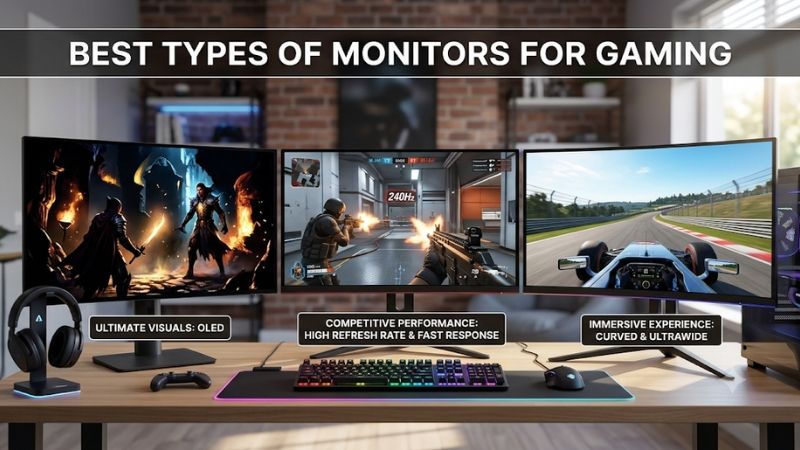
Quick verdict on the best types of monitors for gaming
For most PC gamers, IPS is the safest all-around choice: it balances speed, color, and viewing angles. Choose OLED for premium contrast and motion if its cost and burn-in precautions are acceptable. Choose VA for stronger native contrast, TN for a specialist esports setup, and Mini-LED for bright HDR. A Mini-LED monitor still inherits motion and viewing-angle traits from its underlying LCD panel.
| Monitor technology | Best fit | Main advantage | Main compromise |
|---|---|---|---|
| IPS LCD | Most players and mixed-use desks | Balanced color, viewing angles, and speed | Lower native contrast than VA or OLED |
| VA LCD | Cinematic games and darker rooms | Strong native LCD contrast | Some models show dark-transition smearing |
| TN LCD | Competitive players focused on motion | Very fast motion handling on suitable models | Weak viewing angles and less consistent image quality |
| OLED, including QD-OLED and WOLED | Premium gaming and HDR scenes | Per-pixel blacks and exceptionally fast response | Burn-in risk, price, and model-specific text or brightness trade-offs |
| Mini-LED LCD | Bright-room and HDR gaming | High brightness with effective local dimming | Blooming, black crush, and panel-dependent motion |
This is a comparison of display technologies, not a ranking of individual monitor models. A premium IPS display can outperform a poorly implemented VA or Mini-LED monitor, and an OLED panel does not automatically make every monitor a good purchase. Check model-specific reviews before buying.
How we compare gaming monitor technologies
The comparison separates pixel technology from backlighting. IPS, VA, and TN are LCD panel types; OLED pixels emit their own light; Mini-LED is a local-dimming backlight used with an LCD panel. A Mini-LED screen can therefore also be IPS or VA.
The key gaming factors are motion handling, contrast, color consistency, brightness, HDR, and room lighting. Independent measurements of pixel transitions and local dimming are more useful than a marketing response-time claim because performance varies by model. No budget was supplied, so this guide does not assign price-based awards or claim a category is the best value at a particular US price.
IPS monitors: The best all-around choice for most gamers
In-Plane Switching (IPS) is an LCD technology known for broad viewing angles and consistent color. It suits a gaming desk that also handles work, school, streaming, and everyday browsing. Modern gaming IPS models include high-refresh options, and a fast implementation can combine crisp motion with better image consistency than traditional TN.
Its main weakness is contrast. Many conventional IPS monitors sit around the 1,000:1 contrast class, although results vary. In a dark room, blacks can look gray beside VA or OLED. IPS glow can also brighten dark corners when viewed off-axis; it is not the same thing as backlight bleed, and visibility varies by model and setup.
Fast IPS describes an IPS implementation tuned for quicker transitions, not a separate panel family. Nano IPS is another implementation label, not a guarantee of performance. Check measured response times and overshoot: aggressive overdrive can create bright inverse-ghosting trails even when the advertised response figure looks impressive.
Buy IPS for a balanced multi-genre setup, wide viewing angles, and good desktop usability. Skip it if deep blacks and impactful HDR are your top priorities; compare VA, OLED, or Mini-LED instead.
VA monitors: Strong contrast for immersive games
Vertical Alignment (VA) is an LCD technology with higher native contrast than typical IPS and TN screens. Dark areas can look deeper, which suits horror games, cinematic adventures, and space simulators. VA is common in curved and ultrawide monitors, although curvature is a design choice rather than a feature exclusive to VA.
The contrast advantage makes VA a useful middle ground for dark-room gaming if OLED is outside your budget. The important trade-off is motion. Some VA panels transition slowly between very dark and brighter shades, creating black smearing behind moving objects. Average response-time figures can hide this because some color transitions are much slower than others. Independent testing shows substantial variation among VA models.
Some VA monitors are also more prone to visible VRR flicker when frame rates fluctuate sharply, especially in dark scenes. Check testing of the exact model if you plan to use adaptive sync.
Buy VA for contrast-focused games when reviews confirm clean enough dark transitions. Skip it if you are sensitive to smearing in competitive shooters. A high refresh-rate rating cannot compensate for slow pixel transitions.
TN monitors: A specialist option for competitive motion
Twisted Nematic (TN) is an older LCD technology still found in some esports-focused displays. Its appeal is fast pixel transitions and strong motion handling on suitable high-refresh models. That can matter to players who prioritize target tracking and responsiveness above image quality.
The compromise is narrower viewing angles: color and contrast can shift when you move your head or view the screen from above or below. Color reproduction and uniformity are also often less impressive than on comparable IPS displays, which matters if the screen doubles as a work monitor.
Do not assume every TN display is faster than every IPS model. Independent comparisons show that some high-refresh TN monitors handle motion better than similar IPS rivals, but the gap varies by model and refresh rate. A modern fast IPS screen may already be fast enough for most gamers.
Buy TN only for a clear esports-first reason after comparing measured motion performance. It is not automatically the cheapest gaming option, and IPS is usually more versatile.
OLED monitors: The premium choice for contrast and motion
OLED pixels emit their own light and can switch off completely for black. This gives OLED pixel-level dimming, excellent black uniformity, high contrast, and exceptionally fast pixel transitions. It is a strong match for cinematic games with bright effects against dark scenes, as well as action games where motion clarity matters.
QD-OLED and WOLED are two major OLED families. Both share the core OLED strengths, but subpixel structure and bright-room behavior differ. QD-OLED generally offers vivid color volume, while some WOLED designs maintain darker-looking blacks better in brighter rooms. Generation, coating, pixel density, and subpixel layout all matter, so do not assume every monitor in either family performs identically.
The main ownership concern is burn-in, a possible long-term effect when the same bright static elements remain on screen for extended periods. Gaming changes the image frequently, but fixed toolbars, taskbars, HUDs, and work windows deserve consideration. Pixel-refresh routines and panel-care features help manage wear; they do not eliminate the risk. Check the exact US warranty and confirm whether it explicitly covers burn-in.
Some OLED monitors also show text fringing because their subpixel layout differs from the standard RGB arrangement expected by desktop software. This matters more if you read small text all day. Brightness can vary with the size and duration of bright areas, too, so check sustained full-screen brightness rather than relying only on a peak HDR figure. Finally, a fast panel does not automatically guarantee low input lag or a high refresh rate; those are separate specifications.
Buy OLED for premium contrast and motion when the screen is mainly for gaming and media. Skip it if you display static content for long sessions, need consistently bright full-screen output, or do not want to manage burn-in precautions.
Mini-LED monitors: Bright HDR without OLED burn-in risk
Mini-LED is an LCD backlight system, not a separate pixel technology. It uses many small LEDs grouped into local-dimming zones. The LCD panel underneath may be IPS or VA, so a Mini-LED monitor inherits that panel’s motion and viewing-angle behavior.
Local dimming can darken parts of the image while allowing bright highlights elsewhere, improving HDR impact in games with explosions, sunlight, and neon against dark scenes. Mini-LED can also sustain higher brightness than many OLED displays and avoids OLED’s organic-pixel burn-in risk.
Its main drawback is blooming: a bright object can illuminate nearby dark areas because each zone controls groups of pixels, not individual pixels. More zones can improve control, but count alone does not guarantee quality. The dimming algorithm and panel contrast matter; poor implementations can create halos or crush shadow detail.
A Mini-LED VA display can still show VA smearing, while an IPS-based design may have cleaner motion but lower native contrast when dimming is off. Check panel subtype, local-dimming tests, refresh rate, response time, and whether dimming works in your desired mode.
Buy Mini-LED for bright-room HDR and high brightness without OLED burn-in concerns. Skip it if blooming bothers you or the local-dimming implementation is weak.
How to choose among the best types of monitors for gaming
Start with your main games, then consider room lighting and PC capability. Competitive shooters reward clear motion, so compare fast IPS and OLED; TN is a niche alternative only when testing shows a meaningful advantage. Story-driven games benefit more from contrast and HDR, making OLED, Mini-LED, or VA attractive. For mixed gaming and desktop work, IPS is the safer default.
Match the panel to the game and room
In a dark room, VA and OLED can look more cinematic than conventional IPS; Mini-LED can add strong HDR highlights if local dimming is effective. Bright rooms favor adequate sustained brightness and a coating that controls reflections. Check OLED full-screen brightness and, for QD-OLED, how ambient light affects black levels.
For shared viewing or a desk where you move around, IPS and OLED generally offer more consistent off-axis images than TN. VA’s viewing-angle limits matter less when you sit directly in front. Curvature can add immersion on a large screen, but it does not fix slow pixel transitions.
Choose refresh rate and resolution realistically
Refresh rate measures how often a monitor can display a new frame. A 144Hz screen updates about 144 times per second; 240Hz raises that ceiling, but benefits depend on the game and the frame rate your PC can sustain. The jump from 60Hz to 144Hz is substantial for many players, while rates beyond 240Hz are more specialized.
Resolution affects both sharpness and GPU workload. A 27-inch 1440p screen is a common balance; 4K makes more sense when your graphics card can drive the games and settings you want. Do not pay for a refresh rate your hardware rarely reaches.
Read response-time claims carefully
Manufacturers may advertise a best-case gray-to-gray time using aggressive overdrive. That figure does not represent every transition. Look for independent measurements, overshoot or inverse ghosting, and motion performance at your intended refresh rate. A nominal 1ms claim does not prove blur-free motion.
Refresh rate, pixel response, and input lag are different. Refresh rate sets how often a frame can appear; pixel response measures how quickly a pixel changes shade; input lag is the delay before the incoming image appears. A good gaming display balances all three.
Check adaptive sync, HDR, and connections
Variable refresh rate (VRR) synchronizes the display with changing GPU frame rates to reduce tearing. Check compatibility with your GPU or console and confirm the supported VRR range at your target resolution; adaptive sync is available across multiple panel technologies.
Do not buy on an “HDR supported” label alone. Look for independent HDR tests, peak and sustained brightness, color performance, and effective local dimming. VESA DisplayHDR and DisplayHDR True Black tiers offer a more structured baseline, but the exact tier still matters. Confirm that HDMI or DisplayPort bandwidth supports your target resolution and refresh rate; cable capability and color settings can affect available modes.
Monitor categories that are not panel technologies
Curved, flat, ultrawide, 4K, 1440p, and high-refresh-rate monitors are also called “types,” but they describe different design choices. Curved refers to screen geometry, ultrawide to aspect ratio, 1440p and 4K to resolution, and high refresh rate to update frequency. These can be combined with IPS, VA, OLED, or Mini-LED designs.
Do not compare unlike categories as if they were competing panel technologies. An ultrawide OLED differs from a flat IPS monitor in both display technology and geometry. Decide which dimensions matter, then compare models that meet the same needs. A wide screen does not automatically improve performance, and 4K does not make a slow panel respond faster.
FAQs about gaming monitor types
Which monitor type is best for gaming overall?
IPS is the best default for most players because it balances speed, color, viewing angles, and everyday usability. OLED is the stronger premium choice for contrast and pixel response, while VA and Mini-LED serve more specific image-quality priorities. The best answer depends on the exact monitor and the games you play.
Is IPS or VA better for gaming?
IPS is generally the more versatile option and often handles dark-to-bright pixel transitions more cleanly. VA typically offers higher native contrast and deeper blacks, but some VA models show dark smearing. Compare independent motion tests instead of relying only on the panel label.
Is OLED worth it for a gaming monitor?
OLED can be worth the premium if you value true blacks, high contrast, and very fast pixel response. It is less compelling if you leave static desktop elements on screen for long periods, need high sustained full-screen brightness, or prefer not to manage burn-in precautions. Check the exact warranty before buying.
Are Mini-LED monitors better than OLED for gaming?
Neither is universally better. Mini-LED often has an advantage in sustained brightness and avoids OLED burn-in, while OLED offers pixel-level black control without blooming around small highlights. Mini-LED performance depends heavily on local-dimming quality, and OLED is usually the better fit for dark-room contrast and motion.
Are TN monitors still good for gaming?
Yes, but they are a specialist choice. TN can deliver excellent motion handling in some esports displays, yet IPS has narrowed the gap while offering better viewing angles and color. Choose TN only after comparing exact models and confirming that motion performance is more important to you than image quality.
Does a higher refresh rate make every game look better?
A higher refresh rate can make movement feel smoother and reduce the time between displayed frames, but the benefit depends on frame rate, game type, and pixel response. A monitor rated at 240Hz cannot show 240 unique frames every second if the PC only renders 80. It can still support VRR and display those frames smoothly within its supported range, but it will not create extra frames by itself.
Final verdict
For most setups, start with a well-reviewed IPS monitor. Choose OLED when premium contrast and motion justify the cost and care, VA when contrast matters and testing confirms good response, TN for a narrow esports-first use case, and Mini-LED for bright HDR when local dimming is effective.
The panel label is only the beginning. Check independent motion and HDR tests for the exact model, match resolution and refresh rate to your GPU, verify the ports, and read the warranty. The right screen is the one that fits how you actually play.









