
A good external display can make a gaming laptop more comfortable to use, provide a larger view of your favorite games, and improve motion clarity when your laptop can deliver high frame rates. The best gaming monitor for laptop setups depends on more than screen size and refresh rate. Your laptop’s graphics hardware, video outputs, USB-C capabilities, and available power all affect which monitor makes sense. These six options cover competitive gaming, immersive single-player games, HDR, and high-resolution desk setups, with particular attention to the connections that matter when pairing an external display with a laptop.
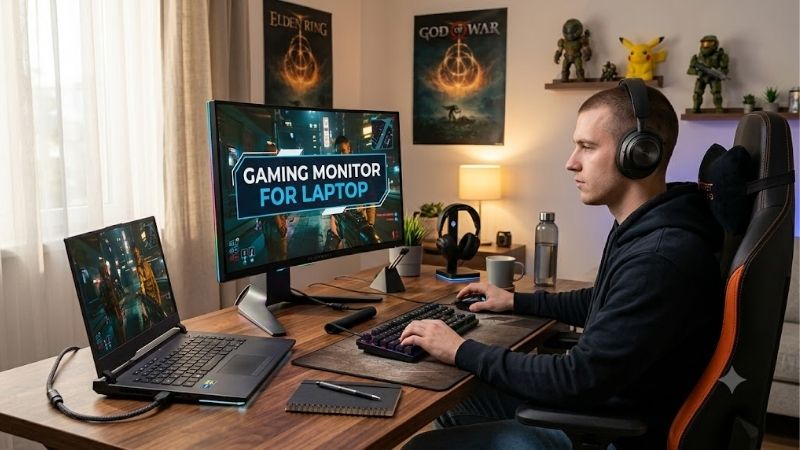
Quick answer: Our top pick in 2026 is the Monitor — our #1 rated choice. See the full ranked comparison, alternatives and buying advice below.
Quick verdict: choosing the best gaming monitor for laptop setups
For most people who play at a desk, a 27-inch 1440p monitor is the most balanced starting point. It offers noticeably more workspace than a typical laptop display without requiring the graphics performance and bandwidth of a 4K setup. A 180Hz or 240Hz refresh rate can also make fast-moving games look smoother, provided the laptop can output enough frames to benefit from it.
The ASUS ROG Strix XG27ACS is a sensible all-around option if you want a sharp 1440p IPS panel with a high refresh rate and USB-C video input. However, its USB-C port supplies only 7.5W, which is not enough to replace the charger for most gaming laptops. For a more capable one-cable desk setup, the Acer Nitro XV275K P5biipruzx and MSI MPG 321URX QD-OLED both combine USB-C video with up to 90W power delivery, although their gaming strengths and panel technologies differ.
The right choice becomes clearer when you separate three priorities: competitive responsiveness, image quality, and laptop connectivity. A fast 1440p IPS monitor is often the practical choice for competitive games, an OLED screen delivers stronger contrast for cinematic titles, and a Mini LED model can produce bright HDR highlights without using an OLED panel.
| Monitor | Best fit | Resolution and refresh rate | Laptop connection considerations |
|---|---|---|---|
| ASUS ROG Strix XG27ACS | Balanced everyday gaming | 2560 × 1440, 180Hz | USB-C video; only 7.5W power delivery |
| LG 27GR83Q-B | Competitive gaming | 2560 × 1440, 240Hz | HDMI 2.1 or DisplayPort; no USB-C video input |
| AOC Q27G3XMN | HDR gaming | 2560 × 1440, 180Hz | DisplayPort reaches 180Hz; HDMI is limited to 144Hz |
| LG 27GS95QE-B | OLED contrast and fast motion | 2560 × 1440, 240Hz | HDMI 2.1 or DisplayPort; laptop charging not provided |
| Acer Nitro XV275K P5biipruzx | 4K HDR and dual-mode gaming | 3840 × 2160 at 160Hz, or 1920 × 1080 at 320Hz | USB-C video with 90W power delivery |
| MSI MPG 321URX QD-OLED | Premium 4K gaming and desk use | 3840 × 2160, 240Hz | USB-C video with 90W power delivery |
These are distinct recommendations rather than a claim that one display is universally the fastest or best. A laptop with a modest GPU may benefit more from 1440p than 4K, while a high-end gaming laptop can make better use of the additional pixels and refresh-rate headroom of the premium models.
How we selected these monitors
The shortlist prioritizes real gaming capabilities and the details that determine whether a monitor works well with a laptop. Manufacturer specifications establish panel resolution, supported refresh rates, input types, USB-C power delivery, and stated features. Independent reviews from RTINGS provide additional evidence about motion handling, input lag, contrast, HDR performance, and practical limitations.
These recommendations are based on documented specifications and published third-party testing, not personal detailed research. A manufacturer’s advertised response time is not treated as equivalent to measured pixel transitions, and a high refresh-rate rating is not proof that every laptop can drive the display at its maximum setting.
Laptop compatibility also matters more than it does in a simple desktop-monitor comparison. A monitor can offer 240Hz over DisplayPort while a particular laptop’s HDMI connection, adapter, or graphics configuration limits the available signal. The shortlist therefore includes conventional HDMI and DisplayPort options as well as displays with USB-C video and substantial charging capability.
The six models serve different purposes. The higher-resolution choices are intended for laptops with stronger graphics hardware, while the 1440p options are generally more practical for balancing image detail and gaming performance.
The best monitors for laptop gaming
ASUS ROG Strix XG27ACS — best balanced 1440p option
The ASUS ROG Strix XG27ACS is a sensible starting point for someone who wants a conventional desktop gaming display rather than an expensive specialty monitor. Its 27-inch Fast IPS panel runs at 2560 × 1440 with a maximum refresh rate of 180Hz. That combination offers sharp game visuals, enough desktop space for everyday work, and the smooth presentation that benefits fast-paced games.
ASUS lists Adaptive-Sync, ELMB Sync motion-blur reduction, HDR10 support, and an adjustable stand. The monitor provides DisplayPort 1.4, HDMI 2.0, and USB-C with DisplayPort Alternate Mode. RTINGS’ independent assessment describes it as responsive, with low input lag and fast motion handling, while noting that its contrast is limited and HDR highlights lack impact.
The important laptop caveat is USB-C power delivery. This model supplies just 7.5W through USB-C. It can receive video from a compatible laptop over that connection, but it should not be mistaken for a full laptop docking monitor. Keep the gaming laptop connected to its own power adapter.
There is also a difference between the monitor’s inputs. ASUS lists support for up to 180Hz through DisplayPort and USB-C, versus 144Hz over HDMI. Your laptop must support the corresponding output mode to achieve those figures.
Buy if: You want a straightforward 1440p gaming monitor with an IPS panel, good responsiveness, and flexible video connections.
Skip if: One-cable laptop charging, convincing HDR, or deep OLED-like blacks are essential.
LG 27GR83Q-B — best for high-refresh competitive gaming
The LG 27GR83Q-B targets players who prioritize rapid motion in first-person shooters, racing games, and other competitive titles. It combines a 27-inch 2560 × 1440 IPS panel with a 240Hz refresh rate. The higher refresh ceiling gives a capable gaming laptop more room to deliver smooth motion than a typical 60Hz office screen.
Independent testing from RTINGS finds fast response times across the refresh-rate range, low input lag, and support for common variable-refresh-rate technologies. Its HDMI 2.1 connectivity is another useful feature for laptops that can output a sufficiently high-bandwidth signal. DisplayPort is available as well.
The limitations are familiar for a conventional IPS gaming display. Native contrast is low, so dark scenes can appear gray in a dim room. Its HDR performance is also limited compared with Mini LED and OLED alternatives. The 240Hz figure should not be confused with a promise of 240 frames per second: the laptop’s GPU and game settings determine actual performance.
Since the monitor does not provide USB-C video input, plan to connect the laptop through HDMI or DisplayPort. If your laptop sends DisplayPort over USB-C, a compatible USB-C-to-DisplayPort cable or adapter can be an option, but confirm the laptop’s specifications and the adapter’s supported resolution and refresh rate.
Buy if: Competitive responsiveness matters more than HDR contrast, and your laptop can make useful use of a 240Hz display.
Skip if: You need USB-C docking, a single-cable setup, or outstanding contrast for atmospheric games.
AOC Q27G3XMN — best for HDR without moving to OLED
The AOC Q27G3XMN takes a different approach to image quality. Rather than relying on an OLED panel, it uses a VA panel with Mini LED backlighting and 336 local-dimming zones. The combination of 2560 × 1440 resolution and a maximum 180Hz refresh rate makes it suitable for both responsive gaming and visually rich titles.
AOC specifies VESA DisplayHDR 1000 certification. In its review, RTINGS highlights the monitor’s strong HDR brightness, high native contrast, and effective local dimming. Those characteristics make bright effects, lights, and highlights stand out against darker areas more convincingly than they do on many basic IPS screens.
The trade-off is that VA panels can show dark-transition smearing. RTINGS also reports distracting variable-refresh-rate flicker when frame rates change, so this model is not automatically the best choice for systems that struggle to maintain consistent performance. Its viewing angles are narrower than those of typical IPS panels, which matters when people view the screen from the side.
Connectivity is relatively simple: one DisplayPort 1.4 connection and HDMI 2.0 inputs, with no USB-C video or laptop charging. AOC specifies up to 180Hz over DisplayPort but 144Hz over HDMI. A laptop that lacks a compatible DisplayPort output may therefore be unable to use the monitor’s highest advertised refresh rate through a straightforward HDMI connection.
Buy if: You want bright HDR highlights and deeper blacks than a conventional budget IPS panel can generally provide.
Skip if: USB-C connectivity, wide viewing angles, or consistently clean dark motion are higher priorities than HDR.
LG 27GS95QE-B — best for OLED contrast and fast motion
The LG 27GS95QE-B is designed for gamers who want the combination of deep blacks, vivid colors, and high refresh rates that OLED can deliver. Its 27-inch OLED panel has a native resolution of 2560 × 1440 and a 240Hz refresh rate. LG advertises a 0.03ms gray-to-gray response time, although that manufacturer figure should not be interpreted as a guarantee of identical response under every operating condition.
RTINGS’ testing supports the display’s strong overall gaming performance, including its fast pixel response and smooth motion. Unlike an LCD monitor with a conventional backlight, OLED can control individual pixels to produce extremely dark scenes without the same backlight-related glow around bright objects. That is particularly appealing for cinematic games, dark environments, and titles with high visual contrast.
The connection requirements are more conventional than the panel technology. The monitor provides DisplayPort 1.4 and HDMI 2.1, so a compatible laptop can be connected through either interface. It does not replace the laptop’s power adapter, and you should check the external display’s connection path before assuming the GPU can deliver 1440p at 240Hz.
OLED is not the ideal solution for every desk. Permanent burn-in is a risk when the panel repeatedly displays static elements for extended periods. Desktop taskbars, fixed interface elements, and long work sessions are worth considering alongside gaming use. Use available screen-protection features and follow the manufacturer’s care guidance.
Buy if: Visual contrast, rapid pixel response, and immersive gaming matter more than avoiding OLED maintenance considerations.
Skip if: Your screen will display static desktop applications for long periods every day and you prefer a conventional LCD panel.
Acer Nitro XV275K P5biipruzx — best 4K Mini LED versatility
The Acer Nitro XV275K P5biipruzx is a more versatile choice for a powerful gaming laptop. It combines a 27-inch 4K IPS panel with Mini LED backlighting, HDMI 2.1, a USB hub, a KVM switch, and USB-C video input supporting up to 90W of power delivery.
Its most distinctive feature is dual-mode operation. Acer specifies native 3840 × 2160 resolution at up to 160Hz, with an alternative 1920 × 1080 mode reaching 320Hz. The 4K mode prioritizes detail, while the lower-resolution mode is aimed at players who prefer the faster refresh ceiling for competitive games. Changing modes sacrifices resolution in exchange for higher refresh-rate headroom, so the two modes should not be treated as identical image-quality experiences.
RTINGS’ independent review finds good high-refresh responsiveness, low input lag, and useful HDR performance. It also identifies trade-offs: fast-moving objects can show inverse ghosting, and local dimming can produce halos around bright objects and crush some shadow detail. The local-dimming limitations are important because a high HDR certification alone does not guarantee consistently convincing image quality.
The laptop connection is a major advantage. USB-C with 90W power delivery can provide video and charge compatible laptops through one cable. Whether 90W is sufficient depends on the laptop’s power requirements. Many gaming laptops need their original adapter to maintain full performance during demanding play, even if USB-C charging works for ordinary tasks.
Buy if: You want a sharp 4K screen, substantial HDR brightness, high refresh rates, and a more capable laptop docking arrangement.
Skip if: You want flawless dark-scene reproduction, prefer a simple budget-oriented 1440p screen, or need more charging power than the monitor supplies.
MSI MPG 321URX QD-OLED — best premium 4K gaming choice
The MSI MPG 321URX QD-OLED is aimed at buyers who have a high-end laptop and enough desk space for a large external screen. Its 31.5-inch QD-OLED panel has a native resolution of 3840 × 2160 and a maximum refresh rate of 240Hz. It combines the fine detail of 4K with OLED’s pixel-level contrast and the wide color capabilities associated with QD-OLED technology.
MSI specifies two HDMI 2.1 inputs, DisplayPort 1.4a, and USB-C with DisplayPort Alternate Mode and up to 90W power delivery. It also includes a KVM switch, which can simplify sharing a keyboard and mouse between compatible computers. For someone who works on a laptop and also uses a second computer, those connections can be more useful than buying a display that only provides a fast panel.
RTINGS describes its gaming and editing performance favorably, with deep blacks, vivid colors, and sharp image detail. There are limitations. The display can show a purple tint in reflected light, larger HDR highlights are less bright than small highlights, and persistent static content creates a burn-in risk. Its 4K resolution also makes high frame rates demanding in modern games.
Although the screen can accept 4K at up to 240Hz through supported connections, your laptop needs a compatible output and enough GPU performance to render games at the desired resolution. Frame generation or upscaling may help in supported games, but neither changes the panel’s native resolution or guarantees a particular frame rate.
Buy if: You want a premium large-format gaming display that also offers USB-C charging and useful switching features.
Skip if: You are using a modest laptop GPU, have limited desk space, or prefer to avoid OLED care considerations.
Connection rules for a gaming monitor for laptop setups
Choosing the panel is only half the job. Before ordering, confirm that the laptop can send the intended resolution and refresh rate through the connection you plan to use.
Check your laptop’s actual video output
Start with the laptop’s official specifications or manual. HDMI, USB-C, Thunderbolt, and USB4 are not interchangeable guarantees of identical display performance. A USB-C connector may support data transfer without video output, while a video-capable USB-C connection may use DisplayPort Alternate Mode. Check the exact port rather than relying on the shape of the connector.
HDMI and DisplayPort capabilities also depend on the laptop’s hardware implementation. A monitor accepting HDMI 2.1 does not make a laptop with a more limited HDMI output capable of the same maximum signal. Adapters and docks can introduce further limits.
Understand USB-C charging
USB-C video and USB-C power delivery are separate specifications. The ASUS ROG Strix XG27ACS supports video over USB-C but supplies only 7.5W. The Acer Nitro XV275K P5biipruzx and MSI MPG 321URX offer up to 90W, which is substantially more useful for compatible laptops.
Even 90W may fall short of a gaming laptop’s requirement under load. Keep the original power adapter available, and use it during demanding games unless your laptop’s manufacturer confirms that the monitor’s power delivery is sufficient for the intended workload.
Match resolution and refresh rate to the GPU
A 1080p external display can make sense for an entry-level gaming laptop or games where frame rate matters more than fine detail. A 1440p monitor is often the more balanced option for a midrange gaming system. A 4K panel makes more sense when image detail is a priority and the laptop has enough graphics performance to support it.
The refresh rate is a ceiling, not a performance guarantee. A 240Hz monitor cannot make a game render 240 frames per second if the laptop produces substantially fewer. Variable refresh rate can help synchronize the display with changing frame rates, but it does not increase the GPU’s rendering power.
Choose a panel for the games you actually play
IPS is a practical all-around choice for fast games and everyday work. OLED is attractive for contrast and pixel response, but requires consideration of static-content exposure. VA and Mini LED combinations can produce strong contrast and bright HDR highlights, but specific models may have dark smearing, blooming, or other picture-quality compromises.
For a laptop used for both gaming and office work, also consider stand adjustment, screen size, text clarity, and how easily the monitor fits on your desk. A high-refresh display is less useful if its physical setup makes daily use uncomfortable or its connection requires a complicated collection of adapters.
Common mistakes to avoid
-
Buying based on the monitor’s headline refresh rate without checking the laptop’s output limits.
-
Assuming every USB-C port carries video or that every USB-C monitor supplies enough power to charge a gaming laptop.
-
Paying for 4K or 240Hz when the laptop cannot make meaningful use of those capabilities in the games you play.
-
Treating HDR certification, advertised response time, or marketing claims as a complete substitute for independent performance testing.
-
Ignoring OLED burn-in considerations or the limitations of Mini LED local dimming.
Frequently asked questions
Do you need USB-C to connect a gaming monitor to a laptop?
No. HDMI is a straightforward choice when both devices support the desired resolution and refresh rate. DisplayPort can also work, including through a USB-C-to-DisplayPort connection when the laptop supports video output over USB-C. USB-C is most useful when you want to combine display output with charging and other dock-like features.
Can a gaming laptop use a 240Hz monitor?
Yes, if the laptop and monitor support a compatible signal through the selected connection. The laptop’s graphics performance determines how many frames a game can render. You can still use a 240Hz monitor when a game runs below 240 frames per second, but the refresh-rate ceiling does not create extra rendering performance.
Is a 4K monitor worth it for a gaming laptop?
It can be worthwhile for a sufficiently powerful laptop, especially if you value detailed visuals and also use the display for work. However, 4K places a heavier rendering load on the GPU than 1440p. For many midrange laptop systems, 1440p is the more balanced choice.
Can a monitor charge a gaming laptop while playing?
Some USB-C monitors can charge compatible laptops, but the available power may not be sufficient during gaming. A monitor offering 90W power delivery can be useful for lighter workloads and compatible systems, yet a gaming laptop may still need its original adapter for full-performance operation.
Final verdict
For most gaming laptops used at a desk, start with a 27-inch 1440p monitor and choose the refresh rate according to your games and graphics performance. The ASUS ROG Strix XG27ACS is a balanced option, the LG 27GR83Q-B prioritizes competitive motion, and the AOC Q27G3XMN emphasizes HDR. OLED buyers can consider the LG 27GS95QE-B, while the Acer Nitro XV275K P5biipruzx and MSI MPG 321URX offer higher-resolution alternatives with more substantial USB-C charging capability. Before buying, verify the exact laptop output, the supported refresh rate for that connection, and whether the monitor’s power delivery is sufficient for your system.
Ready to decide? Our #1 pick for 2026 is the Monitor.
Live price & availability on Amazon.









