
Choosing the best gaming monitor for Roblox does not require buying the most expensive screen or chasing an extreme refresh rate. For most players, a 24-inch 1080p monitor with a fast IPS panel is a sensible budget choice, while a 27-inch 1440p display is a stronger all-round upgrade for Roblox, schoolwork, streaming, and other games. Higher refresh rates can make camera movement and fast action look smoother, but they do not improve a game’s own frame rate or fix network lag. These picks focus on clear visuals, responsive motion, practical features, and drawbacks worth knowing before you spend.
- Best gaming monitor for Roblox: quick verdict
- How we chose these monitors
- Dell SE2426HGS: Best budget monitor for Roblox
- ASUS ROG Strix XG27ACS: Best overall for Roblox
- AOC Q27G3XMN: Best for colorful worlds and dark scenes
- Gigabyte M27Q X: Best for high-refresh 1440p gaming
- Gigabyte M32U: Best large 4K monitor for Roblox and everything else
- ASUS ROG Swift OLED PG27AQDM: Best premium picture quality
- How to choose the best gaming monitor for Roblox
- Frequently asked questions
- Final verdict
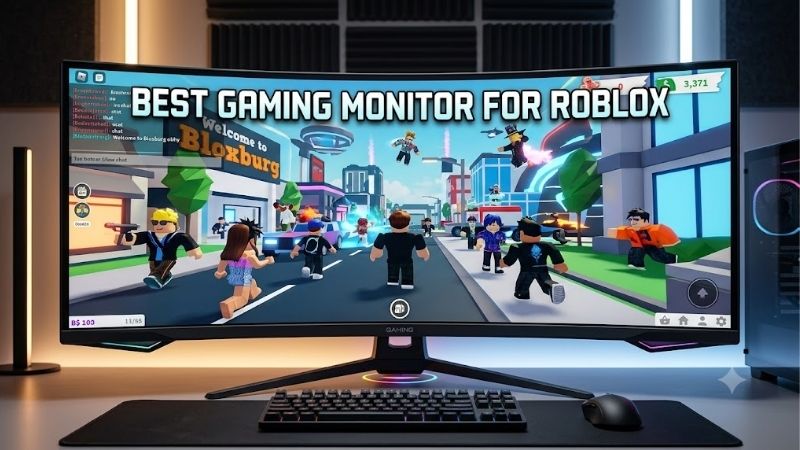
Quick answer: For most people in 2026, the best gaming monitor for roblox is the Monitor — our #1 rated choice. See the full ranked comparison, alternatives and buying advice below.
Best gaming monitor for Roblox: quick verdict
The best fit depends on your desk, PC, and how much else you play. A basic 1080p screen can handle Roblox well; 1440p is worth paying for when you also want more desktop space and sharper text.
| Monitor | Best for | Key specifications | Main drawback |
|---|---|---|---|
| Dell SE2426HGS | Best budget pick | 23.8-inch IPS, 1080p, 240Hz | Limited contrast and basic HDR |
| ASUS ROG Strix XG27ACS | Best overall | 27-inch Fast IPS, 1440p, 180Hz | Modest contrast; HDMI is limited to 144Hz at QHD |
| AOC Q27G3XMN | Best for bold visuals | 27-inch VA Mini LED, 1440p, 180Hz | Dark-scene smearing and VRR flicker |
| Gigabyte M27Q X | Best for high-refresh play | 27-inch SS IPS, 1440p, 240Hz | HDR adds little; standard IPS contrast |
| Gigabyte M32U | Best large 4K screen | 31.5-inch IPS, 4K, 144Hz | Demanding resolution and basic HDR |
| ASUS ROG Swift OLED PG27AQDM | Best premium picture | 26.5-inch WOLED, 1440p, 240Hz | Burn-in risk and limited HDMI bandwidth |
Dell listed the SE2426HGS at $119.99 on its US store on October 14, 2026. Treat this as a dated snapshot, not a guaranteed purchase price; retailer offers and stock can change.
How we chose these monitors
Roblox covers many different experiences, from calm building games to fast obstacle courses and competitive arena games. It does not impose one universal ideal monitor. So this shortlist prioritizes an understandable range of screen sizes, resolutions, refresh rates, and panel types instead of assuming every player needs a premium esports display.
The specifications were checked against manufacturer pages, and performance trade-offs were cross-checked with independent monitor reviews from RTINGS and Tom’s Hardware. Those reviews measure general PC-monitor behavior such as response time, input lag, contrast, and variable refresh rate; they are not Roblox-specific performance tests. No detailed research or Roblox FPS benchmarking is claimed here. Labels such as “best overall” reflect fit for a typical mixed-use gaming setup rather than a laboratory ranking.
Exact model names matter. The Gigabyte M27Q X has multiple revisions, and the ASUS ROG Swift OLED PG27AQDM is a different model from newer OLED displays with similar names. Confirm the full model code on the listing and check the connector specifications before buying.
Dell SE2426HGS: Best budget monitor for Roblox
The Dell SE2426HGS is a practical starting point for players who want smooth play without paying for a large high-resolution panel. Its 23.8-inch IPS display runs at 1920 × 1080 and up to 240Hz. Full HD is relatively easy for many gaming PCs to drive, and the compact screen suits a small desk or shared family computer. Dell’s US product page listed it at $119.99 on October 14, 2026, before taxes and any applicable delivery costs.
The key selling point is the mix of low entry cost and high refresh rate. RTINGS tested this exact model and found low input lag, good overall motion handling, and support for common variable-refresh-rate formats. VRR can reduce tearing when the frame rate changes.
The compromise is picture quality. RTINGS notes low contrast, gray-looking blacks, muted HDR highlights, and a narrow HDR color gamut. That matters more for dark cinematic games than for many colorful Roblox experiences, but it is still a limitation if you use the monitor for films or visually rich games. At 1080p, a 24-inch screen is reasonably sharp, yet it cannot show as much detail as a 1440p model of similar size.
Buy it if you want an inexpensive first gaming monitor, play Roblox and other lighter games, or value refresh rate more than resolution. Skip it if you want deep blacks, impactful HDR, or a large workspace. Also remember that the monitor’s 240Hz capability only matters when your PC and the game can deliver enough frames to make use of it.
ASUS ROG Strix XG27ACS: Best overall for Roblox
For a monitor that can serve gaming and everyday computer use, the ASUS ROG Strix XG27ACS is the most balanced pick here. It combines a 27-inch Fast IPS panel, 2560 × 1440 resolution, and a maximum 180Hz refresh rate. Compared with 1080p, QHD gives you more room for browser windows and sharper interface text while making detailed scenes look cleaner. At 27 inches, it is a useful middle ground between compact and oversized displays.
ASUS lists Adaptive-Sync, ELMB-Sync motion-blur reduction, a height-adjustable stand, and USB-C video input. Its USB-C port provides only 7.5W of power delivery, so it may carry a laptop’s picture but is not a meaningful charging solution for most laptops. DisplayPort supports up to 180Hz, while the HDMI input is specified for up to 144Hz at its supported QHD signal. Use the DisplayPort connection if you want its maximum PC refresh rate.
RTINGS found low input lag, fast response, and support for common VRR formats. The limitations are typical of many IPS gaming monitors: native contrast is modest, so blacks can look gray in a dark room, and HDR is not especially dramatic. Backlight strobing can also introduce image duplication, so it is a feature to test rather than automatically enable.
Buy it if you want one monitor for Roblox, other PC games, browsing, and homework or office tasks. Skip it if dark-room contrast is your highest priority or your PC struggles to render games at 1440p. A 1080p display may be the better use of a tight budget, while the AOC below is more compelling for dark scenes and HDR.
AOC Q27G3XMN: Best for colorful worlds and dark scenes
Players who value atmosphere over the highest possible refresh rate should consider the AOC Q27G3XMN. It uses a 27-inch 2560 × 1440 VA panel, a maximum 180Hz refresh rate, and Mini LED backlighting with 336 local-dimming zones. Those zones can dim darker parts of the image while keeping nearby highlights brighter, giving the display a stronger contrast effect than an ordinary edge-lit IPS screen. This is useful in moody games, nighttime scenes, and content with both dark areas and bright effects.
RTINGS’ testing found strong contrast, effective local dimming, high HDR brightness, and low input lag. The height-adjustable stand also makes it easier to position the screen at a comfortable eye level.
There are real limitations. VA panels can show dark-level smearing when objects move across dark backgrounds, and RTINGS reports distracting VRR flicker when the frame rate fluctuates. If a Roblox experience has a highly variable frame rate, that flicker may be noticeable; a steadier frame-rate cap or disabling VRR can be worth testing. Viewing angles are also narrower than those of IPS, so colors and contrast can shift when viewed from the side.
Buy it if you want richer contrast and useful HDR for a mix of games and video. Skip it if you mostly play fast competitive games, are especially sensitive to VRR flicker, or need wide viewing angles for shared use. Do not buy it just because a box says DisplayHDR 1000; the reason it stands out is its Mini LED local dimming, and its motion trade-offs still matter. The newer AOC Q27G40XMN is a different model, so its details and reviews should not be treated as interchangeable with the Q27G3XMN.
Gigabyte M27Q X: Best for high-refresh 1440p gaming
The Gigabyte M27Q X is for players who want 240Hz without dropping back to 1080p. Its 27-inch SS IPS panel has a 2560 × 1440 native resolution, a 240Hz maximum refresh rate, and Adaptive-Sync. QHD preserves a sharper image than Full HD, while 240Hz gives a compatible PC the ability to display more frequent updates than a 144Hz or 180Hz panel.
Tom’s Hardware’s review praised its fast video processing, vivid color, and smooth operation. The model also includes a KVM switch, USB hub, and USB-C input, which can help people share a keyboard and mouse between two computers. USB-C charging is limited, so check the exact laptop and power needs before treating it as a one-cable docking setup. The monitor’s HDMI 2.0 ports and DisplayPort 1.4 have different bandwidth limits, so DisplayPort is the sensible choice for high-refresh QHD from a PC.
The catch is that the high refresh rate is not a free performance upgrade. The PC still has to render frames, and Roblox experiences vary substantially in how demanding they are. If your game runs at 80 FPS, switching to a 240Hz display does not magically make it run at 240 FPS. Tom’s Hardware also found average contrast and little practical difference between its SDR and HDR image, so do not treat its HDR 400 badge as a reason to buy it.
Buy it if you have a PC that can deliver high frame rates and want QHD detail with esports-style motion. Skip it if you mainly play casual Roblox experiences at moderate frame rates, where a good 180Hz screen is already plenty. Gigabyte has multiple M27Q X revisions; verify the revision and port layout on the seller’s exact listing rather than assuming every product page describes the same hardware in every detail.
Gigabyte M32U: Best large 4K monitor for Roblox and everything else
A 31.5-inch 4K monitor is excessive for Roblox alone, but it can make sense if you want one large screen for gaming, school, creative work, and movies. The Gigabyte M32U uses a 3840 × 2160 IPS panel with a 144Hz maximum refresh rate. At this size, the higher pixel count provides a crisp image and a spacious desktop.
Gigabyte lists two HDMI 2.1 ports, DisplayPort 1.4 with Display Stream Compression, USB-C, three USB 3.0 downstream ports, KVM, and built-in speakers. RTINGS found low input lag, good motion handling at high refresh rates, and support for common VRR formats. The KVM and hub are genuinely useful if you swap between a gaming tower and a work laptop, though its USB-C power delivery is only 15W and will not adequately charge many laptops.
The key limitation is the 4K workload. Driving four times as many pixels as 1080p can be much more demanding than using a Full HD display, especially in games with demanding graphics settings. Roblox’s own requirements do not guarantee 4K performance in every experience, and PC capability varies. The M32U also has ordinary IPS contrast and DisplayHDR 400 rather than full-array local dimming, so its HDR impact is limited. RTINGS further notes that motion performance is less convincing at lower refresh rates than at the maximum setting.
Buy it if you already have a capable PC and genuinely want a large 4K desktop for multiple activities. Skip it if Roblox is your main use, your desk is shallow, or buying 4K would leave less budget for a capable PC. A 27-inch 1440p monitor is normally the more balanced gaming purchase. The M32U should be considered a whole-desktop upgrade rather than a way to improve Roblox mechanics or server responsiveness.
ASUS ROG Swift OLED PG27AQDM: Best premium picture quality
The ASUS ROG Swift OLED PG27AQDM is a luxury choice for a player who also enjoys visually demanding single-player games. It has a 26.5-inch viewable WOLED panel with 2560 × 1440 resolution and a 240Hz refresh rate. OLED pixels emit their own light, allowing individual pixels to switch off for very deep blacks. That creates excellent contrast without the local-dimming halos associated with LCD monitors and produces sharp motion thanks to OLED’s very fast pixel response.
ASUS lists Adaptive-Sync, DisplayPort 1.4 with DSC, two HDMI 2.0 ports, a USB hub, and features intended to reduce burn-in risk, including pixel cleaning. RTINGS found near-instantaneous response, low input lag, excellent contrast, and strong HDR performance when running suitable firmware.
Still, OLED is not a sensible default for Roblox. RTINGS notes the risk of permanent burn-in, text clarity limitations, VRR flicker, and brightness that can be inadequate in rooms with strong glare. Roblox often displays persistent interface elements in the same locations, so use the monitor’s protection features, allow pixel maintenance, hide static desktop elements when practical, and avoid leaving a bright static image displayed for long periods. The monitor also uses HDMI 2.0, so its PC-oriented high-refresh experience is best configured over DisplayPort; it does not offer HDMI 2.1 bandwidth.
Buy it if excellent blacks and fast OLED motion matter across your broader game library and you are comfortable with OLED care. Skip it if you mainly play Roblox, need a display for long static productivity sessions, or would rather spend the difference on a graphics-card or CPU upgrade. A good LCD will give you a great Roblox experience for much less, and OLED’s picture advantages will not fix network lag or unstable game performance.
How to choose the best gaming monitor for Roblox
Pick a resolution that fits your desk and PC
A 24-inch 1080p screen is a good value choice and is often easier for a modest PC to drive. A 27-inch 1440p display offers more workspace and a sharper image, making it the best general step-up for a desk shared between gaming and schoolwork. A 4K monitor is best reserved for users who want high pixel density across many applications and have enough GPU performance. Higher resolution improves detail; it does not automatically improve frame rate, ping, or the quality of a game’s servers.
Do not overpay for refresh rate
A 144Hz or 165Hz monitor already looks smoother than 60Hz when the game and PC can provide enough frames. Roblox experiences differ, so it is more useful to choose a refresh rate you can use than to pay for the highest number on the box. The monitor’s refresh rate and the game’s frame rate are related but not interchangeable.
Understand IPS, VA, Mini LED, and OLED
IPS is the safe all-round option for color and viewing angles, but its blacks can look gray in a dark room. VA usually provides higher native contrast but can smear in dark motion. Mini LED uses many dimming zones to improve LCD contrast and HDR, although performance depends on its implementation. OLED offers excellent per-pixel blacks and fast response but carries burn-in considerations.
Check ports, ergonomics, and the setup
Check the full resolution and refresh rate available through each input. DisplayPort is often the easiest way to reach maximum refresh on a PC, while HDMI capability varies by version and monitor model. Connect the right cable, then select the maximum supported refresh rate in Windows and the graphics control panel.
Height adjustment is useful because it lets you position the display without stacking books under it. Check the stand’s footprint on a small desk and the monitor’s VESA mount compatibility if you plan to use an arm. If you connect a laptop over USB-C, verify both DisplayPort Alt Mode and the power-delivery rating; a USB-C video connection does not automatically mean the screen can charge a laptop sufficiently.
Know what a monitor cannot fix
A monitor cannot remove internet latency, server-side lag, or slow game scripting. Roblox performance also depends on the PC and individual experience. If the picture feels choppy, check the local frame rate before blaming the display. Close unnecessary background apps, lower demanding graphics settings where available, and confirm the display is using its chosen refresh rate. A monitor improves visual quality and motion; it cannot fix the source of a performance problem.
Frequently asked questions
Is a 144Hz monitor enough for Roblox?
Yes. For most players, 144Hz is already smooth, especially when upgrading from 60Hz. A 180Hz or 240Hz screen may appeal to players who prioritize fast movement, but the benefit depends on how many frames the PC and game can produce.
Is 1440p worth it for Roblox?
It can be, especially on a 27-inch screen used for more than gaming. QHD makes text and desktop apps sharper and gives you more screen space. If you have a modest PC or a strict budget, 1080p remains a sensible choice and does not prevent you from enjoying Roblox.
Does a gaming monitor increase Roblox FPS?
No. A monitor displays frames sent by the PC; it does not render extra frames. A 240Hz monitor can refresh up to 240 times per second when configured correctly, but it cannot make a game running at 70 FPS produce 240 FPS. Improve game settings or PC performance if the system is the bottleneck.
Do I need G-SYNC or FreeSync for Roblox?
Neither is mandatory, but variable refresh rate can reduce tearing when supported frame rates fluctuate. FreeSync, Adaptive-Sync, and G-SYNC-compatible modes depend on monitor and GPU compatibility. If you notice flicker with VRR—more likely on some particular panel designs—try a stable frame cap or compare the experience with VRR turned off.
Final verdict
For most players, the ASUS ROG Strix XG27ACS is the strongest all-round choice because 1440p, 180Hz, and a flexible stand make sense for Roblox and everyday PC use. The Dell SE2426HGS is the budget pick if cost matters most, while the AOC Q27G3XMN is better for contrast and HDR. Choose the Gigabyte M27Q X for 240Hz QHD, the M32U for a large 4K workspace, or the PG27AQDM if you want premium OLED for many games. Spend according to your actual use: Roblox does not require a $700 monitor to look and play well.
Ready to decide? Our #1 pick for 2026 is the Monitor.
Live price & availability on Amazon.









