
A best budget touch screen monitor should make tapping, swiping, scrolling, and interacting with Windows applications easier without forcing you to pay for an expensive business display. For most buyers, a 21.5-inch or 23.8-inch Full HD desktop monitor is the practical starting point, while a portable touchscreen is better for laptop users who need an extra display on the go. The ASUS VT229H offers a straightforward desktop setup, the Acer UT222Q provides a more flexible stand, and the UPERFECT BE156PF is worth considering for portable work. The right choice depends on screen size, touch accuracy, connectivity, and how you plan to use it.
- Best budget touch screen monitor picks at a glance
- How we selected these touchscreen monitors
- ASUS VT229H: Best all-round desktop option
- Acer UT222Q: Best adjustable desktop touchscreen
- Planar Helium PCT2235: Best for interactive desk work
- UPERFECT BE156PF: Best portable budget touchscreen
- ViewSonic TD1655: Best portable touchscreen upgrade
- Lenovo ThinkVision M14t Gen 2: Best compact monitor for notes and pen input
- How to choose the best budget touch screen monitor
- Frequently asked questions
- Final verdict
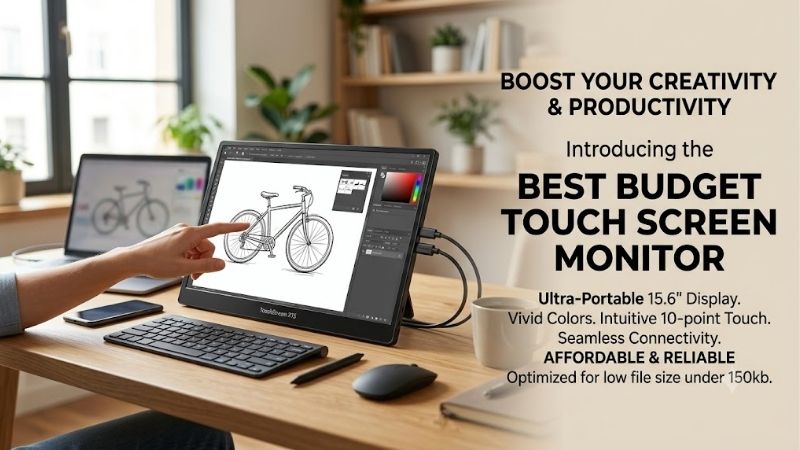
Quick answer: For most people in 2026, the best budget touch screen monitor is the Monitor — our #1 rated choice. See the full ranked comparison, alternatives and buying advice below.
Best budget touch screen monitor picks at a glance
Touchscreen displays are more specialized than ordinary monitors, so prices can be higher than you might expect for similar screen sizes and resolutions. The six models below cover desktop work, interactive presentations, portable productivity, and stylus-based tasks.
| Monitor | Best for | Screen and touch specifications | Main drawback |
|---|---|---|---|
| ASUS VT229H | Best all-round desktop option | 21.5-inch IPS, 1080p, 10-point capacitive touch, 60Hz | Limited stand adjustment and no USB-C |
| Acer UT222Q | Best adjustable desktop touchscreen | 21.5-inch IPS, 1080p, 10-point touch, 75Hz | Older design and basic connectivity |
| Planar Helium PCT2235 | Best for desk-based interactive work | 21.5-inch viewable, 1080p, 10-point capacitive touch | Costs more than basic touchscreen models |
| UPERFECT BE156PF | Best portable budget option | 15.6-inch IPS, 1080p, 10-point touch, 60Hz | No integrated battery or built-in stand |
| ViewSonic TD1655 | Best portable touchscreen upgrade | 15.6-inch IPS, 1080p, 10-point touch, 60Hz | Expensive for a 60Hz portable display |
| Lenovo ThinkVision M14t Gen 2 | Best compact touchscreen with pen input | 14-inch IPS, 2240 × 1400, 16:10, 60Hz | Small screen and USB-C-dependent connectivity |
Prices checked during the research ranged from $219.99 for the UPERFECT BE156PF to $299.99 for the ViewSonic TD1655. The ASUS VT229H and Acer UT222Q were listed around $229, while the Planar PCT2235 was listed at $289.99. These are dated US retail snapshots, not guaranteed checkout prices. The Lenovo is included for its higher-resolution portable design; verify its current price before buying.
How we selected these touchscreen monitors
The shortlist prioritizes genuine touch capability rather than ordinary displays with marketing language suggesting interactive use. All six models support touch input, but they serve different needs. Desktop models are generally easier to use as permanent workstations, while portable models trade screen size and stand flexibility for easier transport.
Manufacturer documentation was used to check resolution, touch capabilities, ports, mounting options, and refresh rate. Independent coverage was consulted where available, including a in-depth review of the ASUS VT229H and published guidance on portable touchscreens. This is a research-based comparison, not a claim that all six monitors were tested side by side.
Touch compatibility deserves particular attention. A display can work as an ordinary monitor without enabling its touch feature. HDMI normally carries the picture, while a separate USB connection may be needed to send touch data to a computer. USB-C can combine these functions only when the port and cable support the required video and data modes.
The intended operating system also matters. Windows is the safest assumption for conventional desktop touchscreen monitors. Some portable displays support macOS touch through a vendor-specific driver, but compatibility varies by model. Buyers should check the exact computer and connection before ordering rather than assume that touch works on every device with a video output.
ASUS VT229H: Best all-round desktop option
The ASUS VT229H is a straightforward choice for someone who wants a touchscreen in a conventional desktop setup. It has a 21.5-inch IPS panel with a native resolution of 1920 × 1080, a maximum refresh rate of 60Hz, and 10-point capacitive touch. ASUS describes its design as frameless, giving it a cleaner appearance than a traditional office monitor with thick borders.
Full HD is appropriate for this screen size. Documents, browser windows, menus, and general desktop applications remain readable at normal viewing distances, and IPS technology provides wide viewing angles. The glossy touch surface is designed for direct finger input, allowing gestures such as tapping, dragging, pinching, and zooming.
The important distinction is that the VT229H is a basic productivity monitor rather than a premium touchscreen workstation. It has a typical brightness rating of 250 nits and a 1000:1 contrast ratio. Its HDMI 1.4 and VGA inputs make it compatible with many desktop computers, but it does not offer USB-C video or a modern docking experience. A USB connection is required for touch input.
ASUS lists integrated 1.5W speakers on each side, which are convenient for system sounds and basic video playback. The stand supports only limited tilt adjustment, however, and there is no height adjustment. The display is also not designed to lie nearly flat for extended drawing sessions.
Digital Citizen’s review of the VT229H reported that its touch gestures worked well in Windows 10, while noting that the default image settings benefited from gamma adjustment. The review also criticized the limited tilt angle. These findings reinforce its suitability for ordinary interactive desktop use rather than a workstation where the panel must be angled like a drawing tablet.
Buy it if you want a recognizable brand, a conventional desktop form factor, and 10-point touch for Windows. Skip it if you need USB-C, a more flexible stand, or a high-refresh gaming display. B&H Photo Video listed the exact model at $229 when checked, but compare current seller offers and return terms before purchasing.
Acer UT222Q: Best adjustable desktop touchscreen
The Acer UT222Q is a practical alternative for anyone who expects to touch the screen frequently rather than occasionally. Acer lists a 21.5-inch Full HD IPS panel, 10-point touch capability, and a tilt range of approximately 15 to 70 degrees. That wider range is more useful for interactive tasks because you can angle the display toward your hands instead of using it only in a traditional upright monitor position.
Acer markets the UT222Q for applications such as point-of-sale systems, table menus, and information kiosks. Those use cases make sense for a home office, classroom, reception desk, or shared family computer where tapping on-screen controls is more convenient than navigating every interaction with a mouse.
Its connectivity includes HDMI, DisplayPort, VGA, and a USB connection for touch data. The monitor also has integrated speakers and a VESA 100 × 100 mm mounting pattern. You can use the included stand for desk placement or mount the display if your workspace benefits from a different arrangement.
The official specification page lists a 75Hz standard refresh rate. That is a modest improvement over 60Hz for ordinary scrolling and cursor movement, but it does not turn the model into a gaming-focused display. Its 250-nit brightness and Full HD resolution are adequate for everyday work, although buyers seeking a sharper image or a wider color gamut should look at more modern premium panels.
Acer’s design is older than many contemporary monitors, and the UT222Q lacks USB-C connectivity. You will need to connect video and touch separately, which can mean more cables than a modern one-cable setup. Check the exact retail description carefully because marketplace listings sometimes mix specifications from similar monitor categories.
Buy it if adjustable positioning and traditional desktop connections matter more than modern docking features. Skip it if you want a portable screen or need USB-C to carry video and touch data with minimal cable clutter. Newegg listed the model at $229.99 during the research period, though marketplace pricing and seller availability can change.
Planar Helium PCT2235: Best for interactive desk work
The Planar Helium PCT2235 is a 22-inch-class touchscreen with a viewable area of approximately 21.5 inches. It offers Full HD resolution, projected-capacitive 10-point multitouch, integrated speakers, and a distinctive stand that can move from an upright position to nearly flat on the desk.
That stand is the main reason to choose it over a conventional touchscreen monitor. A screen that tilts toward horizontal is more practical for touching controls, browsing interactive material with both hands, or demonstrating software to someone standing nearby. Planar also supports VESA mounting in either landscape or portrait orientation, allowing a more customized setup.
The display provides HDMI, DisplayPort, and VGA inputs. Touch still requires the appropriate USB connection to the host computer, so selecting a compatible video input alone is not sufficient. The integrated speakers are useful for basic multimedia and video calls, but buyers who care about sound quality should still use separate speakers or headphones.
The resolution and brightness are conservative by modern standards. Planar’s retail specifications list 1920 × 1080 resolution and a typical brightness of 250 nits. The screen is designed for interactive productivity rather than HDR content, demanding color work, or competitive gaming. Its main value is the touch experience and adaptable positioning, not superior image quality.
Planar advertises a three-year CustomerFirst warranty for qualifying products located in the contiguous United States. Confirm that the specific seller and purchase qualify before treating this as a benefit included with every listing.
B&H Photo Video listed the PCT2235 at $289.99 and showed it in stock when checked. That puts it toward the top of this guide’s budget, so it makes most sense when the stand and desktop interaction are genuinely useful.
Buy it if you routinely touch the monitor and want a stand that can move toward a flat working position. Skip it if you only need occasional touch input, since a less expensive desktop model may be enough.
UPERFECT BE156PF: Best portable budget touchscreen
The UPERFECT BE156PF, also known as the UTouch E7, is designed for portable work rather than permanent desktop placement. Its 15.6-inch IPS panel offers 1920 × 1080 resolution, a 60Hz refresh rate, and 10-point touch. At approximately 1.42 pounds for the display itself, it is easy to carry alongside a compatible laptop.
The main benefit is flexibility. You can use it as a second display for documents, notes, presentations, and browser windows, then pack it away when you leave your desk. A supplied smart cover can protect the screen and provide basic support, although it is not as adjustable or stable as a substantial desktop stand.
UPERFECT lists two full-featured USB-C ports and a mini-HDMI input. Its specification page lists a typical brightness of 250 nits and a contrast ratio of 800:1, so it is primarily intended for ordinary indoor use. The 1080p resolution is reasonable for a portable 15.6-inch screen, though small text can still benefit from scaling adjustments.
The key limitation is that it has no built-in battery. It must be powered through an appropriate connection or power source, and HDMI video does not by itself provide touch data. For the simplest configuration, the connected USB-C port needs to support video and data. If you use mini-HDMI for the picture, you may also need a USB connection for the touch function and a suitable power supply.
UPERFECT’s US product page displayed $219.99 when checked. That is a meaningful outlay for a secondary monitor, so consider whether touch is essential. A conventional portable display often costs less if you only want more screen space.
Buy it if you regularly travel with a laptop and need direct touch interaction on a second screen. Skip it if you want a large primary monitor or expect battery-powered operation away from an outlet. It is a portability-focused choice, not a replacement for a full-size desktop display.
ViewSonic TD1655: Best portable touchscreen upgrade
The ViewSonic TD1655 is another 15.6-inch Full HD portable touchscreen, but it emphasizes the convenience of a well-documented branded product and flexible USB-C connectivity. Its IPS panel runs at 1920 × 1080 and 60Hz, and ViewSonic specifies 10-point projected-capacitive touch.
The monitor is approximately 0.6 inches thick and weighs around two pounds. It includes a protective cover and a built-in stand that supports portrait or landscape positioning. Those details make it easier to use for travel, remote work, or a temporary second display at a shared desk.
Connectivity includes USB-C and mini-HDMI. ViewSonic advertises up to 60W of power delivery through its USB-C power arrangement, allowing a compatible laptop and portable monitor to share a more convenient power setup. The exact configuration still matters: your laptop port must support the relevant video mode, and charging behavior depends on the power source and cable.
ViewSonic lists a typical brightness of 250 nits and a static contrast ratio of 800:1. Those figures are suitable for a portable productivity display but do not suggest high-end HDR or exceptionally deep blacks. Its refresh rate is also limited to 60Hz, which is fine for documents and touch interaction but less appealing for high-refresh gaming.
One useful difference from some competing portable touchscreens is ViewSonic’s stated support for macOS touch through its vTouch driver. That support does not extend to iPhone or iPad touch use, and buyers should check the current driver requirements before assuming their exact Mac configuration will work.
ViewSonic’s US store listed the TD1655 at $299.99 and showed it in stock during research. It costs more than the UPERFECT BE156PF, so the extra spending is justified mainly if you prefer its product documentation, included cover and stand, and specified power options.
Buy it if you want a compact portable touchscreen from a monitor-focused brand. Skip it if price is the main consideration or if your laptop already has a capable touchscreen and you only need an additional picture display.
Lenovo ThinkVision M14t Gen 2: Best compact monitor for notes and pen input
The Lenovo ThinkVision M14t Gen 2 is a compact portable touchscreen aimed at users who want more than finger taps. It features a 14-inch IPS panel with a 2240 × 1400 resolution and a 16:10 aspect ratio. The taller aspect ratio provides extra vertical workspace for documents, web pages, and note-taking compared with a standard 16:9 Full HD portable display.
Lenovo specifies a 60Hz refresh rate and USB-C connectivity with DisplayPort Alt Mode. Its touch-and-pen design makes it useful for annotating documents, marking up presentations, or writing notes alongside a laptop. This is a better fit for mobile productivity than a large interactive desktop setup.
The higher resolution is an advantage on a 14-inch screen. Text can look sharp, and the compact size is easy to fit in a laptop bag. However, the smaller physical display means it is less convenient for multi-person interaction or for someone who wants a large on-screen keyboard and substantial touch targets.
USB-C compatibility is especially important. You need a laptop port that supports DisplayPort Alt Mode or another supported video mode, along with the required data connection for touch. Do not assume that a USB-C connector on a laptop always supports video output. Lenovo’s product and support pages provide the model-specific documentation to check before purchasing.
The M14t Gen 2 is not the lowest-cost option in this list, and a 14-inch screen will not replace a full-size desktop monitor for everyone. Its value is the combination of compactness, higher pixel density, and pen-oriented interaction. If you simply need a low-cost touchscreen for a stationary desk, one of the 21.5-inch desktop models is likely better value.
Buy it if you travel frequently and want a compact, high-resolution touchscreen for handwriting or document markup. Skip it if your budget is strict or if your main goal is to touch a large desktop interface.
How to choose the best budget touch screen monitor
Choose the screen size for the way you work
A 21.5-inch or 23.8-inch desktop monitor is the better choice if touch will be used every day. Larger touch targets are easier to reach, and a permanent desk setup allows you to position the display at a comfortable distance. For point-of-sale systems, reception desks, classrooms, and shared workstations, a model with an adjustable stand can be more useful than a portable screen.
Portable touchscreens make sense when space and mobility matter more than size. A 15.6-inch monitor fits alongside many laptops and can serve as an extra workspace, but it is less comfortable for extended multi-finger interaction than a desktop display. A 14-inch 16:10 panel can provide extra vertical room in a smaller footprint, particularly for documents and notes.
Confirm touch compatibility before buying
Touch support is not universal across every operating system and connection. Conventional desktop models such as the ASUS VT229H use a separate USB connection to send touch input to the computer. Portable USB-C displays can offer a simpler setup, but only when the connected device and cable support the necessary video and data features.
Windows is generally the most straightforward operating system for this category. Mac users should check whether the exact monitor supports native touch input or requires a vendor driver. Touch input is not a standard feature of every external display, and video compatibility does not guarantee that the touchscreen will work.
Understand the difference between capacitive and infrared touch
Projected-capacitive touch detects finger contact through a sensing layer and is common in modern consumer touchscreens. It usually supports gestures such as pinching, scrolling, and multi-finger interaction. Infrared touch uses sensors around the screen to detect interruptions in an infrared grid, which is common in certain interactive displays.
Neither method is automatically better for every task. The stand, screen surface, operating-system support, and software you use all affect the experience. If you plan to write or draw, look for explicit stylus support rather than assuming a monitor that accepts fingers will support pressure-sensitive pen input.
Check brightness, resolution, and the stand
A 1920 × 1080 screen is sufficient for many office tasks, especially at desktop sizes around 22–24 inches. Portable screens benefit from Full HD because the viewing area is smaller, but scaling may still be necessary for comfortable text. If the monitor will sit in a bright room, check its actual brightness specification and panel finish.
Ergonomics matter on touch displays because users physically reach toward the panel. A stand with a wide tilt range can make tapping and handwriting much more comfortable. Standard tilt-only stands may work for occasional touch but feel awkward for prolonged interaction. If you prefer a monitor arm, confirm the mounting pattern and weight support.
Frequently asked questions
Can a touchscreen monitor work with any computer?
Not necessarily. The computer needs a compatible video connection, and touch input usually requires a supported USB data connection or a USB-C connection that carries the necessary signals. Check the monitor’s supported operating systems and your computer’s ports before buying.
Does HDMI carry touchscreen input?
HDMI typically carries video and audio, not the touch data that tells a computer where the screen was touched. Many desktop touch monitors therefore use HDMI for the picture and a separate USB cable for touch. Some portable models can carry display and touch data through a compatible USB-C connection.
Is a portable touchscreen better than a desktop model?
A portable touchscreen is better for travel, temporary workspaces, and laptop users who need another display. A desktop touchscreen is generally more comfortable for regular interaction because it has a larger panel and often a more adjustable stand. Choose based on where and how often you will use touch.
Is a budget touchscreen monitor suitable for drawing?
It can work for basic annotations, simple sketches, and handwritten notes, but not every touchscreen supports an active stylus or pressure sensitivity. Look for a model that explicitly supports the pen you intend to use. The stand must also provide a comfortable working angle; otherwise, prolonged drawing can become awkward.
Final verdict
For a conventional desktop, the ASUS VT229H is a sensible starting point, while the Acer UT222Q offers a more adjustable stand and the Planar Helium PCT2235 is particularly suited to interactive desk work. For mobile use, the UPERFECT BE156PF keeps the cost lower than ViewSonic’s TD1655, while Lenovo’s ThinkVision M14t Gen 2 is more attractive for compact, pen-oriented productivity. Before you buy, verify the exact model, current price, operating-system support, and touch-data connection. The best choice is the one that makes touch genuinely useful without paying for features you will rarely use.
Ready to decide? Our #1 pick for 2026 is the Monitor.
Live price & availability on Amazon.









