
A touch screen monitor for gaming PC use makes the most sense when it solves a specific task: controlling a dashboard, navigating compatible games, managing desktop applications, or adding a portable screen. The Corsair XENEON EDGE is the most purpose-specific secondary display here, while the Dell P2424HT suits a conventional desk. Keep your high-refresh gaming monitor if competitive play remains the main priority.
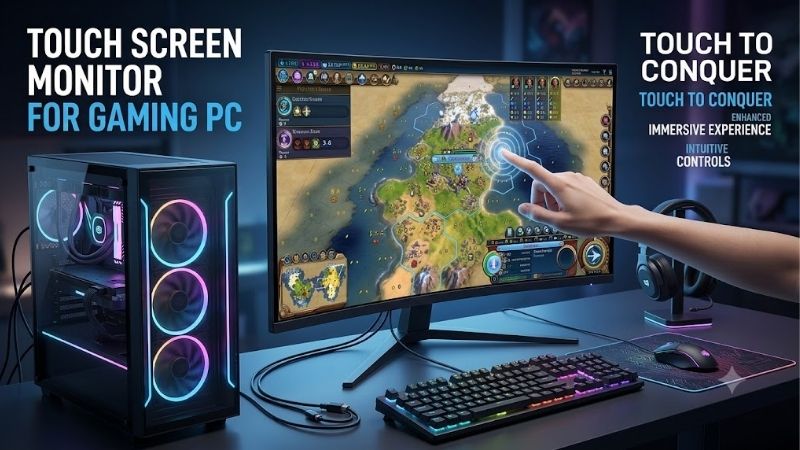
Quick answer: Our top pick in 2026 is the Corsair XENEON EDGE — our #1 rated choice. See the full ranked comparison, alternatives and buying advice below.
Touch screen monitor for gaming PC: the quick verdict
Choose the Corsair XENEON EDGE for a compact dashboard beside or below your main gaming screen. Its unusually wide format is designed around secondary-display duties rather than replacing a normal monitor.
Choose the Dell P2424HT when you want a larger touchscreen for everyday desktop use. Its articulating stand and USB-C hub give it a different purpose from a small case display.
The ASUS VT229H offers a simpler stationary 21.5-inch option. The ViewSonic TD1655 provides portable 1080p touch, while the TD1656-2K adds a taller 16:10 format and higher resolution.
Choose the ASUS ZenScreen Touch MB16AMTR when a built-in battery is an important requirement for a portable screen. Confirm the exact suffix because other ZenScreen models have different features.
These are touchscreen recommendations for a gaming computer, not measured winners for competitive gaming. Their documented specifications center on approximately 60Hz operation. Touch support also does not guarantee that every game accepts direct touch controls or remains active while you interact with another display.
Quick comparison table
The table describes intended roles and documented capabilities. It does not promise a particular game frame rate or measured touch latency.
| Monitor | Screen and panel | Resolution | Refresh | Touch capability | Main role | Main limitation |
|---|---|---|---|---|---|---|
| Corsair XENEON EDGE | 14.5-inch LCD | 2560 × 720 | 60Hz | 5-point touch | Dashboard beside the main display | Very wide, shallow image |
| Dell P2424HT | 23.8-inch IPS | 1920 × 1080 | 60Hz | Up to 10-point touch | Full-size desktop touchscreen | Productivity-focused gaming ceiling |
| ASUS VT229H | 21.5-inch IPS | 1920 × 1080 | Maximum 60Hz | 10-point capacitive touch | Simple stationary setup | HDMI video needs USB for touch |
| ViewSonic TD1655 | 15.6-inch IPS | 1920 × 1080 | 60Hz-class portable display | 10-point capacitive touch | Portable 1080p secondary screen | Host and power compatibility matter |
| ViewSonic TD1656-2K | 16-inch IPS | 2560 × 1600 | 60Hz | 10-point capacitive touch | Sharper 16:10 portable workspace | USB-C video support required |
| ASUS ZenScreen Touch MB16AMTR | 15.6-inch IPS | 1920 × 1080 | Maximum 60Hz | 10-point capacitive touch | Battery-equipped portable screen | Battery endurance depends on conditions |
How these monitors were selected
Every featured product has documented touch hardware, identifiable model specifications, and a distinct role in a PC setup. Non-touch portable monitors and touchscreen laptops are excluded.
The research checks display resolution, touch-point support, important connection requirements, and practical limitations. It separates a conventional primary display from a secondary dashboard rather than treating them as interchangeable purchases.
No hands-on gaming tests, touch-latency measurements, or matched motion comparisons were supplied. Product recommendations are based on documentation and editorial fit, not claims that these screens improve competitive performance.
No budget was specified, and current comparable US prices were not established for the entire shortlist. Consequently, price-based “best budget” and “best value” labels are omitted.
Windows is the starting assumption for gaming-PC use. Exact operating-system, driver, application, and host-device compatibility still require checking before purchase.
The six touchscreen picks explained
Corsair XENEON EDGE: the gaming-dashboard specialist
The XENEON EDGE uses a 14.5-inch LCD with 2560 × 720 resolution, 60Hz refresh, and five-point touch. Corsair includes a detachable magnetic stand and documents HDMI and USB-C DisplayPort Alt Mode connectivity.
Its wide, shallow image suits a row of dashboard elements. Choose it when you have a clear plan for monitoring information or compatible controls beside the game.
Corsair’s guide distinguishes HDMI video from USB power and data. A compatible USB-C connection can carry the required signals, but a charging-only connection disables touch functionality.
Placement determines usefulness. A display mounted where you cannot reach it may work as a status screen without serving as a practical touchscreen.
Buy if: You want a dedicated secondary dashboard and understand its unusual geometry.
Skip if: You need a conventional main gaming screen or a large document workspace.
Alternative: The Dell provides a larger desktop surface; the TD1655 offers a portable conventional aspect ratio.
Dell P2424HT: the conventional desktop touchscreen
The P2424HT combines a 23.8-inch 1080p IPS panel, 60Hz operation, and up to 10-point touch. Dell documents an articulating stand, USB-C with up to 90W power delivery, and Ethernet connectivity.
Its appeal is a complete desktop setup rather than a small gaming accessory. Consider it when the same computer handles gaming, browsing, and touch-friendly work.
USB-C charging can be useful for a compatible laptop, but a desktop does not automatically benefit from that feature. Evaluate the hub and stand according to your actual devices.
The refresh specification is the material gaming limitation. Choose it deliberately if touchscreen use outweighs high-refresh motion priorities.
Buy if: You want a larger stationary touchscreen and can use its stand or hub features.
Skip if: Your main requirement is high-refresh competitive gaming.
Alternative: The VT229H offers a simpler desktop direction, while the Corsair better fits a dedicated dashboard.
ASUS VT229H: the simpler fixed-screen option
The VT229H offers a 21.5-inch 1080p IPS panel, 10-point projected capacitive touch, and a maximum 60Hz refresh rate. ASUS documents Windows 10/11 compliance.
HDMI and VGA provide video, while USB carries the touch signal. Connecting only HDMI can therefore produce an image without a functioning touchscreen.
ASUS lists a glare surface and integrated stereo speakers. Assess reflections at the intended desk position rather than judging the screen only in product photography.
This model suits a buyer who wants a straightforward touch surface without making laptop docking or battery operation a requirement.
Buy if: You want a stationary touchscreen for compatible Windows applications and occasional touch-friendly gaming.
Skip if: You need a portable battery-equipped screen or high-refresh gaming capability.
Alternative: The Dell provides a larger, more flexible desktop arrangement; the TD1655 targets mobile use.
ViewSonic TD1655: the portable 1080p companion
The TD1655 combines a 15.6-inch 1080p IPS panel with 10-point capacitive touch, USB-C connectivity, mini-HDMI, and a built-in stand.
Its role is portability. Consider it when the screen will move between a gaming desk and a compatible laptop rather than remain permanently mounted.
The manual documents separate USB touch connectivity when using mini-HDMI. It also describes supplying power and charging a connected notebook through an appropriate externally powered arrangement.
A visible image does not establish every required function. Test video, touch, and power together on the exact host you intend to use.
Buy if: You need a conventional portable touchscreen and can verify the complete connection.
Skip if: A larger stationary screen or higher-resolution portable workspace is more important.
Alternative: The TD1656-2K adds resolution and vertical space; the ZenScreen adds a built-in battery.
ViewSonic TD1656-2K: the sharper portable workspace
The TD1656-2K provides a 16-inch 2560 × 1600 IPS panel, 16:10 aspect ratio, 60Hz refresh, and 10-point touch. ViewSonic documents USB-C connectivity and 65W power-delivery capability.
Its higher resolution can serve detailed desktop work, while the taller aspect ratio gives it a different shape from the TD1655.
Check the power arrangement carefully. The manual says the power adapter is not included and specifies suitable external power for charging connected devices.
It also advises against connecting two computers simultaneously because of power-distribution conflicts. This is not a substitute for a multi-computer switching system.
Buy if: You want a sharper portable touchscreen and have compatible USB-C video output.
Skip if: Your desktop lacks the required connection or you want undocumented HDMI compatibility.
Alternative: The TD1655 provides a documented mini-HDMI route; the Dell suits a fixed desk.
ASUS ZenScreen Touch MB16AMTR: the battery-equipped option
The MB16AMTR combines a 15.6-inch 1080p IPS panel, maximum 60Hz refresh, 10-point capacitive touch, and a built-in 7800mAh battery.
ASUS documents hybrid USB-C connectivity, mini-HDMI, a kickstand, and a tripod socket. Confirm the MB16AMTR model rather than transferring specifications from another ZenScreen.
The battery provides a distinct reason to consider it, but manufacturer “up to” runtime is not a guarantee for your brightness setting and workload.
ASUS also distinguishes display compatibility from touch feedback. Its product notes require a USB touch-data connection and state that touch feedback is unavailable on iOS/iPadOS.
Buy if: A portable touchscreen with its own battery solves a real mobility requirement.
Skip if: You expect high-refresh gaming or universal touch control across every connected device.
Alternative: The TD1655 suits conventional portable use without making a built-in battery the priority.
How to choose a touch screen monitor for gaming PC use
Choose the screen’s role before its specifications
Start by deciding whether the display will show the game or support it. Those roles lead to different purchases.
A primary touchscreen needs an image size and motion presentation you can accept for the games you play. A secondary dashboard needs readable controls, suitable placement, and reliable application behavior.
A case-mounted display may be excellent for showing information but inconvenient to touch. If your PC sits below the desk, reach can undermine the reason for buying touch hardware.
For a streaming desk, identify the controls you want on screen before choosing the display. Confirm that the software supports the intended interaction rather than assuming every shortcut can become a touch button.
A clear task can also reveal that you do not need a touchscreen at all. A conventional secondary display may already handle passive information.
Understand whether your games accept touch input
Windows recognizing the touchscreen does not establish that a particular game supports direct finger controls.
Some applications respond to taps, while others expect a mouse, keyboard, or controller. Gestures can behave differently from conventional pointer input.
Check the exact game and the action you want to perform. Selecting a menu item is different from steering, aiming, or controlling several actions simultaneously.
Ten-point touch describes simultaneous contact detection. It does not prove that a game maps all those contacts to useful controls.
Keep your usual peripherals available during our research. Choose the monitor only when the required interaction works in the software you actually use.
Account for focus when touching another display
A secondary touchscreen can keep information visible, but interacting with an application on it may move focus away from the game.
Depending on the game and display mode, that can interrupt keyboard input, minimize the game, or change how it behaves while inactive.
Borderless-windowed mode may help some workflows, but it should not be treated as a universal solution. Test the exact game and companion software.
Compare a passive dashboard with an interactive one. If you only need to glance at temperatures or chat, you may not need to touch anything during play.
If uninterrupted gameplay is essential, establish the behavior before relying on on-screen controls. A touchscreen does not independently solve application-focus rules.
Check the GPU output and USB touch path
Video output and touch input are separate functions. A monitor can show an image while the computer has no working touch-data connection.
For a gaming desktop, check the ports on the graphics card and the USB ports needed by the touchscreen. A motherboard USB-C port does not automatically carry video from the dedicated GPU.
The Corsair guide specifically requires a compatible video-capable USB-C connection for its single-cable mode. Otherwise, its documented two-cable arrangement separates video from USB power and data.
The ASUS VT229H similarly needs USB alongside HDMI or VGA for touch.
Write down the complete path before ordering. Include the output, cable, touch-data port, power source, and any adapter so that no necessary component is left unaccounted for.
Do not equate USB-C charging with video support
USB-C connector shape alone does not establish DisplayPort Alt Mode, sufficient power, or the required data path.
A charging-only cable or port can fail to provide the touch function even when power is available. A data-only host port may not supply video through the intended route.
For portable displays, check whether the host powers the monitor or an external adapter is required. Add that adapter to the purchase plan if it is not included.
Likewise, monitor power delivery does not guarantee that a gaming laptop can replace its original power supply.
Use the manufacturer’s diagram for the exact model. Similar-looking portable screens can have materially different ports and connection requirements.
Balance resolution with physical size
Resolution determines pixel count, while screen size determines the physical area available for controls.
A 15.6-inch 1080p panel can display detailed content, but small buttons may need scaling before they are comfortable to tap. A larger 1080p screen can provide larger physical targets at the same interface scale.
The TD1656-2K’s 2560 × 1600 resolution offers more desktop pixels, but that does not automatically make its touch controls larger.
The Corsair’s 2560 × 720 image has substantial horizontal room and relatively little vertical space. Check whether your dashboard adapts to that shape.
Evaluate the actual layout rather than comparing resolution numbers alone. A useful touchscreen makes the required information readable and the controls reachable.
Keep refresh rate and touch-point count separate
A 60Hz refresh rate describes how often the display can update its image. Five-point or ten-point touch describes how many contacts the sensor can detect.
Neither establishes measured touch latency. A display can accept several fingers without presenting fast game motion as smoothly as a suitable higher-refresh screen.
These shortlisted products should not be treated as automatic replacements for a satisfactory competitive gaming monitor.
If you want to play the game on the touchscreen, assess whether its refresh ceiling fits your expectations. Keep that decision separate from its usefulness for menus or dashboards.
No product here is ranked by a manufacturer response-time minimum or an unsupported claim of gaming responsiveness.
Check Windows, Mac, and mobile compatibility precisely
Windows is the intended starting point for this guide, but driver and application requirements still matter.
For Macs, consult the exact model’s touch guidance. ViewSonic documents vTouch software for compatible touch displays; that does not justify transferring its behavior to another brand.
ASUS’s MB16AMTR notes separately describe operating-system-dependent touch support and unavailable touch feedback on iOS/iPadOS.
Phone or console video compatibility also does not mean touching the external panel controls that device.
If the setup uses a managed computer, confirm that required software can be installed. A technically compatible display can still be unsuitable when installation permissions prevent the intended functions.
Evaluate mounting and reach together
Position the display where you can view it comfortably and touch it without repeated stretching.
For a dashboard below the main monitor, account for keyboard clearance and the viewing angle. A low screen that looks tidy may become awkward when hands or cables obstruct it.
For case mounting, follow the exact manufacturer’s mounting instructions and check physical clearances. The presence of a mounting option does not prove every case installation is suitable.
Keep cables clear of moving fans and avoid forcing connectors into tight spaces.
If using an arm or tripod, verify the mounting interface and load requirements. Evaluate the finished position, not just whether the hardware can attach.
Test the setup before committing to it
Connect and map touch first
Begin with the documented direct connection and required power source. Confirm the native image before adding docks or unnecessary adapters.
Then verify that tapping the touchscreen moves the pointer or operates controls on that display. Multi-monitor arrangements may require touch mapping or calibration.
The ViewSonic manuals describe Windows Tablet PC Settings for calibration when the cursor does not follow the finger accurately.
Do not use calibration as a substitute for fixing a missing USB data connection.
Test the actual gaming workflow
Launch the game and the companion application together. Try the exact interaction you intend to use during a normal session.
Check whether touching the dashboard moves focus, interrupts controls, or changes the game’s display behavior. Repeat after returning to the main screen.
For a portable monitor, test the actual laptop and power arrangement you plan to carry.
Also check sleep, reconnection, and restart behavior before deciding the setup is reliable enough for daily use.
Frequently asked questions
Can a touchscreen monitor increase game FPS?
No. Touch capability does not improve rendering performance. Changing the resolution or workload can affect FPS, but adding a touchscreen alone does not make the PC faster.
Is a touchscreen monitor the same as a drawing display?
No. Finger touch and a passive stylus do not establish active pen support, pressure sensitivity, or palm rejection. Verify those features separately if drawing is a requirement.
Do I need iCUE for the Corsair setup?
Corsair’s documented setup uses iCUE for configuration and screen control. Follow the current guidance for the exact features you need rather than assuming every dashboard function is available without software.
Can I use HDMI without connecting USB?
You may obtain a picture, but the documented HDMI arrangements here require a USB data path for touch. Some monitors also need separate power.
Final verdict
Choose the Corsair XENEON EDGE for a dedicated secondary dashboard, the Dell P2424HT for a conventional touch-enabled desk, or the ASUS VT229H for simpler stationary use.
The ViewSonic portable models serve different resolution and connection priorities, while the ASUS MB16AMTR adds a battery. Confirm game interaction, focus behavior, video output, and touch-data connectivity before replacing or supplementing your main gaming display.
Ready to decide? Our #1 pick for 2026 is the Corsair XENEON EDGE.
Live price & availability on Amazon.









