
An OLED monitor and an OLED TV can both deliver deep blacks, vivid color, and near-instant pixel response, so the better choice depends on how you use the screen. For desk-first PC gaming, especially when you sit close, an OLED monitor usually makes more sense because it offers higher pixel density, more high-refresh options, and convenient desktop ergonomics. An OLED TV is the better fit when you want a large, cinematic image from farther away and also watch movies or play from a couch. The right oled monitor vs tv decision starts with viewing distance, GPU capability, and whether your display doubles as a work screen.
- Quick verdict: choose based on how you sit and play
- OLED is the panel technology, not the product category
- Text clarity and pixel density favor monitors at a desk
- Refresh rate and input lag: the monitor advantage is real, but not universal
- HDR and picture processing often favor a good OLED TV
- Size, viewing distance, and desk ergonomics
- Ports and PC setup can change the result
- Burn-in, static desktop elements, and long-term ownership
- Which should you buy for your specific setup?
- Frequently asked questions
- Final verdict
Quick answer: Our top pick in 2026 is the Your priority — our #1 rated choice. See the full ranked comparison, alternatives and buying advice below.
Quick verdict: choose based on how you sit and play
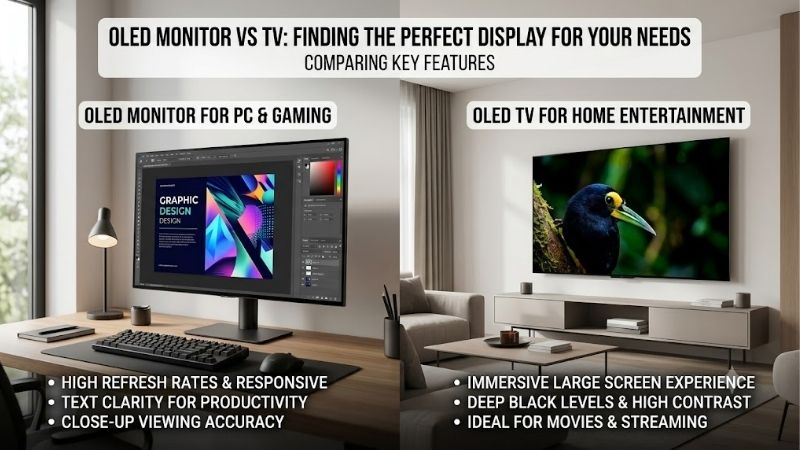
Choose an OLED monitor if your desk is the main gaming location, you sit roughly arm’s length from the screen, you want 240Hz or higher, or you spend hours reading text alongside gaming. A 27-inch 4K OLED monitor packs far more pixels into each inch than a 42-inch 4K TV, making small text and interface elements generally sharper at close range. Dedicated monitors also tend to make high refresh rates, DisplayPort connections, and height-adjustable stands easier to find.
Choose an OLED TV if you want a 42- to 65-inch or larger picture, sit several feet away, value HDR movie playback and streaming apps, and want one display for PC games, console games, and living-room entertainment. Modern TVs are not automatically slow: some current models support 4K at 120Hz, 144Hz, or 165Hz, variable refresh rate (VRR), and low-latency Game Mode. The key is to check the exact model rather than assume every television has the same gaming performance.
| Your priority | Better starting point | Why |
|---|---|---|
| Competitive PC gaming at a desk | OLED monitor | More high-refresh choices and simpler desk ergonomics |
| Small text, coding, and office work | OLED monitor | Higher pixel density at typical desk distances |
| Large, cinematic single-player games | OLED TV | Bigger image and strong video processing |
| PC gaming plus movies and streaming | OLED TV | Smart TV platform, remote, and broad HDR format support |
| 4K at 240Hz or more | OLED monitor | More options at high refresh rates; still verify the exact model and connection |
| Couch gaming at 6–10 feet | OLED TV | Large image makes sense at a greater viewing distance |
| Mixed desk and couch use | Depends on room | A 42-inch TV can work as a monitor if desk depth and text clarity are acceptable |
OLED is the panel technology, not the product category
OLED means each pixel produces its own light rather than relying on a shared backlight. That allows pixels to switch off for black, creating excellent dark-room contrast and avoiding the bright halos that local-dimming LCDs can show around highlights. OLED pixels also change state very quickly, which can produce clean motion without the dark-transition smearing found on some VA LCD panels.
Those strengths do not make every OLED screen equivalent. A monitor and a television can use different OLED panel generations, subpixel layouts, coatings, cooling systems, brightness limits, processing pipelines, and firmware. A premium OLED TV can look brighter and more refined in HDR than a basic OLED monitor, while a competitive OLED monitor can offer refresh rates well beyond a typical TV. Panel technology sets the foundation; the complete model determines the experience.
Compare OLED with OLED to isolate the differences between a monitor and a TV. An OLED-versus-budget-LED comparison does not answer that question. Compare panel generation, brightness, refresh rate, reflections, HDR tone mapping, and text rendering on the actual models you can buy.
Text clarity and pixel density favor monitors at a desk
A 4K screen always has 3,840 × 2,160 pixels, but those pixels are packed more tightly on a smaller display. RTINGS gives a representative comparison of about 166 pixels per inch (PPI) for a 26.5-inch 4K monitor and about 105 PPI for a 42-inch 4K TV. That difference is easier to notice when reading Windows menus, spreadsheets, chat, or small in-game text from close up. At a normal living-room distance, the pixel-density gap matters less.
Subpixel structure adds another wrinkle. Some QD-OLED panels use a triangular arrangement, while some WOLED screens differ from the conventional RGB layout expected by desktop text-rendering methods. Thin text may show colored edges or look less crisp; higher PPI helps but does not guarantee perfect text.
Many TVs support chroma 4:4:4, which preserves color detail in small PC text, but input settings matter. A 4K TV can still look wrong if it receives a subsampled signal or uses an unsuitable picture mode. If you will work on the screen daily, inspect text samples or an independent review. For gaming mixed with documents and browsing, monitor-size 4K OLED is often safer.
Refresh rate and input lag: the monitor advantage is real, but not universal
Refresh rate describes how often the display can update. A 120Hz panel refreshes every 8.33 milliseconds; 165Hz every 6.06 milliseconds; 240Hz every 4.17 milliseconds. Higher refresh can make mouse movement and fast camera pans look smoother, especially when the PC produces enough frames to take advantage of it. Many gaming monitors offer 240Hz, 360Hz, or higher, while TVs have traditionally focused on 120Hz. Some 2026 TVs now reach 165Hz, so the gap is narrower than it used to be.
Refresh rate does not promise frame rate: a 240Hz monitor does not make a game render at 240 FPS. The GPU, CPU, game engine, and settings must deliver the frames. VRR can reduce tearing, but it cannot fix stutter from uneven frame times. If games usually run between 70 and 130 FPS, a good 120Hz or 165Hz OLED TV can feel excellent; monitor options above 240Hz matter more for competitive play at higher frame rates.
Input lag is signal-to-screen delay, not the same thing as pixel response time. RTINGS’ comparison of 190 TVs and 134 monitors found average input lag of 6.8 milliseconds for TVs and 5.5 milliseconds for monitors at 4K/120Hz. Its 60Hz averages were 12.4ms for TVs and 11.7ms for monitors. These are category averages from its testing, not a guarantee about any particular pair of models, and test methods differ between TV and monitor categories. A TV with a well-implemented Game Mode can outperform a slow monitor; outside Game Mode, TV processing can add substantial latency.
Look for input-lag measurements at your intended resolution and refresh rate. Confirm support for HDMI Forum VRR, AMD FreeSync, or NVIDIA G-SYNC Compatible as needed. Implementation varies, and a TV may require Game Mode before VRR becomes available.
HDR and picture processing often favor a good OLED TV
OLED monitors provide excellent black levels and high contrast, but not all models sustain the same brightness across the whole screen. Some gaming monitors limit full-screen brightness to control heat and panel wear. A good TV may have a more sophisticated video processor, stronger HDR tone mapping, and more effective upscaling for compressed streams or lower-resolution content. Those benefits are especially relevant if the same display is used for movies, television, console gaming, and PC games.
That does not mean every TV has better HDR than every monitor. A high-end monitor can offer excellent HDR, and a lower-tier television may have less impactful highlights or weak processing. Peak brightness numbers also need context: a short-lived highlight in a small window is not the same as brightness over a large bright scene. Review measured HDR performance and tone mapping for the exact model instead of shopping by one advertised nit figure. RTINGS notes that high-end TVs often have an advantage in HDR processing and brightness, while model-level variation remains substantial.
Room lighting matters. A glossy OLED can look spectacular in a dim room, but direct reflections distract from dark scenes. Some monitors use matte or anti-reflective coatings, while many TVs are glossy. Matte finishes diffuse reflections rather than erase them and can look hazier. Check the room’s reflections before choosing based on online photos.
Size, viewing distance, and desk ergonomics
A 27- or 32-inch monitor is designed for close viewing. It is easier to position on a standard desk, gives you more screen real estate without dominating your field of view, and commonly includes height, tilt, and swivel adjustments. A monitor stand can also make it easier to align the screen with your eyes or mount it on a compatible VESA arm.
A 42-inch TV can work well as a desktop display, but measure first. The panel is wide and tall, so a shallow desk may force you to sit too close or move your head more when looking at corners. You may need to lower the TV so the top of the screen is not uncomfortably high, and its feet may require more width than a monitor stand. Larger 48-inch TVs need still more desk depth. A wall mount or sturdy arm can help, but verify the VESA pattern, weight, arm capacity, and movement range.
A TV makes more sense several feet away. The larger image is immersive in racing games, action-adventure titles, and cinematic RPGs. Do not buy a 65-inch TV for a conventional desk just for impressive specs; size helps only when the room can accommodate it.
Ports and PC setup can change the result
Before choosing either type, check the connection requirements for your graphics card and target display mode. HDMI 2.1 bandwidth is important for uncompressed high-bandwidth 4K gaming modes on TVs and monitors. DisplayPort is common on monitors and can support high refresh through Display Stream Compression (DSC), depending on the GPU and model. Compression implemented by DSC is designed to be visually lossless, but you still need compatible hardware and the right cable. Do not assume that a port labeled HDMI 2.1 guarantees every advertised resolution and refresh combination across all inputs.
A good example of the monitor category is the ASUS ROG Swift OLED PG27UCDM. ASUS lists a 26.5-inch 4K Tandem QD-OLED panel at 240Hz, DisplayPort 2.1a with up to 80Gbps bandwidth, two HDMI 2.1 ports, and USB-C with DisplayPort Alt Mode. That combination is designed around close-range PC gaming and desktop use. The specification is not a claim that every graphics card can run demanding games at 4K/240 FPS; it describes the display’s input capability.
For a larger monitor example, Dell’s Alienware AW3225QF is a 31.6-inch 4K QD-OLED monitor rated for 240Hz. Dell specifies DisplayPort 1.4 with DSC and two HDMI 2.1 inputs supporting 4K/240Hz, HDR, and VRR. Dell also lists a three-year Advanced Exchange service and Premium Panel Exchange that includes OLED burn-in coverage for this monitor. Warranty details are model- and region-specific, so verify the current US policy for any screen you consider.
For a TV example, the 2026 LG C6 OLED is available in sizes including 42 and 48 inches. LG advertises 4K at 165Hz VRR for the C6 line, and RTINGS reports four HDMI 2.1 ports plus HDMI Forum VRR, FreeSync, and G-SYNC compatibility. RTINGS also notes that the tested TV handles chroma 4:4:4 but its RWBG subpixel layout still keeps text from being perfectly clear for text-critical work. These examples illustrate the trade-off: the TV offers a larger picture and home-entertainment features, while the monitor offers greater pixel density at a smaller size. Exact specifications can vary by size and regional model code, so check the listing and manual.
For either type, use this setup checklist:
-
Set the display to its native resolution and highest supported refresh rate in Windows and the GPU control panel.
-
Enable Game Mode or the equivalent low-latency setting on a TV; make sure it has not reverted to a cinema or image-processing mode.
-
Enable the relevant VRR setting in the display menu and GPU software, then verify that the game is using it.
-
Configure PC input labeling and chroma 4:4:4 or PC mode on a TV when available; use a suitable HDMI or DisplayPort cable for the chosen mode.
-
Turn on OLED panel-care features and allow the display to complete its compensation or maintenance cycle when prompted.
-
Test SDR desktop brightness and actual HDR games separately; do not assume HDR should stay enabled for every desktop task.
Burn-in, static desktop elements, and long-term ownership
OLED pixels can wear at different rates. Repeatedly displaying a static taskbar, HUD, scoreboard, or bright window in the same location can contribute to uneven wear over time. That is not a reason to avoid OLED automatically, but it is a reason to understand the care features and warranty. Monitor and TV manufacturers use techniques such as pixel shifting, logo dimming, screen savers, and panel refresh routines to reduce risk. These features lower risk; they do not make burn-in impossible.
A PC desktop can be tougher than varied video because the same UI elements stay visible for hours. Hide the taskbar when practical, use sleep timers, avoid leaving paused games onscreen, and let automatic maintenance run. Do not force maintenance cycles more often than the manufacturer recommends. If the display will run static apps all day, read the exact warranty rather than assuming OLED is covered.
Warranty coverage is not uniform across all TVs, countries, or monitors. For example, Dell explicitly includes OLED burn-in in the three-year service details for the AW3225QF; that does not establish the same protection for an Alienware model from another year or for a television from another manufacturer. Read the policy for the exact model and region, including exclusions and the required procedure for a claim. If the idea of managing static content is unacceptable, a high-quality LCD monitor may be a more comfortable ownership choice even if OLED looks better in a dark room.
Which should you buy for your specific setup?
Choose a 27-inch 1440p or 4K OLED monitor if you play competitive games, sit close, and prioritize text clarity or refresh rate. Choose a 32-inch 4K OLED monitor if you want more workspace and sharp text without moving to a TV-sized panel. The 32-inch 4K/240Hz class is a strong compromise, but its price and GPU requirements are high; it is not automatically the right choice for a midrange graphics card.
Choose a 42-inch OLED TV if you have a deep desk or a couch-based setup, play mostly cinematic single-player games, and also want a screen for movies and streaming. Check its refresh rate carefully: a 120Hz TV can be perfectly suitable, but an enthusiast who specifically wants 240Hz should verify that the model actually offers it at native resolution. A TV’s larger screen is not the same thing as better detail when viewed up close.
Choose a conventional LCD monitor if you display static interfaces for long hours, use the PC in a very bright room, or want to avoid OLED care routines. A good IPS or Mini LED LCD may be more practical, depending on contrast, motion handling, and local-dimming quality. Match the technology to your habits rather than paying an OLED premium by default.
Frequently asked questions
Is an OLED TV as good as an OLED monitor for PC gaming?
It can be. A recent OLED TV with a low-latency Game Mode, 4K input, VRR, and 120Hz or higher refresh may deliver excellent PC gaming. OLED monitors tend to win on close-range text clarity, ergonomic stands, and very high refresh options. The exact models matter more than the category label.
Can I use a 42-inch OLED TV as my main PC monitor?
Yes, if you have enough desk depth and can position it at a comfortable height and distance. Expect text to look less crisp than on a smaller 4K panel at the same distance because pixel density is lower, and check subpixel layout and chroma 4:4:4 support before buying.
Is burn-in more likely on a monitor or a TV?
Neither category is automatically immune. Risk depends on usage, brightness, static content, panel design, and protection routines. PCs often display static UI for long periods, while TVs may show more varied full-screen content. Check model-specific protection features and warranty language.
Do I need HDMI 2.1 for an OLED TV connected to a PC?
If you want high-bandwidth 4K at 120Hz or above with HDR and VRR, HDMI 2.1-class bandwidth may be necessary, depending on the exact mode and connection. Confirm the GPU output, TV port, cable, and supported refresh combination. HDMI version branding alone is not a substitute for checking the full signal specification.
Is a 120Hz OLED TV too slow for gaming?
No. A 120Hz OLED TV can offer fast pixel response and low input lag in Game Mode. A higher-refresh monitor can look smoother when the PC sustains enough frames, but 120Hz is still a substantial improvement over 60Hz and works well for many genres.
Final verdict
For a conventional PC desk, an OLED monitor is the safer default: sharper close-range text, high refresh options, and desk-friendly ergonomics. For a living room or deep desk where a huge image is the goal, an OLED TV can be better because of its size, smart features, and video processing. Modern TVs are capable gaming displays, not just oversized 60Hz panels.
Compare the exact resolution, native refresh rate, VRR support, PC text rendering, ports, reflections, and burn-in warranty before deciding. If possible, assess how far you will sit from the panel and how much desktop work you do. The best screen is the one that fits your room and habits—not simply the one with the largest diagonal or brightest marketing claim.
Ready to decide? Our #1 pick for 2026 is the Your priority.
Live price & availability on Amazon.









