
Deciding between an oled tv or monitor is not simply a question of which screen delivers better picture quality. Both can offer deep blacks, remarkable contrast, and fast pixel transitions, but they behave differently when connected to a desktop computer. A 42-inch OLED television can provide immersive 4K gaming and enormous workspace, while a 27-inch or 32-inch OLED monitor generally fits a desk more comfortably and offers features designed for everyday PC operation. The right purchase depends on viewing distance, how many hours you work, the games you play, and your graphics card. This guide focuses on those practical buying decisions, including whether an OLED TV can genuinely replace a dedicated computer monitor.
- Quick answer: Choose based on how you actually use your PC
- Oled Tv Or Monitor television or computer monitor: Key differences
- Can you use an OLED TV as a computer monitor?
- Check your desk before choosing a 42-inch OLED TV
- Text clarity: The most overlooked desktop difference
- Gaming performance: Match the display to your graphics card
- OLED TV setup: What should you configure after connecting your PC?
- Daily productivity: Which feels more like a real workstation?
- Burn-in risk: Does a TV last longer than an OLED monitor?
- Picture quality: Is a television always more impressive?
- Price and total setup cost
- Buying checklist: Make the final decision
- Frequently asked questions
- Final verdict
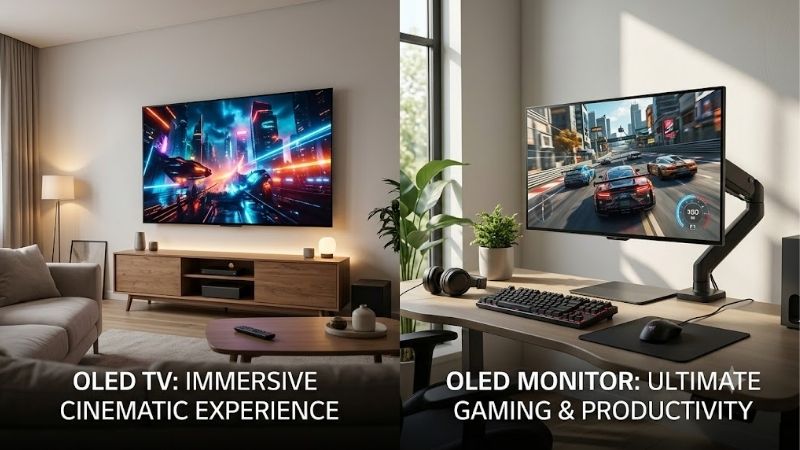
Quick answer: Choose based on how you actually use your PC
A dedicated OLED monitor is usually the safer choice for a conventional desktop gaming setup. Its smaller screen size, adjustable stand, high available refresh rates, and PC-oriented connections make it easier to integrate into daily computer use.
An OLED television becomes attractive when you want a very large 4K display, have a deep desk, and spend substantial time gaming or watching videos rather than reading static documents.
However, neither is automatically the right choice for an eight-hour workday. Users who spend most of their time editing spreadsheets, writing code, or viewing fixed application interfaces should also consider an LCD monitor because OLED panels remain susceptible to uneven pixel aging.
The clearest purchasing decisions are:
-
Choose a 27-inch OLED monitor for competitive gaming and compact desks.
-
Choose a 32-inch 4K OLED monitor for a balanced premium gaming and productivity setup.
-
Choose a 42-inch OLED TV when you have sufficient viewing distance and want maximum immersion.
-
Choose a larger OLED TV primarily for couch gaming, movies, and shared entertainment.
-
Consider IPS or Mini LED LCD for extensive static office work and lower burn-in concerns.
The important distinction is that an excellent entertainment display is not necessarily the most practical computer display.
Oled Tv Or Monitor television or computer monitor: Key differences
| Buying consideration | OLED television | OLED gaming monitor |
|---|---|---|
| Typical PC-friendly size | 42–48 inches | 27–32 inches |
| Common premium resolution | 3840 × 2160 | 2560 × 1440 or 3840 × 2160 |
| Refresh-rate emphasis | 120–165Hz | 240Hz and higher |
| Desk compatibility | Requires more depth | Fits conventional desks |
| Pixel density at 4K | Lower at larger sizes | Higher at smaller sizes |
| PC connections | Primarily HDMI | HDMI, DisplayPort, sometimes USB-C |
| Built-in speakers | Usually included | Model-dependent |
| Smart streaming apps | Usually included | Not standard |
| Stand adjustment | Often limited | Frequently adjustable |
| Text readability | Depends on size and subpixels | Generally better at equal resolution |
| Burn-in risk | Present | Present |
| Best primary use | Large-screen entertainment | Desktop computing and gaming |
These are typical differences rather than guaranteed characteristics.
For example, the 42-inch LG C6 OLED television supports 4K gaming at up to 165Hz, while the ASUS ROG Swift OLED PG32UCDM Gen3 monitor provides 32-inch-class 4K gaming at up to 240Hz.
Both can serve as a gaming display, but they solve different problems.
Can you use an OLED TV as a computer monitor?
Yes. Modern OLED televisions with HDMI connectivity can function as computer displays when connected to a compatible desktop or laptop.
Many gaming-oriented televisions support 4K resolution, high refresh rates, variable refresh rate, and low-latency picture modes.
The LG C6 OLED, for example, supports 4K at up to 165Hz and accepts full chroma 4:4:4 signals, making it a credible PC-display option.
Independent testing from RTINGS identifies it as a capable television for computer use, although its nonstandard OLED subpixel layout still creates text-clarity compromises.
When a television works especially well
A 42-inch OLED TV can be suitable for a PC used primarily for games, movies, video playback, and occasional desktop tasks.
The larger screen provides considerable room for multiple application windows, potentially reducing the need for a second monitor.
A television also includes entertainment features that conventional gaming monitors frequently omit, including smart applications, integrated audio, and remote control functionality.
For a gaming room where one screen must handle both desktop gaming and entertainment, these features can be genuinely useful.
When a television becomes inconvenient
Problems usually involve physical size, operating behavior, and desktop ergonomics rather than gaming performance.
A large television may occupy most of a shallow desk and place interface elements far from the center of your field of view.
The included stand may provide little adjustment, while the television’s power management can behave differently from a standard monitor.
Some TVs require users to change input labels or picture settings to optimize PC text clarity.
None of these limitations makes an OLED television unsuitable for computers, but they introduce additional purchasing and setup considerations.
Check your desk before choosing a 42-inch OLED TV
A television that looks manageable in a showroom can feel enormous at normal desktop distances.
A 42-inch 16:9 screen measures approximately 36.6 inches wide and 20.6 inches high, excluding bezels and its stand.
By comparison, a 32-inch 16:9 screen is approximately 27.9 inches wide.
That difference substantially affects desk placement.
Viewing distance matters more than screen size alone
Sitting close to a large display increases how much of your field of view it occupies.
This can be enjoyable in racing games, simulators, and immersive adventures.
However, competitive gaming and productivity often require frequent attention to interface elements near the screen edges.
A large display positioned too close can increase the amount of eye and head movement needed to inspect those elements.
There is no universally perfect viewing distance. Comfort depends on eyesight, scaling settings, game type, posture, and personal preference.
Before buying, try to reproduce the proposed screen dimensions using your available desk space.
Consider mounting and cable access
Wall mounting may create more usable space than a television’s original stand.
However, confirm VESA mounting compatibility, load capacity, wall suitability, and access to rear-facing ports.
A monitor arm must be rated for the exact television’s dimensions and weight, not merely described as suitable for large screens.
Also consider where power cables, HDMI cables, and connected devices will sit.
A 32-inch gaming monitor typically requires less planning and is easier to reposition throughout the day.
Text clarity: The most overlooked desktop difference
Gaming screenshots often emphasize contrast and color, but computer users spend considerable time reading small text.
This makes text clarity one of the most important differences between an OLED television and an OLED monitor.
Resolution does not tell the whole story
A 42-inch 4K TV and a 32-inch 4K monitor contain the same total number of pixels.
However, those pixels are distributed across different screen areas.
A 32-inch 4K screen has approximately 138 pixels per inch, while a 42-inch 4K display has approximately 105 pixels per inch.
The smaller display therefore produces finer image detail when both are viewed from the same distance.
This difference becomes particularly noticeable with small fonts and detailed desktop interfaces.
A larger television may remain comfortable when viewed farther away, but its physical size does not automatically translate into sharper text.
OLED subpixel arrangements affect Windows text
Many OLED panels use subpixel structures that differ from the conventional RGB arrangement assumed by common operating-system text rendering.
As a result, some OLED displays show colored fringing around letter edges.
Both WOLED and QD-OLED implementations can exhibit this behavior, although severity varies with panel generation, resolution, layout, and viewing distance.
RTINGS’ 2026 OLED analysis identifies conventional RGB-layout LCD monitors as generally stronger for text clarity, especially when comparing displays with similar pixel density.
Users who primarily browse websites or play games may barely notice the effect.
Programmers, editors, designers, and anyone reading small text throughout the day may find it more distracting.
Why chroma 4:4:4 is important
A television connected to a computer should ideally support chroma 4:4:4 at the intended resolution and refresh rate.
This preserves full color information for individual pixels.
Reduced chroma information can make colored text edges appear softer.
Some televisions require a PC input label or specific picture configuration to display full chroma properly.
Before purchasing, check independent testing for the exact model rather than assuming that every HDMI 2.1 television provides identical desktop behavior.
Gaming performance: Match the display to your graphics card
Refresh rate is important, but the maximum advertised specification is only useful when the source can provide an appropriate signal.
A 240Hz monitor can update its image 240 times per second, while a 120Hz television refreshes 120 times per second.
However, a game running at 85 FPS cannot deliver 240 unique frames every second.
When a high-refresh monitor makes sense
Players focused on competitive shooters and fast-paced esports titles may benefit from a 240Hz or higher OLED monitor.
Higher refresh rates reduce the interval between display updates, potentially improving motion presentation and responsiveness.
A 240Hz display has a refresh interval of approximately 4.17 milliseconds compared with 8.33 milliseconds at 120Hz.
These figures are not complete system-latency measurements.
Actual input responsiveness also depends on the game engine, graphics processing, input devices, and display electronics.
When an OLED TV provides enough speed
For cinematic single-player gaming and many console experiences, a quality 120Hz or 165Hz OLED television can already feel exceptionally responsive.
OLED’s fast pixel transitions help prevent much of the ghosting associated with slower LCD implementations.
Independent RTINGS comparisons show that gaming monitors generally have an advantage in refresh-rate ceilings and average input lag, but some televisions perform better than particular monitors.
For players who care more about immersion than extreme frame rates, a well-configured OLED television remains an excellent option.
Consider the cost of 4K rendering
Native 4K resolution requires the GPU to process approximately 8.3 million pixels per frame.
1440p requires approximately 3.7 million.
That does not mean a 4K game necessarily runs at a fixed percentage of its 1440p performance, because rendering workloads and hardware limitations vary.
Nevertheless, 4K generally places greater demand on graphics hardware.
A 1440p OLED monitor may therefore provide a better balance if your PC cannot maintain acceptable frame rates at 4K.
Do not purchase a large 4K television assuming its size will compensate for inconsistent game performance.
OLED TV setup: What should you configure after connecting your PC?
A television can provide an excellent computer experience, but some settings deserve attention before judging image quality or responsiveness.
Enable the correct HDMI input mode
Connect the PC using an HDMI cable that supports the required bandwidth.
For 4K at high refresh rates, check that both the graphics card and television provide the necessary HDMI capabilities.
Some televisions have multiple HDMI ports with different supported features.
Select the appropriate input and enable any manufacturer-specific setting needed for full-bandwidth signals.
Then open Windows display settings and verify that the expected resolution and refresh rate are available.
If the maximum refresh rate does not appear, investigate cable bandwidth, display configuration, GPU output, and input restrictions before assuming the panel is defective.
Activate low-latency gaming settings
For gaming, enable the television’s Game Mode or equivalent low-latency picture preset.
This generally disables processing functions that can delay the presentation of newly received frames.
Features such as motion interpolation are primarily intended for video playback, not responsive PC gaming.
Some modern televisions support Auto Low Latency Mode, allowing compatible source devices to request a lower-latency configuration automatically.
However, the precise behavior varies by model.
After configuration, verify that the TV reports the intended gaming mode and refresh rate.
Configure RGB range and desktop scaling
Incorrect signal-range settings can make blacks appear washed out or crush shadow detail.
Where appropriate, configure the graphics card and display for matching full-range or limited-range output.
Do not assume that manually selecting Full RGB always resolves every display issue. The source and television must interpret the signal consistently.
Also check Windows scaling.
A large 4K television may be comfortable at different scaling settings depending on viewing distance.
Choose a setting that makes text readable without forcing uncomfortable posture or excessive eye movement.
Enable VRR when supported
Variable refresh rate helps coordinate display updates with changing game frame rates.
A compatible television may support HDMI Forum VRR, AMD FreeSync, or NVIDIA G-SYNC compatibility.
Check the exact model’s supported formats and operating ranges.
VRR can reduce tearing, but OLED displays may show visible brightness fluctuations in some situations with unstable frame pacing.
If flickering occurs, test a reasonable frame-rate cap, improve frame-time consistency, or evaluate whether disabling VRR in that particular game produces a better experience.
Daily productivity: Which feels more like a real workstation?
A gaming monitor is generally easier to use as a traditional computer display.
Most monitors wake and sleep predictably with the PC, offer direct control over inputs, and provide a physically adjustable stand.
Many also include features that simplify connecting multiple computers.
Why USB-C and KVM support can matter
A monitor with USB-C DisplayPort Alternate Mode and sufficient power delivery may connect a compatible laptop through a single cable.
A built-in KVM switch can also allow keyboard and mouse peripherals to move between connected computers.
The ASUS ROG Swift OLED PG32UCDM Gen3 is an example of a high-end OLED monitor featuring USB-C connectivity with up to 90W power delivery and an integrated KVM switch.
Those capabilities can be especially valuable when switching between a gaming desktop and a work laptop.
Traditional OLED televisions rarely provide the same range of desktop-oriented connectivity.
Why a television may require compromises
Some televisions do not replicate standard monitor sleep and wake behavior in every PC configuration.
Users may need to rely on a remote, HDMI-CEC behavior, or manufacturer-specific settings.
Large screens can also make window organization more complicated.
Although placing several applications side by side can be productive, the advantage disappears when text becomes difficult to read or interface elements are uncomfortable to reach visually.
A television works best as a workstation when the physical setup is designed around its size.
Burn-in risk: Does a TV last longer than an OLED monitor?
Both OLED televisions and OLED monitors can experience permanent uneven pixel aging.
The risk is associated with cumulative usage patterns, brightness levels, panel technology, and static content.
A television is not automatically more resistant simply because it is larger.
How daily computer work changes the risk
Games and movies generally display varied content.
Desktop applications often keep toolbars, navigation panels, taskbars, and other interface elements in fixed positions.
Prolonged exposure to the same bright elements can contribute to uneven aging.
Modern OLED products use protective features such as pixel shifting, brightness management, and panel compensation cycles.
These protections help manage risk but do not eliminate it.
A user who spends most of the day in spreadsheets or static applications should carefully consider whether OLED is the most appropriate display technology.
Practical ways to reduce OLED wear
Use reasonable brightness settings, allow automatic panel-maintenance functions to operate, and avoid leaving static content visible unnecessarily.
Auto-hide the Windows taskbar where practical and use a suitable screen-off timeout.
A moving wallpaper is not a substitute for switching off an unused display.
Check whether the manufacturer’s warranty explicitly covers burn-in for the exact US model. Warranty periods and exclusions vary.
If preserving a perfectly uniform panel throughout many years of heavy static desktop use is your highest priority, an IPS or Mini LED LCD monitor may be more suitable.
Picture quality: Is a television always more impressive?
A premium OLED television can deliver an outstanding cinematic image, particularly when viewing HDR movies and games.
Televisions also commonly provide sophisticated processing for streamed content, lower-resolution video, and motion presentation.
However, picture quality depends on individual models rather than device category alone.
HDR brightness and tone mapping
OLED pixels can produce true blacks because they emit light individually.
This creates excellent contrast between bright highlights and dark regions.
However, the brightness of an HDR highlight and the brightness of a large white area are different measurements.
Some premium OLED televisions achieve stronger HDR highlights than common OLED monitors, while particular monitors offer excellent color accuracy and gaming performance.
Tone mapping also matters because the display must translate HDR content into its available brightness range.
Compare independent HDR measurements made in relevant picture modes, especially Game Mode, rather than relying only on manufacturer peak-brightness claims.
Room lighting and screen finish
A glossy television can look extremely clear in a dim room but may produce distracting reflections near windows or lamps.
OLED monitors are available with both glossy and matte finishes.
Matte coatings can reduce mirror-like reflections but may alter the perceived sharpness and appearance of dark content.
QD-OLED and WOLED panels also behave differently under ambient light, so the panel subtype can influence perceived black levels.
For a brightly illuminated workstation, consider measured reflection handling and sustained brightness before choosing based on contrast specifications alone.
Price and total setup cost
A large OLED television may appear attractive when compared with a premium gaming monitor, but the cheapest displayed purchase price does not tell the whole story.
Consider the entire setup.
A television may require a deeper desk, wall mount, or additional furniture.
A high-refresh OLED monitor may require a capable graphics card to take meaningful advantage of its maximum refresh rate.
Accessories such as cables, external audio equipment, monitor arms, and docking hardware may also affect the final cost.
When comparing two products, use current US listings for the exact model, size, and condition.
Do not compare a discounted television against a monitor’s original launch MSRP and conclude that one category universally offers better value.
If you already own a capable gaming display, the smartest purchase may be no replacement at all.
Buying checklist: Make the final decision
Before purchasing either display, assess the requirements that affect your experience most directly.
-
Measure your desk width, depth, and available viewing distance.
-
Decide whether the display will primarily handle gaming, work, or entertainment.
-
Check native resolution and refresh-rate support on the exact model.
-
Confirm that your GPU supports the required output mode and connection.
-
Review independent input-lag and motion-performance measurements.
-
Check text clarity, chroma 4:4:4 support, and subpixel behavior.
-
Confirm stand adjustment, mounting compatibility, and cable access.
-
Read the US warranty terms, especially OLED burn-in coverage.
If you cannot comfortably accommodate a 42-inch screen, eliminate that option before comparing peak brightness or refresh rates.
If you routinely play games at 100 FPS or less, a 500Hz monitor should not automatically become your preferred purchase.
If you use your computer for static productivity tasks throughout the day, treat burn-in concerns as a meaningful ownership consideration.
This approach prevents an impressive specification from distracting you from the features you will actually use.
Frequently asked questions
Is a 42-inch OLED TV too big for a PC?
Not necessarily. It can work well on a sufficiently deep desk or when wall mounted at a comfortable distance.
On a shallow desk, however, a 32-inch monitor is usually easier to position and view.
Is an OLED monitor better than an OLED TV for work?
Generally, yes, when comparing comparable premium models for desk-based work.
Gaming monitors typically provide more appropriate dimensions, flexible stands, and convenient PC connections.
However, either OLED display can experience burn-in from prolonged static content, making LCD worth considering for work-heavy usage.
Can I use an OLED TV for competitive gaming?
Yes. A modern OLED television with low-latency Game Mode, VRR, and high refresh-rate support can provide an excellent gaming experience.
A dedicated high-refresh monitor may be preferable when competitive performance and close-range viewing take priority.
Do I need DisplayPort for OLED gaming?
No. HDMI can support high-resolution, high-refresh OLED gaming when the connected devices and cable support the required signal.
DisplayPort can be useful for PC monitors with very high refresh rates or multiple input options, but it is not universally necessary.
Should I buy a 4K OLED TV or a 1440p OLED monitor?
Choose a 4K OLED television for immersive large-screen entertainment when your PC can handle the rendering demands.
Choose a 1440p OLED monitor for a compact gaming setup, especially when high frame rates matter more than maximum resolution.
Final verdict
A dedicated OLED gaming monitor is the better default choice for most desktop PC owners. It offers a more manageable screen size, higher available refresh rates, greater pixel density at comparable resolutions, and connections designed for computer use.
A 42-inch OLED television is worth considering when your setup provides sufficient viewing distance and your main priorities are immersive gaming, video entertainment, and a large 4K picture.
For users spending many hours in static applications, neither OLED category is automatically ideal. A high-quality LCD monitor may provide a more practical long-term alternative.
Measure your workspace, assess your graphics hardware, and identify your primary use before spending money. The best display is the one that fits your daily routine rather than the one with the most impressive showroom presentation.
Editorial Source Log — Editor only, not part of the published article
Research date: October 12, 2026.
| Topic | Evidence and verification |
|---|---|
| PC monitors versus televisions | RTINGS, updated November 10, 2025. Covers responsiveness, image quality, connectivity, ergonomics, and PC gaming.
|
| Using an OLED TV as a monitor | RTINGS, updated September 23, 2026. Documents LG C6 desktop performance, 4K 165Hz, chroma 4:4:4, and text limitations.
|
| OLED text clarity and burn-in | RTINGS, updated March 4, 2026. Explains subpixel rendering, image retention, and differences from LCD.
|
| QD-OLED versus WOLED | RTINGS, updated August 3, 2026. Covers panel behavior, reflections, black levels, and text rendering.
|
| Monitor connectivity example | ASUS ROG Swift OLED PG32UCDM Gen3 official specification page. Confirms 4K 240Hz, DisplayPort 2.1, HDMI 2.1, USB-C, and KVM functionality.
|
| Television input lag and PC configuration | RTINGS input-lag methodology, October 3, 2025. Explains Game Mode, input lag, and chroma 4:4:4 testing.
|
Editorial notes: This article targets the decision to use an OLED television as a PC display, including desk fit, setup, daily productivity, and ownership. It overlaps substantially in search intent with the earlier “oled tv vs gaming monitor” comparison. Publishing both as separate pages carries a significant keyword-cannibalization risk; consolidating their strongest sections into one comprehensive comparison page is recommended.
No original testing or detailed research is claimed. Comparable live US prices, Amazon availability, and warranty coverage across individual models were not independently established. No complete sitewide duplication audit was performed.
Ready to decide? Our #1 pick for 2026 is the Buying consideration.
Live price & availability on Amazon.









