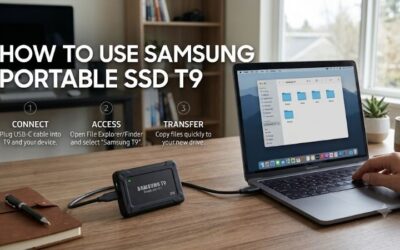
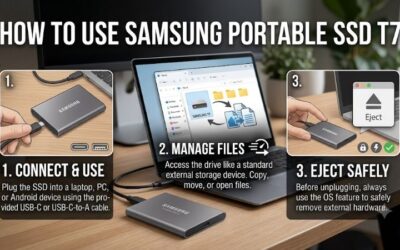
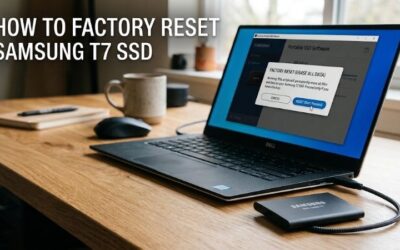
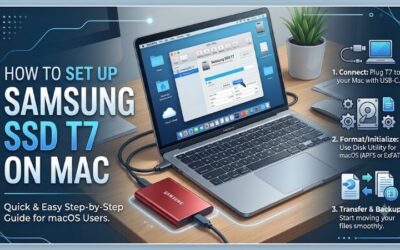
Formatting a portable SSD can solve file system compatibility problems, prepare a new drive for a different computer, or give an existing drive a clean start. Learning how to format samsung ssd t7 safely starts with choosing the right file system and backing up your files. The Samsung T7 comes preformatted with exFAT, which supports reading and writing on Windows and macOS. For most people who transfer files between both platforms, keeping exFAT is the simplest choice. Windows users who work exclusively on Windows may prefer NTFS, while Mac users can choose APFS for a Mac-only drive.
- What to know before formatting a Samsung T7 SSD
- What to know before formatting a Samsung T7 SSD
- Which file system should you choose for a Samsung T7?
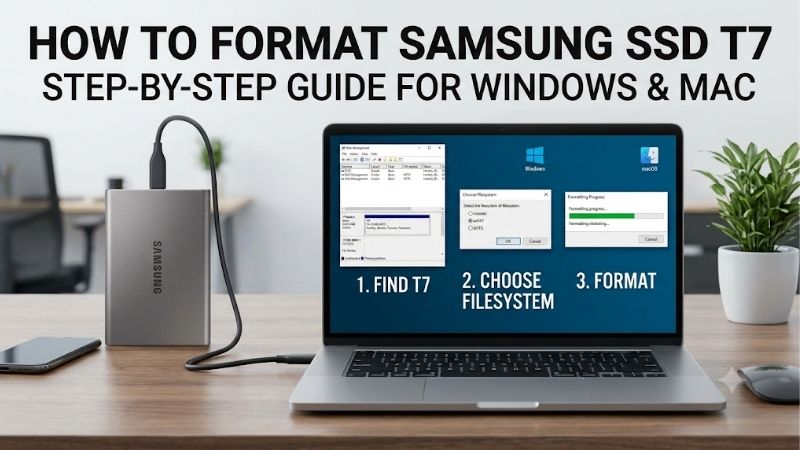
- How to format Samsung SSD T7 on Windows
- How to format Samsung SSD T7 on macOS
- What happens to Samsung T7 security software after formatting?
- How to check that the Samsung T7 format worked
- Troubleshooting common Samsung T7 formatting problems
- Is formatting the T7 the same as securely erasing it?
- Frequently asked questions
- Final verdict
What to know before formatting a Samsung T7 SSD
Before changing the file system, understand what formatting does, which T7 model you own, and how the drive will be used. A few minutes of preparation can prevent accidental data loss and avoid choosing a format that makes the SSD inconvenient to use with your other devices.
Formatting creates or replaces the file system that the operating system uses to organize files and folders. It can also involve changing the drive’s partition structure. It does not automatically repair physical damage, restore deleted data, or guarantee that confidential information has been permanently erased.
What to know before formatting a Samsung T7 SSD
Formatting creates or replaces the file system that an operating system uses to organize folders and files. Depending on the tool and options you choose, it may also recreate the volume or partition structure. It does not automatically repair physical damage, restore deleted data, or guarantee that confidential information has been permanently erased.
Back up the drive and identify the correct volume
Assume that formatting will make the files on the selected volume inaccessible. Copy documents, photos, videos, project folders, game files, and anything else you need to another drive or a cloud backup. Open a few files from the backup to confirm that the copy works. A second partition on the same T7 is not a backup because formatting the physical drive or selecting the wrong partition can affect both areas.
Close applications that are reading or writing to the T7. Wait for file transfers to finish, and do not disconnect the cable while formatting or copying. Identify the SSD by its name and capacity, not only by its drive letter. If several external drives are attached, disconnect the ones you do not need so you are less likely to select the wrong disk.
If Windows or macOS asks to initialize the disk or shows an unexpectedly small capacity, stop if the files matter. Writing a new file system can make recovery harder.
Check the model and unlock Security Mode first
The T7 family includes the standard T7, T7 Touch, and T7 Shield. Samsung’s manuals describe exFAT as the factory file system; the Shield also supports Android, and its 4TB version requires a 64-bit operating system. Check the model name on the enclosure before following model-specific advice. Samsung documents these details in its T7, T7 Touch, and T7 Shield user manuals.
If Security Mode is enabled, unlock the drive with Samsung Portable SSD software before formatting its data volume. Samsung explains that a locked T7 initially exposes a small security partition of approximately 128MB; the full capacity appears after a successful unlock. If Windows shows only a tiny Samsung partition, do not assume the rest of the SSD has failed or delete the partition to try to reveal it. Enter the password through the supported software first.
Do not use formatting to bypass a forgotten password. Samsung says that a forgotten-password device must be restored to factory settings through its support process, and that this reset deletes stored data.
Which file system should you choose for a Samsung T7?
The file system determines which operating systems can read and write to the SSD without extra drivers. Choose according to the computers and devices that will use the drive, not because one format sounds newer or faster.
| File system | Windows | macOS | Best use |
|---|---|---|---|
| exFAT | Read and write | Read and write | Sharing files between Windows and Mac |
| NTFS | Read and write | Read-only by default | Windows-only storage |
| APFS | Not natively recognized | Read and write | Mac-only storage and modern Time Machine use |
| FAT32 | Read and write | Read and write | Older devices that specifically require it |
Samsung’s original T7 manual lists exFAT as read/write on Windows and Mac, and NTFS as read/write on Windows but read-only on Mac. The T7 Shield manual additionally lists HFS, HFS+, and APFS as Mac-compatible formats that Windows does not recognize natively. Apple describes APFS as the file system for modern macOS and exFAT as a Windows-compatible option.
Use exFAT for Windows-and-Mac sharing
Choose exFAT if you regularly move files between Windows PCs and Macs, or want broad compatibility with supported Android devices. It avoids the read-only limitation that Windows users encounter with APFS-formatted drives and Mac users encounter with NTFS-formatted drives. This is why Samsung ships the T7 family with exFAT.
exFAT handles large files such as raw photos and 4K video without FAT32’s 4GB per-file limit. A phone, TV, game console, or camera still needs its own USB and file-system support. Samsung also documents a possible exFAT issue: write access can occasionally become locked after the drive is used across operating systems. Check the volume for errors before reformatting.
Use NTFS for Windows-only storage
NTFS is practical when the T7 will stay with Windows computers. Samsung lists it as read-only under macOS, so a Mac can normally open files but cannot write to the drive without additional software. Use exFAT if you expect to switch between Windows and Mac.
Use APFS for a Mac-only T7
APFS is Apple’s modern file system for compatible Macs. Disk Utility also offers APFS (Encrypted) and case-sensitive variants; most users should choose standard APFS unless they specifically need encryption or case-sensitive names. The T7 Shield manual recommends APFS for Time Machine. Windows does not natively recognize APFS, so use exFAT for routine cross-platform transfers.
Use FAT32 only when an older device requires it
FAT32 works with some older equipment, but its 4GB per-file limit can block large video files and archives. Use it only when a device specifically requires it.
How to format Samsung SSD T7 on Windows
Windows 10 and Windows 11 include File Explorer and Disk Management for formatting external drives. Use File Explorer when the T7 already appears as a normal volume. Use Disk Management when the drive has no letter, shows as RAW, or contains unallocated space. Microsoft warns that formatting a volume destroys its data.
Format a visible T7 volume in File Explorer
-
Connect the T7 to a working USB port with a compatible data cable and wait for Windows to detect it.
-
Open File Explorer and select This PC. Find the Samsung T7 by its volume name and drive letter.
-
Compare its displayed capacity with the model you own. The usable figure may be lower than the number printed on the box because manufacturers and operating systems calculate capacity differently.
-
Right-click the T7 volume and select Format.
-
In the File System menu, choose exFAT for Windows-and-Mac sharing or NTFS for Windows-only use.
-
Enter a short volume label, such as T7_External. Leave Allocation unit size at its default unless you have a specific reason to change it.
-
For an ordinary reformat of a drive that is already known to be healthy, leave Quick Format selected. Confirm the correct volume, choose Start, and approve the warning.
-
Wait for Windows to report that formatting is complete. Open the drive to confirm that it is accessible.
Quick Format is normally sufficient when you are changing the file system on a healthy T7. It creates a new file table but does not fully overwrite old data. It is not a secure erase. If Format is unavailable, the volume is missing, or Windows reports RAW or Unallocated, use Disk Management instead.
Use Disk Management if the T7 has no usable volume
Disk Management can assign a drive letter, format an existing volume, or create a new volume from unallocated space.
-
Press Windows + X and choose Disk Management, or press Windows + R, type
diskmgmt.msc, and press Enter. -
Identify the T7 by its capacity and partition layout. Disconnect other external drives if you are unsure which disk is the Samsung unit.
-
If a healthy volume has no letter, right-click it, select Change Drive Letter and Paths, and assign an unused letter.
-
To reformat an existing volume, right-click it and choose Format. Select exFAT or NTFS.
-
If the disk intentionally has Unallocated space, right-click it and choose New Simple Volume. Follow the wizard to assign a drive letter and file system.
If Windows asks to initialize a disk that previously held important files, cancel and investigate first. Initializing or creating a new volume can change partition information needed to access existing data. Do not delete partitions just because more than one entry appears; a locked T7 can expose a small Samsung security partition.
How to format Samsung SSD T7 on macOS
Use Disk Utility on a Mac. It can erase external storage devices, select a file system, and set the partition scheme. Apple warns that erasing a disk or volume deletes its files, so make a separate backup first.
Erase and reformat the T7 in Disk Utility
-
Connect the T7 to your Mac and unlock it through Samsung’s software if Security Mode is enabled.
-
Open Disk Utility from Applications > Utilities or through Spotlight.
-
Select View > Show All Devices so the sidebar displays the physical SSD and its volumes.
-
Identify the T7 by name and capacity. Select the physical device if you intend to recreate its partition layout; select a volume only when you mean to erase that volume.
-
Click Erase and enter a name for the new volume.
-
Choose ExFAT for Windows-and-Mac sharing, APFS for Mac-only storage, or APFS (Encrypted) for an encrypted Mac volume.
-
If the Scheme menu appears, choose GUID Partition Map for a modern Mac setup. If it is missing, make sure you selected the physical device rather than a volume.
-
Review the device, capacity, format, and scheme, then click Erase. When it finishes, click Done and check Finder.
Erase the physical disk only when you intend to rebuild the partition layout. For a change to one existing volume, selecting that volume may be sufficient.
Pick the Mac format that matches your workflow
Choose exFAT for Windows file exchange and APFS for a Mac-only drive. APFS (Encrypted) adds volume encryption, while case-sensitive APFS is rarely needed and can cause app compatibility issues. For Time Machine, follow Apple’s current setup instructions and Samsung’s APFS recommendation for the T7 Shield; do not expect that volume to remain a general-purpose Windows transfer drive.
What happens to Samsung T7 security software after formatting?
Samsung’s original T7 and T7 Touch manuals say formatting the drive’s partition deletes the Samsung Portable SSD software stored on it. If you need Security Mode or firmware updates, keep the installer or Samsung’s official download page available. Samsung identifies Portable SSD Software 1.0 for these models; do not assume an older T5 utility is interchangeable.
Unlock the SSD before formatting if password protection is enabled. A regular format does not recover a forgotten password, and Samsung’s factory-reset process for a forgotten password deletes stored data. After formatting, reinstall the compatible Samsung utility if you still need its security or firmware features.
How to check that the Samsung T7 format worked
On Windows, right-click the T7 in File Explorer, select Properties, and check the File system field. On macOS, select the volume in Disk Utility and review its format information. Confirm that the volume label matches the name you entered and that the SSD mounts normally.
Copy a small test folder to the SSD, safely eject it, reconnect it, and open the copied files. For exFAT, test on both Windows and Mac before moving your only copy of important files. For NTFS, remember that macOS normally reads but does not write without additional software; APFS is not natively recognized by Windows.
The capacity shown may be lower than the number printed on the T7. Samsung explains that the label uses decimal capacity while some operating systems display capacity using binary calculations. A smaller displayed number alone does not prove a fault. Once the test transfer works, eject the SSD through the operating system before unplugging it; Samsung warns that disconnecting without safe removal can cause data loss or product damage.
Troubleshooting common Samsung T7 formatting problems
A failed format does not always mean the SSD has failed. The cause may be a missing drive letter, a locked security partition, file-system corruption, or an unreliable USB connection. Start with checks that do not erase data.
The T7 does not appear in File Explorer or Finder
Try a known-good data cable, connect the SSD directly rather than through a hub, and test another USB port. A lit indicator does not prove that the computer has mounted the drive. On Windows, check Disk Management for the physical disk and assign a letter if a healthy volume lacks one. On a Mac, use Disk Utility > View > Show All Devices and try Mount if the device appears but its volume is not mounted. If the physical T7 is missing, test another cable, port, and computer.
The T7 appears as only 128MB
Security Mode may be enabled and the drive may still be locked. Samsung says the initial security partition is approximately 128MB; the full capacity appears after entering the correct password. Unlock the SSD in Samsung Portable SSD software. Do not create a new volume over the visible partition. If the password is lost, contact Samsung rather than trying to bypass the hardware security.
The drive is readable but will not accept new files
Samsung documents an exFAT issue in which write access can become locked after cross-platform use. On a Mac, reconnect the T7 and eject it properly. On Windows, choose Scan and fix when prompted, or open Properties > Tools > Check. Copy readable files elsewhere before making repairs, check that the volume is not full, and do not reformat until the files are safe.
Windows reports RAW or asks to format the drive
RAW means Windows cannot interpret the current file system; it does not prove hardware failure. If you need the data, cancel the prompt and consider repair or professional recovery before writing to the drive. Reformat only after files are backed up or disposable, and confirm the disk by capacity before changing its partitions.
Formatting fails or the drive disconnects
Try another cable and port, close apps using the drive, and prevent the computer from sleeping. Do not interrupt a format. If the T7 repeatedly disconnects on multiple computers, stop and contact Samsung. Do not format during a firmware update; Samsung warns that accessing partitions during an update can cause abnormal behavior or damage.
Is formatting the T7 the same as securely erasing it?
No. A quick format creates a new file table but does not fully overwrite the volume, so it is not a reliable way to sanitize confidential files.
Microsoft Support+1
If you are selling or recycling a T7, use a secure-erase or device-reset procedure approved for the exact model and confirm the instructions with Samsung. Do not confuse the factory reset used for forgotten-password recovery with routine formatting; it deletes stored data.
Apple says Disk Utility secure-erase options are unavailable for SSDs and recommends enabling encryption when you start using an SSD. APFS (Encrypted) is an option for Mac-only use, while Samsung Security Mode is available on supported T7 models.
Frequently asked questions
Does a new Samsung T7 need to be formatted?
Usually not. Samsung ships the T7 family with exFAT, so a new drive can generally be used on supported Windows and Mac systems without reformatting. Change it only for a different file system or specific device requirement.
Will formatting my Samsung T7 make it faster?
No guaranteed speed increase results from formatting. It changes the file system, not the SSD controller, cable, or USB interface. If transfers are slow, check the cable, port, and background activity.
Can I format the T7 on an Android phone?
Samsung lists Android compatibility, but formatting controls depend on the phone and Android version. For a predictable full reformat with partition and file-system options, use Windows Disk Management or macOS Disk Utility.
What is the best format for Samsung T7?
exFAT is the best general-purpose choice for Windows and Mac. Choose NTFS for Windows-only use or APFS for a Mac-only workflow and compatible Time Machine use.
Final verdict
For a Samsung T7 that moves between Windows and Mac, keep or restore exFAT. Use NTFS for a Windows-only workflow and APFS for a Mac-only setup, including Time Machine where appropriate. Before formatting, back up your files, unlock Security Mode if enabled, and verify the physical SSD by its name and capacity. Afterward, check the file system, test a transfer, and safely eject the drive. These checks matter more than repeatedly reformatting the T7 or choosing a file system that does not match the computers you use.