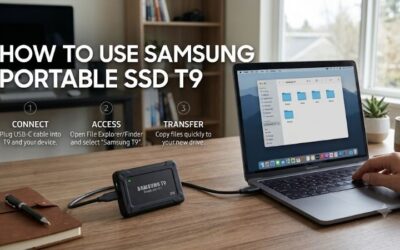
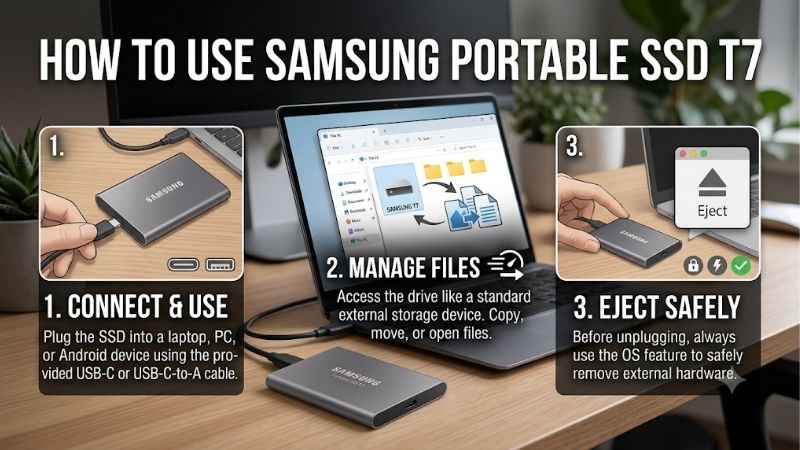
Here’s how to use Samsung Portable SSD T7 for file transfers and backups. Plug it into a USB data port, open it in your device’s file manager, and copy a test file. A new T7 usually comes formatted as exFAT, so you can start on Windows or Mac without erasing it. If Samsung Security Mode is on, unlock the drive first.
How to use Samsung Portable SSD T7 for the first time
For an ordinary file transfer, connect the original T7 with a USB data cable and open its data volume. You can use the drive without Samsung software while Security Mode is off. Install Samsung Magician when you want to manage the drive’s password settings or check whether a firmware update is available.
Connect the T7 with the right USB cable
The T7 has a USB-C port on the drive itself. Use the included USB-C to USB-C cable for a computer with USB-C or the included USB-C to USB-A cable for a computer with a rectangular USB-A port. For setup, plug directly into the computer. That gives you a known connection before you add a monitor hub, docking station, or adapter.
USB-C describes the connector shape. Two USB-C ports that look identical can support different data speeds, and a cable that charges your phone may support only slow data or no data. The T7 uses USB 3.2 Gen 2 at 10 Gbps. To give it access to that link speed, use a host port and a cable that both support 10 Gbps or better. An older, slower USB data port can still be adequate for copying documents.
Check the file system before changing anything
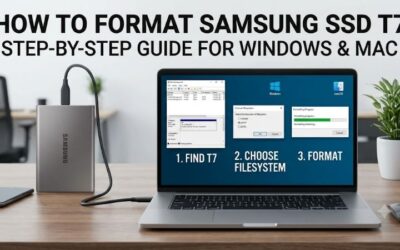
A new original T7 ships in exFAT. If both Windows and macOS can open the volume and save a file, keep it as it is. A used T7 may have a different file system, multiple partitions, or Samsung Security Mode enabled. Check whether you can see the drive’s full capacity and open the data volume before accepting an erase prompt.
| Where you plan to use the T7 | What to choose | What to check |
|---|---|---|
| Windows and Mac | Keep exFAT if it already works | Test writing a file on both computers |
| Windows only | Keep exFAT or use NTFS for a Windows-specific workflow | Check compatibility before connecting it to other devices |
| Mac only | Keep exFAT for regular copies or choose APFS for Mac-specific storage | Use APFS or APFS (Encrypted) for a new Time Machine backup when offered |
| Computer and phone | Start with a single exFAT data partition | Check the phone’s USB storage support, power, and ability to access the drive while Samsung Security Mode is enabled |
Formatting removes the files on the selected volume. If you need to change the format, first copy the files to another physical device and open a few directly from that backup. On Windows, use Format from File Explorer for an existing unlocked volume. On a Mac, use Erase in Disk Utility after confirming the correct external device. Selecting the physical device in Disk Utility can erase all its volumes, so double-check the model and capacity.
Copy files on Windows and Mac
Start with one small file and open the copy from the T7. This tests whether you can write to the destination and read the result before you begin a large transfer. Keep the originals until you have checked the copy. If you’re moving a project folder, open it from the T7 and confirm its linked files are present.
How to use Samsung Portable SSD T7 on Windows
Open File Explorer and look under This PC for the T7’s volume name and drive letter. The name may have been changed by a previous owner. If several external drives are connected, confirm that the target has the expected size and contents before you copy files or change any settings.
- Connect the T7. If Samsung Magician asks for the drive password, unlock it before opening the main data volume.
- In File Explorer, open the folder containing the original files. Select the items you want, then press Ctrl+C. Using Copy keeps the originals in place while you check the destination.
- Open the T7 in This PC, create a destination folder if needed, and press Ctrl+V. Wait until the copy completes. Leave the drive connected if another application is still exporting or saving files to it.
- Open a copied file directly from the T7. For an important folder, compare its contents with the source and spot-check a few files from different subfolders.
- Close the files and use Safely Remove Hardware in the taskbar notification area. Choose the T7 and wait for Windows to report that it can be removed before unplugging it.
If the T7 doesn’t appear in This PC, open Disk Management and check whether Windows sees the physical disk. An accessible data volume without a letter can often be made visible by assigning one. If it shows as unallocated, RAW, or uninitialized and you expect existing files, stop before formatting or initializing it. First check the Samsung lock status or try the computer on which it last worked.
Copy and eject files on a Mac
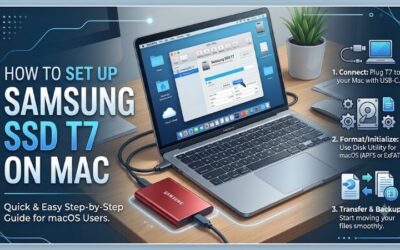
On macOS, open Finder and look under Locations for the mounted T7 volume. If the drive shows up in Disk Utility but you can’t find it in the Finder sidebar, check whether the data volume is mounted and whether Finder is set to show external disks. If Samsung Security Mode is active, unlock the drive first.
- Open the source folder and select the files you want. Use Command+C, open the T7 in Finder, and press Command+V. You can also drag files from your Mac to the drive.
- Wait for the copy to finish, then open a file from the destination. If Finder can read files but refuses to write, select the T7 and use Get Info to check the format and free space. An NTFS drive may be readable on a Mac without being writable through its built-in tools.
- Close the files and click the eject icon next to the T7 in Finder. Wait for the volume to disappear before unplugging it. If Finder says the disk is in use, quit the app using it and try ejecting again.
If you want the T7 to serve as a Time Machine destination, open Time Machine in System Settings and add the drive there. macOS may offer to erase and prepare an exFAT drive for that role. Move existing files to separate storage before accepting. If you also need a transfer drive for Windows, a dedicated Time Machine drive keeps the backup and cross-platform jobs separate.
Use the T7 for backups and working folders
For a manual backup, make a dated folder on the T7 and copy the files you want to preserve. Keep at least one earlier copy of a project if you expect to revise it. Replacing the backup folder with the current version can also replace a good copy with a damaged file or propagate an accidental deletion. To check that the backup is usable, restore a sample file to a different folder on your computer and open it from there.
If you edit directly from the T7, keep a separate backup on another device or in a backup service. A project on the T7 is a working copy when it’s the only copy you have. For video or design projects, copy the project’s media and related assets along with the project file. Open the copied project from the T7 before leaving your main computer. If the application reports missing media, use its relink feature or its project packaging tool before relying on the drive elsewhere.
Use the T7 with Android or iPhone
A phone needs to support external USB storage, provide enough power, and recognize the drive’s file system. For a drive you routinely share with computers, start with one exFAT data partition. Test the phone while you still have a computer available to check the file system, copy important files, or manage Samsung Security Mode.
Connect to an Android phone or tablet
Connect the T7 to a USB host-capable Android phone or tablet with a USB-C data cable. A supported phone can browse the accessible data volume through its file manager. Samsung documents using its Android software to unlock the original T7, but exact app and file-system support depend on the phone and software version.
- Connect the T7 and open Files by Google or your phone’s built-in file manager. In Files by Google, accept the USB access prompt if it appears, then look under Storage devices.
- If Samsung Security Mode is on, unlock the T7 with Samsung’s supported Android software using the password you set on the drive. Return to the file manager and check for the full data volume.
- Copy one file from the phone into a folder on the SSD, then open the destination copy. Once you’ve confirmed that works, copy the rest of the folder.
- Wait for all writes to finish. If Android offers an eject or unmount control for the USB device, use it before unplugging the T7.
If the phone supplies too little power or the drive repeatedly reconnects, test the T7 on a computer first. If it works there, use a short, known-good USB data cable on the phone and check whether the phone supports a powered USB hub. That helps you diagnose a power or connection problem before considering any change to the drive’s contents.
Open the T7 in Files on an iPhone or iPad
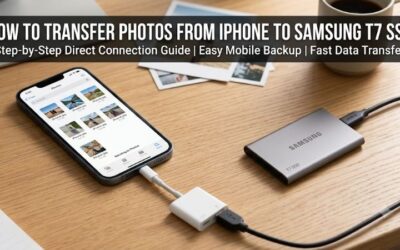
Apple’s Files app can browse external storage with a supported file system and one data partition. For a USB-C iPhone or iPad, start with a USB-C data cable. A Lightning device may need a Lightning to USB 3 Camera Adapter connected to USB power. The goal is to see the T7’s full data volume under Locations.
- Connect the T7, open Files, and tap Browse. Look for the drive under Locations.
- If the drive doesn’t appear, check the cable or adapter, external power if needed, and whether a computer can see the full drive. If Samsung Security Mode is enabled, prepare the drive on a supported computer before testing again. Files can browse a compatible accessible volume, but it does not provide Samsung’s unlock screen.
- To transfer a document already in Files, copy it to the T7 and open the copy. For photos, select the items in Photos and tap Share > Export Unmodified Original, select the T7 under Locations, and tap Save. This exports the original versions of edited photos and videos.
- Wait for the transfer to finish and verify the copied files before disconnecting. Keep the phone copies until you have checked that the files also open on the next device you’ll use.
Access in Files verifies that your phone can use the T7 for ordinary storage. Direct recording from a camera app is a separate workflow. It can have additional device, cable, file-system, and sustained write requirements, so verify that feature for the exact phone and recording mode before relying on it.
Set a password and manage the T7
Samsung Security Mode protects access to the drive with a password. Before turning it on, decide where you’ll use the T7. If you mainly work on a computer where you can run Samsung’s software, an extra unlock step may be fine. If you often plug the drive into phones or shared computers, verify that those devices can unlock it first.
Enable, test, or remove Samsung Security Mode
Install Samsung Magician from Samsung’s official download page and connect the T7 directly. Select the drive, open its security settings, and enable password protection. Store the password somewhere you can access without the T7. If it is only saved in a file on the drive, you won’t be able to read that file while the drive is locked.
Test the setup before transferring anything important. Eject the T7, reconnect it, and use Samsung’s software to unlock it. Confirm you can open a file from the full data volume. If you decide the password complicates your workflow, use Samsung’s security settings and enter the current password to turn Security Mode off. Reconnect once more to verify how the drive behaves.
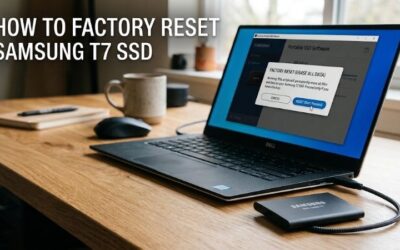
If you forget the password and can’t unlock the data, Samsung Magician’s PSID Revert is a factory-reset route on a supported T7. It erases the drive. If the existing files matter, stop before running the reset. Formatting the small software volume that appears while the drive is locked won’t restore access to the protected files.
Check for firmware updates without interrupting a transfer
Samsung Magician can check for drive firmware updates. If it offers one for your T7, finish current copies, back up important files, and use a stable direct connection before starting. Follow the prompts for the selected drive and leave it plugged in until the software reports completion. Reopen a test file after reconnecting.
Troubleshoot a missing, slow, or read-only T7
Use the symptom to choose your first check. A drive that is missing everywhere points toward the USB connection or device. A tiny visible volume can indicate an active Samsung lock. A full-size volume that opens but can’t accept files calls for a check of the file system, free space, or permissions.
The drive is missing or shows only a small volume
For a missing T7, try a known-good USB data cable and a direct port on the computer. Look in Disk Management on Windows or Disk Utility with Show All Devices enabled on Mac. If neither recognizes the physical drive, test on a second computer before concluding that the problem is with the SSD itself.
If you see only a small volume with Samsung software on it, open Samsung Magician or the supported portable SSD software and check the lock status. Unlocking a protected drive should reveal the full storage volume. If the drive stays invisible across known-good cables and two computers, contact Samsung support with the model number and a description of what each computer detected.
Transfers are slow or a large file won’t copy
Samsung rates the T7 for sequential reads up to 1,050 MB/s and writes up to 1,000 MB/s under suitable conditions. A transfer from a slower source drive, through a slower hub, or over a lower-speed cable can fall well below those figures. Copying thousands of small files can also take longer than moving one video of the same total size.
To isolate the bottleneck, time the copy of a single large file from your computer’s internal SSD to the T7. Repeat with the same file and source after changing one part of the connection, such as bypassing the dock. If the issue is an immediate failure rather than slow progress, check free space and file format. A FAT32 volume can reject an individual file of 4 GiB or larger even with plenty of space left. Back up the drive before switching to exFAT if you need to carry larger files.
Conclusion
Start with the supplied USB data cable and keep exFAT if you share the T7 between Windows and Mac. Copy a test file, reopen it from the drive, and eject the SSD after each transfer. If you enable Samsung Security Mode, confirm that every device you rely on can unlock it before moving important files.