
The best monitor for art and gaming balances dependable color with smooth motion. Start with your artwork’s destination, then choose resolution, panel type, and refresh rate. These six options cover creator-focused LCDs, detailed 4K gaming screens, and OLED alternatives, with clear trade-offs for drawing, editing, and playing on one desk.
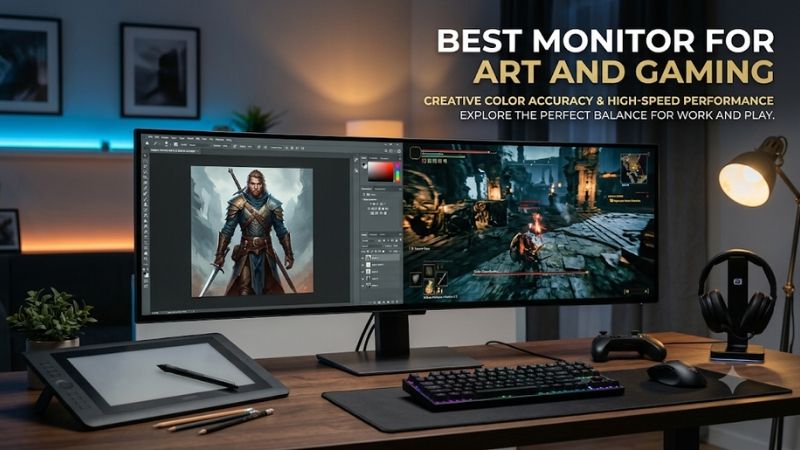
Which best monitor for art and gaming should you choose?
Start with the BenQ PD3226G for a larger 4K creator-focused LCD, or the ASUS ProArt PA278CGV for a compact 1440p alternative. Both combine creative-work features with refresh rates above ordinary 60Hz displays. The right choice depends on how much detail, workspace, and graphics workload you want to manage.
The ASUS ProArt PA32UCDM is the specialist OLED option when hardware calibration and 240Hz operation are meaningful requirements. For a work-first compact desk, consider the Dell UltraSharp U2725QE. The LG 27GR93U-B and MSI MPG 321URX QD-OLED are gaming-first alternatives that require more deliberate attention to your color workflow.
No single display guarantees accurate prints or identical results across applications. An artist producing sRGB web illustrations has different requirements from someone soft-proofing fine-art prints or preparing HDR game assets. Choose a monitor for that output, then verify its setup rather than treating a wide-gamut specification as an accuracy certificate.
Quick comparison of the six recommendations
These monitors qualify because they combine useful creative-work characteristics with at least 120Hz operation. The table separates manufacturer specifications from practical limitations. Refresh numbers describe supported display modes, while color claims require the correct preset, workflow, and verification; neither specification guarantees the same experience in every application.
| Exact model | Display | Maximum refresh | Best fit | Main compromise |
|---|---|---|---|---|
| BenQ PD3226G | 31.5-inch 4K IPS | 144Hz | Art-first 4K work and regular gaming | HDR400 is not a reference-HDR guarantee |
| ASUS ProArt PA278CGV | 27-inch 1440p IPS | 144Hz | Compact illustration and moderate GPU demand | Less fine detail than 4K |
| ASUS ProArt PA32UCDM | 31.5-inch 4K QD-OLED | 240Hz | Hardware-calibrated OLED creative workflow | Static-content risk and specialized setup |
| Dell UltraSharp U2725QE | 27-inch 4K IPS Black | 120Hz | Detailed work with occasional gaming | Not a specialist esports recommendation |
| LG 27GR93U-B | 27-inch 4K IPS | 144Hz | Gaming-first desk with digital art | Fewer dedicated creator workflow features |
| MSI MPG 321URX QD-OLED | 32-inch-class 4K QD-OLED | 240Hz | Immersive gaming and digital creation | Gaming features do not establish reference accuracy |
How these monitors were selected
This shortlist uses manufacturer documentation to verify panel type, native resolution, refresh capability, and relevant creative features. It is a research-based guide without original hands-on tests or invented color measurements. Categories describe suitable workflows rather than claiming a measured overall ranking across six differently equipped products.
Creator-focused models earn consideration through documented presets, calibration support, or uniformity-oriented features. Gaming-focused entries provide alternatives for people whose artwork is primarily digital and who are willing to verify color behavior themselves. A high-refresh panel alone is insufficient, and a professional label does not establish competitive gaming performance.
Comparable current US checkout prices were not verified, so no model receives a cheapest or best-value award. Treat calibration equipment, mounting, and any required dock as part of the real purchase cost. Check the exact variant, current offer, return policy, and applicable US warranty before ordering.
Individual monitor recommendations
Choose the work requirement you cannot compromise first, then decide how much gaming capability you need around it. A predictable LCD workflow may serve a full-time illustrator better than a faster OLED. Conversely, an artist focused on game assets may place more value on high refresh and deep-black presentation.
BenQ PD3226G: For an art-first 4K workspace
The BenQ PD3226G combines a 31.5-inch 3840 × 2160 IPS panel with 144Hz operation and FreeSync Premium. BenQ specifies full sRGB and Rec.709 coverage plus 95% P3 coverage. Its appeal is a creator-oriented feature set that also accommodates smooth gaming without requiring an OLED panel.
The larger 4K surface is useful when you want a substantial canvas beside layers, references, and tool panels. It does not increase the artwork’s resolution, but it gives you more display pixels for inspecting it. Choose interface scaling for comfortable controls rather than forcing tiny text simply to maximize workspace.
BenQ documents uniformity-focused processing and a software-calibration workflow through AQCOLOR Pilot. These features address different needs from a gaming preset, but they are not a substitute for measuring your own unit. Software calibration should also not be casually described as internal hardware calibration; the destination of adjustments matters.
Buy if creative work is the priority and 144Hz meets your gaming needs. Skip if your main requirement is reference HDR or the fastest esports presentation. Its DisplayHDR 400 specification does not establish those capabilities. Compare the PA278CGV for a smaller 1440p desk or the PA32UCDM for a specifically hardware-calibrated OLED workflow.
ASUS ProArt PA278CGV: For compact illustration and gaming
The ProArt PA278CGV is a 27-inch 2560 × 1440 IPS monitor with up to 144Hz operation and variable-refresh support. ASUS specifies 100% sRGB, 95% DCI-P3, and factory calibration with a Delta E below two claim. These are manufacturer specifications rather than measurements made for this article.
For illustration, photo adjustments, and general design, its attraction is access to creator-oriented color presets without giving up high refresh. The lower resolution also reduces native rendering demand compared with 4K. That can suit a midrange gaming system, although actual performance remains dependent on the game and graphics settings.
Its limitation is fine-detail density. At the same 27-inch size, 4K provides more pixels for small text, sharp line work, and close inspection. You can still zoom into artwork on a 1440p display; the trade-off is how much surrounding canvas remains visible at that zoom level, not whether detailed work is possible.
Buy if compact size, sRGB-focused work, and manageable gaming demand fit your routine. Skip if your priority is maximum canvas detail at this size. Compare the Dell for denser 4K work or the BenQ for a larger surface. Factory calibration remains a starting point, particularly after changing brightness, white point, or display mode.
ASUS ProArt PA32UCDM: For hardware-calibrated OLED creation
The PA32UCDM combines a 31.5-inch 4K QD-OLED panel with a 240Hz maximum refresh rate and ProArt hardware-calibration support. ASUS documents calibration-profile storage in the monitor’s internal scaler. That distinction makes it relevant to creators who need a more deliberate calibration workflow alongside high-refresh gaming.
Its OLED light control suits evaluating dark scenes and game assets with bright details against black backgrounds. However, excellent black levels do not automatically make a display a complete HDR mastering reference. Brightness behavior, tone mapping, supported formats, application output, and the intended delivery standard still require validation.
The connection arrangement also deserves checking. ASUS lists Thunderbolt 4 and HDMI 2.1, so confirm how your particular desktop or laptop will deliver the desired resolution and refresh rate. Do not assume every USB-C port provides the necessary signal. Calibration software, compatible measuring equipment, and the selected connection must fit your actual workstation.
Buy if hardware calibration and OLED gaming solve specific needs. Skip if you mainly leave static art interfaces visible all day and prefer simpler LCD ownership. Compare the BenQ for that role or the MSI for a gaming-first OLED. Maintain the panel carefully, and verify firmware-dependent features rather than relying on a launch-page promise.
Dell UltraSharp U2725QE: For detailed work and lighter gaming
The Dell UltraSharp U2725QE uses a 27-inch 4K IPS Black panel with 120Hz operation. Dell specifies broad P3 coverage, full sRGB coverage, and a typical 3000:1 contrast ratio. It belongs here as a work-first option with smoother refresh than a conventional 60Hz creator display.
A compact 4K screen is useful for crisp application text, detailed references, and image inspection. The IPS Black contrast specification is also relevant when comparing LCD options, but it should not be confused with OLED’s ability to switch individual pixels off. Your room lighting and actual panel behavior still influence perceived blacks.
Its gaming role should remain proportionate. The 120Hz ceiling supports smoother presentation than 60Hz when the system supplies enough frames, and Dell documents HDMI VRR support. That does not establish esports-class pixel response or identical behavior to a dedicated gaming monitor. Avoid turning an office-oriented specification into an unmeasured performance award.
Buy if art, documents, and workstation connectivity dominate your day. Skip if competitive gaming is the main reason for upgrading. Compare the LG for a more explicitly gaming-oriented 27-inch 4K alternative, or the BenQ for a larger creative workspace. Check the exact host connection before assuming every docking arrangement supports 4K at 120Hz.
LG 27GR93U-B: For gaming-first digital artwork
The LG 27GR93U-B pairs a 27-inch 3840 × 2160 IPS panel with a 144Hz maximum refresh rate and HDMI 2.1 connectivity. It fits users who primarily want a 4K gaming monitor but also draw, edit photographs, or create web graphics. Its recommendation is conditional on a properly verified color setup.
The dense image helps display fine lines and detailed interface elements, while the LCD panel avoids OLED’s particular cumulative burn-in concern. That combination can work well when the same art application remains open for long sessions. Nevertheless, an LCD panel is not automatically accurate just because its pixels are sharp.
The distinction from creator-focused alternatives is workflow. Do not assume a gaming preset or wide color specification replaces calibration and profiling. Check the available modes, controls, and actual color behavior for your intended output. Its DisplayHDR 400 designation also does not turn it into a dedicated HDR grading display.
Buy if gaming is the larger part of your use and you are prepared to manage color deliberately. Skip if you need documented specialist calibration features as part of a paid production workflow. Compare the ProArt for creator-oriented controls or the BenQ for more screen area. Budget for measurement instead of trusting visual adjustments alone.
MSI MPG 321URX QD-OLED: For gaming immersion and digital art
The MSI MPG 321URX QD-OLED offers a flat 4K panel, 240Hz maximum refresh, and USB-C with 90W power delivery. It suits artists who prioritize immersive gaming and a larger image, while understanding that gaming specifications do not establish a reference-color production system or an internal hardware-calibration workflow.
The larger screen provides room to view a substantial canvas with surrounding tools, and OLED contrast can make games particularly engaging in controlled lighting. For artwork, keep the target color space in mind. A vivid wide-gamut presentation can be attractive while still being inappropriate for judging an unmanaged sRGB image.
Static toolbars and layer panels are the ownership consideration. OLED-care features reduce risk but do not eliminate cumulative burn-in. Brightness behavior is another point to check with your actual applications: a large white canvas is a different workload from a dark game scene with small highlights. Inspect both during the return window.
Buy if OLED gaming leads your priorities and you can validate the creative workflow. Skip if dependable long-duration static work matters more than OLED presentation. Compare the PA32UCDM when internal calibration support is a requirement, or the BenQ for an LCD alternative. Verify burn-in coverage separately in the applicable US warranty.
How to choose the best monitor for art and gaming
Translate your work into concrete display requirements before comparing marketing labels. Web illustration, print preparation, and HDR asset creation need different color-management decisions. After identifying the output, check resolution, refresh, connections, and ownership so that gaming upgrades do not undermine the work the monitor must support.
Match the color space to the artwork’s destination
For typical web graphics, an sRGB workflow is a practical starting point. Print-oriented work may require evaluating colors outside sRGB, while film and HDR projects involve other delivery standards. Coverage of one gamut does not establish coverage of another: a high DCI-P3 percentage is not an Adobe RGB guarantee.
A wide-gamut display can show colors beyond sRGB, but unmanaged applications may display ordinary content with exaggerated saturation. Use an appropriate display mode and a color-managed application. Keep the document’s embedded profile intact through the workflow, and export to the destination your client or publishing platform actually requests.
Distinguish gamut, accuracy, and uniformity
Gamut describes the range of colors a display can reproduce. Accuracy describes how closely displayed colors match targets under particular conditions. Uniformity describes whether brightness and color remain consistent across the panel. A monitor can perform well in one category while being less suitable in another, so avoid collapsing them into one “good color” claim.
Factory Delta E figures need their test context, including preset and measurement method. They do not prove that your unit remains equally accurate after arbitrary adjustments. For critical work, inspect neutral grays and large flat-color areas as well as central color patches, because artwork often occupies much more than the middle of the screen.
Understand calibration, profiling, and hardware adjustments
Calibration adjusts the display toward a target condition; profiling describes how that calibrated display reproduces color. Color-managed software uses the profile to present documents appropriately. Hardware calibration can store adjustments inside a compatible monitor, whereas other workflows rely on software and graphics-system adjustments. These approaches should not be treated as interchangeable product features.
Use a compatible measuring instrument when accuracy matters commercially. Follow the monitor and calibration software guidance, then ensure the operating system and applications use the resulting profile. Changing the monitor’s mode afterward can invalidate the relationship. Keep separate, clearly understood settings for artwork and any game mode that alters color or brightness.
Choose resolution around canvas detail and GPU demand
A 4K image contains about 8.3 million pixels, compared with about 3.7 million at 2560 × 1440. That difference provides more potential detail but increases native gaming workload. At the same resolution, a larger panel makes pixels physically larger rather than adding more canvas information; interface scaling affects the usable workspace too.
A 27-inch 4K screen suits close inspection and sharp text, while a 31.5-inch version offers a larger physical image. Try familiar application layouts if possible. For gaming, use performance evidence for your own hardware and settings rather than assuming that purchasing a 240Hz monitor makes demanding 4K games run at 240fps.
Treat refresh rate as one part of motion quality
Moving from 60Hz to a suitable 120Hz or 144Hz display can make games, viewport movement, and scrolling feel smoother. Higher ceilings matter most when the system supplies corresponding frames. A pen tablet’s report rate and an application’s rendering behavior are separate factors, so monitor refresh alone cannot guarantee a particular drawing response.
Pixel response, overshoot, and variable-refresh behavior also affect gaming motion. Manufacturer gray-to-gray numbers are not total input-lag measurements. Without matched independent tests, do not assume that a creator monitor advertising 144Hz behaves identically to every gaming monitor at that refresh, or that one OLED specification establishes the fastest complete setup.
Separate SDR art settings from HDR entertainment
A normal SDR illustration workflow does not need the monitor’s brightest or most saturated presentation. Set a stable environment and use settings suited to the intended output. Strong ambient-light changes make visual judgments less predictable, so consider practical room control before paying for a display whose advantages you cannot evaluate consistently.
For HDR projects, verify the entire chain: application, operating-system mode, signal format, display behavior, and delivery target. For print, use the appropriate printer-and-paper profile for soft proofing and evaluate an actual proof under suitable lighting. A premium monitor remains one component of that workflow rather than a guarantee of identical screen and paper appearance.
Frequently asked questions
These questions address the compromises most likely to affect a shared creative and gaming desk. Use them to identify which features deserve your money and which can remain secondary. A suitable monitor should support the artwork you deliver while making your preferred games enjoyable at realistic settings.
Can a gaming monitor be accurate enough for professional art?
Potentially, but the answer depends on measured behavior and the required output. Verify gamut, accuracy, uniformity, and usable controls rather than relying on branding. A calibrated gaming monitor may suit some digital workflows, while demanding print or reference work can justify specialist features and a stricter validation process.
Is OLED automatically better for artists?
No. OLED provides attractive black levels, but static-content risk, brightness behavior, text presentation, and calibration support still matter. An LCD may be easier to justify for long illustration sessions with persistent tool panels. Choose OLED when its strengths align with your work and gaming habits, not simply because its colors look vivid.
Should you spend more on refresh rate or calibration equipment?
If color decisions affect paid deliverables, measurement equipment can solve a problem that extra refresh cannot. Competitive players may reasonably prioritize motion instead. A balanced art-first setup often starts with a suitable 120Hz or 144Hz screen and a verified color workflow before spending heavily on a much higher refresh ceiling.
Conclusion
Choose the BenQ PD3226G for an art-first 4K LCD workspace, the ASUS PA278CGV for compact 1440p creation, or the PA32UCDM for a deliberate hardware-calibrated OLED workflow. The Dell U2725QE serves work-first desks, while the LG 27GR93U-B and MSI MPG 321URX suit gaming-led setups. Match color requirements to your output, verify your display profile, and buy only the resolution and refresh your workstation can use.









