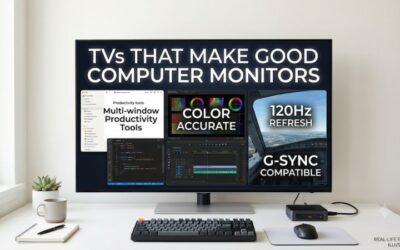
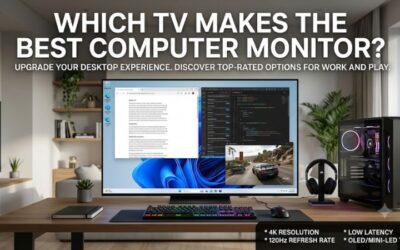
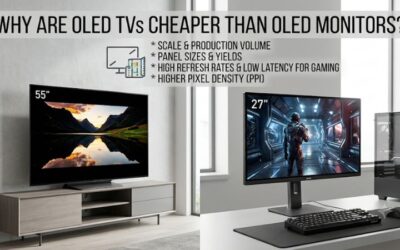
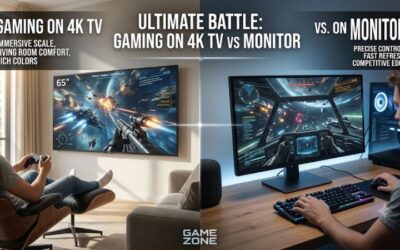
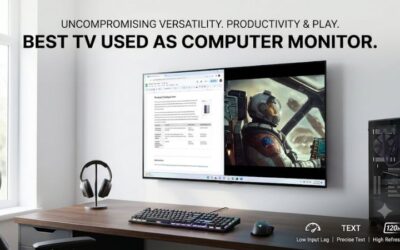
The best tv and computer monitor combination is the LG MyView 32SR85U-W for laptop work and streaming. Pick the 32-inch Samsung Q8F for antenna channels, the Samsung M9 for fast PC gaming on a regular desk, or the 42-inch LG C6 if you have room for one screen to serve a gaming PC and a console.
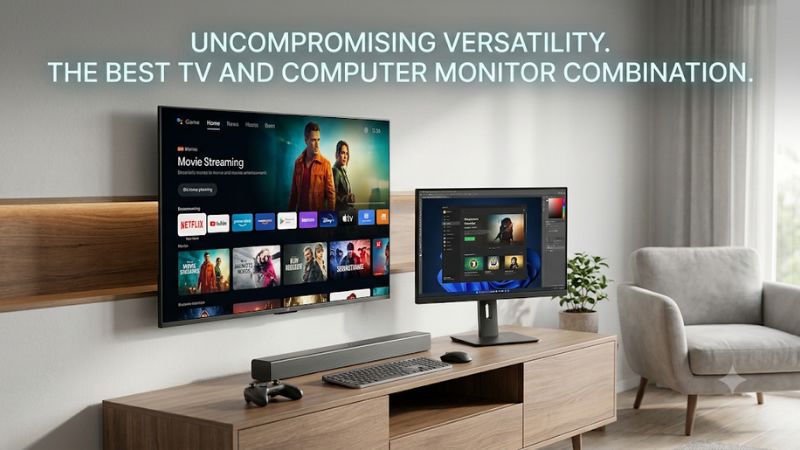
What is the best TV and computer monitor combination?
Start with how you watch when the computer is off. Choose a smart monitor for streaming and easy laptop docking. Pick a television with a tuner for over-the-air channels, or choose a larger TV if someone regularly watches from a second seat. All six screens here connect to a computer at native 4K.
| U.S. model | Screen | Best use |
|---|---|---|
| LG MyView 32SR85U-W | 32-inch 4K IPS | Laptop docking and streaming with up to 90W USB-C power |
| LG MyView 32U721SA-W | 32-inch 4K smart monitor | Everyday desktop work and webOS streaming |
| Samsung Smart Monitor M9 LS32FM902SNXZA | 32-inch 4K OLED, up to 165 Hz | High-refresh gaming at a desk |
| Samsung Q8F QN32Q8FAAFXZA | 32-inch 4K QLED, 60 Hz | Compact TV with an antenna tuner |
| Sony BRAVIA 3 II K-43XR30M2 | 43-inch 4K LED, 60 Hz | Shared work and streaming room |
| LG C6 OLED42C6PUA | 42-inch 4K OLED, up to 144 Hz | PC and console gaming on a deeper setup |
The LG MyView 32SR85U-W is the first model to compare if you bring a laptop to the desk daily and watch through apps in the evening. The Samsung Q8F takes its place when local antenna channels are essential. Both fit roughly the same desk width, so you can settle the connection question before
changing the furniture. If gaming is the priority, the 32-inch M9 and the 42-inch C6 give you a clear choice between a conventional desk position and a larger screen that can serve a second seat.
Six displays for work, gaming, and TV
Each display can show a computer desktop and run streaming apps independently. The practical differences appear in the steps you repeat every day. Think about how you connect the laptop, where the remote will be, which device handles sound, and how far away the person watching from the second seat
will sit.
LG MyView 32SR85U-W — Best TV and computer monitor combination for laptops
The LG MyView 32SR85U-W is the strongest pick here for a laptop that comes and goes with you. Its 32-inch 4K IPS display runs webOS for independent streaming, and its USB-C connection supports display input and up to 90 watts of power delivery. LG also lists a Full HD webcam for this configuration.
The setup works particularly well for a home office that doubles as a bedroom TV. Connect the laptop over USB-C for work, then switch to a streaming app without keeping a browser or computer running. At 32 inches, you can split the 4K desktop between a document and a reference window without
spreading them across the width of a large television. Check the size from the bed or second chair as well, because subtitles and streaming menus can look small when viewed farther back.
Before you buy, compare your laptop’s charging requirements and video output with the monitor’s specifications. A USB-C port needs to support video for the single-cable setup to work, and the cable must carry both video and the power your laptop needs. A high-performance laptop might still need its
own adapter under load. Choose this model when docking and undocking is part of your daily routine. Choose the Q8F instead if the feature you use every evening is an antenna input.
LG MyView 32U721SA-W — Best fit for a second workstation
The LG MyView 32U721SA-W gives a spare desk a 32-inch 4K screen, webOS streaming, and a USB-C connection with power delivery. It fits a setup where you do everyday work or homework, then use the same panel for shows. Compare it with the 32SR85U-W when the webcam or charging requirements are
flexible.
Start with the devices you will leave connected. A laptop and one console create a simpler layout than a laptop, tower, cable box, and sound system. Check the ports on the exact U.S. model and assign each device to an input. If you already have a webcam and mainly work from a desktop connected to
wall power, the charging and camera differences between MyView configurations carry less weight. If you move the laptop several times a day, check that its charging needs match the monitor before comparing sale prices.
This model makes sense when the exact configuration covers your needs at the checkout price you find. Its strongest use case is a personal space where most TV viewing comes from streaming services. Verify the app you actually use. The presence of a smart platform doesn’t establish that every live TV
service or niche sports app is available. If you need a provider’s HDMI box, leave a port open for it and decide whether you’d rather use its remote or the display’s built-in interface.
Samsung Smart Monitor M9 — Best for high-refresh desk gaming
The 32-inch Samsung Smart Monitor M9 combines a 4K OLED display, refresh up to 165 Hz, and built-in smart TV apps. Its footprint is the reason to choose it over a similarly equipped large TV. You can keep a conventional mouse-and-keyboard position and still switch to a streaming app from the same
seat.
Use the connection that lets your GPU deliver the resolution and refresh you want. Test a direct cable first, confirm the active rate in the operating system, and enable variable refresh after the display is stable. A game that runs at a much lower frame rate will still play, but if most of your
games fall in that category, the difference between this monitor and a 60 Hz model will be most apparent in desktop motion and faster titles. Check a familiar game with quick camera pans to see what the higher refresh buys you.
OLED is especially appealing when dark scenes make up much of your game or film library. At a work desk, also inspect small fonts and consider how often the same toolbars or dashboards stay on screen for long periods. Choose the M9 when gaming is important enough to justify the display features. If
you mainly work in documents and stream from a second seat, the Sony may fit the room better. If the second seat is close and laptop docking matters more than gaming, start with the MyView.
Samsung Q8F 32-inch — Best compact TV for antenna channels
The 32-inch Samsung Q8F is a conventional TV in a size that works at many desks. The U.S. QN32Q8FAAFXZA has an ATSC/Clear QAM tuner and accepts 4K at 60 Hz over HDMI. That gives you a direct path from a PC desktop to local broadcast television without adding an external HDMI tuner box.
A tuner handles the broadcast signal, while the channels you receive depend on the antenna and your location. Think through antenna placement first, especially if the desk is far from a window or you share the room with someone who wants the cable hidden. Once you connect the PC, check that the
desktop fills the panel without cropping. Then inspect colored labels and text at the size you use for work. Video can look sharp while the computer input still needs a different picture or signal setting.
Choose the Q8F if antenna TV and a compact cabinet are priorities. Expect to keep a separate charger for a laptop that needs power. If you receive all channels through streaming, the tuner may see little use and a USB-C smart monitor may give you a smoother daily routine. If a console is your only
gaming source and you stick to 60 Hz modes, this model can share the desk without the space demands of a 42-inch or 43-inch screen.
Sony BRAVIA 3 II 43-inch — Best for a shared work and TV room
The 43-inch Sony BRAVIA 3 II makes sense when the display has to work from a desk chair and another seat. The U.S. K-43XR30M2 combines a 4K LED-backlit LCD with Google TV. Its 60 Hz class refresh suits office work, video, and casual gaming, while its wider picture is easier to see from farther away.
A nominal 43-inch 16:9 image is about 37.5 inches wide, compared with about 28 inches at 32 inches. Mock up that width on the wall and sit where you normally work. Try glancing at both corners, then move to the second seat and imagine reading subtitles. If the picture feels too wide at the desk but
right from the couch, look for a mount or separate stand that places the screen farther back. Measure the exact cabinet and feet before deciding that it fits.
The Sony is a sensible buy when watching together is a regular use and most PC activity stays at 60 Hz. Its main trade-off is the size at close range, even if the cabinet fits on paper. If you keep a browser, spreadsheet, and messaging window open all day, try centering your main work and leaving
the edges for reference. If you play fast games regularly and the room already fits the Sony, compare it with the 42-inch C6 for a similar footprint with higher refresh.
LG C6 42-inch — Best for a PC and console on one screen
The 42-inch LG C6 OLED suits a room where a gaming PC, a console, and streaming apps all share the screen. LG’s U.S. OLED42C6PUA can accept up to 144 Hz from compatible PC hardware. The larger picture rewards a deeper setup, especially when you switch between keyboard gaming and a controller.
Plan each source independently. Connect the PC directly and verify its actual resolution and refresh rate before turning on HDR or variable refresh. Use the console’s display setup to check which modes it supports, then confirm those modes in a compatible game. A TV’s maximum PC refresh does not
determine the frame rate of a console title. Use the low-latency settings you need for each gaming source and save a separate streaming preset if the TV allows it.
Buy this model if a second viewing position and high-refresh gaming both matter. Move the panel back far enough to see game menus and corners without constantly moving your head. If your main job is reading small text or leaving fixed dashboards open all day, weigh OLED text rendering and long-term
exposure to static content. The 43-inch Sony gives you a similarly large LCD at 60 Hz, and the M9 keeps the OLED gaming experience in a smaller desktop footprint.
How to set up one display for both jobs
Test the whole routine you expect to repeat. Connect the computer at native 4K, launch a show from the remote, return to the computer, and wake it from sleep. A display can meet the resolution and refresh requirements while still making these steps awkward when inputs, charging, or sound settings
don’t behave as expected.
Assign inputs before adding a dock or switch
List each device you intend to keep connected. The work laptop may use USB-C video and power delivery. A console or provider box usually takes HDMI, and a soundbar may occupy the port marked for audio return. A port count alone won’t show whether two sources can both reach their desired video modes.
Start by testing the most demanding source directly. Confirm 4K and the refresh rate in the computer’s settings. Add the dock, switch, or receiver after the direct connection works. If a mode disappears, compare the settings and the capabilities of the new device in the chain. For a laptop that
charges but never shows an image, verify that the selected USB-C port and cable carry video. If the image works and the battery drains during heavy work, connect the laptop’s charger and recheck its power requirements.
Check fine text and operating system scaling
Use native 3840 × 2160 resolution and start in SDR. Where the graphics settings allow it, choose RGB or YCbCr 4:4:4 to preserve color detail around small letters and interface edges. A compatible PC mode or enhanced HDMI setting can help the TV accept the signal you want. Check the input you’re
actually using.
Read a spreadsheet, browser tab, and code editor or document from your normal chair position. If colored lettering appears fuzzy while black lettering looks clear, investigate the signal format. If both look soft, verify resolution and check for scaling or excessive sharpness. Once the signal is
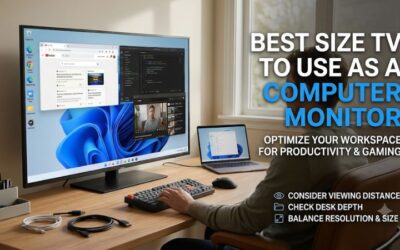
correct, choose the operating system scaling that lets you read comfortably. A 43-inch 4K screen displays the same number of pixels as a 32-inch 4K screen. It makes those pixels physically larger, which can help from farther back.
Try wake, audio, and source switching
Put the computer to sleep, start a streaming app, and switch back to the computer. Check whether the display wakes on the expected input, whether a docked laptop continues to charge, and where sound comes out. Repeat after a cold boot, since a setup can behave differently when the computer is fully
off.
If a console or receiver repeatedly changes the active source, inspect HDMI device-control settings on both ends. For meetings, confirm the microphone and speakers separately. A computer can select the TV’s speakers when you connect HDMI but retain a different microphone. If you share the room, have
the other person try switching back to TV with the remote. The fewer steps it takes to move between a call, game, and show, the more useful the single-screen arrangement will be.
Common questions before buying
Confirm your viewing source, desk fit, and connection before spending extra for display features. An antenna user needs a tuner. A laptop owner may benefit more from reliable USB-C docking. A gamer with a fast desktop PC has a stronger reason to buy high refresh than someone who uses a cable box and
a browser.
Can a smart monitor receive local TV channels?
It can show local channels through a compatible streaming service or a separate tuner with HDMI output. If you want to attach an antenna directly, verify that the exact model has a broadcast tuner. A menu labeled live TV can also refer to channels delivered over the internet through the
manufacturer’s service.
If you watch a particular local station, check the station and delivery method before deciding. A provider-supplied box can use HDMI on either kind of display, but it takes an input and may add a remote. In this roundup, the 32-inch Samsung Q8F is the direct fit for antenna viewing on a compact
desk.
Will a 42-inch screen make desktop work easier?
A 42-inch 4K screen can make text and windows physically larger at the same scaling, which helps when the display sits farther back. On a shallow desk, the same size can make you look farther to reach toolbars or check windows at the edges. Try the width from both the keyboard position and the
second seat.
If you are the only viewer and sit close, start with 32 inches. If the screen serves a deep desk by day and a couch at night, 42 or 43 inches is easier to justify. Position your main window near the center and put reference material to the sides. That arrangement uses the large image without forcing
you to scan the full width for every action.
Conclusion
Choose the LG MyView 32SR85U-W for USB-C laptop work and app-based streaming, or the Samsung Q8F if you need antenna TV on the same desk. The Samsung M9 is the compact high-refresh pick. Choose the 43-inch Sony for work and shared viewing at 60 Hz, or the 42-inch LG C6 for PC and console gaming with
room to sit farther back.