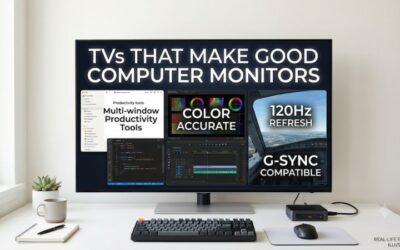
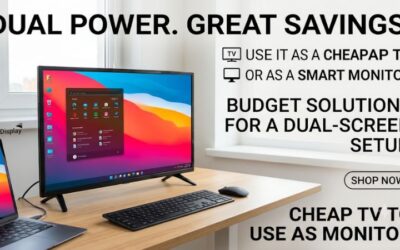
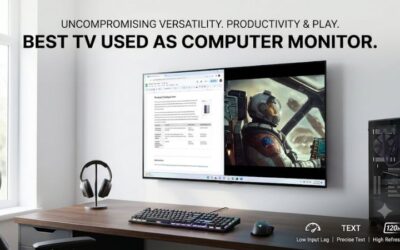
If you’re asking which tv makes the best computer monitor, start with the 43-inch Samsung U8000H for daily work or the 42-inch LG C6 for a desk that also serves as a gaming station. The Samsung is a straightforward 4K 60Hz LCD, while the LG gives a compatible gaming PC up to 165Hz in a slightly smaller footprint.
Which TV makes the best computer monitor for most people?
The Samsung U8000H is the first TV to consider if you spend most of the day reading documents, working in spreadsheets, or browsing. Independent testing of the series found that it preserves full chroma at 4K 60Hz, which matters for fine colored text. For frequent PC gaming, start with the LG C6.
| Exact US model | Best fit | 4K PC mode to target | Main trade-off |
|---|---|---|---|
| Samsung U8000H 43-inch, UN43U8000HFXZA | Daily desktop work | 60Hz with full chroma in series testing | A 43-inch screen needs adequate desk depth |
| Sony BRAVIA 3 43-inch, K-43S30 | An HDMI-connected laptop and standalone Google TV | 60Hz with 8-bit input in Sony’s PC signal list | Little refresh headroom for fast games |
| TCL S Class 43-inch, 43S571G | An occasional second workstation or shared room | 60Hz | Verify full chroma with your own hardware |
| LG C6 42-inch, OLED42C6PUA | PC gaming and mixed desktop use | Up to 165Hz with compatible hardware | Static content and OLED text rendering matter for daily work |
| Samsung S90H 42-inch, QN42S90HAEXZA | Mixed PC use where direct reflections are a problem | Start at 4K 60Hz for work, then verify the desired gaming mode | A matte finish can spread bright reflections |
| TCL QM7K 55-inch, 55QM7K | A wall-mounted PC display, racing rig, or couch setup | Up to 144Hz on compatible inputs | Wide enough to overwhelm a typical desk |
Which TV makes the best computer monitor for your workload?
If your desk is primarily for work, check readability at native 4K before comparing HDR or smart apps. If gaming matters as much as work, weigh refresh rate and the HDMI modes your graphics card can drive. For a shared room, start with how far people will sit from the screen and what they need to read.
The six picks use exact US model numbers and cover three situations: daily office use, a desk shared with a gaming PC, and a screen viewed from farther back. Manufacturer specifications establish model identity and supported signals. Independent reviews provide additional context where available. A test of another size in the same series can help identify which settings to try, but your unit’s text appearance, uniformity, and reflections still deserve a check from your chair.
The best TVs for documents, spreadsheets, and browsing
A 43-inch 4K TV provides enough room to keep several windows open, but its physical height and width change how you work. At close range, the top corners may be awkward to scan. Put your main document near the center and check whether you can read secondary windows comfortably without moving your chair.
Samsung U8000H 43-inch for a daily 4K desktop
The Samsung U8000H UN43U8000HFXZA is the office-first pick. The series accepts 4K at 60Hz with chroma 4:4:4 in independent testing. Full chroma preserves color detail at each pixel, which helps keep fine lines, colored spreadsheet labels, and small interface elements distinct on a large desktop.
Set the computer to 3840 × 2160 at 60Hz and verify RGB or YCbCr 4:4:4 if the graphics controls expose those options. Open a document with fine text and move it from the center to the side. If only the colored edges look soft, investigate chroma. If the entire desktop looks soft or cropped, check native resolution and the TV’s screen-fit setting first. Turn off extra sharpening if you see outlines around letters.
The U8000H series also offers a 1080p 120Hz mode under certain conditions. Independent testing found that this mode did not preserve full chroma. Use 4K 60Hz for work. Dropping the desktop resolution to gain refresh rate makes more sense for a separate gaming session than for a day spent reading detailed documents.
Choose it if your desk can accommodate a wide screen and your computer can deliver 4K at 60Hz. Move up to the LG C6 if you want substantially smoother scrolling and high-refresh gaming on the same input. If you mainly work in one narrow document at a time, a smaller 4K monitor may fit the job and the desk better.
Sony BRAVIA 3 43-inch for an office laptop and streaming
The Sony BRAVIA 3 K-43S30 is a good fit when you want to plug in a laptop during the day and use Google TV on its own afterward. Sony’s PC signal list includes 3840 × 2160 at 60Hz with 8-bit input. That gives you a documented starting point for office apps, email, and browser-based work.
Test with a direct HDMI connection first. Start in SDR and check the operating system’s active signal settings. Then run the same test through the dock or adapter you plan to use every day. If the direct connection works at 60Hz and the dock limits it to 30Hz, you can focus on the dock and its supported output modes instead of changing the TV’s picture settings.
The appeal of this model is that you can leave a computer connected and watch something without reopening the laptop. Test the reverse sequence as well. Close a streaming app, select the PC input, and wake the computer. Look for changes in resolution, window placement, or audio output. These small differences matter if you switch roles every day.
Choose the Sony if Google TV fits your household and your laptop workflow is comfortable at 60Hz. If your priority is the strongest published evidence for full chroma in a work mode, compare it directly with the Samsung U8000H. A laptop that needs charging and video through one USB-C cable may be better served by a monitor with a documented USB-C display input and Power Delivery.
TCL S Class 43-inch for an occasional second workstation
The TCL 43S571G is a 43-inch 4K Google TV for a room where a computer connects occasionally. Its documentation lists 2160p input at up to 60Hz. The strongest use case is a secondary workspace that also serves as a streaming room, such as a spare bedroom with space for a large screen.
Confirm the full model number before buying. Retailers often list several 43-inch TCL sets together, including models with 1080p panels or a different smart platform. For computer use, the difference between 1080p and 4K is more consequential than the names on the product page. A 43-inch 1080p screen has about half the pixel density of a 43-inch 4K screen.
The first thing to test is a page that uses fine colored text. View it at the center and at the edges of the display from your normal seat. If you cannot verify full chroma on your setup, use the model for occasional browsing, video, or large documents and weigh how often you need it for detailed desktop work. A shared room with an HDMI cable left within easy reach is a better match than a primary workstation that depends on clear small type all day.
Choose it if its delivered price is lower than the Samsung and the TV will spend much of its time streaming or showing simple PC content. For a permanent text-heavy setup, start with the U8000H or compare both screens directly with the same laptop and document.
The best 42-inch TVs for a desk shared with a gaming PC
A 42-inch 4K TV offers a little more pixel density and a slightly smaller footprint than a 43-inch model. The main differences in this group come from the OLED panel, higher refresh capability, and screen finish. Choose based on lighting, gaming habits, and the number of hours you display static content.
LG C6 42-inch for high-refresh gaming and mixed desktop use
The LG C6 OLED42C6PUA is the strongest choice here for a desk used regularly for both desktop tasks and PC gaming. LG lists 4K at up to 165Hz with compatible hardware. Independent C6 series testing confirms full chroma support, which helps when the same connection carries spreadsheets and games.
Start at 4K 60Hz SDR and make sure the desktop looks right. Then raise the refresh rate and check that the graphics driver still reports the color format you want. Enable HDR and variable refresh individually if you use them. This makes it easier to identify which setting or part of the HDMI path is responsible if the screen starts dropping the signal.
The C6 is well suited to games and video in controlled lighting. At the desk, test fonts at the sizes you actually use. An OLED panel’s subpixel arrangement can affect fine lettering even with full chroma. Also consider how much of your day involves fixed toolbars, taskbars, or dashboards. If the PC spends most of its time on the same static interface, the Samsung U8000H offers a simpler LCD setup.
Choose the C6 if gaming is frequent, your GPU can use its high-refresh modes, and a roughly 36.6-inch-wide image fits your view. If you mainly browse or write at a shallow desk, spending more on a large high-refresh TV is unlikely to fix the physical fit.
Samsung S90H 42-inch for a room with direct reflections
The Samsung S90H QN42S90HAEXZA is a 42-inch 4K OLED with Samsung’s Glare Free finish. Consider it if you want one display for gaming and desktop work but have a lamp or window in the reflection path. Its physical size is close enough to the LG C6 that screen finish can be the deciding factor.
A matte finish can turn a sharply defined reflection into a broader patch. Test the effect with your usual room lighting and a dark app, then open a mostly white document. Move from the keyboard to your usual TV-viewing seat. If direct reflections are less distracting in both positions, the finish is doing something useful for your specific layout.
For PC work, use 4K 60Hz as the starting point and confirm that small text looks clean. For gaming, verify the desired 4K refresh and variable refresh settings on your PC. The signal that works through a direct GPU connection may change if you add an HDMI receiver or switch. Test those devices after establishing a reliable baseline with the TV alone.
Choose the S90H if you want a 42-inch OLED and direct reflections are a recurring problem. Compare it with the C6 in controlled lighting, where the room may give the Samsung’s screen finish less of an advantage. For a day dominated by a fixed desktop interface, an LCD remains the more practical choice.
The best larger TV for a PC viewed from farther back
A 55-inch TV makes sense when you can put real distance between your eyes and the screen. It works for controller gaming, presentations, and a deep workstation. A 55-inch 4K panel displays the same number of pixels as a 43-inch 4K panel, so the benefit is a larger picture rather than more desktop space.
TCL QM7K 55-inch for a wall-mounted or couch setup
The TCL 55QM7K is the pick for a PC that you use from a gaming chair, a couch, or a deep workstation. It is a 4K Mini LED Google TV, and independent series testing identifies two HDMI inputs that accept 4K at up to 144Hz. Reserve one of those inputs for the gaming PC if you plan to run it above 60Hz.
At about 48 inches wide, the picture can be too large for a keyboard that sits directly in front of the stand. Try the same desktop layout from your desk and from your controller seat. If labels are too small from the couch, increase the app’s zoom or operating system scaling. If you have to turn your head to read a window at the desk, changing text size will do little to solve the screen’s width.
For gaming, set up a direct connection before adding a receiver or HDMI switch. Confirm that the computer recognizes the desired refresh rate and that you can still read fine text after enabling HDR or variable refresh. If you also use the TV for work, save a known-good SDR setup or record the settings so you can return to them quickly.
Choose the QM7K if the PC is part of a larger room setup or you can mount the TV far enough from the keyboard. Skip it for a conventional desk that places you close to the panel. The LG C6 offers high refresh in a smaller footprint, and the Samsung U8000H is the office-first alternative.
How to tell if a TV will work at your desk
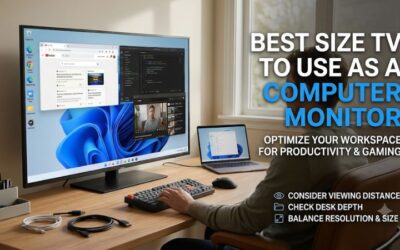
Check physical fit before looking at the feature list. Measure from your eyes to the planned screen face, mark the top edge and width on the wall, and sit normally. Then test native resolution, full chroma, and sleep and wake behavior with the computer you plan to use every day.
Measure image width, screen height, and stand depth
A 42-inch 16:9 image is about 36.6 inches wide, a 43-inch image about 37.5 inches, and a 55-inch image about 48 inches. Those figures describe the picture. Use the manufacturer’s full dimensions to check the bezel, stand, and room for cable connectors before arranging the rest of the desk.
Check where you will read long documents, not just where the middle of the screen will sit. An application near the top of a tall TV can make you look up repeatedly. A wall mount may help by freeing the space taken by the stand and moving the screen back. Check the TV’s mounting pattern, weight, and cable access with the actual mount you plan to use.
Keep native 4K and adjust the desktop around it
Use 3840 × 2160 for a 4K TV and increase the operating system’s scaling if menus and text are too small. Switching to 1080p can make objects larger, but it reduces the detail available for fine lettering. For a couch PC, start with the native output and enlarge individual applications if needed.
If the edges of the desktop are missing, check the TV’s picture-size or screen-fit setting. If the whole image is present but colored letters look smeared, inspect the PC’s output format and try a full-chroma test pattern. Recheck the same pattern after changing refresh rate or HDR. A successful test at 60Hz does not establish how the same connection will behave at a higher rate.
Check how the TV wakes and returns to the PC
Let the computer sleep, then see whether the TV wakes with it or needs the remote. If the TV also runs streaming apps, test switching back to HDMI after watching something. Check whether the computer keeps its window positions and whether audio still plays through the speakers or headset you intended to use.
These steps matter most when you change inputs frequently or depend on a laptop dock. Run the same test after plugging in the final dock, switch, or receiver. If the setup works directly but fails with an accessory in the path, check that accessory’s resolution and refresh limits before replacing the TV or graphics card.
Conclusion
Choose the Samsung U8000H for daily desktop work, the LG C6 for gaming and mixed use, or the Samsung S90H if direct reflections are the problem. Choose the 55-inch TCL QM7K for a PC you control from farther back. Before buying, check screen fit, small text, and the exact HDMI mode your computer can deliver.