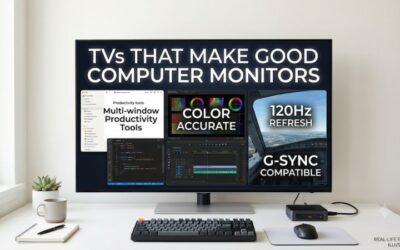
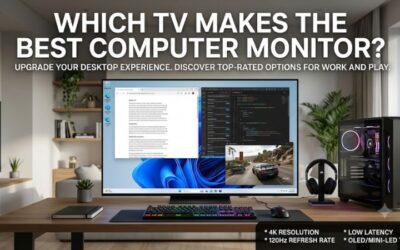
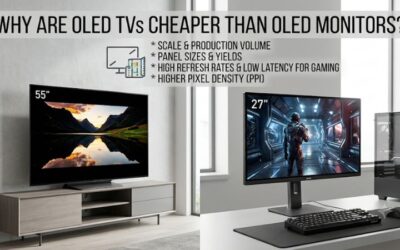
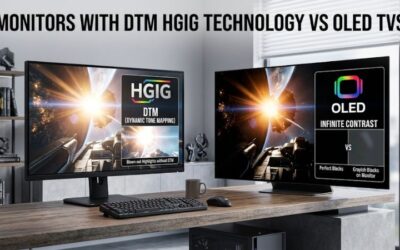
For gaming on 4k tv vs monitor, choose a 4K monitor if you sit close, play competitive shooters, or share the screen with work. Choose a 4K TV if you play from a couch, use a controller, or want one display for consoles and movies. At 120 Hz, the model and its game settings matter more than the label on the box.
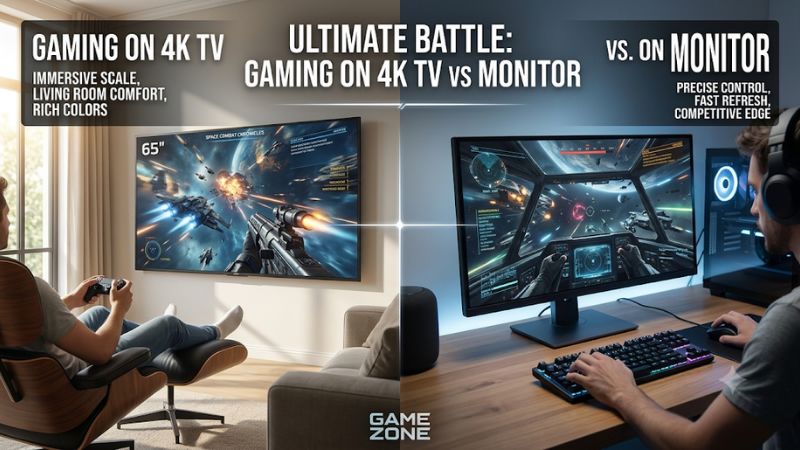
Gaming on 4K TV vs monitor: The quick verdict
A 27- to 32-inch 4K monitor is the easier fit for a desk where you use a mouse and keyboard. A 42- to 48-inch 4K TV can work for a deep desk or a separate gaming seat, while a larger TV makes sense when you regularly play from a couch. Start with where you sit and the games you play most often.
| Your setup | Start with | What to verify |
|---|---|---|
| Competitive PC shooters at a desk | High-refresh 4K monitor | GPU performance at your preferred settings and refresh over the intended connection |
| PC gaming and office work on the same screen | 27- to 32-inch 4K monitor | Text clarity, stand adjustment, sleep behavior, and usable desk depth |
| PS5 or Xbox Series X from a couch | 4K TV with a compatible 120 Hz mode | 4K 120 Hz input, console-compatible VRR, and Game Mode |
| Console gaming at a desk | 4K monitor with verified console support | 120 Hz and VRR over HDMI, plus a practical audio output |
| Single-player PC games on a deep desk | 42- to 48-inch gaming TV | Viewing distance, HDMI refresh, and readable menus |
| PC and consoles sharing the living room | 4K TV | Enough suitable HDMI inputs after accounting for the soundbar or receiver |
Here are two examples of how the hardware differs. LG’s 42-inch C6 OLED TV, model OLED42C6PUA, is a compact TV example for players who want a larger image and use HDMI. Dell’s 32-inch Alienware AW3225QF is a 4K 240 Hz QD-OLED gaming monitor with HDMI and DisplayPort. They share the same pixel count.
The Alienware packs those pixels into a smaller picture, while the LG spreads them over a wider area. That difference affects where each screen belongs before you even look at refresh rates.
How size and viewing distance change the experience
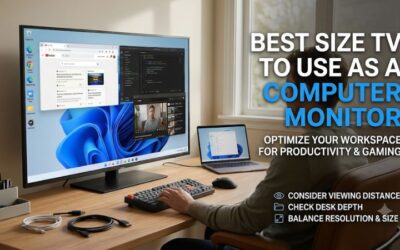
A 42-inch 4K TV can feel huge at a keyboard and relatively modest from a couch. Compare the screen from the seat you actually use, with your hands on the keyboard or controller. The distance from your eyes to the panel determines how far you have to look to reach a minimap, inventory, or subtitle.
Gaming on 4K TV vs monitor at a desk
At 16:9, a nominal 32-inch picture is about 28 inches wide. A nominal 42-inch picture is about 37 inches wide. Put those screens at the same distance and the TV extends roughly four to five inches farther on each side. That matters when a game scatters frequently used information around the edges.
For shooters with a busy HUD, the monitor keeps those corners nearer your central view. For a racing game or an open-world title, the wider image can make the same desk feel more like a dedicated gaming station. Set the distance based on a game you play regularly. A good test is to watch the center
while checking the minimap, then read a tooltip near the bottom edge without shifting your chair. If you have to lean back or turn your head repeatedly, move the panel farther away or pick a smaller screen.
Desk depth is only a rough clue. A large TV stand can bring the panel several inches forward, and speakers, a laptop, or a shelf can prevent you from pushing it back. Measure from your seated eyes to the spot where the front of the screen will sit. Check the stand footprint and top edge as well. A
panel that fits across the desk can still be too tall for a comfortable seated view.
A couch and controller favor a larger picture
From farther away, a larger screen makes small HUD labels and subtitles easier to read at the same interface scale. That’s particularly useful for controller games, split-screen play, and shared viewing. A TV remote and built-in audio can also make the setup simpler when the computer sits across the
room.
Before choosing the diagonal, open a game with small inventory text and try reading it from your usual seat. Use the game’s accessibility options for text size or HUD scale if available. For a shared room, check an off-center seat and a scene with dark detail. A panel that looks good straight on may
behave differently at an angle, and a large glossy screen can reflect a lamp you barely notice when it’s off.
If you alternate between couch and desk, decide which position gets most of your playing time. You can move closer to read a dense strategy interface, but that arrangement is less convenient if you have to move furniture every time. A deeper desk and a nearby controller seat give a 42- or 48-inch TV
a useful middle ground.
Refresh rate, frame rate, and input lag
A display’s refresh rate tells you how often it can update the image. Frame rate tells you how often the game produces a new frame. Input lag is the delay before a signal is visible on the screen. These factors can affect the same shot or camera movement, but each has a different cause and a
different fix.
When 240 Hz makes a difference on a PC
At 60 Hz, one refresh interval is about 16.7 milliseconds. At 120 Hz it is about 8.3 milliseconds, and at 240 Hz it is about 4.2 milliseconds. Those intervals describe how often the display can refresh. They are separate from measured display input lag and from the full delay between pressing a key
and seeing a result.
A 240 Hz monitor makes the strongest case if you play games that routinely run well above 120 fps and can maintain steady frame delivery at your chosen settings. That often means lighter competitive titles or a graphics preset tuned for performance. Check actual performance on your own PC. A screen
upgrade can’t make the GPU render more frames, and pushing a demanding game to native 4K can reduce the frame rate you were used to at 1440p.
A high-refresh TV can feel responsive in a single-player game that runs below 120 fps, especially when variable refresh is working. If you mostly play cinematic games on a controller, the bigger picture and seating arrangement may matter more than a higher refresh ceiling. If you also spend nights
playing fast multiplayer shooters at a desk, that same ceiling may carry real value. Base the decision on your usual games and settings rather than your fastest benchmark.
How to compare input lag fairly
Compare measured lag at the same resolution and refresh rate, ideally using the same reviewer’s methodology. For a TV, check the number in its low-latency gaming mode. For a monitor, check the number at the refresh you will actually use. A 240 Hz result tells you little about how that monitor
behaves at 60 Hz.
TV picture processing can change responsiveness. Motion interpolation creates intermediate frames for video and generally adds processing time. Turn it off for games or select Game Mode, then confirm the game is actually running on that input. Automatic low-latency mode can request the appropriate
preset on compatible equipment, but check the active mode if the controls feel sluggish after switching sources.
Pixel response is another consideration. It affects how quickly a pixel changes and can show up as smearing or trails. An LCD monitor with aggressive overdrive can leave bright or dark outlines, particularly if the setting is tuned for maximum refresh and your game runs lower. An OLED panel
generally changes pixels quickly, yet a low frame rate can still look uneven during a slow pan. Evaluate motion and input response using the same game, camera movement, and output settings on both screens.
Use VRR to handle uneven frame delivery
Variable refresh rate lets a compatible display adjust its timing to frame delivery within a supported range. It can reduce tearing and help uneven frame rates look smoother. Check support on the device and input you will use, since a feature available on DisplayPort may differ from what a console
can use over HDMI.
Enable VRR only after confirming a stable baseline at the expected resolution and refresh. Then launch a demanding game and look for tearing, flicker, or brief blackouts. If the display flickers in dark scenes when frame times fluctuate, try a steadier frame-rate cap or reduce the graphics load. If
the screen loses signal, test the original direct connection before assuming the feature is unsupported. Record which combination works, especially if you share the display with a console and a PC.
Which display works better for your device?
A PC can take advantage of refresh rates beyond a console’s 120 Hz modes, provided its GPU and connection can support them. With a PS5 or Xbox Series X, start by confirming the exact HDMI modes available on your display. A panel advertised at 144 or 240 Hz can still require specific settings to run
a console at 120 Hz.
For a gaming PC, check the GPU and connection together
Use the graphics card’s actual outputs to plan the purchase. A dedicated monitor often offers DisplayPort as well as HDMI, while a TV generally expects HDMI. Dell lists the AW3225QF with DisplayPort and HDMI options. For the TV, check the GPU’s HDMI capabilities and confirm the resolution and
refresh with a direct cable.
If a laptop dock, receiver, or switch sits between the source and the display, every device in that path needs to handle the chosen signal. Start with 4K in SDR, verify the refresh, then enable HDR and VRR one at a time. If the screen drops to 60 Hz, check the HDMI port, the TV’s enhanced input
setting, and the computer’s active display mode before replacing hardware. On a desktop with a separate graphics card, connect to the graphics card output you intend to use for gaming.
Consider a game’s internal resolution separately. A game can render internally below 4K and use upscaling while your desktop and the display signal stay at 4K. That can be useful on either screen when native rendering is too demanding. Judge the result using the game’s motion and fine details, since
a setting that looks acceptable from the couch can look softer up close.
For PS5 and Xbox Series X, prioritize usable HDMI modes
Choose a display that accepts the console’s intended 4K 120 Hz signal over HDMI if your games support it. Confirm the right port and turn on its enhanced signal mode if required. Then check the console’s video status and open a game that offers a 120 Hz option. The system menu alone may show a
different active mode.
A 120 Hz output signal doesn’t tell you the game’s internal rendering resolution or promise 120 fps throughout gameplay. Depending on the game, a performance mode may trade detail or resolution for speed. Some games give you additional options on a 120 Hz screen, such as a 40 fps mode. Forty frames
fit evenly into a 120 Hz refresh cadence, which can make that option useful if you prefer richer visuals to the highest frame rate.
From a couch, the 4K TV usually offers the easier overall setup. At a desk, a 32-inch monitor with verified HDMI console support can be just as practical for 60 and 120 Hz gaming. Check where sound goes before buying. The exact monitor may need headphones, external speakers, or a compatible audio
connection, while a TV generally gives you built-in speakers and a remote.
HDR, desktop use, and total setup cost
Decide what else the display will do during the week. Movies and controller games may justify a bigger panel and easier audio control. Work, study, and PC multiplayer can make a smaller screen with a height-adjustable stand more valuable. Compare the exact models and the equipment you need to make
them fit.
Compare HDR in the mode you will play in
A TV can be a strong HDR choice, particularly if it has OLED contrast or a well-controlled Mini LED backlight. A good OLED or Mini LED monitor can also give you strong HDR at a desk. Compare dark-scene detail, bright highlights, and reflections in the gaming preset. Movie mode results alone tell you
little about how the game will look.
Room lighting changes what you see. A window behind the player can obscure shadow detail and make reflections more noticeable, while a dim room can make the same display look much more convincing. Check whether HDR alters your preferred refresh or VRR options and whether the picture stays
comfortable when you switch back to desktop work. Try separate picture settings for SDR work and HDR gaming if the display supports them.
Check text, sleep, and accessories before comparing prices
The monitor has a practical advantage when you regularly switch from gaming to reading. Its smaller image concentrates the same 4K pixels into less space, and many monitor stands are easier to position at a desk. On either display, test small colored text and verify RGB or 4:4:4 output where
available.
If your desktop appears cropped on a TV, look for an overscan or screen-fit setting. If text still looks soft, confirm native resolution and test the PC input mode. Also check whether the display wakes with the computer and remembers the correct input after you watch something else. If you work with
the same bright toolbar or dashboard for hours, consider how an OLED model’s care features and panel characteristics fit that routine.
Compare the full cost in the same currency and at the same point in checkout. A TV may need a stand, wall mount, or longer cable. A monitor may need speakers or another way to send audio from a console. Include tax and shipping when comparing totals. An existing TV that already supports the console
modes you use can be the sensible choice for couch play. A monitor you already own may remain the better tool if it fits your desk and gives you the motion performance your games need.
Compare both displays with the same save file
If you already have access to a TV and monitor, load the same save file on both. Start with the same output resolution, refresh rate, and graphics settings. Play a section that includes dark detail, a fast turn, and small text. Then repeat from the seat you would actually use with each screen.
Change one setting at a time after that baseline. Try 120 Hz if both displays accept it, and compare HDR separately. If the TV feels slow only with a particular picture preset, switch to its gaming mode before drawing a conclusion. If the monitor feels more responsive only at its maximum refresh,
decide whether your favorite games reach a frame rate that makes that mode worthwhile. This test gives you a concrete reason to spend on the upgrade or keep the display you already own.
Conclusion
Choose a 4K monitor for close-range PC gaming, competitive play, or a desk that doubles as a workstation. Choose a 4K TV for couch play, shared console gaming, or a bigger single-player picture. For a console at a desk, buy by size and verified HDMI features. For a PC, pay for refresh rates your games and GPU can use.