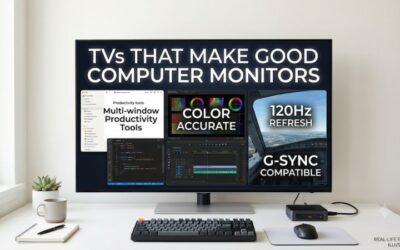
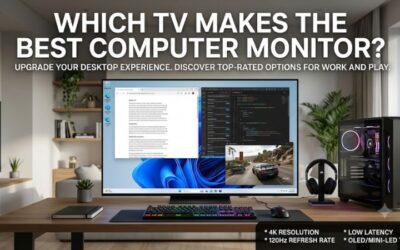
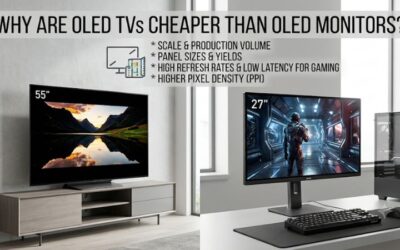
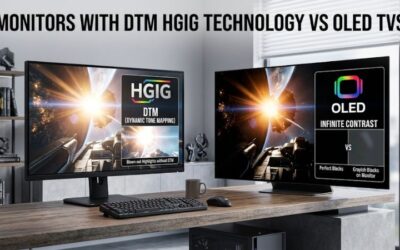
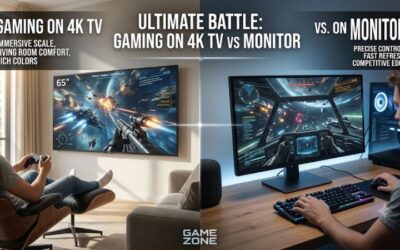
Using a television instead of a traditional monitor can give you a larger workspace, more immersive gaming, and a convenient screen for streaming or everyday entertainment. However, finding the best tv used as computer monitor requires checking more than resolution and screen size. Native refresh rate, chroma 4:4:4 support, subpixel layout, input lag, and viewing distance all affect the experience. The LG C6 OLED is our leading overall recommendation, while the Sony BRAVIA 3 II, Samsung S90H, and LG B6 provide compelling alternatives for different desktop environments.
Best TV used as computer monitor: quick verdict
The LG C6 OLED (42-inch) is the best overall choice for most people who want to replace a traditional desktop monitor with a television. It combines native 4K resolution, a 165Hz refresh rate, four HDMI 2.1 ports, excellent OLED contrast, and extremely fast pixel response. Its compact size also makes it more practical for desktop placement than a typical 55-inch television.
However, it is not necessarily the best option for every workspace. The Samsung S90H OLED offers a matte screen coating that handles reflections differently, while the Sony BRAVIA 3 II provides a conventional RGB subpixel layout that is particularly attractive for reading text.
The LG B6 OLED is another option for buyers who want a larger 48-inch OLED display with 120Hz gaming. Meanwhile, the TCL QM7L provides a higher-refresh Mini-LED alternative for people with deeper desks, and the Vizio Mini LED Quantum 4K is suitable for basic computing when 60Hz at 4K is sufficient.
These recommendations prioritize practical desktop usability instead of ranking televisions exclusively by their home-theater performance.
| TV model | Best use | Screen size | Maximum 4K refresh rate | Main drawback |
|---|---|---|---|---|
| LG C6 OLED | Best overall | 42 inches | 165Hz | Nonstandard OLED subpixels |
| Samsung S90H OLED | Bright-room OLED use | 42 inches | 165Hz | No Dolby Vision |
| Sony BRAVIA 3 II | Desktop text clarity | 43 inches | 120Hz | Weak black levels |
| LG B6 OLED | Larger OLED workspace | 48 inches | 120Hz | Lower refresh rate than C6 |
| TCL QM7L | Large-screen LCD gaming | 55 inches | 144Hz | Motion blur |
| Vizio Mini LED Quantum 4K | Basic desktop computing | 43 inches | 60Hz | Limited gaming performance |
These refresh rates refer to supported display modes, not guaranteed performance from every PC. Your graphics card, HDMI cable, television input, and selected resolution must all support the desired configuration.
How we selected TVs for desktop use
A television that performs well in a living room does not automatically make a good computer display. Desktop applications expose weaknesses that can be less noticeable when watching movies, television shows, or console games from several feet away.
We prioritized six characteristics when selecting these models.
First, native 4K resolution provides enough detail for a large desktop workspace. A 3840 × 2160 panel can display substantial content without requiring the same amount of scrolling as a smaller screen, although operating-system scaling remains important.
Second, chroma 4:4:4 support helps preserve fine color information around text and interface elements. Without it, small colored fonts and thin lines can look blurry.
Third, we considered subpixel layout. RGB is generally preferable for text-heavy desktop applications, while some WOLED and BGR arrangements can introduce colored edges around small characters.
Fourth, refresh rate and input lag influence gaming responsiveness. We favored televisions offering native 120Hz or higher where the intended category justified it.
Fifth, we checked connectivity, including HDMI 2.1 bandwidth, VRR compatibility, and the number of suitable inputs.
Finally, we considered physical size and practical desk placement. A 65-inch TV might look impressive, but a 42-inch or 43-inch television is usually easier to accommodate in a conventional workstation.
Our research combines manufacturer specifications with independent testing from RTINGS. We do not claim original hands-on measurements, and we do not assign price-based rankings without comparable, verified US retail prices.
Best TVs used as computer monitors: our six recommendations
LG C6 OLED: Best overall TV for computer use
42-inch configuration: OLED42C6PUA
The LG C6 OLED is the strongest all-around choice for a desktop setup that combines productivity, PC gaming, and entertainment. Its 42-inch configuration offers a manageable physical footprint while retaining the 4K resolution and premium image quality expected from a modern OLED television.
The native 165Hz refresh rate is a major advantage over standard 60Hz televisions. Compatible gaming PCs can deliver smoother motion in supported games, while NVIDIA G-SYNC compatibility, AMD FreeSync Premium, and HDMI Forum VRR help reduce screen tearing. LG also advertises a 0.1ms response time, although this manufacturer specification should not be confused with total system input latency.
Connectivity is another strength. The C6 provides four HDMI 2.1 inputs, so you can connect a desktop computer, gaming console, and other devices without constantly rearranging cables. RTINGS confirms that it supports 4K at up to 165Hz and properly displays chroma 4:4:4 signals.
Its OLED panel produces deep blacks because individual pixels control their own light output. This makes dark applications, games, and movies look particularly impressive. Pixel transitions are nearly instantaneous, which helps maintain clear motion during fast-paced gameplay.
The main limitation concerns text rendering. The C6 uses a restructured RGWB subpixel arrangement rather than conventional RGB. Although this arrangement improves desktop text clarity compared with some earlier OLED structures, Windows ClearType is not perfectly optimized for it. Users who spend most of their day reading small fonts should examine this limitation carefully.
The glossy screen can also reflect direct light sources. Positioning your desk away from windows and bright lamps helps reduce distractions.
Buy If: You want a premium 42-inch television with excellent gaming responsiveness, deep contrast, and versatile PC connectivity.
Skip If: You prioritize perfect RGB text rendering, work in an extremely reflective room, or need to avoid OLED burn-in considerations.
The LG C6 is the most balanced recommendation because it combines a practical size with high-end gaming features and excellent picture quality.
Samsung S90H OLED: Best for bright desktop environments
42-inch configuration: QN42S90HAEXZA
The Samsung S90H OLED is an excellent alternative for users who prefer OLED image quality but have difficulty controlling reflections in their workspace. Its 42-inch configuration provides the same general desktop-friendly dimensions as the LG C6, making it suitable for a conventional computer desk.
Its defining feature is Samsung’s Glare Free matte screen coating. Unlike a conventional glossy OLED panel, the matte surface helps diffuse reflections from windows and overhead lighting. This can make the display easier to use in rooms where controlling ambient light is difficult.
The S90H also offers strong gaming specifications. It supports native 4K resolution at up to 165Hz, provides four HDMI 2.1 inputs, and includes VRR compatibility. Independent RTINGS testing confirms nearly instantaneous pixel response and low input lag in Game Mode.
For productivity, the television supports chroma 4:4:4. Its newer RGWB subpixel structure is also somewhat better for text clarity than older non-RGB arrangements, although it still does not provide the same conventional pixel structure as a traditional RGB monitor.
There are some trade-offs. The matte coating changes the appearance of reflections rather than eliminating every effect of bright ambient lighting. The OLED panel can also show the characteristic static-image wear risk associated with prolonged desktop use.
Another disadvantage is Samsung’s lack of Dolby Vision support. This limitation matters more for people who watch Dolby Vision movies than for those who mainly use their television as a computer display.
Compared with the LG C6, the S90H is the more appealing choice when reflection management is a major consideration. However, the LG offers more versatile image processing and is generally the stronger overall recommendation.
Buy If: You want an OLED desktop television with a matte surface, 165Hz gaming, and four HDMI 2.1 inputs.
Skip If: You require Dolby Vision, conventional RGB text rendering, or a display primarily intended for color-critical professional work.
The Samsung S90H is a compelling option when your room conditions make glossy displays inconvenient.
Sony BRAVIA 3 II: Best for desktop text clarity
43-inch configuration: K-43XR30M2
The Sony BRAVIA 3 II is a particularly interesting choice for people who spend more time reading documents, browsing websites, and working with desktop applications than playing competitive games. Instead of relying on OLED technology, it uses a conventional LCD panel with an RGB subpixel layout.
That distinction matters because RGB arrangements generally work well with computer operating systems and font-rendering systems. RTINGS confirms that the tested BRAVIA 3 II properly displays both RGB and chroma 4:4:4 signals at 4K and 1080p resolutions.
Its native refresh rate is 120Hz, which provides a smoother desktop experience than a conventional 60Hz television. The display also supports 4K at 120Hz, VRR, and Auto Low Latency Mode. Sony lists four HDMI inputs, with 4K120, VRR, and ALLM features supported through HDMI 2.1.
Its 43-inch screen is also a reasonable size for a workstation. According to Sony’s specifications, the television measures 37.75 inches wide without its stand, uses a 200 × 200mm VESA mounting pattern, and weighs approximately 20.2 pounds without the stand. Those measurements are helpful when choosing a monitor arm or wall mount, although you must verify the mount’s supported weight and VESA pattern.
There is one significant weakness: contrast performance. RTINGS identifies poor black levels and black uniformity, meaning dark content does not look as deep as it does on OLED televisions. This makes the BRAVIA 3 II less appealing for nighttime movie watching or dark-room gaming.
It is also limited to 120Hz, so it cannot match the C6’s 165Hz refresh rate. For most ordinary desktop applications, however, this difference is less important than comfortable text rendering.
Buy If: You prefer a conventional RGB subpixel arrangement, want a 43-inch 4K television, and need 120Hz connectivity.
Skip If: You want excellent dark-room contrast, premium HDR performance, or a high-refresh OLED gaming experience.
The BRAVIA 3 II deserves consideration because a computer display should be judged by text quality as well as entertainment performance.
LG B6 OLED: Best larger OLED alternative
48-inch configuration: OLED48B6GUA
The LG B6 OLED is a suitable option for people who want a larger desktop screen but do not necessarily need the C6’s 165Hz refresh rate. Its smallest configuration starts at 48 inches, giving users a more spacious display for multitasking, video editing, and entertainment.
The B6 is a 2026 entry-level OLED series positioned below the C6. It supports native 4K resolution, a 120Hz refresh rate, four HDMI 2.1 ports, and modern gaming features, including NVIDIA G-SYNC and AMD FreeSync Premium.
The biggest advantage is OLED contrast. Individual pixels produce their own light, allowing the television to display deep blacks without the bright halos associated with conventional backlighting. It also has extremely fast pixel transitions, which help maintain clear motion in games.
RTINGS confirms that the B6 correctly displays chroma 4:4:4 across its supported resolutions, an important characteristic for desktop use. Its testing also confirms a maximum supported refresh rate of 120Hz rather than the 165Hz available on the C6.
The B6 uses a traditional WOLED panel. It is therefore not an ideal substitute for a conventional RGB productivity monitor if your work involves examining very small text throughout the day.
Its 48-inch size also requires more desk space. You should measure the width of your desk and the distance between your eyes and the screen before choosing this configuration. A wall mount or separate TV stand may provide more flexibility than the supplied television feet.
OLED maintenance remains important. Use automatic screen-off settings, avoid leaving static images displayed unnecessarily, and take advantage of the television’s built-in OLED protection features.
Buy If: You want a larger 48-inch OLED with 4K resolution, 120Hz gaming, and excellent contrast.
Skip If: You need a compact 42-inch screen, want refresh rates above 120Hz, or prioritize conventional RGB text clarity.
The B6 is a sensible alternative to the C6 when screen size matters more than achieving the highest available refresh rate.
TCL QM7L: Best Mini-LED option for a large workstation
Smallest configuration: 55QM7L
The TCL QM7L is better suited to buyers who want a larger television with high-refresh gaming capabilities and prefer LCD technology over OLED. Its smallest available configuration is 55 inches, making it a specialized choice for deep desks, wall-mounted workstations, and living-room PC setups.
The QM7L combines 4K resolution with Mini-LED local dimming and TCL’s Super Quantum Dot technology. It has a native 144Hz refresh rate and supports up to 288Hz at 1080p in its boosted gaming mode.
For computer use, its most interesting feature is the RGB subpixel arrangement. RTINGS identifies this arrangement as an advantage for desktop text clarity compared with televisions that use less conventional subpixel structures.
The television also supports chroma 4:4:4, preserving fine color information around text and interface elements. This can be useful when working with spreadsheets, browser tabs, and applications containing many small fonts.
Connectivity requires some attention. The QM7L has two HDMI 2.1 inputs supporting 4K at up to 144Hz. If you intend to connect multiple high-refresh devices, you should plan which equipment uses those inputs before purchasing.
Mini-LED backlighting provides strong HDR potential and better control over brightness than basic LCD systems. However, the technology is not equivalent to OLED. Because multiple LCD pixels share backlight zones, bright objects against dark backgrounds can still produce blooming.
Motion performance is another consideration. RTINGS reports slower pixel response and noticeable ghosting compared with faster televisions, which can make rapid movement appear less clean.
The 55-inch minimum screen size is arguably its biggest practical limitation. You should avoid placing it too close to your eyes, particularly when using several desktop windows simultaneously.
Buy If: You have a large workstation and want Mini-LED technology, RGB text rendering, and high-refresh gaming.
Skip If: You have a shallow desk, require fast OLED-like pixel transitions, or want a compact everyday monitor replacement.
The TCL QM7L is most convincing when you have enough physical space to benefit from its larger screen.
Vizio Mini LED Quantum 4K: Best for basic desktop computing
43-inch configuration: VQM43C-1001
The Vizio Mini LED Quantum 4K is a more basic option for people who need a 43-inch television for everyday desktop applications, streaming, and occasional gaming. It should not be confused with premium high-refresh televisions, but its native 4K resolution and proper chroma support make it usable for ordinary computing.
The exact VQM43C-1001 configuration combines a 43-inch LCD panel, Mini-LED backlighting, and a 3840 × 2160 resolution. Vizio lists a 60Hz native refresh rate and support for 120fps gaming at 1080p.
This difference is important. The television does not provide native 4K at 120Hz. You can use 4K at 60Hz for desktop productivity or select compatible 1080p/120Hz gameplay, but the latter reduces image detail.
RTINGS testing confirms that the television handles chroma 4:4:4 across its supported formats. This is helpful for displaying desktop text accurately. The tested 43-inch variant also uses an IPS panel, which provides wide viewing angles compared with many VA alternatives.
There are disadvantages. RTINGS reports very blurry motion, limited gaming features, and ineffective reflection handling. Its local dimming also does not deliver the strong dark-room contrast that buyers might expect from the Mini-LED label.
Vizio lists HDMI 2.1-type connections, but that should not be interpreted as full 48Gbps HDMI 2.1 performance. The actual display modes remain limited to 4K/60Hz and supported lower-resolution high-refresh signals.
The three HDMI inputs and basic smart features are sufficient for a secondary setup, but demanding PC gamers will benefit from spending more on a faster model.
Buy If: You need a 43-inch 4K television for normal desktop work, streaming, and occasional casual gaming.
Skip If: You require 4K/120Hz, highly responsive competitive gaming, or excellent motion clarity.
The Vizio is a functional everyday display, but its limitations make it the least suitable choice for a premium gaming workstation.
How to choose the best tv used as computer monitor
Choose the right screen size and viewing distance
Screen size is one of the most important considerations when replacing a monitor with a television. A TV that looks comfortable from a couch can feel overwhelming when positioned directly behind a keyboard.
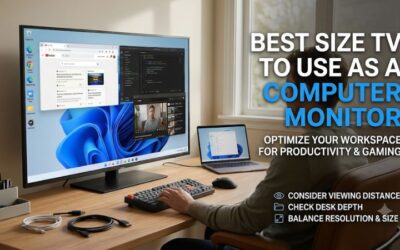
For most desktop users, 42 to 43 inches is a reasonable starting point. These sizes offer a larger workspace than conventional monitors while remaining manageable on a sufficiently deep desk. The LG C6, Samsung S90H, and Sony BRAVIA 3 II are particularly relevant in this category.
A 48-inch television provides additional workspace, but you need to position it farther away or use a suitable wall mount. The same applies even more strongly to the 55-inch TCL QM7L.
Resolution should be considered alongside diagonal size. A 42-inch 4K television has approximately 105 pixels per inch, while a 55-inch 4K model has approximately 80 PPI. Both display the same total pixel count, but individual pixels appear larger on the bigger panel.
Measure the usable depth of your desk, including the space occupied by your keyboard and other peripherals. Consider whether the television’s feet will interfere with your equipment. Some models have wide-set stands that require more desk width than expected.
Do not forget vertical positioning. A large TV positioned too high can make long working sessions uncomfortable. The center of the display should be positioned appropriately for your usual seated posture.
Check text clarity and chroma 4:4:4 support
Desktop text is one of the biggest differences between using a television and using a dedicated PC monitor. A display can produce excellent movie images while still rendering small fonts less cleanly.
Chroma 4:4:4 is a key requirement because it preserves full color detail for each pixel. Some televisions use reduced chroma sampling in their default video modes to handle ordinary entertainment signals efficiently. That can create colored edges and blurry-looking text when displaying a computer desktop.
Look for independent testing confirming proper 4:4:4 support at your intended resolution and refresh rate. It is not sufficient for a television to support this format only at 1080p if you intend to use it at 4K.
Subpixel layout is equally important. Conventional RGB panels arrange red, green, and blue subpixels in a familiar sequence that operating systems handle well. BGR and certain OLED arrangements can produce colored fringing, particularly around small characters.
For example, the Sony BRAVIA 3 II is particularly interesting because RTINGS confirms its RGB arrangement. The LG C6 and Samsung S90H support chroma 4:4:4 but still have a nonstandard OLED subpixel structure.
If your primary work involves spreadsheets, programming, document editing, or reading small fonts, consider testing a television’s desktop appearance before the return window expires.
Match refresh rate with your graphics card
Refresh rate determines how many times the display can update its image every second. A 60Hz television can display up to 60 refreshes per second, while a 120Hz or 165Hz model supports more frequent updates.
For general office work, web browsing, and streaming, 60Hz may be sufficient. However, 120Hz provides a noticeably more fluid experience when scrolling through long documents, moving windows, and playing games.
A 165Hz television is particularly useful for PC gamers with powerful graphics cards. The LG C6 and Samsung S90H support this refresh rate at 4K, while the TCL QM7L reaches 144Hz at native 4K resolution.
Your graphics card must also be capable of delivering the required output. Owning a television with a 165Hz panel does not mean every game will run at 165 FPS. Rendering performance depends on your GPU, CPU, game engine, resolution, and graphics settings.
Variable refresh rate is another useful feature. Technologies such as HDMI Forum VRR, NVIDIA G-SYNC compatibility, and AMD FreeSync help synchronize the display’s refresh behavior with the GPU’s output.
This reduces screen tearing when frame rates fluctuate. Before buying, confirm that the television supports the VRR technology and connection method used by your graphics card.
Decide between OLED and Mini-LED
OLED and Mini-LED are both useful technologies for computer displays, but their strengths are different.
OLED is attractive for users who prioritize contrast, image quality, and fast motion. Each pixel generates its own light, allowing dark scenes to appear genuinely black. This is especially useful for gaming, movies, and applications with dark interfaces.
The limitation is static-image wear. Desktop applications frequently keep taskbars, browser controls, and application windows in the same positions. Long-term exposure to static content can increase the risk of permanent image retention.
Modern OLED televisions include protective features, but these are not a guarantee against burn-in. Automatic screen-off timers, screen savers, reasonable brightness levels, and hiding unnecessary static elements are sensible precautions.
Mini-LED uses an LCD panel with many small backlight zones. This helps deliver strong brightness and better local contrast than conventional basic LCD televisions. It also avoids the same organic pixel burn-in mechanism found in OLED technology.
However, Mini-LED is not perfect. Local dimming can produce blooming around bright text, subtitles, or interface elements on dark backgrounds. The actual result depends on panel design, the number of dimming zones, and the television’s processing.
Choose OLED if your priority is image quality and gaming. Choose Mini-LED or standard LCD if you want a display for long desktop sessions and prefer to avoid OLED-specific wear concerns.
Check HDMI ports, cable bandwidth, and PC mode
The HDMI specification printed on a television’s product page does not tell the whole story. You need to identify which individual inputs support the resolution and refresh rate you intend to use.
Some televisions provide full 4K/120Hz or 4K/144Hz support on only two inputs. Others support high-refresh gaming on all HDMI 2.1 inputs.
For example, the TCL QM7L offers 4K/144Hz on two HDMI inputs, while the LG C6 and Samsung S90H provide four high-bandwidth inputs. This distinction matters when connecting a desktop PC alongside several gaming devices.
Use a certified Ultra High Speed HDMI cable for high-bandwidth configurations. A cable that works reliably at 4K/60Hz may not provide a stable connection at higher refresh rates.
Also check whether the television has a dedicated PC input mode. This setting can enable proper chroma reproduction and reduce unnecessary image processing. Some manufacturers use different names for this mode, so consult the specific model’s instructions.
Finally, confirm that your graphics card can output the desired resolution and refresh rate over the selected connector. DisplayPort-equipped graphics cards may need a suitable HDMI conversion solution, but not every adapter supports full HDMI 2.1 bandwidth.
How to set up a television as a PC monitor
Start by checking the television’s dimensions, stand clearance, and mounting compatibility. A large screen should not be positioned too close to your seating position, and the mounting hardware must support its actual weight.
Connect your desktop PC through an appropriate HDMI input. Use the television’s highest-bandwidth port when attempting 4K at 120Hz, 144Hz, or 165Hz. Connect the cable directly to the graphics card rather than an unsupported motherboard video output.
In Windows, open Settings, select System, and choose Display. Confirm the native 3840 × 2160 resolution, then open Advanced Display to select the highest refresh rate supported by both devices.
Next, open the GPU control panel and check the output color format. RGB with Full dynamic range is generally appropriate for PC desktop output when supported by the television. Confirm that the television correctly displays chroma 4:4:4.
Enable PC mode or the manufacturer’s equivalent setting. For gaming, enable Game Mode and VRR where supported. Disable unnecessary motion interpolation and overscan because these features can introduce processing delays or crop desktop content.
Windows scaling deserves attention as well. Depending on your viewing distance and screen size, 125% or 150% scaling may provide a more comfortable interface than the default 100%.
For OLED models, configure automatic screen sleep and use a screensaver when the computer is unattended. Lowering SDR brightness to a comfortable level also helps reduce unnecessary panel stress.
Before finishing the setup, test small fonts, colored text, dark backgrounds, scrolling, and moving objects. This provides a much better indication of real desktop suitability than simply checking whether Windows recognizes the television.
Frequently asked questions
Is a 4K TV better than a 1440p monitor for computer use?
Not automatically. A 4K television provides more total pixels and a larger workspace, but its physical size may result in lower pixel density than a smaller 1440p monitor. A dedicated monitor can also offer better ergonomics and more convenient DisplayPort connectivity. Choose according to your viewing distance and workload.
Can I use a TV as a monitor for eight hours a day?
Yes, provided the television is suitable for desktop output and positioned comfortably. LCD and Mini-LED models avoid OLED-specific burn-in concerns. OLED televisions can also be used for extended sessions, but static desktop elements require sensible protection settings and usage habits.
Why does text look blurry on my 4K television?
Possible causes include chroma subsampling, an unsuitable input mode, incorrect GPU color settings, overscan, or a nonstandard subpixel arrangement. Check for PC mode and chroma 4:4:4 support first. Also confirm that Windows is sending the native resolution.
Should I buy a 120Hz or 165Hz television for gaming?
A 120Hz television is sufficient for most users, particularly those playing single-player games and general entertainment titles. A 165Hz model provides additional smoothness when your graphics card can produce higher frame rates. Competitive gamers should also examine pixel response and input lag rather than relying only on refresh-rate specifications.
Is a 43-inch TV too large for a computer desk?
It depends on desk depth and seating distance. A 43-inch 4K television can work well on a deep workstation, but it may feel overwhelming on a shallow desk. Measure the available space and check the stand dimensions before purchasing. A wall mount may provide more positioning flexibility.
Final verdict
The LG C6 OLED is the best overall choice for buyers who want a television that can handle both everyday desktop work and demanding PC gaming. Its 42-inch screen, 4K resolution, 165Hz refresh rate, and excellent OLED response make it a strong alternative to a conventional gaming monitor.
The Samsung S90H is worth choosing when reflection handling matters more, while the Sony BRAVIA 3 II is particularly appealing for text-heavy desktop applications. The LG B6 offers a larger OLED alternative, and the TCL QM7L suits buyers with more workstation space.
The Vizio Mini LED Quantum 4K remains an option for basic computing, but its 4K/60Hz limitation makes it less attractive for modern gaming.
Ultimately, prioritize screen size, text clarity, and connection compatibility before paying extra for HDR or a higher advertised refresh rate. A television should improve your entire desktop experience, not simply make your games look bigger.