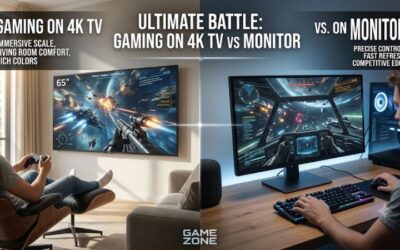
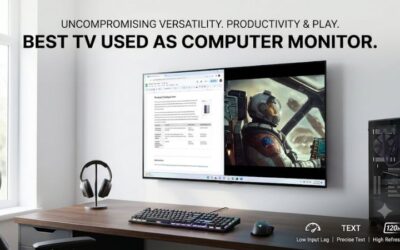
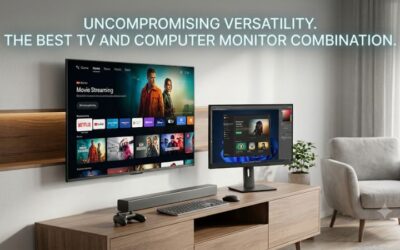
A television can be an excellent alternative to a traditional desktop monitor, especially when you want a larger 4K screen for gaming, multitasking, streaming, and everyday productivity. However, not every TV handles computer signals equally well. The best tvs to use as computer monitor should offer sharp 4K output, proper 4:4:4 chroma support, low input lag, useful HDMI connectivity, and a screen size that fits your desk. The LG C6 OLED is the strongest overall choice, while the Samsung S90H, TCL QM7L, and Vizio Mini LED Quantum 4K address different lighting conditions, budgets, and productivity requirements.
- The best TVs to use as computer monitors at a glance
- How we selected the best TVs to use as computer monitor
- Individual recommendations for desktop and gaming setups
- How to choose the best TVs to use as computer monitor for your setup
- Common mistakes when using a television as a desktop monitor
- Frequently asked questions
- Final verdict
The best TVs to use as computer monitors at a glance
The LG C6 OLED 42-inch is the best starting point for most PC gamers who want a large desktop display without moving to a 55-inch television. It combines 4K resolution, a native 165Hz refresh rate, four HDMI 2.1 ports, and support for major variable refresh rate technologies. Its OLED panel also delivers excellent contrast and exceptionally fast pixel transitions.
However, it is not automatically the best choice for everyone. The TCL QM7L has an RGB subpixel arrangement that produces clearer desktop text, while the Samsung S90H’s matte OLED coating makes it more suitable for rooms with direct light. Users who mostly work with documents and browser windows may prefer an LCD television over OLED because of static-image burn-in considerations.
RTINGS’ September 2026 PC-monitor recommendations identify the LG C6, TCL QM7L, and Vizio Mini LED Quantum 4K as its three primary picks. The other models below provide useful alternatives for particular workstation requirements.
| Television | Best use case | Native resolution and refresh rate | Main limitation |
|---|---|---|---|
| LG C6 OLED 42-inch | Best overall | 4K, 165Hz | Non-RGB subpixel layout |
| Samsung S90H OLED 42-inch | Best matte OLED | 4K, 165Hz | No Dolby Vision |
| TCL QM7L 55-inch | Best large LCD workspace | 4K, 144Hz | Large size and motion blur |
| Vizio Mini LED Quantum 4K 43-inch | Best budget productivity TV | 4K, 60Hz | Limited high-refresh gaming |
| Hisense UR9SG 65-inch | Best laptop connectivity | 4K, 180Hz | Too large for many desks |
| Hisense U7SG 55-inch | Best matte Mini LED alternative | 4K, 165Hz | BGR text-rendering limitations |
How we selected the best TVs to use as computer monitor
A television needs to perform differently when connected to a computer than when used exclusively for watching movies. Desktop environments contain small fonts, thin interface elements, colorful icons, and static windows. These details expose weaknesses that might not be noticeable when streaming a movie from a couch.
We prioritized five technical characteristics when narrowing down the recommendations.
Resolution and screen size came first. All six selections offer native 4K resolution, providing enough pixels for a substantial desktop workspace. However, pixel density still varies with physical screen size. A 42-inch 4K television generally provides sharper-looking desktop content at close range than a 65-inch 4K model.
Refresh rate and gaming responsiveness came next. The selection includes 60Hz, 144Hz, 165Hz, and 180Hz televisions to accommodate different graphics cards and gaming preferences. We also considered input lag, pixel response behavior, HDMI bandwidth, and VRR compatibility.
Chroma 4:4:4 support was another important requirement. A TV that correctly displays this signal preserves the color detail necessary for sharp computer text. We also examined panel subpixel layouts because a television can support 4:4:4 while still producing less-than-perfect text clarity.
Finally, we considered panel longevity and lighting conditions. OLED models provide outstanding contrast but require attention to static desktop elements. LCD and Mini LED alternatives avoid OLED-specific burn-in concerns and can be more convenient for productivity-heavy workstations.
The shortlist draws primarily on RTINGS’ independent laboratory reviews, supported by manufacturer documentation from LG, Samsung, TCL, Hisense, and Vizio. These are researched recommendations rather than products personally tested by Build-PC-Guide.
Individual recommendations for desktop and gaming setups
LG C6 OLED 42-inch – Best overall
The LG C6 OLED is the strongest overall television for someone who wants a large desktop gaming display without sacrificing too much everyday usability. Its 42-inch size is a particularly important advantage because it offers significantly more screen area than a conventional 27-inch monitor while remaining manageable on a sufficiently deep desk.
The OLED42C6PUA uses a native 3,840 × 2,160 resolution and supports refresh rates up to 165Hz. LG also specifies a 0.1ms response time, NVIDIA G-SYNC compatibility, and AMD FreeSync Premium. Four HDMI 2.1 ports provide additional flexibility for connecting a PC, gaming console, and other devices. Dolby Vision support is another advantage for people who use their computer for entertainment as well as productivity.
Its most important advantage over conventional LCD televisions is pixel response. Because OLED pixels generate their own light, they can transition extremely quickly. This helps reduce motion blur in games with rapid camera movement, making the display particularly appealing for action games, racing titles, and competitive shooters.
RTINGS independently evaluated the C6’s responsiveness and reported 4.9ms input lag at 4K/165Hz under its specific PC input configuration, using Filmmaker Mode with Game Optimizer enabled. Its testing also confirms proper 4:4:4 chroma support across supported resolutions. These characteristics make it a capable gaming display rather than simply a large television with an HDMI connection.
There are two important limitations.
First, the panel uses an RGWB subpixel arrangement instead of the conventional RGB layout found on many desktop monitors. Although 4:4:4 support helps preserve text information, Windows ClearType is not perfectly optimized for this arrangement. Fine lettering can show slight color fringing, particularly when viewed from close range.
Second, OLED burn-in remains a consideration for productivity users. Leaving a taskbar, spreadsheet, or application window visible for many hours increases the importance of panel-care settings. The 42-inch version also lacks Brightness Booster technology, so it is not as bright as some larger versions of the C6.
Buy if you want premium 4K gaming, excellent contrast, fast motion, and a screen size that works reasonably well on a large desktop.
Skip if your main workload involves reading small fonts throughout the day or you want a display that can show static content continuously without OLED-specific precautions.
Samsung S90H OLED 42-inch – Best for rooms with reflections
The Samsung S90H OLED is a compelling competitor to the LG C6, especially when your workstation receives substantial ambient light. Its standout feature is Samsung’s matte Glare Free screen treatment, which reduces distracting reflections from windows, lamps, and overhead lighting.
The 42-inch QN42S90HAEXZA offers 4K resolution and a maximum refresh rate of 165Hz. Samsung includes its NQ4 AI Gen3 processor, Tizen smart platform, and gaming features designed for modern consoles and gaming PCs. Four HDMI 2.1 connections support up to 4K/165Hz, while VRR provides smoother gameplay when graphics-card frame rates fluctuate.
In RTINGS’ independent testing, the S90H performed particularly well in bright environments. Its matte coating substantially reduces direct and indirect reflections, while the WOLED panel maintains deeper blacks under ambient lighting than older QD-OLED implementations that can show elevated black levels in brighter rooms.
Motion performance is another advantage. The television has almost instantaneous pixel transitions, low input lag, and proper 4:4:4 chroma support. It can therefore handle both high-refresh gaming and ordinary desktop interfaces without the limitations associated with conventional 60Hz televisions.
However, it shares an important weakness with the LG C6. The 42-inch version uses a non-RGB WOLED subpixel arrangement, so small desktop text is not as clean as it would be on a conventional RGB monitor. Its lack of Dolby Vision may also matter to buyers who use the television for HDR movies.
One distinction is especially important when comparing Samsung’s sizes. The 42-inch version uses a standard WOLED panel, while the 48-inch and 77-inch S90H variants use an RGB tandem panel. Do not assume that findings from one screen size automatically describe another.
RTINGS tested the 65-inch model and separately evaluated the 77-inch variant. The 42-inch version is expected to be less bright than the larger tested model, so buyers should keep that difference in mind.
Buy if you want OLED contrast and gaming responsiveness but need better reflection handling in a brighter workstation.
Skip if Dolby Vision matters, you prioritize perfect desktop text, or you want to avoid OLED burn-in considerations.
TCL QM7L 55-inch – Best for a large LCD workspace
The TCL QM7L is a useful alternative when your main concern is getting more desktop space without choosing an OLED panel. Its 55-inch screen is considerably larger than the LG C6 and Samsung S90H, making it better suited to a deep workstation, a wall-mounted display, or a gaming desk where you sit farther away.
TCL uses SQD Mini LED technology with a 4K LCD panel. The 55QM7L has a native 144Hz refresh rate, VRR, and Game Accelerator 288, which allows compatible lower-resolution gaming signals to reach higher refresh rates. The manufacturer lists four HDMI 2.1 inputs, although only inputs 1 and 2 support 4K at 144Hz. This distinction matters when planning a multi-device workstation.
Its RGB subpixel arrangement is one of its strongest advantages for computer use. Unlike the non-RGB OLED layouts found in the C6 and S90H, the QM7L can display small text with more conventional pixel structure. RTINGS confirms that it correctly displays 4:4:4 chroma across its supported PC resolutions and refresh rates.
The Mini LED backlight also makes it more appropriate for users who spend extended periods working with static windows. There is no OLED-specific permanent burn-in mechanism to manage, although LCD panels can still experience other forms of aging and image retention.
However, high refresh rate does not automatically guarantee excellent motion clarity. RTINGS found that the QM7L has relatively slow pixel transitions, resulting in noticeable blur and ghosting during fast action. This is particularly relevant for competitive games where clear movement is more important than a large image.
Its 55-inch minimum size is another limitation. A 4K desktop image spread across 55 inches has lower pixel density than the same resolution on a 42-inch screen. You may need to move the television farther away and increase Windows scaling.
Buy if you want a large LCD display with conventional RGB text rendering, 4K/144Hz support, and less concern about OLED burn-in.
Skip if you have a shallow desk, prefer clean OLED motion, or need four full-bandwidth HDMI connections.
Vizio Mini LED Quantum 4K 43-inch – Best for everyday productivity
The Vizio Mini LED Quantum 4K is a sensible option for users who want a relatively straightforward television for everyday desktop tasks rather than premium gaming. Its 43-inch configuration provides a large workspace, while its standard RGB subpixel layout is particularly useful for people who spend much of their time reading text.
The VQM43C-1001 features a native 4K resolution, an IPS LCD panel, and Mini LED backlighting. Its native refresh rate is 60Hz, although compatible 1080p signals can reach 120Hz. Vizio also lists three HDMI connections, HDMI VRR support, and compatibility with Dolby Vision and HDR10+.
For productivity, the most interesting characteristic is its pixel arrangement. RTINGS confirms that the tested Vizio uses an RGB subpixel layout and correctly displays PC chroma 4:4:4 signals. This combination helps produce more consistent text edges than some OLED and BGR televisions.
However, its gaming limitations should not be overlooked. It does not provide full HDMI 2.1 bandwidth for 4K high-refresh gaming. A computer connected to this television should be expected to operate at 4K/60Hz rather than 4K/120Hz.
RTINGS also found relatively slow pixel transitions, noticeable motion blur, and limited reflection handling. Its local dimming cannot match the contrast control of more advanced Mini LED televisions, either. These shortcomings make it a much better choice for browsing, document editing, video playback, and secondary-monitor tasks than for competitive gaming.
The exact 43-inch model has the advantage of a more manageable footprint than the larger Vizio configurations. Nevertheless, the independent review tested the 65-inch version, so performance details should be treated with the manufacturer’s size-specific specifications in mind.
Buy if you value an RGB subpixel layout, a relatively large 4K desktop, and basic entertainment features.
Skip if high-refresh 4K gaming, strong dark-room contrast, or effective glare reduction is important.
Hisense UR9SG 65-inch – Best for laptop connectivity
2026 model | 65UR9SG | 65-inch RGB Mini LED LCD
The Hisense UR9SG is an interesting option for users who want a large display with more flexible computer connectivity. Its biggest distinction is the inclusion of a USB-C input supporting DisplayPort Alternate Mode, allowing compatible laptops and computers to send a display signal directly over USB-C.
The 65UR9SG uses RGB Mini LED backlighting and has a native 4K resolution. RTINGS confirms support for 4K at up to 180Hz, with a lower-resolution refresh-rate mode reaching 330Hz. All three HDMI inputs provide HDMI 2.1 bandwidth, while the USB-C connection adds another option for laptop users. The television also supports VRR over its DisplayPort Alt Mode connection.
The USB-C input is more than a convenience feature. A laptop equipped with a compatible DisplayPort Alt Mode output can connect to the television without relying on a separate HDMI connection. This can simplify a mixed work-and-entertainment setup.
RTINGS measured USB-C input lag of 7.8ms at 4K/180Hz and 8.9ms at 4K/120Hz. These results indicate that the connection remains responsive for gaming despite having slightly higher latency than some of the television’s other input configurations.
There is an important disadvantage: size. The UR9SG starts at 65 inches, making it unsuitable for many conventional desktop arrangements. It is better suited to a deep workstation, a large studio, or a desk positioned farther away from the screen.
Its BGR subpixel arrangement is also less desirable for people who read small text throughout the day. RTINGS specifically notes that this layout can make desktop text harder to read, even though the television supports proper 4:4:4 chroma.
Buy if you want a large-format PC display with USB-C DisplayPort connectivity and high-refresh gaming support.
Skip if desk space is limited or you need especially clean small-text rendering.
Hisense U7SG 55-inch – Best matte Mini LED alternative
2026 model | 55U7SG | 55-inch VA Mini LED LCD
The Hisense U7SG is an appealing alternative for users who prefer LCD technology but still want the gaming capabilities of a premium television. Its matte screen treatment and Mini LED backlighting make it especially interesting for a room where direct sunlight or overhead lighting is difficult to control.
The 55U7SG offers a 4K panel with a 165Hz maximum native refresh rate. Hisense includes HDMI 2.1 connectivity, VRR, and support for its Game Mode Ultra technology. Dolby Vision and HDR10+ compatibility also make it a flexible television for entertainment outside the desktop environment.
RTINGS tested the 65-inch version and confirms that the U7SG supports 4K at 165Hz and 1080p at 330Hz. Its four HDMI inputs support HDMI 2.1 bandwidth, and the television correctly displays 4:4:4 chroma. It also has low input lag, making it a capable choice for modern PC gaming.
Nevertheless, there are two significant limitations.
The first is its BGR subpixel layout. Although this does not prevent the TV from displaying movies or games correctly, it can affect fine text on a computer desktop. Users who work with spreadsheets, coding environments, or small browser fonts may notice the difference.
The second is motion handling. RTINGS found relatively slow transitions, particularly when the panel moves away from dark shades. This produces more noticeable blur in some fast-moving content than the headline 165Hz specification suggests.
The 55-inch version also has fewer local dimming zones than the larger tested 65-inch version. It is therefore important not to assume identical brightness or local dimming performance across the entire product family.
Buy if you want a matte Mini LED television with strong gaming connectivity and no OLED-specific burn-in concerns.
Skip if your desktop workload involves small fonts or you are particularly sensitive to dark-scene motion blur.
How to choose the best TVs to use as computer monitor for your setup
The right purchase depends on your working distance, graphics card, lighting conditions, and the amount of time you spend using desktop applications.
Select an appropriate screen size and resolution
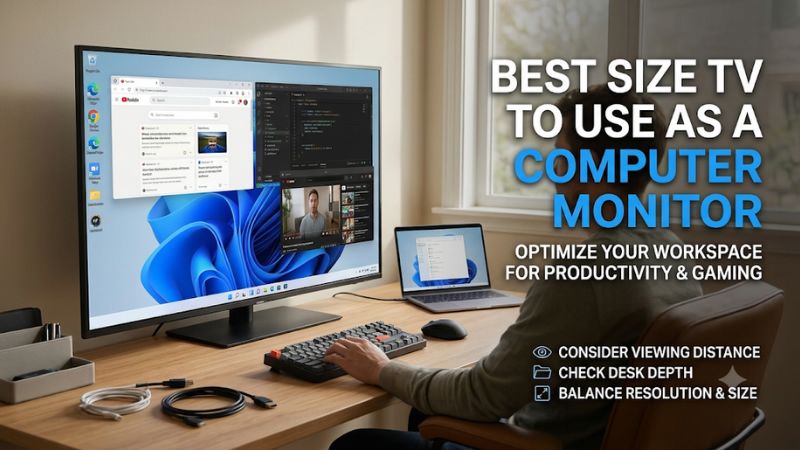
Most conventional monitors are designed for relatively close viewing distances. Televisions are generally designed for viewers sitting farther away, so their physical dimensions deserve particular attention.
At a native 4K resolution, all six televisions provide 3,840 × 2,160 pixels. However, the pixel density changes depending on the diagonal measurement.
| Screen size | Approximate pixel density | Desktop suitability |
|---|---|---|
| 42 inches | 105 PPI | Excellent starting point for large desks |
| 43 inches | 103 PPI | Suitable for productivity and mixed use |
| 48 inches | 92 PPI | Better with a deeper desk |
| 55 inches | 80 PPI | Requires more viewing distance |
| 65 inches | 68 PPI | Better for room-based setups |
These figures are approximate calculations based on a 16:9 screen and native 4K resolution.
A 42-inch OLED may be more comfortable at normal desktop distances than a 65-inch television because the image does not occupy as much of your field of view. Larger models can still work, but they generally require a more carefully planned workstation.
Windows scaling is also important. You do not need to run every application at 100% scaling simply because the TV supports native 4K. Increasing scaling to 125% or 150% can make text and interface elements more comfortable without sacrificing the panel’s native resolution.
Understand RGB, BGR, and OLED subpixel arrangements
One of the biggest differences between a TV and a desktop monitor is its subpixel arrangement.
A conventional RGB panel uses red, green, and blue subpixels arranged in a familiar structure. Windows’ text-rendering system is optimized primarily for these traditional layouts.
Some televisions instead use BGR, RWBG, or RGWB arrangements. These can produce visible color fringing around fine lettering even when the television correctly receives a 4:4:4 signal.
This explains why the TCL QM7L and Vizio Mini LED Quantum 4K are interesting productivity choices despite not matching OLED’s motion performance. Their RGB layouts are more naturally suited to desktop text.
When browsing product specifications, do not stop at the phrase PC-compatible. Look for independent confirmation of both 4:4:4 support and panel subpixel arrangement.
Choose OLED or Mini LED based on working habits
OLED and Mini LED serve different desktop requirements.
OLED is particularly attractive for gaming and entertainment because individual pixels can turn off completely. This produces excellent black levels and reduces the motion blur associated with slower LCD transitions.
However, desktop interfaces contain static elements that can remain visible for hours. Modern OLED televisions use protective measures, but they cannot eliminate the underlying risk of uneven pixel wear.
Mini LED LCD televisions provide another approach. They use a backlight divided into local dimming zones, delivering better contrast than many conventional LCD displays. They also avoid OLED-specific burn-in concerns.
For someone spending most of the working day with fixed office applications, a suitable RGB Mini LED television may be more practical. For someone who divides time between games and entertainment, an OLED can be a better investment.
Check HDMI bandwidth and graphics card compatibility
A television can advertise a 165Hz refresh rate without supporting every resolution and refresh-rate combination through every input.
For 4K high-refresh PC gaming, look for the actual HDMI bandwidth and the specific ports supporting the maximum refresh rate. The TCL QM7L, for example, supports 4K/144Hz through two HDMI inputs rather than all four.
Your graphics card also needs to support the required output. A high-end GPU may provide 4K at 165Hz in compatible games, but demanding titles can produce considerably lower frame rates depending on graphics settings.
VRR helps the television synchronize its refresh behavior with the GPU’s output, reducing tearing when frame rates fluctuate. NVIDIA G-SYNC compatibility, AMD FreeSync, and HDMI Forum VRR are useful features, although their availability varies by model and input mode.
Use a suitable Ultra High Speed HDMI cable for high-bandwidth connections. Connect the PC directly to the TV when troubleshooting, and check the television’s manual for the correct HDMI port and enhanced signal setting.
Think about lighting, ergonomics, and daily convenience
A glossy OLED television can look impressive in a dark room but produce distracting reflections when a window or lamp is positioned behind the viewer.
A matte display, such as the Samsung S90H, can be more convenient under those conditions. However, matte coatings can affect perceived image texture, so the choice depends on whether reflection reduction is more important than a glossy presentation.
Ergonomics matter just as much. A television sitting on a standard TV stand may be too low or too high for desktop use. Check VESA compatibility, stand dimensions, and the mounting arrangement before purchasing.
Also consider connectivity beyond video. The Hisense UR9SG’s USB-C DisplayPort Alt Mode input is useful for compatible laptops, while conventional HDMI connections remain more straightforward for most desktop graphics cards.
Finally, remember that integrated television speakers are designed for room listening, not necessarily the near-field sound experience of a desktop setup. External speakers or headphones may still improve your workstation.
Common mistakes when using a television as a desktop monitor
The first mistake is choosing the largest screen without checking available space. A 65-inch television can be difficult to use at close range, regardless of how impressive its resolution or refresh rate looks on paper.
The second mistake is confusing native refresh rate with a boosted gaming mode. A TV advertised as supporting 288Hz may only achieve that figure at 1080p, not native 4K.
Another common problem is forgetting to enable PC mode. Some televisions apply additional image processing, overscan, sharpening, or chroma subsampling when configured for traditional video playback. These features can make desktop text look worse.
OLED burn-in precautions are equally important. Set the display to turn off when idle, use screen savers when appropriate, allow automatic panel maintenance, and avoid unnecessarily displaying static images at maximum brightness for extended periods.
Finally, do not assume that HDR should remain enabled for every desktop task. SDR mode can be more consistent for everyday productivity, while HDR is better reserved for compatible games and entertainment content.
Frequently asked questions
Can I use a 4K TV as a computer monitor every day?
Yes. A 4K television can handle everyday desktop applications, web browsing, office work, and entertainment. For comfortable use, choose a model with proper 4:4:4 chroma support, suitable pixel density, and a PC-compatible input mode.
Pay particular attention to the panel’s subpixel layout if you spend many hours reading small text.
Is OLED or Mini LED better for a computer monitor?
OLED is generally better for gaming motion, contrast, and dark-room entertainment. Mini LED LCD is often more practical for productivity-heavy use because it avoids the permanent burn-in concerns associated with OLED technology.
The best choice depends on whether gaming visuals or long-term static desktop use is more important.
Do I need HDMI 2.1 to connect a PC to a TV?
No. HDMI 2.0 can support 4K at 60Hz, which is sufficient for many office applications and everyday computer tasks.
HDMI 2.1 becomes more useful when you want 4K at 120Hz, 144Hz, 165Hz, or higher. Check the exact bandwidth of the connection rather than relying solely on the HDMI version printed in marketing materials.
Why does my television display blurry text from Windows?
Blurry text can result from chroma subsampling, incorrect output resolution, image processing, Windows scaling, or the panel’s subpixel arrangement.
Start by enabling PC input mode and ensuring that the television receives a native 4K 4:4:4 signal. If text still looks unusual, the panel may use an RGBW, RWBG, RGWB, or BGR arrangement rather than a conventional RGB layout.
What is the best TV size for a computer desk?
A 42-inch or 43-inch television is a practical starting point for most large desktop workstations. A 48-inch model can work with a deeper desk, while 55-inch televisions and larger displays are better suited to users who sit farther away.
Measure your available space and consider the viewing distance before choosing a larger panel.
Can I connect a laptop to a TV using USB-C?
Yes, provided the laptop supports DisplayPort Alt Mode or another compatible video-output standard and the television supports the corresponding input.
The Hisense UR9SG is particularly interesting because it has a USB-C input with DisplayPort Alt Mode support. However, a normal USB-C charging port does not automatically provide video output, so check the laptop’s specifications first.
Final verdict
The LG C6 OLED 42-inch is the best overall choice for most PC users who want a large 4K gaming display with fast response times, 165Hz refresh, and broad HDMI 2.1 compatibility.
The Samsung S90H is a better alternative when glare reduction matters, while the TCL QM7L provides a large RGB-layout LCD screen that is more attractive for desktop text. The Vizio Mini LED Quantum 4K is suitable for basic productivity, the Hisense UR9SG offers useful USB-C laptop connectivity, and the Hisense U7SG provides another high-refresh Mini LED option.
Before buying, consider screen size, subpixel layout, connection bandwidth, and your daily workload. A television that looks impressive in a living room may not be the most comfortable display for hours of close-range computer use.