- Which monitor mode is best for gaming overall?
- Understanding the different gaming monitor modes
- Which monitor mode is best for gaming by genre?
- Custom mode: The best everyday gaming setup
- Game Mode versus FPS mode: What is the difference?
- Overdrive, Adaptive-Sync, and motion-blur settings
- HDR mode: When should you enable it?
- How to choose and configure the best monitor mode
- Common mistakes when choosing gaming monitor modes
- Frequently asked questions
- Conclusion
Choosing the right monitor preset can improve visibility, color presentation, and your overall gaming experience without buying new hardware. The answer to which monitor mode is best for gaming depends on the game you play and the display you own. FPS mode is useful for competitive shooters, RTS mode can improve strategy-game visibility, and RPG mode can make visual environments more immersive. However, Custom or User mode is often the best everyday choice because it lets you balance image accuracy, brightness, contrast, and responsiveness.
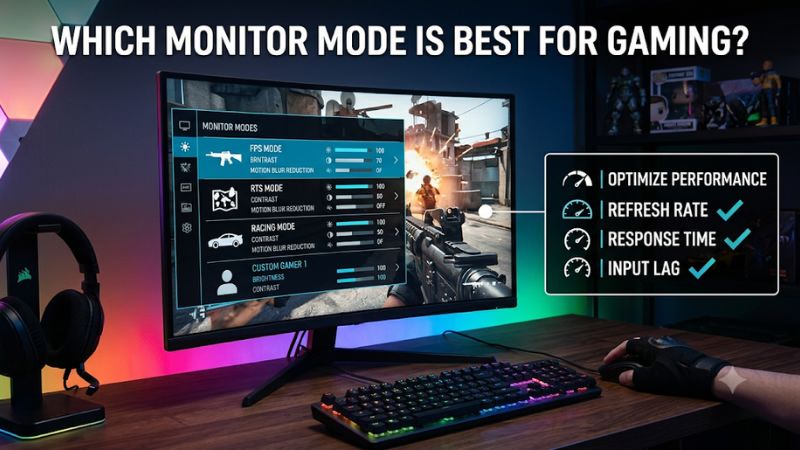
Which monitor mode is best for gaming overall?
For most PC gamers, Custom, User, or Game mode is the best starting point. These modes provide a more flexible foundation for adjusting image settings while keeping the picture comfortable for different games.
There is no universally superior preset because manufacturers configure their gaming modes differently. An FPS preset may brighten dark areas to make opponents easier to see, while an RPG preset may increase contrast and color saturation for a more dramatic picture.
The best starting point depends on your priorities:
| Monitor mode | Best use | Main advantage | Potential drawback |
|---|---|---|---|
| Custom/User | All-around gaming | Greater control over picture settings | Requires manual adjustment |
| Game/Standard Game | General gaming | Gaming-oriented configuration | Image quality varies by manufacturer |
| FPS | First-person shooters | Better visibility in dark areas | Can make colors look unnatural |
| RTS/MOBA | Strategy games | Improved map and interface visibility | May alter color balance |
| RPG | Role-playing games | More vibrant environments | Can oversaturate colors |
| Racing | Racing and simulation | Game-oriented color and motion presentation | May exaggerate image processing |
| sRGB | Color-accurate gaming | More controlled color reproduction | Can limit brightness adjustments |
| Vivid/Dynamic | Bright, colorful presentation | Stronger visual impact | Less accurate colors |
| Cinema/Movie | Movies and slower-paced entertainment | Cinematic image presentation | Not necessarily optimized for gaming |
| HDR | Supported HDR games | Wider brightness and contrast range | Requires compatible hardware and content |
Samsung, ASUS, and LG all document several of these gaming picture presets, but the actual adjustments vary by model. Samsung describes FPS mode as improving visibility in dark areas and RTS mode as enhancing color and contrast. ASUS offers separate FPS, RTS/RPG, Racing, and MOBA options through GameVisual on supported monitors.
A useful approach is to start with Custom or User mode, activate the monitor’s low-input-lag gaming features, and adjust the picture to your preferences. Switch to a genre-specific preset when it provides a genuine advantage.
Understanding the different gaming monitor modes
A gaming monitor’s OSD, or On-Screen Display, contains the settings used to control picture presentation, brightness, contrast, color, and gaming features.
Depending on the manufacturer, the preset menu may appear under Picture Mode, GameVisual, Game Mode, Preset Modes, or Color Mode.
The following modes are common, although not every monitor includes all of them.
FPS mode: Best for competitive shooters
FPS stands for First-Person Shooter. This mode is designed for games where players need to identify enemies, track movement, and react quickly to visual changes.
Its most noticeable adjustment is often improved visibility in dark environments. Depending on the monitor, FPS mode may increase shadow brightness, alter gamma, change contrast, or adjust saturation.
This can be useful in games such as Counter-Strike 2, Valorant, Apex Legends, and other competitive shooters where opponents can blend into darker backgrounds.
Samsung specifically describes its FPS preset as brightening dark areas to improve visibility. Sony’s INZONE gaming monitor documentation also explains that its FPS Pro+ preset prioritizes enemy visibility and enhances enemy outlines against complicated backgrounds.
However, FPS mode is not automatically the best setting for every shooter.
Some presets brighten shadows so aggressively that the image loses contrast. Dark areas may look gray, while explosions, lighting effects, and environmental details can become less natural.
This can also affect visual depth. A darker area that should contain subtle shadows may appear uniformly bright, making it harder to distinguish the actual lighting conditions.
For competitive play, use FPS mode when it improves visibility without damaging the overall image. If the colors become washed out, switch to Custom mode and adjust the shadow-control or black-equalizer setting more carefully.
Buy this mode for competitive shooters when visibility is more important than cinematic image accuracy. Avoid it when the preset creates excessive brightness or makes the game look unnatural.
RTS and MOBA mode: Best for strategy games
RTS stands for Real-Time Strategy, while MOBA refers to Multiplayer Online Battle Arena.
These modes are designed around games where players manage maps, units, interfaces, and multiple visual elements simultaneously.
RTS mode may adjust contrast, saturation, gamma, and other picture characteristics to improve the visibility of maps and game environments.
Samsung documents its RTS preset as enhancing screen color and map contrast. Sony also offers a combined MOBA/RTS preset designed to improve battlefield visibility and make small movements on the minimap easier to notice.
This can be helpful in titles such as StarCraft II, Age of Empires, Dota 2, League of Legends, and other strategy-oriented games.
The main advantage is a clearer overall presentation of game environments and interface elements. Players who frequently monitor several parts of the screen may find the adjustments useful.
However, the exact effect varies by model. Some monitors emphasize color, while others focus more heavily on contrast.
An overly aggressive RTS preset can make the interface appear too saturated or reduce the distinction between similar colors.
For games with complicated maps and many units, a balanced Custom preset may actually be better than a heavily processed RTS mode.
Choose RTS or MOBA mode when it improves map visibility and readability. Otherwise, return to a neutral picture preset and adjust brightness and contrast individually.
RPG mode: Best for immersive single-player gaming
RPG stands for Role-Playing Game. These games often emphasize detailed environments, character designs, lighting, and visual storytelling.
RPG picture modes generally prioritize visual presentation instead of competitive visibility.
Depending on the monitor, the preset may increase color saturation, enhance contrast, or adjust gamma to make environments appear more dramatic.
This can be appealing in games with detailed landscapes, colorful magic effects, and cinematic environments.
Examples include fantasy RPGs, open-world adventures, and visually rich single-player games.
Sony describes its RPG preset as enhancing contrast and color to create a more immersive presentation for fantasy and open-world titles.
The potential weakness is overprocessing.
Increasing saturation too much can make vegetation, lighting, skin tones, and special effects look less realistic. Excessive contrast may also remove details from dark or bright parts of the image.
If you prefer natural colors, compare RPG mode with Custom mode before deciding which looks better.
RPG mode is worth trying for immersive games, especially when the monitor provides a restrained preset. For games with carefully designed art direction, however, accurate Custom settings may preserve the intended appearance better.
Racing mode: Best for driving and simulation games
Racing mode is designed for driving games and racing simulations.
Manufacturers may configure this preset to emphasize visual clarity, color saturation, contrast, and motion-oriented settings.
This can make roads, vehicles, track surfaces, and environmental details more visually distinct.
Racing mode is particularly relevant for games such as Forza Horizon, Forza Motorsport, Gran Turismo, and other driving simulations.
ASUS lists Racing mode as one of its GameVisual scene presets for supported monitors. Its purpose is to provide a picture configuration suited to racing games rather than general productivity or movie viewing.
However, remember that Racing mode does not automatically increase the monitor’s physical refresh rate or improve the GPU’s rendering performance.
Some displays may change color saturation or sharpness without significantly affecting input lag or pixel response.
Players using racing wheels and simulation equipment may prefer a more natural image because accurate road colors, lighting, and environmental details can help create a more believable driving experience.
Try Racing mode when it improves track visibility and makes fast movement easier to follow. Keep Custom mode as an alternative when the preset makes the picture excessively colorful.
sRGB mode: Best for accurate colors
sRGB is a standard color space used extensively in desktop applications, websites, and digital content.
Unlike Vivid or Dynamic modes, an sRGB preset is generally designed to keep colors within the standard sRGB color range.
This can be helpful for games with carefully designed color palettes and players who prefer a more natural picture.
It is also useful when switching between gaming and content creation, especially if you edit images or work with web graphics.
However, sRGB mode can limit certain adjustments. Some monitors lock brightness, contrast, saturation, or color-temperature controls when this preset is selected.
RTINGS explains that sRGB presets are designed to restrict the monitor’s color output to the sRGB color space, helping prevent oversaturation.
This does not mean sRGB is automatically the most accurate setting on every gaming monitor. Actual color accuracy depends on the panel, factory calibration, and the specific preset implementation.
Use sRGB when natural colors matter more than maximum brightness or exaggerated visual effects. Avoid it when the monitor becomes uncomfortably dim or restricts important controls you need for gaming.
Vivid and Dynamic mode: Best for eye-catching colors
Vivid or Dynamic modes aim to produce a more visually striking picture.
They may increase saturation, adjust contrast, boost brightness, and change sharpness.
These settings can make certain games look more colorful, particularly when the default picture appears dull.
However, a brighter or more saturated image is not necessarily a better-quality image.
Excessive saturation can cause colors to appear artificial, while aggressive sharpening can introduce unwanted outlines and image artifacts.
RTINGS notes that vivid picture presets commonly trade image accuracy for higher brightness and stronger saturation.
For casual gaming, personal preference is the main consideration. If you enjoy colorful visuals and the preset does not obscure important details, it can be perfectly acceptable.
For competitive gaming, however, it is generally better to use a balanced mode that preserves visibility and avoids distracting image processing.
Which monitor mode is best for gaming by genre?
Different games place different demands on visual settings. Selecting a preset based on the genre is more useful than leaving the monitor in FPS mode for every title.
The following recommendations provide a practical starting point.
| Game genre | Recommended mode | Alternative | Main priority |
|---|---|---|---|
| Competitive FPS | FPS | Custom | Enemy visibility |
| Tactical shooters | FPS or Custom | sRGB | Clear contrast and natural colors |
| RTS | RTS | Custom | Map and unit visibility |
| MOBA | RTS/MOBA | Standard Game | Interface readability |
| RPG | RPG | Custom | Color and immersion |
| Open-world adventure | RPG | HDR or Custom | Environmental detail |
| Racing simulation | Racing | Custom | Track and movement visibility |
| Sports games | Sports or Game | Custom | Clear motion and natural color |
| Horror games | Custom or RPG | FPS | Preserve shadow details |
| General gaming | Custom or Game | Standard | Balanced presentation |
Competitive gaming
Competitive games generally benefit from clear visibility and predictable image presentation.
FPS mode can improve the visibility of opponents in darker maps, but it should not be used blindly.
For games that require fast reactions, check the separate low-input-lag and response-time settings too. A picture preset that brightens dark areas does not necessarily make the monitor more responsive.
Single-player and cinematic gaming
For story-driven games, RPG or Custom mode is usually a better starting point.
These presets can preserve more of the game’s intended visual atmosphere than highly aggressive FPS settings.
When the game supports HDR, an appropriately configured HDR mode may provide a better result than an SDR picture preset.
Strategy and simulation games
RTS and MOBA modes can help make interfaces, maps, and units easier to distinguish.
Racing mode can be useful for driving simulations, but it should be compared against Custom mode to determine whether its color and contrast adjustments actually improve the image.
Custom mode: The best everyday gaming setup
If you play several genres, Custom or User mode is often the most useful long-term option.
It allows you to establish a balanced image rather than relying on manufacturer presets that may prioritize one specific visual characteristic.
ASUS, for example, provides a User Mode within GameVisual on supported monitors, allowing additional picture adjustments such as brightness, contrast, saturation, and other color settings. LG’s Gamer 1 and Gamer 2 modes also allow users to save customized gaming configurations on supported models.
A good starting configuration looks like this:
| Setting | Suggested starting point | Purpose |
|---|---|---|
| Picture mode | Custom/User | Balanced image control |
| Brightness | Adjust to room lighting | Comfortable screen luminance |
| Contrast | Factory default | Preserve bright details |
| Gamma | 2.2 or default | Balanced tonal presentation |
| Sharpness | Factory default | Avoid artificial edge enhancement |
| Color temperature | Default or 6500K | Natural white balance |
| Saturation | Default | Avoid exaggerated colors |
| Shadow control | Default | Preserve dark-scene detail |
| Adaptive-Sync | On, when supported | Reduce screen tearing |
| Overdrive | Normal or balanced | Control ghosting and overshoot |
These are starting recommendations, not universal calibration values. Your exact monitor may need different settings, and professional calibration requires measurement equipment.
Adjust brightness according to your room
Brightness is one of the first settings worth changing.
A screen that appears comfortable in a bright room may become unnecessarily intense when the lights are turned off.
Similarly, a monitor that looks excellent in a dark room may appear washed out when sunlight hits the desk.
RTINGS explains that brightness adjustments control the display’s backlight intensity on LCD monitors and should be adjusted according to the viewing environment.
Keep contrast and gamma under control
Contrast controls the difference between bright and dark image regions.
Setting it too high can remove detail from bright areas, while setting it too low can reduce the overall appearance of contrast.
Gamma affects how brightness is distributed across different shades. A common target is 2.2, although the correct setting depends on the monitor and personal preference.
If your favorite game looks too dark, adjust gamma or shadow controls carefully instead of increasing every image setting simultaneously.
Avoid excessive sharpness and saturation
Higher sharpness does not necessarily mean a clearer picture.
Excessive sharpness can create artificial outlines around objects and text. Similarly, too much saturation can make the image look unnatural.
Start with the manufacturer’s default values, then make small adjustments while comparing the result with the original picture.
RTINGS recommends leaving sharpness at its default as a general starting point because extreme settings can introduce artifacts or make the image look blurry.
Game Mode versus FPS mode: What is the difference?
These terms are often confused because manufacturers use them differently.
Game Mode can refer to a general gaming configuration that changes the monitor’s processing behavior, picture settings, or input latency.
FPS mode is usually a specific picture preset designed for first-person shooters.
On some monitors, the two features are separate. A general Game Mode may reduce image-processing delay, while FPS mode changes brightness, gamma, and contrast.
Samsung’s documentation, for example, lists Game Mode, Response Time, Adaptive-Sync, and Low Input Lag as separate advanced options. This demonstrates why buyers should check the monitor’s actual menu rather than assuming every gaming feature is controlled by one preset.
For most gaming setups, use the general gaming configuration when it provides lower processing delay without unwanted image changes. Then select FPS, RTS, RPG, or Custom depending on your game.
Also remember that activating a gaming picture preset does not guarantee that all other settings will remain available.
Overdrive, Adaptive-Sync, and motion-blur settings
Picture presets are only one part of a gaming monitor’s OSD. Other settings can have a more direct effect on motion performance.
Overdrive: Find the right response-time setting
Overdrive accelerates LCD pixel transitions by applying stronger drive signals.
Monitor manufacturers use different names, including Response Time, Overdrive, OD, and Response Rate.
Common options include Normal, Fast, Faster, and Extreme.
A stronger setting can reduce motion blur, but excessive overdrive can create inverse ghosting, where bright or dark trails appear around moving objects.
RTINGS explains that the correct overdrive setting is a balance between transition speed and overshoot. The most aggressive option is not necessarily the best one.
Start with Normal or the manufacturer’s balanced setting. Test faster options in a game with rapid movement, then return to a lower setting if visible artifacts appear.
Adaptive-Sync: Keep it enabled when appropriate
Adaptive-Sync, FreeSync, and compatible G-SYNC functionality help synchronize the display with the GPU.
This is particularly useful when the frame rate fluctuates during demanding games.
Enable VRR when your monitor and graphics card support it, provided it works correctly with your chosen refresh-rate mode.
Check whether other features, such as motion-blur reduction, disable VRR. The available combinations differ across monitor models.
Motion Blur Reduction and MPRT
Some monitors provide backlight strobing or black-frame insertion to reduce perceived motion blur.
These features can make fast-moving objects appear clearer, but brightness may decrease and visual flicker can become noticeable.
Some implementations also disable Adaptive-Sync while active.
RTINGS warns that the quality of these features varies between monitors, with some implementations creating image duplication rather than improving clarity.
Use motion-blur reduction only when it produces a visible improvement that you find comfortable.
HDR mode: When should you enable it?
HDR stands for High Dynamic Range. It expands the range of brightness and color information supported by compatible content and displays.
An HDR mode can improve the appearance of bright highlights, reflections, explosions, and dark environments when the monitor has sufficient HDR capabilities.
However, HDR is not automatically superior to SDR.
The monitor, operating system, graphics card, connection, and game must all support the intended HDR signal.
Some gaming monitor modes also behave differently when HDR is enabled. LG documents that its available picture presets can differ between HDR-on and HDR-off configurations. ASUS likewise warns that some GameVisual presets require HDR to be turned off.
For HDR-supported games, enable HDR through the operating system and monitor when the complete setup supports it.
For ordinary SDR games, use a balanced Custom or Game preset instead of forcing an HDR Effect mode that simply processes SDR content.
Check your monitor’s HDR documentation before deciding which combination of picture modes and gaming features can operate together.
How to choose and configure the best monitor mode
You do not need professional calibration equipment to find a comfortable gaming configuration.
Follow this practical process.
-
Open the monitor’s OSD menu using its joystick or control buttons.
-
Find Picture Mode, Game Mode, GameVisual, or Preset Modes.
-
Select Custom, User, or a balanced Game preset.
-
Set brightness according to the lighting in your room.
-
Keep contrast, sharpness, gamma, and color temperature at their default values initially.
-
Enable Adaptive-Sync if your system supports it.
-
Choose a balanced overdrive setting, then check for ghosting and inverse ghosting.
-
Open a game you play regularly and examine its colors, dark areas, and movement.
-
Compare the Custom preset with the relevant FPS, RTS, RPG, or Racing mode.
-
Save your preferred configuration if the monitor provides Gamer 1 or Gamer 2 profiles.
The most important step is comparing the actual image rather than assuming the preset with the most gaming-oriented name must be better.
For example, if FPS mode brightens shadows but removes the distinction between dark areas, Custom mode with moderate shadow adjustment may be more useful.
If RPG mode makes colors too saturated, reduce saturation or use a neutral profile.
The result should be an image that remains clear and comfortable without sacrificing important game details.
Common mistakes when choosing gaming monitor modes
One common mistake is assuming FPS mode always improves competitive performance. It can improve visibility, but a badly configured preset may reduce image quality.
Another is confusing a picture preset with low-input-lag functionality. Game Mode may affect processing, while FPS mode may only alter the visual presentation.
Many players also select the most aggressive overdrive setting because it advertises the fastest response time. This can introduce inverse ghosting and produce a worse image.
HDR creates another source of confusion. Some picture presets disappear when HDR is activated, and some monitors change their color-processing behavior depending on the input signal.
Finally, avoid changing multiple settings simultaneously. Adjust one setting, compare the image, and retain the change only when it provides a noticeable benefit.
Frequently asked questions
Is FPS mode better than Game Mode?
Not necessarily. FPS mode usually changes picture characteristics to improve visibility in first-person shooters, while Game Mode can control general gaming behavior or image processing. The best combination depends on the monitor.
Should I use Standard or FPS mode for gaming?
Use FPS mode when playing competitive shooters and when its shadow adjustments genuinely improve visibility. Standard or Custom mode is usually more suitable for general gaming and natural color reproduction.
Is RTS mode good for FPS games?
It can work, but it is not specifically designed for first-person shooters. RTS mode generally focuses on strategy-game visuals, maps, color, and contrast. FPS mode is usually the more appropriate starting point for competitive shooters.
Does Game Mode reduce input lag?
It can, depending on the monitor. Some displays have separate Low Input Lag settings, while others integrate gaming-related processing into their Game Mode. Check the manufacturer’s documentation and independent input-lag measurements.
Should I use sRGB mode for gaming?
sRGB is a reasonable choice when you prefer controlled, natural colors. However, it can restrict brightness and color adjustments on certain monitors. Custom mode may be more flexible.
Should HDR be enabled while gaming?
Enable HDR when the game, operating system, graphics card, and monitor support it and the monitor provides a worthwhile HDR presentation. For ordinary SDR games, a well-adjusted SDR preset is usually more appropriate.
What is the best monitor mode for everyday PC use?
Custom, User, or Standard mode is generally the most versatile option. These presets are more suitable for switching between games, browsing, video playback, and productivity than specialized FPS or Racing modes.
Conclusion
Custom or User mode is the best overall starting point for most gaming monitors because it offers flexibility without forcing aggressive picture adjustments. FPS is useful for competitive shooters, RTS and MOBA modes suit strategy games, RPG mode enhances visual environments, and Racing mode is worth trying for driving simulations.
The best choice ultimately depends on your monitor’s implementation and personal preferences. Start with a balanced preset, adjust brightness and color carefully, enable suitable low-latency and VRR features, and test the result in your favorite games. A properly configured Custom mode can be just as effective as any dedicated gaming preset.