
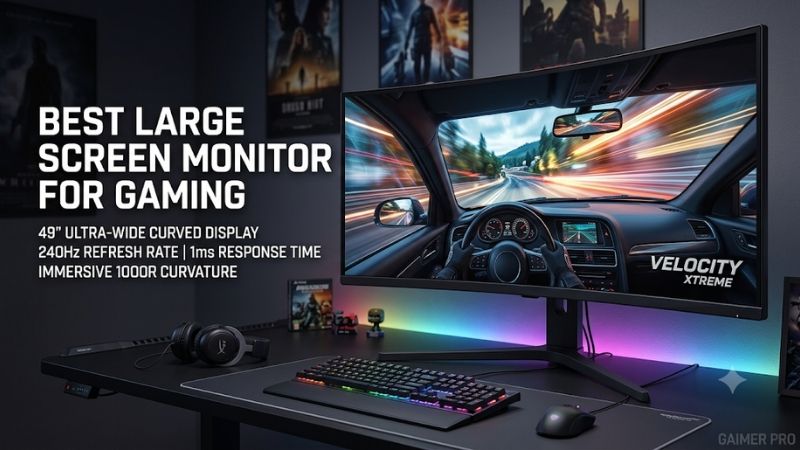
The best large screen monitor for gaming should give you more useful space without overwhelming your desk or graphics card. Start with 32-inch 4K for a conventional setup, choose ultrawide for supported PC games, and consider 42 inches or larger only after checking viewing distance, resolution, and mounting needs.
Quick verdict on the best large screen monitor for gaming
Start with the Alienware AW3225QF if you want a conventional 4K gaming format in a larger desktop size. Choose the LG 32GS95UE-B for flat-screen dual-mode flexibility, or the Alienware AW3425DWM when a 34-inch LCD ultrawide better matches your games, desktop habits, and spending priorities.
The LG 45GX950A-B is the specialist for a tall, detailed ultrawide OLED experience. The ASUS ROG Swift OLED PG42UQ suits a deep desk and a large 16:9 image. Reserve Samsung’s 57-inch Odyssey Neo G9 G95NC for a deliberate super-ultrawide setup with substantial desk space and carefully verified graphics-output support.
For this guide, large starts with the 32-inch class rather than an arbitrary requirement to exceed 40 inches. That includes several genuinely different upgrades from a typical 24- or 27-inch screen. There is no fixed budget: choose the format first, then compare current US offers and the cost of making the setup usable.
Quick comparison of six large gaming monitors
Read screen shape and resolution together before comparing diagonal measurements. Two monitors with similar diagonals can have very different heights, widths, and GPU demands. The table identifies each model’s practical role, its documented maximum mode, and the limitation most likely to affect the buying decision.
| Monitor | Format and panel | Documented maximum mode | Best fit | Important trade-off |
|---|---|---|---|---|
| Alienware AW3225QF | 32-inch class curved 16:9 QD-OLED | 3840 × 2160 at 240Hz | Conventional 4K gaming on a larger desk screen | OLED care and a curved surface |
| LG UltraGear 32GS95UE-B | 32-inch class flat 16:9 OLED | 4K at 240Hz or Full HD at 480Hz | Players switching between detail and esports modes | 480Hz requires lower resolution |
| Alienware AW3425DWM | 34-inch curved 21:9 VA LCD | 3440 × 1440 at 180Hz | Ultrawide gaming and mixed desktop use | Edge-lit LCD lacks OLED-style pixel lighting |
| LG UltraGear 45GX950A-B | 44.5-inch curved ultrawide OLED | 5120 × 2160 at 165Hz or WFHD at 330Hz | Large ultrawide detail and immersion | Steep 800R curve and heavy native-resolution workload |
| ASUS ROG Swift OLED PG42UQ | 41.5-inch flat 16:9 WOLED | 4K at up to 138Hz overclocked | A large standard-shape image on a deep desk | No height adjustment; mounting requires planning |
| Samsung Odyssey Neo G9 G95NC | 57-inch curved 32:9 VA Mini LED | 7680 × 2160 at up to 240Hz | Wide simulation and workspace setups | Exceptional width and demanding output requirements |
How these recommendations were selected
Selection focused on exact model specifications, meaningful format differences, and practical system compatibility. The shortlist spans conventional 4K, ultrawide LCD, large OLED, and super-ultrawide Mini LED. It uses published information rather than an invented hands-on comparison, and it does not rank panels using advertised minimum response times.
A refresh ceiling describes a supported operating mode, not the frame rate your PC will produce or the quality of every pixel transition. Likewise, an HDR label alone does not establish measured highlight brightness, dimming quality, or motion behavior. Those distinctions matter more than comparing manufacturer marketing claims as though they came from one laboratory.
Six choices for different kinds of large-screen gaming
Choose a conventional 16:9 model for the simplest fit across games and devices, or move toward ultrawide when the extra horizontal view is the reason to upgrade. The largest options deserve a measured desk plan. Each section explains what you gain, what you give up, and the alternative to compare.
Alienware AW3225QF: Best large screen monitor for gaming in a conventional 4K setup
The AW3225QF combines a 31.6-inch viewable QD-OLED panel with 3840 × 2160 resolution and a 240Hz ceiling. Its curved 16:9 format suits someone moving up from a smaller monitor who wants a larger image without also changing to an ultrawide aspect ratio or rebuilding the entire desk.
That standard shape simplifies the decision for a mixed game library. You can prioritize 4K detail and a larger image rather than investigating ultrawide support in every title. The curve remains a personal fit issue, particularly if you also work with straight lines or share the screen from another chair.
Dell documents DisplayPort 1.4 with Display Stream Compression for the 4K 240Hz mode and HDMI 2.1 support. Its USB-C downstream connector should not be mistaken for a USB-C laptop video input. Dell also lists three-year service coverage including OLED burn-in, subject to the applicable terms.
Buy if you want large desktop 4K and accept OLED care and curvature. Skip if a flat surface or a lower-resolution high-refresh mode is essential. The LG 32GS95UE-B is the relevant alternative, while the PG42UQ is for buyers who specifically need a much taller and larger image.
LG UltraGear 32GS95UE-B for flat-screen dual-mode flexibility
The 32GS95UE-B pairs a flat 32-inch-class OLED screen with two distinct operating modes: 4K at up to 240Hz or Full HD at up to 480Hz. It fits a player who alternates between visually detailed games and competitive titles and wants those roles available on one standard-shape monitor.
The important trade-off is resolution. Switching to 480Hz does not preserve the 4K image; it changes to Full HD. That can be appropriate for competitive settings, but it is a different viewing experience when you return to fine text, desktop work, or detailed scenery.
LG documents G-SYNC Compatible and FreeSync Premium Pro support, along with integrated Pixel Sound audio. Those features make it a more self-contained desk option, although personal audio expectations still determine whether the built-in sound replaces separate speakers. Choose the display for the modes you will actually use.
Buy if both modes solve a recurring need and you prefer a flat panel. Skip if your competitive games cannot approach the higher mode’s frame rate or you mainly want additional physical screen area. Compare the Alienware for curved 4K, or the larger ASUS if size matters more than 480Hz capability.
Alienware AW3425DWM for a moderate ultrawide upgrade
The AW3425DWM uses a 34-inch 3440 × 1440 VA LCD with a 180Hz ceiling and a curved 21:9 format. It is the measured step into ultrawide gaming for someone who wants more horizontal room without immediately choosing the largest OLED screen or an unusually demanding dual-UHD resolution.
Dell’s specification sheet identifies an edge-lit backlight and DisplayHDR 400. Treat that as a different lighting system from OLED or a Mini LED display with local dimming. The recommendation is about screen format and feature fit, not a claim that its HDR presentation matches the premium options.
Dell documents FreeSync Premium, VESA AdaptiveSync, height adjustment, and 180Hz support through the specified DisplayPort and HDMI connections. The ultrawide resolution also creates a useful comparison point for GPU planning: it contains fewer pixels than 4K, although actual game performance still depends on the workload.
Buy if your games support 21:9 and you want an LCD for substantial desktop use. Skip if you need a taller image or especially strong HDR as the main reason to upgrade. Compare the LG 45GX950A-B for a larger, higher-resolution ultrawide OLED. Confirm current availability because direct product links redirected during research.
LG UltraGear 45GX950A-B for detailed ultrawide immersion
The 45GX950A-B combines a 44.5-inch OLED panel, 5120 × 2160 resolution, and an 800R curve. Its high-detail mode reaches 165Hz, while the alternate WFHD mode reaches 330Hz. It suits a centered PC setup where a large ultrawide image is a deliberate priority rather than an incidental specification.
The higher vertical resolution matters when comparing it with older, lower-resolution 45-inch ultrawides. It also increases the GPU workload: you are driving more pixels than standard 4K. Do not assume that a PC comfortable at 3440 × 1440 will retain the same frame rate at the native resolution.
LG documents DisplayPort 2.1, HDMI 2.1, USB-C with 90W power delivery, and adaptive-sync support. Verify the actual source and supported mode before treating USB-C as a universal solution. The alternate 330Hz mode reduces resolution; it is not 5K2K running at twice the refresh rate.
Buy if you want a tall ultrawide OLED and can accommodate its curve, workload, and care requirements. Skip if your games are primarily console titles or your desk forces off-center viewing. The 34-inch Alienware is a more restrained ultrawide direction, while a 16:9 model keeps device compatibility simpler.
ASUS ROG Swift OLED PG42UQ for a large 16:9 image
The PG42UQ provides a 41.5-inch flat WOLED panel at 3840 × 2160. ASUS advertises up to 138Hz as an overclocked mode. It is the option for someone who wants a genuinely large standard-shape image, particularly for controller games played from farther back than a typical keyboard-and-mouse position.
Its size is the main reason to consider it over a 32-inch 4K monitor. Both display the same pixel dimensions, so the larger screen spreads those pixels across a bigger surface. That can be desirable at a longer viewing distance but less suitable for close-up fine text.
ASUS provides DisplayPort 1.4 DSC and two HDMI 2.1 FRL inputs, alongside two HDMI 2.0 inputs. The stand lacks height adjustment, and the specified VESA pattern is 300 × 300mm. A typical small-monitor arm should not be assumed suitable for the panel’s size, weight, or mounting pattern.
Buy if your desk depth and seating position make a large 16:9 screen comfortable. Skip if you need a high-refresh 4K desktop screen at close range. Compare the 32-inch options for that task, and inspect the current seller offer carefully because this is an older model rather than an assumed latest-generation choice.
Samsung Odyssey Neo G9 G95NC for an expansive simulation desk
The 57-inch G95NC uses a 7680 × 2160 VA panel with Mini LED local dimming, a 32:9 aspect ratio, and a 1000R curve. It is a specialist for supported simulation games and broad desktop layouts. Its appeal is replacing a wide multi-screen arrangement with one continuous display surface.
The resolution contains twice as many pixels as standard 4K. That makes GPU planning and output verification central to the purchase. A powerful GPU is not automatically guaranteed to deliver the full native-resolution 240Hz mode simply because a DisplayPort or HDMI cable can be attached.
Samsung specifies full dual-UHD 240Hz requirements involving DisplayPort 2.1 UHBR13.5 or higher, or the documented HDMI 2.1 FRL capability, with support varying by graphics card. Check the exact GPU, driver, input, and mode combination. Mini LED local dimming also differs from OLED’s individual pixel control.
Buy if your games support the width and your desk and PC are planned around it. Skip for a console-first setup, a shallow desk, or a purchase based only on diagonal size. The LG 45-inch ultrawide is a different balance of width and height, while a 32-inch 4K screen is easier to accommodate.
How to choose the right large-screen format
The best purchase follows from your room, games, and computer rather than the largest panel you can afford. Measure the physical screen area you want, then identify the resolution and shape that create it. Only after that should you compare refresh ceilings, panel technology, and the cost of mounting or upgrading.
Compare height and width instead of diagonal alone
Diagonal measurements are useful within one aspect ratio but become misleading across different shapes. A super-ultrawide can stretch across the desk while remaining relatively modest in height. A large 16:9 panel adds substantial vertical area, which changes where menus, text, and the center of the game sit in your view.
As a geometric reference, a 32-inch 16:9 image is approximately 27.9 inches wide and 15.7 inches tall. A 34-inch 21:9-class display is wider but generally shorter. These are image-area comparisons rather than cabinet dimensions, and curved monitors require their actual manufacturer measurements for furniture planning.
Mark the intended screen area with tape or paper before ordering. Check where the top corners, taskbar, and game HUD would fall from your normal seat. If important information requires constant head movement, changing distance or choosing a smaller format may help more than a higher refresh specification.
Match pixel count to your graphics card
A physically larger screen does not necessarily require more rendering power; a higher pixel count does. A 42-inch 4K panel and a 32-inch 4K panel ask the GPU to produce the same number of pixels per frame. Their comfort and apparent sharpness differ because of size and viewing distance.
For comparison, 3440 × 1440 contains about 4.95 million pixels, 4K contains 8.29 million, 5120 × 2160 contains 11.06 million, and dual UHD contains 16.59 million. These counts explain workload direction, not exact FPS. Game settings, CPU limits, upscaling, and engine behavior affect the result.
Check representative performance at your planned settings before purchasing. A monitor can remain useful below its refresh ceiling, especially with compatible variable refresh. However, buying the largest resolution while assuming an immediate GPU upgrade will be affordable can make a seemingly straightforward screen purchase much more expensive.
Check game support and console behavior
Ultrawide adds useful scene width only when the game supports the relevant aspect ratio. Menus, cutscenes, competitive modes, and older games can behave differently from normal gameplay. Verify the titles that dominate your library instead of assuming a screenshot from one compatible game predicts the experience everywhere.
Some games may show side bars, crop part of the scene, or restrict field of view. A 16:9 mode on an ultrawide also uses a smaller portion of the physical panel. That is acceptable when occasional, but it weakens the case for buying a very wide screen for a predominantly standard-format library.
Console buyers should usually begin with a 16:9 4K display and verify the exact 120Hz, HDR, and VRR modes. A console does not use a PC monitor’s 240Hz or 480Hz ceiling. Check the monitor manual and connected-device settings rather than treating HDMI branding as proof of every supported combination.
Choose panel technology around your daily use
OLED controls light at the pixel level, while LCD uses a backlight. Mini LED improves how finely an LCD can control that illumination, but it does not turn each LCD pixel into an independent light source. Those architectural differences matter more than treating all HDR-capable displays as equivalent.
OLED deserves consideration for games with dark scenes and contrasting highlights, but static desktop elements and prolonged repetitive content make care settings and warranty terms relevant. Keep the manufacturer’s protection features active and review the coverage for the exact US model. A generic warranty duration does not establish burn-in coverage.
LCD avoids OLED’s particular organic-pixel wear mechanism, while bringing different trade-offs in motion, contrast, and viewing behavior. Do not assume every VA panel has identical trailing or every Mini LED screen has identical blooming. Use exact-model testing when those behaviors are the deciding reason to buy.
Frequently asked questions
Large-screen purchases often raise practical questions that specifications alone cannot resolve. Start with whether the image fits your desk, then consider how much usable gaming area the format provides. The answers below address viewing distance, mounting, and when a smaller option can serve the same games more effectively.
How far away should you sit from a large monitor?
There is no single distance that suits every screen size, game, and user. Begin with a position where you can read normal text and see important game information without repeatedly leaning or turning your head. Increase distance if a large panel fills more of your view than you find comfortable.
Desk depth, stand position, and keyboard placement can limit that adjustment. A controller setup often permits more distance than a keyboard-and-mouse arrangement. Check whether your furniture allows the position you want before assuming you can solve an oversized purchase simply by moving the chair backward.
Will an existing monitor arm support a much larger screen?
Check mounting pattern, panel weight without the stand, size limits, and the arm manufacturer’s compatibility guidance. Curved ultrawides can create different leverage demands from small flat displays. Matching the VESA holes and staying below a headline weight limit are necessary checks, but may not settle the whole compatibility question.
Also inspect desk thickness, clamp clearance, cable reach, and whether the arm can hold the desired position. The PG42UQ’s 300 × 300mm mounting pattern illustrates why a typical desktop arm cannot be assumed reusable. Add the correct support hardware to the purchase cost before comparing monitors.
Is a larger monitor always better for competitive gaming?
Choose size according to how you use the screen rather than assuming more area improves every game. A large display can make scenery more engaging, but important information may move farther into your peripheral vision. Competitive players should consider the image area they can comfortably track from their normal position.
Conclusion
Start with a 32-inch 4K model for the simplest large desktop upgrade, choose a 34-inch ultrawide for supported PC games, and move to the LG 45-inch, ASUS 42-inch, or Samsung 57-inch only when their distinct shapes fit your plan. The right screen should match your viewing distance, game support, GPU output, and mounting arrangement. Choose that complete fit before paying for additional inches or a refresh ceiling you cannot use.









