
Finding the best monitor for photoshop and gaming means balancing two very different priorities. Photoshop benefits from accurate colors, consistent brightness, high pixel density, and reliable color-space controls, while gaming rewards fast response times, high refresh rates, low input lag, and adaptive sync. A good hybrid display should handle both without forcing you to sacrifice too much of either experience.
The strongest starting point for most buyers is a 32-inch 4K display with a refresh rate of at least 144Hz, a dependable sRGB mode, and broad color-gamut coverage. Premium QD-OLED monitors offer particularly attractive combinations of image quality and gaming performance, while high-end Mini LED and IPS alternatives make sense for creators who prioritize sustained brightness, long Photoshop sessions, or reduced OLED burn-in concerns. The right choice ultimately depends on whether your creative work is primarily web-based, print-oriented, or professional color-critical editing.
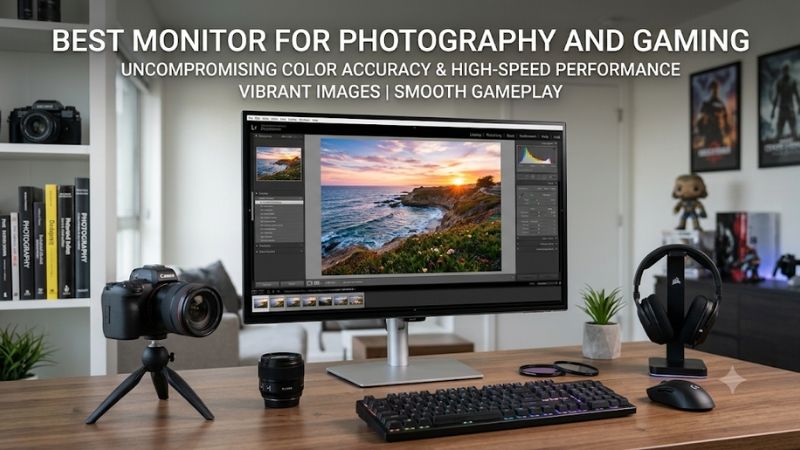
Quick verdict: which monitor should you buy?
For a single monitor that handles serious photo editing and demanding PC games, the ASUS ROG Swift OLED PG32UCDM Gen3 is the strongest overall choice. Its 4K resolution, 240Hz refresh rate, wide color gamut, and updated QD-OLED panel make it particularly versatile.
However, it is not automatically the right purchase for every Photoshop workflow. The BenQ MOBIUZ EX321UX is more attractive for photographers who specifically need Adobe RGB coverage, while the LG UltraGear 27GM950B-B offers exceptional pixel density and a dual-mode refresh rate. The TCL 32R84 is a compelling non-OLED alternative for buyers who work in brighter rooms.
| Monitor | Best suited for | Resolution and refresh rate | Main drawback |
|---|---|---|---|
| ASUS ROG Swift OLED PG32UCDM Gen3 | Best overall | 4K, 240Hz | OLED text fringing and burn-in considerations |
| BenQ MOBIUZ EX321UX | Adobe RGB-focused editing | 4K, 144Hz | Accurate SDR modes disable local dimming |
| MSI MPG 321URX QD-OLED | Wide-gamut OLED versatility | 4K, 240Hz | Older DisplayPort 1.4 interface |
| Dell Alienware AW3225QF | Curved OLED gaming and editing | 4K, 240Hz | Curved screen and OLED maintenance |
| LG UltraGear 27GM950B-B | High-resolution creative work | 5K, 165Hz; QHD, 330Hz | High GPU demands at native resolution |
| TCL 32R84 | Bright-room Photoshop and gaming | 4K, 165Hz | VA viewing-angle limitations and VRR flicker |
These are recommendations for different workflows rather than six interchangeable displays. A photographer working on print output should place more importance on Adobe RGB coverage and calibration than someone editing web graphics. Likewise, competitive gamers may prefer higher refresh rates over additional resolution.
How we selected the best monitor for Photoshop and gaming
The selection prioritizes monitors that have a credible combination of color performance and gaming functionality. A monitor that advertises a 240Hz refresh rate but has weak color accuracy is not a complete recommendation for Photoshop. Similarly, a professional editing display with a 60Hz ceiling may be frustrating for someone who regularly plays competitive games.
Color performance received particular attention. We considered sRGB and Adobe RGB coverage, manufacturer-provided color modes, independent measurements of factory accuracy, and the availability of calibration controls. DCI-P3 coverage was also relevant because it indicates the range of colors available for HDR games and other wide-gamut content.
Gaming performance was evaluated through native resolution, refresh rate, variable refresh rate support, response-time behavior, and connectivity. We also considered practical desktop features, such as USB-C video input, laptop charging, KVM switching, and screen uniformity.
The research draws on RTINGS, Tom’s Hardware, TechSpot, TFTCentral, and manufacturer documentation. Manufacturer specifications are distinguished from independent measurements. We do not treat advertised response time as equivalent to a laboratory motion test, nor do we assume that a wide color gamut automatically guarantees accurate colors.
The six models below focus on 4K and 5K displays rather than entry-level QHD options. This separates the article from lower-budget monitor recommendations and gives more attention to people who want one display for detailed creative work and high-quality gaming.
The best monitors for Photoshop and gaming
ASUS ROG Swift OLED PG32UCDM Gen3: Best overall
The ASUS ROG Swift OLED PG32UCDM Gen3 (PG32UCDM3) is the most complete premium option in this roundup. It combines a 31.5-inch 4K resolution with a Tandem QD-OLED panel, a 240Hz refresh rate, and a 0.03ms manufacturer-rated gray-to-gray response time.
Its main advantage is that it does not treat Photoshop and gaming as mutually exclusive activities. The 4K resolution provides a large workspace for editing high-resolution images, while the 240Hz refresh rate gives fast games plenty of motion headroom. QD-OLED also provides deep blacks and a wide color range, making photographs, HDR media, and games look particularly impressive.
ASUS specifies 99% DCI-P3 coverage and Delta E below 2. Its connectivity is another strength: DisplayPort 2.1a with UHBR20 bandwidth, two HDMI 2.1 ports, and USB-C with DisplayPort Alt Mode and up to 90W power delivery. The monitor also includes a USB hub and KVM functionality. ASUS lists a three-year warranty that includes panel burn-in coverage.
RTINGS selected this exact model as its best monitor for photo editing in its November 2026 guide. Its review found excellent accuracy in the sRGB mode, although white balance and other details can benefit from full calibration. That distinction matters because factory color accuracy and professional calibration are not the same thing.
There are two important drawbacks. First, the QD-OLED subpixel arrangement can produce visible fringing around letters and interface elements. This is relevant when spending several hours working with Photoshop panels, text layers, and menus. Second, OLED remains susceptible to image retention and permanent burn-in when static elements stay visible for prolonged periods.
Buy if you want one premium display for 4K gaming, web graphics, photography, and general creative work. Skip if your workstation displays static Photoshop controls all day or you need a traditional IPS text-rendering experience. The three-year warranty helps reduce purchase risk, but it does not eliminate the practical need for OLED care.
BenQ MOBIUZ EX321UX: Best for Adobe RGB-focused editing
The BenQ MOBIUZ EX321UX is an interesting alternative for photographers who place greater importance on wide-gamut color reproduction than maximum refresh rate. Its 31.5-inch IPS panel delivers 3840 × 2160 resolution at 144Hz, making it a substantial step above a conventional 60Hz creative monitor.
BenQ specifies 99% Adobe RGB and 99% P3 coverage, which makes this model particularly attractive for workflows involving photography and wider-gamut content. This is a meaningful advantage over many gaming-oriented displays that prioritize DCI-P3 and sRGB but provide less comprehensive Adobe RGB support.
Its Mini LED backlight has 1,152 local dimming zones, with a typical brightness rating of 700 nits and a peak HDR brightness rating of 1,000 nits. It also includes two HDMI 2.1 inputs, DisplayPort 2.1, USB-C with 65W power delivery, a KVM switch, and a factory calibration report.
Independent testing supports the monitor’s creative credentials. RTINGS found excellent color accuracy before calibration, while Tom’s Hardware identified accurate sRGB and Display P3 modes. Its motion processing also performed well for a 144Hz LCD monitor, with effective overdrive and no major ghosting artifacts in the reviewer’s tested configuration.
There is an important limitation, however. The accurate sRGB and Display P3 modes disable local dimming. Consequently, Photoshop work in SDR does not benefit from all the contrast advantages available when using HDR modes. This is not necessarily a problem, since local dimming is not essential for standard SDR image editing, but it is worth understanding before buying.
Buy if Adobe RGB coverage, an IPS viewing experience, and strong color controls matter more than achieving 240Hz. Skip if you primarily play competitive shooters or want local dimming active during color-accurate SDR editing.
MSI MPG 321URX QD-OLED: Best for wide-gamut OLED versatility
The MSI MPG 321URX QD-OLED offers another strong 32-inch 4K OLED experience, with a 240Hz refresh rate and an exceptionally fast OLED response. It is particularly interesting for photographers who want substantial Adobe RGB and DCI-P3 coverage without moving to a dedicated professional editing monitor.
MSI specifies 97% Adobe RGB, 99% DCI-P3, and 138% sRGB color-space figures. Independent testing by TechSpot measured 97.6% Adobe RGB coverage and 99.1% DCI-P3 coverage. These results demonstrate that its QD-OLED panel is capable of reproducing a broad range of colors beyond standard sRGB.
The monitor’s color behavior is also more useful for Photoshop than its gaming-focused appearance might suggest. TechSpot found that the default wide-gamut configuration could oversaturate some ordinary SDR content. However, its sRGB mode delivered excellent accuracy. This makes the monitor practical for web graphics and general photography, provided the correct display mode and color-management settings are used.
MSI also includes USB-C with up to 90W power delivery, a KVM switch, two HDMI 2.1 ports, and DisplayPort 1.4a. The manufacturer lists a three-year warranty that includes OLED burn-in coverage. RTINGS independently describes the display as excellent for photo and video editing, with very accurate color reproduction and strong gaming responsiveness.
The main drawback compared with the newer ASUS is connectivity. DisplayPort 1.4a is an older interface, although Display Stream Compression allows high-resolution, high-refresh operation with compatible hardware. It also shares the usual OLED concerns, including static-image burn-in and slightly purple-looking blacks under some bright-room conditions.
Buy if you want broad color coverage, strong gaming performance, and useful workstation connectivity. Skip if you specifically want the newer Tandem QD-OLED technology, DisplayPort 2.1a bandwidth, or a brighter-room coating.
Dell Alienware AW3225QF: Best curved OLED alternative
The Dell Alienware AW3225QF offers a different presentation of the 32-inch 4K QD-OLED experience. Its defining feature is a curved screen, combined with a 240Hz refresh rate, 0.03ms manufacturer-rated response time, and support for variable refresh rate gaming.
The curved shape can make large games feel more immersive, particularly when sitting relatively close to a 32-inch monitor. However, it is also a personal preference that may not translate well to every Photoshop workflow. Straight lines near the edges of an image can appear different from how they would on a flat display, especially for users who are not accustomed to curved monitors.
Color performance is a notable strength. TFTCentral measured 97.8% Adobe RGB coverage, although the native gamut extends beyond the Adobe RGB reference. Its sRGB emulation mode performed much better for standard SDR content, with an average color error of 1.7 in the reviewer’s measurements. This makes it a capable editing monitor when used with appropriate color management rather than relying on its unrestricted native gamut.
Dell specifies a 31.6-inch QD-OLED panel with 3840 × 2160 resolution, 240Hz refresh, and 0.03ms response time. Its video connections include DisplayPort 1.4 and two HDMI 2.1 ports, with support for 4K at 240Hz using the appropriate signaling and DSC.
Unlike the MSI, it does not provide the same 90W USB-C laptop-charging and KVM feature combination. It is therefore more suitable for a single-desktop setup than a workstation that regularly switches between multiple computers.
Buy if you prefer a curved OLED display and want strong gaming performance alongside accurate sRGB editing. Skip if you frequently work with architectural images, product photography, or straight-line compositions and prefer a flat screen.
LG UltraGear 27GM950B-B: Best for high-resolution creative work
The LG UltraGear 27GM950B-B is a more unusual option because it combines a 27-inch 5K IPS display with Hyper Mini LED backlighting and a dual-mode refresh-rate system.
Its native resolution is 5120 × 2880, giving it approximately 218 pixels per inch. That pixel density provides a particularly sharp desktop image for photographs, small text, detailed selections, and dense Photoshop interface elements. The 27-inch size also keeps the entire workspace relatively compact.
LG’s dual-mode feature allows the monitor to operate at 5K and 165Hz or QHD and 330Hz. This is useful because not every game benefits from maximum resolution equally. Story-driven games can take advantage of the sharper native mode, while competitive games can use the faster lower-resolution mode.
The monitor uses Hyper Mini LED technology with 9,216 LEDs, supports DisplayHDR 1000, and offers DisplayPort 2.1, HDMI 2.1, and USB-C with up to 90W power delivery. LG also specifies up to 99% DCI-P3 coverage.
RTINGS found that its sRGB mode is fairly accurate out of the box, although full calibration improves white balance and other color inaccuracies. Its gaming performance benefits from consistent motion handling across its variable refresh-rate range. However, RTINGS also noted some blur with fast-moving objects and a reduction in screen brightness after three minutes when local dimming is enabled.
One distinction is essential: 330Hz is not available at native 5K resolution. It requires switching to QHD. Buyers should also check their GPU’s DisplayPort 2.1 capabilities when planning to use the highest refresh mode.
Buy if you value exceptionally sharp text and photographs but still want high-refresh gaming. Skip if you prioritize deep OLED-style blacks, or if your graphics card cannot comfortably handle high-resolution gaming.
TCL 32R84: Best bright-room Mini LED option
The TCL 32R84 provides a compelling alternative to OLED for buyers who prefer a bright LCD display. Its 32-inch QD-Mini LED panel has a native 3840 × 2160 resolution and 165Hz refresh rate, giving it enough resolution for detailed Photoshop work and sufficient speed for most gaming setups.
TCL specifies 1,400 local dimming zones, 96% DCI-P3 coverage, and 90W USB-C power delivery. The combination of quantum-dot color and Mini LED backlighting gives the display a broad color range with substantially stronger local contrast than a conventional edge-lit IPS monitor. Its bright HDR presentation is also useful for games that support high-dynamic-range output.
The most relevant independent evidence comes from RTINGS’ October 2026 review. The organization found that the 32R84 has excellent color accuracy in its sRGB mode, making it a practical choice for standard web-oriented Photoshop work. It also found good local dimming performance, high brightness, and quick response times across most of its variable refresh-rate range.
Nevertheless, this is not a perfect creative display. Its VA panel has narrower viewing angles than IPS, so colors can change when looking at the screen from the side. RTINGS also identified black smearing in dark game scenes, distracting VRR flicker, and blooming around bright objects when local dimming is active.
For Photoshop, this means you should work directly in front of the monitor and use its sRGB mode for standard web projects. Avoid evaluating critical colors from an angled position. For HDR games, local dimming can improve contrast, but its haloing behavior remains a compromise.
Buy if you need a bright, non-OLED display with accurate sRGB reproduction and strong HDR gaming. Skip if wide viewing angles, consistently fast dark transitions, or highly controlled professional color work are your main priorities.
Buying guide: choosing the best monitor for Photoshop and gaming
Choosing between these displays becomes easier when you identify the type of Photoshop work you actually perform. The monitor with the highest refresh rate is not necessarily the best creative display, and the screen with the widest advertised color gamut is not necessarily the most accurate.
Choose the right color gamut for your photography
Color gamut describes the range of colors a display can reproduce. Three color spaces deserve particular attention when shopping for a Photoshop monitor.
| Color space | Primary use | What to prioritize |
|---|---|---|
| sRGB | Websites, social media, and general desktop content | Accurate sRGB coverage and emulation |
| Adobe RGB | Photography and print-oriented workflows | High Adobe RGB coverage and calibration |
| DCI-P3 | HDR media, video, and wide-gamut content | Strong P3 coverage and accurate color management |
For web photographers, a well-calibrated sRGB monitor is often sufficient. Most standard online images are prepared for sRGB delivery, so paying extra for extremely broad Adobe RGB coverage may not improve the final result.
Print photographers have different requirements. Adobe RGB is particularly useful when the camera, editing workflow, printer, and paper combination can take advantage of its wider color range. The BenQ EX321UX is particularly interesting in this situation because it specifies 99% Adobe RGB coverage.
DCI-P3 becomes more relevant when working with HDR content, wide-gamut video, and certain creative applications. Monitors such as the ASUS PG32UCDM Gen3 and MSI MPG 321URX offer strong coverage in this color space.
One important distinction is that coverage and accuracy are separate measurements. A display can reproduce almost all of a color space but still show the wrong shade because of incorrect white balance, gamma, or factory calibration. Look for independent color testing instead of selecting a monitor solely because its specification sheet advertises a large percentage.
Pick the appropriate resolution and screen size
Resolution affects how much detail you can see in a photograph and how much desktop space is available for editing tools.
A 27-inch 4K monitor provides approximately 163 pixels per inch, while a 32-inch 4K display provides approximately 138 PPI. Both deliver considerably sharper images than a typical 27-inch 1440p monitor.
A 27-inch 5K model, such as the LG 27GM950B-B, increases pixel density to approximately 218 PPI. This is particularly helpful when examining fine photographic details and working with small interface elements.
However, higher resolution also increases GPU workload. A 4K monitor running a modern game at 240Hz places considerably more pressure on a graphics card than a QHD display running at 165Hz. The same issue applies to the LG when gaming at native 5K.
For most mixed-use desktops, 27 to 32 inches is a practical range. Choose 27 inches if you prefer a compact workspace and sharper text. Choose 32 inches if you want more physical room for Photoshop panels, timelines, reference images, and multiple application windows.
Understand the difference between OLED, Mini LED, and IPS
Panel technology influences both image quality and the long-term experience of using a monitor.
OLED offers individually controlled pixels, allowing exceptionally deep blacks and excellent contrast. This is excellent for dark games, HDR entertainment, and photographs with substantial tonal variation. QD-OLED also provides a particularly broad color gamut.
Its drawback is the possibility of permanent burn-in. Photoshop commonly displays static toolbars, panels, icons, and other interface elements in the same locations for extended periods. OLED protection features reduce risk, but they do not eliminate it. Text fringing can also be visible because of the panel’s subpixel arrangement.
Mini LED uses many small backlight zones rather than individually illuminated pixels. It can deliver substantially higher brightness than OLED in some scenarios and avoids the same organic-pixel burn-in concern. However, local dimming can produce blooming around bright objects on dark backgrounds.
IPS remains a sensible choice for people who value consistent viewing angles and traditional desktop text rendering. A high-end IPS Mini LED model, such as the BenQ EX321UX, can combine strong color coverage, good brightness, and useful gaming performance.
There is no universal winner. OLED is attractive for contrast and motion, Mini LED for brightness and HDR, and IPS for a familiar editing-oriented desktop experience.
Do not overlook refresh rate and GPU requirements
A 144Hz monitor already feels considerably smoother than a 60Hz creative display when playing fast games. Moving to 165Hz or 240Hz can improve motion clarity and responsiveness further, especially in competitive titles.
However, your graphics card must deliver enough frames to benefit from the additional refresh headroom. A monitor capable of 240Hz does not guarantee that a particular PC can produce 240 frames per second in demanding games at native 4K resolution.
Consider your preferred games before paying extra for maximum refresh rate. Story-driven games, strategy titles, and simulation games often benefit more from resolution and image quality than from an extreme refresh ceiling. Competitive shooters place greater importance on fast pixel transitions, consistent motion handling, and low input lag.
The LG’s dual-mode feature is a good example of a practical compromise. It can operate at 5K 165Hz for detailed creative work and slower-paced games, then switch to QHD 330Hz for competitive gaming.
Remember that the lower-resolution mode sacrifices detail. A high refresh rate is not a reason to ignore the image-quality requirements of your everyday editing workflow.
Check connectivity before purchasing
The connection between your PC and monitor determines which resolution, refresh rate, and color settings are available.
HDMI 2.1 is important for modern gaming systems and consoles, particularly when using 4K at high refresh rates. DisplayPort 1.4 with DSC can also support demanding monitor modes, provided the graphics card and monitor both support the required configuration.
DisplayPort 2.1 provides additional bandwidth and can be particularly useful for high-resolution, high-refresh displays such as the ASUS PG32UCDM Gen3 and LG 27GM950B-B.
USB-C is worth considering when you use a laptop for photography and a desktop for gaming. A monitor with USB-C video input and power delivery can simplify switching between devices. However, check the actual power rating. A 65W connection may be sufficient for some productivity laptops, while higher-performance mobile workstations may require more power.
A built-in KVM switch is another practical feature. It allows compatible peripherals to be shared between multiple computers without repeatedly unplugging your keyboard, mouse, and other accessories.
Calibrate the display for reliable Photoshop work
Even a premium monitor should not be treated as perfectly accurate simply because its manufacturer advertises Delta E below 2 or a large color gamut.
Start by selecting the appropriate color mode. For standard web work, use a properly configured sRGB mode. For print-oriented editing, use an appropriate Adobe RGB-capable workflow when the monitor supports it.
Allow the display to warm up before calibration and maintain consistent room lighting. Adobe recommends calibrating and profiling the monitor to create a reliable display profile. For color-critical projects, dedicated calibration hardware is more dependable than adjusting colors by eye.
A monitor profile tells color-managed software how the particular display reproduces color. It does not expand the physical gamut of the panel or make an inaccurate display behave like a professional reference monitor.
For printing, Photoshop can use the printer and paper combination’s ICC profile to simulate the output through soft proofing. Adobe specifically recommends a calibrated monitor and an appropriate printer profile for this workflow.
Recalibration also matters over time. Adobe recommends monthly recalibration to maintain consistency as display characteristics change. This is particularly relevant for photographers who deliver commercial work or need their edited images to match printed output.
Frequently asked questions
Is a 4K monitor necessary for Photoshop and gaming?
No, but it is a strong starting point for this combination of activities. A 4K monitor gives you more working resolution for detailed photographs, sharper text, and more space for editing panels. It also provides a detailed gaming image.
A well-calibrated 1440p display can still be sufficient for smaller photographs and standard web graphics. However, buyers who regularly work with high-resolution camera files will generally appreciate the additional pixels.
Is OLED good for Photoshop?
Yes. QD-OLED monitors offer broad color coverage, excellent contrast, and very fast pixel response. They can be excellent for photography and gaming when configured correctly.
The main concerns are static-interface burn-in and text fringing. If Photoshop remains open for most of the working day, a high-quality IPS or Mini LED display may be a more comfortable long-term choice.
Should I prioritize Adobe RGB or DCI-P3?
Choose Adobe RGB when print photography is a major part of your workflow. It offers a wider range of colors than sRGB in important photographic printing applications.
DCI-P3 is more relevant to wide-gamut video and HDR entertainment. For general web photography, accurate sRGB reproduction is usually the more important requirement.
The right choice depends on your final delivery format rather than which specification has the largest percentage.
Is 144Hz enough for gaming?
Yes. A good 144Hz display provides smooth gameplay for a wide range of genres. Moving to 165Hz or 240Hz can improve the experience for competitive players, but the difference is less important for slower games.
A high-quality 144Hz monitor with accurate color reproduction can be a better purchase than an inaccurate 240Hz gaming display when Photoshop is equally important.
Do I need a hardware calibration device?
Not everyone needs one. Casual photographers working with web images can start with a monitor that has a dependable factory-calibrated sRGB mode.
For professional photography, print preparation, and color-critical work, a hardware calibrator provides a more reliable way to measure the display and create a monitor profile. It is particularly valuable when consistent results matter across multiple sessions or devices.
Final verdict
The ASUS ROG Swift OLED PG32UCDM Gen3 is the best overall choice for buyers who want premium Photoshop capabilities without giving up high-end gaming performance. Its 4K 240Hz panel, broad color gamut, modern connectivity, and improved OLED technology make it an excellent all-around display.
The BenQ MOBIUZ EX321UX is the better alternative when Adobe RGB coverage and IPS technology matter more than maximum gaming speed. The LG 27GM950B-B is particularly appealing for photographers who value exceptional pixel density, while the TCL 32R84 makes more sense for users who prefer a bright Mini LED display without OLED burn-in concerns.
Ultimately, buy according to your output requirements. For web graphics and gaming, prioritize accurate sRGB reproduction and a high refresh rate. For print photography, invest in Adobe RGB coverage and proper calibration. For HDR gaming and creative flexibility, a premium QD-OLED or Mini LED monitor offers a more versatile experience than a conventional office display.









